
Duplicate tickets are one of those problems that sneak up on support teams. A customer sends an email, then follows up via chat, then submits a web form about the same issue. Before you know it, three agents are working on the same problem, sending conflicting responses to a confused customer.
The solution is merging tickets, but doing it one by one gets old fast. If you are dealing with high ticket volumes or frequent duplicates, you need a way to bulk merge tickets in Zendesk efficiently.
This guide covers everything you need to know: Zendesk's native bulk merge capabilities, third-party automation apps, API approaches for technical teams, and best practices to avoid the risks that come with merging.
Understanding Zendesk's native bulk merge feature
Zendesk includes a built-in bulk merge feature that lets you combine up to 100 tickets at once. It is available on all Zendesk Support plans (Team, Professional, and Enterprise) and works directly from your ticket views.
Here is what you should know about the native feature:
- Maximum 100 tickets per operation. You cannot bulk merge more than 100 tickets at once, so large backlogs require multiple batches.
- Target ticket must be accessible. You cannot merge into closed tickets or tickets that are shared with other Zendesk accounts.
- Merges are permanent. Once you merge tickets, you cannot undo the action. The merged tickets are closed and marked as duplicates.
- AI agent tickets excluded. Tickets created by AI agents cannot be managed in bulk.
The native bulk merge works best when you have a manageable number of duplicates to clean up and do not need this functionality frequently. For teams dealing with chronic duplicate issues, it is worth exploring automation options.

Step-by-step: How to bulk merge tickets natively
Step 1: Navigate to your ticket view
Start by going to the ticket view where your duplicates live. This could be a default view like "Open tickets" or a custom view you have created for specific queues. Use the search bar if you need to find tickets across multiple views.
Pro tip: Create a dedicated view for potential duplicates using filters like "Requester email contains" or subject line patterns. This makes finding duplicates much faster.
Step 2: Select tickets to merge
Click the checkboxes next to each ticket you want to merge. You can select up to 100 tickets. If you need to merge more, you will have to do it in batches.
To select all tickets on the current page, click the checkbox at the top left of the ticket list. Be careful here: make sure you are only selecting actual duplicates, not unrelated tickets that happen to be in the same view.
Step 3: Initiate the merge
Once you have selected your tickets, a toolbar appears at the bottom of the screen. Click Edit, then select Merge from the dropdown options.
You will see a dialog box asking for the target ticket number (the ticket you want to merge everything into). Have this number ready before you start. You can also select from recently viewed tickets if the target is fresh in your history.
Review the merge details carefully. If you are merging across different organizations, brands, or requesters, Zendesk will show a warning. Click Continue Merge if everything looks correct, then Confirm and Merge to finalize.

Step 4: Verify the merge
After merging, open the target ticket to confirm everything worked as expected. You should see:
- Comments from all merged tickets in chronological order
- The merged tickets now show as "Closed" with a "Duplicate" status
- Any tags or custom fields from merged tickets (depending on your settings)
If something looks off, remember: you cannot unmerge. You will need to manually recreate any lost information or reopen tickets if needed.
Limitations and risks of native bulk merging
The native bulk merge feature gets the job done, but it comes with significant limitations that can cause headaches for busy support teams.
No undo button. This is the big one. Once you click confirm, those tickets are merged forever. If you accidentally merge the wrong tickets, you are stuck with the result. This makes accuracy more important than speed.
Public notifications can confuse customers. By default, Zendesk adds a public comment when tickets are merged. If you forget to uncheck this option, customers get an email saying their ticket was merged, which can be confusing if they only submitted one request.
Time-consuming at scale. Selecting tickets, remembering target numbers, and confirming each batch eats up time. During high-volume periods (product launches, outages, busy seasons), this manual process becomes a bottleneck.
Easy to miss duplicates. Agents have to manually spot duplicates in their views. When ticket volume spikes, duplicates slip through and multiple agents end up working the same issue.
No bulk merge from single ticket view. A common feature request in the Zendesk community is the ability to bulk merge when viewing a single ticket. Currently, you can only bulk merge from ticket views, not from within an individual ticket's sidebar.
Third-party solutions for automated merging
If native bulk merging feels too manual for your workflow, several Zendesk Marketplace apps can automate duplicate detection and merging. Here is how the top options compare.
Knots Merge Tickets
Knots offers a completely free merge app that runs in the background, automatically detecting and merging duplicate tickets based on criteria you define.
Key features:
- Matches tickets by requester, subject, order number, ticket ID, or any custom field
- Fully automated once configured (no agent intervention needed)
- Adds tags and internal comments for tracking
- Automatically closes secondary tickets after merging
- Works with all Zendesk Support plans
The main limitation is that Knots only matches based on ticket fields, not the content of ticket comments. If your duplicate information lives in the message body (like an order ID buried in an email), you will need their separate Ticket Parser app.
With a 5-star rating from 14 reviews and a user reporting processing over 51,000 tickets, Knots is a solid choice for teams wanting simple, free automation.
Swifteq Merge Duplicate Tickets
Swifteq provides more advanced automation with configurable criteria and real-time processing. Pricing starts at €59 per month for up to 15,000 tickets checked monthly.
Key features:
- Match by subject, ticket description, custom fields, or text extracted from comments
- Configurable filters to exclude internal users, bots, or specific domains
- Real-time merging via Zendesk triggers and webhooks
- Customizable merge comments (can be made public for customer notification)
- One-time backlog merging service available (starting at €199)
- Custom setup options for complex scenarios (like merging tickets from different emails with the same Order ID)
Swifteq is rated 5 stars from 23 reviews and is particularly useful for teams needing flexible matching rules beyond simple field comparisons.
| Plan | Monthly Price | Tickets Checked |
|---|---|---|
| Starter | €59 | Up to 15,000 |
| Growth | €119 | Up to 30,000 |
| Business | €179 | Up to 60,000 |
| Scale | €249 | Up to 100,000 |
| Pro | €299 | Up to 200,000 |
| Enterprise | Custom | Over 200,000 |
Playlist Ticket Merge
Playlist takes a different approach, focusing on assisted merging rather than full automation. At $4 per agent per month, it is affordable for small teams.
Key features:
- Sidebar widget automatically flags potential duplicates from the same requester
- Bulk merge multiple tickets without leaving the ticket view
- Restrict merging to matching brands or agent's groups
- Carry over tags, priority, and comments with timestamps
- Enforce required fields before merging
- Customizable merge comment templates
Playlist is ideal for teams that want agent control over merge decisions rather than fully automated merging. They also offer a separate Auto Merge app if you decide you want automation later.
Quick comparison
| App | Price | Key Feature | Best For |
|---|---|---|---|
| Knots | Free | Field-based auto-merge | Budget-conscious teams |
| Swifteq | €59-€299/month | Configurable criteria, text extraction | Flexible automation needs |
| Playlist | $4/agent/month | Ticket view bulk merge | Agents who want control |
API approach: Bulk merging with code
For teams with technical resources, the Zendesk API offers maximum flexibility for bulk merging. This approach makes sense if you have very specific merge logic, need to process large historical backlogs, or want to integrate merging into existing workflows.
What you will need:
- A Zendesk API token (generated from Admin Center)
- Your Zendesk subdomain
- Python or another programming language for scripting
- Basic understanding of REST APIs
Basic workflow:
- Authenticate with your Zendesk credentials
- Use the search endpoint to find open tickets
- Group tickets by requester or custom criteria
- Send merge requests to combine tickets programmatically
The main drawbacks are that API merging is not real-time (it runs as a batch process) and requires ongoing maintenance. If your merge logic needs change, you will need to update the code. For most teams, a third-party app is more practical than building and maintaining custom scripts.
Best practices for merging tickets safely
Whether you use native bulk merge or a third-party app, these practices help you avoid costly mistakes.
Always verify before merging. Take a moment to confirm the tickets are actually duplicates. Merging unrelated tickets creates confusion and can expose sensitive information to the wrong customers.
Train agents on merge policies. Not every similar ticket should be merged. Create clear guidelines for when to merge (same issue, same customer) versus when to keep tickets separate (different issues, different customers, escalated complaints).
Consider assisted merging over full automation. Fully automated merging carries risk. If the system makes a wrong match, you cannot undo it. Apps like Playlist that flag duplicates for agent confirmation provide a safety net.
Document your merge criteria. If you use automation, write down your matching rules and review them quarterly. Business needs change, and your merge logic should evolve with them.
Monitor merge patterns. Regularly review what is getting merged. If you see patterns (like frequent duplicates from a specific channel), address the root cause rather than just treating the symptom.
Preventing duplicates with AI Triage
Merging duplicates is necessary, but preventing them is better. This is where AI-powered ticket management comes in.
eesel's AI for Zendesk offers AI Triage that works alongside Zendesk to detect duplicates before they require merging. Instead of reacting to duplicates after they are created, our AI Triage identifies patterns in incoming tickets and handles them intelligently.
Here is how it works:
- AI analyzes incoming tickets for similarity to existing open tickets
- Automatically tags potential duplicates for agent review
- Routes related tickets to the same agent to prevent multiple people working the same issue
- Learns from your team's actions to improve accuracy over time
Unlike rules-based merge apps that match specific fields, our AI Triage understands context. It can spot duplicates even when the requester uses different email addresses or describes the issue slightly differently.
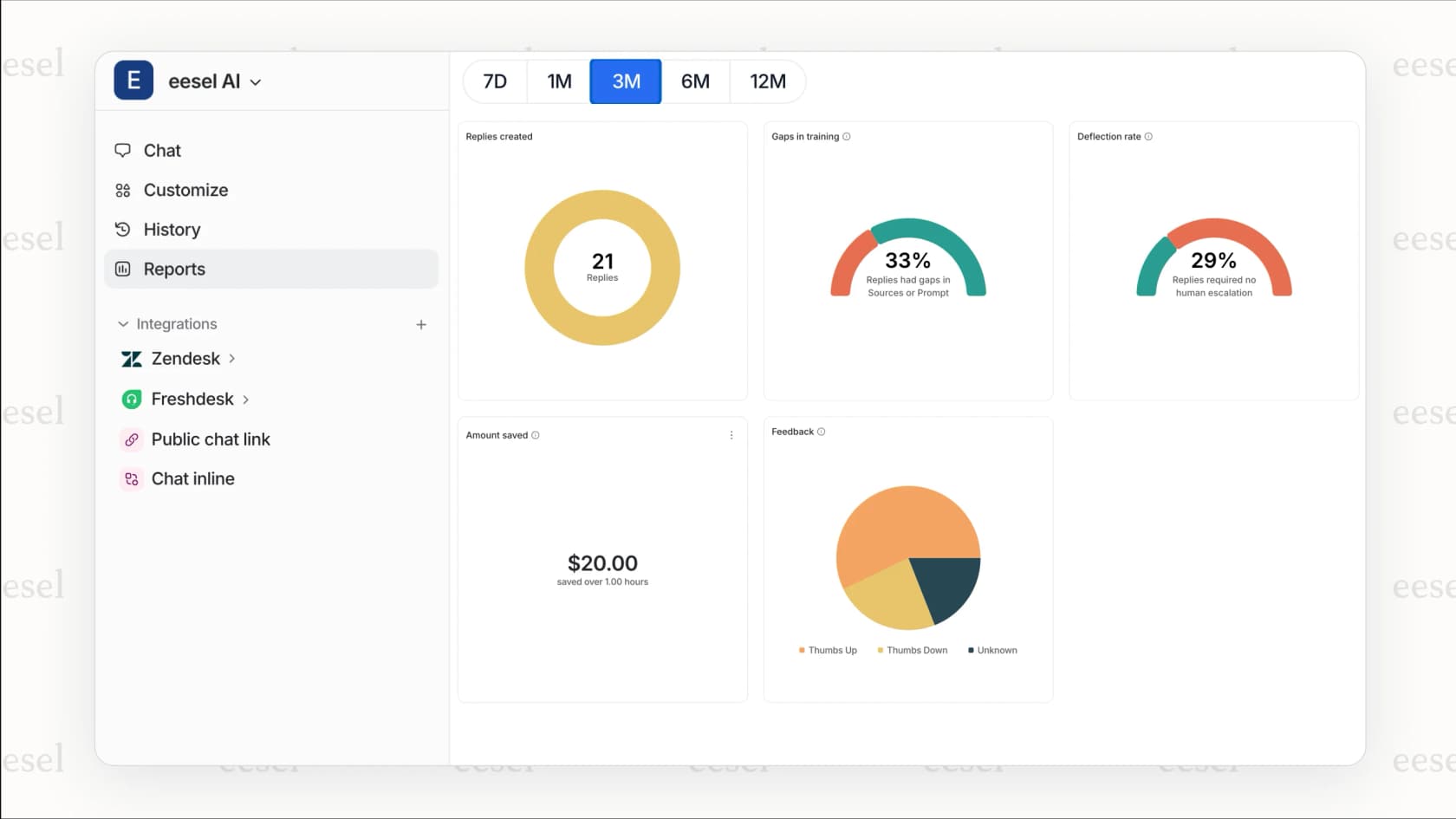
For teams dealing with chronic duplicate problems, combining our AI Triage with Zendesk creates a proactive approach. You spend less time cleaning up duplicates and more time solving customer problems.
Choosing the right approach for your team
The best solution depends on your ticket volume, technical resources, and risk tolerance.
Small teams with occasional duplicates: Stick with Zendesk's native bulk merge. It is free, built-in, and sufficient for infrequent use.
Budget-conscious teams needing automation: Knots Merge Tickets is completely free and handles basic field-based matching well.
Growing teams needing flexibility: Swifteq offers the most configurable criteria, including text extraction from comments, at a reasonable monthly price.
Teams wanting agent control: Playlist provides an intuitive sidebar interface for assisted merging at $4 per agent.
Technical teams with custom needs: The Zendesk API gives you full control, but requires development and maintenance resources.
Teams wanting to prevent duplicates: Consider our AI Triage to catch duplicates before they require merging, reducing your overall duplicate volume.