
Exporting your conversation history from Zendesk is something most support teams need to do at some point. Maybe you're facing a compliance audit and need conversation records. Perhaps you're migrating to a new platform and need your data. Or you might just want to analyze conversation patterns to improve your support quality.

Here's the short version: Zendesk does let you export messaging conversations, but the process has limitations. You can't export a single conversation directly. Instead, you work with batches of conversations through the History page, or you use the API for more control.
In this guide, I'll walk you through every method available, from the simple History page exports to API-based solutions for technical teams.
What you'll need before exporting
Before you start, make sure you have:
- Admin or agent access to the Zendesk Chat dashboard. The exact permissions depend on your plan.
- Understanding of your plan limits. Lite plans only keep 30 days of history. Other plans store chats indefinitely until you delete them.
- Matching email addresses. The email you use for exports must exactly match what's on file in the agent's Chat profile. It's case-sensitive.
- Quick turnaround capability. Download links in export emails expire after 24 hours.
If you're using the Zendesk Agent Workspace instead of the standard Chat dashboard, conversation history lives inside the associated ticket. The export process differs slightly.
Method 1: Exporting chat details via the History page
This is the most common way to export conversation data. It gives you a CSV file with metadata about your chats.
Step 1: Access the Chat History page
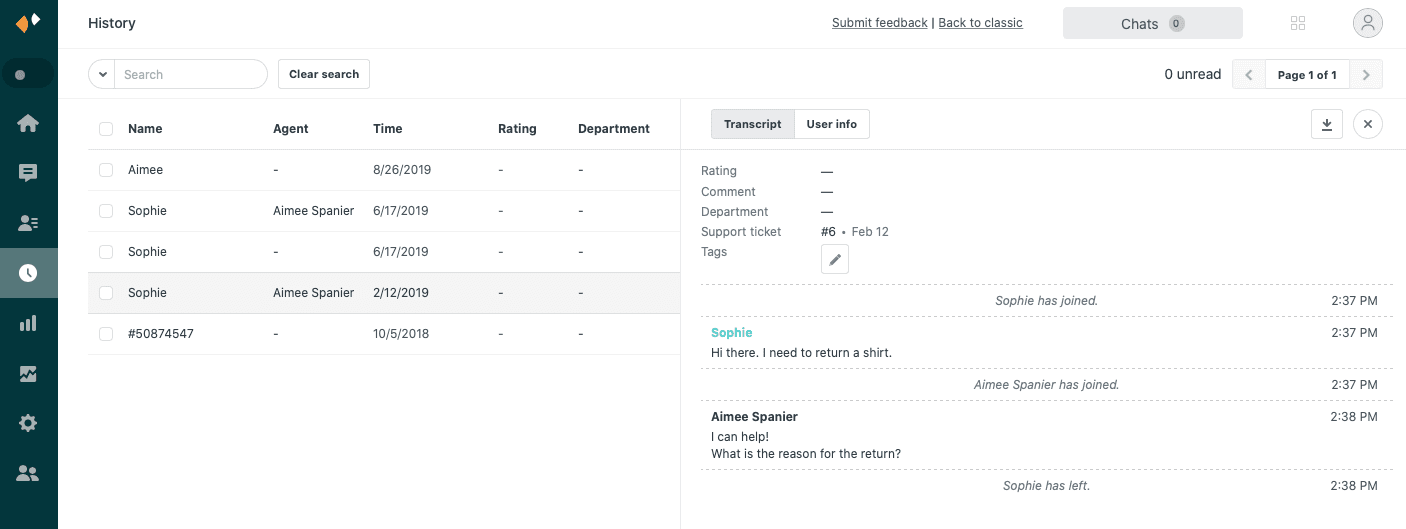
Log into your Zendesk account and navigate to the Chat dashboard. Select History from the main menu.
One important note: the History page works differently depending on your setup. If you have a standalone Chat account or use the standard agent interface, you'll see the History page directly. If you're using the Agent Workspace, conversation history appears inside the ticket associated with each conversation.
Step 2: Select the conversations to export
In the history list, you have several selection options:
- Select all on the current page: Click the checkbox at the top of the first column
- Select all from the last 90 days: Click the main checkbox, then click "Select all chats in History"
- Select specific conversations: Click individual checkboxes next to each chat
Use the search feature to filter by date range, keyword, tag, or other criteria if you need specific conversations.
Step 3: Export chat details to CSV
Once you have selected your conversations:
- Click the Actions dropdown menu
- Select Export chat details
- Enter the email addresses of agents who should receive the export
- Click Send
The CSV file contains everything from the User info tab and metadata from the Transcripts tab. This includes visitor information, timestamps, ratings, and tags. It does not include the actual conversation text.
Step 4: Download the exported file
Check your email for a message from noreply@zopim.com. This email contains download links for the CSV file. Remember: these links are only active for 24 hours, so download promptly.
Method 2: Exporting chat transcripts as TXT files
If you need the actual conversation text, not just metadata, you need to export transcripts instead of chat details.
Step 1: Select conversations in History
The selection process works exactly like Method 1. Choose individual conversations or use bulk selection.
Note that bulk transcript export requires admin privileges. Agents can export transcripts individually, but only admins can do bulk exports.
Step 2: Export transcripts
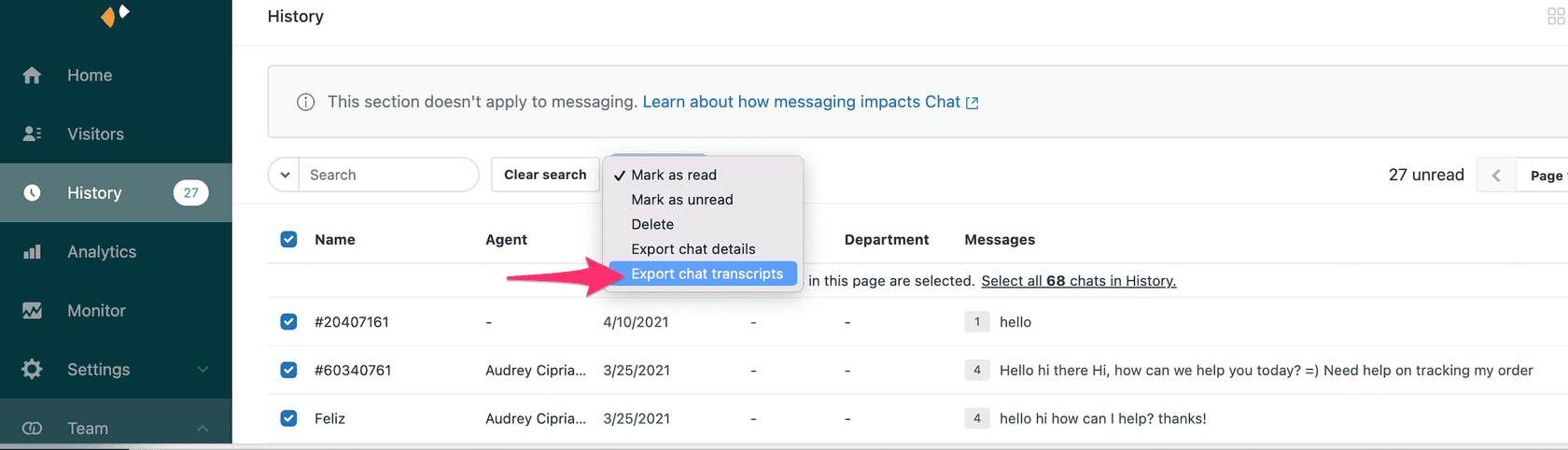
- Click the Actions dropdown
- Select Export chat transcripts
- Enter agent email addresses
- Click Send
Transcripts are delivered as .TXT files containing the full conversation text with timestamps.
Step 3: Understanding transcript contents
Each transcript file includes:
- Full conversation text between visitor and agent
- Timestamps for each message
- Agent and visitor identifiers
- One file per conversation
Method 3: Workaround for single conversation export
This is where things get tricky. Zendesk does not support exporting a single messaging conversation directly. The community has been requesting this feature since at least 2023, but it's still not available.
Exporting a single messaging conversation is not possible in Zendesk. Print and save as PDF option does not include the actual conversation. Enabling Exporting Data is only possible for minimum all tickets of one whole day, this means a very very large amount of data to retrieve one ticket.
Zendesk Community
Here are your workaround options:
Workaround option A: Add transcript to Support ticket
If you have a Chat + Support integrated account, you can attach the transcript to the associated Support ticket:
- Open the conversation in History
- Click the Transcript tab
- Click the Export transcript icon
- Click Add transcript to ticket
This attaches the transcript to the Support ticket, where it becomes accessible through the standard ticket interface.
Workaround option B: Manual copy for urgent needs
For one-off situations where you just need a record:
- Open the conversation in the transcript view
- Select and copy the conversation text
- Paste into a document for your records
This is tedious but works when you just need a single conversation for a dispute or compliance request.
Workaround option C: Export filtered results
Use the advanced search to isolate the specific conversation you need:
- Search by visitor email, date, or ticket number
- Select just that conversation
- Export its details and transcript
This is the most practical approach for small-scale needs.
As a company we are required to respond to customer's subject access requests and provide them with all the conversations we have had with them. Imagine if a customer has had 20 tickets, exporting 20 JSON files with data of all tickets received on 20 different days is clearly not an option.
Method 4: Using the REST API for advanced exports
For teams with technical resources, the Zendesk Chat API offers more flexibility.
When to use the API
Consider the API approach when you:
- Need automated exports on a schedule
- Have large-scale data extraction needs
- Want to integrate conversation data with external systems
- Require custom filtering that the History page doesn't provide
Step 1: Enable API access
Contact Zendesk support to enable data export API access on your account. You'll need admin privileges to request this.
Step 2: Use the Chat Conversations API
The Chat API provides endpoints like /api/v2/chats to retrieve conversation data in JSON format. You can filter by:
- Date range
- Agent
- Department
- Other metadata
Step 3: Handle pagination and rate limits
The API returns paginated results. You'll need to implement pagination handling in your code. Rate limits typically allow around 200 requests per minute, so plan accordingly for large exports.
Understanding export formats and what you get
It's important to understand what each export format actually contains.
Chat details CSV
This format includes metadata but not conversation text:
| Data Type | What's Included |
|---|---|
| Visitor info | Name, email, phone number |
| Chat metadata | Timestamp, duration, rating |
| Assignment | Department and agent |
| Associations | Tags and ticket numbers |
Does NOT include: The actual conversation text
Chat transcripts TXT
This format contains the actual conversation:
- Full message text from both visitor and agent
- Timestamps for each message
- One file per conversation
Conversion tracking export CSV
For analytics purposes, you can export conversion data:
- Goal name and attribution
- Agent and department performance
- 90-day maximum date range limit
Common issues and troubleshooting
Here are solutions to problems users frequently encounter.
"Recipients must be agents in the same account"
This error appears when you try to send exports to external email addresses. The fix: only enter email addresses that belong to agents in your Zendesk account. Also check that the email matches exactly, including capitalization.
"Download link expired"
Export links are only active for 24 hours. If you miss the window, you'll need to re-export the data. Set a reminder to download exports immediately when you receive the email.
"Conversation not appearing in History"
Chats only appear in History after they end or time out. They won't show up while still active. Also check your plan: Lite plans only show 30 days of history. If you're using Agent Workspace, look in the associated ticket instead.
Exported data is incomplete
Remember: Chat details CSV never includes full transcripts. Use the transcript export option if you need the conversation text. If you need complete data including attachments, you may need API access.
Managing your Zendesk conversation data more effectively
The limitations of Zendesk's export functionality create real friction for teams that need to analyze conversations or fulfill compliance requests. You've probably noticed that the workarounds are time-consuming and the native options don't cover every use case.

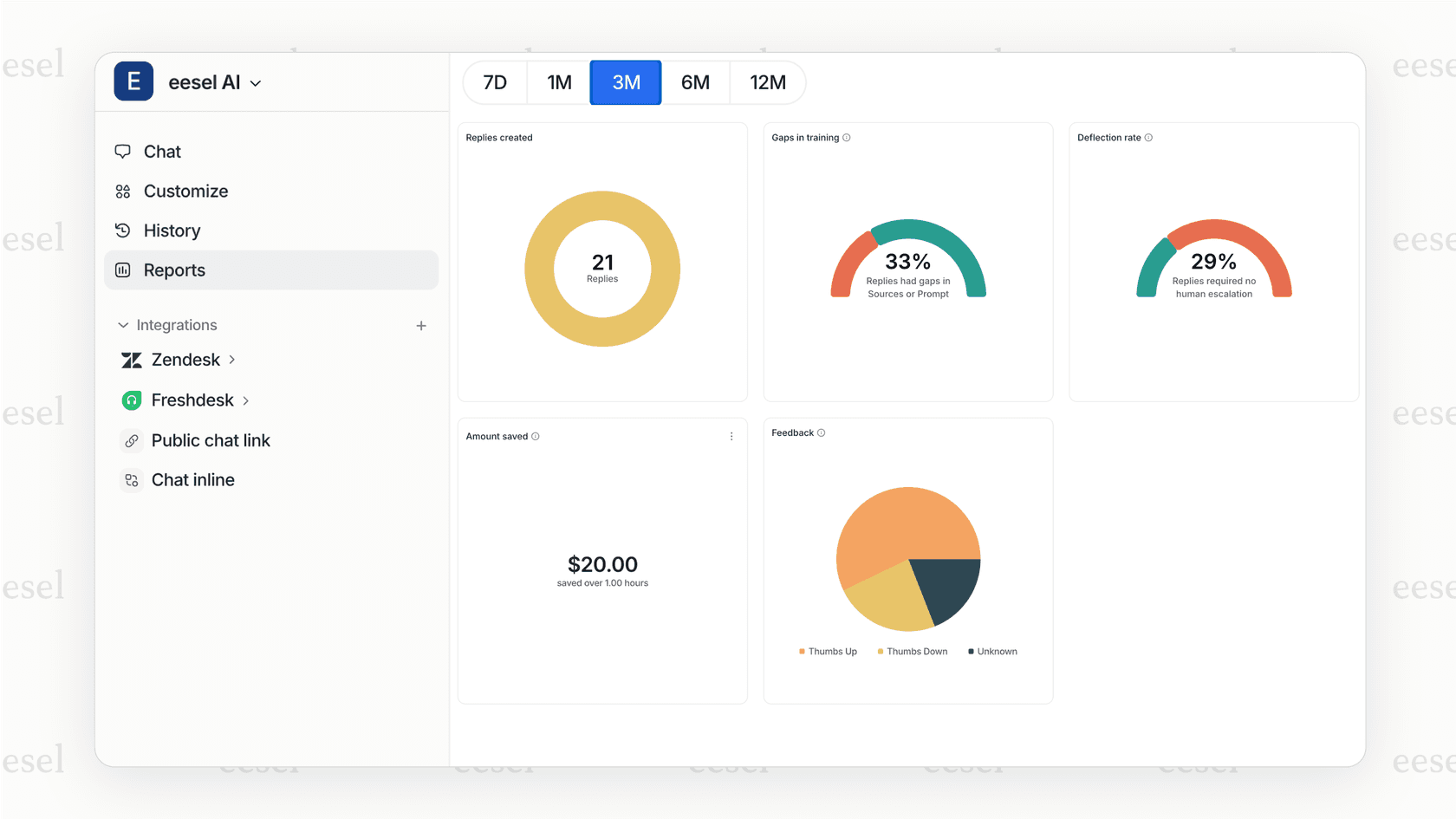
If your team is spending significant time manually exporting and analyzing conversation data, there may be a better approach. eesel AI's Zendesk integration works alongside Zendesk (or as a migration option) to provide:
- Automatic conversation analysis without manual exports
- Insights into patterns and trends across your support history
- AI-powered response suggestions based on your conversation data
Unlike tools that require you to extract data before you can analyze it, eesel AI connects directly to your help desk and learns from your existing conversations. This means you get insights without the export hassle.
For teams considering a move away from Zendesk due to these data limitations, eesel AI offers a complete AI agent solution that handles frontline support while giving you full visibility into conversation analytics.