
When compliance auditors come knocking or you need to investigate a security incident, your Zendesk audit log becomes invaluable. It's the complete record of who changed what in your account, and knowing how to export it efficiently can save you hours of frustration.
The audit log tracks everything from agent permission changes to automation modifications, giving you a forensic trail of your Zendesk account's history. Whether you're preparing for a SOC 2 audit, investigating unauthorized changes, or simply maintaining good operational hygiene, exporting this data is a skill every Zendesk admin should master.
While the audit log helps you understand what happened after the fact, tools like eesel AI can complement this by providing proactive monitoring that catches issues before they become problems worth investigating.
What is the Zendesk audit log and why export it?
The Zendesk audit log is a comprehensive record of changes made to your Zendesk account since it was created. Think of it as a security camera for your configuration, capturing who modified what and when.
Here's what the audit log tracks:
- Account settings changes to your account configuration and preferences
- User updates modifications to existing agent and admin profiles (note: user creations aren't logged)
- Business rules changes to automations, triggers, macros, and views
- Apps and integrations installations, updates, and removals
- Organizations changes to organization settings and memberships
- Custom objects modifications to custom fields and objects
Important distinction: The audit log tracks configuration changes, not ticket-level activity. For individual ticket history (comments, status changes, who solved what), you'll need the ticket events log within each ticket.
Why export your audit log?
Compliance audits SOC 2, ISO 27001, and GDPR audits often require proof of who accessed and modified system configurations. The audit log provides this trail.
Security investigations When something goes wrong, the audit log shows you exactly what changed and who made the change. This is crucial for incident response.
Change management Regular exports help you track configuration drift and identify unauthorized changes before they cause problems.
Documentation Keeping historical records of major configuration changes helps with knowledge transfer and onboarding new team members.
For teams specifically interested in tracking automation changes, we have a dedicated guide on the Zendesk automation audit log that dives deeper into that specific use case.
Prerequisites for accessing Zendesk audit logs
Before you start, make sure you meet these requirements.
Plan requirements
Audit log access requires a Zendesk Enterprise or Enterprise Plus plan. If you're on Team, Growth, or Professional, you won't see the audit log option in your Admin Center.
To check your plan:
- Go to Admin Center
- Click Account in the sidebar
- Select Billing to view your current plan
Permissions
You need admin permissions to view and export audit logs. Agents with limited permissions won't have access, even on Enterprise plans.
Data retention
Unlike some platforms that purge old logs, Zendesk retains audit data indefinitely. You can view and export the entire change history from when your account was created. This is particularly valuable for long-running investigations or historical compliance reviews.
How to export audit logs via the Admin Center

The simplest way to export audit logs is through Zendesk's web interface. Here's how to do it.
Step 1: Navigate to the audit log
First, access the audit log in your Admin Center:
- Click the gear icon to open Admin Center
- Select Account from the left sidebar
- Click Logs to expand the submenu
- Select Audit log
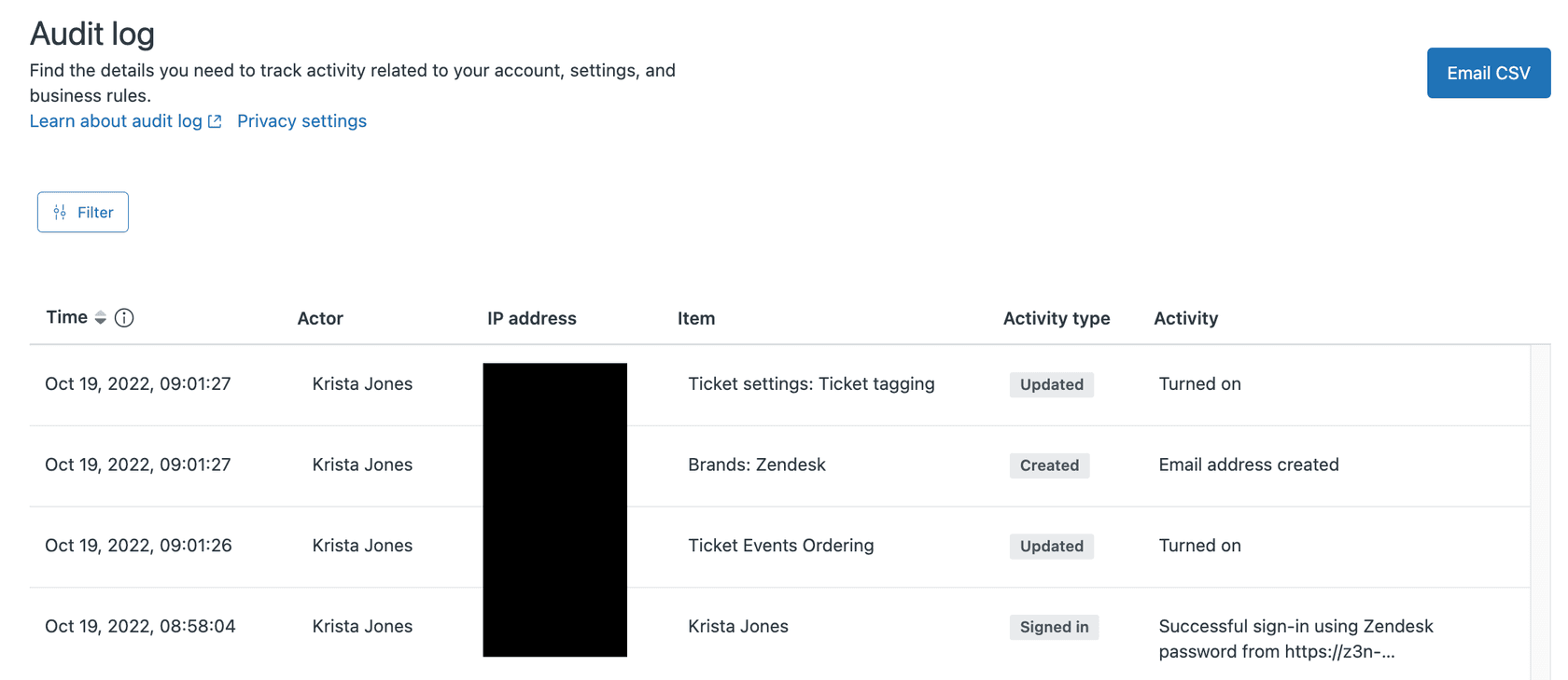
You'll see a table with several columns:
| Column | What it shows |
|---|---|
| Time | When the event occurred (in your account's timezone) |
| Actor | Who made the change (username or "Zendesk" for system actions) |
| IP address | The IP address where the change originated |
| Item | The specific object that was modified |
| Activity type | The action taken: Created, Updated, Deleted, Exported, or Signed in |
| Activity | Detailed description of what changed |
Step 2: Filter your audit log data
Raw audit logs can contain thousands of entries. Finding the specific change you need requires filtering.
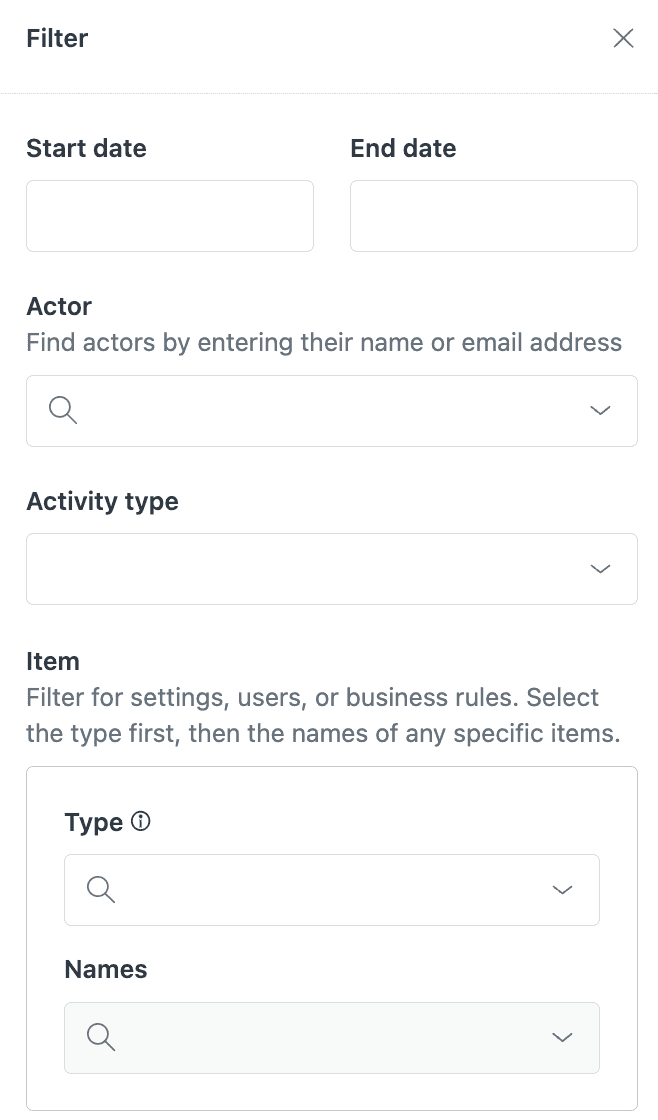
Click the Filter button to reveal filtering options in a side drawer:
- Date range Set start and end dates to narrow the timeframe
- Actor Filter by specific users or systems
- Activity type Choose from Created, Updated, Deleted, Exported, or Signed In
- Item Type Select the category of object (user, rule, app, etc.)
- Names Filter by specific item names if you know them
Pro tip: If you regularly check for specific types of changes, bookmark the filtered URL after applying your filters. The filter parameters appear in the URL, so you can save specific combinations for quick access.
Step 3: Export to CSV
Once you've applied your filters:
- Click the Email CSV button
- The export respects your current filter settings
- The CSV file is sent to your primary Zendesk email address
Important notes about the export:
- Rate limit: You can only request one export per minute per account. If you try more frequently, you'll see an error asking you to wait.
- Timezone: Timestamps in the CSV appear in UTC, not your account's configured timezone. Keep this in mind when correlating with other logs.
- File format: The export is CSV only through the UI. For JSON format, you'll need to use the API.
How to export audit logs via the API
For teams that need programmatic access or want to integrate audit data with other systems, the Zendesk API provides full audit log functionality.
When to use the API instead of the UI
- Automation You want to schedule regular exports without manual intervention
- Large datasets You need to pull more data than the UI handles efficiently
- Integrations You're connecting audit data to a SIEM, data warehouse, or security platform
- Real-time monitoring You want to alert on specific types of changes as they happen
Authentication
The audit logs API requires admin authentication. You can use:
- API token (recommended for scripts)
- OAuth2 (for applications)
- Basic auth with email/password (for testing)
Key endpoints
Listing audit logs:
GET /api/v2/audit_logs
This returns audit log entries with pagination. The endpoint supports cursor-based pagination (recommended) or traditional offset pagination, returning a maximum of 100 records per page.
Exporting to CSV:
POST /api/v2/audit_logs/export
This triggers a CSV export similar to the UI method. The same rate limit applies: one request per minute per account.
Filtering via API
Both endpoints support the same filters available in the UI:
| Parameter | Purpose | Example |
|---|---|---|
| filter[action] | Filter by activity type | create, update, destroy |
| filter[actor_id] | Filter by specific user | 123456789 |
| filter[created_at] | Date range filtering | 2026-01-01 to 2026-02-01 |
| filter[source_type] | Filter by item category | user, rule, app |
Code example: Python export script
Here's a practical example for pulling audit logs via the API:
import requests
import pandas as pd
from pandas import json_normalize
import time

subdomain = 'your-subdomain'
email = 'your-email@company.com'
api_token = 'your-api-token'

url = f'https://{subdomain}.zendesk.com/api/v2/audit_logs.json?sort_order=desc'
user = f'{email}/token'

session = requests.Session()
session.auth = (user, api_token)

audit_log_results = []

while url:
    response = session.get(url)

    if response.status_code == 429:
        # Rate limited   wait and retry
        retry_after = int(response.headers.get('retry-after', 60))
        time.sleep(retry_after)
        continue

    if response.status_code != 200:
        print(f'Error: {response.status_code}')
        break

    data = response.json()
    audit_log_results.extend(data['audit_logs'])

    # Handle pagination
    url = data.get('next_page')

df = json_normalize(audit_log_results)
df.to_csv('zendesk_audit_log.csv', index=False)
print(f'Exported {len(audit_log_results)} records')
This script handles pagination automatically and includes basic rate limit handling. For production use, you'd want to add error logging and potentially incremental exports based on timestamps.
Analyzing your exported audit log data
Once you have your CSV export, here's how to make sense of it.
Understanding the CSV structure
The exported CSV includes these key columns:
- created_at Timestamp in UTC
- actor_name Who made the change
- actor_id Internal user ID
- action Type of change (create, update, destroy, etc.)
- source_type Category of object modified
- source_label Name of the specific object
- change_description Detailed description of what changed
- ip_address Origin IP of the change
Common analysis patterns
Tracking admin activity over time: Group by actor_name and date to see who's making the most changes. This helps identify if configuration changes are concentrated with specific team members.
Identifying unauthorized changes: Filter for changes made outside business hours or by users who shouldn't have admin access. Cross-reference with your change management process.
Monitoring business rule modifications: Filter source_type to "rule" to track changes to automations, triggers, and macros. This is particularly useful when troubleshooting unexpected ticket behavior.
Correlating with support incidents: When tickets start behaving strangely, filter by the timeframe when issues began and look for automation or trigger changes that might be the cause.
Tools for analysis
- Excel or Google Sheets Good for one-off investigations and smaller datasets
- Python with pandas Better for large datasets and automated analysis
- Business intelligence tools Connect to your data warehouse for ongoing monitoring
For ongoing monitoring, consider setting up automated exports that feed into your security information and event management (SIEM) system or a dedicated log analysis platform.
Limitations and considerations
Before you rely on the audit log for critical investigations, understand its limitations.
What's NOT tracked
The audit log has some important gaps:
- End user activities Customer actions aren't logged here
- User creation events When someone creates a new user account, it doesn't appear in the audit log (though updates to existing users do)
- Ticket-level events Individual ticket comments, status changes, and assignments are tracked in each ticket's event log, not the account audit log
Filtering limitations
Not all event types can be filtered yet. While the most common activities are filterable, some edge cases might require you to export the full log and filter manually in your analysis tool.
Timestamp precision
Zendesk provides event times down to the second. If you're correlating audit logs with other systems that use millisecond precision, you might encounter sequencing issues in high-volume scenarios.
Plan restrictions
The audit log is only available on Enterprise and Enterprise Plus plans. If you're on a lower-tier plan and need audit capabilities, you'll need to upgrade or implement alternative monitoring solutions.
Streamline your Zendesk operations with eesel AI
The audit log is essential for understanding what happened after the fact, but it's fundamentally reactive. You only check it after something goes wrong. For support teams managing high ticket volumes, there's a better approach.
How we complement audit logs:
While the audit log shows you what changed, eesel AI helps you build better workflows from the start and monitors them continuously.
Our AI Triage automatically tags, routes, and prioritizes tickets without requiring complex automation rules. Instead of writing conditions that break when ticket formats change, eesel AI understands ticket content and intent, routing accurately even when patterns evolve.
For teams ready to go further, our AI Agent handles frontline support autonomously, achieving up to 81% resolution rates in mature deployments. Rather than debugging why an automation didn't fire, you can let AI handle routine tickets end-to-end.
Integration with Zendesk:
We connect directly to your Zendesk instance, learning from your past tickets and help center to understand your specific workflows. You don't need to configure complex rules or decision trees. Just connect eesel AI to your knowledge sources, and it'll start helping immediately.
Ready to reduce your troubleshooting time? Explore our Zendesk integration and see how we can handle the routine work while you focus on complex customer issues.


