
When your Zendesk automations misfire, they don't send you a notification. They just quietly stop working, leaving your support team to pick up the pieces. One day tickets auto-close as expected. The next day, they're piling up in solved status for weeks. What changed? That's where the Zendesk automation audit log comes in.
The audit log is your record of every configuration change in your Zendesk account. For support teams relying on automations to handle routine tasks, it's the difference between guessing what went wrong and knowing exactly what happened. This guide'll show you how to access, filter, and use the audit log to keep your automations running smoothly.
While the audit log helps you react to problems after they occur, tools like eesel AI can complement this by providing proactive monitoring and intelligent automation management that catches issues before they impact your workflow.
What is the Zendesk automation audit log?
The Zendesk audit log is a comprehensive record of changes made to your Zendesk account since it was created. Think of it as a security camera for your configuration, capturing who changed what and when. According to Zendesk's documentation, the audit log has been available to Enterprise customers since 2020.
For automation specifically, the audit log tracks changes to business rules, which include:
- Automations (time-based workflows)
- Triggers (event-based workflows)
- Macros (predefined responses)
- Views (ticket filters and displays)
The log captures several types of activities: when someone creates a new automation, updates existing conditions or actions, deletes an automation entirely, or exports automation data. Each entry includes the timestamp, the person who made the change, their IP address, the specific item modified, and a description of what changed. This level of detail means you don't have to guess what happened, you can see exactly who modified what and when.
Important limitations: The audit log only tracks agent and admin activities. End user actions don't appear here. Also, user creation events aren't captured, though updates to existing users are.
Plan requirements: Audit log access requires a Zendesk Enterprise or Enterprise Plus plan. If you're on Team, Growth, or Professional, you won't have access to this feature.
Data retention: Unlike some platforms that purge old logs, Zendesk retains audit data indefinitely. You can view the entire change history from when your account was created.
One point of confusion worth clarifying: the audit log is different from the ticket events log. The events log shows what happened to individual tickets (comments, status changes, trigger fires). The audit log shows what happened to your account configuration. When troubleshooting automation issues, you'll often need to check both.
How to access the audit log in Zendesk
Getting to the audit log is straightforward once you know where to look. You'll need admin permissions and an Enterprise-level plan. The Zendesk Admin Center provides the main interface for accessing these logs.
Navigation path: Admin Center > Account > Logs > Audit log
Here's how to get there:
- Click the gear icon to open the Admin Center
- Select "Account" from the left sidebar
- Click "Logs" to expand the submenu
- Select "Audit log"
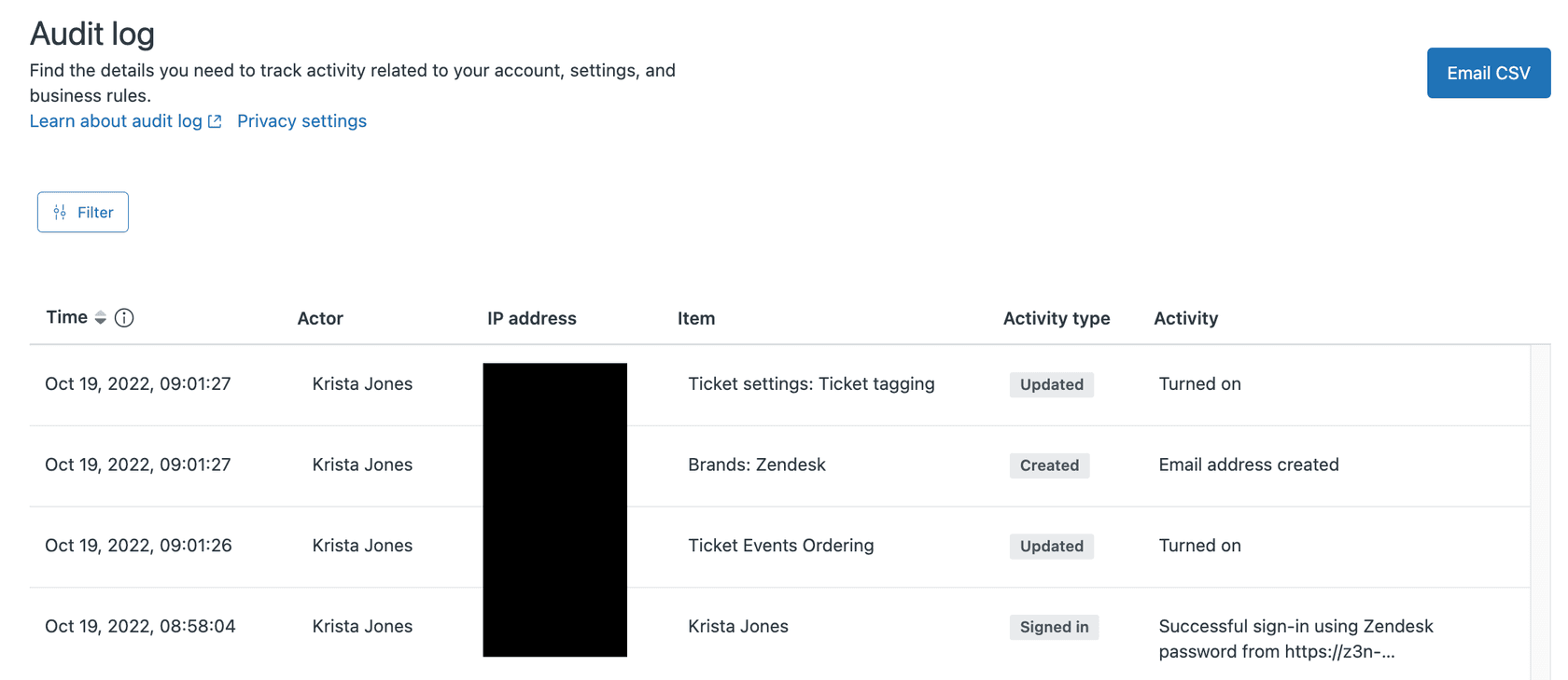
Once you're in, you'll see a table with several columns that tell you exactly what happened:
| Column | What it shows |
|---|---|
| Time | When the event occurred (in your account's timezone) |
| Actor | Who made the change (username or "Zendesk" for system actions) |
| IP address | The IP address where the change originated |
| Item | The specific object that was modified |
| Activity type | The action taken: Created, Updated, Deleted, Exported, or Signed in |
| Activity | Detailed description of what changed |
Timezone considerations: The Admin Center displays timestamps in your account's configured timezone. However, if you export the audit log to CSV, those timestamps appear in UTC. Keep this in mind when correlating audit log entries with ticket events or user reports.
If you're unsure what timezone the audit log is using, hover over the information icon in the Time column header. This small detail matters when you're trying to pinpoint exactly when a problematic change was made. For more details on timezone handling, see the Zendesk audit log documentation.
Filtering the Zendesk automation audit log
Raw audit logs can contain thousands of entries. Finding the specific automation change you need requires filtering.
Why filtering matters: A busy Zendesk account might generate hundreds of audit events daily. Scrolling through unfiltered logs to find one automation change isn't practical. The filter tools let you narrow down to exactly what you need.
Here's the step-by-step process for filtering automation changes:
-
Open the filter drawer: Click the "Filter" button to reveal filtering options in a side drawer
-
Set your date range: Enter start and end dates to narrow the timeframe. If you know roughly when the problem started, focus on that period plus a few days before.
-
Select Activity type: Choose the type of change you're looking for:
- Created (new automations)
- Updated (modified conditions or actions)
- Deleted (removed automations)
- Exported (data exports)
-
Filter by Item Type: For automation-related changes, select "rule" from the Type dropdown. This covers automations, triggers, macros, and views, since Zendesk groups these under the "rule" category internally.
-
Use the Names field: If you know the specific automation name, enter it here to filter further.
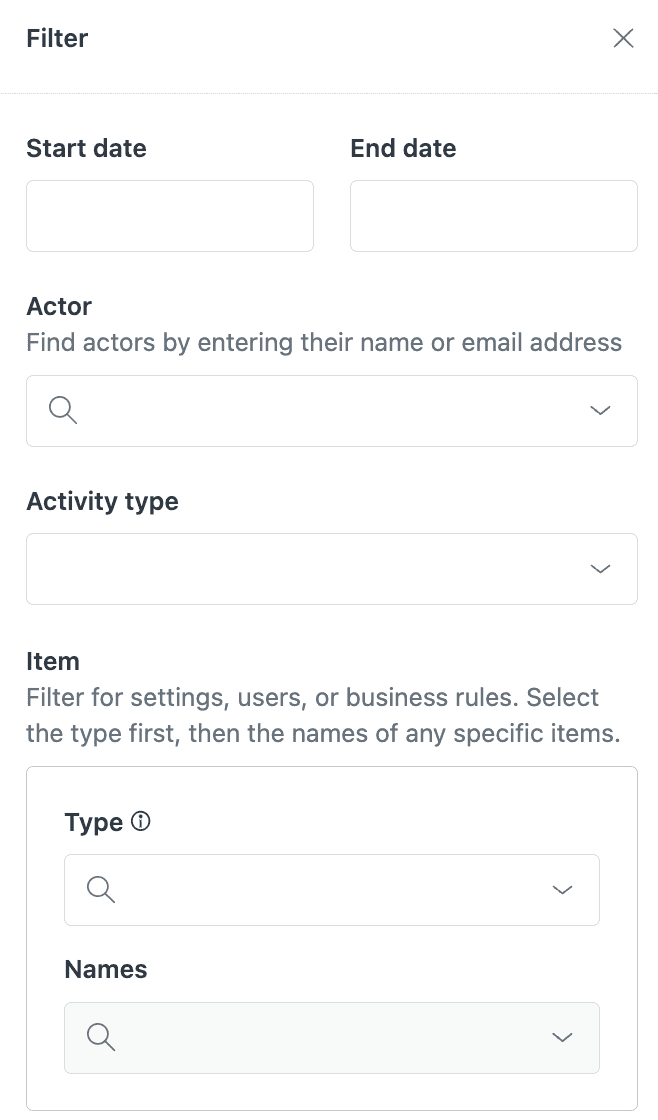
Pro tip: If you regularly check for automation changes, bookmark the filtered URL after applying your filters. The filter parameters appear in the URL, so you'll save specific filter combinations for quick access.
Current limitations: While top audit events are available as filters, not all event types can be filtered yet. Zendesk continues to add filtering options over time, so the available filters may expand.
Exporting and analyzing audit log data
Sometimes you'll need to work with audit data outside of Zendesk. The export feature makes this possible.
When to export instead of viewing in the UI:
- You need to share audit data with stakeholders who don't have Zendesk access
- You're performing analysis across a large date range
- You want to correlate audit data with other datasets
- You need to document changes for compliance purposes
Export process:
- Apply any filters you need (the export respects your current filters)
- Click "Email CSV" in the audit log interface
- The CSV file is sent to your primary Zendesk email address
Rate limits: You can only request one export per minute per account. If you try to export more frequently, you'll see an error message asking you to wait.
CSV format notes:
- Timestamps appear in UTC, not your account timezone
- The file includes all columns visible in the UI plus additional metadata
- Large exports may take a few minutes to arrive
Once you have the CSV, you can import it into Excel, Google Sheets, or analysis tools. Basic analysis techniques include:
- Sorting by timestamp to see the sequence of changes
- Filtering by actor to see what a specific admin modified
- Searching for specific automation names
- Creating pivot tables to see change frequency by user or time period
For more on keeping your automations healthy, check out our complete guide to Zendesk automations with setup instructions and best practices.
Using the audit log to troubleshoot automation issues
The real value of the audit log emerges when something breaks. Here's how you'll use it for common automation problems.
Problem: An automation suddenly stopped working
Symptom: Tickets that used to auto-close after 96 hours are now sitting in solved status indefinitely.
Audit log approach:
- Filter the audit log for Item Type = "rule" and Activity type = "Updated"
- Set the date range to the past 30 days
- Look for entries mentioning your auto-close automation
- Check the Activity column for what specifically changed
Common culprits you'll find: someone accidentally modified a condition (changed "96 hours" to "96 days"), removed a nullifying action that prevents infinite loops, or disabled the automation entirely without documenting it.
Problem: Unexpected ticket behavior
Symptom: Tickets are being assigned to the wrong group, or customers are receiving duplicate notifications.
Audit log approach:
- Identify the approximate timeframe when the issue started
- Filter for "rule" type changes in that period
- Look for multiple automations or triggers that might conflict
- Check if someone created a new automation that overlaps with existing ones
The audit log helps you identify when conflicting automations were introduced, which is often the root cause of mysterious ticket behavior.
Problem: Duplicate or overlapping automations
Symptom: Agents report that multiple notifications fire for the same ticket event.
Audit log approach:
- Filter for Activity type = "Created" over the past 90 days
- Look for new automations with similar names or purposes
- Check if multiple admins created similar automations without coordinating
Understanding the "Zendesk" system actor
Not all audit log entries show human names. Some show "Zendesk" as the actor. These represent automated system processes, such as:
- Scheduled automation runs
- System maintenance changes
- Integration-triggered updates
When troubleshooting, focus on entries with human actors first. System actor entries are usually normal operations, not configuration changes.
Accessing audit logs via the Zendesk API
For teams that need programmatic access or want to integrate audit data with other systems, the Zendesk API provides full audit log functionality.
When API access makes sense:
- You're building a custom dashboard for compliance monitoring
- You want to alert on specific types of changes automatically
- You need to correlate audit data with security events
- You're using a security platform like Panther that integrates with Zendesk
Endpoint and authentication:
The audit logs endpoint is:
GET /api/v2/audit_logs
Authentication requires admin credentials. You can use:
- API token (recommended for scripts)
- OAuth2 (for applications)
- Basic auth with email/password (for testing)
Key parameters for automation monitoring:
| Parameter | Purpose | Example |
|---|---|---|
| filter[source_type] | Filter by item type | rule (for automations/triggers) |
| filter[action] | Filter by activity | update, create, destroy |
| filter[created_at] | Date range filtering | 2026-01-01 to 2026-02-01 |
| filter[actor_id] | Changes by specific user | 123456789 |
Pagination options:
The API supports two pagination methods:
- Cursor pagination (recommended): More efficient for large datasets
- Offset pagination: Traditional page-based approach
The endpoint returns a maximum of 100 records per page. For accounts with heavy audit activity, you'll need to paginate through results.
Rate limiting considerations:
Standard Zendesk API rate limits apply. For the export endpoint specifically, there's a stricter limit of one request per minute per account. Exceeding this returns a 429 status code with the message: "Rate limit for Audit log CSV Export exceeded. Please wait 1 minute and try again."
Example use case: A security team might poll the audit log API hourly, filtering for "rule" changes, and send alerts to Slack whenever automations are modified. This provides proactive notification of configuration changes without requiring manual log reviews. Security platforms like Panther also integrate directly with Zendesk audit logs for automated monitoring.
Best practices for Zendesk automation audit log reviews
Regular audit log reviews should be part of your support operations. Here's how you'll make them effective.
How often to audit:
- Monthly: Recommended for active teams with frequent automation changes
- Quarterly: Minimum frequency for stable environments
- After incidents: Always review when automation issues are reported
What to look for during audits:
- Changes made without documentation or team notification
- Multiple similar automations that might conflict
- Automations that haven't fired recently (potentially broken conditions)
- Updates to critical automations by new team members
Documentation practices:
The audit log tells you what changed and who changed it, but not why. You'll want to maintain a change log document that correlates with audit entries. When someone modifies an automation, they should document:
- The business reason for the change
- Expected impact
- Rollback plan if issues arise
Testing in sandbox:
If your Zendesk plan includes a sandbox environment, test automation changes there first. The audit log works in sandbox too, so you can verify your changes before pushing to production.
Automation health indicators:
Beyond the audit log, monitor these metrics to catch issues early:
- Number of tickets in "solved" status longer than expected
- Agent reports of duplicate notifications
- Escalation rates increasing unexpectedly
For teams looking to move beyond reactive audit log reviews, eesel AI's Triage capabilities can provide continuous monitoring and intelligent routing that reduces the need for manual automation troubleshooting.
Streamline your Zendesk automation management with eesel AI
The audit log is essential for troubleshooting, but it's fundamentally reactive. You only check it after something goes wrong. For support teams managing high ticket volumes, there's a better approach.

Limitations of manual audit log reviews:
- Time-consuming to filter and analyze
- Only catches problems after they've impacted customers
- Requires someone to remember to check regularly
- Doesn't help optimize automations, just debug them
How eesel AI complements audit logs:
While the audit log shows you what changed, eesel AI helps you build better automations from the start and monitors them continuously.
Our AI Triage automatically tags, routes, and prioritizes tickets without requiring complex automation rules. Instead of writing conditions that break when ticket formats change, eesel AI understands ticket content and intent, routing accurately even when patterns evolve.
For teams ready to go further, our AI Agent handles frontline support autonomously, achieving up to 81% resolution rates in mature deployments. Rather than debugging why an automation didn't fire, you can let AI handle routine tickets end-to-end.

Integration with Zendesk:
eesel AI connects directly to your Zendesk instance, learning from your past tickets and help center to understand your specific workflows. You don't need to configure complex rules or decision trees. Just connect eesel AI to your knowledge sources, and it'll start helping immediately.
Ready to reduce your automation troubleshooting time? Explore our Zendesk integration and see how eesel AI can handle the routine work while you focus on complex customer issues.
Key resources for learning more:
- Zendesk audit log documentation - Official guide from Zendesk
- Zendesk API reference for audit logs - Complete API documentation
- Zendesk automation documentation - Learn about automation behavior and limits
- Panther Zendesk integration - Security platform integration
- Zendesk help center - Comprehensive support resources
- Zendesk community forums - Connect with other Zendesk admins