When customers hit your help center search box, they're usually already frustrated. They have a problem, they want an answer, and every second they spend digging through articles tests their patience. The words they type into that search box, and how well your content matches those words, determines whether they find what they need or submit another ticket to your queue.
This guide walks you through optimizing Zendesk Guide search keywords to improve discoverability, reduce ticket volume, and help customers help themselves. We'll cover everything from analyzing your current search performance to implementing a continuous improvement process. For teams ready to move beyond keyword matching entirely, we'll also look at how AI teammates like eesel AI can answer questions directly rather than just returning search results.

What you'll need
Before you start optimizing, make sure you have:
- Zendesk Guide on a Team plan or higher (some features require Professional or Enterprise)
- Admin access to Guide settings and Zendesk Analytics
- Access to your Search dashboard in Zendesk Analytics
- A list of your top 10-20 customer issues (this helps prioritize which keywords matter most)
If you're on a lower-tier plan, you can still implement most of these strategies, though some analytics features may be limited. Check Zendesk's plan comparison to see which features are available on your tier.
Step 1: Analyze your current search performance
You can't improve what you don't measure. Start by getting a baseline understanding of how your help center search is performing today.
Access your Search dashboard
- Click the Zendesk Products icon in the top bar, then select Analytics
- From the list of dashboards, select the Zendesk Knowledge dashboard
- Click the Search tab
Key metrics to review
The dashboard displays four headline metrics:
- Total searches: How many searches users performed in your knowledge base
- Searches with no results: The number of searches that returned nothing (your biggest opportunity)
- Average click-through rate: The percentage of searches where users actually clicked a result
- Tickets created: How many tickets were submitted from the help center
The "searches with no results" metric is your goldmine. These represent customers looking for something you don't have content for, or content that doesn't match the words they're using. Export this data and sort by volume to identify your biggest gaps.
Dig into the Search queries overview
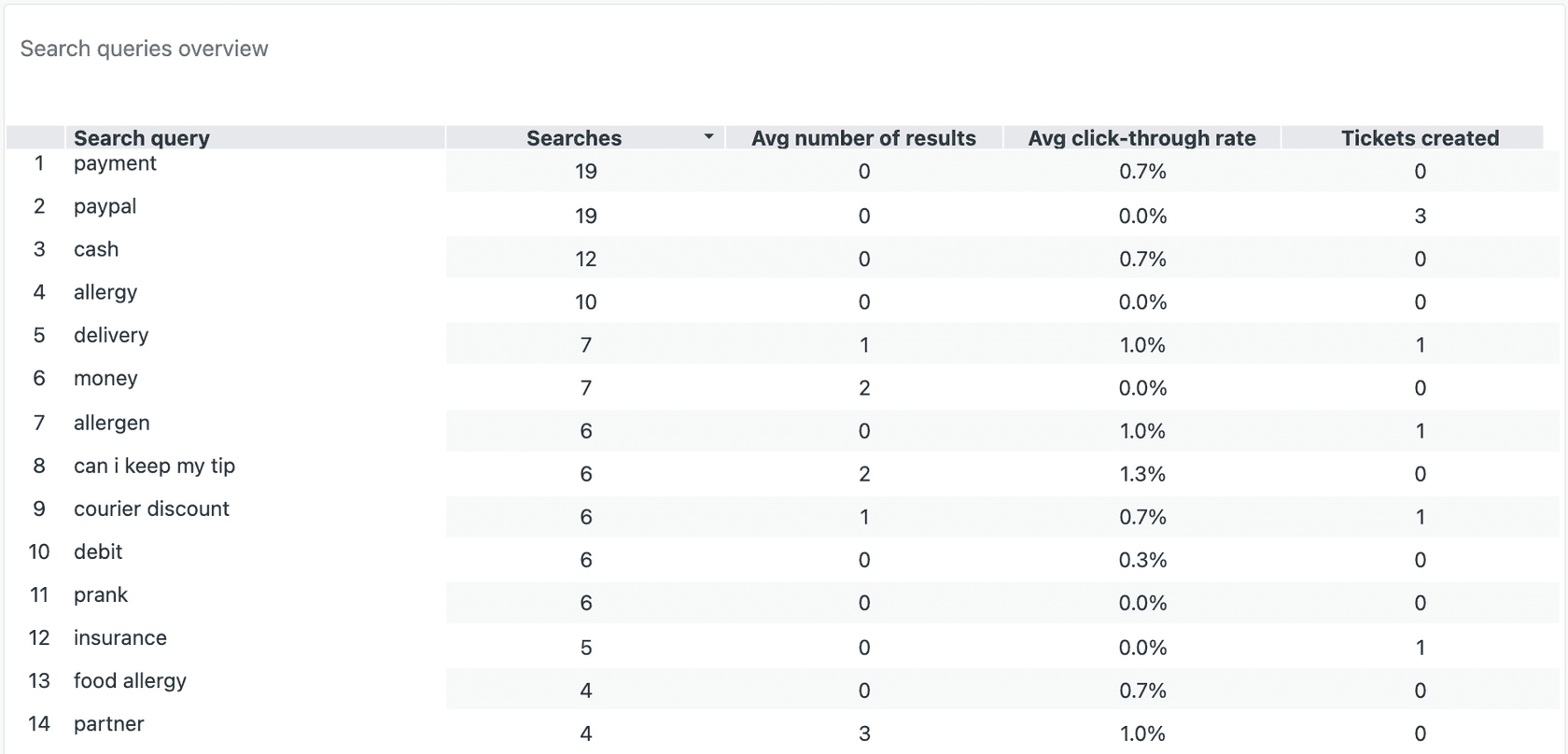
Scroll down to the "Search queries overview (last 30 days)" table. This shows the actual strings users searched for, along with average results, click-through rates, and tickets created per query. Look for patterns:
- High-volume searches with low click-through rates indicate relevance issues
- Searches with zero results but high volume indicate content gaps
- Searches that frequently lead to ticket creation indicate your content isn't answering the question
Step 2: Research the keywords your customers actually use
Here's a common mistake: using your internal terminology instead of your customers' language. You might call it "account provisioning," but customers search for "how do I create an account." These mismatches kill your search effectiveness.
Mine your existing data for customer language
Start with the search queries you exported in Step 1. Look for:
- Verb variations: "cancel" vs. "delete" vs. "remove"
- Noun differences: "subscription" vs. "plan" vs. "membership"
- Question phrasing: "how do I" vs. "can I" vs. direct keywords
- Spelling variations: Common misspellings of your product features
Review ticket subjects and chat transcripts
Your support tickets are a goldmine of customer language. Export a sample of recent tickets (100-200 is usually enough) from your Zendesk Support dashboard and scan the subject lines. What words do customers use to describe their problems? How does this differ from the language in your help center?
Create a keyword glossary
Build a simple spreadsheet mapping your internal terms to customer terms:
| Internal Term | Customer Terms | Priority |
|---|---|---|
| Account provisioning | Create account, sign up, register | High |
| Subscription management | Cancel plan, change billing, payment | High |
| SSO configuration | Login with Google, company sign-in | Medium |
Use this glossary when writing or updating articles. When your team uses "account provisioning" internally, make sure your article also includes "create account" and "sign up" in the title or labels.
Step 3: Optimize article titles with high-value keywords
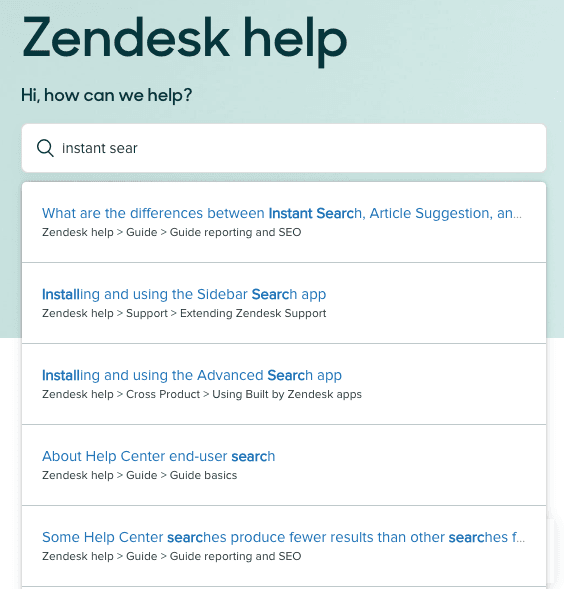
In Zendesk Guide, your article titles carry the most search weight. Instant search, which activates as users type, only scans article titles (not body content). This makes title optimization your highest-impact activity.
Best practices for article titles
- Front-load keywords: Put the most important words first. "Cancel your subscription" is better than "How to cancel your subscription" because "cancel" appears immediately
- Use natural language: Write for humans first, search engines second. "Reset your password" beats "password reset functionality"
- Keep it under 60 characters: Longer titles get cut off in search results
- Include action verbs: "Install," "Configure," "Troubleshoot" help users understand what the article covers
Examples of good vs. poor titles
| Poor Title | Better Title | Why |
|---|---|---|
| Account Provisioning | Create your account | Uses customer language, action verb first |
| Billing FAQ | Manage your subscription and billing | Specific, includes common search terms |
| SSO Setup Guide | Configure single sign-on (SSO) | Includes both acronym and full term |
| Troubleshooting | Troubleshoot login issues | Specific about what issues are covered |
Updating titles without breaking links
When you change an article title, the URL typically changes too, which breaks existing links. To prevent this:
- In Guide admin, go to the article editor
- Click the Settings gear icon
- Check the URL field before saving
- If the URL changed, note the old URL and set up a redirect
Alternatively, manually edit the URL slug to match the old URL before publishing your title change.
Step 4: Add strategic labels and tags
Labels in Zendesk Guide serve two purposes: they help with search relevance, and they can be used for filtering and organization. Used strategically, they catch searches that don't match your exact titles.
Understanding labels vs. keywords
Labels are metadata you attach to articles. They're not visible to end users (unless you display them in your theme), but they are indexed by search. This makes them perfect for:
- Synonyms customers might use
- Common misspellings
- Related terms that don't fit in the title
- Internal categorization codes
Create multi-word labels with spaces
Unlike some systems, Zendesk labels support spaces. Use this to your advantage:
- ✅ "cancel subscription" (catches searches for both words together)
- ✅ "billing issue" (more specific than separate "billing" and "issue")
- ❌ "cancel_subscription" (users rarely search with underscores)
Use synonyms as labels
For each article, add labels for alternative terms customers might use:
- Article: "Reset your password"
- Labels: "forgot password," "change password," "login issue," "can't access"
Best practices for label organization
- Limit labels to 3-5 per article (too many dilutes relevance)
- Use consistent naming conventions across your help center
- Review and update labels quarterly as terminology evolves
- Document your label taxonomy so your team uses them consistently
Step 5: Optimize article content for semantic search
In 2023, Zendesk rolled out semantic search capabilities. Instead of just matching keywords, semantic search uses natural language processing to understand the meaning behind queries. This means your content optimization strategy needs to evolve.
How semantic search changes the game
Traditional keyword search requires exact or near-exact word matches. Semantic search understands that "I can't log in" and "trouble accessing my account" are essentially the same question. This is powered by machine learning models that convert both queries and articles into mathematical vectors and measure their similarity.
The result? A 7% improvement in Mean Reciprocal Rank and a 9% improvement in Click-Through Rate for English help centers.
Write naturally, not robotically
Semantic search rewards natural language. Instead of awkwardly repeating "cancel subscription" five times in an article, write conversationally:
"If you need to cancel your subscription, you can do so from your account settings. We also offer options to pause your plan or switch to a lower tier if you're not ready to fully cancel."
This paragraph naturally includes "cancel subscription," "pause your plan," and "switch to a lower tier," covering multiple search intents without keyword stuffing.
Include related terms and synonyms
Think about the various ways customers might describe the same issue. If your article is about password resets, also mention:
- "Forgot your password"
- "Can't log in"
- "Account access issues"
- "Login credentials"
Structure content with clear headings
Semantic search considers article structure. Use H2 and H3 headings to break up content and include relevant keywords naturally. This helps both human readers and search algorithms understand what each section covers.
Use the first 140 characters strategically
Zendesk automatically uses the first 140 characters of your article as the meta description for SEO purposes. Make sure this opening text is descriptive and includes your primary keyword.
Step 6: Set up search result redirects for common misspellings
Even with semantic search, misspellings can cause failed searches. Your analytics will reveal the most common misspellings customers use.
Identify high-volume misspellings
In your Search dashboard, look for:
- Searches with zero results that are obvious misspellings ("pasword" instead of "password")
- Variant spellings ("cancelation" vs. "cancellation")
- Brand name misspellings (if customers frequently misspell your product name)
Create redirects for common issues
Zendesk doesn't have a built-in search redirect feature, but you can work around this using labels or redirect articles:
- Create a short article titled with the misspelling
- In the article body, write: "Did you mean [correct term]? See [link to correct article]"
- Keep the article unpublished if you don't want it in your browse navigation
Alternatively, add the misspelled term as a label on the correct article. This catches the search without requiring a separate article.
When to create separate articles vs. redirects
- Use labels for simple misspellings and obvious typos
- Create redirect articles for commonly confused terms where customers might genuinely think it's the correct spelling
- Write separate articles only if the misspelled term represents a genuinely different concept
Step 7: Measure and iterate on your keyword strategy
Search optimization isn't a one-time project. Customer language evolves, new features launch, and search patterns shift. Set up a regular review process to keep your help center optimized.
Establish a monthly review cadence
Block 30-60 minutes monthly to review your Search dashboard. Look for:
- New searches with no results (content gaps to fill)
- Searches with declining click-through rates (relevance issues)
- Emerging patterns in customer language
Track your key metrics over time
Create a simple spreadsheet tracking month-over-month:
- Total searches
- Searches with no results (target: declining)
- Average click-through rate (target: improving)
- Tickets created after search (target: declining)
A/B test title variations
For high-traffic articles, test different title formats:
- "How to cancel your subscription" vs. "Cancel your subscription"
- "Troubleshoot login issues" vs. "Fix login problems"
Monitor click-through rates for each variation. Even small improvements on high-volume searches can significantly impact ticket deflection.
Common mistakes to avoid
As you implement your keyword strategy, watch out for these pitfalls:
Using internal jargon instead of customer language
Your engineering team might call it "API rate limiting," but customers search for "why is my integration slow." Always default to customer terminology in titles and opening paragraphs.
Keyword stuffing in article bodies
Repeating the same phrase unnaturally hurts readability and can actually reduce search relevance. Semantic search penalizes content that feels manipulative. Write for humans first.
Ignoring mobile search behavior
Mobile users tend to use shorter, more direct queries. Check your Search dashboard filtered by device type to see if mobile users search differently than desktop users.
Forgetting to update labels when terminology changes
When your product renames a feature, update your help center labels immediately. Otherwise, customers searching for the new name won't find articles that still use the old terminology.
Not tracking the correlation between search and tickets
The ultimate goal of search optimization is reducing tickets. If your search metrics improve but ticket volume stays flat, your content might be findable but not actually helpful.
Taking search beyond keywords with AI
Keyword optimization helps customers find your articles. But there's a fundamental limitation: it still requires customers to read through content and extract the answer themselves. For complex issues or customers in a hurry, that's friction.
This is where AI teammates change the equation. Instead of returning a list of articles, eesel AI learns from your help center content and answers questions directly. You can explore how our AI Agent works with Zendesk to deliver this experience.

How it works
We connect to your Zendesk account and ingest your help center articles, past tickets, and any connected documentation. Our AI learns your business context, tone, and common issues. From there, it can:
- Answer customer questions directly in chat, referencing your knowledge base
- Draft replies for your agents that incorporate help center content
- Handle frontline tickets autonomously for common issues
The difference is subtle but significant. Traditional search says "here are three articles that might help." An AI teammate says "here's the answer to your question, sourced from these articles."
When to consider AI over (or alongside) search optimization
- Your no-results rate stays high despite content improvements
- Customers frequently ask follow-up questions after reading articles
- You want to offer 24/7 support without expanding your team
- Your agents spend significant time copy-pasting from help center articles
Search optimization and AI assistance aren't mutually exclusive. Many teams optimize their help center search as a foundation, then layer on AI to handle the conversations that search alone can't resolve. Learn more about AI for customer service and how it complements your existing knowledge base.
Optimizing your Zendesk Guide search keywords is one of the highest-ROI activities you can do for your help center. It requires no additional budget, no new tools, and no engineering resources. Just a systematic approach to understanding what your customers are looking for and making sure your content matches their language.
Start with your Search dashboard. Identify your top 10 searches with no results. Update those article titles and labels. Measure the impact. Then repeat monthly. Small improvements compound over time into significant ticket deflection.
And if you're ready to move beyond "find the article" to "get the answer," invite eesel to your team. We'll show you how AI can transform your help center from a searchable library into a conversational support engine.