How to automate WooCommerce customer support (2026 guide)

Kira

Katelin Teen
Last edited November 24, 2026
You automate WooCommerce support in four layers, cheapest first: tracking in the Completed order email (Shipment Tracking, $59 a year), self-serve returns from My Account, AutomateWoo workflows ($159 a year), and an AI agent that looks up and acts on orders for what's left. WooCommerce has no support inbox or AI agent of its own, so each layer is an extension or a tool you add.
The step most stores get wrong is the first one. With WooCommerce's own Shipment Tracking extension, saving a tracking number doesn't send an email; the number goes out in the Completed order email, so an order left on Processing after it ships is a "where is my order?" ticket waiting to happen.
For the questions that still arrive, an AI agent like eesel reads live orders, stock and subscriptions, answers in your chat bubble or helpdesk, and holds refunds and status changes for your approval. A coding agent such as Claude Code can start that setup with the eesel CLI, which prints a connect link, but a store admin still has to approve the WooCommerce connection.
What can you automate in WooCommerce support?
Most of it, but not all from one place. This is customer service automation for a store platform that ships without a support desk. I build eesel's AI agents, so I spend a lot of time on the plumbing under "automate your support", and on WooCommerce the plumbing is spread across four layers that each take a different kind of ticket off your plate:
- Prevent the question. Order emails that answer "where is it?" before anyone asks.
- Let customers serve themselves. Order status, cancellations and return requests from My Account.
- Run workflows on order events. Tags, notes, reminders and follow-ups when something changes in the store.
- Answer and act on what's left. An AI agent that reads the order and replies, refunds or cancels within the limits you set.
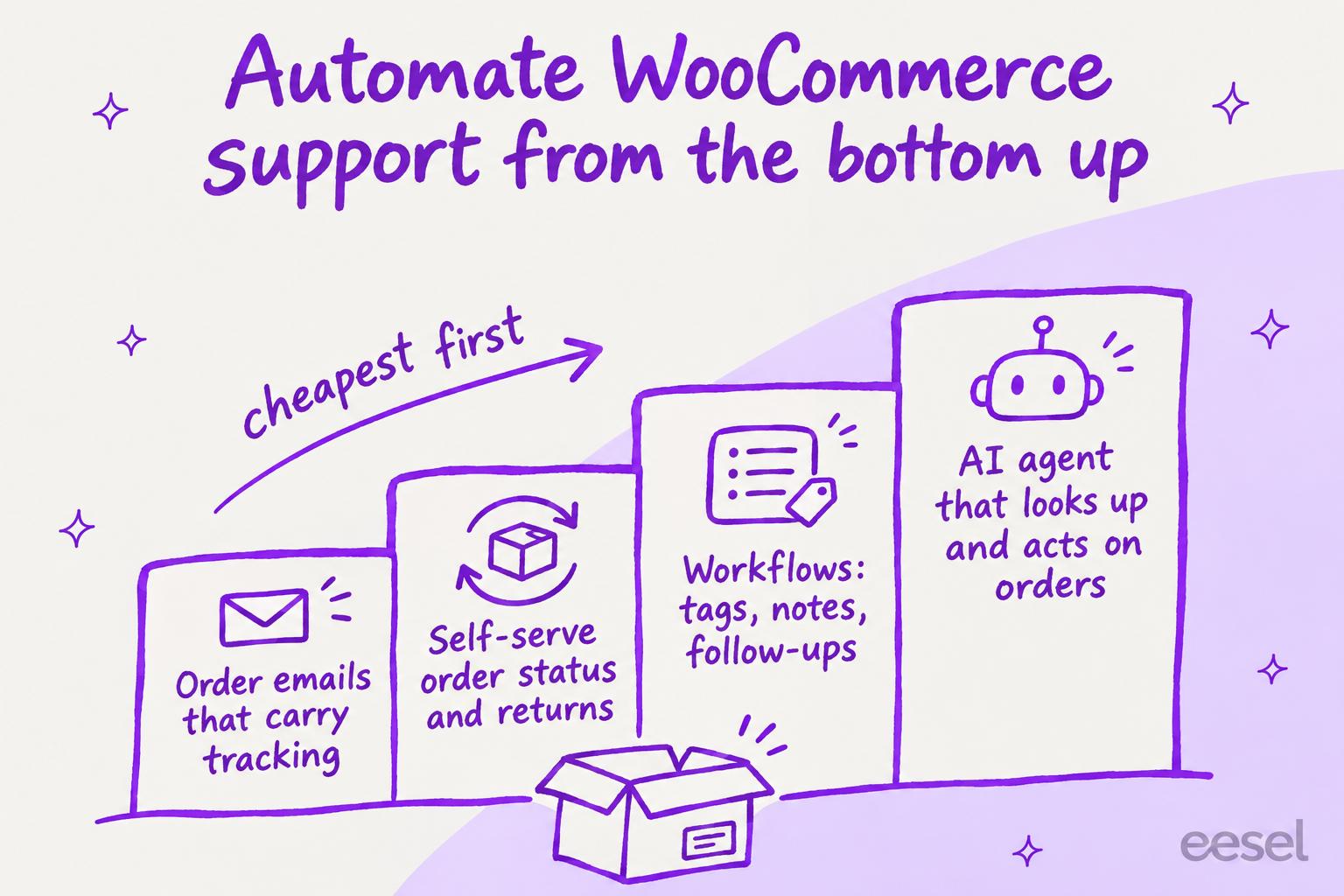
The order matters because each layer is cheaper than the one above it. A tracking link in an email costs nothing per order; an AI agent costs per conversation. Every question the bottom layers prevent is one the top layer never has to answer, which is the whole idea behind ticket deflection.
Before you start: what you'll need
- Admin access to WooCommerce and WordPress, to install extensions and create API access.
- A list of your top ticket types. Pull a month of support email and count. On most stores, order status, returns and cancellations lead, and that list decides where you start. Our ecommerce FAQ examples are a good checklist.
- Your written policies: shipping times, the return window, who gets a refund and when. An AI agent can only follow a policy it can read, and the same pages feed your macros.
- A place where replies happen. Plain email works to start (and an after-hours AI can cover nights), but past a few hundred tickets a month you'll want a helpdesk for WooCommerce or a live chat plugin.
Step 1: Make your order emails answer "where is my order?"
WooCommerce already emails customers at each step. Its email settings cover Processing order ("containing order details after payment"), Completed order (which "usually indicates that their orders are shipped"), Refunded order, Order on-hold, Failed order and Customer note, and you can change each one's subject, heading and extra text without code.
What core WooCommerce doesn't have is a tracking number field or a "Shipped" status. Its order statuses describe Processing as "the store owner's or warehouse's cue to ship the order and manually change the status to Completed", so Completed is your shipped email (our order status guide explains each one). Two ways to put tracking into it:
- Shipment Tracking by Woo, $59 a year after a 14-day trial. It adds provider, tracking number and link to an order, shown in emails, the order tracking page and the customer's account.
- Advanced Shipment Tracking (AST), free on wordpress.org with 70,000+ active installs. It has 1,010+ preset carriers and adds "Shipped" and "Partially Shipped" statuses that replace Completed, and it pitches itself as "stopping 'Where is my order?' support tickets before they start".
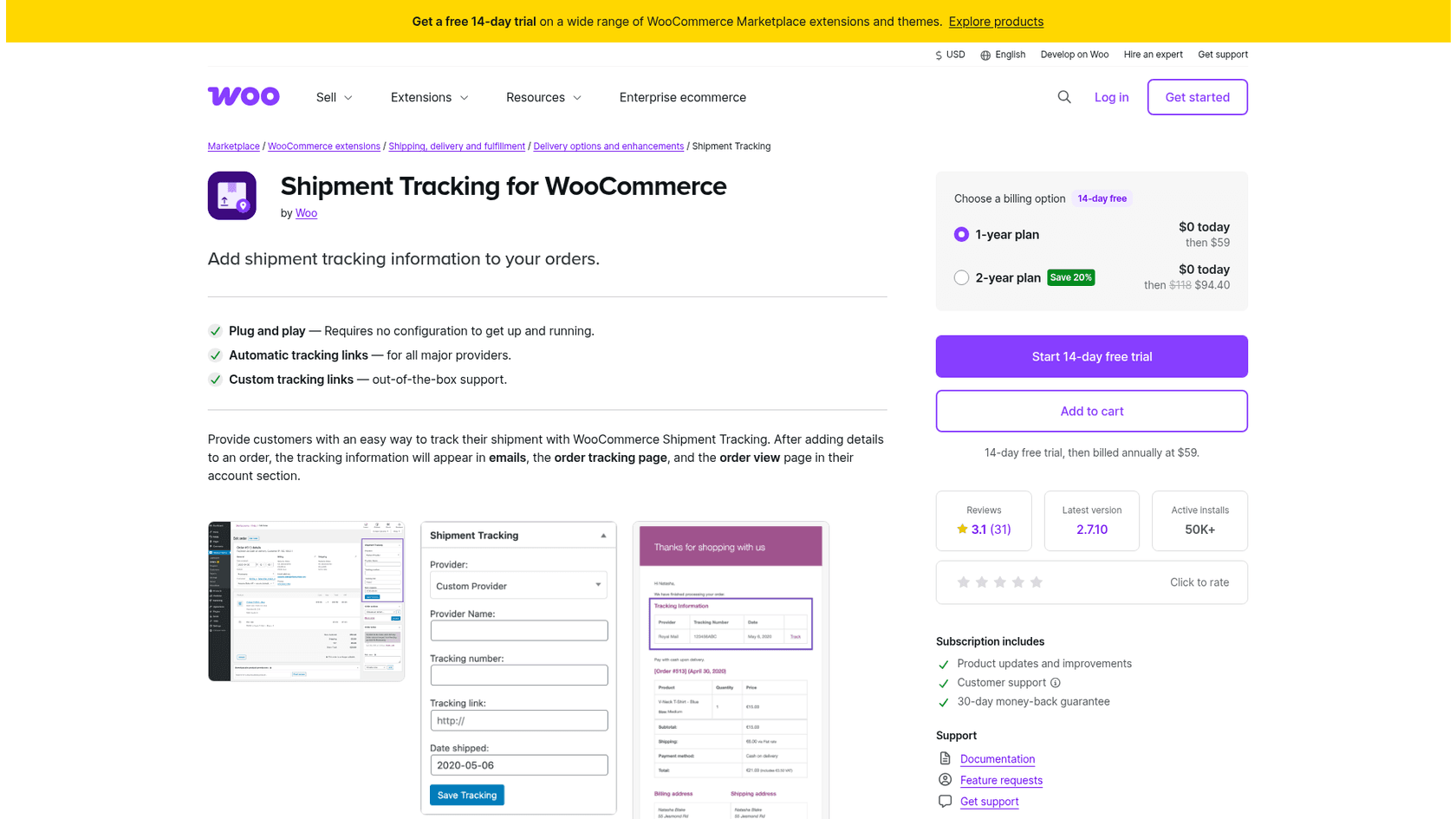
Here's the catch. Shipment Tracking's own docs say "Saving tracking details does not send an email. If you change the order status to Completed, WooCommerce sends the Completed Order email with the saved tracking information." So if your warehouse adds tracking but leaves orders on Processing, customers get nothing. Make "mark Completed" part of the shipping step, or have whoever ships add a customer note with the tracking number: WooCommerce emails a customer note straight away. Our guide to WooCommerce order notes covers the difference between private and customer notes.
Step 2: Let customers check, cancel and return orders themselves
The second layer is customer self-service: answers customers find without writing in.
Order status. Logged-in customers see every order in My Account with its number, date, status and total, plus a Pay button on unpaid orders and Order again on completed ones. Guests can use the [woocommerce_order_tracking] shortcode, which shows an order tracking form; Woo's shortcode docs list no block equivalent, so on a block theme you place it in a Shortcode block. On its own it shows the order's status and details, not carrier tracking. Our guest order tracking guide walks through it.
Cancellations. My Account's Cancel button only appears on Pending payment and Failed orders. Once an order is Processing, a customer who wants out has to write in, which is why cancellations end up in the AI agent's lane (step 4).
Returns. Core WooCommerce has no returns flow, so add one:
- Returns and Warranty Requests by Woo, $99 a year. A return button appears on each completed order in My Account, and it sends "automated email communications during each change in return status".
- Return Refund and Exchange for WooCommerce by WP Swings (plugin page), free on wordpress.org with 4,000+ active installs, for refund and exchange requests (some features are in its paid version).
- If you sell in the EU, WooCommerce 11.1 added an Order Withdrawal form for the 14-day right of withdrawal. It's off by default and WooCommerce adds no link to it, so you have to put the link somewhere customers see it.

Step 3: Run workflows on order events
The third layer reacts to what happens in the store. It's workflow automation, much like AI ticket tagging in a helpdesk, and on WooCommerce you have three main routes.
AutomateWoo is Woo's own, at $159 a year after a 14-day trial (30K+ active installs). Each workflow is a trigger, optional rules and actions. Its trigger list has the support-relevant ones: Order Status Changes, Order On Hold, Order Refunded, Order Note Added (which can be limited to notes containing keywords), Cart Abandoned and Subscription Renewal Payment Failed. Its actions include Send Email, Send SMS (Twilio), Change Order Status, Add Note and Resend Order Email.
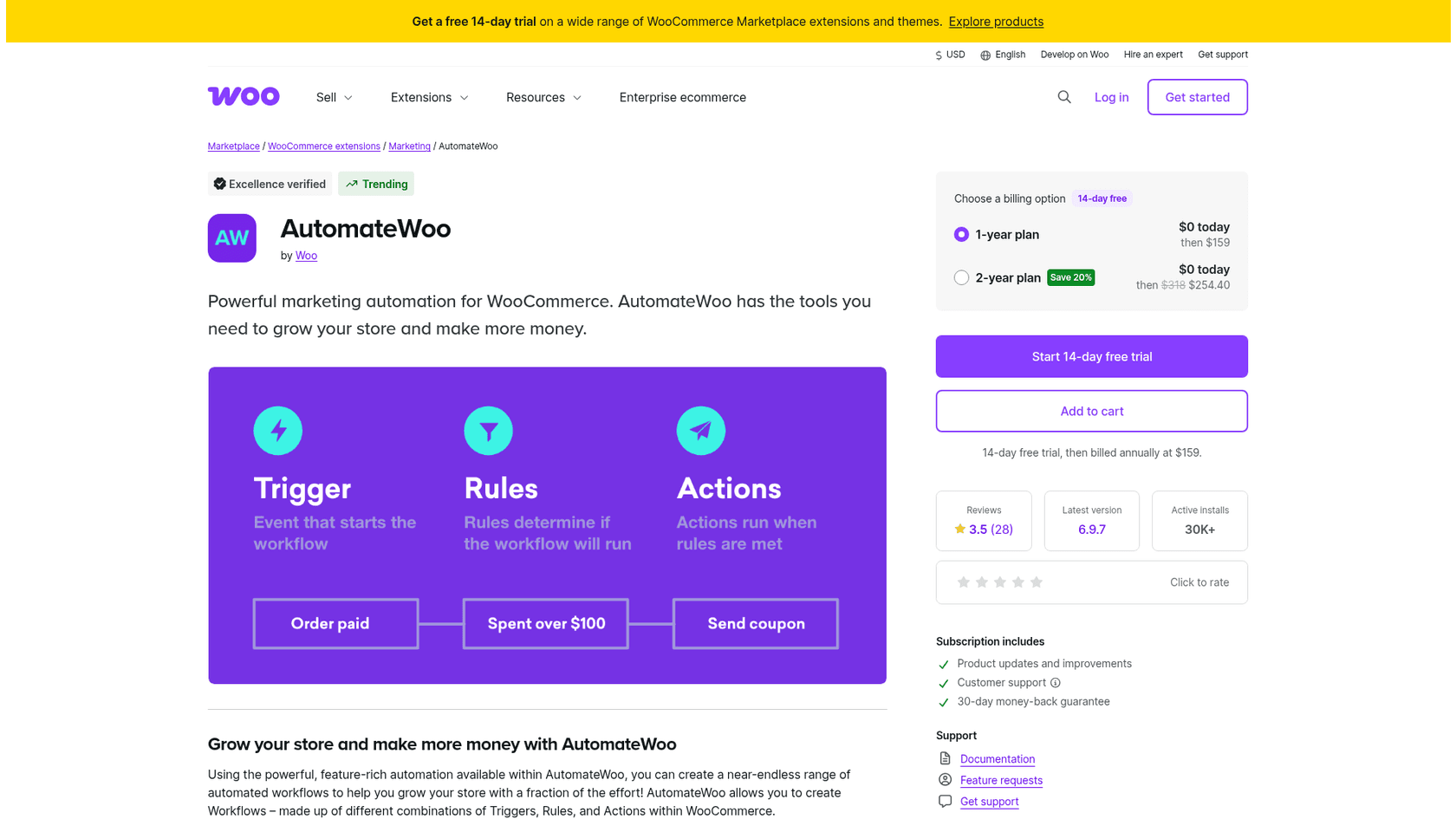
Two support workflows worth building first, from those triggers and actions: an Order On Hold trigger that waits two days and emails a reminder to finish a bank transfer, and an Order Note Added trigger, limited to notes containing "tracking", that texts the customer. Neither is an official recipe; both use only documented pieces.
Zapier or n8n fit when the next step lives outside WordPress. Zapier's WooCommerce app triggers on new orders, order notes and customers and can update orders or create notes; Woo sells a Zapier Integration extension for the connection, $129 a year. n8n's WooCommerce nodes cover customers, orders and products. One detail if you build on webhooks yourself: WooCommerce has no "status changed" topic. A status change or a refund arrives as order.updated, so your workflow has to read the new status, and WooCommerce disables a webhook after more than five failed deliveries in a row. Our WooCommerce n8n guide has worked examples.
What none of these do is read a customer's message. AutomateWoo, Zapier and n8n act on store events, not on questions, so "can I swap this for a medium?" still lands in someone's inbox.
Step 4: Add an AI agent for the questions that still come in
Whatever gets past the first three layers is real conversation: "my parcel says delivered but it isn't here", "can I cancel, I ordered twice", "is the blue one back in stock?". That's the job for an AI agent (our order tracking chatbot roundup compares a few), and on WooCommerce the question that decides which one is simple: can it read and change the order, or only talk about it?
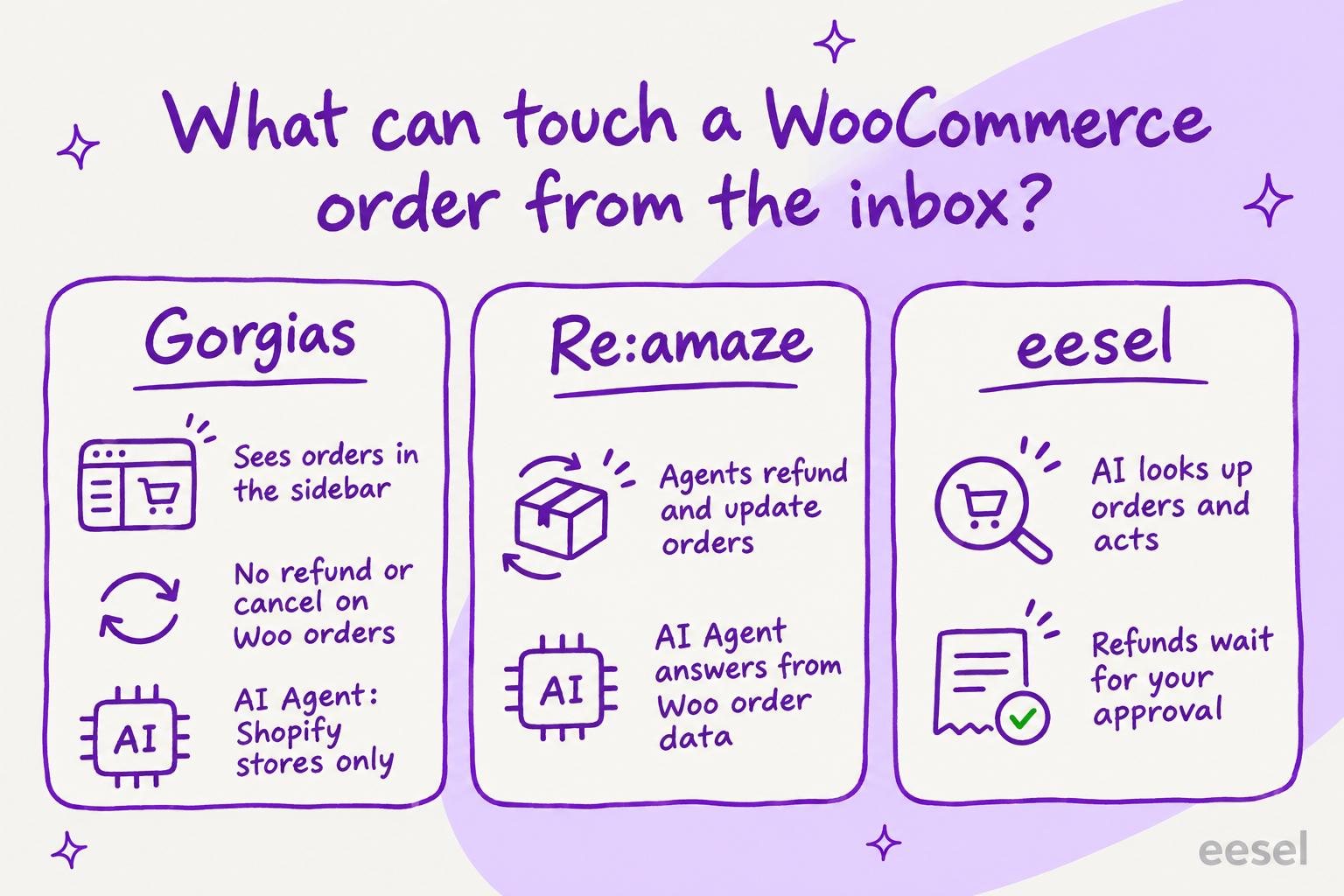
Helpdesks differ a lot here:
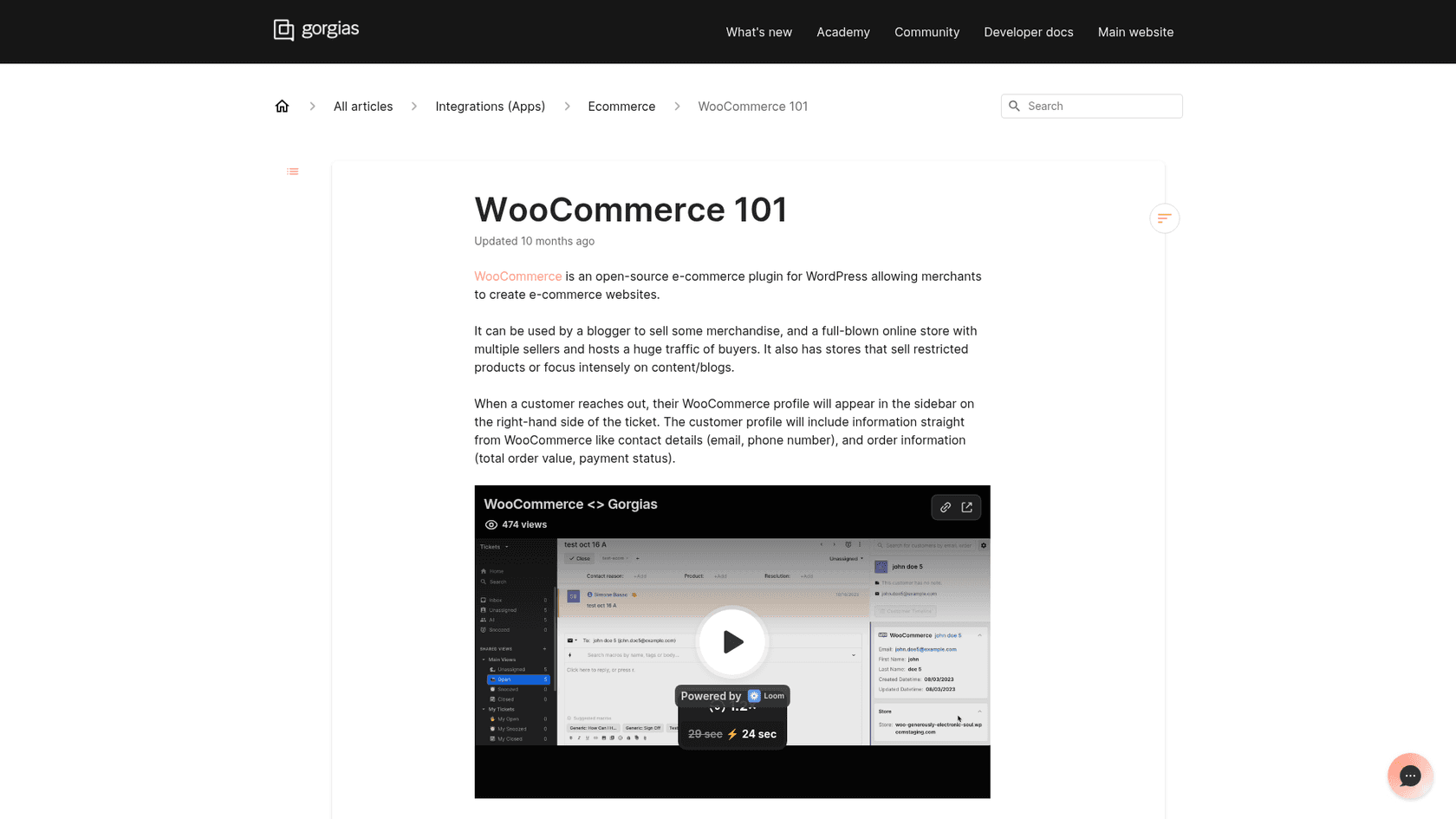
- Gorgias shows WooCommerce customers and orders in the ticket sidebar, but its own WooCommerce 101 doc says "You can't initiate any actions on WooCommerce orders (create, edit, cancel, refund)", WooCommerce data can't be used in Rules, and Automate features don't work. Its AI Agent setup doc says it "is not supported on stores that use BigCommerce, Magento or WooCommerce".
- Re:amaze has a native WooCommerce integration: agents can process refunds, update order and payment status and add order notes from the conversation. Its AI Agent (compared in AI for Re:amaze) uses WooCommerce products and orders as a knowledge source; the docs describe it answering from that data, not refunding.
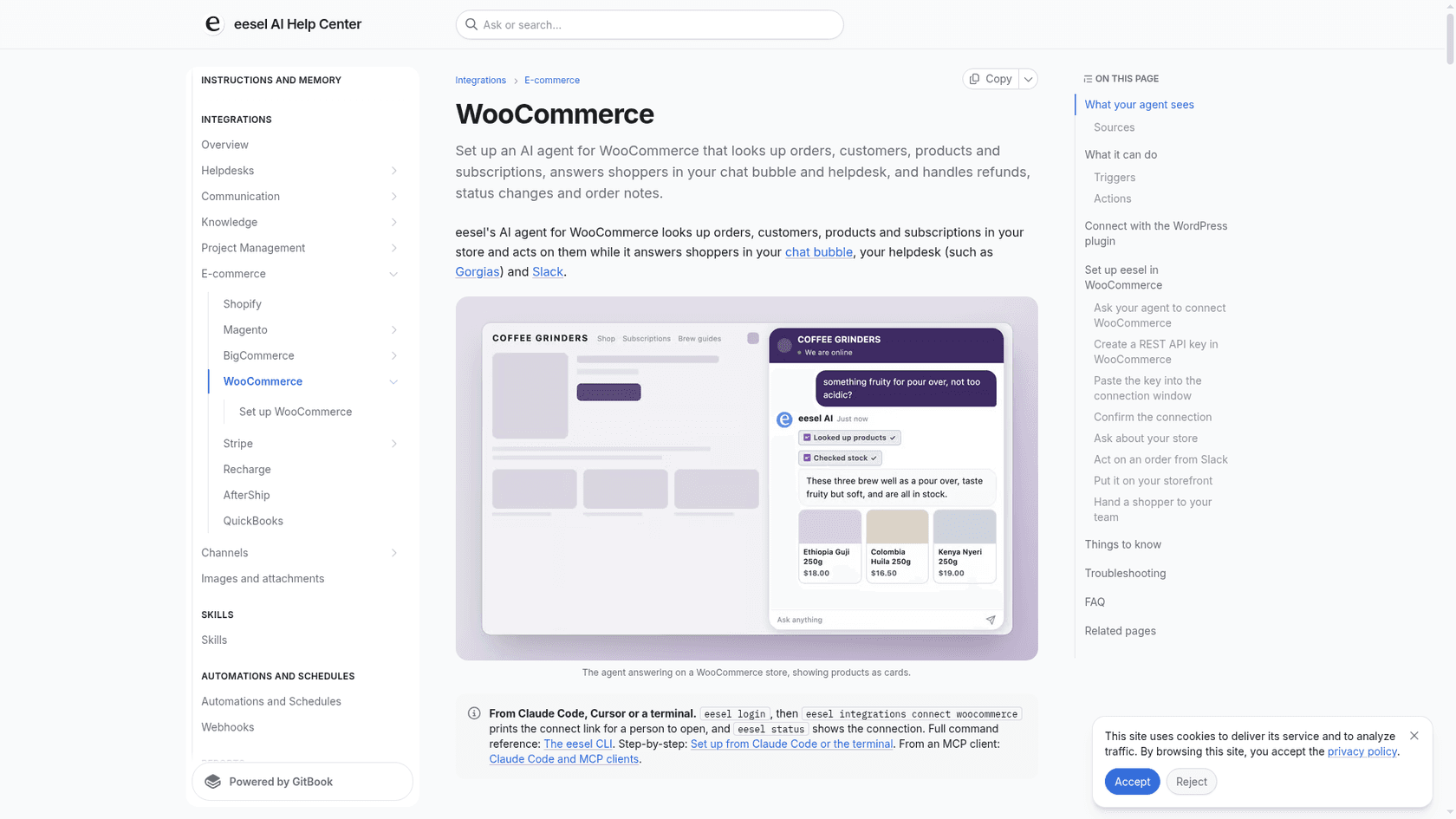
- eesel joins the helpdesk or chat you already use. Its WooCommerce integration reads orders, order notes, customers, products, stock and subscriptions, and it can add order notes, cancel orders and create refunds.
Setting up the AI layer well comes down to four moves, whichever tool you use. Our longer guide to adding AI to WooCommerce goes deeper on each, and the ecommerce automation guide covers the same steps for any store.
- Connect the store. With eesel, the free eesel AI plugin asks you to approve the connection on WooCommerce's own screen, with no API keys to copy; a REST API key with Read/Write access works too.
- Give it your policies and past tickets. It learns your tone and the answers your team already gives.
- Test it on past tickets before it talks to anyone. Simulation shows what it would have said on last month's questions, which is where you find the gaps in your policies.
- Start supervised, then let go of the easy ones. Have it draft replies for a person to send, then let it send order-status and stock answers alone while refunds wait for a yes, with a clear human handoff for the rest.
That last step is where the permissions matter. The eesel plugin starts cautious: "Refunds and order status changes are held for your approval before they run." From there, what the agent may do depends on who is asking: a refund can run when your support lead asks in Slack, wait for approval when a verified customer asks, and stay off entirely for an anonymous visitor in the chat bubble. Actions and approvals explains the settings.
Here's what that looks like on real queues. STIL Classics runs eesel on Gorgias with a Shopify store: in a month it prepared 320 tickets and looked up 230 orders, leaving 430 draft replies as internal notes for a person to check and send. Question Beauty, also on Shopify, went further: 960 replies sent by eesel directly in a month. Both are Shopify stores; on WooCommerce the same agent looks orders up through its WooCommerce integration.
Which layer handles which ticket?
Each ticket type has a cheapest layer that can take it. Pick your most common one to see the route from prevention to the AI agent, and what should stay with a person.
Pick the question your customers ask most to see which layer should answer it first.
Common mistakes when automating WooCommerce support
- Adding tracking but never marking orders Completed. With Woo's Shipment Tracking, the number only goes out in the Completed email.
- Picking a helpdesk for its Shopify AI. Gorgias's AI Agent and Automate features don't run on WooCommerce stores. Check the WooCommerce doc, not the homepage.
- Building workflows on a status webhook that doesn't exist. Status changes arrive as
order.updated, and webhooks switch themselves off after repeated failures, so check they're still active. - Automating returns without a returns flow. An AI can explain your policy, but customers still need somewhere to start the return; see AI for returns.
- Letting an AI refund on day one. Start with drafts, then order-status answers, and keep refunds behind an approval. Our refund guardrails guide covers the limits worth setting.
- Automating answers to a policy nobody wrote down. If your return window lives in one person's head, the AI will ask that person every time, or worse, guess.
Try eesel for WooCommerce support
Once order emails and self-serve take the easy volume, what's left needs something that can read an order and act on it. eesel joins your chat bubble, your helpdesk or Slack, looks up WooCommerce orders, stock and subscriptions before it answers, and lets you decide per tool whether it acts alone, asks first or stays off. A refund can run when your support lead asks and wait for approval when a customer does, so you can hand it the order-status questions this week and the refunds once you trust it.

eesel starts with 100 free credits for 7 days, no card needed, then plans from $299 a month for 500 credits, where one ticket or chat is one credit however long it runs (pricing). Try eesel on last month's WooCommerce tickets before it answers a single customer.