How to automate WooCommerce returns (2026 guide)

Riellvriany Indriawan

Katelin Teen
Last edited November 24, 2026

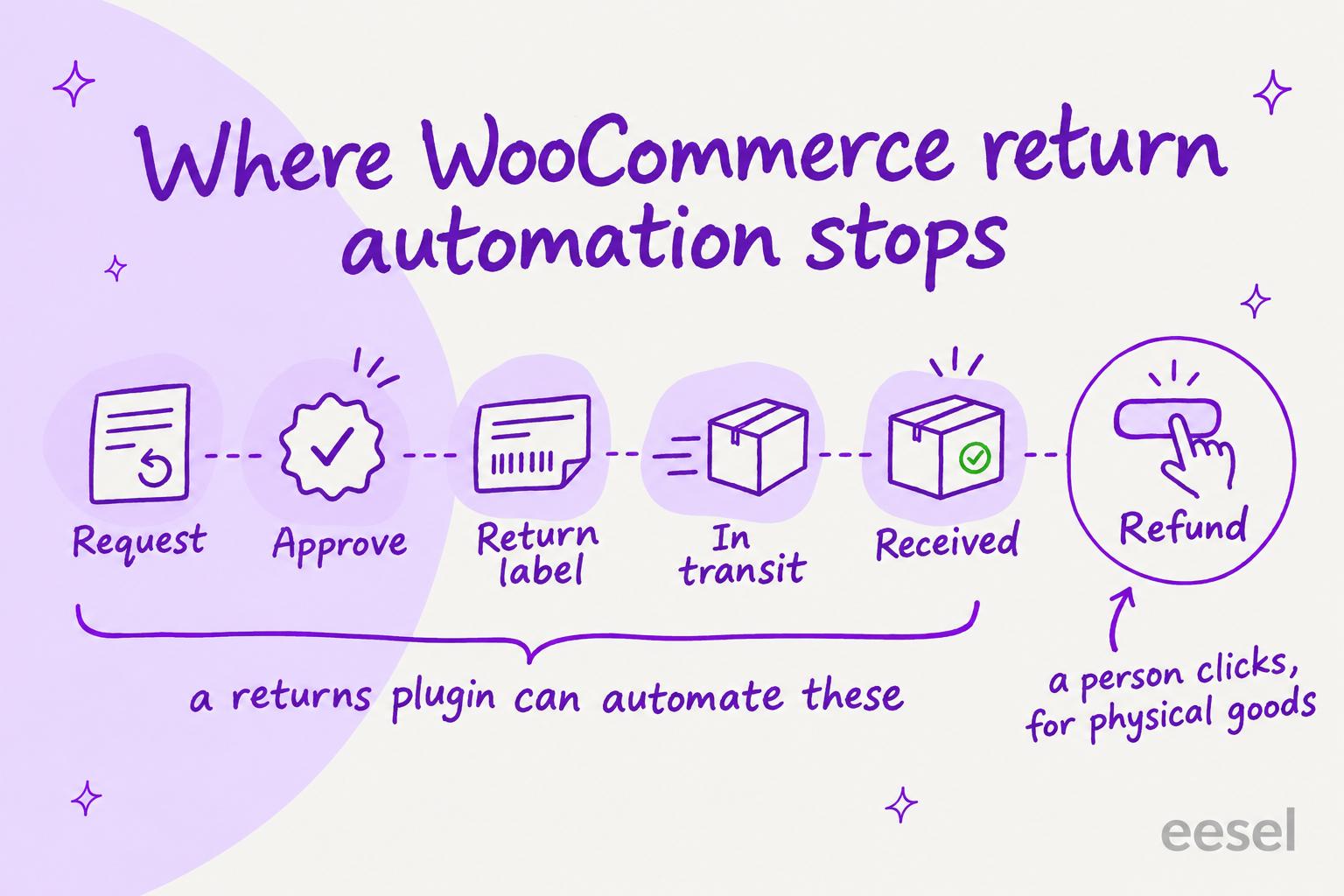
To automate WooCommerce returns, install a returns plugin such as WP Swings' RMA plugin (free; auto-accept, exchanges and guest requests in Pro from $79 a year) to take requests and email return labels, then keep one click on the refund. For physical goods, every tool I checked waits for a person before the money moves, or on AfterShip Returns Premium ($99 a month billed annually) for a "received" scan. Add an AI agent such as eesel for the "where's my refund?" emails, with any refund it prepares held for your approval. An AI coding agent can set eesel up through the eesel CLI, such as uploading your approved returns articles and asking test questions, while connecting the store still needs an admin's approval.
What can you automate in a WooCommerce return?
A WooCommerce return has six steps, and only the last one moves money: the customer asks, you approve, a label goes out, the parcel travels, you receive it, and you refund, exchange or give credit. Core WooCommerce covers almost none of it. It has no returns form or RMA (return merchandise authorization) screen, only a refund button on the order and, since version 11.1, an EU Order Withdrawal form, which the withdrawal emails guide covers.
I'm on eesel's support team, and returns are the ticket type where "automated" most often turns out to mean "the form is automated". The customer fills in a nice form, and then the request sits in a queue until someone remembers to issue the refund. So this guide is about what each tool really does at each of the six steps, checked against its own docs on 24 November 2026.
If you want the wider picture first (tracking emails, order-status pages, workflows), start with how to automate WooCommerce support. This post goes deep on the return lane only.
Before you start: what you'll need
- A written returns policy with the window in days, which items can't come back, who pays return shipping, and when you offer a refund, an exchange or store credit. Every tool below turns those rules into settings, and an AI agent answers from them.
- A payment gateway that can refund through WooCommerce. WooCommerce's refunds doc says automatic refunds need "a compatible payment gateway", and Cash on Delivery and Check Payments always need manual refunds.
- Admin access to install a plugin and, for labels, a shipping account (WooCommerce Shipping, ShipStation or a carrier).
- A decision on guests. Some plugins only work for logged-in customers, which matters if many of your orders are guest checkouts.
Step 1: Turn your returns policy into rules
Write the policy so a plugin can enforce it before you pick the plugin. The settings every tool below asks for are the same: how many days after purchase a return is allowed, which order statuses can request one, which products are excluded, and the outcomes on offer (money back, exchange, coupon or wallet credit).
Two decisions shape everything after this:
- Do you refund on request, or on receipt? Refunding as soon as someone asks is fine for downloads and subscriptions. For physical goods it means paying out before you know the item is coming back, which is why the plugins that refund instantly limit it to digital products (step 4).
- Do you want to keep the money in the store? If store credit or exchanges matter to you, that narrows the field to the plugins with a wallet or an exchange flow (step 5).
The general guide to automating returns has a fuller worksheet for this, and the refund approval matrix is a good template for who may approve what.
Step 2: Add a returns plugin for the request
The request form is the easy part, and you have five realistic choices. Here's how they compare on what matters for automation:
| Tool | Price | Customers ask from | Auto-approve | Sends the refund itself | Exchanges | Return labels |
|---|---|---|---|---|---|---|
| Returns and Warranty Requests (Woo) | $99/year | My Account (completed orders), a form page, a link in the Order completed email for guests | Not described | No; optional coupon once the request is Completed | Mentioned, no flow described | You upload a label file |
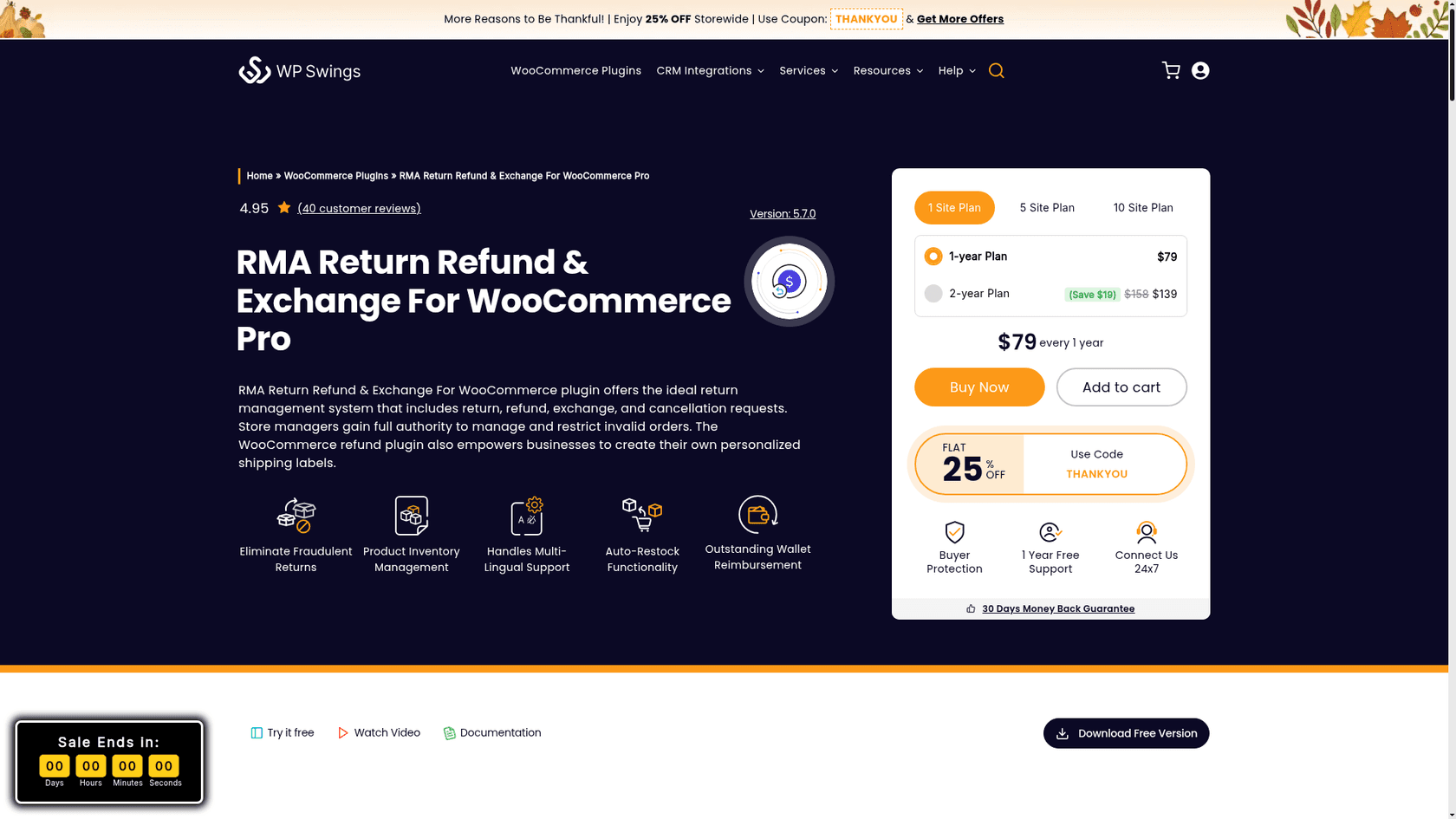
| WP Swings RMA | Free; Pro $79/year | My Account; guests with Pro | Pro | Wallet credit lands on approval; card refunds take an admin click | Pro (creates a new order) | ShipStation, ShipEngine or ShipRocket, one click per return |
| YITH Advanced Refund System | $94.99/year | My Account, paid orders; no guests | Yes | Through the gateway; on request only for non-physical goods | Not mentioned | Not mentioned |
| Smart Refunder | $79/year | My Account | Yes, by order status | Instantly for digital or virtual goods; physical goods are held for review | Not mentioned | Not mentioned |
| AfterShip Returns | From $49/month (annual) for 100 returns | A branded returns page | Yes, by rules | Premium: when the return is marked received | Variant exchanges | Discounted prepaid labels |
Woo's own extension is the obvious first click, and its request side is solid: you can build the form (text, drop-downs, file uploads), rename the request statuses (adding new ones takes PHP in functions.php), and send an email to the customer, the admin or both on each status. A guest gets a claim link inside the Order completed email. But read its docs closely and there's no step that pays anyone: the only money it handles is a coupon you can send "after the warranty status is set to Completed". It's also rated 2 out of 5 by 7 reviewers on its Marketplace page.

WP Swings is where I'd start most physical-goods stores. The free plugin on wordpress.org (4.7 out of 5 from 124 reviews) handles refund requests, attachments, refund windows, per-customer limits and a returns analytics dashboard. Pro adds the automation pieces: exchanges, cancellations, a wallet for store credit, guest requests and "Enable Auto Accept Refund Request". It needs the free plugin installed to work.
ReturnGO also works with WooCommerce, but its own help article lists the Enterprise plan as the requirement, so the $147 and $297 starting prices on its pricing page don't apply to a WooCommerce store, which is priced by quote.
Step 3: Automate the return label
A return label is the step customers notice most, and in WooCommerce you have three ways to make one:
- WooCommerce Shipping, Woo's free label extension, has made return labels since version 2.0.0: open the outbound label, then More actions > Return label, and it creates a return shipment with the addresses swapped. It's limited to stores in the United States that charge in US dollars, and it's a click per order in wp-admin, not something the customer triggers. Customers had asked for it since a 2019 feature request that Woo marked completed in November 2025.
- A returns plugin with a shipping integration. WP Swings connects to ShipStation, ShipEngine and ShipRocket; after you accept a return you click "Create Return Label" and the customer gets an email with a link, per its docs. Woo's own extension lets you attach a label file the customer downloads from their order.
- A returns platform. AfterShip Returns makes discounted prepaid return labels at pre-negotiated rates (USPS and others), or uses your own carrier accounts, as part of the returns flow.
If your volume is low, the WooCommerce Shipping route is the cheapest: no extra subscription, and the label is one menu away from the order you're already looking at.
Step 4: Decide how the refund gets paid
This is the step that decides whether your returns are automated or just tidy. WooCommerce has two kinds of refund: an automatic one that asks the gateway to send the money, and a manual one that only records it. Changing the order status to Refunded or Cancelled sends nothing, which the manual refund status guide unpacks.
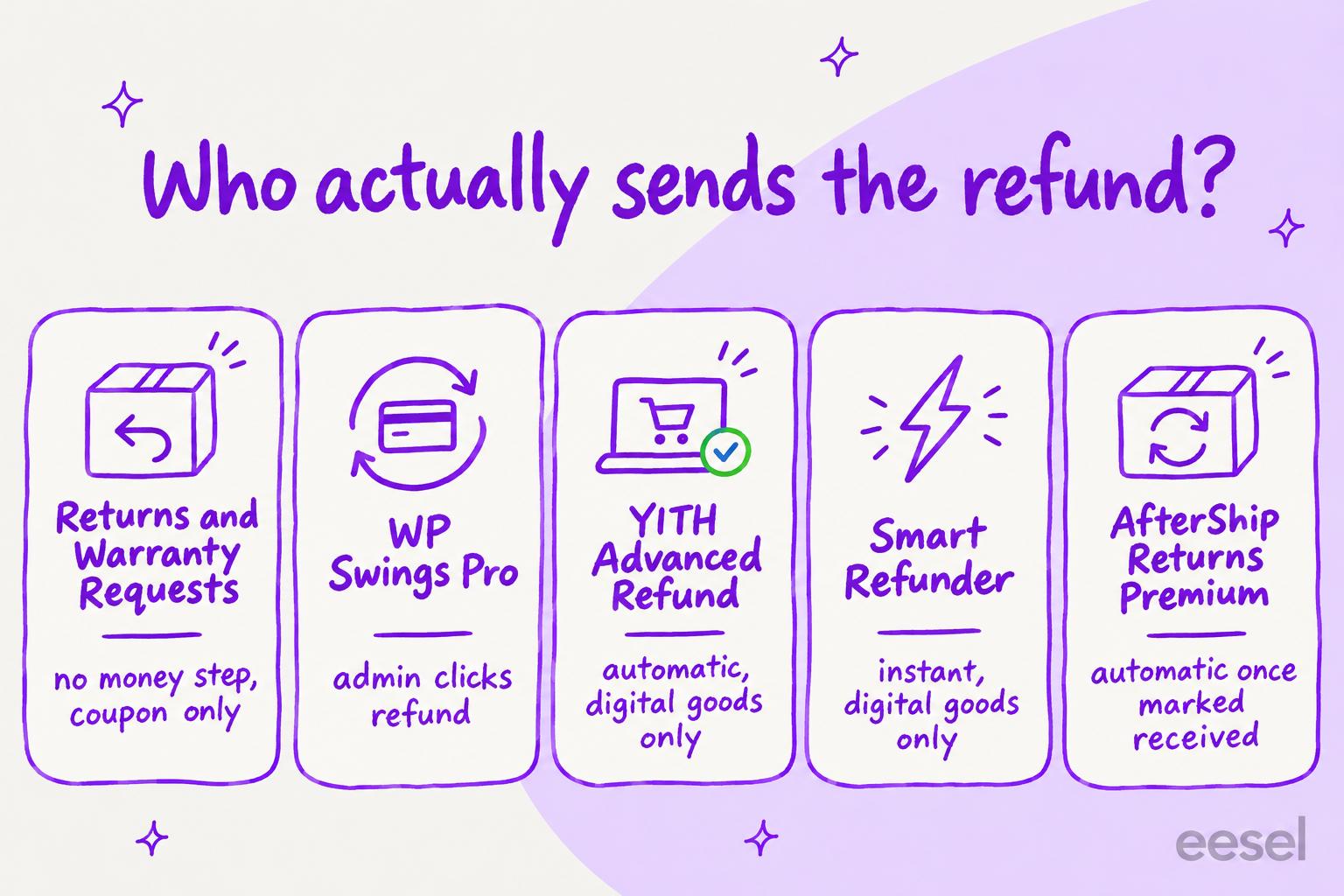
Here's how the returns tools handle the payout:
- Smart Refunder auto-approves requests by order status and can "Send Refund Now" through the gateway instantly, but its docs say that's only for digital, downloadable or virtual products: "For physical products, it'll be held for review."
- YITH can pay "automatically, through the payment gateway previously used", and refund "soon after receiving the user's request", with the note "feature not available for physical products". Its FAQ adds that WooCommerce does the actual transaction, so a gateway that can't refund through WooCommerce can't refund through YITH either.
- WP Swings wallet credit "automatically adds to the customer wallet after approving the refund request". For a card refund, its docs describe an admin choosing between "Refund Manually" and its automated payment refund. Its wordpress.org listing says Pro can "automate the refund process and the transfer of refund payments", but I couldn't find a hands-off card payout described in the docs.
- AfterShip Returns has auto-refund rules on its Premium and Enterprise plans, and WooCommerce is a listed platform. The default trigger is "Marked as received" with "Refund to original payment". Marking returns received automatically needs AfterShip Tracking too.
My take: for physical goods, keep one human click on the refund and automate everything around it. The click takes seconds when the request, the reason, the photos and the received status are already on the order. Fully hands-off refunds make sense for digital products, or on AfterShip Premium once your warehouse scans returns in. The general guide to refund guardrails for AI agents applies here even if no AI is involved.
Two things in WooCommerce trip people up at this step. First, restocking is a "Restock refunded items" checkbox on each refund in the order screen, so look at it every time. Second, a refund created through the REST API acts on two defaults: api_refund (send the money through the gateway) and api_restock (put the selected items back in stock) are both true unless you pass false. If you wire refunds through Zapier, n8n or a script, set both on purpose.
Step 5: Set up exchanges and store credit
Exchanges and credit are how you keep the sale, and support for them varies more than anything else:
- WP Swings Pro creates a new order automatically when you accept an exchange, and if the new item is cheaper, the difference goes to the wallet or back manually. It also has its own auto-approval toggle for exchanges.
- AfterShip Returns offers variant exchanges, and on WooCommerce its store credit is issued as gift cards.
- ReturnGO creates exchange orders as Pending drafts in WooCommerce, one-for-one.
- YITH and Smart Refunder offer a coupon instead of money. Smart Refunder's default is a fixed cart discount coupon; a true store credit coupon needs the separate Smart Coupons extension. If you go the coupon route, the coupon usage restrictions guide covers locking it to one customer.
Which returns setup fits your store?
Pick the store that sounds like yours to see the setup I'd start with and what still needs a person.
Pick the store that sounds most like yours to see what to install and what stays manual.
Step 6: Let an AI agent handle the return emails
Even with a portal, returns create email: "Did you get my parcel?", "Where's my refund?", "Can I swap for a medium instead?". Customers write in at every step the plugin doesn't explain, and a returns plugin can't answer email. That's the job for an AI agent that reads your policy and the order.
eesel is the one I know best. It's an AI teammate that joins your helpdesk, chat bubble or Slack and works the ticket. Connected to WooCommerce through its free WordPress plugin or a REST API key, it looks up orders, their notes (where returns plugins and shipping plugins leave their trail), the customer's other orders and products, so it can tell someone their return was approved, that the label went out, or that the refund was recorded but not yet sent.
It can also act. Its WooCommerce actions include creating a refund, either through the payment gateway or recorded in WooCommerce only, changing an order's status, adding an order note and creating an order. The plugin listing says "Refunds and order status changes are held for your approval before they run", and the approval card shows whether the refund will move money or only be recorded. You approve from the dashboard, or in the Slack thread the request came from, and an unanswered approval expires after 72 hours rather than running on its own (actions and approvals). That's the human click from step 4, with the reading and the typing done for you.
Where it isn't the tool: eesel has no coupon or store-credit action and doesn't make return labels, so keep a returns plugin for those, and let eesel point customers to it. That's how ClutchLoop runs it: its agent sends return, refund and replacement requests from US customers to the returns portal. STIL Classics has eesel check the 30-day return window before drafting a reply, and a person processes the refund. Both are Shopify stores on Gorgias, but the split of work is the same on WooCommerce. The guide to adding AI to WooCommerce covers the setup, and best helpdesk for WooCommerce helps if you don't have an inbox yet.
Common mistakes when automating WooCommerce returns
- Treating the Refunded status as a refund. It isn't one. Check the order notes for the gateway's "Successfully refunded" line before telling a customer the money is on its way.
- Refunding physical goods on request. It's the fastest setup and the easiest to abuse, since the money leaves before the parcel does. Every plugin above that refunds instantly limits it to digital products.
- Forgetting guests. YITH says plainly that a guest can't submit a refund request, Smart Refunder's docs describe logged-in customers only, and WP Swings needs Pro for its guest form. If many of your orders are guest checkouts, Woo's own extension (claim link in the Order completed email) or AfterShip's returns page serve them better.
- Restocking twice. A refund created through the REST API restocks its items by default, and YITH restocks automatically once it grants a refund. Run both and the same item can be counted back twice. Pick one place that restocks.
- Mixing up the EU withdrawal form and your returns flow. WooCommerce's Order Withdrawal form records a request; it doesn't refund, label or restock anything. Connect it to the same process as everything else.
- Leaving "where's my refund?" to the inbox. The portal answers the first question, not the follow-ups. Give support (or an AI agent) access to the order notes so they can see what the plugin did. The customer order notes guide explains which notes the customer sees.
Try eesel on your WooCommerce return tickets
If your returns plugin handles the form and the label, the part left is the conversation around it. eesel reads the WooCommerce order and its notes, answers from your returns policy, and prepares the refund for your yes instead of leaving it in a queue. What it may do is set per kind of person: it can be set to refund when your support lead asks in Slack, ask first when a verified customer writes in, and never touch an order for an anonymous visitor.
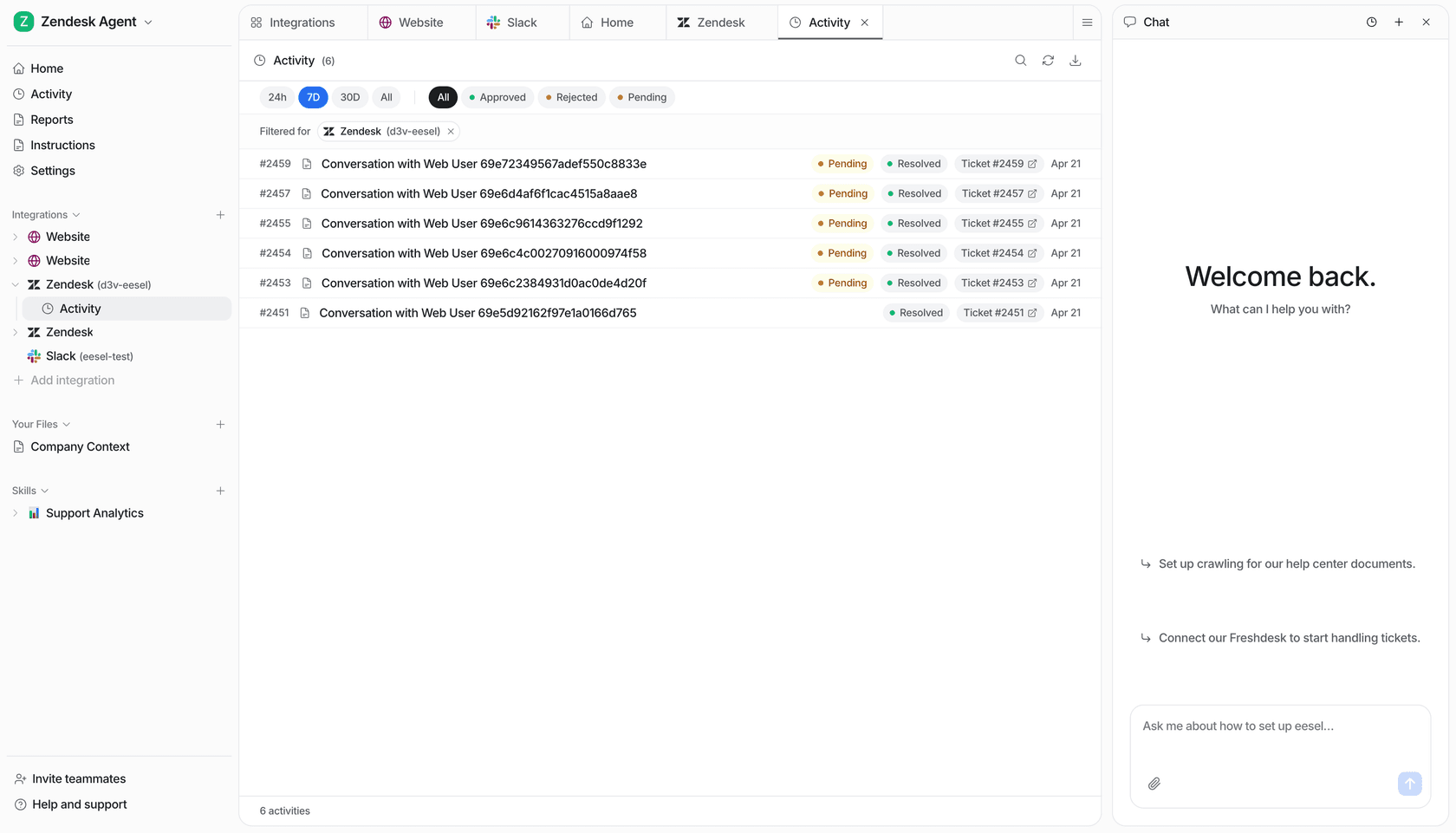
The free trial runs for 7 days with 100 credits and no card, and a ticket is one credit however many orders it looks up; paid plans start at $299 a month on the pricing page. Try eesel on a week of your real return tickets and see how many it can close before a person opens them.