
What does Town AI do in Slack?
I'm Alicia, and I build eesel's AI agents, including the part that lets one join a Slack channel without taking over it. When I read Town's Slack docs, the first thing I looked for was whose assistant answers when someone types a mention. That detail decides everything else about the integration.
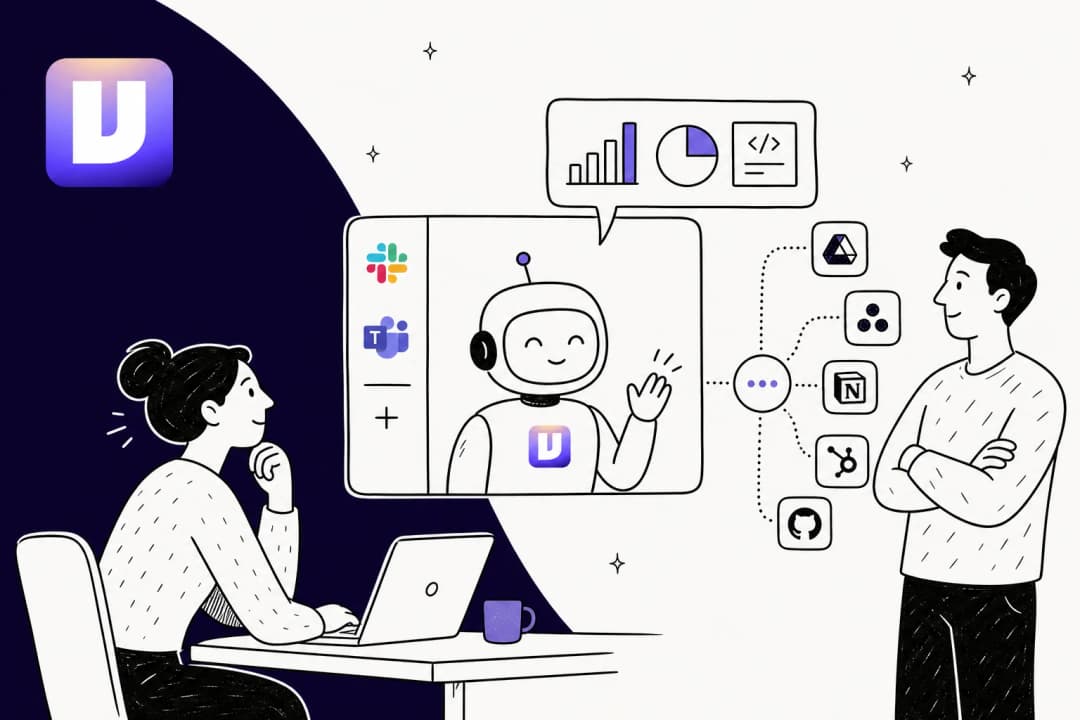
Town is a personal AI assistant. You name your Townie, it gets its own @town.com email address, and it works across your inbox, calendar, docs and chat apps. If you haven't met it yet, my Town AI review covers the product itself, and my AI personal assistants roundup puts it next to the alternatives.
In Slack, Town's docs describe two connections that "do different jobs":
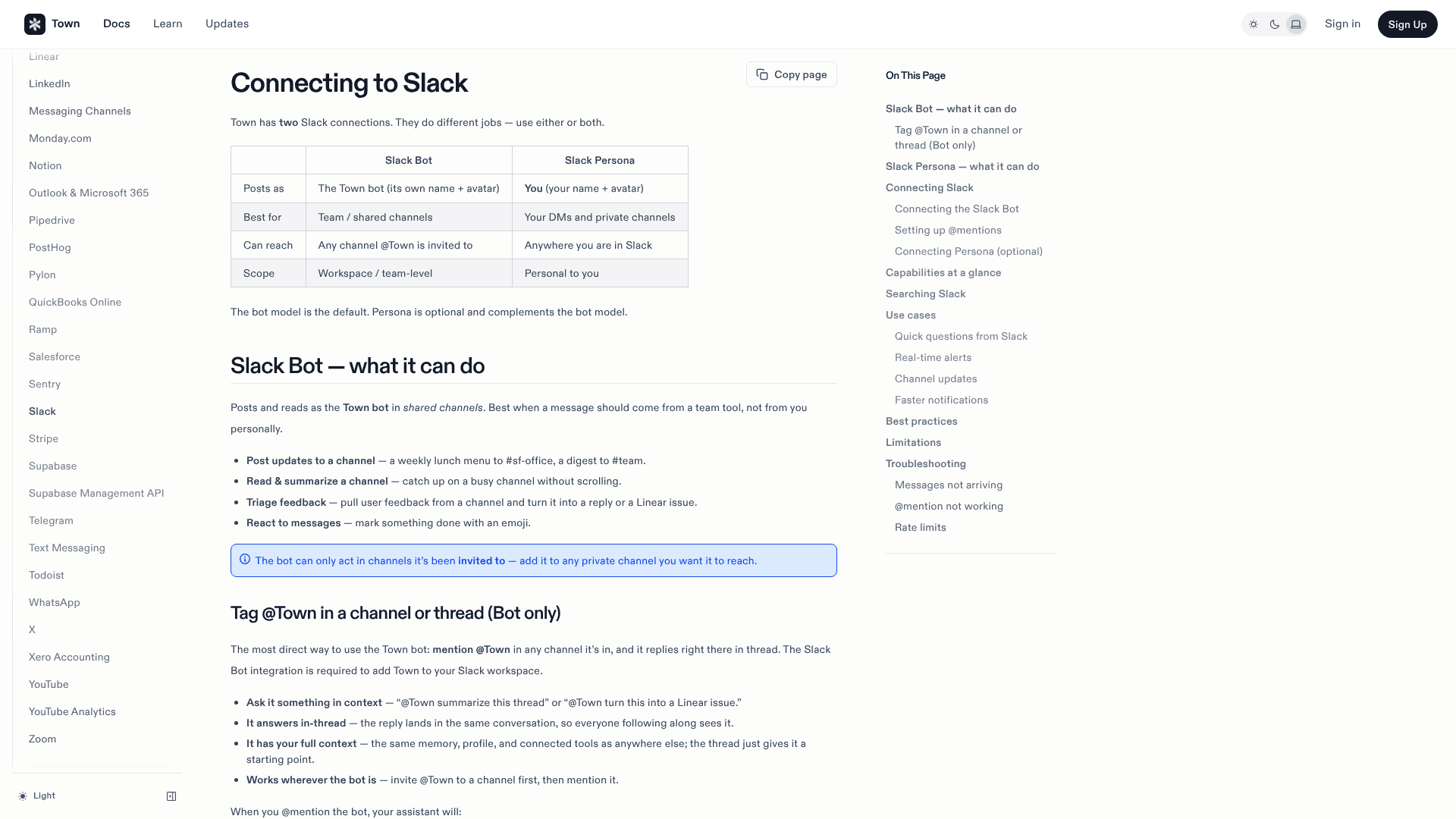
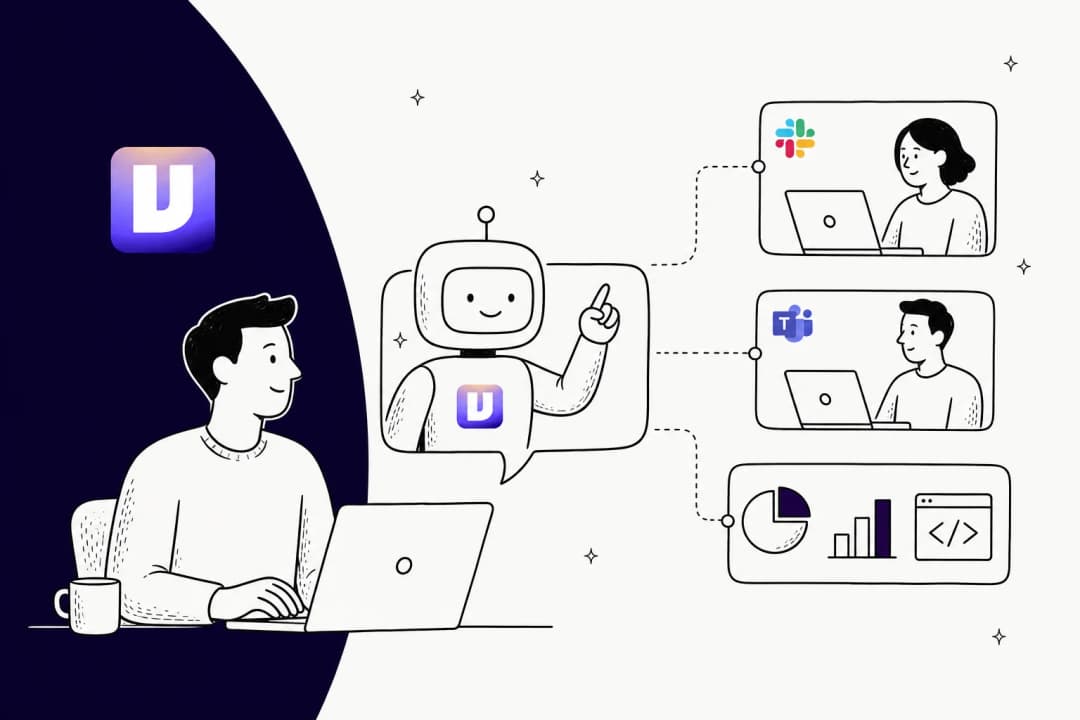
The bot is the default. You mention @Town in any channel it has been invited to, and your assistant replies in the thread. Town's docs say it first posts a "Working on it" message with a link to the full session, shows live progress while it works (searching email, browsing the web), then posts the final answer in the thread. Typical asks from the docs are "@Town summarize this thread," "@Town turn this into a Linear issue," and "@Town what emails did I get from Acme Corp today?"
The word to notice is "your." Town's docs say the mention "uses your Personal Assistant", with the same memory, profile and connected tools as anywhere else. Its Teams docs say the same thing from the other side: "Every team member with a Town account can summon their own assistant by typing @Town."
What is the difference between Slack Bot and Slack Persona?
They're separate tiles in Town's integrations catalog, and each connects on its own. Here is how I'd lay them side by side, using Town's own table plus the capability details further down the page.
| Slack Bot | Slack Persona | |
|---|---|---|
| Posts as | The Town bot, with its own name and avatar | You, with your name and avatar |
| Reaches | Any channel @Town is invited to | Anywhere you are in Slack |
| DMs and group DMs | Can't see them | Yes, only through Persona |
| Scope | Workspace or team level | Personal to you |
| Searches messages | No | Yes, with your own Slack access |
| Install | Team admin or member (needs a Town team first) | You, from the Persona tile |
| Required | Yes, it's how Town joins your workspace | Optional |
Source: Town's Slack docs.
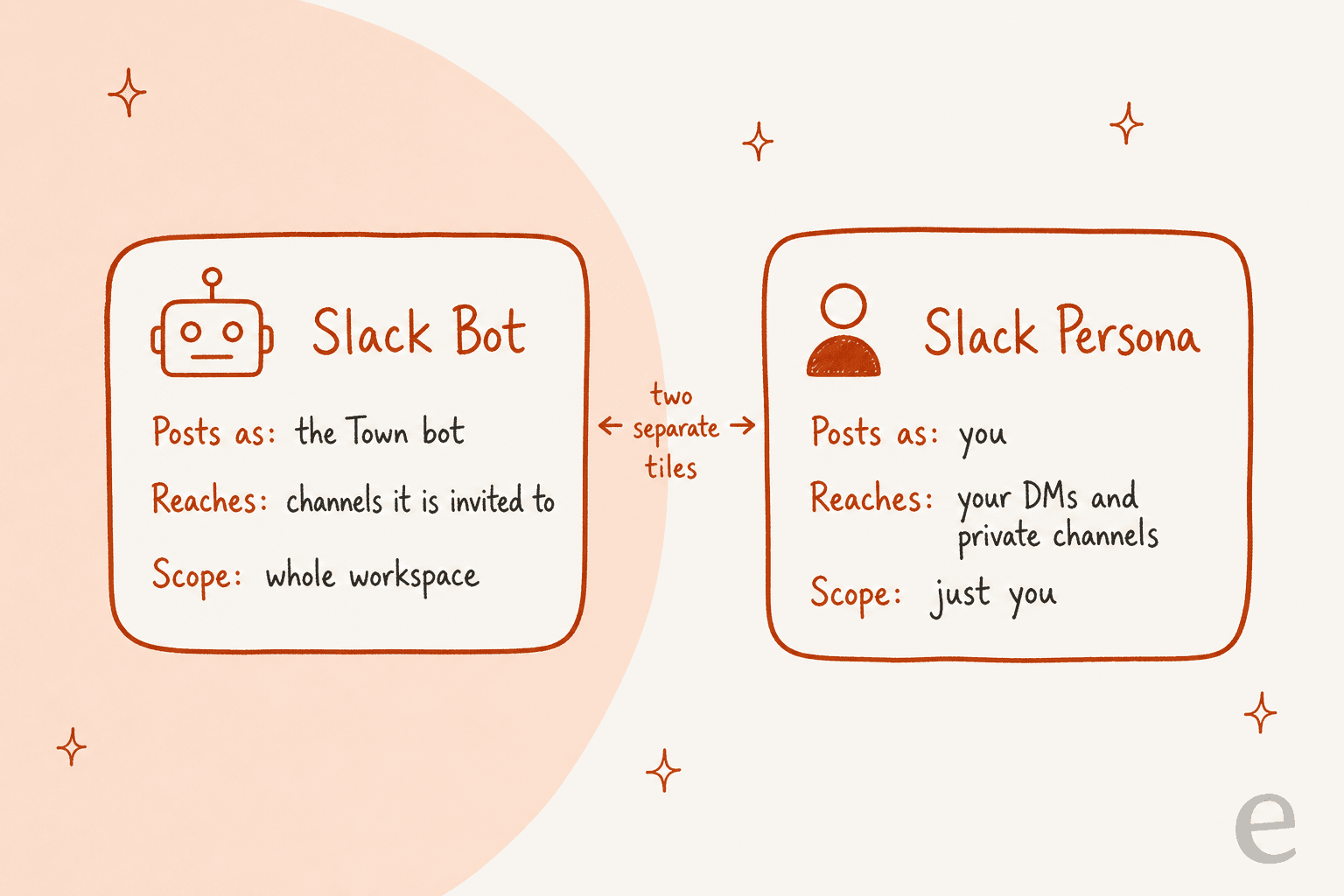
This split matches the two token types in Slack's own authentication docs. A bot token is "tied to your app" and not to a person, so the app stays installed even when the installing user is deactivated. A user token represents a workspace member, and write actions with it are "performed as if by the user themselves." Town's docs don't use those words, so treat the mapping as my reading, but it explains why Persona can read your DMs and the bot can't.
Two limits from Town's docs matter on day one. The bot "can only act in channels it's been invited to," so private channels need a /invite @Town. And there is a "single workspace" limit: one Slack workspace per Town account.
What Slack actions can Town take?
Town's capabilities table lists eight, and it marks which ones change something:
| Capability | What it does | Changes something? |
|---|---|---|
| Send you a DM | Alerts and notifications to you | Yes |
| Post in a channel | Message as the Town bot | Yes |
| Send group message | DM one or more people as the bot | Yes |
| Send as you | Message that appears from you (needs approval) | Yes |
| Search messages | Find messages across the workspace (needs Persona) | No |
| List channels | See the workspace's channels | No |
| List users | See members and details | No |
| Get thread | Read a full thread | No |
Search passes your query straight to Slack, so the operators you already use work: in:#general budget, from:@john meeting, before:2026-08-20 launch. Slack treats after: and before: as exclusive, so Town's docs tell you to set after: to the day before the day you want.
Add up the reads and the posts and you get a decent personal toolkit: catch up on a noisy channel, find a decision someone made three weeks ago, and ping a channel when a routine finishes. Town's docs also describe pulling user feedback from a channel and turning it into a reply or a Linear issue. If you want the Slack side of that without an assistant, my Slack automation guide covers Slack's native tools.
Which Town routines use Slack?
Town's routine library lists Slack as a connected integration on 23 routines, including Morning Briefing, Daily Priority Briefing, Meeting Slip Alert, Delegation Tracker and Weekly Website Report. Most of them send you a digest or alert in Slack instead of, or on top of, email. Town's own best-practice advice is to use Slack for urgent alerts, email for longer summaries, and not to over-notify, since "too many Slack messages can be as overwhelming as email."
There is also a real Slack trigger. Town's triggers docs describe "Slack mention" as a routine trigger that "runs when someone @mentions your Town assistant in Slack," with the use cases "answer team questions in Slack," "process requests made in channels" and "trigger routines from Slack conversations." It needs the Slack integration connected.
That trigger is where plans start to matter, which I get to below. For routines that follow up with clients from your inbox rather than from chat, I wrote up Town AI for client follow-ups and Town AI for HubSpot.
How does Town keep Slack sends safe?
Town's default is cautious. Under Modes and Approvals, the default session setting is "Ask before any changes," where every action that changes something waits for you. "Sending Slack messages" appears by name in the table of actions that need approval, and in the "Always allow safe actions" setting it's listed under "still requires approval" because it's external communication.
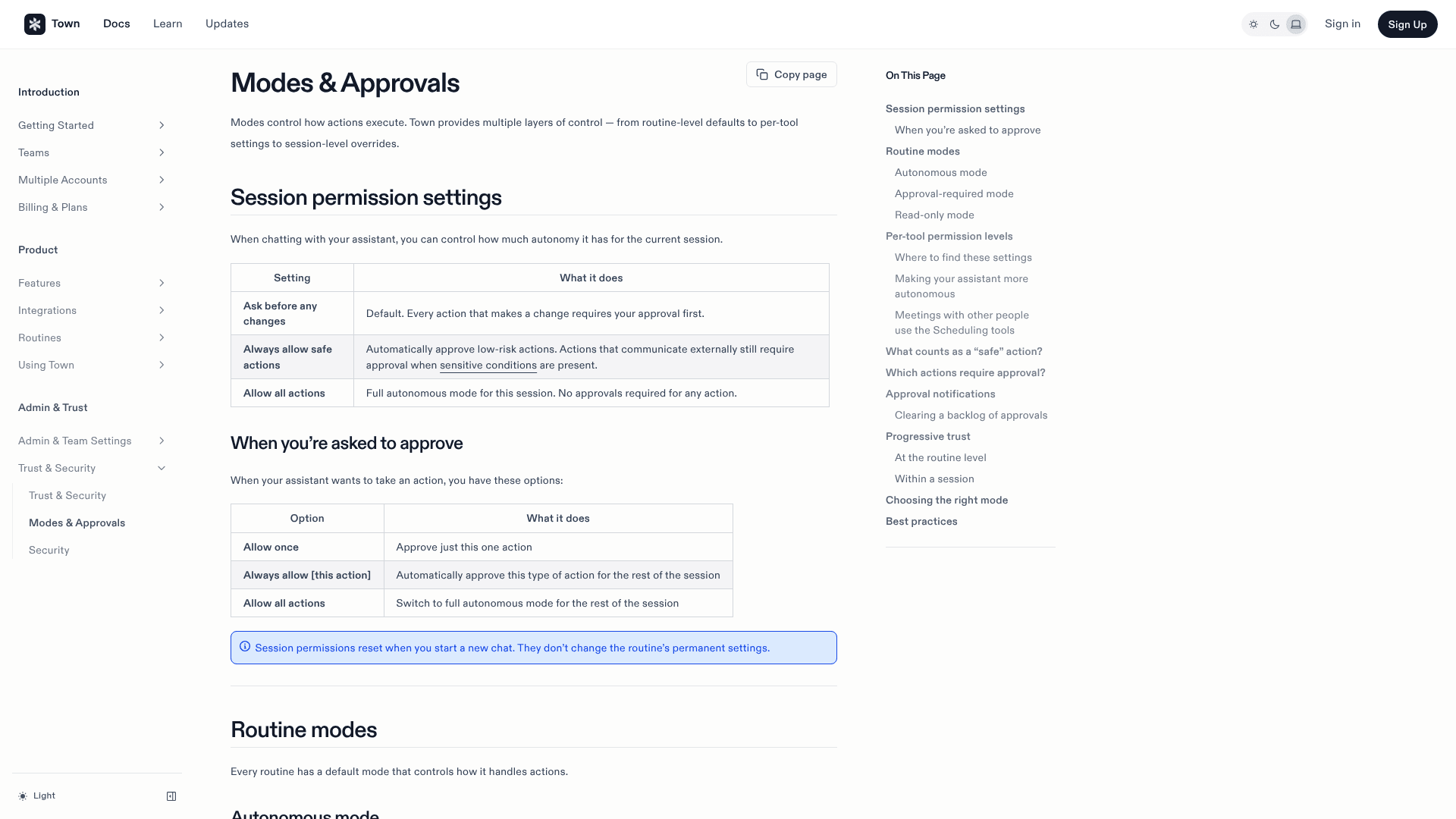
Three details I'd check before turning it loose on a busy workspace:
- Persona sends are always gated. Town's Slack docs say "Sending as you always requires your explicit approval." That's the right default, because a message in your name from a bot is the one that costs you a relationship.
- Routine mode overrides the session default. A routine in autonomous mode runs actions "immediately," so a Slack digest routine set to autonomous will post without asking. Per-tool settings let you keep reading and drafting automatic while Slack sends stay on Ask each time. Town's advice is to leave that setting in place for "anything that contacts other people," since "sent messages can't be unsent."
- Slack channels are untrusted input. Town's docs warn about routines that can read private data, take in untrusted input and send externally, and it flags those combinations when you save. A channel full of other people's messages is exactly that kind of input, so be careful about wiring a Slack-mention routine to anything that sends outside.
Town's co-founder Jean-Denis Greze framed the product's stance at launch:
"And it only acts when you say so."
For Slack, that holds as long as you keep sends on approval. If you wire the same assistant to Claude, the picture is similar, and my Claude Cowork Slack integration guide and ChatGPT in Slack post compare how other assistants gate Slack actions.
What does Town in Slack cost?
Connecting Slack costs nothing extra. Town's pricing page lists the assistant "across email, Slack, WhatsApp, Telegram" on the free plan, which has 30 chats a month. What you pay for is how much the assistant does, and which triggers it can run.
| Plan | Price per month | Credits | Slack-relevant limit |
|---|---|---|---|
| Free | $0 | 30 chats | Weekly Briefing only for routines |
| Starter | $15 (monthly only) | 1,250 | 2 custom routines, scheduled once a day at most |
| Pro | $49 annual / $59 monthly | 5,000 | All trigger types, unlimited routines |
| Power | $99 annual / $119 monthly | 12,000 | All trigger types |
| Team | $59 annual / $71 monthly per seat | 6,000 per seat, pooled | Unlocks shared background routines |
| Team Plus | $149 annual / $179 monthly per seat | 18,000 per seat, pooled | Same, larger pool |
Source: Town Plans and Pricing docs.
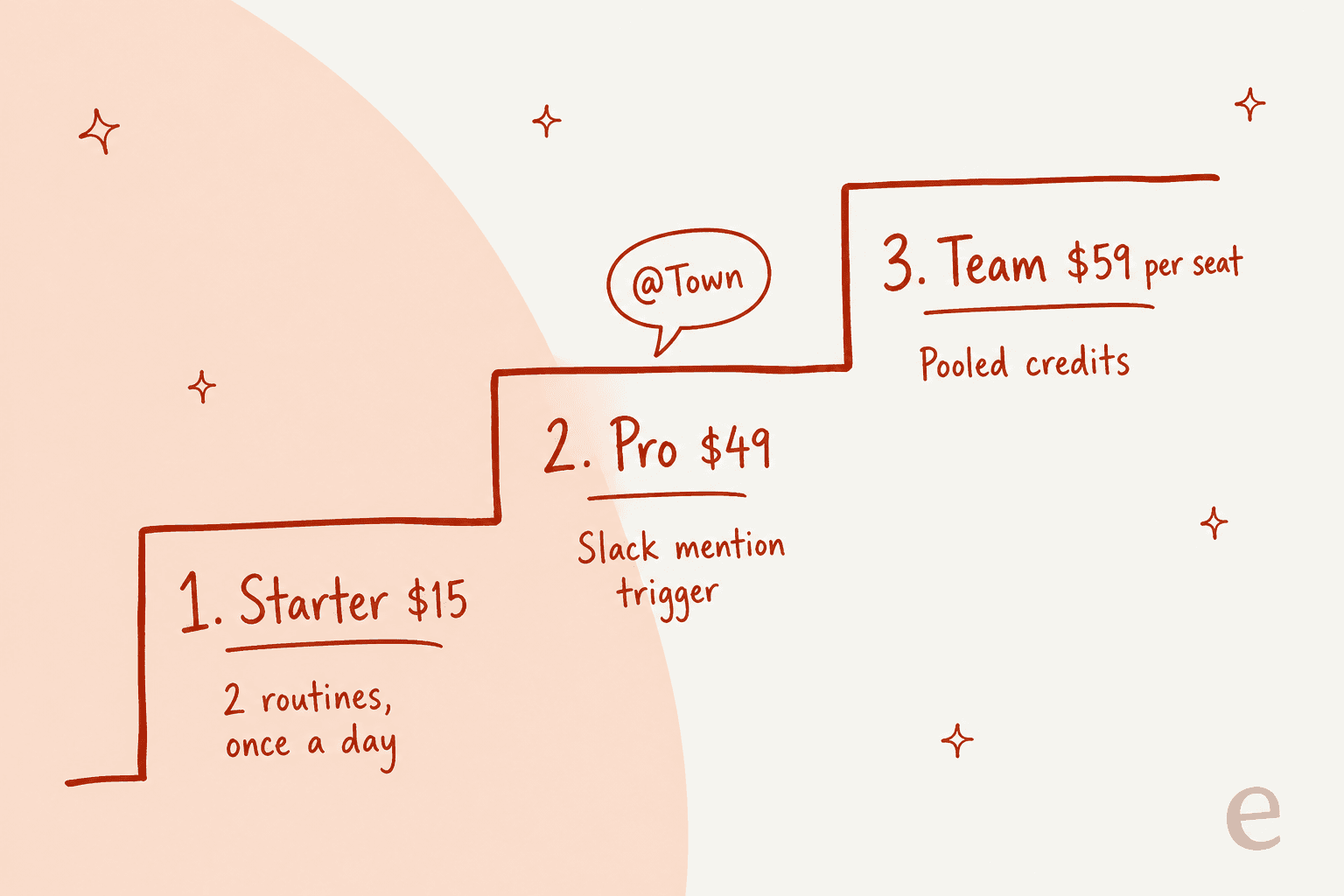
Town's plans docs say Starter runs scheduled triggers only. A Slack-mention routine is an event trigger, so my read is that it needs Pro or a paid team plan. The $15 Starter plan gets you a daily Slack digest, not a routine that reacts to a mention. Credits per run aren't fixed either, since usage depends on how much a run reads and does. My Town AI pricing breakdown has the overage math, and Slack's own seat costs are in my Slack AI pricing guide.
How does Town's Slack setup work for a team?
The Slack Bot installs for a team, not for one account, so you need a Town team first. By default any team member can connect it. If your team's access rules restrict "Manage integrations," only admins and the owner see the Connect button. Then you authorize Town in your Slack workspace and run /invite @Town in each channel you want covered.
Town's Teams docs add a rule that's easy to miss. A team integration "is shared": whatever a team connection can reach in a tool, every member with access can reach too. For Slack that's mild, since the bot "carries none of your personal access" and can't read your DMs. For tools that connect with your own account, it isn't mild, and the docs suggest personal integrations if you want everyone limited to what they can already see.
Here is the mental model I'd keep: Town in Slack is a door to each person's own assistant. Greze's own thesis points the same way. His view on X is that the moat is assistants that talk to each other:
"I think the moat in AI assistants is going to be multiplayer."
That's a sensible bet for personal assistants, and it's also why Town spreads inside companies one person at a time. Investor and builder swyx described exactly that:
"Town is the Devin for Everything Else i was talking about at AIE Europe i brought it into our company one day and a few weeks later was shocked to hear that it had just organically spread to @liamcbride and the rest of our team with no further hyping or enablement from me."
I couldn't find public X or Reddit posts that talk specifically about Town's Slack integration, so the sentiment above is about Town in general. Town also has no G2 or Capterra reviews yet.
Where Town in Slack stops, and a shared bot starts
Town's Slack integration is built for one person at a time. Each mention runs somebody's own assistant, with that person's memory, and the reply lands in the thread. Nothing in Town's docs describes a single shared agent that holds your team's runbooks and answers anyone in a channel the same way. That's a design choice, and a reasonable one for a personal assistant.
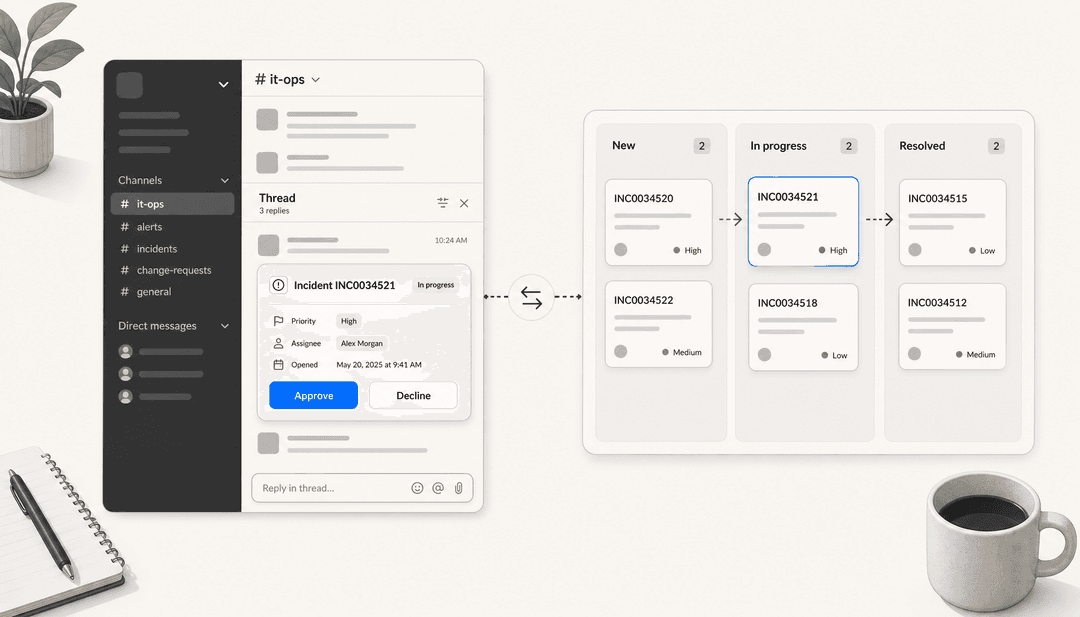
But I hear a different request often. A B2B SaaS team on Front told eesel's sales team they wanted an AI that cross-references the user guide, Slack, the internal knowledge base and past tickets when it answers. That's a shared-answer job: the question comes from whoever is asking, and the answer should be the same whoever asks. It's the shape of an internal help desk in a channel like #it-help, which I looked at in my best internal helpdesk software comparison and internal helpdesk for IT teams guide.
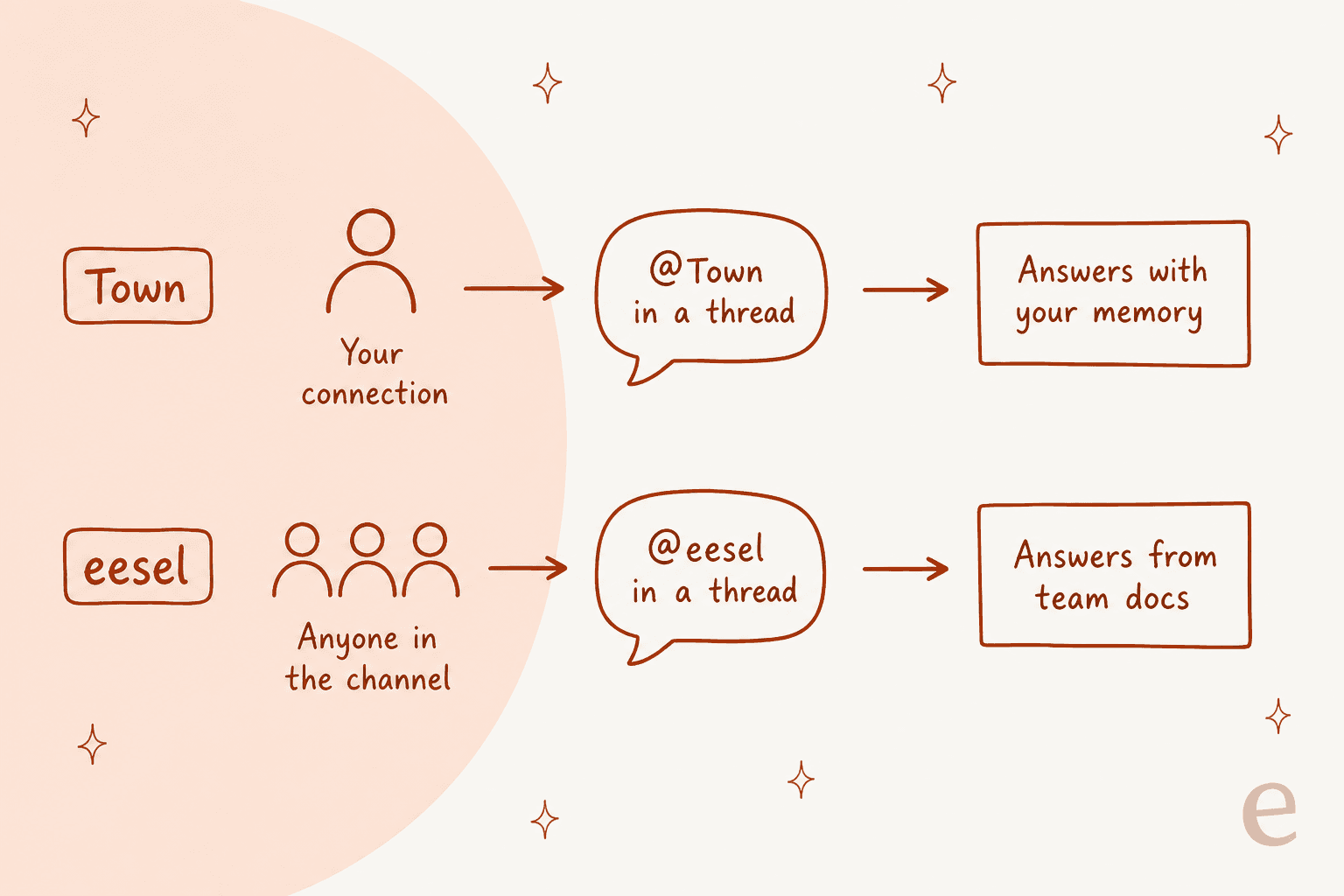
eesel is a set of AI teammates you hire for specific jobs, and the current roster is a helpdesk teammate and a blog writer. In Slack it's the helpdesk teammate that does the shared-channel work, as the closest relative of an AI employee for a single job. Per eesel's Slack docs, it works like this:
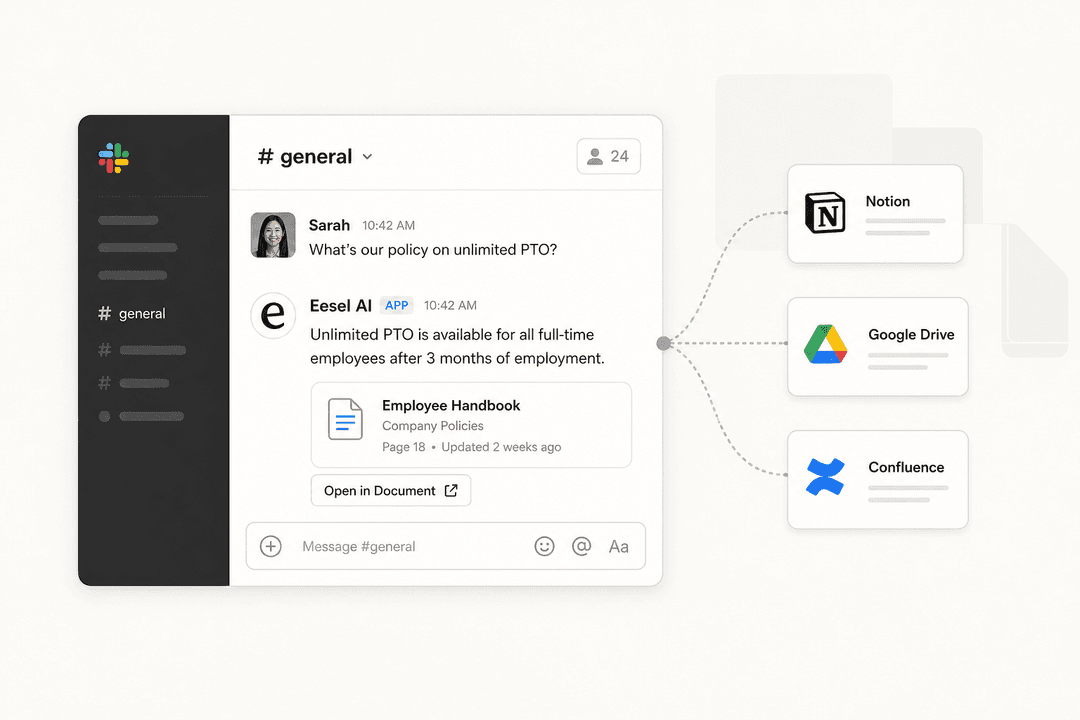
- It answers the whole channel. Anyone can mention it, and it answers in the thread from your connected knowledge with a link to the source. It keeps answering follow-ups in that thread without another mention, and DMs need no mention at all.
- It asks before joining. Right after you connect, it DMs whoever installed it, naming the public channels it would like to join and why. It joins only the ones you approve. Private channels always need a person to run
/invite @eesel. - It acts from the thread. It can look things up in other connected apps, such as a helpdesk, and draft a reply that sits in the thread until you say send. If an action is waiting on a person, an approval card with Approve, Deny and Review in eesel posts in the same thread.
- Search follows Slack's permissions. It covers the public channels it's in, plus private channels the person asking is also in. Nothing from Slack is copied into eesel; it searches live while it answers.
Its limits are specific, and I'd rather you hear them from me. The mention automation is the only Slack trigger, and one Slack workspace answers to one eesel workspace. Slack also shows a "not approved by Slack" notice at install, because eesel isn't listed in the Slack Marketplace. Setup can run from the dashboard chat or from a terminal with the eesel CLI: eesel integrations connect slack, then eesel automations enable slack slack_eesel_mentioned --instructions "...". A person still approves the connection in Slack.
Slack's own platform draws a similar line. Its MCP server lets approved AI clients search, read and send messages, and "workspace admins can approve and manage all MCP client integrations." If you're comparing how assistants plug into Slack, my guides to building agents in Slack, MCP for customer support and Slack AI enterprise search fill in the rest.
Which one should you pick for Slack?
This is how I'd decide:
- Pick Town if you're one person (a founder, chief of staff, ops lead) who wants an assistant you can summon in any channel, that knows your inbox and calendar, and that sends nothing in your name without a tap. Start on the 7-day Pro trial so you can test Slack routines, and read my Town AI alternatives piece if you're comparing it to Instinct AI or Lindy.
- Pick a shared teammate if the channel is where a team asks questions, whether that's IT, support, HR or onboarding, and you want one consistent answer with a source link. That's the eesel route, and it sits alongside whatever helpdesk you already run, like Zendesk or Gorgias.
- Pick both if you're a lead who wants a personal assistant and a team bot. They don't overlap much: one reads your inbox, the other answers your channel.
If your Slack work is really a ticket queue, see how Slack ticketing systems compare and what an AI helpdesk agent does with the tickets themselves. And if you're deciding between chat platforms before adding AI, my Slack review and Slack vs Teams comparison help.
Try eesel for the questions your whole Slack channel asks
If people keep asking the same questions in #it-help, #support or #ask-ops, eesel's AI teammate for Slack answers them in the thread from your Confluence, Notion, Google Drive or help center, with a link to the source. It asks before it joins a channel and posts an approval card before any action that changes something.
Plans are fixed credit bundles on the eesel pricing page, so a quiet channel stays cheap and you can see the cost before you connect. Connect it to one test channel, turn on the mention automation with a short instruction, and watch a week of real questions. Try eesel
Frequently Asked Questions
Does Town AI work with Slack?
Yes. Town has two Slack connections, Slack Bot and Slack Persona, listed as separate tiles in its integrations catalog. The bot lets you @mention your assistant in channels, and Persona lets it act as you in your DMs and private channels. Slack is also available on Town's free plan. For Slack's own built-in assistant, see my Slack AI guide.
Can Town AI read my Slack DMs?
Only through Slack Persona, which uses your own Slack access. Town's docs say the bot can't see DMs, and the team install carries none of your personal access. Persona is optional and connects as its own tile. If DMs and private channels are off limits at your company, Slack's access controls are worth checking first.
Will Town AI send Slack messages without asking me?
By default, no. Sending as you always needs your explicit approval, and in approval-required mode every Slack message waits for a yes. A routine you set to autonomous mode can post without asking, so keep Slack sends on Ask each time until you trust the routine. My Slack automated messages guide covers the safe patterns.
Do I need a paid plan to use Town AI in Slack?
Not to connect it. Town's pricing page lists Slack on the free plan, which has 30 chats a month. Routines that react to a Slack mention are different: Starter at $15 allows scheduled triggers only, so Pro at $49 a month on annual billing is the realistic floor. My Town AI pricing breakdown has every plan.
Can Town AI answer my team's questions in Slack channels?
It answers the person who mentions it, as that person's own assistant, with that person's memory and tools. It isn't one shared agent with a team knowledge base. For a shared bot that answers anyone in a channel from your docs, an AI chatbot for Slack like eesel is the better shape.
How is Town AI different from Slack AI?
Slack AI is Slack's own built-in feature, working on content already in Slack, such as conversation summaries. Town is a separate assistant that also works across your email, calendar and docs, and reaches into Slack through an app you install. They solve different problems, and many teams could run both.
What can Town AI do in Slack besides answering mentions?
Town's capabilities list covers DMing you alerts, posting to a channel, messaging a group as the bot, searching messages, listing channels and users, and reading a thread. Routines can also post digests. For ideas on what to automate, see my Slack automation guide and how to automate Slack support.



Article by
Kira
Kira is a writer at eesel AI with a Computer Science background and over a year of hands-on experience evaluating AI-powered customer service tools. She focuses on breaking down how helpdesk platforms and AI agents actually work so that support teams can make better buying decisions.