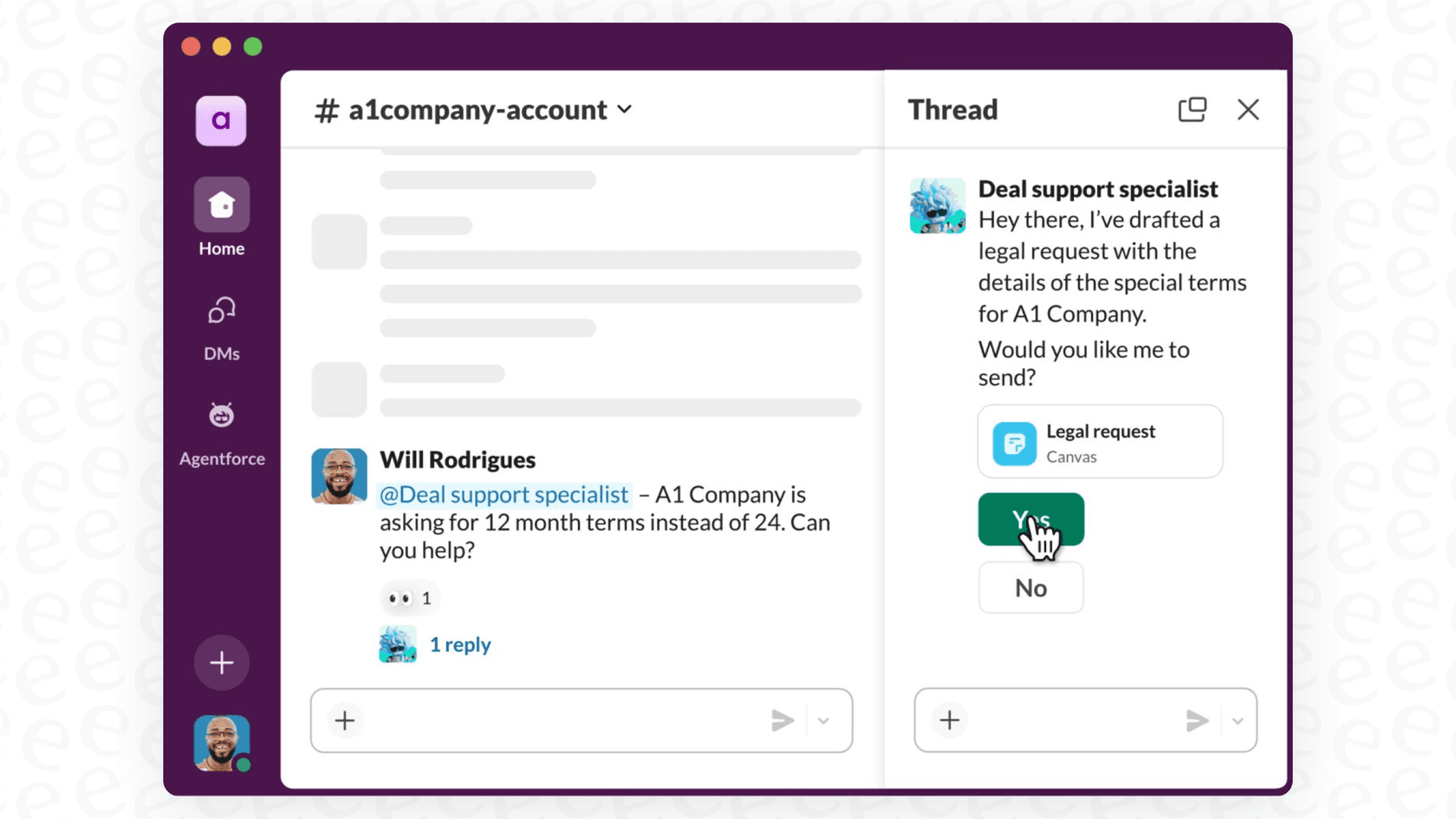
Anthropic's Claude has evolved from a simple chatbot into a multi-interface AI ecosystem. With the launch of Claude Cowork and its Slack integration, teams can now automate workflows, draft messages, and manage tasks without leaving their workspace. But how does it all fit together, and is it worth the investment?
Here's what you need to know.
What is Claude Cowork?
If you're familiar with Claude, you might know it in its original form: a browser-based chat assistant. But Anthropic now offers three distinct interfaces, each designed for different types of work.
Claude Chat is the conversational AI most people know. You ask questions, get answers, have a dialogue. It's great for quick research, brainstorming, or writing assistance.
Claude Code is built for developers. It's a terminal-based tool that integrates with GitHub, reads codebases, and helps with software development tasks.
Claude Cowork sits in the middle. It's a desktop agent designed for non-programmers who want AI assistance with files, documents, and workflows. Think of it as having an AI colleague who can organize your Downloads folder, draft presentations from existing materials, or run multiple tasks in parallel while you grab coffee.
The key difference? Cowork is folder-based. You point it at a directory, and it operates within that context: reading files, creating documents, organizing content. When you ask for a presentation, you get an actual PowerPoint file in your folder. Not a chat artifact you copy-paste from.
As one user (an orthopedic surgeon juggling clinical work, a startup CEO role, and a newsletter) put it: "The question I've been asking is not 'how do I do more?' but rather 'how do I offload the mechanical work so that my limited attention goes to decisions that require judgment?' Claude Cowork has become my answer."
How the Claude Cowork Slack integration works
The integration between Claude and Slack works in two directions, and understanding both helps clarify what you can actually do.
First, there's "Claude in Slack." This is the Slack app you install from the Slack Marketplace. Once added to your workspace, you can:
- Start a direct message with @Claude for private AI assistance
- Mention @Claude in any channel or thread to get help with conversations
- Access Claude through the AI assistant panel in Slack's right sidebar
Second, there's the "Slack connector" for Claude. This is enabled within your Claude account (web or desktop) and allows Claude to search your Slack workspace: channels, direct messages, and shared files. This is particularly useful when you want Claude to pull context from past conversations.
In January 2026, Anthropic launched Interactive Apps (also called MCP Apps) that take this further. Now you can draft Slack messages, preview formatting, and post directly from the Claude interface without switching tabs. This is built on the Model Context Protocol, an open standard Anthropic introduced in 2024.
The result is a workflow where you can research something in Claude, draft a message, review it, and post to Slack, all from one interface.
Setting up Claude Cowork with Slack
Getting started requires both admin and individual steps. Here's how it works.
For Slack admins
A workspace administrator needs to approve the Claude app before individual users can access it:
- Go to the Claude app in the Slack App Marketplace
- Click "Add to Slack" to begin installation
- Review and approve the app for your organization
- Choose whether to deploy org-wide or to specific workspaces
For Enterprise Grid organizations, you can deploy across all workspaces from the admin console under Integrations → Installed apps → Add to more workspaces.
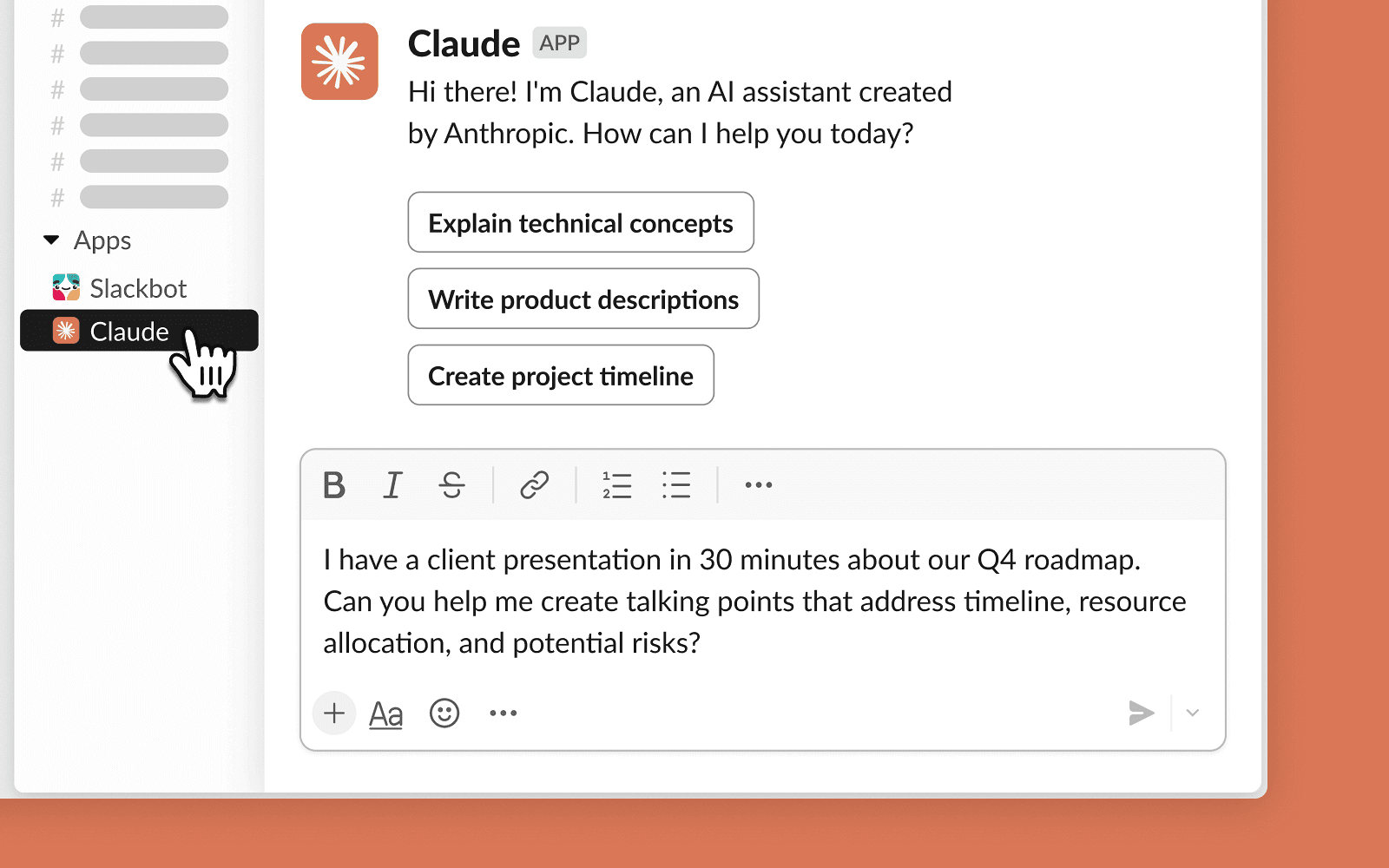
For individual users
Once your admin has approved Claude:
- Find Claude in your Slack apps list (or go to the Marketplace)
- Click "Connect Account" to link your Claude account
- Select which organization to connect
- Authorize access
- Start a DM with Claude or @mention it in channels
Pro tip: Add Claude to your Slack header for quick access by clicking the three dots at the top right and selecting "Add this app to header."
Enabling the Slack connector
To let Claude search your Slack workspace for context:
- In Claude (web or desktop), click your initials in the lower left
- Navigate to Settings → Connectors
- Find the Slack connector and click "Connect"
- Authenticate with your Slack account
For Team and Enterprise plans, an Owner must first enable the connector at the organization level before individual users can connect.
Key features and use cases
Once set up, what can you actually do with Claude Cowork in Slack? Here are the practical applications.
Draft and post Slack messages. Using Interactive Apps, you can compose messages in Claude, preview how they'll look, and post them to specific channels. This is useful when you want AI help crafting an announcement or response.
Search workspace context. The Slack connector lets Claude pull information from past conversations. Ask it to find that decision from last month's #product channel, or summarize what was discussed about a particular topic.
Run parallel workflows. This is where Cowork excels. You can dispatch multiple tasks simultaneously: have Claude organize your Downloads folder while it drafts email responses while it researches a topic. Each runs independently.
Build repeatable skills. When you find yourself typing the same complex prompts repeatedly, save them as skills. One user built an "email priority run" skill that categorizes emails by work pillar, drafts responses, and produces a dashboard with copy-pastable replies.
Create real deliverables. Unlike chat-based AI that gives you text to copy, Cowork generates actual files: PowerPoints, Excel spreadsheets, Word docs, PDFs. These appear in your designated folder, ready to use.
A typical morning workflow might look like this: open Cowork, dispatch five tasks (email triage, presentation prep, content planning, file organization, research), walk away for 20 minutes, return to find deliverables waiting.
Claude Code in Slack for developers
There's a separate feature specifically for technical teams: Claude Code in Slack (currently in beta). This routes coding tasks from Slack directly to Claude Code on the web.
Here's how it works:
- You @mention Claude in a Slack channel with a coding request
- Claude detects the coding intent (or you explicitly tell it)
- A Claude Code session is created on claude.ai/code
- Progress updates post to your Slack thread
- When finished, you get a summary with action buttons to view the session or create a pull request
You can choose between two routing modes:
- Code only: All @mentions go to Claude Code (best for dev-focused teams)
- Code + Chat: Claude analyzes each message and routes appropriately (best for mixed teams)
This requires Team or Enterprise plan with Claude Code access enabled. It's particularly useful for bug investigations, quick code reviews, and collaborative debugging where thread context helps Claude understand the problem.
Pricing and plans
Claude's Slack integration isn't available on the Free plan. Here's the breakdown:
| Plan | Monthly price | Annual price | Slack integration |
|---|---|---|---|
| Free | $0 | $0 | Not available |
| Pro | $20/mo | $18/mo | Claude in Slack available |
| Max | $100/mo | $90/mo | Full features, 5x usage |
| Team | $25/seat/mo | $22.50/seat/mo | Full features + admin controls |
| Enterprise | Custom | Custom | SSO, SCIM, audit logs |
Important notes:
- Interactive Apps (MCP Apps) are included with paid plans at no additional charge
- Claude Code in Slack requires Team or Enterprise with Code access
- Annual billing saves approximately 10%
For comparison, if you're primarily looking for AI assistance with customer service rather than general productivity, eesel AI offers a different approach. We have a free plan with 100 credits, then one fixed monthly price from $299/month for 500 credits (1 credit per ticket or chat), with no platform fee and no seats, and we integrate deeply with Slack for support workflows. Your price is sized to ticket volume, not per seat, which can be more predictable for support teams.
Security and data privacy
With AI systems taking actions on your behalf (sending messages, creating projects), security is a valid concern.
Anthropic addresses this through several mechanisms:
- Consent prompts: Before Claude sends a Slack message or takes an action, you review and confirm it
- Admin controls: Team and Enterprise admins control which MCP servers users can access
- Data retention: Inputs and outputs retained for 2 years; flagged content for 7 years
- Model training: By default, your Slack conversations aren't used to train models
- Compliance: SAML and SSO support available; SOC 2 Type II certified via subprocessors
The company also recommends caution: "Be cautious about granting access to sensitive information like financial documents, credentials, or personal records. Consider creating a dedicated working folder for Claude rather than granting broad access."
Getting the most from Claude Cowork in Slack
If you decide to move forward, here are practical tips:
Start with specific, repeatable tasks. Don't try to automate everything at once. Pick one workflow you do daily and build a skill for it.
Use parallel execution strategically. Cowork's ability to run multiple tasks simultaneously is powerful, but you need to check back periodically as Claude may pause for clarifications.
Combine with other MCP Apps. The Slack integration works alongside other Interactive Apps like Figma, Asana, and Box. You could research in Claude, create a presentation, and announce it in Slack without switching contexts.
Review before sending. Always review AI-drafted messages before posting to Slack. The consent prompt is there for a reason.
Consider your use case. Claude Cowork excels at general productivity and knowledge work. If your primary need is customer service automation with deep ticket handling, routing, and resolution, a purpose-built AI teammate like eesel AI might be a better fit. We integrate with Slack too, but our focus is specifically on support workflows: deflecting tickets, drafting responses, and learning from your help center and past conversations.