


Front sets reply and resolution goals through two rule templates, not a separate SLA setting. A Reply time goal or Resolution time goal rule, on the Professional plan or above, tags a conversation At risk and then Overdue, and the Time goals report counts those tags. The clock can follow business hours, but the countdown on a conversation card ignores them, a second customer message does not restart it, and a snoozed or archived conversation is skipped when the goal expires. It is a flag for your team, not a promise Front enforces.
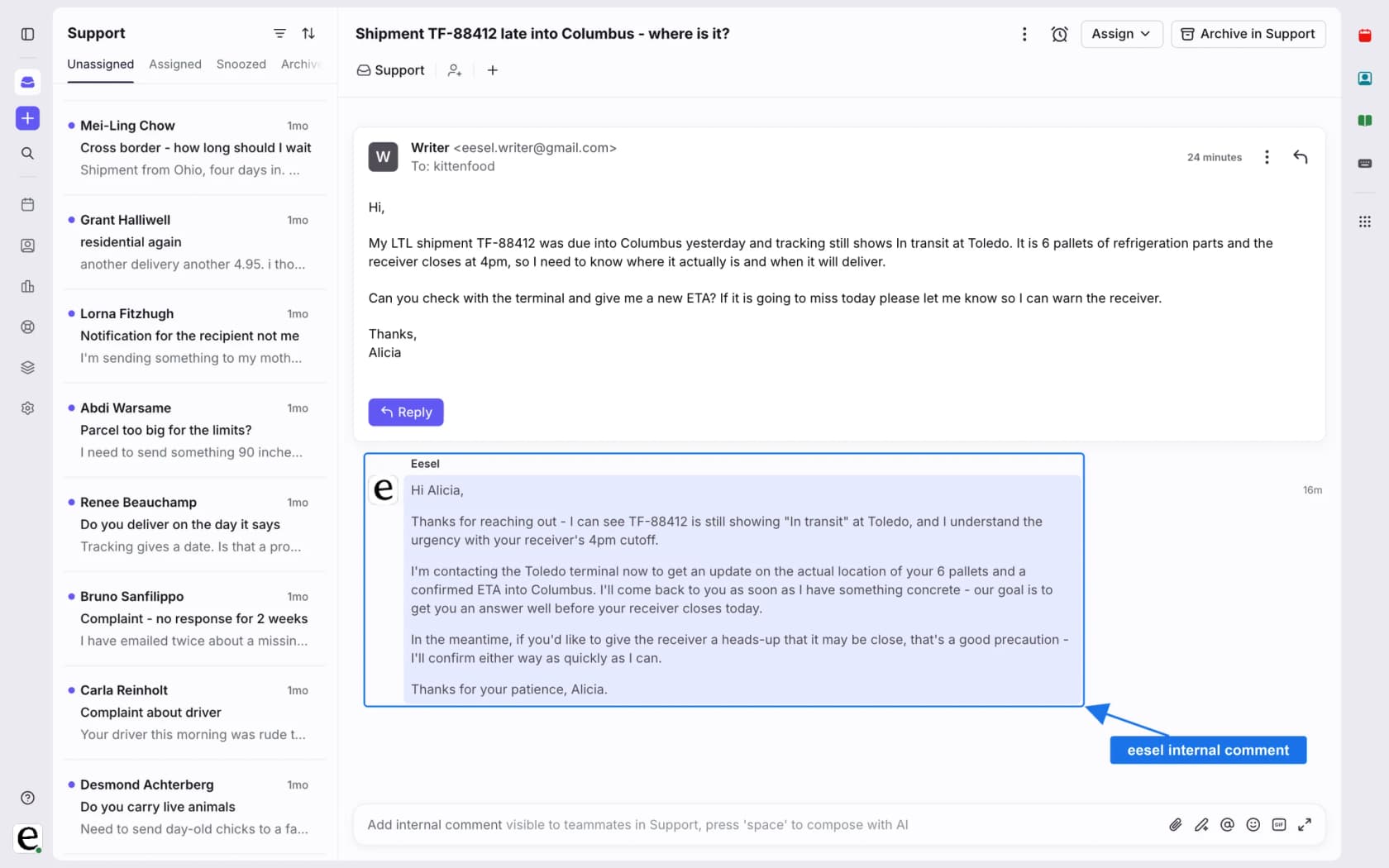
eesel can draft, tag and route in the same Front queue, so the goal gets met by an earlier first answer. With the eesel CLI, a coding agent can connect Front and test an internal-comment draft on a test conversation first, and Front's docs do not say how an AI-sent reply is counted, so I would check that. Connecting the inbox still needs someone with admin rights.
What are Front's time goal rules?
They are rules that start a clock when a customer writes and tag the conversation if nobody answers in time. Front's help center describes them as "guardrails for your inbox", and says they were previously named SLA rules, which is why the tags and some metric names still say SLA.
I work the support queue at eesel every day, and the gap I notice first in any shared inbox is the one between "we aim to reply in two hours" and anyone being told when that is about to fail. A time goal rule is Front's answer to exactly that gap. There are two templates:
- Reply time goal. Measures how long a customer waits for an outbound reply after sending a message.
- Resolution time goal. Measures how long it takes to fully resolve a conversation, across several back and forth messages.
Each rule can also warn before the deadline. If you switch on Warn when goal is at risk, Front adds a warning tag before the conversation is overdue, and you can attach extra actions to both moments, such as notifying teammates or assigning the conversation. If you came from a ticketing system, this is the nearest thing to an SLA policy, though it is built from tags and rules rather than a policy object.
Which Front plan do I need?
Professional or above. Front's help center says time goal rules, the Time goals report and business hours are all on the Professional plan or above, and that some legacy plans may also have them.
| Item | Starter | Professional | Enterprise |
|---|---|---|---|
| Seat price, billed annually | $25 | $65 | $105 |
| Automation rules | Up to 10 | Up to 20, plus macros | Unlimited |
| Time goal rules | Not listed | Yes | Yes |
| Time goals report | Not listed | Yes | Yes |
| Business hours | Not listed | Yes | Yes |
Prices and rule caps come from Front's pricing page, and the Starter cells say "not listed" because the help center only names Professional and above. The part to plan around is the cap. A time goal rule is a shared rule, so I would assume each one uses a slot, but the docs do not say, and 20 slots on Professional go fast once you split goals by inbox. My Front pricing post tracks the tiers.
How do I set a reply time goal in Front?
You need workspace admin permissions, and the setup is a handful of short steps. Front's reply goal walkthrough boils down to this:
- Open the template. Gear icon, workspace settings, Rules and macros, Create rule, then Set reply time goal from the rule library.
- Name the rule and set the time. In the Reply time goal field, enter something like
2 h. Pick within business hours or regardless of business hours from the dropdown beside it. - Choose the inboxes. The If section picks which shared inboxes the rule covers, and + Condition narrows it further.
- Decide what happens when it is overdue. The Add tag action creates an SLA Breach tag if it does not exist yet. Add other actions here too.
- Optionally add an at risk warning. Toggle Warn when goal is at risk and set a shorter time in No reply sent after. It must be less than the goal itself.
- Create the rule. Then add the overdue and at risk tags to a sidebar view so the team can see them.
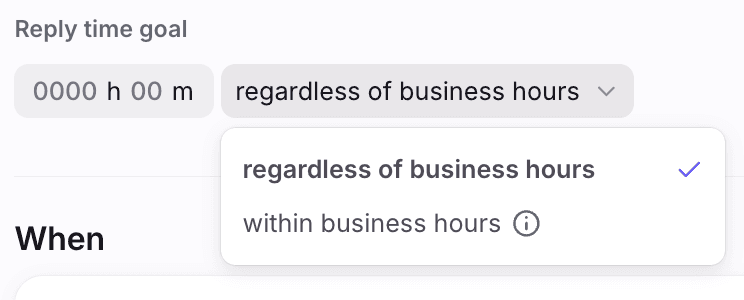
That dropdown is the setting people skip past. It decides whether the clock keeps running at night, which the next section covers. The warning is its own block under the goal.
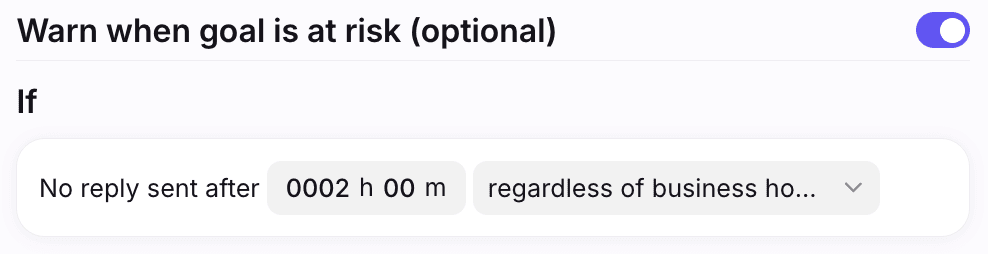
The resolution version works the same way with its own template. Its tags are Resolution goal overdue and Resolution goal at risk, and the warning field reads No resolution after. Front advises against swapping in a different tag. If you do, every conversation carrying that tag counts as overdue in analytics.
How do business hours change the Front time goal clock?
With within business hours chosen, the clock only counts hours your team works. Front's own example is a 4 hour goal with 8:00 AM to 5:00 PM hours. A message at 4:00 PM goes overdue at 11:00 AM the next day, and one at 6:00 PM goes overdue at noon, because counting starts at 8:00 AM.
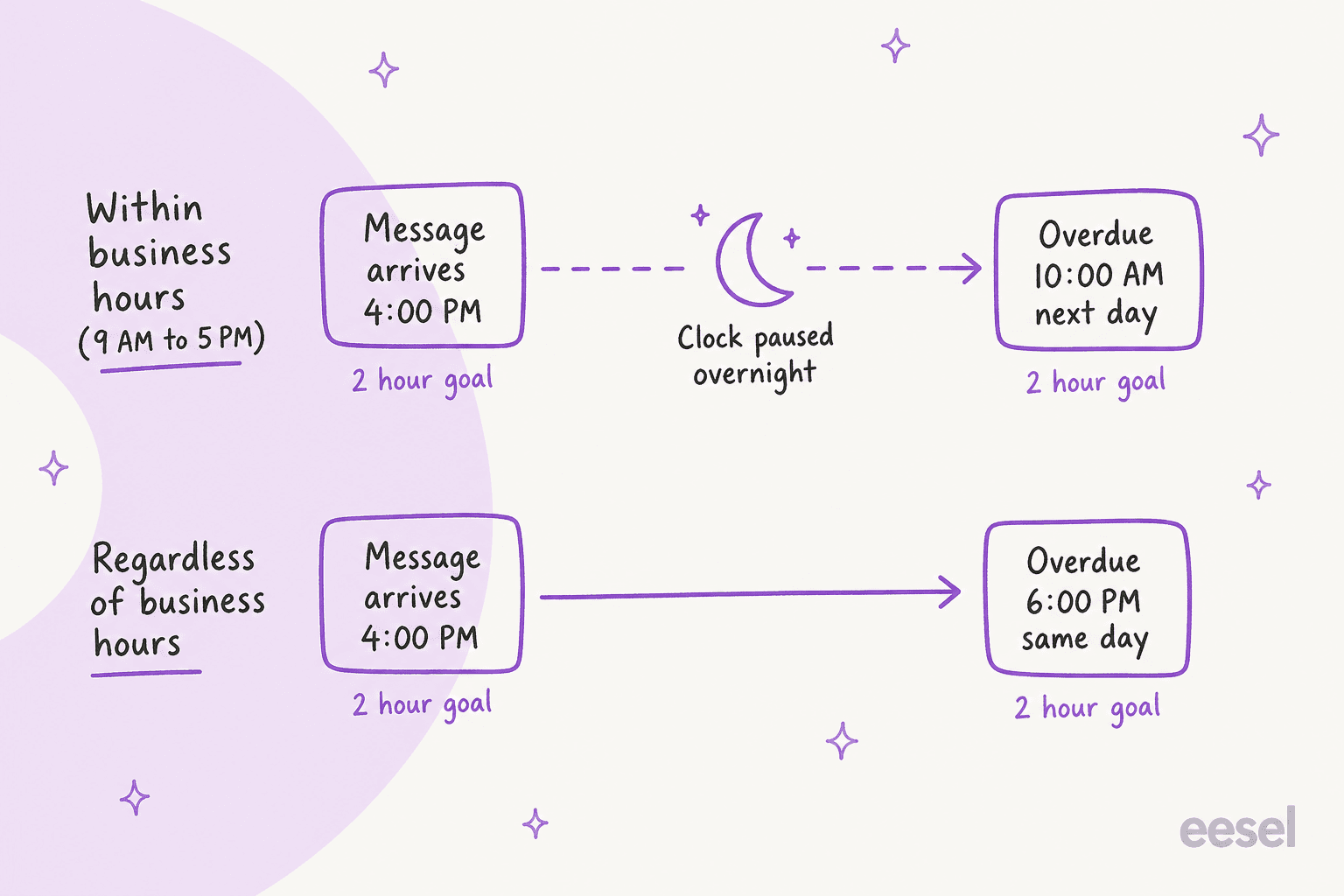
Business hours live in two places, and the more specific one wins. Front's business hours article says an inbox's own hours beat the workspace hours, and that a conversation sitting in several inboxes uses the one that comes first alphabetically. Only a company admin who is also a workspace admin can change them. Three details matter in practice:
- Changing hours changes live goals. The hours you set in the rule builder sync with workspace or inbox settings. Front warns that a change can affect current conversations and can stop a rule from running if the time frame no longer lines up.
- Holidays have no calendar. A Front support specialist answered a user asking about holiday hours by suggesting you edit the business hours before the break, then reset them.
- Weekend replies count as zero in analytics. If Saturday and Sunday are switched off, a Sunday reply to a Saturday message is measured as zero business hours.
"The best way to ensure that SLAs and response time metrics aren't impacted on holidays is by updating your Workspace or Inbox Business Hours during breaks or bank holidays."
That works, but it is a manual chore, and it affects analytics for the whole workspace. If your team follows several time zones, Front's own options are one workspace with wide hours, one workspace per zone, or one shared inbox per zone. For how other helpdesks handle calendars, see Zendesk SLA calendars and Help Scout SLA policies.
What does the timer on a conversation show?
A countdown that does not use business hours. Conversations tagged by a time goal rule show a timer, and Front says it displays the clock time between now and the moment the goal goes overdue. After that it counts the time since the deadline.
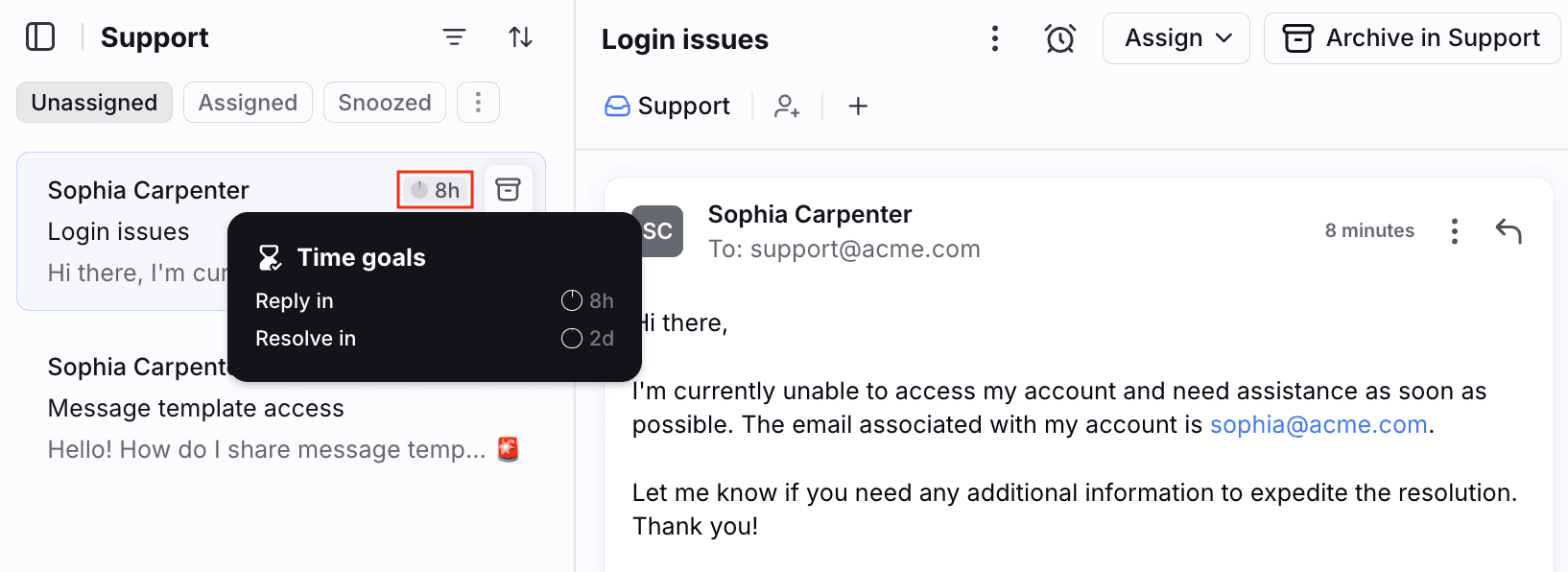
Front's worked example explains why this can look strange. With 9 AM to 5 PM hours and a 2 hour goal, a message at 4:00 PM goes overdue at 10:00 AM the next day, so at 4:00 PM the timer reads 18h. At 10:00 AM it reads overdue -1m. A new agent seeing 18h on a two hour goal will think the rule is broken, so I would tell the team before they find it.
What resets, restarts or skips a time goal?
Only a human-sent reply restarts it, and a few common events do nothing at all. This is the part of Front's FAQ I would print for new teammates.
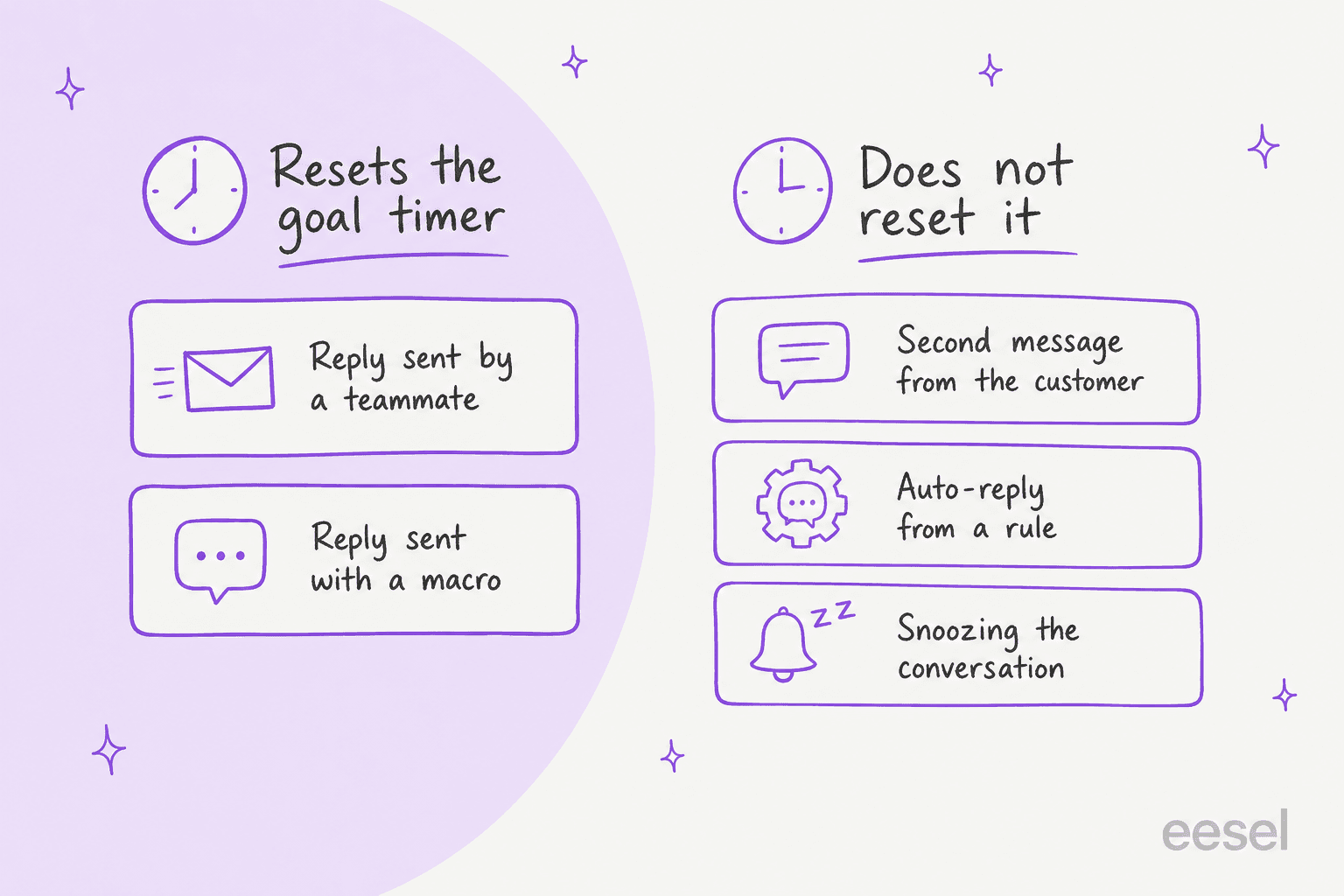
The detail behind the picture, all from the time goal rules FAQ:
- Multiple inbound messages do not reset it. The rule works from the oldest unreplied message.
- Auto-replies do not count. Only replies sent manually by teammates or sent via the API reset the timer.
- Macro replies do count. Front treats them as human actions, like a message template.
- Snoozing does not extend the clock. The timer keeps running while a conversation is snoozed.
The situation that surprises people is what happens when the timer expires. Pick one below to see what Front says.
The first three tabs are the ones that bite. A snoozed message that nobody picks up again produces no breach, no tag and no row in your report, so a quiet failure looks the same as a good week. My Front ticket status rules post covers how Waiting and Snoozed relate.
What happens when a goal is at risk or overdue?
Front adds a tag, runs your actions and removes the tag when someone replies. The rule's trigger events matter first. A reply goal starts when a new inbound message arrives or a conversation moves into the inbox. A resolution goal starts when a conversation is created, a new inbound message arrives, or its status changes to anything other than Resolved or Archived.
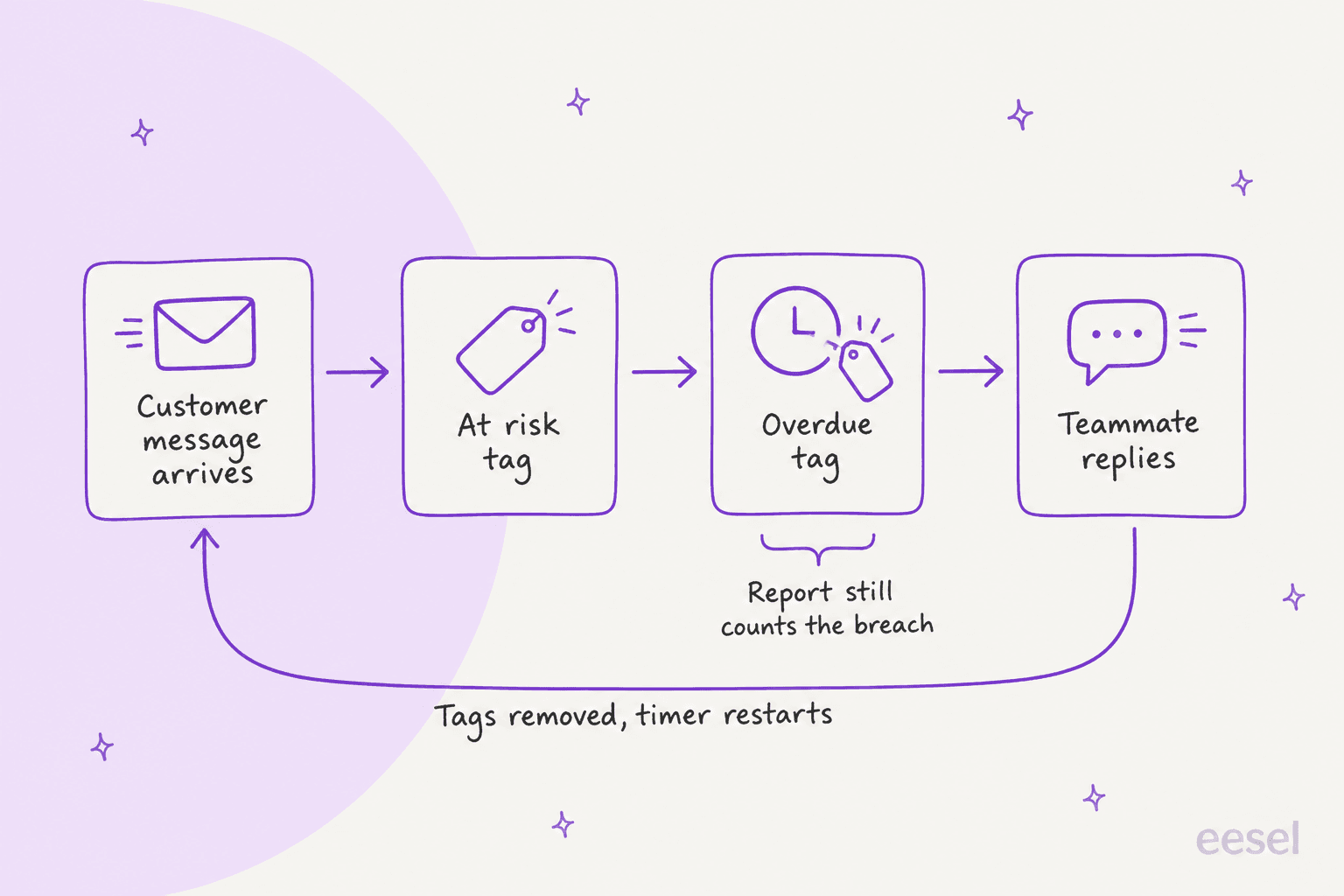
When a teammate replies to a flagged message, Front removes the overdue or at risk tag, which restarts the timer on the next inbound message. That is intended, since the tags exist to show conversations that need action now. It also means a sidebar view of overdue tags is a live to-do list, not a history. For history you need the report.
The tags are also the hook for automation. Because the output is an ordinary tag, any other rule can react to it, which is how teams page a supervisor or reassign an overdue conversation. A Front support specialist, asked by a user how multiple supervisors should handle breaches, laid out three options: email everyone, build views by inbox or SLA tag, or use a custom field naming the inbox owner. Front's reply was that it depends on how the team works, and that all-supervisor emails can cause notification overload. My Front shared inbox ownership and Front load balancing posts cover the owner side, and AI escalation management covers what to do once a breach lands.
How does Front report on time goals?
Through the Time goals report and a family of metrics, all counting tag events. Front's Time goals report has key metrics cards, a performance over time graph and a table split by rule.
| Metric | What Front counts |
|---|---|
| Messages with time goal | Messages that met a time goal rule's conditions, including ones that were never overdue |
| At risk time goals | Times a rule applied an at risk tag, each warning counted separately |
| Overdue time goals | Times a rule applied an overdue tag |
| Met time goal (%) | 1 - (overdue / messages with time goal) |
| Overdue time (avg) | Average time from the overdue tag being applied to being removed |
| Conversations overdue at end | Conversations still carrying an overdue tag at the end of the period |
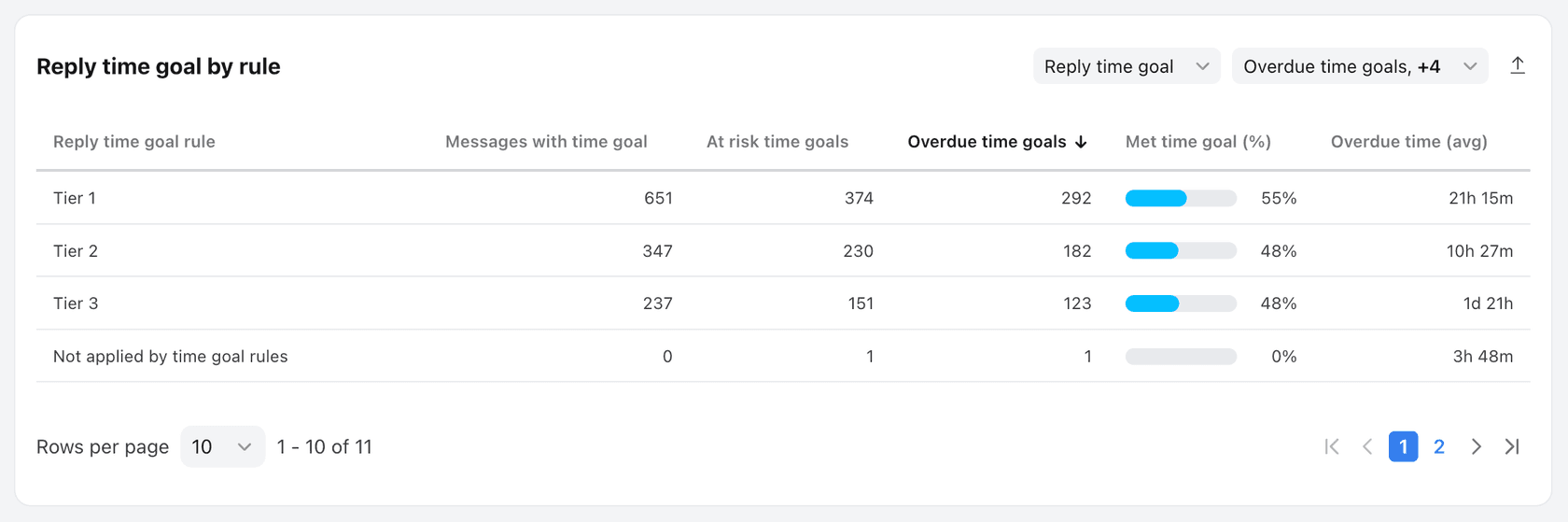
The by-rule table is the reason to build several rules instead of one. In Front's sample, three tier rules each carry their own overdue count and met percentage. A single blanket rule would hide which tier is slipping.
Five details that decide whether the numbers mean what you think:
- A removed tag is still counted. The report counts a breach each time the overdue tag is added in the period, even if the tag is removed straight after.
- Disabled rules still count. Front says a tag referenced by a rule counts even when the rule is disabled, so delete the rule if you want the tag out of the math.
- Overdue time ignores business hours. So does the overdue count, according to Front's metric definitions.
- Shared tags go to overdue. If one rule uses a tag for at risk and another uses it for overdue, it is always counted as overdue.
- Manual tags show as their own row. Not applied by time goal rules covers teammates tagging by hand and ordinary rules that add an overdue tag.
Per-person reporting needs care. Front's Team performance report credits a breach to whoever was assigned at the moment it happened, which is not always the person who should have replied. The metric definitions say so for several measures. If you build a leaderboard on it, tell the team how the attribution works. Beyond the built-in report, AI for support reporting and AI support quality assurance cover what to measure next.
What are the limits and what do Front's docs not say?
The rules have clear edges, and there are several places where the docs say nothing. Stated limits first:
- Shared rules only. Time goal rules cannot be individual or company rules.
- No dynamic variables. They do not work in time goal rules.
- Admins build them. Both templates need workspace admin permissions.
- Open conversations only. Warnings and breaches apply to Open status.
Where I could not find an answer, so I would test in a sandbox inbox first:
- Slot count. Whether a time goal rule counts toward the
20rules on Professional. - Per-customer goals. Front's community has a user asking whether one rule can apply a 24 hour goal for a tag and 48 hours otherwise. I found no documented single-rule answer, so assume separate rules.
- Holiday calendars. None documented. Front's suggested workaround is editing business hours.
- Per-rule hours. Business hours sync from the workspace or inbox settings, and the docs describe no hours set on a single rule.
- Bulk or API archives. Nothing on how goals behave when a conversation is archived in bulk.
- AI agent replies. Front says replies sent via the API reset the timer, and does not mention AI agents separately.
None of this is a flaw so much as an edge. The mechanics are simple, and the docs are precise where they speak.
Who should use Front time goal rules, and what goals should they set?
Use them if a missed reply costs you something you can name. That is a contract, a VIP tier or a promise on your website. Without that, the rule adds tags nobody acts on.
I would start with one reply goal and one at risk warning, because the warning is where the queue changes behaviour. Set the warning at roughly half the goal, so the person who sees it can still do something. Front's metric page for at risk goals makes the same point from the other side: many at risk but few overdue conversations suggest your team is close to capacity. After a month, split by rule only where the numbers show different tiers behaving differently. A queue of ten inboxes with ten different goals is a configuration nobody maintains, and 20 rule slots will not stretch that far.
Two mismatches to avoid:
- A resolution goal on a queue full of waiting threads. Resolution goals run on Open time, so a status or snooze habit can make the number meaningless. Front ticket status rules is the place to fix that first.
- A strict goal with no capacity plan. A two hour goal across one inbox for three agents is a staffing decision, not a rule. See SLA best practices for target setting, and the glossary entries on first response time and resolution time.
How do AI agents fit with Front time goals?
An AI agent moves the first answer earlier, which is what a reply goal measures. It does not change how Front tracks the clock. eesel's Front docs list the actions: it drafts a reply as an internal comment or sends it, adds tags (they must already exist in Front), assigns to a teammate and archives a conversation.
SamCart shows the shape, on Freshdesk rather than Front. Its agent sends the first reply on tickets in the groups it covers, only while no person is assigned, and once a teammate picks the ticket up the agent steps back. It answers from about 280 help center articles, and a seller who asks for a person gets the ticket tagged for handoff. Front has no published customer story I can cite, so treat that as the same pattern on a different helpdesk. In Front terms, I would run it as a drafting agent first. An internal comment is not a reply, so the goal timer keeps running until a teammate sends one, which is the safer default while you learn how your numbers behave.
If you want the agent to reply directly, check the one thing the docs leave open. Front says replies sent via the API reset the goal timer, so a reply sent by an integration likely counts, but a test conversation in a sandbox inbox is a five minute way to be sure. My AI first response automation and AI for first contact resolution posts cover the wider design, and how to automate ticket triage covers the tagging step that precedes it.
Try eesel in your Front inbox
If your overdue tag keeps firing on questions your help center already answers, eesel is built for that gap. It reads your help center and past Front conversations, drafts a reply as an internal comment, and can tag and route conversations so a teammate confirms instead of starting from a blank page. Start with drafts only, keep your time goal rules as the scoreboard, and let it send replies once the drafts match what a person would have written. Paid plans start at $299 a month for 500 credits, where a ticket or chat is one credit, and there is a free plan to try it on a few real conversations (eesel pricing).
For setup, see my guide to adding AI to Front, the Front AI overview and Front vs eesel. Try eesel on a handful of real conversations before you decide, and see Front alternatives if the rule limits are a dealbreaker.