
When a customer submits a support ticket on Friday evening, when should they expect a response? If your team doesn't work weekends, counting every hour equally doesn't reflect reality. That's where understanding the difference between calendar hours and business hours in Zendesk becomes essential.
This guide walks you through configuring Zendesk's time tracking options, setting up business hour schedules, and applying them to your SLA policies. Whether you're just getting started or optimizing an existing setup, you'll learn how to align your metrics with your actual support operations.
Understanding the difference: Zendesk SLA calendar hours vs business hours
Zendesk offers two ways to measure time for SLA calculations and automations. The distinction matters because it fundamentally changes when a ticket is considered "due."
Calendar hours count every hour continuously, just like a standard clock. A ticket created at 5:00 PM on Friday with an 8-hour SLA target would be due by 1:00 AM on Saturday. The timer never stops.
Business hours only count time during your defined working schedule. That same ticket created at 5:00 PM Friday, if your business hours are Monday through Friday 9:00 AM to 5:00 PM, would not be due until 9:00 AM the following Monday. The timer pauses outside business hours and resumes when your team is back online.
Here's a practical example to illustrate the difference:
| Scenario | Calendar hours | Business hours (Mon-Fri 9-5) |
|---|---|---|
| Ticket created | Friday 5:00 PM | Friday 5:00 PM |
| SLA target | 8 hours | 8 hours |
| Due time | Saturday 1:00 AM | Monday 9:00 AM |
| Actual elapsed time | 8 hours | 1 hour (Friday) + 8 hours (Monday) |
The business hours approach gives your team a fair chance to meet targets based on when they're actually available to work. Calendar hours hold you accountable to continuous time, which makes sense for urgent issues but can set unrealistic expectations for standard business support.
Zendesk uses these time calculations across multiple features including SLA policies, automations, triggers, and reporting. Choosing the right method affects how you measure performance and set customer expectations.
When to use calendar hours vs business hours
Deciding between these two approaches depends on your support model, customer expectations, and what you're trying to measure.
Choose calendar hours when:
- You provide 24/7 support coverage with agents working around the clock
- Customer contracts specify response times in calendar time, not business time
- You handle urgent technical issues that can't wait for business hours
- Your customers are global and expect continuous availability regardless of your team's location
- You want metrics that reflect the full customer experience, not just when your team is staffed
Choose business hours when:
- Your support team works specific shifts and is unavailable nights and weekends
- You want metrics that reflect actual team capacity and performance
- Customer expectations align with standard business availability
- You're measuring internal efficiency rather than total customer wait time
- You need fair performance benchmarks that account for nights, weekends, and holidays
Consider a hybrid approach:
Many organizations use different policies for different scenarios. You might set calendar hour targets for urgent priority tickets while using business hours for standard inquiries. Or you could offer tiered support where premium customers get calendar hour SLAs while standard customers follow business hours.
At eesel AI, we've found that teams often struggle with this decision because they want to measure both customer experience and team performance. Our approach learns your team's actual working patterns automatically, so you don't have to choose between fair metrics and accurate reporting.

Setting up your business hours schedule
Before you can use business hours in SLAs or automations, you need to configure a schedule in Zendesk. This defines when your team is considered "open" for time-tracking purposes.
Prerequisites
You'll need:
- Administrator access to your Zendesk account
- A Suite Professional plan or higher (business hours are not available on Suite Team or Support Team plans)
- Your company's operating hours and time zone
According to Zendesk's pricing page, business hours and SLA features start at Suite Professional ($115 per agent per month billed annually). Suite Professional allows one schedule, while Suite Enterprise ($169 per agent per month) supports multiple schedules for complex operations.
Configuration steps
Step 1: Navigate to schedules
Log into Zendesk and go to Admin Center. Click Objects and rules in the sidebar, then select Business rules > Schedules.
Step 2: Create a new schedule
Click Add schedule to create a new schedule, or select an existing one to modify. Enter a descriptive name like "Standard Business Hours" and choose your primary time zone.
Step 3: Set weekly business hours
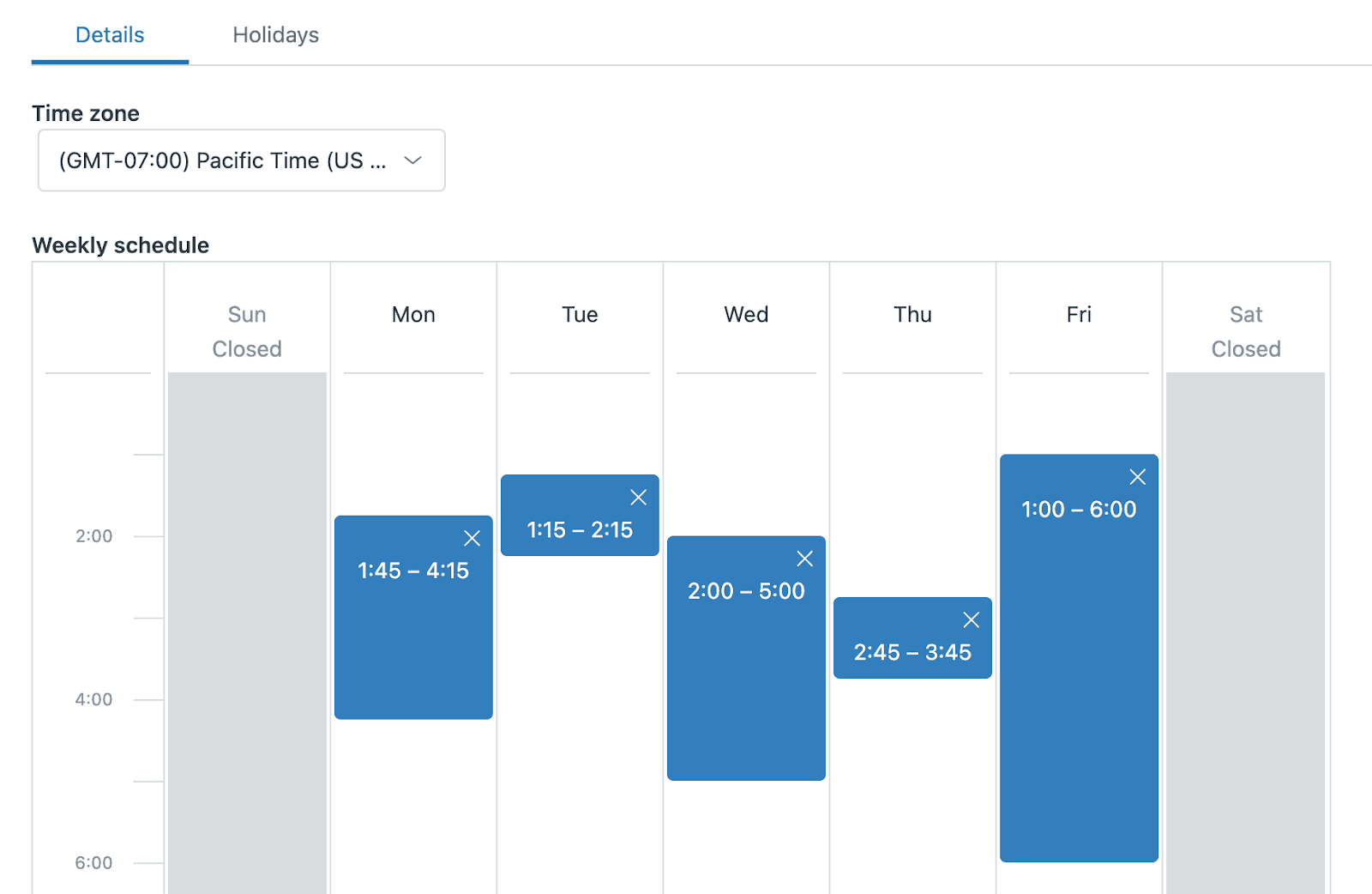
In the Weekly schedule section, define your operating hours for each day:
- Each interval must be at least 1 hour long
- You can adjust start and end times in 15-minute increments
- If your hours span midnight (like 10:00 PM to 2:00 AM), you must split this into two intervals
- Click the X on a time block to mark that day as closed
- Click anywhere on a closed day to add hours
Step 4: Add holidays
Select the Holidays tab and click Add holiday. Enter a name and date range for each company holiday. You can schedule holidays up to two years in advance. Keep in mind that Zendesk treats holidays as full calendar days, not just your business hours on that day.
Step 5: Save your schedule
Click Save to apply your schedule. Once active, this schedule becomes the default for all tickets in your account.
Pro tips for schedule setup
Match your time zone to your primary customer base or where most of your team works. If you have agents in multiple regions, consider upgrading to Enterprise so you can create location-specific schedules.
Document your holiday schedule early. Nothing frustrates a team more than realizing they're measuring SLA targets against a holiday that wasn't configured in the system.
If you need more granular control than the UI provides, Zendesk offers a Schedules API for advanced configuration.
Configuring SLA policies with business hours
Once your schedule is set up, you can apply business hours to your SLA policies. This ensures your targets align with when your team is actually working.
Understanding SLA metric categories
Zendesk organizes SLA metrics into three groups:
Reply metrics measure how quickly customers get responses:
- First reply time: From ticket creation to first agent response
- Next reply time: Between subsequent customer replies and agent responses
Update metrics ensure tickets don't go silent:
- Periodic updates: Time between any public agent comments
- Pausable updates: Same as above, but excludes time when tickets are pending
Resolution metrics track overall ticket lifecycle:
- Total resolution time: From creation to final resolution
- Requester wait time: Total time excluding pending status
- Agent work time: Time in new and open status only
Each metric can be measured in either calendar or business hours, but not both simultaneously within the same policy.
Setting up business hours in SLAs
Step 1: Access SLA policies
Go to Admin Center > Objects and rules > Service Level Agreements.
Step 2: Create or edit a policy
Click Add policy or select an existing one to modify. Give your policy a clear name that indicates its purpose, like "Standard Support - Business Hours."
Step 3: Define targets
For each priority level (Urgent, High, Normal, Low), set target times. When selecting the metric, choose the version with "(business)" in the name. For example, select "First reply time (business)" instead of just "First reply time."
Step 4: Set policy scope
Define which tickets this policy applies to using conditions. Common approaches include:
- All tickets from specific organizations
- Tickets with certain tags
- Tickets assigned to specific groups
- Tickets from particular channels (email, chat, web)
Step 5: Save and activate
Click Create or Update to save your policy. SLA policies are applied in order, so place your most specific policies at the top.
Choosing between calendar and business for SLAs
Consider what you're measuring. If you want to track customer experience regardless of your staffing, calendar hours show the total wait time. If you want to measure team performance based on actual capacity, business hours give you fairer benchmarks.
Many teams use calendar hours for urgent tickets and business hours for standard priority. This acknowledges that a customer waiting over the weekend for a critical issue is different from routine inquiries.
Using multiple schedules for complex operations
If your organization spans multiple time zones or offers tiered support levels, a single schedule may not be enough. Zendesk Enterprise supports unlimited multiple schedules.
When multiple schedules help
Consider multiple schedules if you:
- Have support teams in different global regions with non-overlapping hours
- Offer tiered service (VIP 24/7, standard business hours, basic email only)
- Support different product lines with different coverage commitments
- Need separate schedules for different brands in your account
Setting up multiple schedules
Step 1: Create additional schedules
Follow the same process as creating your first schedule. Each schedule gets its own name, time zone, and business hours.
Step 2: Set a default
The first schedule in your list automatically becomes the default and applies to all tickets unless specified otherwise.
Step 3: Create assignment triggers
Go to Admin Center > Objects and rules > Triggers. Create triggers that apply the appropriate schedule based on ticket criteria:
- Use conditions like "Organization is" or "Group is" to identify which tickets get which schedule
- Add the action Ticket: Set schedule and select the appropriate schedule
- Create separate triggers for each schedule you want to auto-assign
Example: Tiered customer support
Here's how a tiered setup might work:
-
Create three schedules:
- "VIP Support" (24/7)
- "Business Support" (Mon-Fri 9 AM - 5 PM)
- "Basic Support" (Mon-Fri 9 AM - 5 PM, longer targets)
-
Tag customer organizations by tier in your CRM or Zendesk
-
Set up triggers that check the organization tag and apply the corresponding schedule
-
Create SLA policies for each tier with appropriate targets
This ensures VIP customers get faster response times even when submitted at night, while standard customers have targets that respect business hours.
Applying business hours to automations and triggers
Beyond SLAs, business hours enhance your workflow rules, allowing more intelligent routing and notifications.
Automation use cases
Automations run periodically on tickets that meet certain conditions. With business hours, you can:
- Escalate tickets that have been open for more than 4 business hours without a response
- Send reminders to customers when tickets have been pending for 24 business hours
- Auto-close resolved tickets after 72 business hours if the customer doesn't respond
- Notify managers when tickets breach internal business hour targets
To use business hours in automations, select the "(business)" version of any "Hours since" condition.
Trigger use cases
Triggers fire immediately when ticket conditions change. Useful business hour trigger conditions include:
- "Within business hours" - Route after-hours tickets to on-call teams or set different priorities
- "On a holiday?" - Send auto-responses acknowledging holiday closures
- "Schedule" (Enterprise only) - Check which schedule is applied and route accordingly
For example, you might create a trigger that checks if a VIP customer's ticket arrives outside business hours, then automatically escalates it to the on-call manager and adds a high-priority tag.
Liquid markup for dynamic messaging
You can reference business hours in macros, triggers, and automations using the Liquid placeholder:
ticket.in_business_hours
This returns true or false, letting you customize messaging. For instance, your auto-response could say "We typically respond within 4 hours during business hours" versus different messaging for after-hours submissions.
Common mistakes and how to avoid them
Even experienced Zendesk admins encounter pitfalls with business hours. Here are the most common issues and how to prevent them.
Mistake 1: Not communicating business hours to customers
Your team knows when you're open, but customers might not. Set clear expectations in your help center, auto-responses, and email signatures. If customers think you're 24/7 but you only measure SLAs in business hours, you'll have frustrated customers even when you're hitting your targets.
Mistake 2: Mixing calendar and business without strategy
Some tickets use calendar hours while others use business hours, but if this is random, your metrics become meaningless. Document which policies use which method and why. Share this documentation with your team so everyone understands what the numbers actually mean.
Mistake 3: Forgetting holidays
Zendesk doesn't automatically know your company holidays. Set these up in advance, ideally at the start of each year. Schedule a calendar reminder to update your Zendesk holidays annually.
Mistake 4: Wrong time zone configuration
Double-check that your schedule time zone matches your primary operations. A schedule set to Pacific Time when your team works Eastern Time will create a three-hour discrepancy in all your metrics.
Mistake 5: Not training agents
Agents should understand how business hours affect their performance metrics. If an agent sees they're "breaching" SLAs for tickets received Friday evening, but the SLA is actually measured in business hours and not due until Monday, that context prevents unnecessary stress.
Streamlining support time tracking with eesel AI
Configuring business hours in Zendesk gives you better metrics, but it still requires ongoing maintenance. Schedules need updating when teams change shifts, holidays need annual configuration, and multiple schedules require complex trigger logic.
At eesel AI, we've taken a different approach. Rather than manually defining when your team works, our AI learns your actual patterns from your ticket history. It automatically understands when your team is typically active, when response times naturally slow down, and how to set fair expectations without complex configuration.
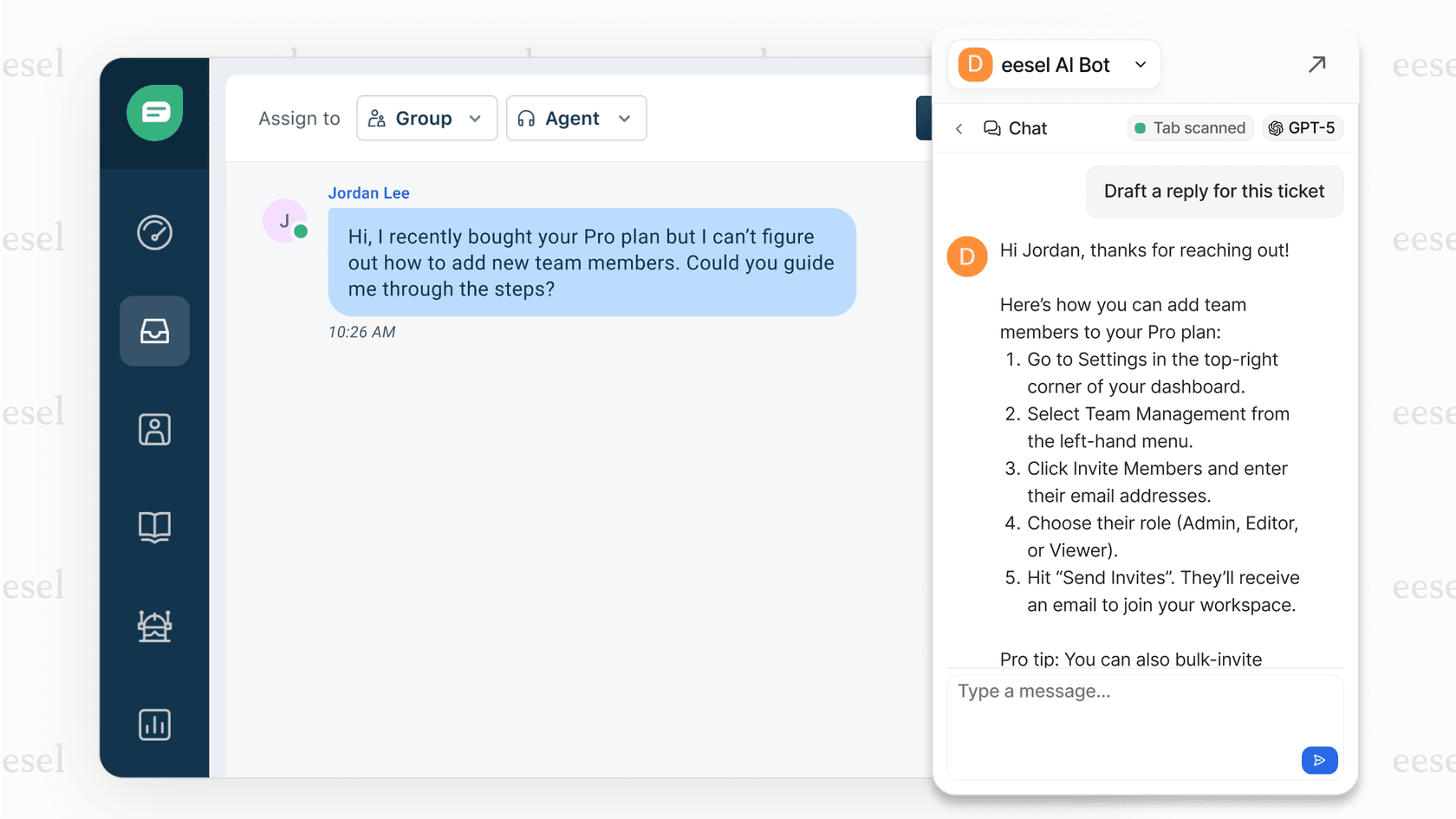
Key differences from traditional business hours:
- No manual schedule setup - The AI learns from your actual working patterns
- Automatic holiday detection - Recognizes when ticket volume drops and adjusts accordingly
- Dynamic SLA management - Adapts to real-time team capacity rather than fixed schedules
- Works alongside or independently - Integrates with Zendesk or operates as a standalone solution
If you're spending more time configuring schedules than analyzing what they tell you about your support quality, it might be worth exploring a more adaptive approach.


