
What does "Meta Muse for work" actually mean?
I work eesel's support queue every day, so I see the moment where an AI tool stops being one person's experiment and becomes a team's problem. Meta Muse is sitting right on that line.
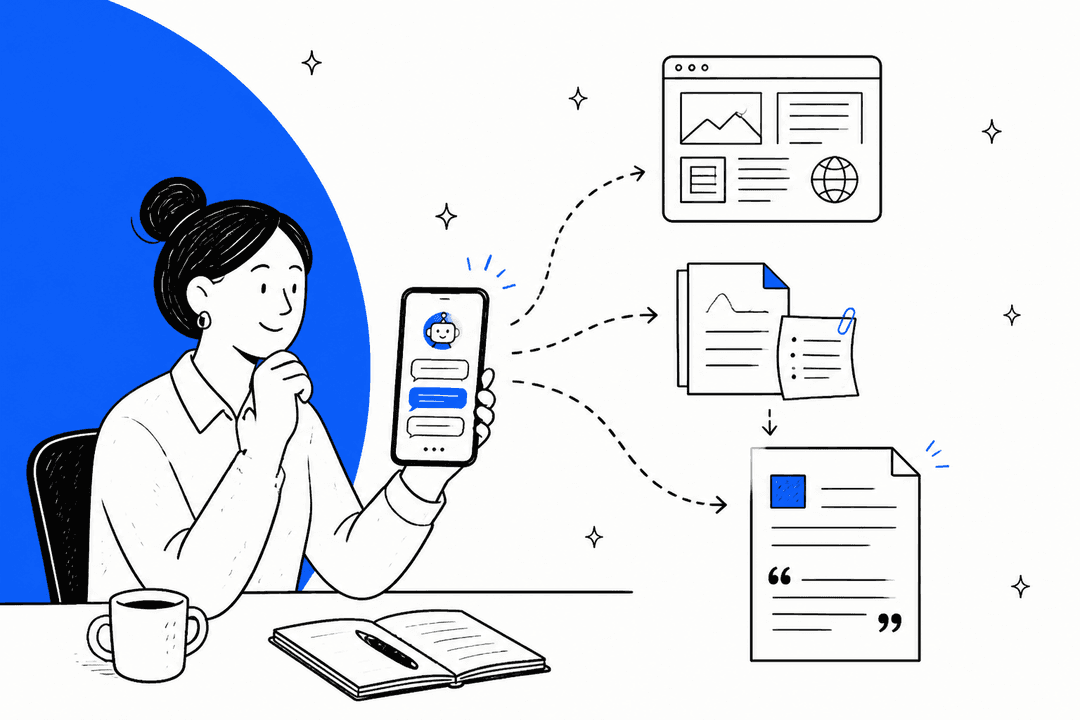
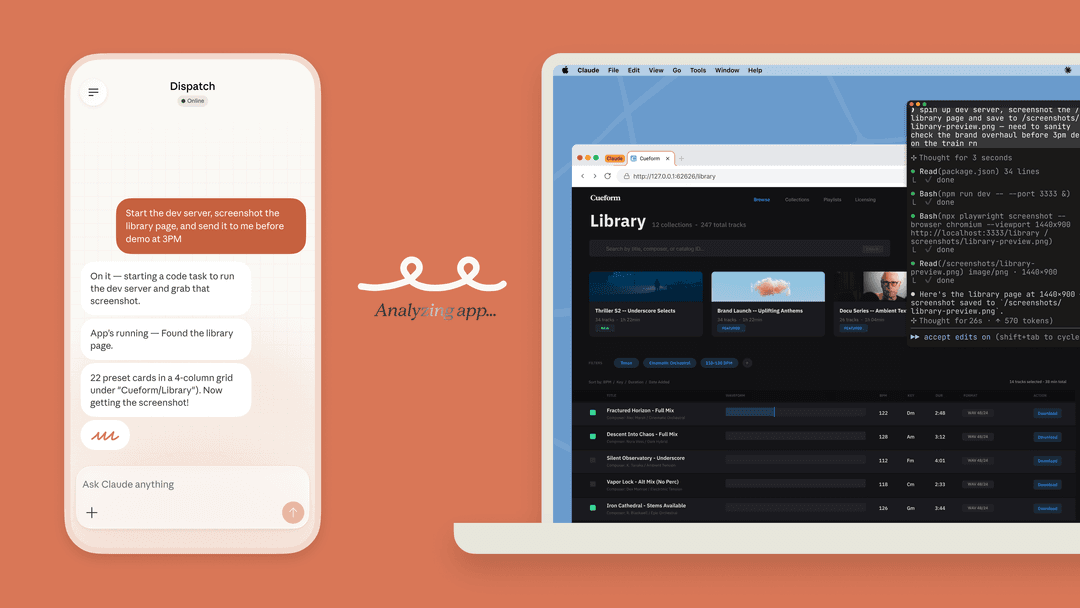
Muse is Meta's personal AI agent, launched on September 8, 2026. It runs on its own cloud computer with a full browser, runs on Muse Spark 1.3, and keeps working after you close the app. You talk to it in the Muse app, on the web, on Mac or inside WhatsApp.
For the first three weeks it read like a life admin tool. Then Meta pointed it at the office. Its business help page now says Muse "can get things done for you at home and now at work too," and the Muse for Small Business launch added 15 work connectors in one go.
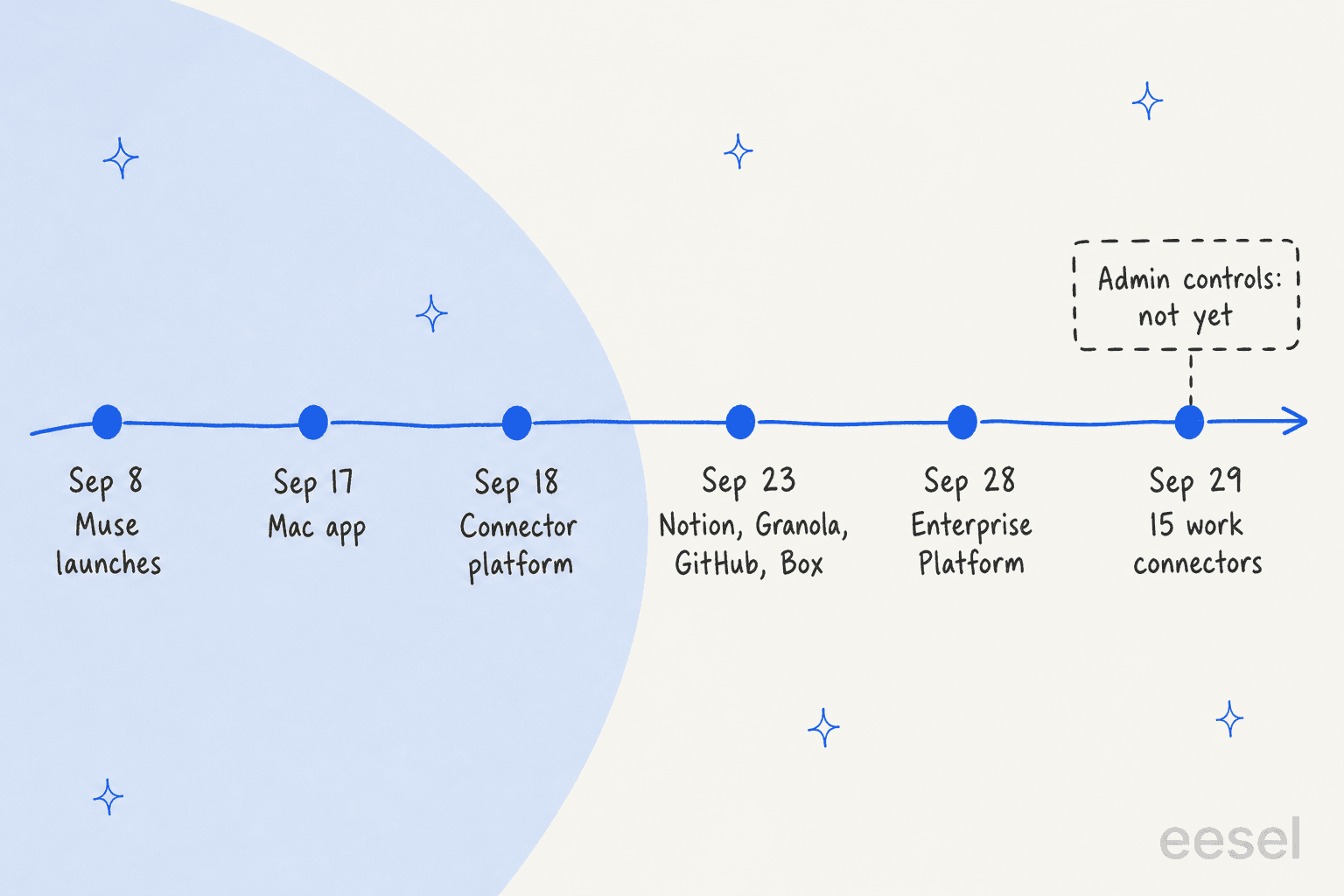
What didn't ship is just as telling. Every Muse user gets their own isolated VM, and Meta's privacy help page says "no one else's agent can access it." That's great for privacy and means there's no shared workspace. Meta named Muse in its new Enterprise Platform on September 28, but that post gives no admin controls, pricing or dates.
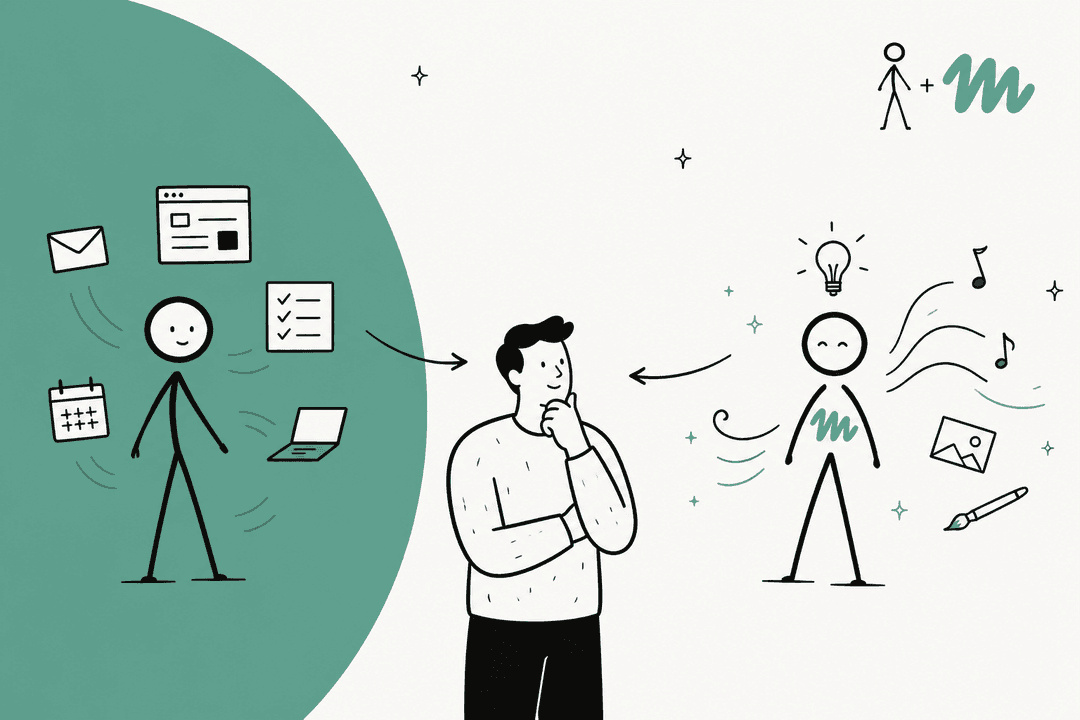
So "Muse for work" really means Muse for one worker. If you want the job-specific versions, I've covered Muse for sales, Muse for research and Muse for recruiting separately. This post is about the part they share: what to hand it, and what your IT team will ask before you plug in a work account.
What can Muse do in a normal workday?
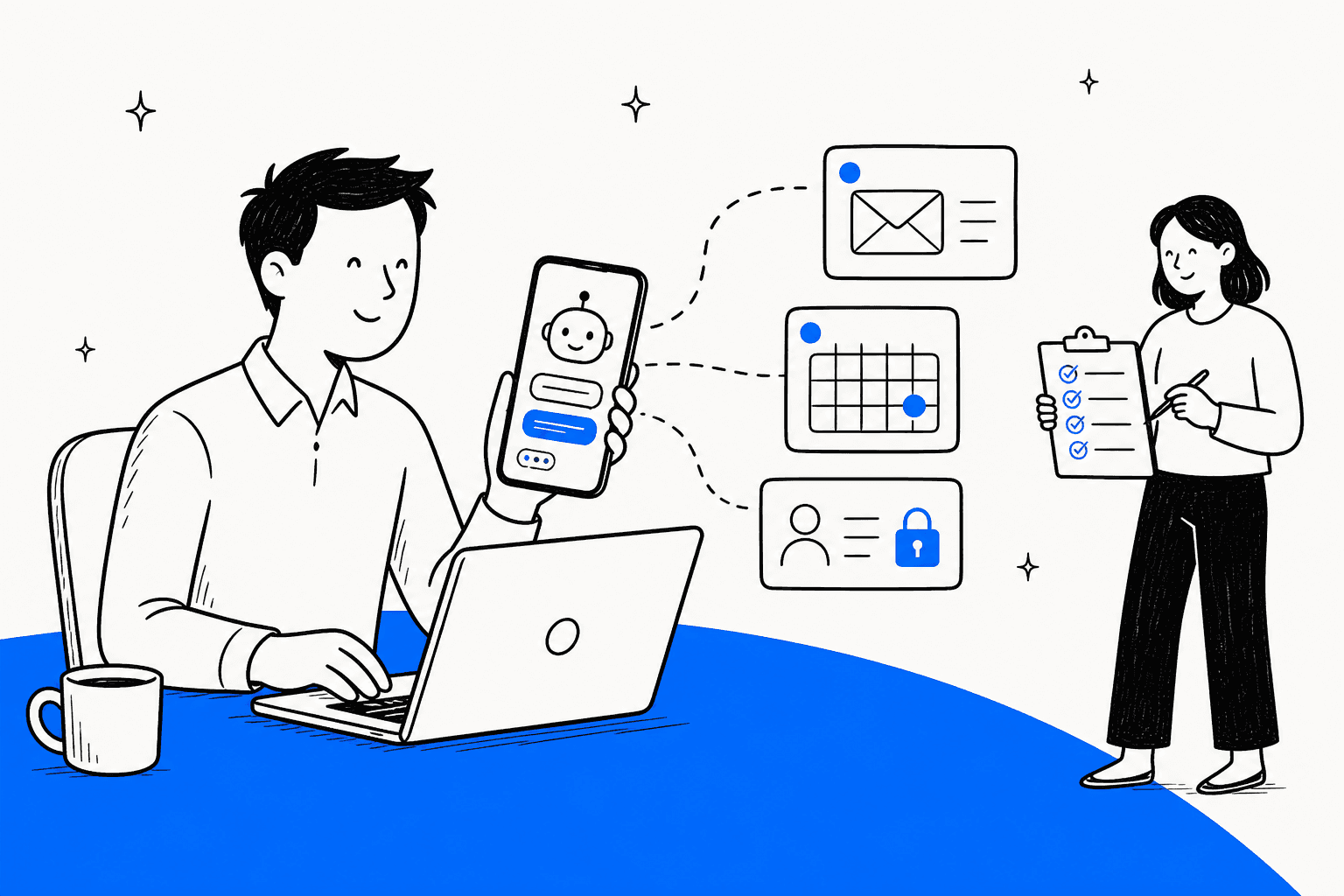
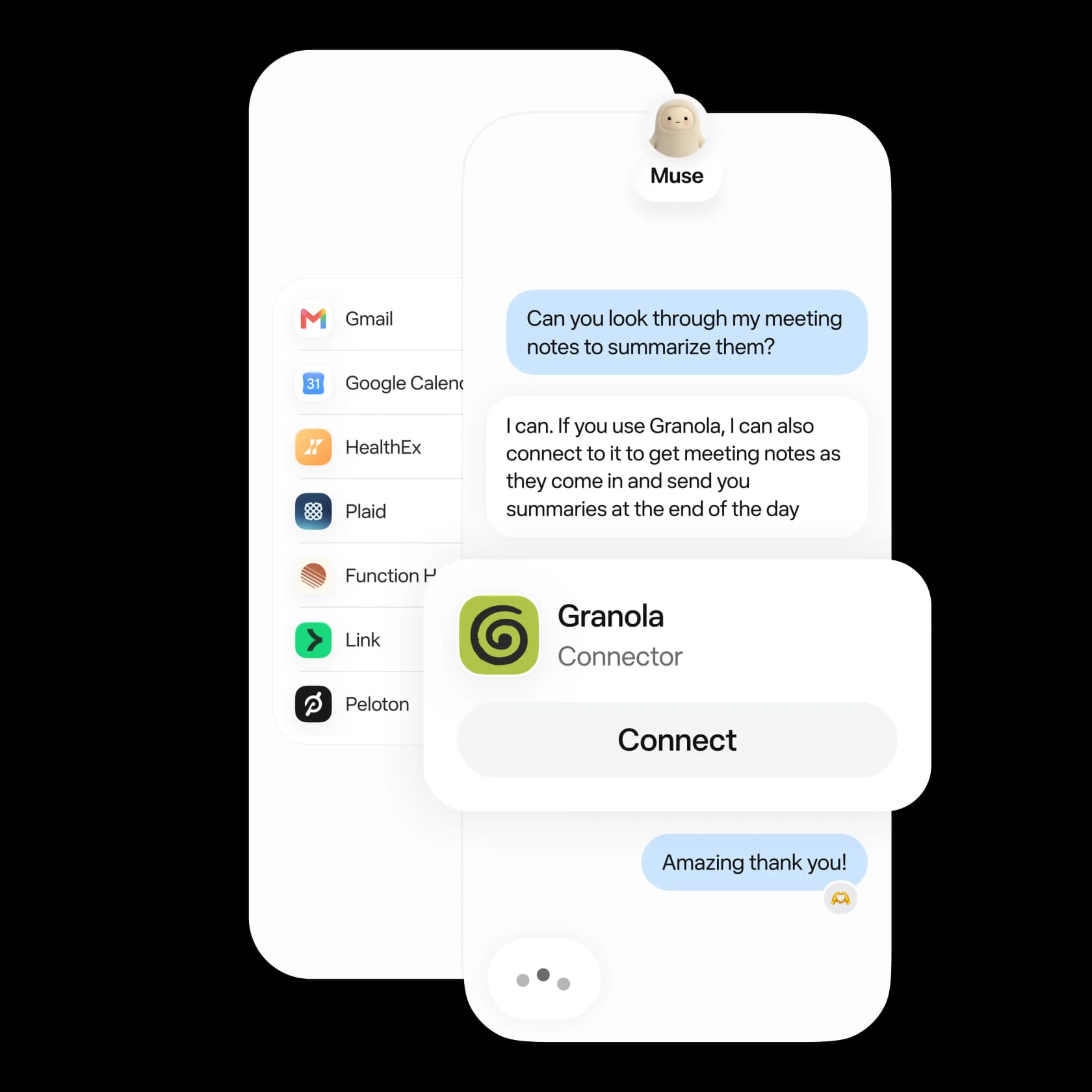
Connectors decide what Muse can see and do. You add one by asking ("Connect my Gmail") or from Settings, per Meta's connectors help page. Connecting email "allows Muse to search your email, but it won't download your whole inbox (unless you tell it to)."
Here's how the named connectors map to a typical office job, using muse.ai/business and Meta's Connect recap:
| Work job | What Muse connects to | Status |
|---|---|---|
| Email and calendar | Gmail, Google Calendar, Google Workspace | Listed |
| Meetings | Zoom, Granola | Listed |
| Team chat and docs | Slack, Notion, Box, Dropbox | Listed |
| Projects and design | Asana, Figma, Canva, GitHub | Listed |
| Money and sales | Stripe, QuickBooks, Shopify, HighLevel | Listed |
| Files and apps on a Mac | iMessage, Notes, Reminders, Mail, Calendar, files | Listed (Mac app) |
| Microsoft work stack | Outlook, Teams, Microsoft 365 | Not named on any Meta page |
| Big-company CRM | Salesforce, HubSpot | Not named on any Meta page |
If a tool isn't listed, Muse can build a custom connector to anything with an API, but Meta's help page warns: "Meta doesn't review custom connectors or how they use your information, so grant access with caution." It can also just use a website in its own browser, the way you would.
The best work feature isn't a connector. It's that Muse "can also run recurring tasks on a schedule, like daily check-ins or weekly summaries," per its scheduled tasks page. That's what the happiest users describe:
"every night at 6pm it gives me a run down of the next day's meetings, then it looks at my schedule at 6am and sets an alarm for me to wake up accordingly and it'll remind me if it's an in person meeting."

Another user treats it like an overnight shift:
"I can give it task to work on and by the morning time I have the deliverables done and ready. [...] I've even started doing eod meetings at the end of the day for preparation of the next days work."
Muse can deliver the output as a PDF, DOCX, spreadsheet or a small web tool, per its artifacts page. That makes it closer to an AI email assistant plus a scheduling assistant with a browser than to any team tool.
Which work tasks should you hand to Muse?
The sibling posts sort tasks by risk. At work, I'd add a second question that matters more: whose data is it? Your own calendar is yours to share. A shared Slack channel or a customer's email thread usually isn't, even if you can open it.
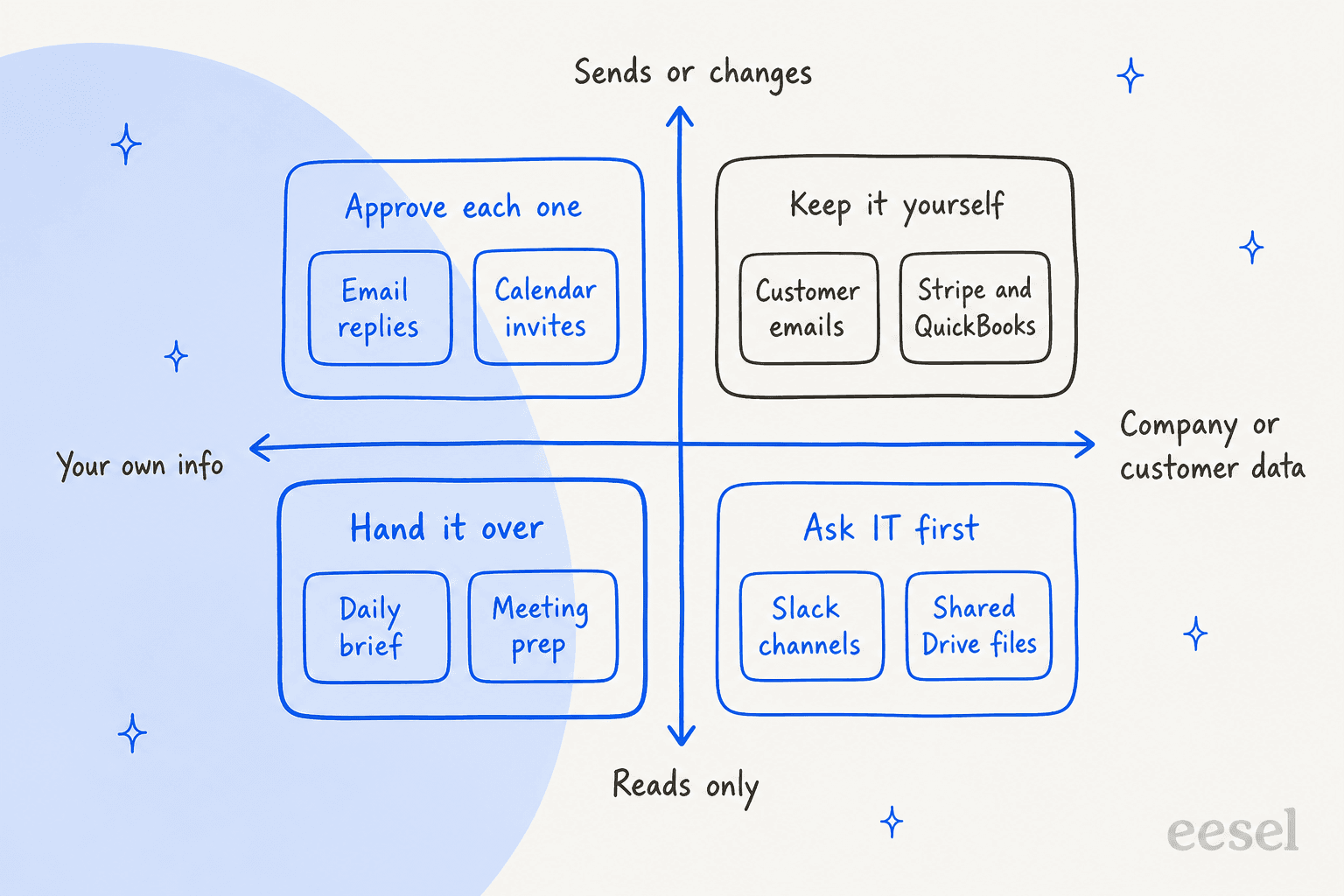
Hand it over: your info, read only. A daily brief from your own inbox and calendar, meeting prep, summaries of your own notes in a meeting notes app like Granola. If Muse gets one slightly wrong, it costs you a minute.
Approve each one: your info, sends or changes. Replies, calendar invites, documents shared with a colleague. Muse's approval settings split read actions from write actions, and "Ask for some actions" makes it ask before every write. Meta is blunt that "some other actions, like sending an email, cannot be reversed." For anything a coworker or client will see, I'd never pick "Always allow." If all you want is a nudge on threads you forgot, Gmail's built-in follow-up reminders cost nothing.
Ask IT first: company data, read only. Shared Drive folders, Slack channels, the team Notion. Meta's own business guidance is "Use Muse only with information and accounts you are allowed to access." Being able to open a file isn't the same as being allowed to copy it into a personal cloud computer.
Keep it yourself: company data, sends or changes. Replies to customers, invoices in QuickBooks, refunds in Stripe, anything in a shared inbox. These are team actions with team consequences, and a personal agent has no way for anyone else to review them.
Some Muse users go further and give it separate accounts entirely:
"I don't give it access to my e-mail. I don't give it access to my phone messages. It does have access to some accounts that I set up specifically for it, that are isolated from my personal accounts. [...] I use it to run some of the more mundane functions for my business (web browser heavy)"
That's a sensible pattern for a solo founder. For an employee at a company with an IT team, the next section is where the real decision gets made.
What will IT and security ask before you connect a work account?
This is where I can speak from the support side. On eesel's own sales and onboarding calls, security questions often come before product questions. One B2B telematics team treated their internal security review as a hard gate before any trial, and the first thing they asked was whether ticket data with personal details stays in their environment. A US mid-market platform couldn't move forward at all without SOC 2. Your IT team will ask Muse the same questions, so here's how it answers them today:
| What IT asks | What Muse offers today |
|---|---|
| Can we manage seats and access centrally? | No. Plans are bought per Meta account, with no seats or admin console (subscriptions page) |
| SSO with our identity provider? | None named. You log in with a Meta account |
| Where does the data live? | An isolated cloud VM per user, with backups (privacy help) |
| Is our data used to train models? | Yes by default. The setting "is on when you first use Muse" and can be switched off |
| Is it used for ads? | No. Muse "doesn't share your conversations or the data in your virtual machine with Meta ad systems" |
| Can we see what it did? | Only the user can, in their own Activity log |
| Can we delete it? | The user can delete, reset or ask Muse to forget, "to the best of its ability" |
| Compliance reports? | No SOC 2 or compliance page for Muse that I could find. There is a detailed security write-up and a public bug bounty |
| Who's liable if it goes wrong? | The user. Meta's liability caps at the greater of $250 or 12 months of fees (Muse terms) |
| Where is it available? | US and Canada, 18 and over |
The training row is the one I'd fix on day one. Meta's data page says that when you allow it, Meta removes "certain categories of personally identifiable information like names, email addresses, phone numbers and Social Security Numbers." That isn't the same as keeping your company's numbers, plans or client details out. Go to Settings, then Data controls, and toggle off "Help improve our AI models." Meta says "Changes to this setting also apply to previous interactions."
The security design is serious
To be fair to Meta, the engineering under Muse is careful, and Meta published far more of it than most personal agents do. Its security write-up describes a design that assumes the agent may be under attack.
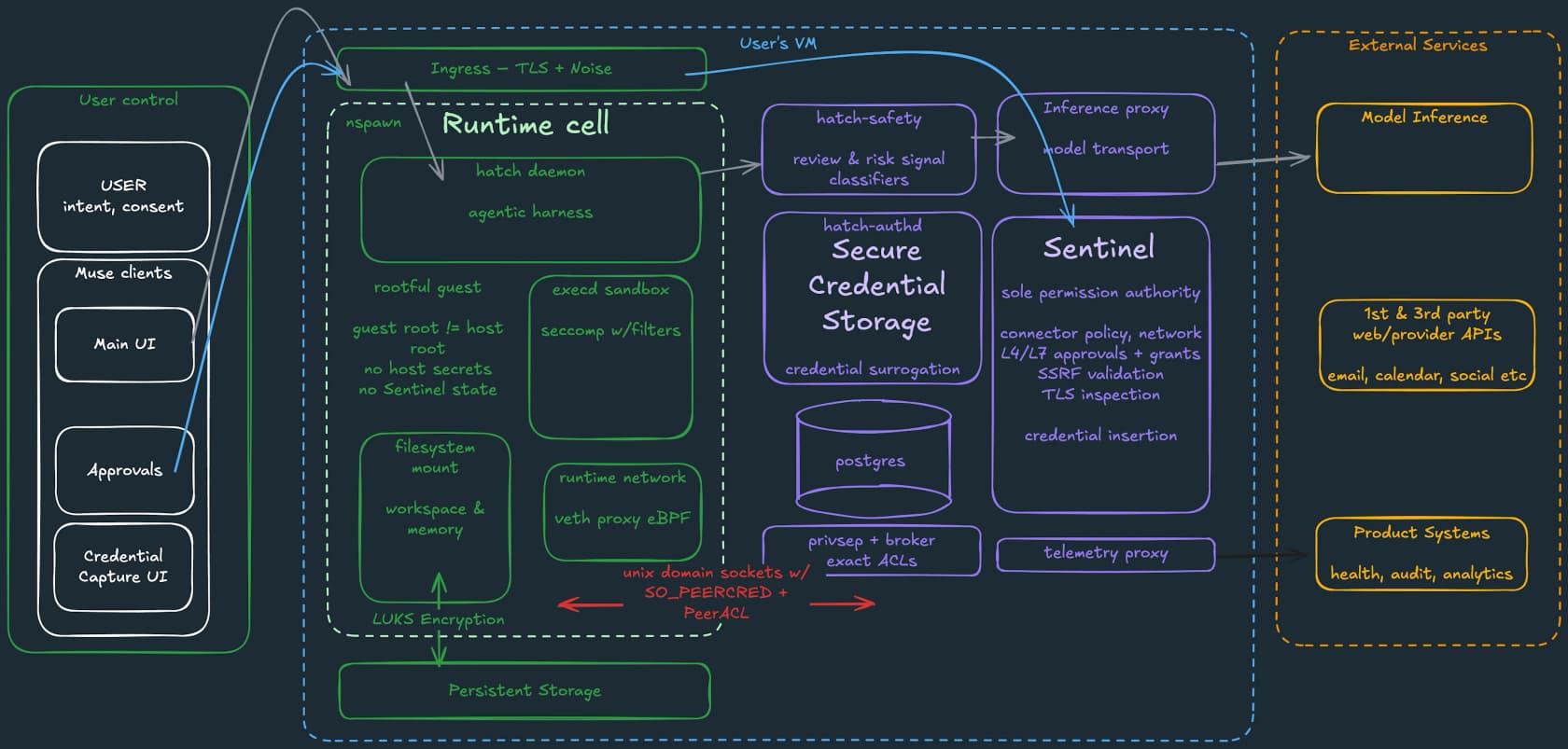
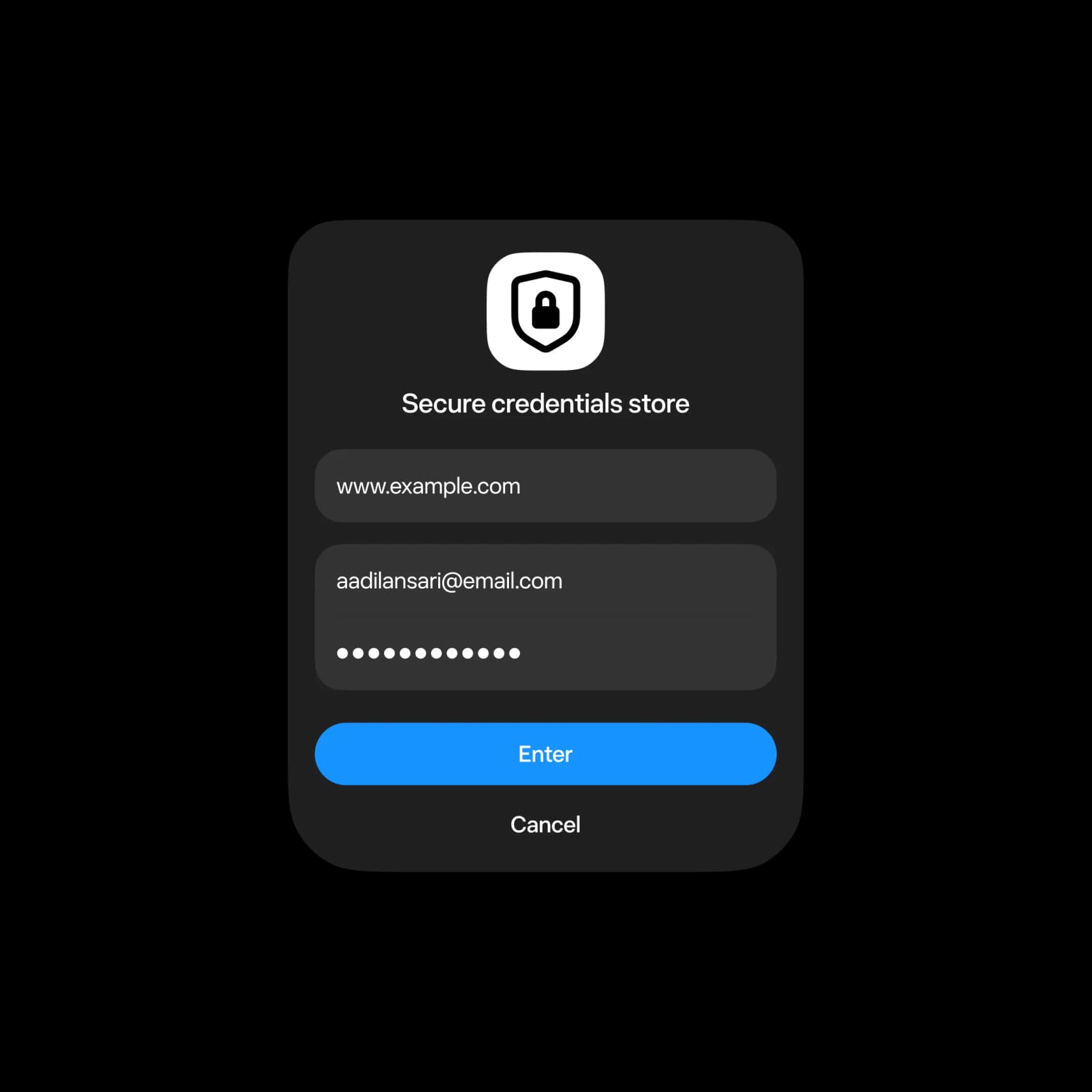
The short version: Muse runs in its own sealed-off cell, and a separate service called Sentinel is "the sole permission authority" for every connector action and every network request. The agent only ever sees stand-in tokens, and real credentials are swapped in at the network edge. Approval requests pop up in the app's own dialog, not inside the conversation the agent controls. Meta also opened a bug bounty that pays up to $300,000, including for prompt injection.
What's not live yet is Muse Confidential VM, meant to "cryptographically and verifiably prevent Meta from accessing data in your VM." Meta says it plans to deliver it "later this year." Until then, Meta can technically reach the data in your VM, and section 10 of the terms reserves the right to "monitor, log, review, suspend, block, or modify Muse's actions at any time."
Where IT can actually say no
Here's the part most people miss. Because Muse has no admin console, IT's only switches live in the tools Muse connects to.
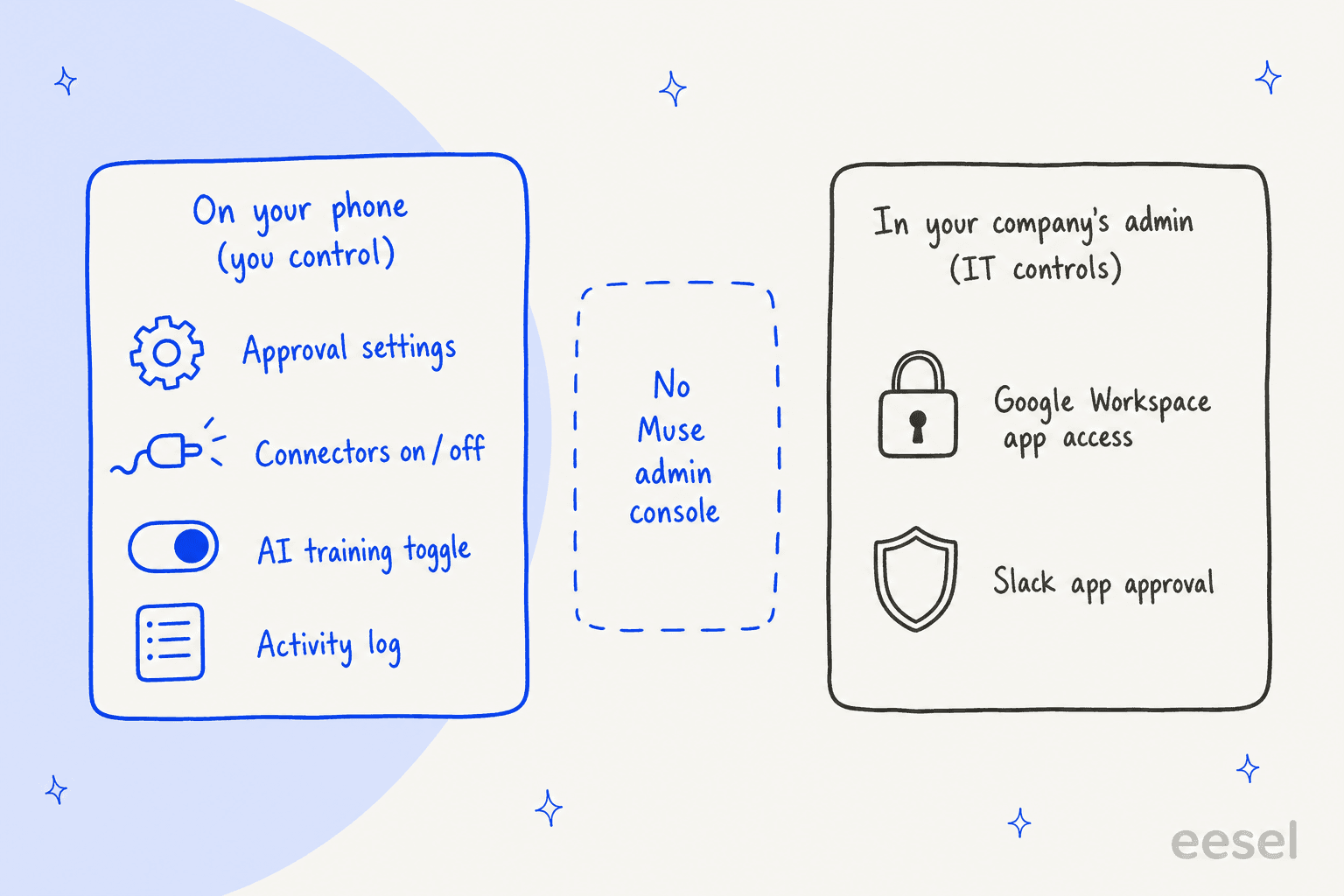
Google Workspace. Meta says Google connections follow the Google User Data Policy, so they run through Workspace's API access. In the Admin console, API controls decide what happens with third-party apps nobody has configured. The default is "Allow users to access any third-party apps." Admins can switch that to "Don't allow users to access any third-party apps," or mark Gmail and Drive as Restricted, at which point untrusted apps "stop working, and tokens are revoked." If your company never touched this setting, nothing stops an employee from connecting Muse to a work Gmail.
Slack. By default, "members can install them without approval from a Workspace Owner," per Slack's app approval guide. Owners on any plan can switch on "Only allow pre-approved apps," and approving an app means approving the scopes it uses in the workspace.
Managed Macs. The Muse Mac app asks for Full Disk Access and Automation, per its Mac help page, and Meta added computer use that can "drive any app on your Mac." On a company laptop with device management, those permissions may simply be blocked.
Compare that with the in-suite assistants. Gemini for Google Workspace and Microsoft Copilot are licensed and switched on by your admin, inside tools IT already governs. Muse is closer to the agents I covered in Instinct for work: you bring it, and IT finds out later.
What do Muse's terms say about using it for your job?
Good news first: there's no personal-use-only clause. I read the full Muse Supplemental Terms, dated September 8, 2026, and Meta markets business use openly.
The clauses that matter for an employee are in section 7, and they're about authority, not outreach. By using Muse, you promise that you have "full legal authority to take any action you instruct or authorize Muse to take," including "authority over any accounts you connect." You also promise you've obtained "all necessary permissions, consents, licenses, and authorizations."
Read that with a work Gmail in mind. Your employer's account isn't yours to grant unless your company's AI policy says it is. If it doesn't, connecting Muse puts you on the wrong side of both your employment terms and Meta's.
The terms also say you are "solely responsible for the actions Muse takes," and that you "should not make state-changing actions, such as sending communications, executing financial transactions, deleting data, or modifying system configurations, without appropriate human review and approval." That's Meta telling you, in writing, to keep approvals on.
What happens to Muse when you leave the job?
This is the question nobody asks during setup, and it's the one I'd want answered first. Muse lives on your personal Meta account, not your company's. When you leave, nobody at your old employer can open it.
Disconnecting a connector "stops Muse from exchanging data with the Connector," per the Muse privacy policy, but "data that Muse previously used to perform tasks with that Connector may remain in Muse's memories and your conversation history." Muse keeps a file-based memory in an editable MEMORY.md. You can ask it to forget a topic, or reset Muse to wipe everything.
Recurring tasks are the other loose end. Meta's help page says "Recurring tasks continue until you cancel them." One Hacker News commenter put the worst case plainly:
"It would probably continue to send emails in your name and no one within your former org would be the wiser."

That's a worst case, not a documented incident. It still shows why I'd write Muse into the offboarding checklist anyway: cancel scheduled tasks, disconnect work connectors, ask Muse to forget the company, and let IT revoke any tokens from the Workspace side. It's the same discipline IT teams already apply in IT offboarding.
How much does Meta Muse cost for work?
The plans are all individual, from Meta's subscriptions help page:
| Plan | Price | Weekly usage | Team features |
|---|---|---|---|
| Free | $0 | Usage limit that refreshes (100M tokens a week, per Zuckerberg) | None |
| Power | $20/month | 500M Muse tokens | None |
| Maximum | $100/month | 3B Muse tokens | None |
Meta still calls subscriptions "in limited testing." There's no annual plan and no seat bundle, so the realistic path at work is an employee expensing $20 a month. The full meter is in my Meta Muse pricing breakdown, and the small-business angle is in Small Business pricing.
Meta One, launched in September, is a separate subscription. Its business bundles buy capacity for Meta Business Agent on WhatsApp, not Muse.
When is a personal agent the wrong tool for work?
Muse is built around one person's goals. That's its strength at home, and it's the limit at work, where most of the heavy jobs belong to a team: a shared support inbox, a content calendar, an on-call rotation.
One Reddit user put the gap well:
"But a general agent being capable of doing a workflow isn't the same as a product being built to do that workflow reliably at scale. The moat probably moves away from the agent itself and toward domain-specific workflows, integrations, data, guardrails, and execution."
Here's how I'd split it:
| If the work is... | Reach for |
|---|---|
| Your own inbox, calendar and prep | Muse, OpenAI Dots, or another personal agent |
| Docs and email inside an IT-managed suite | Gemini or Copilot, switched on by your admin |
| A shared queue of customer questions | An AI teammate that works inside your helpdesk |
| A steady pipeline of published content | An AI teammate built for writing |
The last two rows are where I spend my days. A support queue needs things a personal agent can't give it: one shared knowledge base, handoffs to the right person, and a log the whole team can audit. If you're weighing Muse against helpdesk AI specifically, my Muse for customer support post covers that head-on.
Try eesel for the work your team shares
eesel is an AI teammate platform, and you hire teammates for specific jobs. The AI helpdesk teammate joins your existing queue in Zendesk, Freshdesk, Gorgias or Slack, learns from the tickets your team already answered, and runs against your past tickets in a simulation before it replies to anyone. The AI blog writer takes the content pipeline the same way.
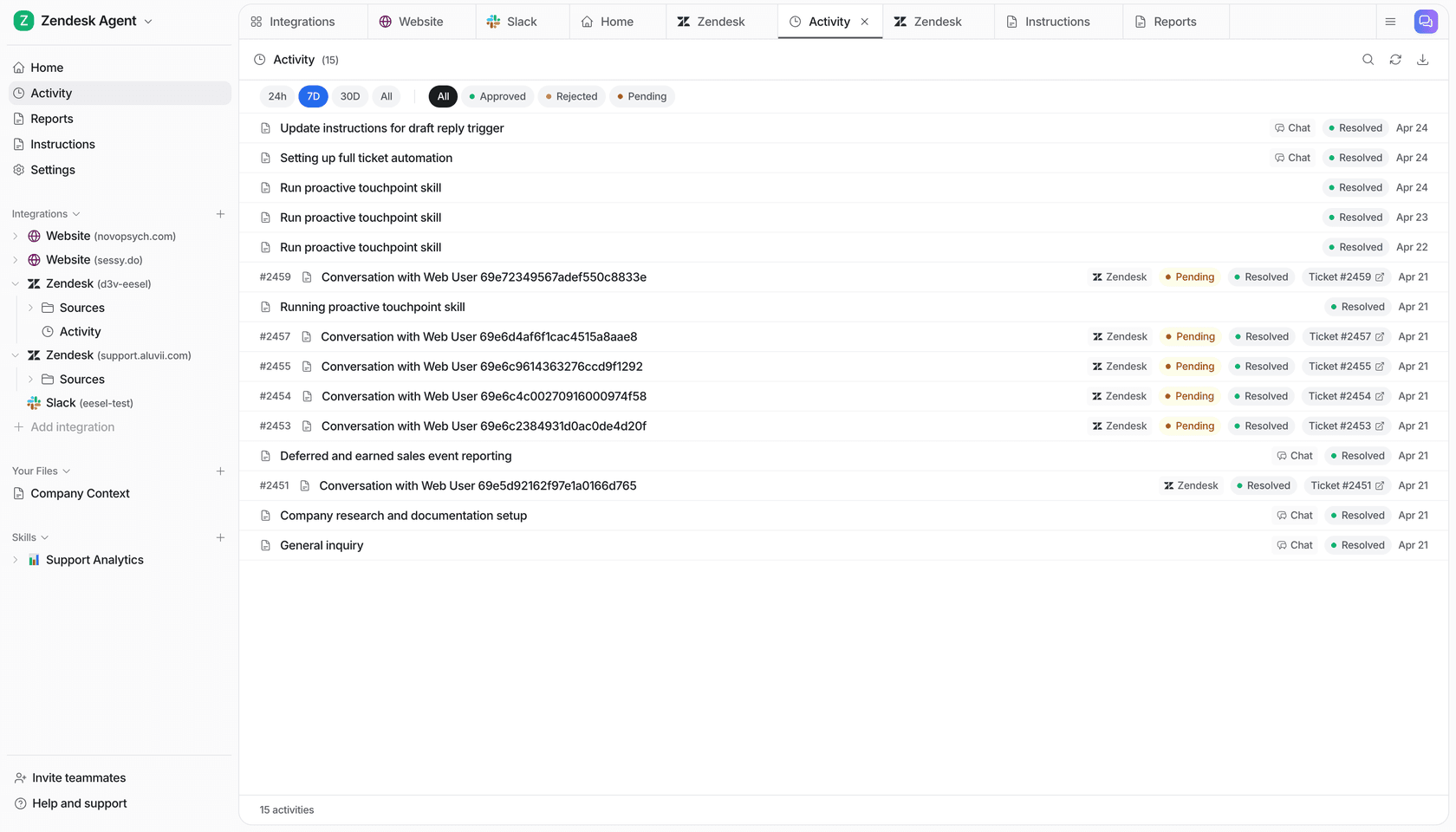
The difference from Muse is who owns it. eesel belongs to the team: unlimited seats on every plan, your data is never used for training, and every reply lands in an activity log your whole team can review. Our SOC 2 Type II observation period started on October 1, 2026, so your IT team gets an answer to the question Muse can't answer yet.
Plans start at $299 a month for 500 credits, and the free plan gives you 100 credits with every feature to test on real tickets. Try eesel free, or see how it compares in the best AI teammates roundup.
Frequently Asked Questions
Can I use Meta Muse for work?
Does Meta Muse have a team or business plan?
Is Meta Muse safe to connect to my work email?
Can my IT team block Meta Muse?
Does Meta Muse work with Outlook and Microsoft 365?
How much does Meta Muse cost for work use?
What happens to Meta Muse when I leave my job?
What are the best Meta Muse alternatives for work?


Article by
Riellvriany Indriawan
Riell is a designer and writer at eesel AI with about two years of experience researching CX platforms, AI chatbots, and helpdesk software. She combines her design background with a sharp eye for how these tools actually look and feel in practice — making her comparisons unusually visual and user-focused.