

What a dot actually does at work
OpenAI launched dots on September 29, 2026, and the launch post describes them as agents that work toward your goals around the clock. A dot can take on a project and run with it while it works on several others, so you don't juggle separate threads.
The work examples OpenAI picked are telling. Inside OpenAI, a bug appears in Slack and dots start investigating. A new design arrives and dots turn it into a working app. An early tester's dot noticed he'd forgotten to invoice a publication, prepared the invoice, and sent it after his approval. That last one is the pattern I'd copy: the dot does the legwork, you give the yes.
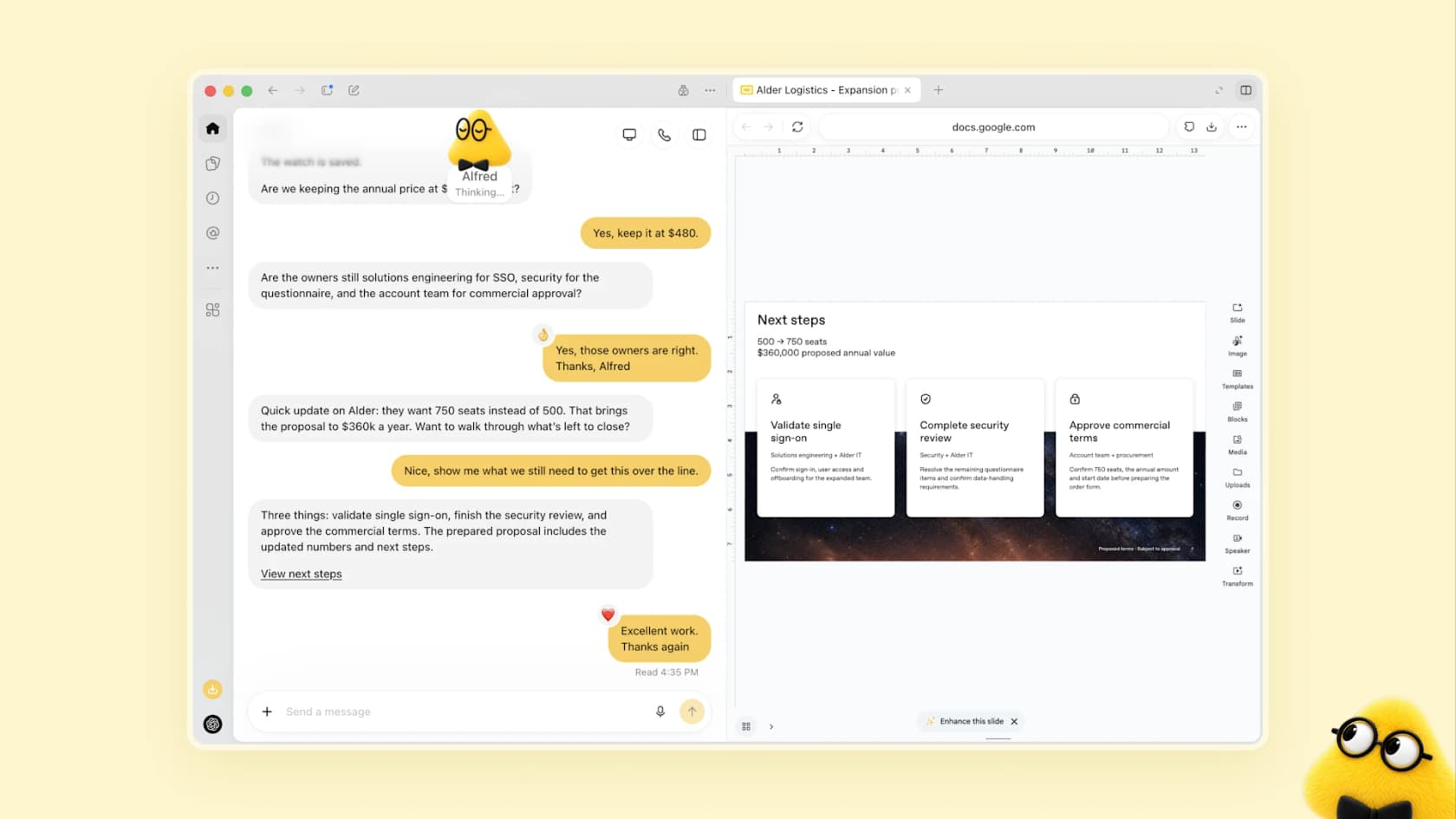
The sales example in the launch post is the clearest picture of a dot at work. A sales lead's dot checks customer requirements and account history against product docs, finds what still needs testing, builds a proof of concept, and updates the proposal as test results change. The person focuses on customer conversations and approves commitments.
Three details make this different from a normal ChatGPT agent session:
- It keeps going between conversations. The getting started guide says a dot "can take on ongoing responsibility and keep making progress between conversations."
- It has its own computer. You can open it at any time to inspect the work, and access to your own laptop is optional and off by default.
- It does background research. When you're not talking to it, the dot reads your connected apps with tools that are read-only, so it can spot things before you ask.
If you want the full product tour first, my colleagues covered it in the OpenAI Dots explainer and the hands-on OpenAI Dots review. This post stays on one question: how to use a dot for your job without regretting it.
Which plan gets you a dot at work?
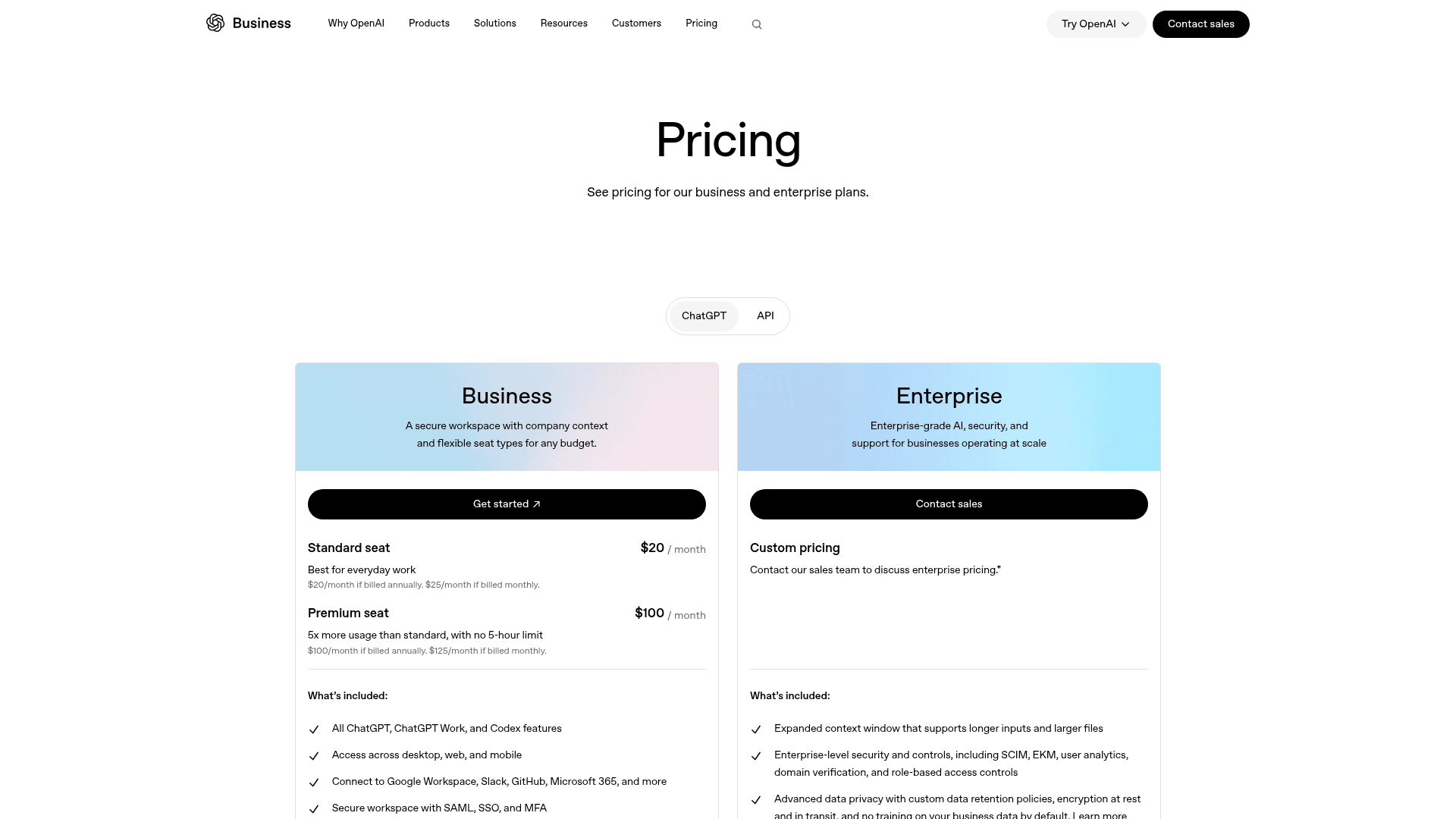
There's no standalone price for a dot. Your first one comes with certain ChatGPT plans, and OpenAI says extra dots and more capacity per dot are coming "in the future," with no price yet.
| Plan | Dot included? | Price | Regions | Business data used for training? |
|---|---|---|---|---|
| Free, Go, Plus | No | $0 to $20/month | n/a | n/a |
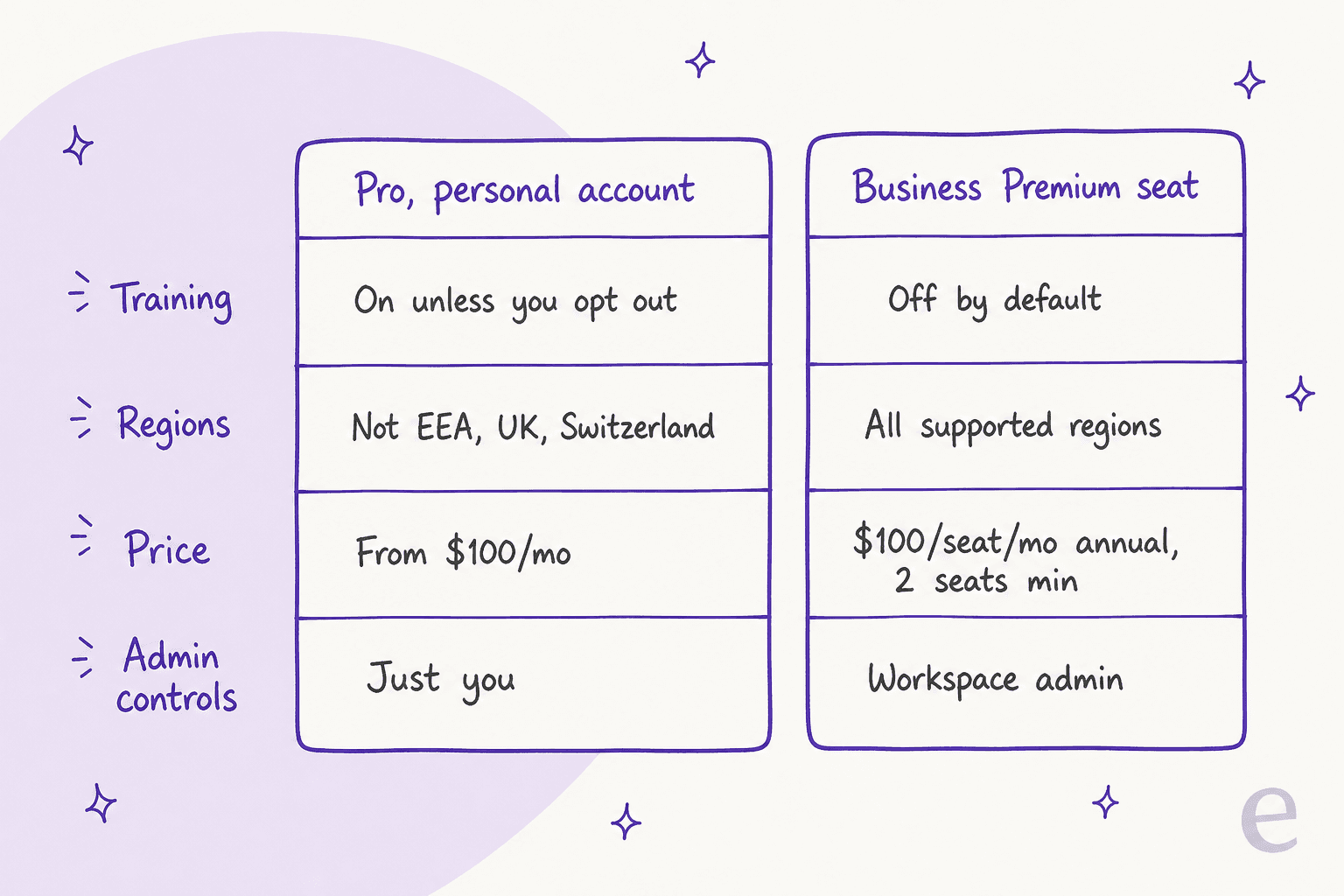
| Pro 100 / 200 / 500 | First dot | $100, $200, or $500/month | Excludes EEA, Switzerland, UK | Your personal "Improve the model" setting decides |
| Business Premium seat | First dot | $100/user/month annual, $125 monthly | All supported regions | No, by default |
| Enterprise, Edu, Healthcare | Beta, admin turns it on | Contact sales | Varies | No, by default |
Two Business details catch people out. "Business Premium" isn't a separate plan; it's the Premium seat inside ChatGPT Business. And per OpenAI's help center, a Business workspace needs at least 2 seats, which can be 1 Premium plus 1 Standard. So the cheapest company dot is $120/month on annual billing, one Premium seat at $100 and one Standard seat at $20. The OpenAI Dots pricing post works through more combinations.
The personal Pro shortcut has a data catch
Here's the trap I'd want a friend to know about. The quick way to try a dot at work is your own Pro subscription. It works, but the data rules follow the personal plan, not your company.
According to the dots privacy FAQ:
- On personal plans, the "Improve the model for everyone" setting controls whether your dot's conversations and work, including data from connected apps, can be used for training. Business, Enterprise, and Edu workspaces aren't used for training by default.
- You can't view, delete, or edit individual dot memories. Deleting the dot is the only way to clear its context.
- Disconnecting a work app stops new access but doesn't delete what the dot already learned from it.
- Human review may happen in limited cases, including safety cases, even with model improvement turned off.
So if you connect your work Gmail, Jira, or Google Drive to a personal dot, that context stays in the dot until you reset it, and the training setting is the one you chose at home. One Hacker News commenter put the bigger version of this worry plainly:
"Reality: there are some companies that are very, very particular about letting their data outside of their purview. Think Wall Street, private equity teams making deals, VC teams, corporate M&A teams, companies dealing with legal contracts, etc."

If your company already runs ChatGPT Enterprise or ChatGPT Business, ask IT to enable dots there rather than bringing your own. It's the same dot with company controls around it.
The work tasks a dot is actually good at
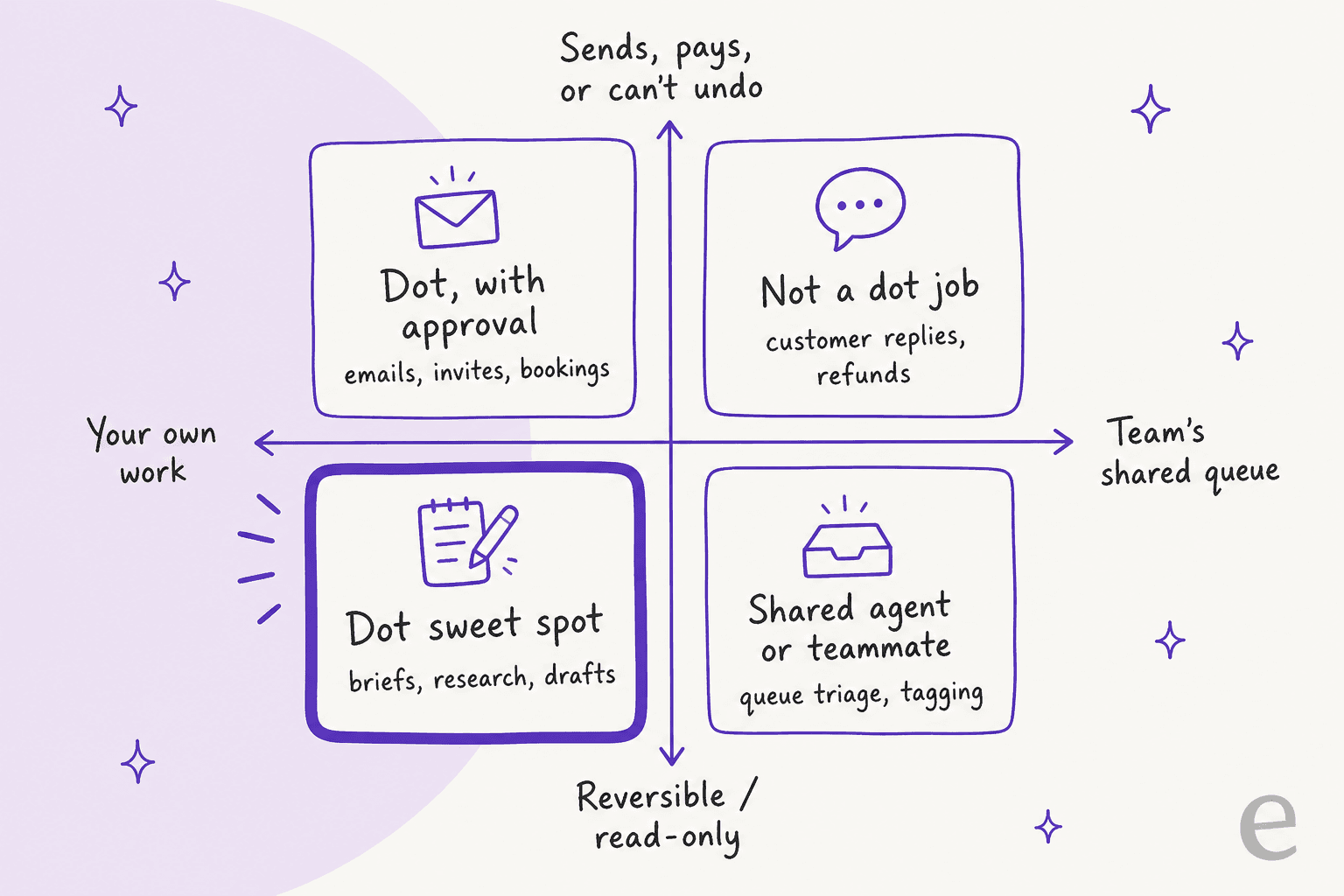
Once you've sorted the plan, the real question is what to hand over. I sort work tasks on two lines: whose work it is (yours, or the team's shared queue) and what happens if it goes wrong (easy to reverse, or it sends, pays, or can't be undone).
Your own work, easy to reverse. This is the sweet spot. Morning briefs built from read-only research, competitor and topic research, first drafts of docs and decks, meeting prep, reminders, and recurring checks like "review my calendar each morning and tell me what's coming up," which is an example straight from OpenAI's getting started guide.
Your own work, with consequences. Emails to clients, calendar invites, bookings. A dot can do these, but expect it to ask first. The privacy FAQ says approving one message "does not give your dot ongoing permission to contact people on your behalf," and recurring messages are the main case where you can approve in advance.
Things that always come back to you. Changing a password and transferring money are handed back every time, and Custom Rules can't change that. Permanently deleting data or installing software may need approval each time.
The team's shared work. Triage of a shared inbox, tagging tickets, answering customers. A personal dot acts as you, in your accounts. That's the wrong shape for a queue that five people and a customer all touch. OpenAI seems to agree, because it's building a separate product for this (more on specialist dots below).
Pick a task to see how I'd set it up:
Should my dot take this task?
Based on OpenAI's dots help center rules as of October 7, 2026.
Yes, start here. Schedule it as a recurring task. Background research is read-only by design, so the brief can read your calendar, inbox, and docs without sending or changing anything.
Yes. Research in its own browser is the dot's strongest job. Ask it to save findings to a doc you can check, and review anything you plan to quote.
Yes, with a clear brief. Recurring messages are the case where OpenAI lets you approve in advance. Name the recipients, what it should say, and when it goes out.
Draft, then approve. Let the dot write the reply in your voice and send only after you say yes. One approval doesn't carry over to the next client.
Prep only. Money transfers always come back to you, and Custom Rules can't change that. The dot can find the invoice and fill in the details, then you pay.
Use a shared agent. A dot answers as you, from your accounts. A support queue needs an agent with its own seat in the helpdesk, review rules for the whole team, and a way to test it on past tickets first.
A workday with a dot
It helps to picture where the dot shows up in a normal day, and which parts cost you anything.
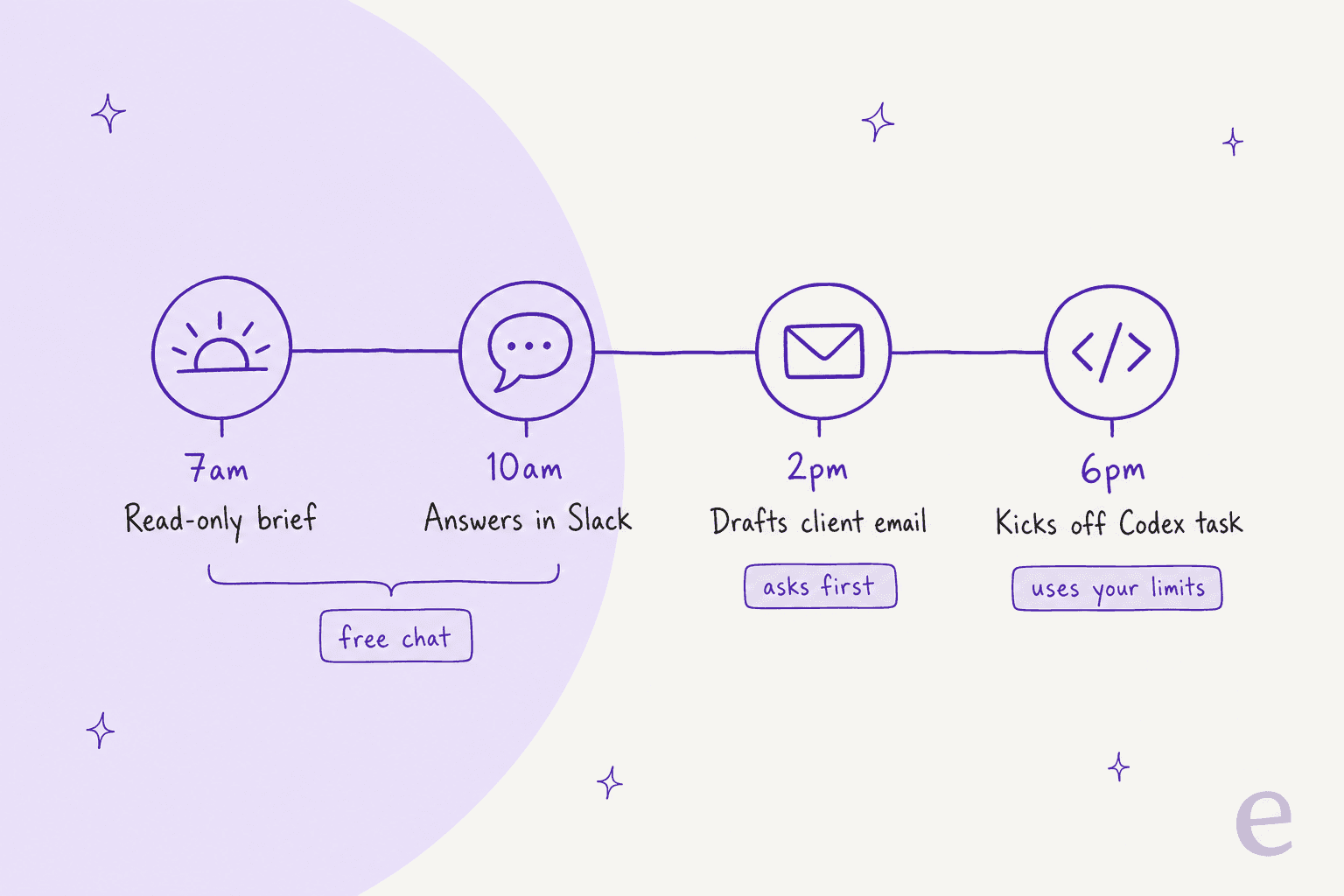
The usage rule is simple once you see it. Per the launch post, conversations with your dot don't count toward your ChatGPT usage limits. When the dot starts or manages tasks in ChatGPT Work or Codex, those count as usual against the shared allowance. Plans also get extended limits for the first month after launch, and OpenAI hasn't said what the limits look like after that.
That second part matters for builders. If your dot spins up coding tasks every evening, you're spending the same pool you'd use in Codex directly, which the Codex pricing guide breaks down. A dot that mostly briefs, researches, and drafts in chat is close to free on top of the plan.
You can follow all of it in the desktop app. The dot's profile shows work under In progress, Scheduled, and Completed, and you can open its computer to see what it's doing. If a week gets messy, the Pause option stops it until you resume.
How to set up a dot for work
This takes about 20 minutes if your apps are already connected to ChatGPT. Do it on desktop, because you can't create a dot on mobile.
- Create the dot on desktop. Use the ChatGPT desktop app (Mac or Windows) or desktop web. You can name it; the default handle is
@yourname-dot. - Connect plugins, starting with read-only ones. Plugins are managed in ChatGPT's Plugins tab and are shared across dots, ChatGPT, ChatGPT Work, and Codex, so anything you connected before is already there. If your team runs on Atlassian, the Atlassian plugin extension brings Jira work items and Confluence pages into ChatGPT.
- Give it its own Slack account. This is newer than the launch: the privacy FAQ now says you can set up a separate Slack account for your dot, "giving it its own identity and access." Your teammates then see the dot as itself, not as you. Messaging channels are set up from desktop, and Teams works too.
- Connect email carefully. You can connect your personal email account, but a dot can't have its own standalone email address at launch. If it emails on your behalf, it emails as you.
- Write Custom Rules. Each rule describes an action and picks one of four behaviors: take action without asking, take action if pre-approved, ask before taking action, or hand off to you. Start strict and loosen later.
- Decide on laptop access. Your own computer is off by default. Turn it on only if the dot needs local files or skills, and use Revoke access when it doesn't.
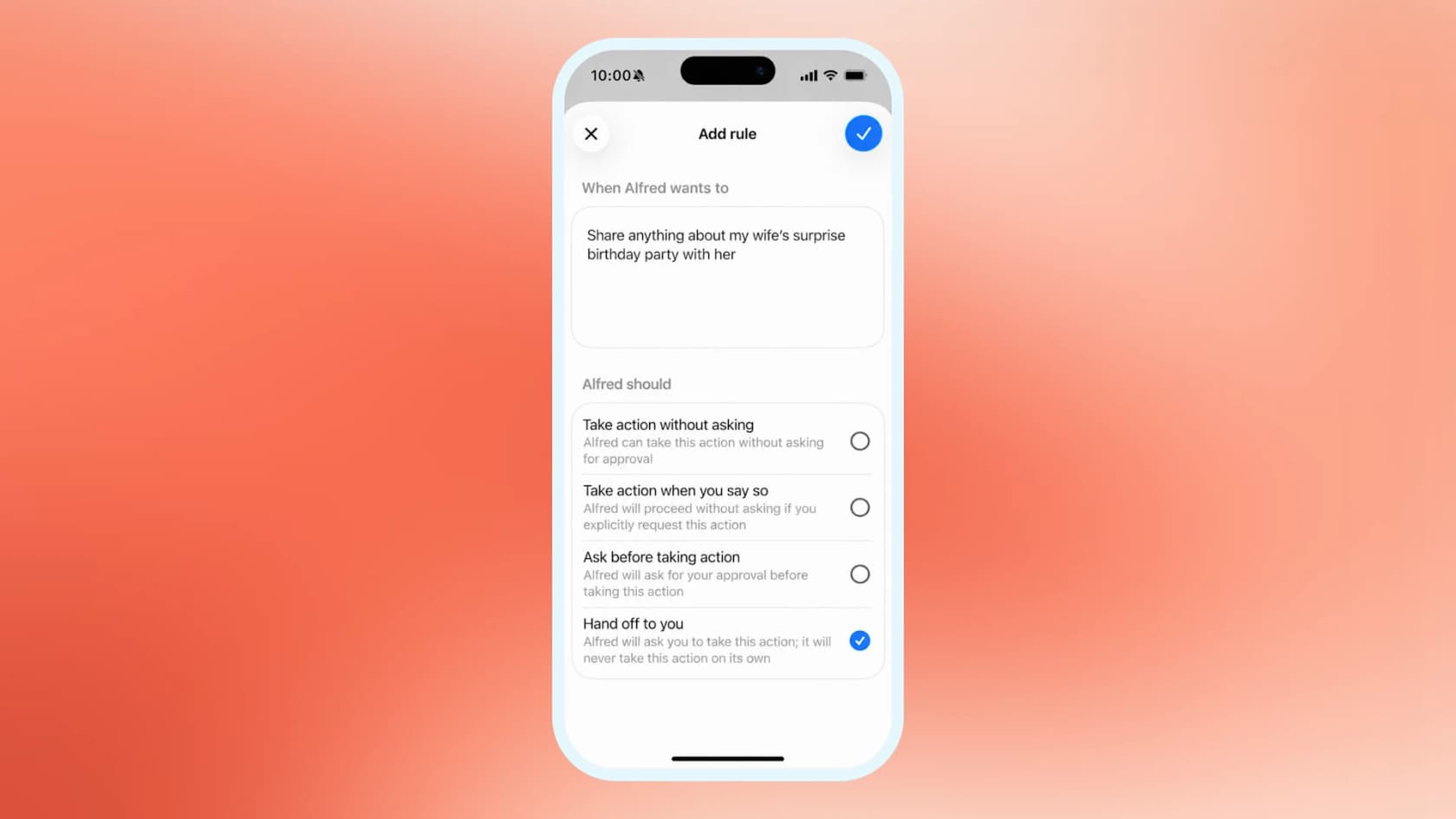
One heads-up on step 5. Broad rules like "do anything low-risk without asking" tend to bounce. The rules screen runs its own check and tells you why a rule is too broad. An early user on Hacker News got two rules accepted "despite trying many," and the same user described the confirmation loop on a simple booking:
"I said yes please book it, it went back to the website, checked all the details we'd just agreed and asked me to confirm the details, fine I confirm it, please book, it tells me it will book it, it goes on it's little cloud computer and completes the booking form then comes back and asks me if it should book it...so annoying."
My read: write narrow rules tied to a named task ("send my Friday status update to the #launch channel") instead of general permissions. Those match how OpenAI defines approval anyway, which is about who, what, and when.
Where dots fall short at work
Dots are careful by design, and at work that care costs time. It's the right trade for a personal agent, but it's worth knowing before you plan your week around one.
- Confirmation friction. As above, consequential steps come back to you, sometimes more than once. A dot also won't fetch a 2FA code from your inbox for you, per the same hands-on report.
- Memory you can't edit. There's no line-by-line memory view. If the dot learns something wrong about a client, your options are correcting it in conversation or resetting the dot.
- Speed. One commenter watching the demo said "the speed is so slow it's shocking" (jdw64, Hacker News). Background work hides some of this; live tasks don't.
- Overlap with other OpenAI tools. Codex, ChatGPT Work, and Dots now share plugins and an allowance, and it's not always obvious which one to open.
That last point came up a lot at launch:
"The lines between Codex, ChatGPT Work, and Dots is getting a bit blurry to me."
And the permission worry is real for anyone who has given an agent write access before:
"I minted what I thought was a minimal-permission Github token for a single action, and the agent I gave it to discovered it had more permissions than I thought, and made use of those permissions."
Dots aren't the only personal agents at work, either. Meta Muse has a free tier, Grok Bot runs several bots on one cloud computer, and Microsoft Copilot Autopilot sits inside Microsoft 365. If your company is on Microsoft, that one deserves a look before you add another vendor. The best AI assistants roundup compares more.
Your dot vs an agent for the team's work
This is the part I care about most, because it's the mistake I see from the support side.
I work eesel's support queue every day, and eesel has spent years putting AI agents on live helpdesk queues. The pattern I keep seeing on sales calls goes like this: one ops lead at a DTC supplements brand handling about 7,000 Gorgias tickets a month told me their team came in looking for a copilot, then realized they needed an autonomous agent to resolve at least half of their email volume. A helper for one person doesn't fix a queue that belongs to the team.
A dot is that helper. It's great at your desk. But a support queue needs things a personal agent isn't built to have: its own seat in the helpdesk, rules the whole team agrees on, a record of what it answered and why, and a way to test it before customers see it.
OpenAI is building toward this with specialist dots, which get their own identity, credentials, and access to company systems. The launch post says early testing inside OpenAI covered procurement, invoice processing, email marketing, customer support, and commercial contracting, and that it's starting with focused enterprise pilots plus planned Microsoft Agent 365 integration. Today, that's a pilot you apply for, not something you can switch on.
| Your dot | Specialist dot | eesel AI teammate | |
|---|---|---|---|
| Works for | You | A role in your company | A job, like your helpdesk or blog |
| Acts as | You, in your accounts | Its own identity | Its own seat in your tools |
| Availability | Pro, Business Premium, Enterprise beta | Enterprise pilots | Available now |
| Best for | Briefs, research, drafts, reminders | Defined back-office roles | Support queues, content |
| Tested before go-live | You review as it works | Defined with OpenAI's engineers | Simulated on your past tickets |
This is the gap eesel fills. eesel's AI teammates are ready-to-work hires for specific jobs: the AI helpdesk teammate for support, and the AI blog writer for content. The helpdesk teammate plugs into the helpdesk you already use, learns from your past tickets and help center, and drafts or sends replies under rules you set.
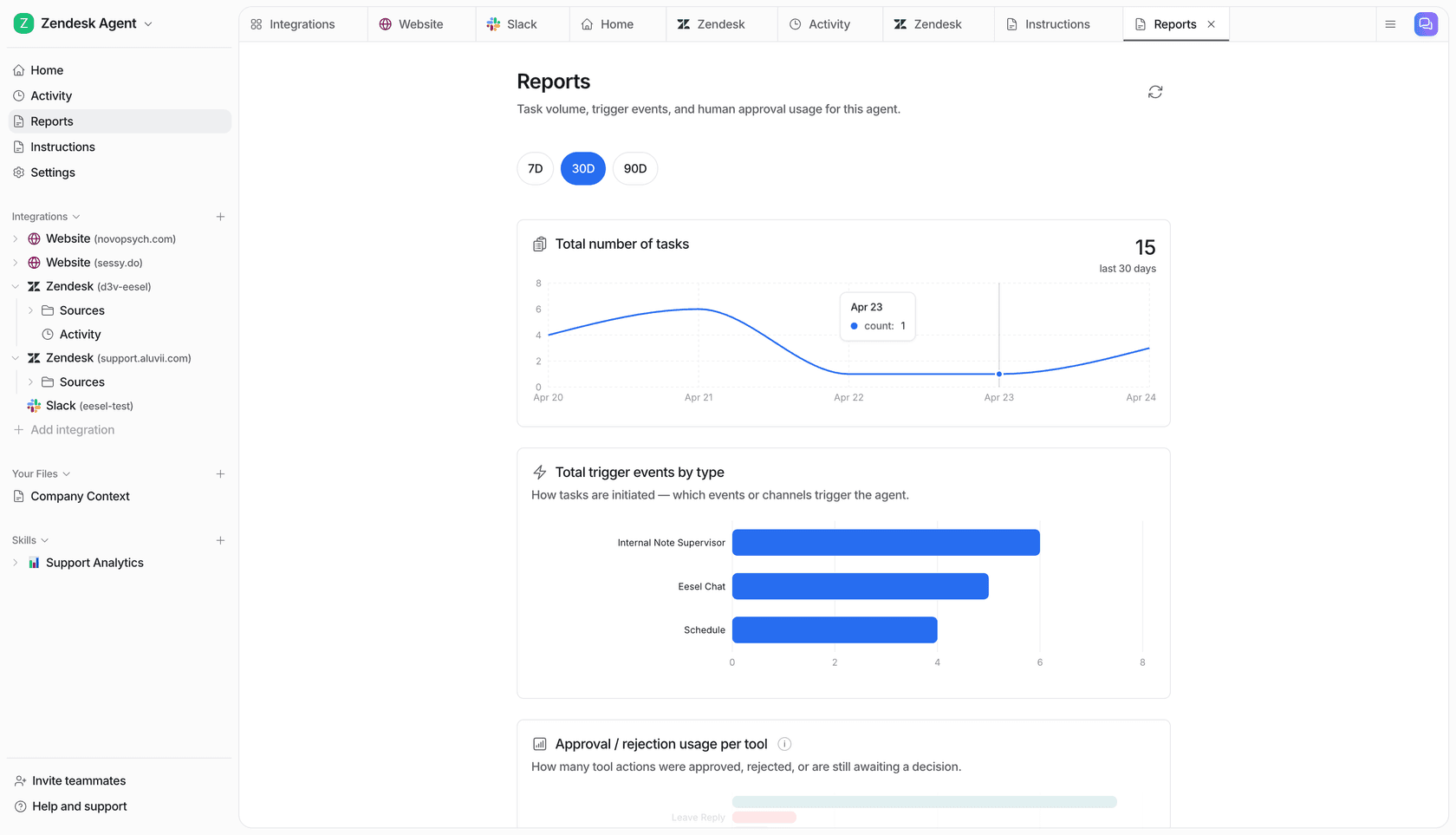
If your team already works with agents in the terminal, eesel also has a CLI for operating the same teammate and workspace from scripts, and coding agents like Codex or Claude Code can drive it. That's handy if you want a developer's agent to check what your support teammate answered, without anyone opening a dashboard.
To be fair to the dot: if your job is mostly your own inbox, calendar, and documents, you don't need eesel for that. A dot, or one of the AI email assistants, is the right tool. The line is ownership. If the work would still need doing when you're on holiday, it probably belongs to a teammate, not your personal agent.
Try eesel for the work your dot shouldn't own
Give your dot your own desk, and give your team's queue an agent built for it. eesel's AI helpdesk teammate joins Zendesk, Freshdesk, Gorgias, and other helpdesks in minutes, learns from your past tickets, and runs a simulation on your real history so you see its answers before any customer does. It's free to try, and pricing is published.
Frequently Asked Questions
Can I use OpenAI Dots for work?
Which ChatGPT plan includes Dots for work?
Is it safe to use a personal Pro dot with work data?
Can a dot work in Slack or Microsoft Teams?
What work tasks are OpenAI Dots good at?
Does using a dot for work count toward ChatGPT limits?
Can OpenAI Dots answer customer support tickets?


Article by
Riellvriany Indriawan
Riell is a designer and writer at eesel AI with about two years of experience researching CX platforms, AI chatbots, and helpdesk software. She combines her design background with a sharp eye for how these tools actually look and feel in practice — making her comparisons unusually visual and user-focused.