

Why does customer meeting prep matter so much?
I'm Riell, and I work eesel's support queue every day. That keeps me close to the conversations around renewals, and I've watched what walking in unprepared costs, more than once.
One example stuck with me, and it's a painful one. A UK auto-fintech on eesel's $799-a-month plan churned with the reason "too expensive," after about 311 AI interactions across eight billing cycles and positive sentiment from their team. Amogh, eesel's co-founder, wrote it up afterwards: eesel didn't lose them on product, it lost them because nobody framed the value for a finance team doing budget cuts. Nobody went into that conversation with the numbers in hand.
Ten days later it went the other way. I flagged a cosmetics brand as a churn risk: they said $800 a month didn't make sense and they'd build their own tool. The team went into that conversation knowing why, offered usage-based pricing that fit how they used it, and kept them at around $200 a month.
The difference between those two outcomes was simply who walked in prepared. So when I read how Town handles meeting preparation, I read it as someone who'd want to use it before exactly those calls. If you haven't met Town yet, my colleague's Town AI review covers the product, and the short version is that it's a personal AI assistant with its own @town.com email address that works across your inbox, calendar and apps.
What does Town AI do before a customer meeting?
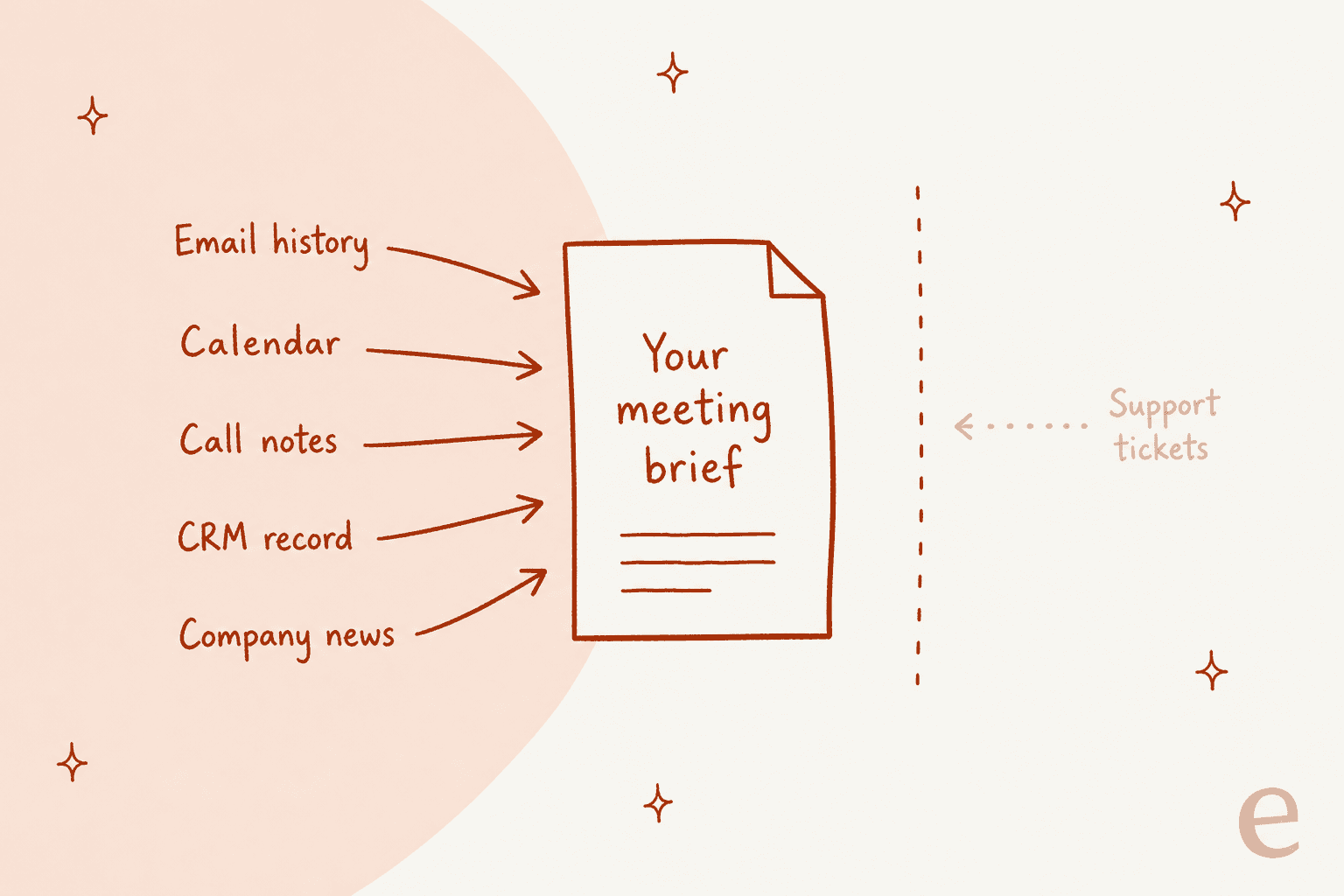
Town's main prep tool is a routine called Meeting Brief. Per Town's routine page, it "reads the attendee list, your email history, past meeting notes, and recent company news, then sends a short prep note ahead of the calls that deserve one." It's included with every account, so there's nothing to install.
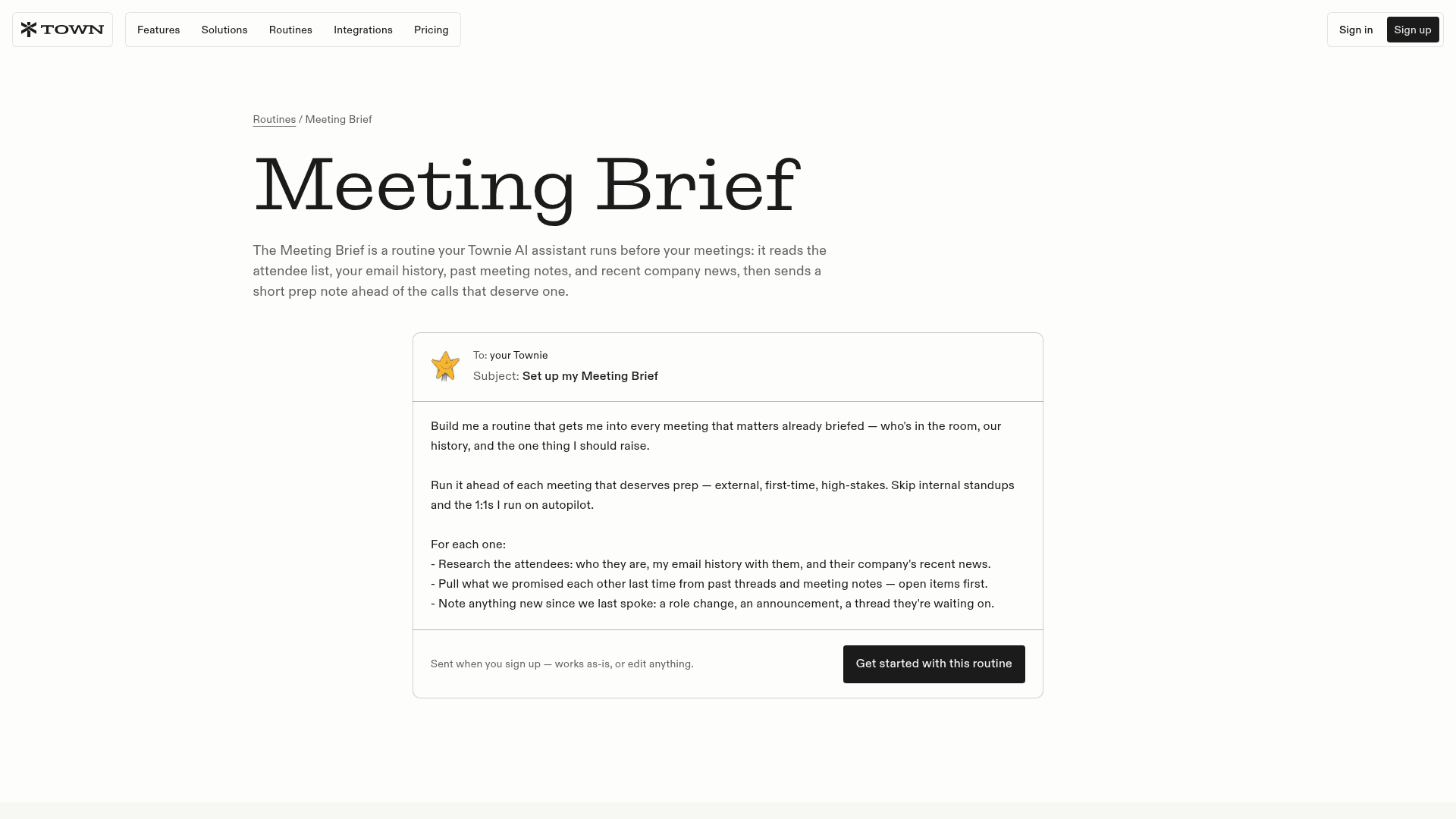
You set the routine up with a plain-language message to your Townie, and the default version asks it to:
- Pick the right meetings. Prep "external, first-time, high-stakes" meetings and skip internal standups and routine 1:1s.
- Research the attendees. Who they are, your email history with them, and their company's recent news.
- Pull what was promised. What you promised each other last time, from past threads and meeting notes, with open items first.
- Note what's new. A role change, an announcement, or a thread they're waiting on.
The order of the brief is what I like most about it. The default asks for a note that leads with the one thing you should say or ask, then who's in the room, then the context, "timed to land shortly before the call, not buried hours early." For a renewal or escalation call, that one line at the top is where I'd want a reminder like "they asked about the SSO bug twice in September."
You can also reply to the brief to dig deeper on anyone in the room. If you want the same kind of prep for your personal calendar too, my guide to AI scheduling assistants covers tools that also book the meetings.
Which Town routines help with customer meeting prep?
Meeting Brief is one of several. Town's routine library has a cluster around meetings, and they run at different points in time.
| Routine | When it runs | What it does | Acts on its own? |
|---|---|---|---|
| Meeting Brief | Shortly before the call | Short prep note: the one ask, attendees, open items | Yes, research only |
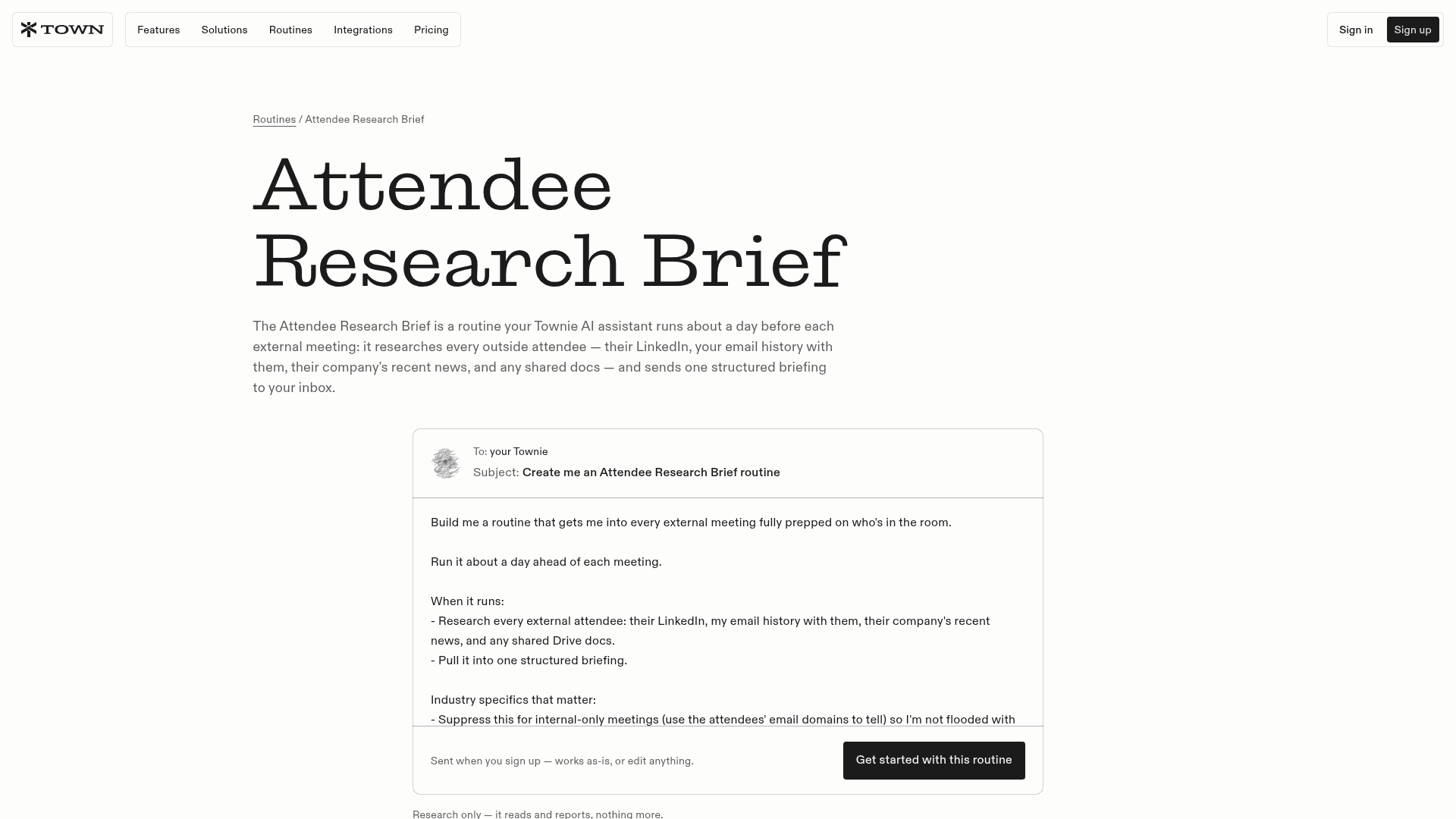
| Attendee Research Brief | About a day before external meetings | LinkedIn, email history, company news, shared Drive docs | Yes, research only |
| Standing 1:1 Prep Doc | A couple of hours before recurring 1:1s | Running doc of open items and waiting decisions | Drafts, never shares |
| Board Meeting Prep | When you forward materials with a keyword | 7-section memo with four questions tied to the numbers | Writes to your Drive |
| Post-Meeting Debrief Drafts | When the recording or transcript is ready | Debrief with owners, plus follow-up email drafts | Emails held for review |
Source: Town's routine pages for Attendee Research Brief, Standing 1:1 Prep Doc, Board Meeting Prep and Post-Meeting Debrief Drafts.
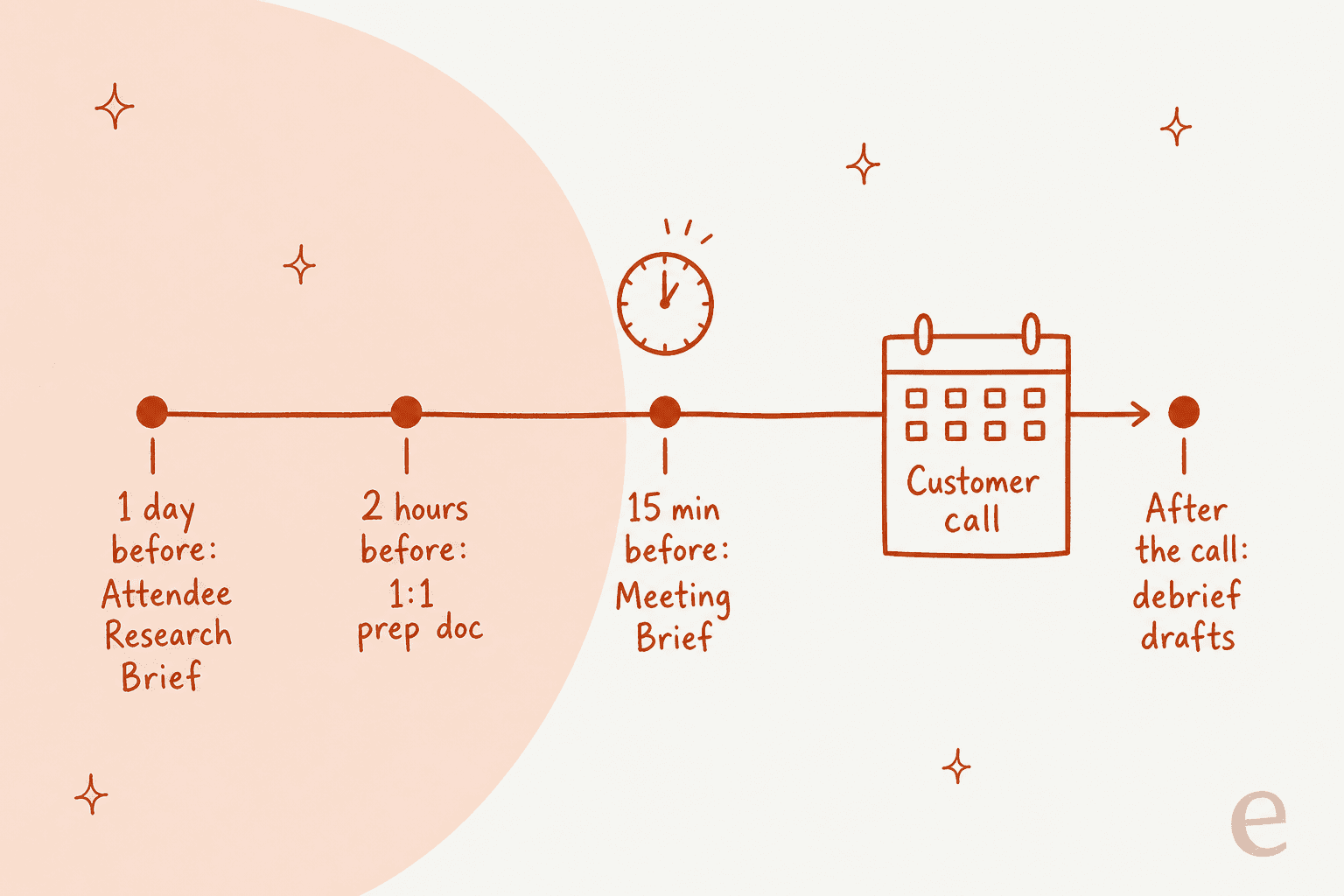
The Attendee Research Brief is the one I'd switch on first for customer-facing work, and it tells internal from external meetings by the attendees' email domains, so "your weekly team sync stays quiet," and only client, prospect or candidate meetings get a brief.
The Standing 1:1 Prep Doc is built for internal 1:1s, but its idea carries over to recurring customer check-ins: "carry forward what was open last time so it's a running thread, not a blank page each week." If you run a weekly call with a key account, that's the shape you want.
Town's stock routines docs also list a Contact Research Dossier, which researches a new contact and their company when labeled emails arrive, and a Meeting Action Hand-Off, which "separates what was agreed from what was only discussed" once a recorded meeting finishes transcribing.
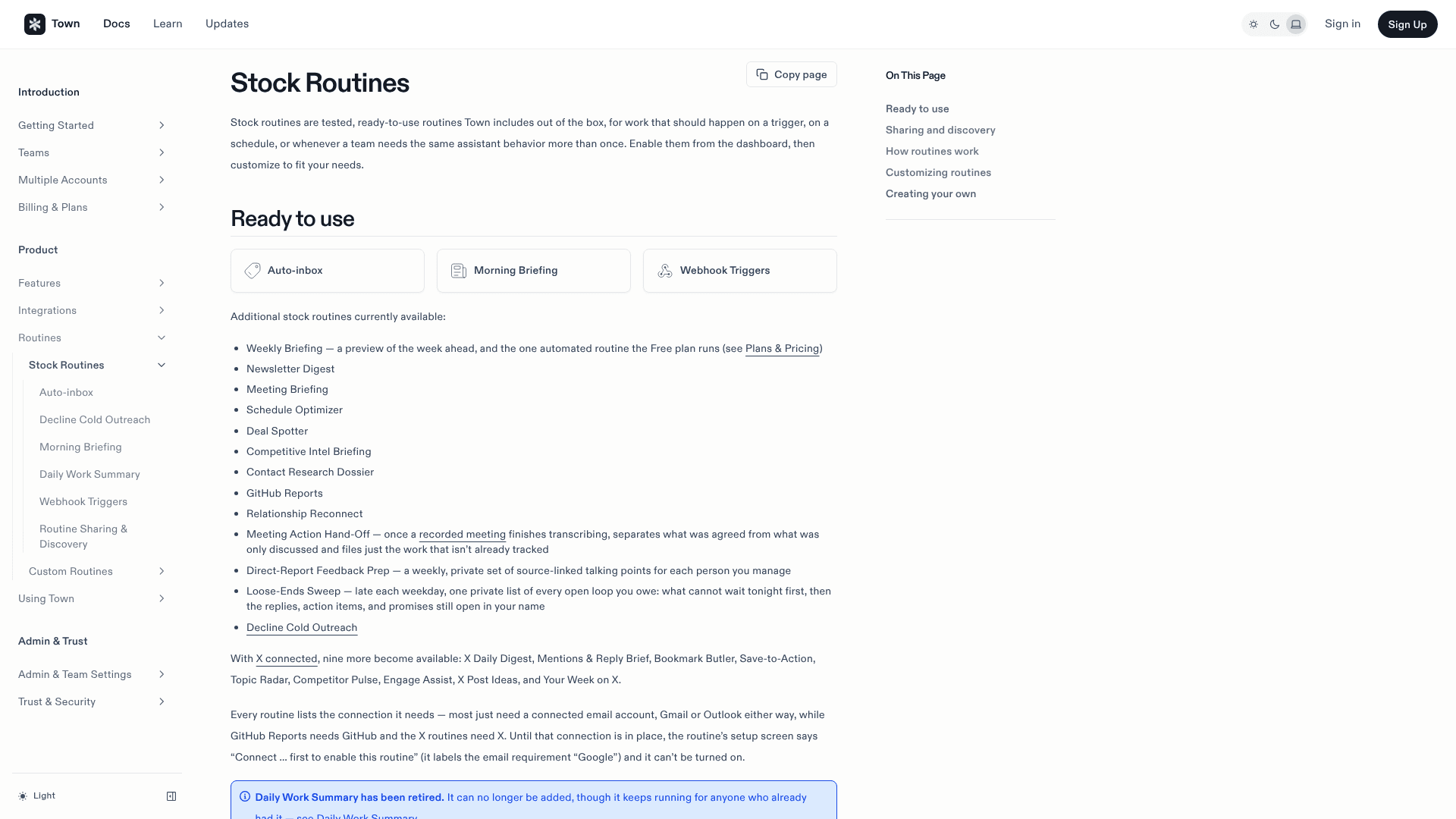
There's one detail in those docs worth knowing before you customize anything. You can change a stock routine's settings, mode and extra instructions, but you can't "rewrite a stock routine's underlying logic or splice in new data sources." If you need a brief that pulls from a source the stock version doesn't use, you build a custom routine instead.
What does Town read to build a customer meeting brief?
Everything comes from what you connect. Town's integrations page lists the tools a meeting brief can draw on, and for customer-facing work the useful ones fall into four groups:
- Email and calendar: Gmail, Outlook and Google Calendar. These are the base layer every routine needs.
- Call notes and recordings: Granola, Fathom, Fireflies, Gong and Zoom, plus Town's own Recordings feature.
- CRMs: HubSpot, Salesforce, Attio, Pipedrive, Affinity and Copper. My colleague's Town AI for HubSpot post covers what the HubSpot connection can read and write.
- People and company research: LinkedIn and Clay, plus web research for company news.
Town's built-in Recordings matters more for prep than it first looks. You hit record during a call on the web, Mac or iOS app, then Town transcribes it and can also write the meeting notes. Because "it's the same assistant with the same memory everywhere," next month's brief already knows what was said on this month's call. Recordings are private to you by default.
If you keep notes in Granola, Town's Granola docs say the connection is read-only: Town searches your notes and transcripts but doesn't create or edit them. If a meeting wasn't captured there, "there's nothing to pull."
If you'd rather keep a standalone notes tool, my meeting notes app guide and Otter AI review cover the options. Zoom AI also has its own built-in summaries.
What does a Town meeting brief miss for customer calls?
Support history. For a renewal, an escalation or a QBR, the most important context often sits in the helpdesk: the open bug or the billing complaint, plus the three tickets about the same integration. That's usually what a customer brings up in the first five minutes.
Town's integrations page lists Front and Pylon among support tools. It doesn't list Zendesk, Freshdesk or Gorgias. So a stock Meeting Brief for a Zendesk shop won't see the customer's tickets unless they happen to be in your email.
There is a route around it, though. Town supports custom MCP servers, and its docs give "query your internal CRM or helpdesk" as an example use. You add the server in Settings, enable it on a custom routine, and the routine can call its tools. That works if you have someone to set up and maintain a helpdesk MCP server, and if your brief is a custom routine, since stock routines can't take new data sources.
Two smaller things are worth knowing:
- Briefs are personal. Each person's Townie uses their own inbox, notes and memory. Town's Teams docs let teammates share routines, but the brief your account manager gets is built from their accounts, not from a shared account record. If a support agent handled the last escalation, that context lives in the helpdesk, not in the account manager's inbox.
- Person research is metered. Town's pricing page caps person research lookups at 10 a month on Starter, 50 on Pro, 150 on Power and 75 per user on Team. A busy account manager with three external calls a day can hit Pro's 50 before the month is out.
If your support team is on Front, Town does connect there: it can surface waiting threads and draft replies, and every send waits for your approval. My colleague's Town AI for Slack piece shows the same per-person pattern, and Front's own Front AI copilot is worth comparing. For the bigger picture, see my guides to help desks with CRM and Zendesk CRM integration.
Which Town plan do you need for meeting prep?
This is the point where I'd slow down a bit before buying. The Meeting Brief "comes with every new Town account," but whether it runs on its own depends on the plan.
| Plan | Price per month | Meeting briefs | Person research lookups |
|---|---|---|---|
| Free | $0 | None (Weekly Briefing is the only routine) | None |
| Starter | $15 (monthly only) | 15 on-demand a month | 10 |
| Pro | $49 annual / $59 monthly | Automatic | 50 |
| Power | $99 annual / $119 monthly | Automatic | 150 |
| Team | $59 annual / $71 monthly per seat | Automatic | 75 per user |
Source: Town pricing and Plans and Pricing docs, checked October 2026.
The reason is triggers. Town's triggers docs describe a calendar start trigger that fires 15 minutes before a meeting by default, or 1 hour before, or 5 minutes after. Town's plans docs say meeting-start triggers need Pro or higher, or a paid team plan. Starter only runs scheduled triggers, at most once a day.
So on Starter, you ask for each brief yourself, up to 15 a month. That's fine for a founder with a few customer calls a week. For an account manager with 40 external meetings a month, Pro is really the starting point. Credits per run aren't fixed either, since a brief that reads a long email history costs more than one for a first meeting. My colleague's Town AI pricing post covers credits and overage, and Town gives a 7-day Pro trial on signup.
Is Town's meeting prep safe to run on its own?
For prep, yes. Every meeting-prep routine I read is research-only by design:
- The Meeting Brief default says "research and brief on your own; never contact an attendee or touch the calendar."
- The Attendee Research Brief page says "it reads and reports, nothing more."
- The Debrief Drafts routine holds follow-up emails as drafts "for my review," because they're external.
That lines up with Town's wider Modes and Approvals model, where actions that contact other people wait for your yes by default. Town's co-founder Jean-Denis Greze summed up the stance at launch:
"And it only acts when you say so."
One more thing I'd check is where the brief gets delivered. If you route briefs to a Slack channel instead of your inbox, the whole channel sees your notes on a customer. Town's routines default to your inbox, so this only matters if you change it.
Town is new enough that it has no G2 or Capterra reviews yet, and I couldn't find public posts talking specifically about its meeting briefs. The clearest outside signal is about adoption instead. Investor swyx described Town spreading through his team:
"i brought it into our company one day and a few weeks later was shocked to hear that it had just organically spread to @liamcbride and the rest of our team with no further hyping or enablement from me."
How do I set up Town for customer meeting prep?
Here's the order I'd follow, about 30 minutes in total:
- Connect email and calendar at signup. That's all the stock Meeting Brief needs to start.
- Connect your notes tool and CRM. Granola or Fathom for what was said last time, and HubSpot or Salesforce for the account record.
- Tell your Townie which meetings count. For customer work, something like "brief me on every meeting with someone outside our domain, and skip internal syncs."
- Add the Attendee Research Brief by sending the routine's set-up message, so you get a day-ahead brief as well as the 15-minute one.
- Turn on Recordings or Debrief Drafts so each call feeds the next brief.
If you want a brief that adds a source the stock one doesn't read, Town's routine wizard builds a custom routine from a plain-language request.
Still choosing between assistants? My colleague's Town AI alternatives post compares Town with Instinct AI and Orchid AI. For building your own agent instead, there's Lindy.
How do you add support history to customer meeting prep?
This is the gap I'd fill first, since it's the one I see bite most often. When an account manager asks me before a renewal, "anything I should know?", the answer almost never lives in their inbox. It lives in the ticket queue.
eesel is a set of AI teammates you hire for specific jobs, and the one that helps here is the AI helpdesk teammate. Per eesel's Slack docs, you can mention it in a Slack thread and ask for a look-up in a connected helpdesk, and it answers in the thread with what it found. So "@eesel list Acme's open tickets" before a call gets you the support side of the brief that Town doesn't read.
A few specifics, so you know what you're getting:
- It connects once for the team. One connection to Zendesk, Freshdesk, Gorgias or Front, instead of each person wiring up their own.
- It reads the helpdesk, not your inbox. The look-up runs against the tickets themselves, so it isn't limited to the threads someone happened to cc you on.
- It asks before it acts. If you ask it to do something that changes a ticket, an approval card with Approve, Deny and Review in eesel posts in the same thread.
The two tools sit well side by side. Town preps you from your email, calendar and CRM. eesel covers the helpdesk. If your customer calls are mostly escalations, my guides to ticket summarization and AI churn prevention for support go deeper on reading the warning signs early.
Try eesel before your next renewal call
Before your next renewal or escalation call, ask eesel in Slack what the customer has raised with support. It looks up their tickets in your Zendesk, Freshdesk or Gorgias and answers in the thread, so you don't walk in surprised by an open bug.
Plans are fixed credit bundles on the eesel pricing page, starting at 500 credits for $299 a month, with a free plan to test it first. Connect your helpdesk and one Slack channel, then ask about the next customer on your calendar. Try eesel
Frequently Asked Questions
Can Town AI prepare me for customer meetings?
Yes. Town ships a Meeting Brief routine with every account. It reads the attendee list, your email history, past meeting notes and recent company news, then sends a short prep note before the calls that deserve one. A separate Attendee Research Brief runs about a day ahead for external meetings. For other assistants that do this, see my AI personal assistants roundup.
Which Town plan do I need for automatic meeting briefs?
Pro, at $49 a month billed annually or $59 monthly. Town's pricing page lists automatic meeting briefings on Pro and above, while Starter at $15 gets 15 on-demand briefings a month. Meeting-start triggers also need Pro or a paid team plan. My Town AI pricing breakdown has the full plan table.
What does a Town AI meeting brief include?
Per the Meeting Brief routine, it leads with the one thing to say or ask, then who's in the room, then context: your email history, what was promised last time, open items and anything new since you last spoke. It reads from your connected email, calendar, notes tools like Granola or Fathom, and CRMs like HubSpot.
Does Town AI meeting preparation include support tickets?
Not from the major helpdesks out of the box. Town's integrations page lists Front and Pylon, but not Zendesk, Freshdesk or Gorgias. You can add a helpdesk through a custom MCP server you set up yourself. For a ticket lookup without that setup, an AI helpdesk agent like eesel can pull a customer's tickets on request.
Will Town AI contact meeting attendees on its own?
The prep routines are research-only. The Meeting Brief prompt says to never contact an attendee or touch the calendar, and the Attendee Research Brief only reads and reports. Follow-up emails after a call are held as drafts for review. Town's approval model is covered in my review.
Can Town AI take notes during customer meetings?
Yes. Town Recordings captures a meeting from the web, Mac or iOS app, transcribes it and can write meeting notes, which then feed the next prep brief. It can also read notes you keep in Granola. If you want a dedicated notes tool instead, see my meeting notes app guide.
Is Town AI good for a customer success team?
It works one person at a time. Each account manager runs their own Townie with their own inbox and memory, so briefs are personal, not a shared account record. That's a good fit for founders and account managers. For team-wide tools, see my list of AI tools for customer success.



Article by
Riellvriany Indriawan
Riell is a designer and writer at eesel AI with about two years of experience researching CX platforms, AI chatbots, and helpdesk software. She combines her design background with a sharp eye for how these tools actually look and feel in practice — making her comparisons unusually visual and user-focused.