

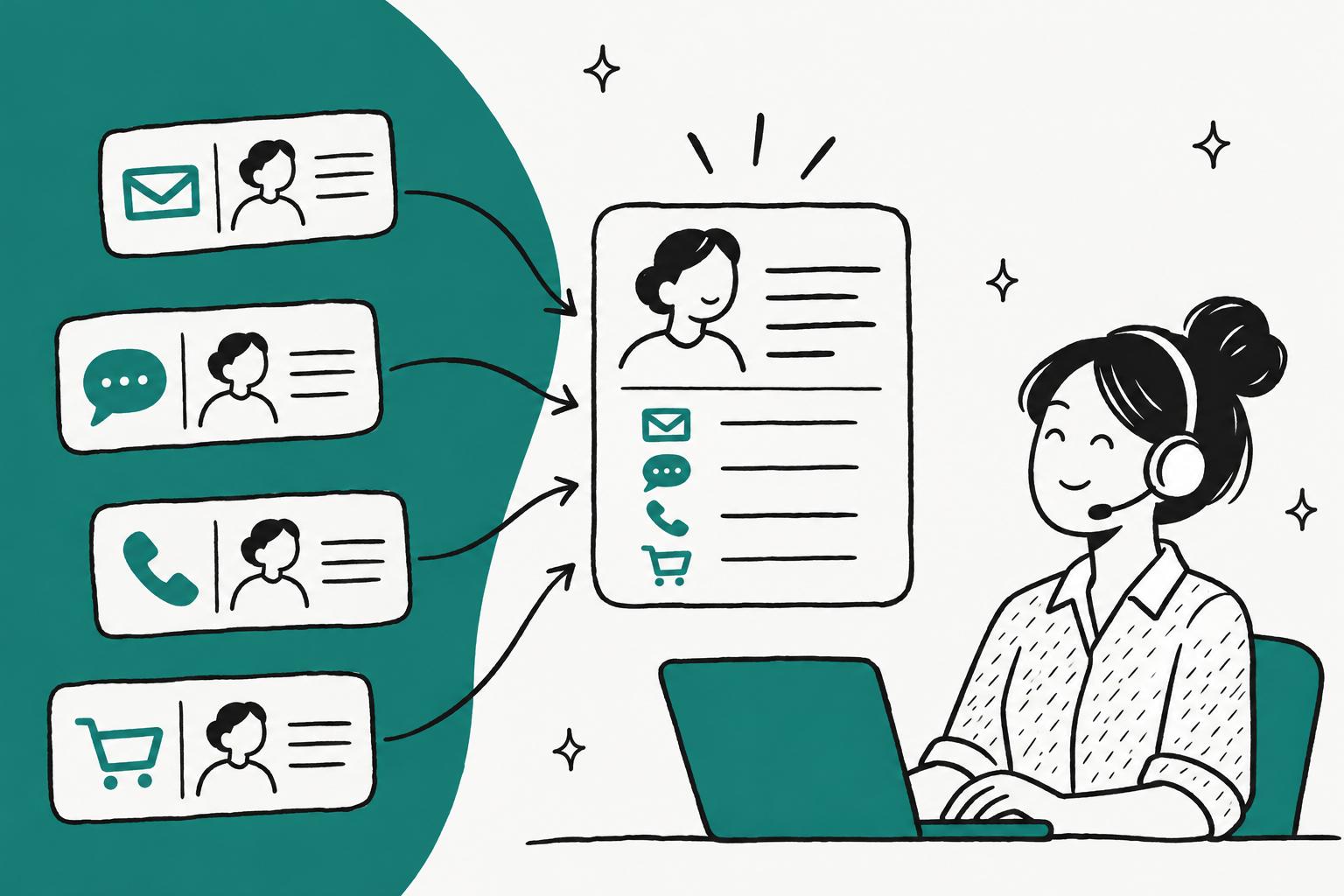
A single customer view for support is one profile per real customer, with every email, phone number and chat identity on it, and in Zendesk it most often breaks on duplicate users: a customer's first WhatsApp message always creates a new user, even when their number is already saved. Emails from an address not on the profile and chats from visitors who haven't signed in can create more. Zendesk's CX Trends 2026 research found 81% of consumers want agents to continue the conversation without backtracking, which an agent can't do with a third of the history. Fix it in order: put every identity on one profile, sign chat users in with an external ID, merge what slips through (a Zendesk user merge can't be undone and drops the merged profile's tags, notes and user fields), then link store and CRM data by the same identifiers. eesel, an AI teammate that works inside Zendesk, can read a customer's past tickets and orders at reply time and flag a likely duplicate for an agent. An AI coding agent can set eesel up through the eesel CLI and ask it test questions before it goes live; connecting Zendesk still needs an admin's approval.
What is a single customer view in support?
A single customer view is one record per real person that holds every way they reach you, across an omnichannel setup, and links what your other systems know about them. For a support team, the test is simple: when Jane writes in, does the agent see all of Jane's tickets, chats and orders, or only the ones that happened to land on this profile?
I build integrations at eesel, so I spend a lot of time inside the plumbing that decides which "user" a message belongs to. My view after reading Zendesk's docs end to end: Zendesk already has the screen. The customer context panel shows the profile card, recent interactions and data from other systems right beside the ticket. What it can't do is show history that sits on a different user record. A single customer view is mostly an identity problem.
It matters because customers notice, and it shows up in repeat tickets and a worse customer experience. In Zendesk's CX Trends 2026 research, 74% of consumers said they are frustrated when they have to repeat information, and 67% expect brands to tailor support based on prior interactions. A customer whose last three tickets sit on a duplicate profile gets treated as new, and has to explain it all again.
Why does the view break?
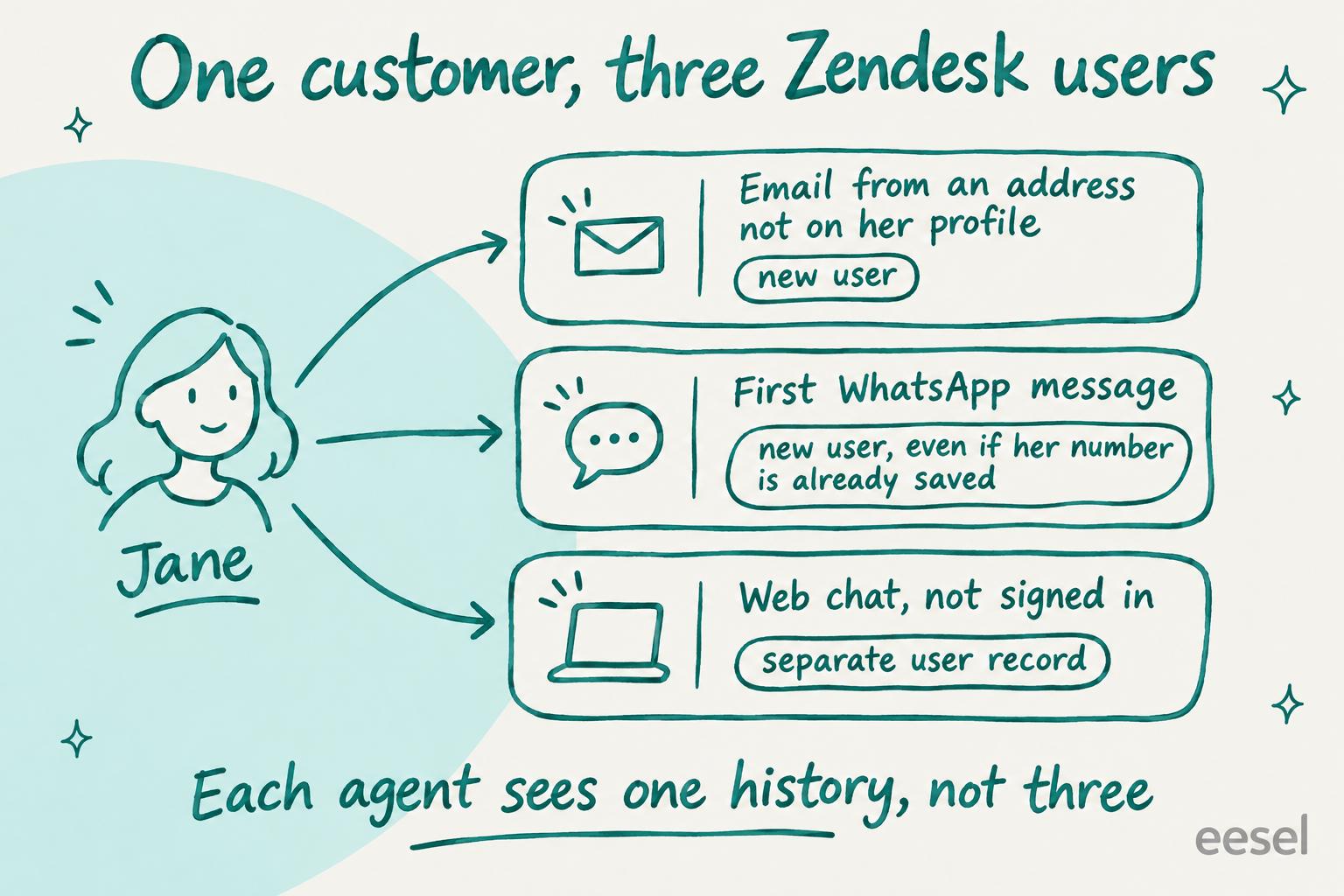
The view breaks because Zendesk creates a new end user whenever it can't match an incoming message to an identity it already has, and some channels don't try very hard. Zendesk's own docs list the cases:
- Email from an address not on the profile. Zendesk's merging guide says any time a user writes from an email or social account that isn't in their profile, a duplicate end user account might be created.
- The first WhatsApp message. If you connect Zendesk to WhatsApp, this one is guaranteed. Zendesk's WhatsApp article is blunt: "The first time a user messages through WhatsApp, Zendesk creates a new user, even if an existing user already has their email or phone number."
- Web chat without a sign-in. Zendesk's messaging authentication article says separate user records and conversations are created for unauthenticated end users.
- A call from a new number. On the Contact Center add-on (eesel's Zendesk Contact Center overview has the basics), a number not yet on any profile creates a new profile with the number as its name (calls from anonymous or blocked numbers create no ticket or contact at all).
The WhatsApp case draws the angriest comments under that article:
"This is basically trying to pass faulty user management on ticket creation as expected behaviour, no other channels behave like this and it can create issues as agents unknowingly won't have visibility on a user's ticket history, any chance to have this fixed any time soon?"
That last clause is the whole problem. The agent doesn't know the history exists, so nothing on screen tells them to go looking. That's how a customer who was promised a refund last week ends up as silent churn.
Step 1: Put every identity on one profile
The cheapest duplicate is the one that never gets created, and the way to stop most of them is to give Zendesk every identity a customer uses before they use it.
Add secondary emails and numbers. A Zendesk user can hold several email addresses, per Zendesk's secondary email article: open the profile, click + add contact, pick Email and save. Zendesk sends the customer a verification email, and the address only becomes valid once they confirm it. When a customer tells you "I usually write from my work address", that's the moment to add it, not after the next duplicate.
Know when two people really do share an inbox. By default, Zendesk treats an email address as belonging to exactly one end user. On 3 November 2026 Zendesk announced shared email addresses: with Shared email identities turned on in Admin Center under Configuration > End users, several end users can hold the same address while keeping separate profiles, external IDs and ticket histories. Zendesk's example is a household where Alex and Jamie both use family@example.com. This is the opposite of a merge: two real people, two profiles, one inbox.
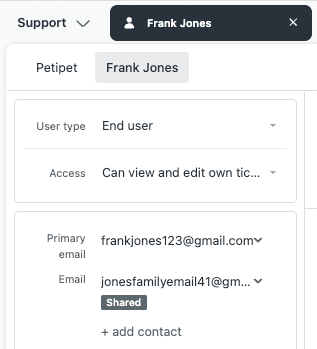
Two things to know before you turn it on. A shared address can't be used for email-and-password sign-in or password resets; only its owner can use it for that. And with shared addresses on, Zendesk's shared email guide says identity is anchored to the External ID rather than the email, so it pays off most when your own systems already give each customer a stable ID.
Step 2: Sign chat users in with an external ID
For web and in-app chat (the Sunshine Conversations layer under Zendesk messaging), the fix for duplicates is messaging authentication. Your website or app signs a JWT for each logged-in customer with an external_id, and Zendesk uses that ID as the primary identifier, falling back to email only when no user has the external ID. It's available on all Suite plans.
Zendesk's rules for the external ID are the rules of any good identity key: unique across the account (or across brands, if you run several), never changes, one per user, alphanumeric and at most 255 characters. Your customer database's ID is usually the right pick; an email address isn't, because people change them.
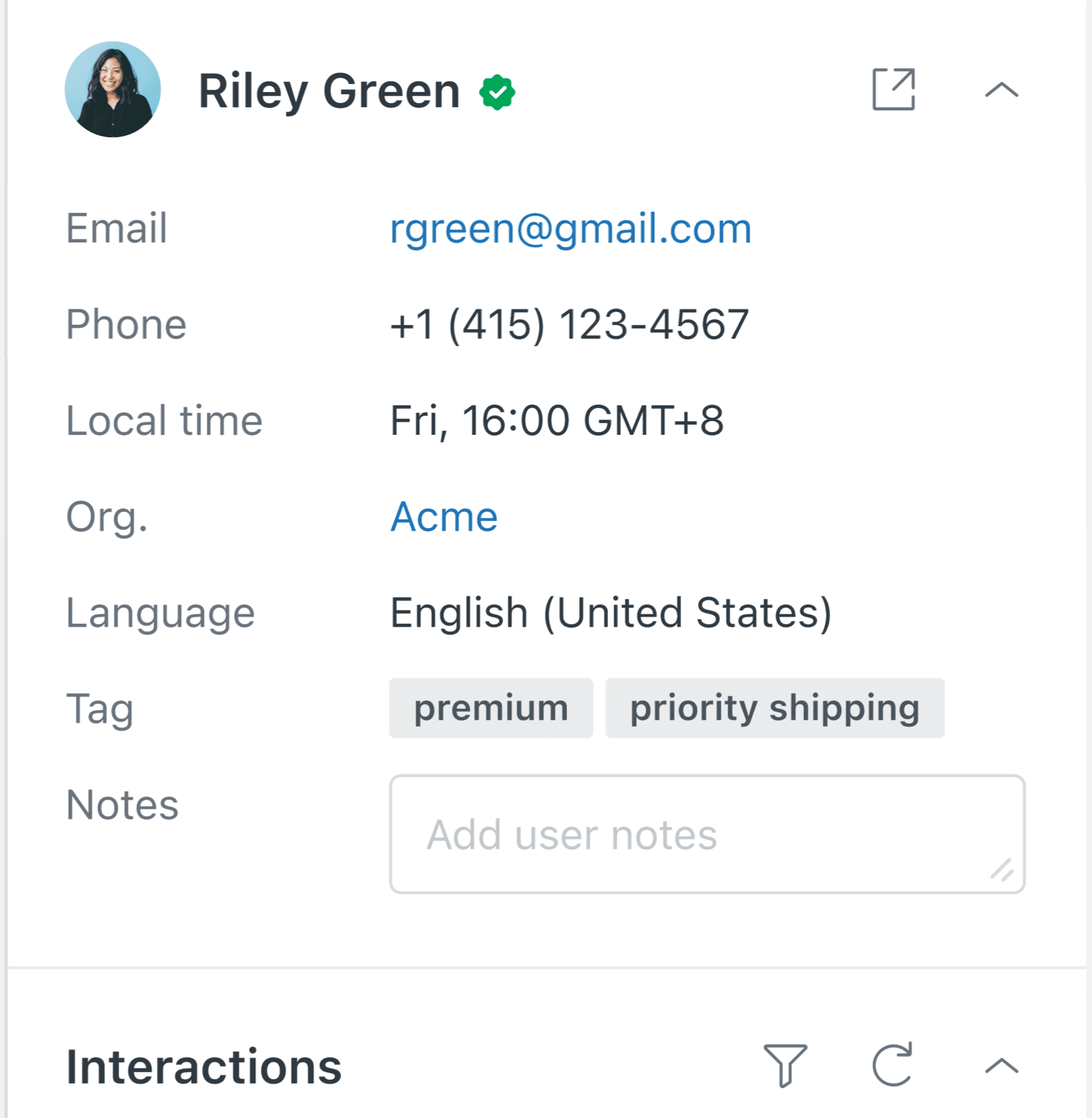
What agents see changes too, which also helps when an AI agent hands off a signed-in customer. An authenticated customer gets a green check mark next to their name, and their external ID shows on the profile.
Three behaviours to plan for:
- Signing in mid-conversation merges. If a visitor starts chatting anonymously and then logs in, Zendesk either upgrades that user or, if a user with the external ID already exists, merges the anonymous user and all their conversations and tickets into it.
- Multi-conversation messaging leaves duplicate tickets. With multiple conversations turned on, the user records merge but the current conversations don't, so a late sign-in can leave two tickets for one issue for an agent to merge by hand.
- A conflicting email blocks the sign-in. If the email in a JWT already belongs to a different external ID, Zendesk rejects the JWT and the conversation starts unauthenticated, which means another anonymous user.
Step 3: Merge the duplicates that slip through
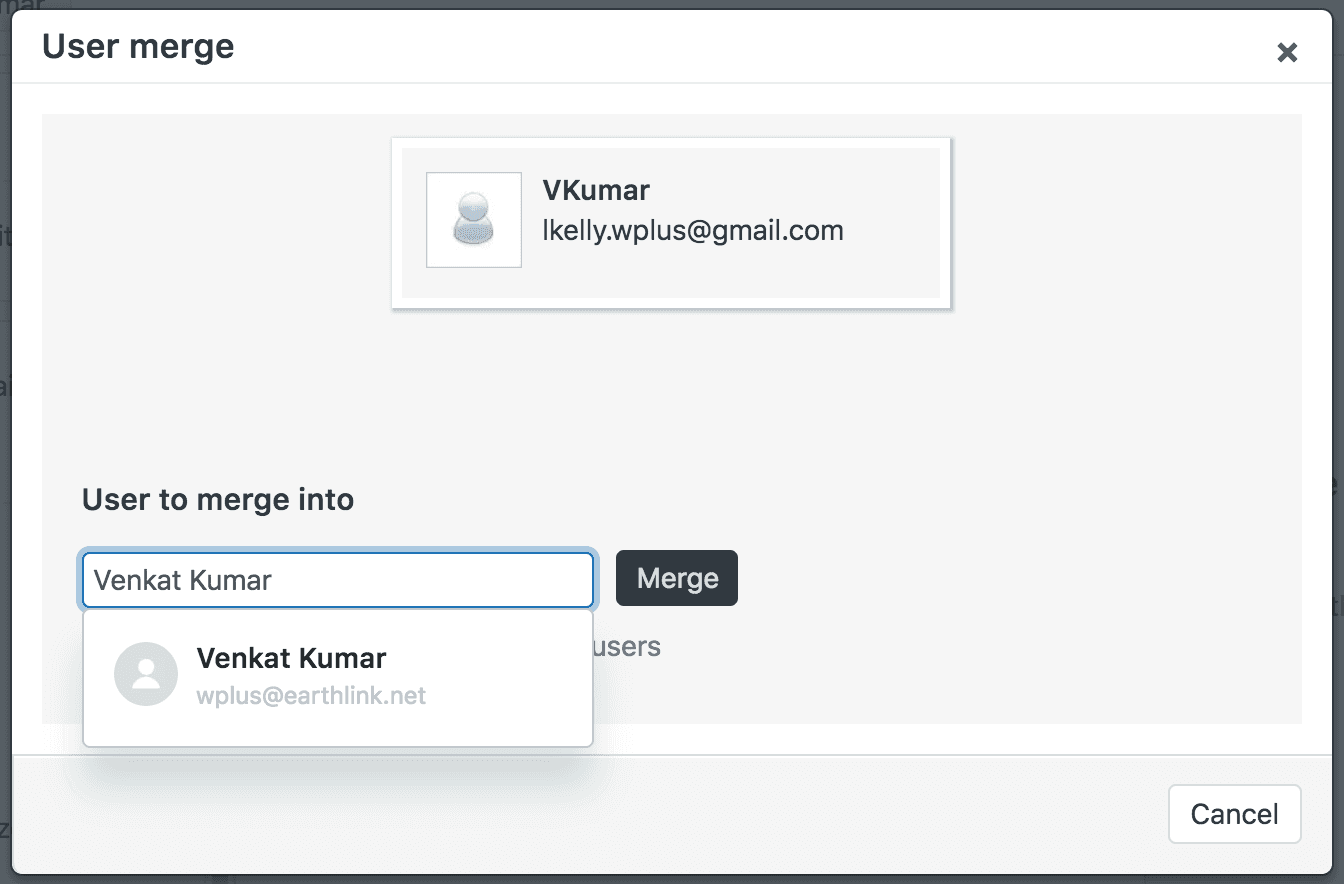
Some duplicates will get in anyway, WhatsApp's first message being the guaranteed one. Merging folds one end user (the merging user) into another (the receiving user). In Zendesk Support, open the duplicate's profile, open the user options menu, choose Merge into another user, pick the profile to keep, click Merge, then click Confirm and Merge.
Before you click, know what the merge keeps. The merge table in Zendesk's merging guide says the merging user loses all data except tickets and email identities. Its phone number is added as a second number, its emails become secondary emails on the kept profile, and its tickets (archived and closed ones included) move across. Its tags, details, notes and user fields are lost, and the merged account is queued for permanent deletion.
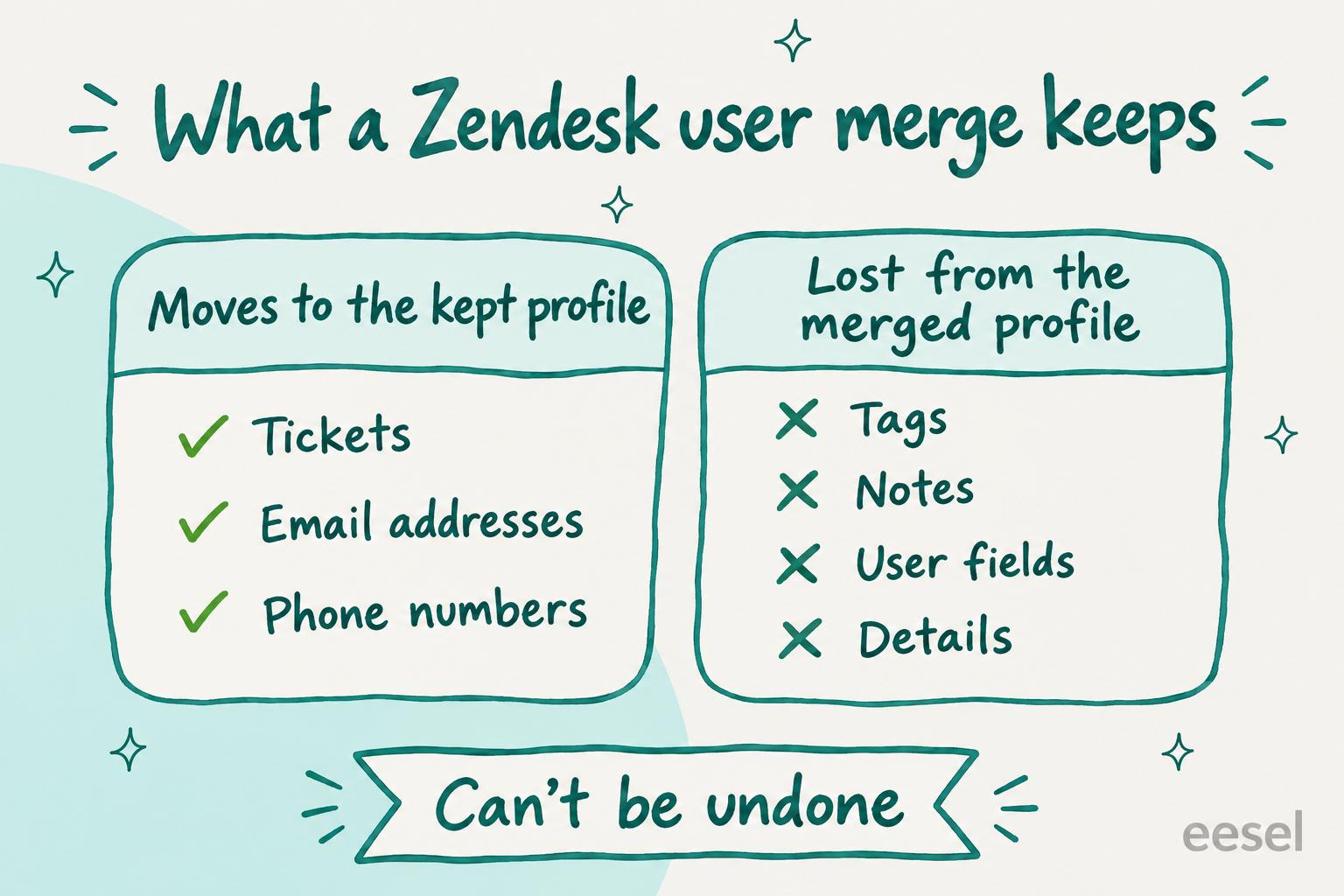
So the order matters: keep the profile that holds the notes, tags and fields, and merge the thin duplicate into it. A WhatsApp duplicate usually holds nothing but a phone number and one conversation, which makes it the right one to merge away. Duplicate tickets are a separate job, covered in Zendesk duplicate tickets.
The limits, from the same guide and the Users API:
| Rule | What it means for you |
|---|---|
| Can't be undone | Check both profiles before you confirm. |
| End users only | An agent who once wrote in as a customer can't be merged into their agent account. |
| 10,000 tickets or fewer per user | Very large shared accounts can't be merged. |
| SSO with JWT or SAML: merging user must have no external ID | Two signed-in identities won't merge this way. |
| Requester change shows in the ticket events | Triggers don't fire on it, so no customer emails go out. |
For a backlog of duplicates there's no bulk merge button, but the API's PUT /api/v2/users/{user_id}/merge endpoint merges one end user into another, so a script can work through a list of pairs a person has checked. The guide to Zendesk API authentication covers the token side, and creating users by API shows how to send identities up front so fewer duplicates form. Once a WhatsApp user is merged, Zendesk says it identifies that customer correctly on their next WhatsApp ticket. One change to watch: since August 2026 Zendesk also supports WhatsApp business-scoped user IDs, as Meta rolls out usernames, so some WhatsApp users arrive identified by that ID instead of a phone number.
Step 4: Link store and CRM data by the same identifiers
A single customer view also means the order, the subscription and the account status, which live outside Zendesk. Zendesk's way in is Sunshine profiles and events, which it describes as a way "to create a single view of a customer across all of your external systems". You turn them on in Admin Center under People > Configuration > Profiles (and Configuration > Events for events), then choose which ones agents see.
The detail that matters for identity is how a profile finds its user. The Profiles API looks for a Zendesk user with a matching standard identifier (email, phone number, external ID and a few others). If it finds one, the profile attaches there. If it doesn't, it creates an anonymous Zendesk user, which is one more duplicate. Any email, phone or external ID you send on a profile is also added to the Zendesk user, and Zendesk's docs ask you to check the identifier really belongs to that person first. So clean identities in Step 1 and Step 2 are what make this step land on the right person.
The Shopify integration works the same way: the Shopify profile and its events show only when the ticket requester's email matches the customer's email in Shopify. Events can take up to 24 hours to start appearing and only cover what happens after you turn them on.
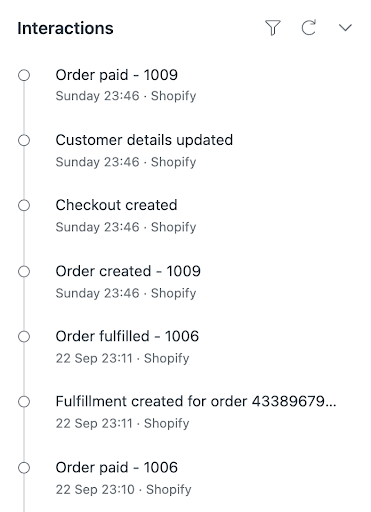
That's why the WhatsApp duplicate hurts twice: a profile with only a phone number has no email to match, so the orders don't show either. For a CRM instead of a store, the Zendesk CRM integration guide covers the options.
Find the fix for your duplicate
By now the pattern is clear: every duplicate has a cause, a fix for the one in front of you and a setting that stops the next one. Pick how your latest duplicate got in.
Pick how the duplicate showed up to see why Zendesk created it, how to fix it and the setting that stops the next one.
Where AI fits, and where it doesn't
AI customer service can't merge its way to a clean customer base on its own, and it shouldn't try: a merge is permanent and drops data, so the call belongs to a person who has looked at both profiles. What AI is good at is the part a busy agent skips, which is going looking.
eesel sees this with Cape Coffee Beans, a specialty coffee retailer that runs eesel on Zendesk, Shopify and Google Drive. When a team member writes @eesel in a ticket's internal note, eesel searches past tickets, the product catalogue and their Drive files, and looks up orders by order number, linking the Shopify order it used. In one month it was called into 23 tickets and looked up 19 products and 5 orders. That's a single customer view built at the moment of the question, across systems that will never share one database. eesel can answer customers on WhatsApp too, and the WhatsApp customer service guide covers the channel itself.
The same reading helps with duplicates. eesel's Zendesk tools can look up a customer by email and search users and tickets, so you can tell it, in plain words, to check whether a new WhatsApp or chat requester matches someone who already has history (by the name, email or order number in the message) and leave an internal note pointing at the likely match. The agent confirms it and merges. eesel doesn't merge users itself.
Give your Zendesk agents one customer, not three
If your agents keep finding history on the wrong profile, or winning back a customer who had to explain everything twice, fix identity first: add the identities, authenticate chat, merge carefully. Then let eesel do the cross-system reading. eesel works inside Zendesk as an AI teammate: it reads the customer's past tickets, looks up their order in a connected store, and leaves an internal note with what it found and a draft reply before your agent opens the ticket. You decide what it may do on its own and what waits for a person's approval, per actions and approvals, so it can draft for agents on day one and reply to customers only when you say so.
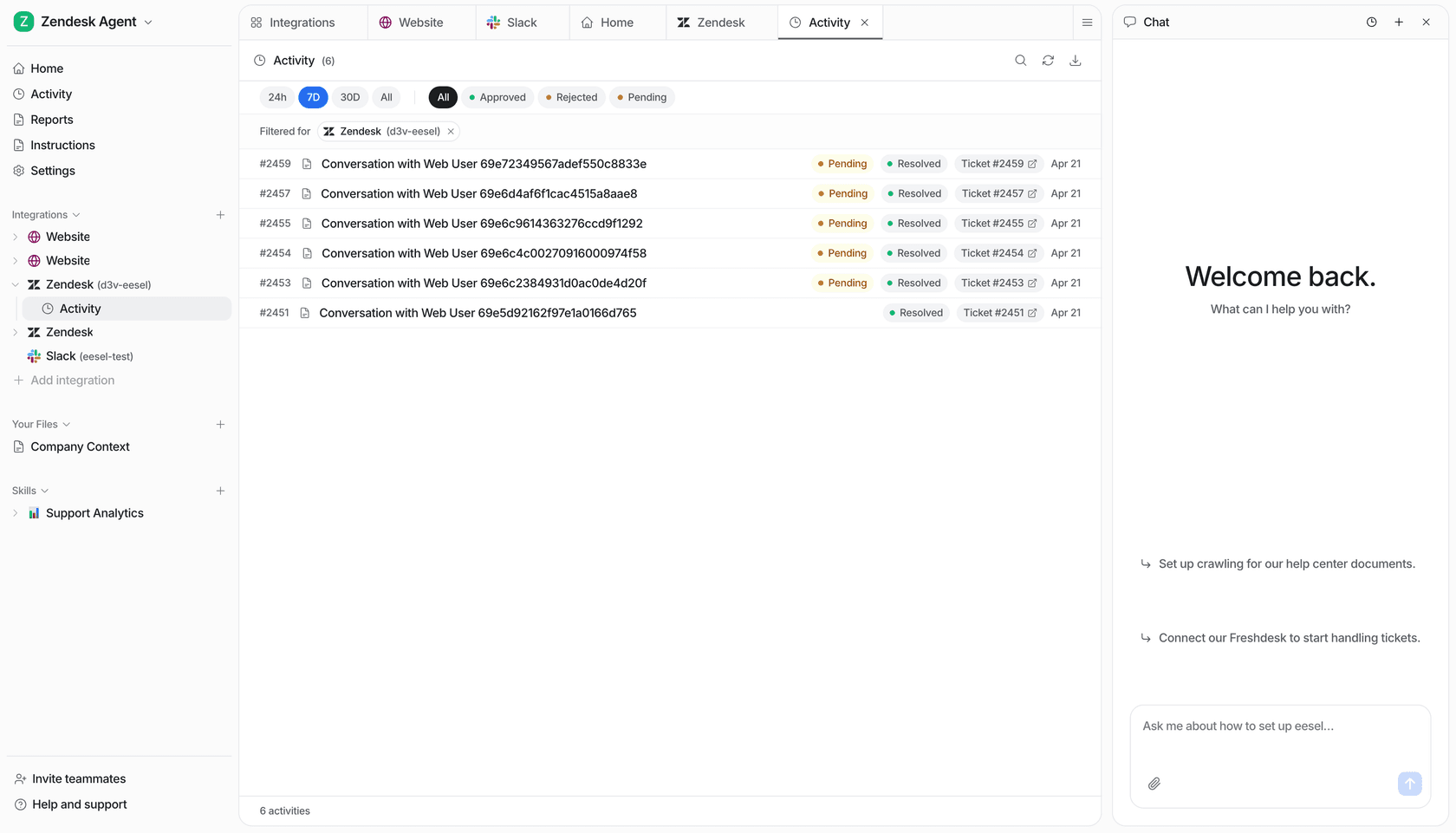
Try eesel on your own Zendesk tickets and see what it finds before your agents reply.
Frequently Asked Questions
What is a single customer view in customer support?
Why does Zendesk create duplicate users?
Can you undo a user merge in Zendesk?
How do I merge duplicate users in bulk in Zendesk?
PUT /api/v2/users/{user_id}/merge) that merges one end user into another, so teams script it from a reviewed list of pairs. Each user must have 10,000 or fewer requested tickets, and agents and admins can't be merged. For tickets rather than users, see bulk merging tickets.