

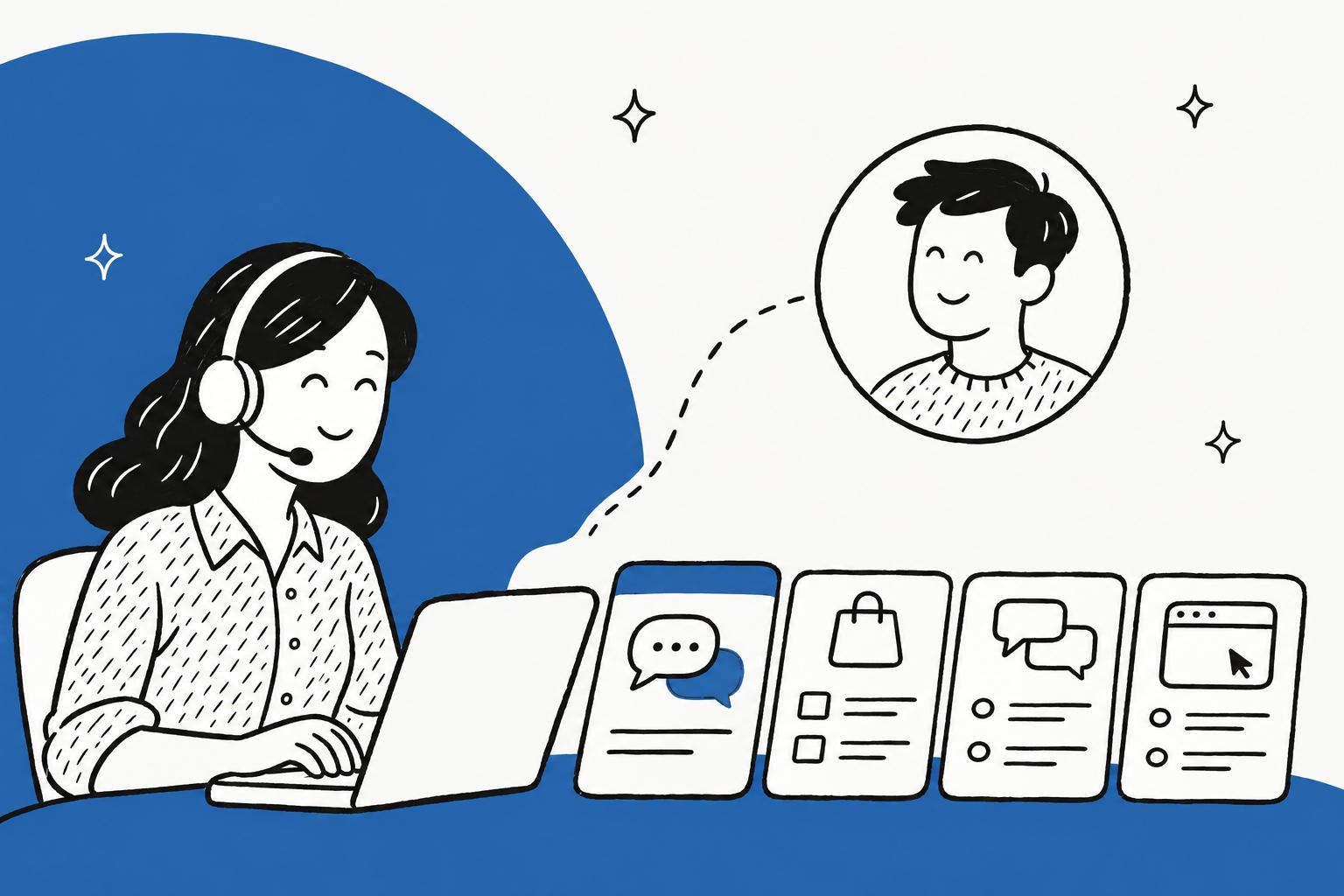
To give agents full customer context in every ticket, decide the four things an agent must know before the first reply, then put each one where the agent already looks, because in Zendesk most of it already exists in a context panel that is closed by default. The four are who the customer is, what happened in their earlier tickets, what they already tried, and a short summary of this ticket. In Zendesk that means configuring the user profile card, turning on Sunshine profiles and events for data from other systems, and using ticket summaries on long threads. It matters because Zendesk's CX Trends 2026 research found 81% of consumers want agents to continue the conversation without backtracking. eesel, an AI teammate that works inside Zendesk, can read each ticket and the customer's history and leave that context as an internal note. An AI coding agent can set it up with the eesel CLI and test it before launch; connecting Zendesk still needs an admin's approval.
Find what your agents are missing
Pick the thing your agents most often ask a customer to repeat to see where Zendesk keeps it, the plan it needs and what trips teams up.
What does full customer context mean?
Full customer context is everything an agent needs to answer this person well, in view before they type: who they are, what happened before, what they tried and where this ticket stands. I work on eesel's support team, and the question I ask of any ticket is simple: could I reply well without asking the customer anything they've already told us? If the answer is no, the context is missing, or it's somewhere I didn't look.
Customers notice the difference, and a bad experience costs more than the ticket: the win-back guide covers what it takes afterwards. Zendesk's CX Trends 2026 announcement, based on a survey of 6,182 consumers and 5,115 business respondents across 22 countries, put it in numbers:
"Consumers now expect service that picks up where they left off: 81% want agents to continue the conversation without backtracking, and 74% are frustrated when they have to repeat information."
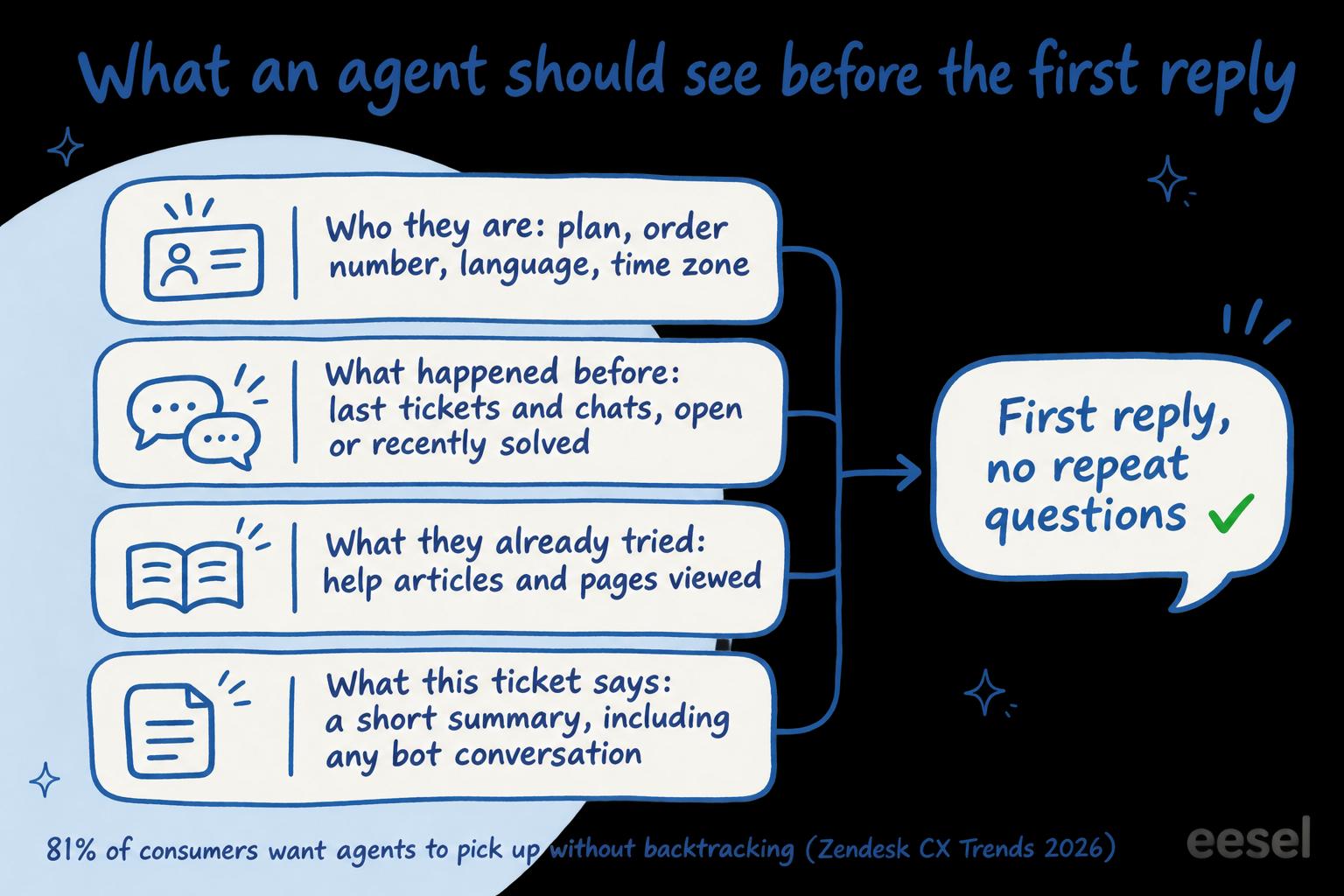
In practice the context an agent needs comes in four layers, and most teams have a gap in at least one:
Why agents miss context Zendesk already has
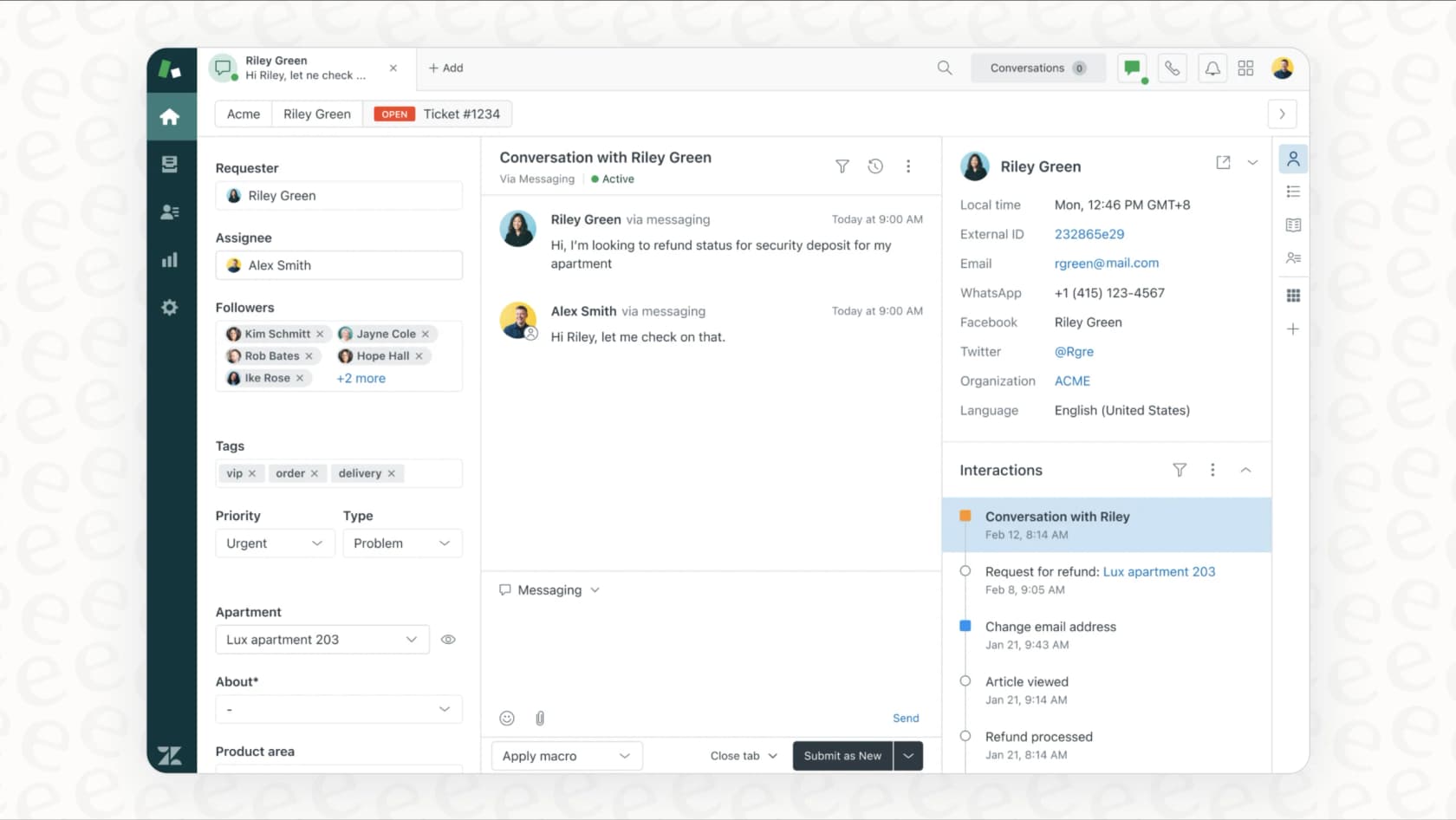
The surprise, when you read Zendesk's documentation closely, is that most of this context is already collected. It just isn't in front of the agent by default. Zendesk's guide to viewing customer context says the context panel "is closed by default." An agent working fast reads the ticket in the middle of the screen and replies; the history sits one click away and never gets opened.
Four other gaps from the same documentation catch teams out. "Archived tickets are excluded from the interaction history," so a customer's issue from last year may not show at all. On the user profile card, "the fields only display in the context panel if they contain a value," so a missing account ID looks the same as no account ID field. Third-party profiles "show only what application developers choose to present to Zendesk," so a Shopify profile in customer context isn't the full Shopify record. And not every role sees everything: light agents can't see Pages viewed, and light agents, contributors and agents in a Chat-only role can't see device information.
So the fix is less about buying more data and more about deciding what each agent must see and putting it in their path.
Step 1: Decide the four things every reply needs
Before you touch Admin Center, write down what an agent on your team must know before replying to a typical ticket. Keep it to the four layers above and name the fields: for an ecommerce team, that's usually the order number and its status, the customer's last two tickets, the help article they read before writing in, and what the chatbot already told them. For a software team it's the plan, the account ID, the last ticket and the error they hit.
This list is the spec for every step that follows. Anything that isn't on it stays off the ticket screen, because a context panel crowded with twenty fields is nearly as bad as an empty one.
Step 2: Put who the customer is on the profile card
The user profile card is the top of customer context, and on Professional plans and above you choose what's on it. Zendesk's guide to configuring cards explains that admins "can add, remove, and reorder standard and custom user fields, including user contact information and organization memberships."
- In Admin Center, go to Workspaces > Agent tools > Cards.
- Open the User profile card and add the custom user fields from your Step 1 list (a membership ID, a plan, a customer tier).
- Reorder them so the field agents need most sits first, and remove anything they never use.
Two limits are worth knowing. Organization cards can show up to 20 standard organization fields, but "custom organization fields can't be displayed in organization cards," so a B2B team that keeps contract details on the organization needs another route, such as a custom object related to the ticket, whose record preview shows the object's first 20 fields by default. And because empty fields are hidden, check a few real tickets after you save to see what agents actually get.
Step 3: Bring in data from your other systems
What a customer bought, paid or did in your product rarely lives in Zendesk. Zendesk's answer is Sunshine profiles and events. Its guide to adding them to customer context describes two sources: Zendesk events, which flow in from Support and Guide (for example, the help center articles a customer viewed, "so agents don't repeat troubleshooting steps a customer has already taken"), and custom events and profiles sent through the Events and Profiles APIs, such as "a customer's Shopify profile and interactions."
- In Admin Center, go to People > Configuration > Events and check Zendesk events. Click Get started to accept events from the Events API.
- Go to People > Configuration > Profiles and click Get started to accept profiles from the Profiles API.
- On each page, tick Show for the types agents should see, then Save. Events appear in the customer's interaction history; profile fields appear in the customer's essentials card.
Custom events need a developer or an app to send them. If you run a store, check the Zendesk Shopify integration options first: an app that shows the order beside the ticket may cover your Step 1 list without any API work. The Shopify plugins for Zendesk roundup compares them.
Step 4: Make the history impossible to skip
Interactions lists the requester's recent tickets and events, and an agent can hover a ticket title to preview it or filter the list by application or event type. Merge suggestions in the context panel show tickets "submitted by the same requester two weeks before and after the current ticket was created," which catches the customer who wrote in twice about the same problem (merge suggestions draw on the same pooled Copilot allowance as summaries, below); the Zendesk merge tickets guide covers when to merge.
The hard part is that the panel starts closed. Zendesk's "Default to Customer Context" setting is documented for the older standard agent interface, not the Agent Workspace, so make the habit part of the process:
- Make opening history a habit. Opening customer context is one click on the User icon on the side of the ticket. Put "open customer context before you reply" in your onboarding and your QA scorecard.
- Use a custom layout. On Professional plans and above, the layout builder customizes "both the main ticket interface and the context panel," and lets you move popular apps into the middle of the ticket. Professional plans get one active custom layout, used as the default; Enterprise plans can run several through contextual workspaces, which choose a layout by brand, group or ticket form.
- Know where history won't help. For an issue older than your archive window, search for the customer's tickets instead of trusting Interactions.
One more detail from Zendesk's layout builder guide: a brand-new ticket always opens in the standard layout, and custom layouts apply only once the ticket is submitted and reopened.
Step 5: Summarize the long tickets
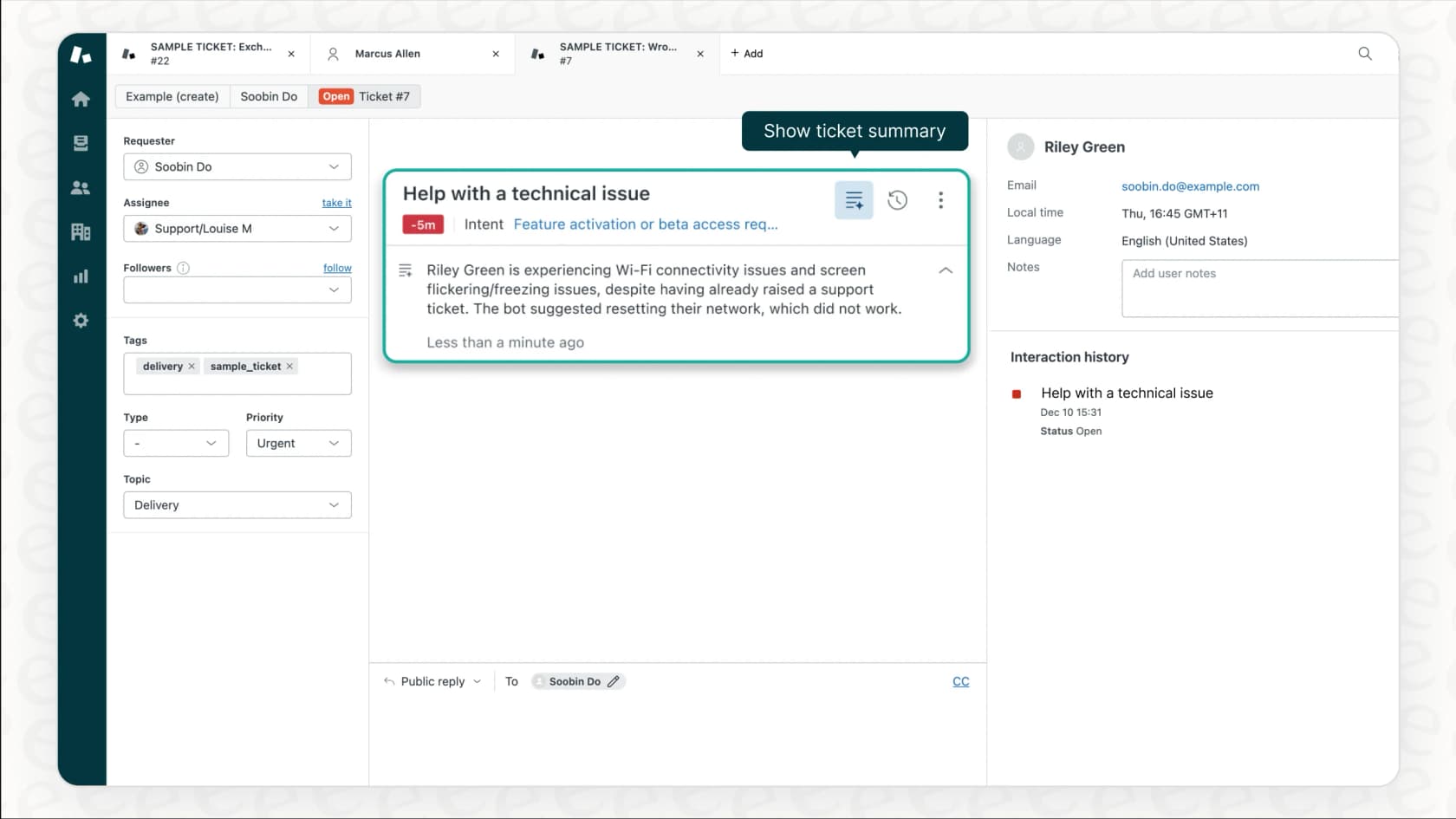
Context isn't only about the customer's past. On a ticket with twenty replies, the agent picking it up needs the story so far. Zendesk's AI-generated ticket summaries give "a single summary of up to 100 words" that highlights "the main problem, customer expectations, actions taken, outcomes, and current status," including "any conversation the user had with an AI agent before being transferred to a human agent."
Three settings decide whether the summary actually helps:
- Include internal notes, if you have the add-on. By default a summary covers public comments only, and including internal notes needs the Copilot add-on (the Copilot ticket summary guide shows the setting). It adds "troubleshooting steps taken and messages to peers," which is often the context the next agent lacks.
- Remember what's left out. "Side conversations are not included in the summary," so if your team works escalations in side conversations, the agent still has to read them.
- Watch the allowance. Summaries come with Suite and Support Professional plans and above (see Zendesk pricing for the plans), but Zendesk's pricing page says Copilot usage is pooled: "Each agent receives 5 uses per month, shared across the team," capped at 500 per instance. Save them for long or handed-over tickets, shape them with custom summaries if you have the add-on, or look at the full Copilot add-on in the Zendesk Copilot review.
Similar tickets is the other half. It suggests tickets from the same brand that were solved or closed in the previous 90 days, so an agent sees how the last person fixed the same problem; Zendesk recommends at least 50 tickets in the account for it to work well.
Common mistakes when adding customer context
- Adding every field you have. The card is for what changes the reply. Twenty fields means agents stop reading it.
- Trusting a third-party profile as the whole record. It's what the app's developers chose to send. Check the source system for refunds, cancellations and anything with money attached.
- Forgetting the AI handoff. If a bot talked to the customer first, the agent needs that conversation. The AI agent handoff guide covers what the bot should pass on, and Zendesk handoff context shows it in Zendesk.
- Ignoring what the ticket says about itself. Intelligent triage classifies every ticket on Suite Professional; a negative-sentiment third contact needs the history read first.
- Measuring nothing. Track how often agents ask a question the customer already answered. Reopens and repeat contacts are the signal; silent churn is where it ends up.
Where AI fits, and where it doesn't
Everything above makes context available. It still relies on an agent reading it, on every ticket, at speed. That's the part an AI teammate is good at: it doesn't skip the closed panel.
That's how Lesson Pro runs eesel across a family of lesson brands in Zendesk: every ticket gets an internal note and a draft before a person opens it. Between 8 August and 8 September 2026 that came to about 1,700 internal notes, each with the brand, the context and what to do next. The agent starts from a ticket that's already been read, with the history pulled together.
Where it doesn't fit: judging a customer's history when the answer is a refund, a goodwill credit or an exception. That stays with your team, and in eesel any action like that can be set to wait for a person's approval. For the summary side on its own, the AI ticket summarization guide compares the options, and Zendesk AI summaries covers Zendesk's built-in feature in more depth.
Give your Zendesk agents the context before they reply
If your agents keep asking customers for an order number they already gave, the context is there but nobody has read it yet. eesel joins your Zendesk as a teammate: it reads each new ticket and the customer's past tickets, can look up an order in a connected store, and leaves an internal note with what matters plus a draft reply, before an agent opens the ticket. What it may do on its own and what waits for a person's approval is set by you, per action.
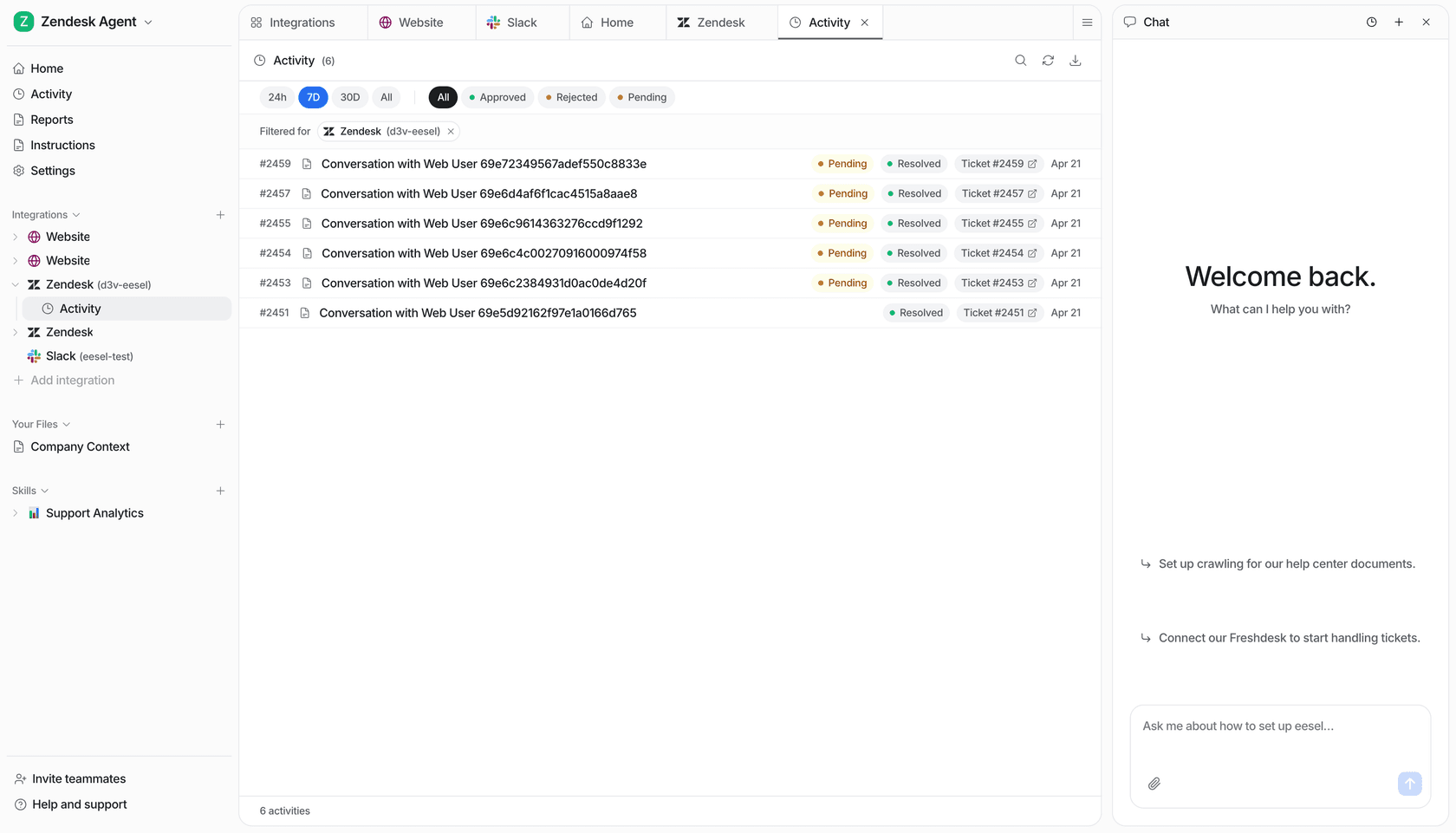
Try eesel on your own Zendesk tickets and see how many first replies stop asking customers to repeat themselves.