
Most support teams eventually hit a wall with standard ticket fields. You need to track products, assets, locations, or contracts alongside tickets, but the built-in fields just don't cut it. Zendesk custom objects solve this problem.
Custom objects let you extend Zendesk's data model with your own business-specific information. Think of them as custom database tables that integrate directly with your tickets. Connecting that data to your support workflows is what makes them valuable.
This guide walks you through relating custom objects to tickets using lookup relationship fields. You'll learn the setup process, how agents use the connection in practice, and ways to automate workflows based on custom object data.

What you'll need
Before you start, make sure you have the right setup:
- Zendesk Suite Team, Growth, Professional, or Enterprise plan (Support Enterprise also works). Custom objects aren't available on Support Team.
- Admin access to create custom objects and ticket fields.
- Agent Workspace enabled for your account. This is required for custom objects to function.
- Basic familiarity with Zendesk admin concepts. If you've never created a custom ticket field before, review Zendesk's custom objects documentation first.
Here's the breakdown of custom object limits by plan:
| Plan | Custom Objects | Lookup Fields per Object |
|---|---|---|
| Suite Team | Up to 3 | 5 |
| Suite Growth | Up to 5 | 5 |
| Suite Professional | Up to 30 | 10 |
| Support Enterprise | Up to 30 | 10 |
| Suite Enterprise/Plus | Up to 50 | 10 |
Step 1: Create your custom object
First, you need the custom object that will hold your data. This is the "what" that you'll later link to tickets.
Navigate to Admin Center > Objects and rules > Custom objects. Click "Add object" to start.
You'll need to define:
- Object key: A unique identifier used in API calls. Once set, this can't be changed. Use lowercase with underscores (like
company_assetsorproduct_catalog). - Title: The display name agents see (like "Company Assets").
- Title pluralized: How it appears in lists (like "Company Assets").
Next, add custom fields to define your object's schema. These are the data points you want to track. Common field types include:
- Text fields for names and descriptions
- Dropdowns for status or category
- Dates for expiration or purchase dates
- Checkboxes for flags like "under warranty"
Each custom object can have up to 100 fields. The standard fields (like name) don't count against this limit.
Finally, set permissions in the Permissions tab. Decide which agent roles can view, edit, add, or delete records. You don't need edit permissions to link records to tickets, only to modify the record data itself.
Step 2: Add a lookup relationship field to tickets
Now comes the connection. You'll create a special ticket field that points to your custom object.
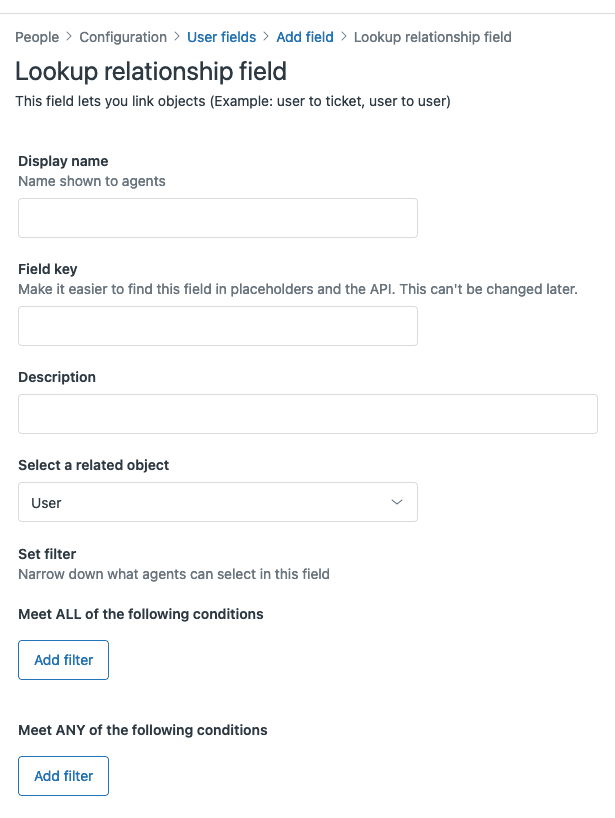
Go to Admin Center > Objects and rules > Tickets > Fields. Click "Add field" and select "Lookup relationship" as the field type.
Configure the field:
- Field title: What agents see (like "Linked Asset" or "Product").
- Relationship target: Select your custom object from the dropdown.
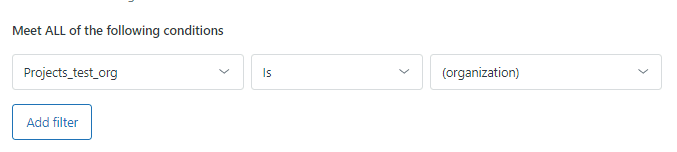
- Filters (optional): Restrict which records agents can select. For example, only show assets with status "Active" or products in a specific category.
Save the field, then add it to your ticket forms. Go to Admin Center > Objects and rules > Tickets > Forms, edit the forms where you want this field to appear, and drag your new lookup field into the form.
The lookup field works like an advanced dropdown. When agents click it, they can search and select from your custom object records. The search matches against the record name and any text-based fields you've configured.
Step 3: Link records to tickets
With the field in place, agents can now connect custom object records to tickets.
In the Agent Workspace, agents see the lookup field on tickets where you've added it. They click the field, start typing to search, and select the matching record. The autocomplete shows record names and relevant text fields to help agents find the right match.
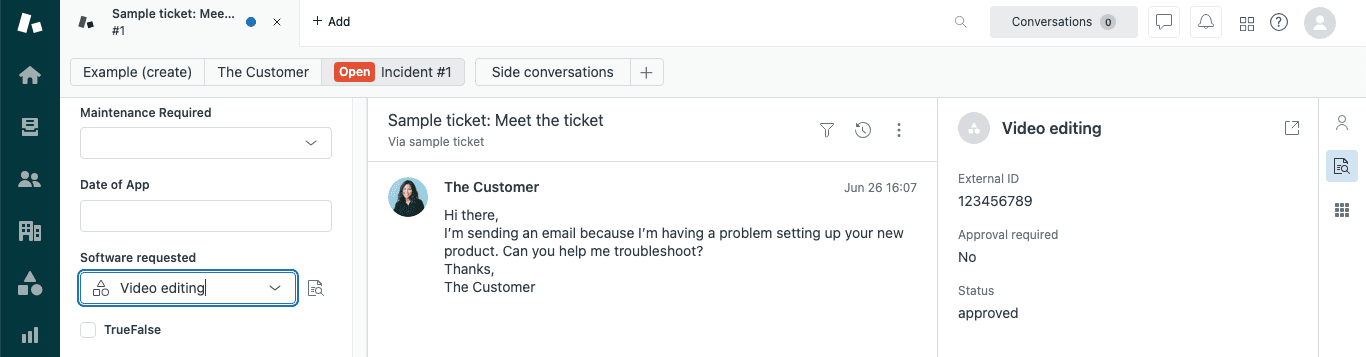
Once a record is linked, agents see a record preview icon next to the field. Clicking it opens a panel showing the first 20 fields with values from that record. Agents can view details without leaving the ticket or opening another system.
If admins have configured a custom object card, the preview shows only the fields specified in that configuration. Agents can also click "View details" to jump to the full record page if they need to see more fields or edit the record.
This preview functionality puts relevant context right where agents work. Instead of switching between Zendesk and an asset database, product catalog, or location spreadsheet, everything is visible in the ticket sidebar.
Step 4: Use custom objects in ticket triggers
Automation makes custom objects truly useful. You can create triggers that fire based on custom object data, routing and prioritizing tickets automatically.
Go to Admin Center > Objects and rules > Business rules > Triggers. Create a new trigger or edit an existing one.
In the conditions section, you'll see your lookup relationship field listed. You can set conditions like:
- "Linked Asset > Status is Under Warranty"
- "Product > Category is Enterprise"
- "Location > Region is Europe"
For actions, you can update ticket fields, add tags, or send notifications. One important limitation: lookup relationship fields can only be used in notification actions. You can't, for example, automatically set a lookup field value in a trigger action.
Here's a practical example. Say you have a custom object tracking software licenses with an "Expiration Date" field. You could create a trigger that:
- Checks if the linked license expires within 30 days
- Adds a "renewal-urgent" tag
- Assigns the ticket to your renewals team
- Sets priority to High
You can also use object triggers, which fire when custom object records are created or updated. These are separate from ticket triggers and let you automate workflows centered on your custom data.
Common use cases for related custom objects
Organizations use custom objects connected to tickets in various ways:
IT asset management: Track laptops, monitors, and equipment. Link assets to tickets so agents see warranty status, purchase date, and specifications without leaving Zendesk.
Software licensing: Manage license keys, expiration dates, and seat counts. Support agents can instantly see if a customer's license is active or expired when they submit a ticket.
Product catalogs: E-commerce companies link products to customer inquiries. Agents see inventory levels, product specifications, and related items while handling questions.
Service locations: Field service teams track physical locations, equipment at each site, and service history. Tickets automatically show location details and past visits.
Subscription tiers: Link customer subscription plans to tickets for priority handling. Enterprise customers get routed to senior agents automatically based on their plan object.
Best practices and limitations
Before you build, consider these guidelines:
Plan your data model first. Sketch out what objects you need, how they relate to each other, and which fields are essential. It's easier to design upfront than to restructure later.
Understand the limits. Each plan has caps on custom objects and lookup fields per object. You also can't exceed 50 million custom object records per account, and each record has a 32 KB size limit.
Be careful with permissions. Since lookup fields can reference sensitive data (like all your customers or assets), Zendesk restricts them to agent-only access. End users can't see or interact with custom objects, even on ticket forms.
Consider performance. Large record sets with many lookup fields can slow down ticket loading. Use filters on lookup fields to limit the searchable records when possible.
Know when to use custom objects versus custom ticket fields. Simple data that only applies to tickets (like a "Escalation Reason" dropdown) works fine as a custom ticket field. Use custom objects when you need:
- The same data referenced across multiple tickets
- Complex data structures with many fields
- Data that also relates to users or organizations
- Reporting on the data independently of tickets
Troubleshooting common issues
Lookup field not appearing on tickets: Check that the field is added to the ticket form. Also verify the agent has permission to view the custom object.
Records not showing in autocomplete: Confirm records exist for the custom object. Check if filters on the lookup field are too restrictive. Remember that lookup fields only show active records.
Trigger conditions not working: Verify the lookup field has a value set on the ticket. Test with a simple condition first (like "is not empty") to isolate the issue.
Permission errors: Ensure the agent's role has view permission for the custom object. Remember that light agents and contributors have view-only access.
Can't delete a custom object: If you get an error, check if the object is referenced in any ticket triggers. Remove those references before deleting the object.
Enhancing custom object workflows with AI
Once you've connected custom objects to tickets, you can take the workflow further with AI. Tools like eesel AI integrate with Zendesk to leverage your custom object data.
Here's how AI can enhance these workflows:
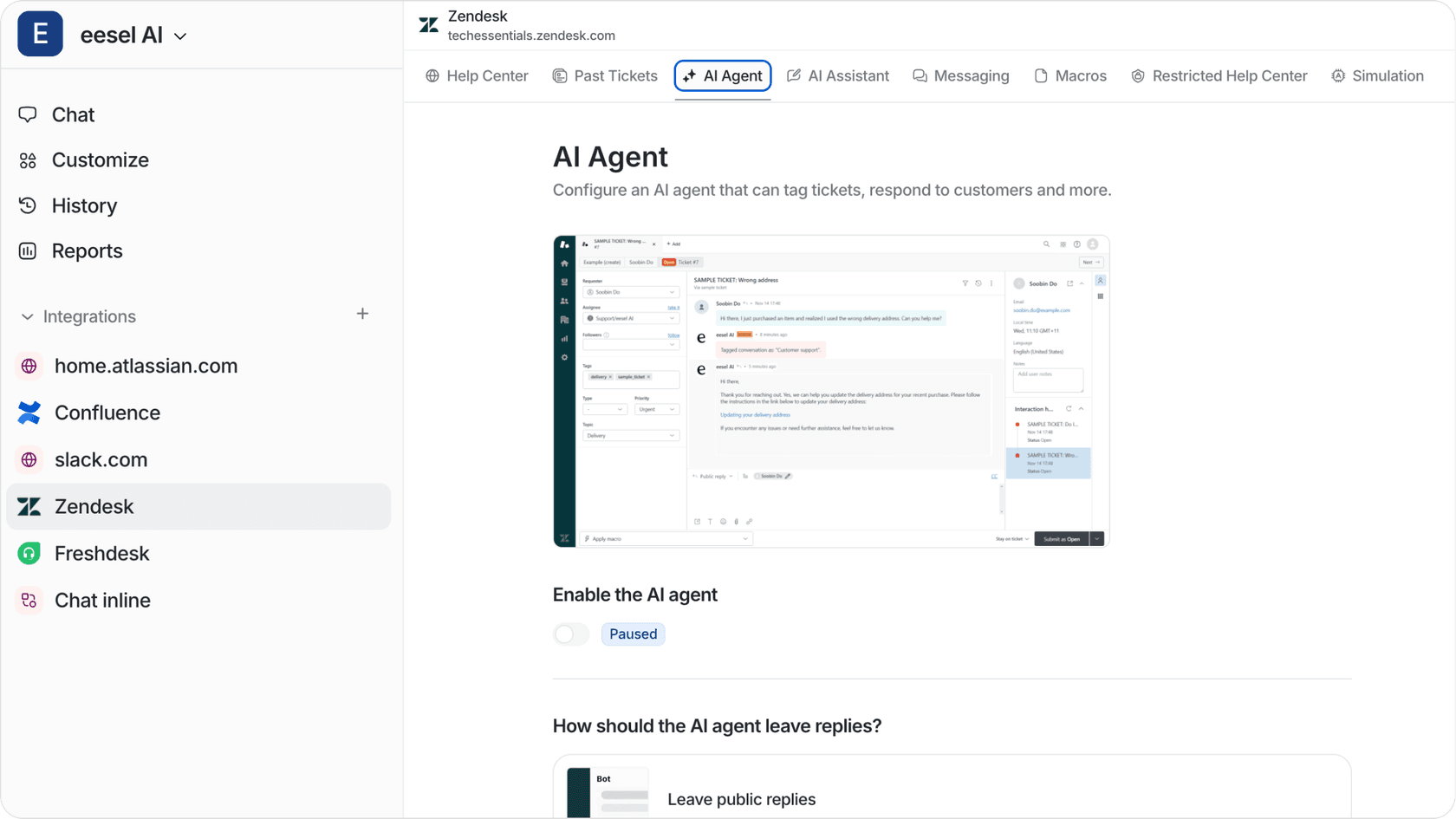
Our AI agents can read custom object data when responding to tickets. If a customer asks about a linked asset, the AI sees the warranty status, purchase date, and specifications to provide accurate answers without agent involvement.
We can also suggest the right custom object records automatically. Instead of agents manually searching, AI analyzes the ticket content and recommends which asset, product, or location to link. This reduces data entry and improves accuracy.
For teams using our AI Copilot, agents get context from custom objects surfaced directly in their workspace. The AI pulls relevant record details into draft responses, so agents don't need to open the record preview panel manually.
If you're handling high volumes of tickets with custom object relationships, our AI Agent can resolve common requests autonomously. It uses the linked object data to answer questions, process updates, and escalate only when necessary.
The combination of Zendesk's custom objects with AI assistance creates a powerful support operation where agents have instant access to the right context and can focus on solving problems rather than hunting for information.


