


To stop silent churn in customer support, stop waiting for complaints and go looking for the customers who went quiet: in Zendesk that means four places, the tickets your automations solved after the customer stopped replying, the solved tickets nobody rated, the reopened tickets and the tickets intelligent triage marked Negative. Coveo's service relevance report found 56% of respondents rarely or never complain about a negative service experience, so your bad ratings are the loud minority. Put each signal in a view, work it daily with a real fix rather than another survey, and fix the cause behind each one you find. eesel, an AI teammate that works inside Zendesk, can read every ticket and leave a note on the ones that look like a customer about to leave. A team with an AI coding agent can also set this up through the eesel CLI, uploading follow-up macros and asking test questions before anything goes live; connecting the helpdesk still needs an admin's approval.
Which quiet signal is your team missing?
Pick the signal you suspect your team is missing to see where Zendesk hides it and what to do the same day.
What is silent churn in customer support?
Silent churn is a customer who has a bad support experience and leaves without telling you: no complaint, no bad rating, no cancellation reason worth reading. Zendesk's statistics roundup puts the cost plainly: per its benchmark data, more than half of consumers switch to a competitor after one bad experience and 73% after multiple bad experiences. Coveo's own report puts the silence just as plainly:
"56% of respondents say they rarely or never complain about a negative customer service experience. All they have to do is open a new tab to search for your nearest competitor."
So the customers in your bad-rating view are the ones who still cared enough to tell you. The others leave the same way they arrived: quietly. I build eesel's integrations, which means I spend a lot of time reading what a helpdesk actually stores about a ticket. The useful surprise is that Zendesk already records most of the quiet signals. They just don't sit anywhere a team looks.
The general AI churn prevention guide covers why support loses customers. This one is the Zendesk how-to: where each quiet signal lives, how to put it in front of someone, and what to do the same day.
Why don't your CSAT reports show it?
Because a survey only hears from people who answer it. Zendesk's list of Explore metrics defines % Satisfaction score as the percentage of surveys rated good, counted over rated tickets only. Next to it sits % Satisfaction rated, the share of surveyed tickets that got a rating at all. A team can hold a 90% score while fewer and fewer people answer, and the score never moves, because the unhappy customers who stopped answering aren't in it.
Even the good part of the score is narrower than it looks. Zendesk's own guide to the metrics that matter notes that "Tickets with more touches often have a lower CSAT rating", which tells you where to look before any rating comes in. And on email, Zendesk's CSAT survey goes out after a ticket is set to solved, so a ticket that was closed without being fixed still gets a survey, which the customer who gave up has no reason to answer. If you want the rating side done well, the Zendesk CSAT reporting guide and good vs bad ratings cover it. The rest of this post is about the customers who never rate.
Step 1: Find the tickets your automations solved for a customer who gave up
The most common way a frustrated customer disappears in Zendesk is through an automation that's working exactly as designed. Zendesk's bump-bump-solve recipe (set up step by step in pending ticket reminders) reminds the requester after four calendar days in Pending, again after six, and solves the ticket after seven calendar days. Zendesk also ships standard automations that close a ticket four days after it's solved.
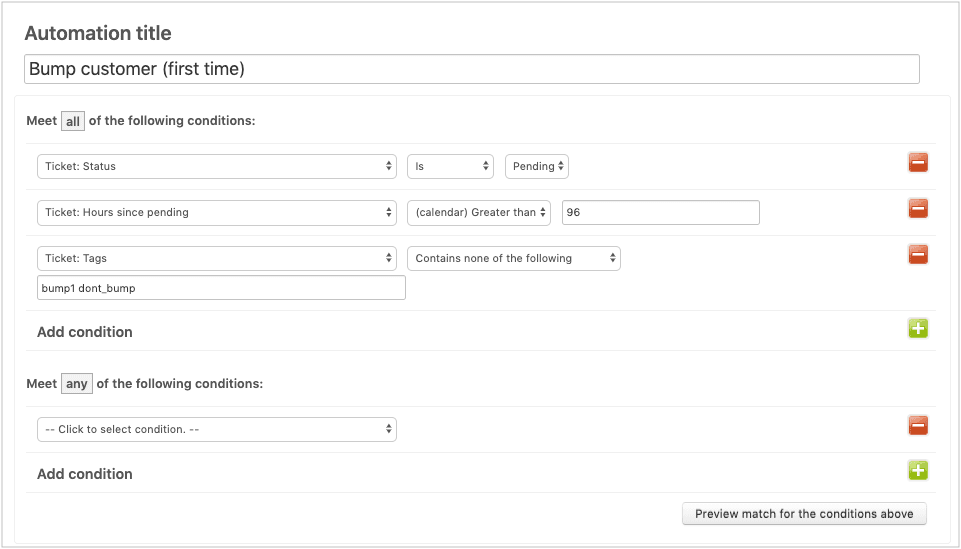
That's the right call for a customer whose problem went away. It's the wrong call for one who was asked to send logs, try a workaround or call their bank, and decided you weren't worth the effort. Both look identical in a report: solved, no reply.
What to do:
- Make the solve step of the automation add a tag, such as
auto_solved_no_reply. Edit it as the Zendesk automations guide shows. - Build a view: status Solved, tag
auto_solved_no_reply, updated in the last 7 days. - Read the last agent reply on each. If it asked the customer to do work, the ticket is a risk. Send the answer you can give without their reply, or a shorter path to the fix.
- Count how many auto-solves follow the same kind of request. If most of them do, that request is too much work; the customer effort guide covers how to cut it.
Step 2: Watch the customers who stop rating you
The second quiet signal is in the CSAT data you already have. Report % Satisfaction rated by week, by group and by ticket type, right next to % Satisfaction score, using the Explore dashboards your leads already open. Read it two ways:
- Your score holds while the rated share falls. Fewer people are telling you anything. That's the pattern silent churn makes, and the score won't show it.
- One group or ticket type rates far less than the others. Look at that queue first.
Then go to the unrated tickets themselves. You can't read them all, so start with the ones Zendesk's own guide says rate worse, the tickets with the most agent replies, then the ones with the longest requester wait time. Don't resend the survey. A second request to someone who's already annoyed reads as you caring about your number, not their problem.
Step 3: Treat reopens and repeat contacts as a complaint
A reopen is a customer saying "that didn't fix it", which is as close to a complaint as many people get. Zendesk counts it: Reopened tickets is the number of tickets reopened after being solved, and Reopens counts each time it happens, per the same metrics reference.
Build an Explore report of reopened tickets and agent replies by requester for the last 30 days. Anyone with a reopen and three or more agent replies goes to one senior agent, who reads the whole thread and answers everything left open in one reply. Zendesk's own advice for tickets with many touches is to give agents more customer information up front, through CRM integrations or custom user and organization fields, so they don't need to ask the opening questions; first contact resolution is the metric that improves when you do.
The same customer coming back on a new ticket about the same order is the version Explore won't group for you. That's where reading the requester's earlier tickets, by a person or an AI, catches what the report misses. The churn risk detection guide goes deeper on reading conversations for it.
Step 4: Use sentiment, not ratings, to catch frustration early
A rating comes after the ticket is solved. Sentiment is there from the first message. Zendesk's intelligent triage (how it works) classifies each new ticket's sentiment as Very Positive, Positive, Neutral, Negative or Very Negative, and with dynamic classification turned on it re-reads the ticket on later replies (the latest message on email, the whole conversation on messaging), for tickets created after you turn it on.
Zendesk's use-case guide lists the customers this is for, including "Customers threatening to cancel a subscription" and "Customers who have had multiple negative interactions with support". Its suggested fix is a trigger that assigns those tickets to a senior agent or priority group, or an SLA policy with a shorter first reply time for Very Negative tickets.
Check your plan first. Intelligent triage classifications come with Suite and Support Professional plans and above, but using them in workflows like triggers needs the Copilot add-on, which Zendesk's pricing page lists at $50 per agent a month paid yearly, on top of a plan like Suite Professional at $115. For a 10-agent team that's $500 a month for the add-on alone. Without it, a saved view of Negative and Very Negative tickets still puts them in front of someone. The Zendesk Copilot breakdown covers what else the add-on brings, and sentiment in Copilot shows how it looks to an agent.
Step 5: Reach out with a fix, then fix the cause
Finding the quiet customers is half of it. What you send decides whether they stay. Three rules I'd hold to:
- Reach out within a day, with the fix. The note should answer what was left open, not ask how they felt about it. If you can't fix it yet, say what you're doing and when you'll be back.
- One person who has read the history. A customer who went quiet after being bounced between agents doesn't want to explain it again. The win-back playbook has the full reply, and the apology examples help with the wording.
- Log the cause. Tag each ticket you find with why it went quiet (asked too much, wrong answer, slow, bounced). After a month the tags tell you which fix saves the most customers, which is the part that stops silent churn instead of chasing it.
The cancellation retention guide picks up from here for customers who've already asked to cancel.
Common mistakes when chasing silent churn
- Treating a high CSAT score as proof. It only counts the people who answered. Watch the rated share next to it.
- Sending more surveys. More asks lower the response rate further and tell the quiet customer you didn't read the ticket.
- Turning off auto-solve. The automation isn't the problem. A queue full of dormant Pending tickets hides risk just as well. Tag it and review it instead.
- Routing on sentiment and stopping there. A Very Negative ticket that gets a faster but equally wrong answer is still a churn.
- Calling an unrated customer to ask what's wrong. Read the ticket first. Most of the time the answer is in the thread.
Where AI fits, and where it doesn't
The hard part of silent churn isn't the reply, it's reading enough tickets to notice. A person can review a sample. An AI teammate can read every one.
That's how Lesson Pro runs eesel across a family of lesson brands in Zendesk: every ticket gets an internal note and a draft before a person opens it. Between 8 August and 8 September 2026 that came to about 1,700 internal notes, each with the brand, the context and what to do next. The same note is where a quiet signal belongs: "third contact about this booking", "asked for logs six days ago and didn't reply", "the last two replies didn't answer the refund question".
Where it doesn't fit: deciding whether a customer gets a refund or a goodwill credit to stay. That stays with your team, and in eesel any action like that can be set to wait for a person's yes. The AI sentiment analysis guide compares the other tools that read tone.
Try eesel on your quiet Zendesk tickets
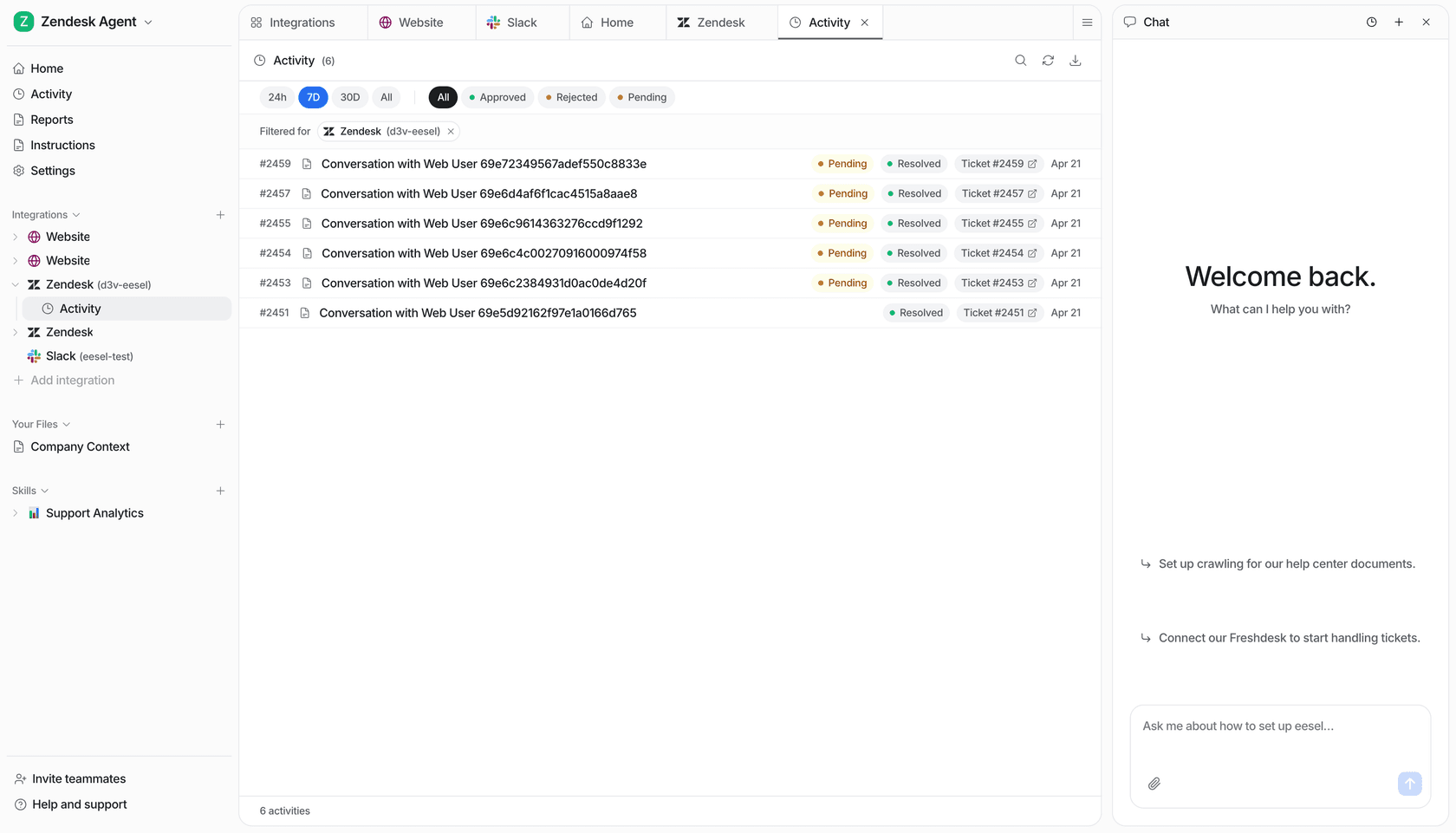
If your bad-rating view is short but your churn isn't, the gap is the customers who never told you. eesel joins your Zendesk as a teammate: it reads each ticket and the customer's past tickets, can leave an internal note on the ones that match the signals you describe in its instructions (a reopen, a request left unanswered, a third contact about one order), and drafts the follow-up for an agent to check and send. What it may do on its own and what waits for a person's approval is set by you, per action, so a refund or credit can always wait for a yes.
Try eesel on your own Zendesk tickets and see which quiet customers it flags in the first week.