
When a customer reaches out to your support team, their emotional state shapes everything. A frustrated customer needs a different approach than someone simply asking a routine question. That's where sentiment analysis comes in. It reads between the lines and tells your agents what kind of conversation they're walking into.
Zendesk Copilot includes sentiment detection as part of its Intelligent Triage system. But knowing it exists and actually using it effectively are two different things. This guide walks you through exactly where sentiment appears in the Zendesk interface, how to configure it, and practical ways to put that data to work.

What is Zendesk Copilot sentiment analysis?
Sentiment analysis in Zendesk is powered by Intelligent Triage, an AI system that scans incoming tickets and categorizes them by emotional tone. It doesn't just look for obvious keywords like "angry" or "happy." The AI analyzes the full context of the message to determine how the customer feels about their situation.
The system uses five sentiment levels:
- Very Positive The customer is enthusiastic or expressing strong satisfaction
- Positive The customer is generally happy or satisfied
- Neutral The customer is asking a routine question without strong emotion
- Negative The customer is frustrated, disappointed, or concerned
- Very Negative The customer is angry, upset, or threatening to leave
Here's the important part: Zendesk calibrates this specifically for customer service. A customer writing "My order hasn't arrived" isn't automatically flagged as negative. The model understands that people contact support because they have issues. Instead, it looks at how they express that issue. Are they patient and factual? Or are they using aggressive language and demanding immediate action?
Each sentiment prediction comes with a confidence score. High confidence means the AI is fairly certain about its assessment. Low confidence suggests the message was ambiguous, perhaps mixing positive and negative elements.
Where sentiment appears in the Zendesk interface
Once Intelligent Triage is enabled, sentiment data shows up in several places throughout the Agent Workspace. Knowing where to look helps your team act on the information quickly.
The Intelligent Triage panel
The most visible location is the Intelligent Triage panel in the ticket sidebar. When an agent opens a ticket, they see the detected sentiment displayed prominently alongside intent and language information. This gives agents immediate context before they even read the full message.
Custom fields on tickets
Sentiment values are stored in custom ticket fields. This means the data persists with the ticket and can be referenced later. Agents can see both the sentiment value (like "Negative") and the confidence score (like "High") directly on the ticket.
Automatic tags
Zendesk automatically applies tags in the format sentiment__negative or sentiment__very_positive. These tags are incredibly useful for building automated workflows. You can create triggers that fire based on these tags, or build views that show only tickets with certain sentiment levels.
Ticket views and reporting
Because sentiment is stored as a ticket field, you can use it in views to filter and sort tickets. For example, you might create a view showing all "Very Negative" tickets from the last 24 hours, sorted by priority. This helps managers spot potential escalations before they explode.
The sentiment data also feeds into Zendesk Explore for reporting. You can track sentiment trends over time, see which agents handle negative sentiment well, and identify whether certain products or issues correlate with negative customer emotions.
How to configure sentiment settings
Setting up sentiment detection requires access to Zendesk's Admin Center. You'll also need the right plan. Intelligent Triage is available as part of the Copilot add-on, which requires Suite Professional or higher.
Step 1: Access Intelligent Triage settings
Navigate to Admin Center, then click AI in the sidebar. Select Intelligent Triage, then Sentiment. Click Manage Settings to configure your preferences.
Step 2: Enable dynamic detection
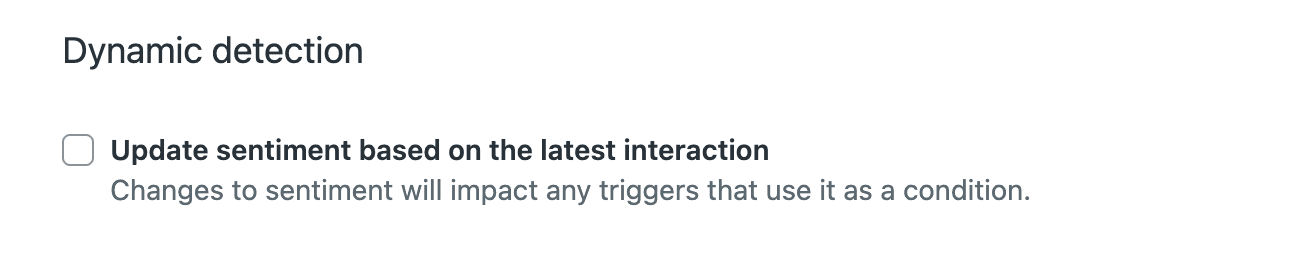
By default, Zendesk only analyzes sentiment on the first message of a ticket. This makes sense for many workflows. The customer's initial contact sets the tone for the conversation.
However, you can enable dynamic detection to update sentiment on each reply. This is useful if you want to track how sentiment changes throughout a conversation. A customer might start angry but become satisfied as your team resolves their issue. Or they might start neutral and become frustrated if the solution doesn't work.
Dynamic detection only applies to new tickets created after you enable the setting. It won't retroactively change how existing tickets are handled.
Step 3: Select channels
Choose which channels you want to monitor for sentiment. The options include:
- Email and async channels Web form, email, API, and social messaging
- Messaging channels Web Widget, WhatsApp, Facebook Messenger, and mobile SDKs
- Voice channel Post-call transcripts (requires call transcription to be enabled)

Selecting any messaging channel automatically selects related channels. For example, choosing Web Widget also selects iOS SDK, Android SDK, and Native Messaging since they share the same underlying infrastructure.
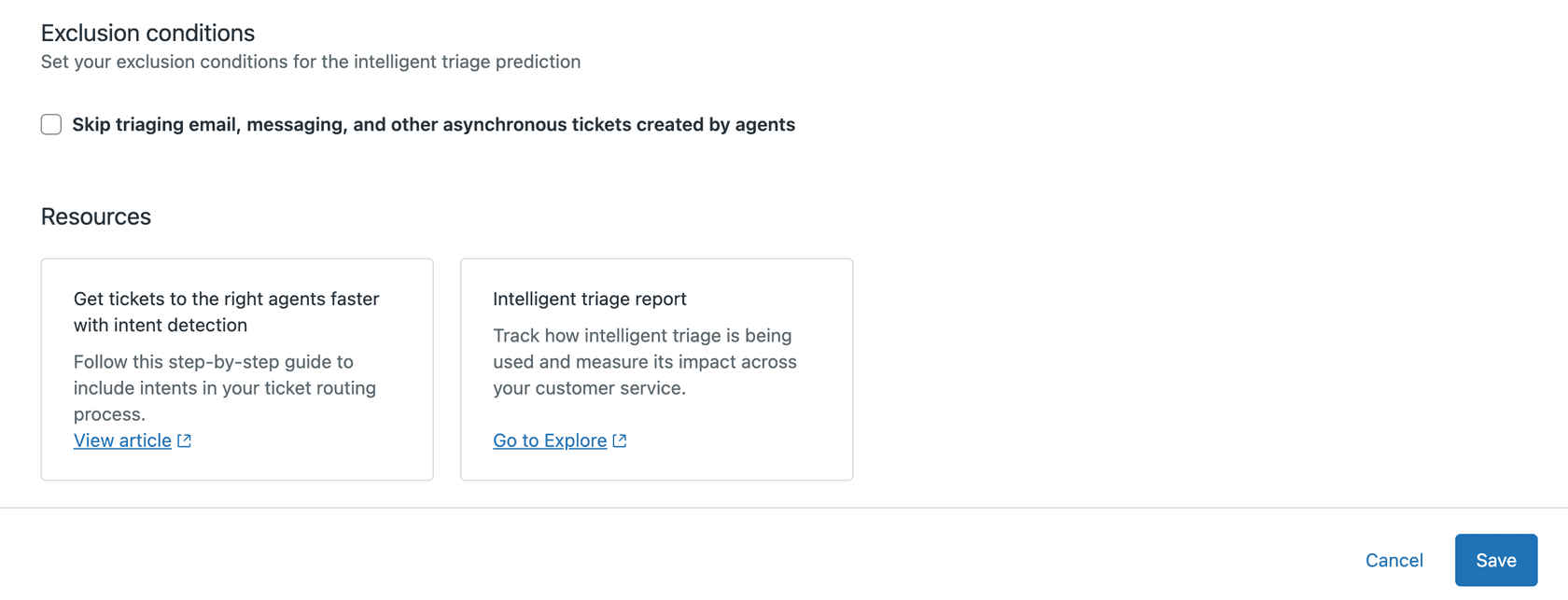
Step 4: Set exclusion conditions
You can exclude certain tickets from sentiment detection. The most common use case is excluding tickets created by agents. Internal notes and agent-initiated conversations don't need sentiment analysis.
Practical workflows using sentiment display
Having sentiment data is only valuable if you use it. Here are practical ways support teams leverage sentiment detection in their daily workflows.
Routing based on sentiment
One of the most common uses is routing negative sentiment tickets to more experienced agents. You can create triggers that automatically assign tickets tagged with sentiment__very_negative to your senior team members or escalation queue.
This ensures that frustrated customers get handled by agents with the skills to de-escalate and resolve complex issues. It also protects newer agents from situations they might not be ready to handle.
Prioritization in views
Create views that surface negative sentiment tickets first. When agents log in, they see the most emotionally urgent issues at the top of their queue. This prevents frustrated customers from waiting while agents handle routine inquiries.
You can combine sentiment with other criteria. For example, show "Very Negative" tickets that are also high priority and unassigned. This creates a triage view that helps managers spot fires that need immediate attention.
Automated responses and macros
Set up triggers that apply different macros based on sentiment. A "Very Negative" ticket might get an immediate acknowledgment with an apology and escalation path. A "Positive" ticket might get a friendly thank-you message with a request for a review.
The key is matching your response tone to the customer's emotional state. Acknowledging frustration shows empathy. Celebrating positive feedback reinforces good relationships.
Reporting and trends
Use sentiment data in Zendesk Explore to track trends over time. Are certain products generating more negative sentiment? Are there seasonal patterns to customer frustration? Which agents consistently turn negative sentiment into positive outcomes?
This data helps with strategic decisions. If a particular product feature correlates with negative sentiment, that's a signal for your product team. If certain agents excel at handling frustrated customers, that's a coaching opportunity for the rest of the team.
Requirements and pricing
Intelligent Triage and sentiment analysis aren't available on all Zendesk plans. Here's what you need:
| Plan | Price (annual) | AI Features Included |
|---|---|---|
| Suite Team | $55/agent/month | AI agents (Essential), Generative replies |
| Suite Professional | $115/agent/month | Copilot writing tools (5 uses/month) |
| Suite Enterprise | Custom (sales) | Copilot writing tools (5 uses/month) |
| Copilot Add-on | +$50/agent/month | Intelligent Triage, Auto Assist, full Copilot features |
Source: Zendesk Pricing
To get sentiment detection, you need Suite Professional or Enterprise plus the Copilot add-on. This brings your total to $155-$209 per agent per month when billed annually.
Zendesk recommends having at least 1,000 resolved tickets from the previous 6 months for optimal accuracy. The AI learns from your historical data to better understand your specific customer base and industry context.
Sentiment detection works across approximately 30 languages. Language detection covers about 150 languages, but sentiment analysis has more limited language support.
Limitations and considerations
Sentiment analysis is powerful, but it's not perfect. Understanding its limitations helps you use it effectively.
The model is calibrated for customer service contexts. This means it won't flag every problem as negative. A customer saying "I need to return this item" is treated as a neutral request, not a complaint. The AI looks at how they ask, not just what they're asking about.
Confidence scores matter. High confidence predictions are reliable. Low confidence means the AI isn't sure, perhaps because the message was short, ambiguous, or mixed positive and negative elements. Don't build critical workflows solely on low-confidence sentiment data.
The API structure for accessing sentiment data isn't elegant. Sentiment values are stored in custom fields with unique IDs that vary by Zendesk instance. If you're building custom integrations, you'll need to work with these field IDs rather than a clean ticket.sentiment property.
A complementary approach: eesel AI for sentiment analysis
If you're looking for a different way to handle sentiment analysis in Zendesk, we offer an approach that works alongside your existing setup. eesel's AI agent for Zendesk is built to learn your business and handle sentiment-based workflows in a unique way.

Our simulation mode lets you run sentiment analysis on your past tickets before going live. You can see exactly how the AI would have categorized your historical conversations, giving you confidence in the results before it touches real customers.
We also use plain English for configuration. Instead of navigating complex admin panels, you simply tell the AI things like "Always escalate billing disputes to a human" or "If the refund request is over 30 days, politely decline and offer store credit." The AI understands and follows these instructions.
Our pricing works differently too. Instead of per-seat fees, you pay per interaction. This can be more predictable for teams with fluctuating ticket volumes.
| Plan | Monthly Price | Interactions | Best For |
|---|---|---|---|
| Team | $299 | 1,000/month | Small teams getting started |
| Business | $799 | 3,000/month | Growing teams needing advanced features |
| Custom | Contact Sales | Unlimited | Enterprise with complex needs |
Source: eesel AI Pricing
The key difference is our teammate model. You don't configure eesel like a traditional tool. You hire it, train it on your knowledge, and level it up from drafting replies to handling full conversations autonomously. It learns continuously from corrections and feedback, getting better over time.
Getting the most from sentiment display
Here are some best practices for making sentiment analysis work for your team:
-
Start with routing The easiest win is routing negative sentiment to experienced agents. This protects your newer team members and ensures frustrated customers get skilled help.
-
Combine with other data Sentiment alone isn't enough. Combine it with intent, priority, and customer tier for smarter routing. A "Very Negative" ticket from a VIP customer needs different handling than the same sentiment from a free trial user.
-
Review low-confidence predictions Use confidence scores as a signal for manual review. When the AI isn't sure about sentiment, have a human check it. This improves accuracy and helps you spot edge cases.
-
Track trends, not just individual tickets The real value of sentiment analysis is in the patterns. Are certain products, agents, or times of day correlated with negative sentiment? Use this data for strategic improvements.
-
Train agents to use the data Make sure your team knows where to find sentiment information and how to act on it. A negative sentiment indicator should prompt empathy and de-escalation techniques.