

Managing customer support across multiple channels can feel like you're constantly switching between a dozen different apps. You're answering emails in one tab, jumping into live chats in another, and trying to keep track of social media mentions somewhere else. It's exhausting, and things slip through the cracks.
That's where Zendesk multi-conversation messaging comes in. Instead of scattered conversations, you get everything flowing into one unified workspace. Customers can start multiple conversations about different topics, and your agents see the complete picture in a single inbox.

In this guide, I'll walk you through exactly how Zendesk messaging multiple channels single inbox works, what you need to set it up, and important considerations before you flip the switch.
Setting up multi-conversations in Zendesk
Before you enable multi-conversations, you'll need a few things in place.
What you'll need
- A Zendesk Suite plan (Team, Growth, Professional, Enterprise, or Enterprise Plus)
- The Zendesk Agent Workspace activated
- Messaging activated on your account
- Administrator access to your Zendesk account
For AI-powered features like automated responses, Zendesk recommends having at least 10 published help center articles.
Step-by-step setup
Step 1: Access the Admin Center
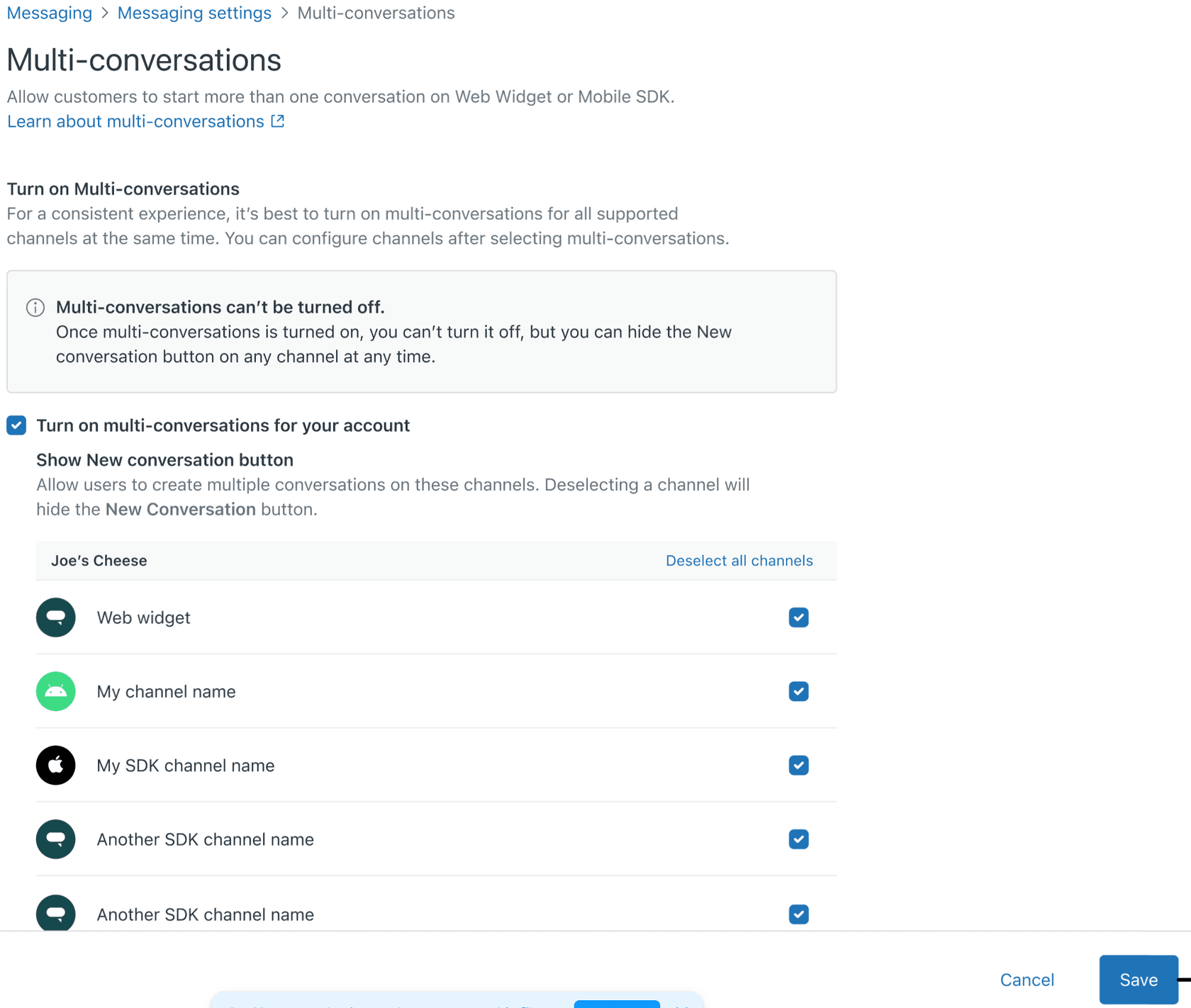
Navigate to Admin Center > Channels > Messaging and social > Messaging, then click Manage settings. Under Web Widget and Mobile SDKs, expand Multi-conversations and click Set up multi-conversations.
Step 2: Enable multi-conversations
Click Turn on multi-conversations for your account and select the channels you want. Here's the critical part: this change applies to all your web, iOS, and Android messaging channels at once. You can't enable it for just one channel.
Step 3: Configure the New conversation button
Decide whether you want end users to see a "New conversation" button. If you remove it, customers can't start additional conversations, but they still see the conversations list and can continue any existing one. You can also hide the composer on closed conversations so customers must start a new one instead of reopening an old thread.
Step 4: Set up authentication timing
This is important: if you're authenticating end users, authentication must happen before they start a messaging conversation. If a user starts a conversation and then authenticates, their conversation won't merge with prior ones. This can create duplicate tickets for the same issue.
Step 5: Test before going live
Enable multi-conversations on a test environment first. Have a small group of agents and customers try it out. Monitor conversation volume, resolution times, and agent feedback before rolling out to everyone.
The end-user experience
Once multi-conversations are enabled, your customers will see some changes in how they interact with your support.
The conversations list
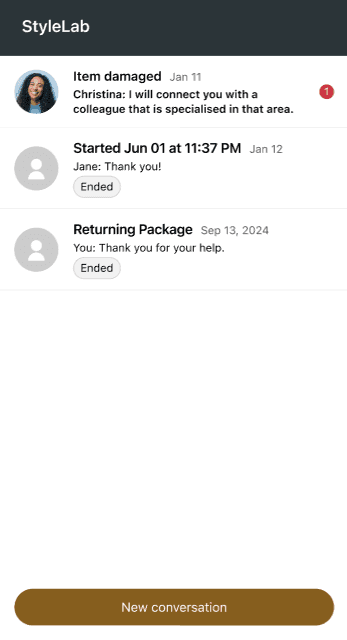
When a customer clicks your messaging launcher, they see a list of all their existing conversations instead of immediately opening the most recent one. Conversations are ordered by the time of the latest message, with the most recent at the top.
Each conversation shows:
- A title (usually the start date/time)
- The agent avatar who sent the latest message
- A preview of the most recent message
- A timestamp
- An unread message badge if applicable
- An "Ended" label for inactive conversations
Starting new conversations
The "New conversation" button appears at the bottom of the conversations list. When clicked, it creates a fresh conversation thread. This is particularly useful for customers who have long-running issues (like shipping problems) but need quick answers on unrelated topics.
Cross-device persistence
For authenticated users, conversations persist across devices. A customer could start a conversation on their phone, see it on their laptop, and continue it on a tablet. All messages, context, and history travel with them.
Unauthenticated users lose their conversation history if they clear their browser cache or switch devices.
Impact on agents and workflows
The good news for agents: multi-conversations don't fundamentally change how they work. Tickets still appear in the Agent Workspace. Agents still respond, escalate, and resolve them the same way.
What changes for agents
Fewer off-topic interruptions: Customers can start new conversations instead of going off-topic in existing threads. No more "While I have you..." moments that derail focused troubleshooting.
More concurrent conversations: You'll likely see an increase in the total number of active conversations since customers can have multiple threads open simultaneously.
Shorter resolution times: With the "End Session" button, customers (and agents) can formally close conversations when an issue is resolved. This creates clearer resolution points and can reduce average handle time.
Routing considerations
One question worth considering: if a customer has two concurrent conversations about different topics, should they be routed to the same agent? Zendesk's routing is based on ticket properties, not customer-level logic, so your two conversations might end up with different agents. This is usually fine, but worth keeping in mind if you're trying to maintain relationship continuity.
Important considerations before enabling
Before you enable multi-conversations, there are several irreversible changes and limitations to understand.
The change is permanent
You cannot fully revert to the single conversation experience after enabling multi-conversations. While you can remove the "New conversation" button to prevent customers from starting additional threads, they will still see the conversations list and can access all their prior conversations.
All web, iOS, and Android channels are updated simultaneously. You can't selectively enable multi-conversations for just one channel.
Authentication timing matters
If you authenticate end users after they start a messaging conversation, those conversations won't merge with their authenticated profile's history. This can result in fragmented customer records and duplicate tickets.
Work with your developers to ensure authentication happens before any messaging conversation begins.
Social channel limitations
Social channel linking (allowing customers to move conversations from Web Widget to WhatsApp, for example) only works for the first conversation. Subsequent conversations can't be transferred to social channels.
SDK version requirements
Older Mobile SDK versions don't support multi-conversations and fall back to a single conversation. Zendesk requires iOS or Android SDK 2.10.0 or later (2.25.0 or later is recommended) and Unity SDK 3.4.0 or later. This should be a straightforward swap if you're already using Zendesk SDKs, but factor in app store submission times if you're deploying to mobile apps.
New accounts get it by default
Since October 1, 2026, Zendesk turns multi-conversations on by default for new customers. Existing accounts keep their current messaging setup, so nothing changes for you until you opt in.
Increased ticket volume
Expect to see more tickets overall. When customers can easily start new conversations, they do. This isn't necessarily bad, it just means cleaner topic separation, but your reporting and staffing models may need adjustment.
Best practices for implementation
Based on the research and community feedback, here are recommendations for a smooth rollout.
Start with a pilot
Enable multi-conversations for a single brand, department, or customer segment first. Measure the impact on conversation volume, resolution times, and customer satisfaction before expanding.
Update your help center
Document the new customer experience. Explain how the conversations list works, how to start new conversations, and what customers should expect. This reduces confusion and support requests about the new interface.
Train your agents
While the workflow doesn't change dramatically, agents should understand:
- Why customers might have multiple open conversations
- How to guide customers to start new conversations for new topics
- That resolution times might shift as conversation patterns change
Monitor your metrics
Watch these KPIs closely after launch:
- Total conversation volume
- Average resolution time
- Customer satisfaction scores
- Agent utilization rates
Adjust staffing and workflows based on what you learn.
Leverage automation
Zendesk's AI agents can greet customers, offer knowledge base articles, and gather information before handing off to human agents. With multi-conversations, each new conversation triggers your AI agent behavior, creating more opportunities for self-service deflection.
For teams looking to improve ticket classification and routing, our guide on how to use AI to classify or tag support tickets covers complementary strategies.
eesel AI: An alternative approach to unified support
Zendesk multi-conversations solve the problem of customers being locked into single threads. But the underlying challenge, fragmented support across channels, can be addressed in other ways too.

eesel AI takes a different approach. Instead of just organizing conversations better, we focus on resolving more of them autonomously from the start.
Here's how we handle multi-channel support:
Progressive autonomy: Start with eesel drafting replies for agent review. As you gain confidence in its responses, gradually let it send replies directly. Eventually, it can handle full frontline support while escalating only what you define.
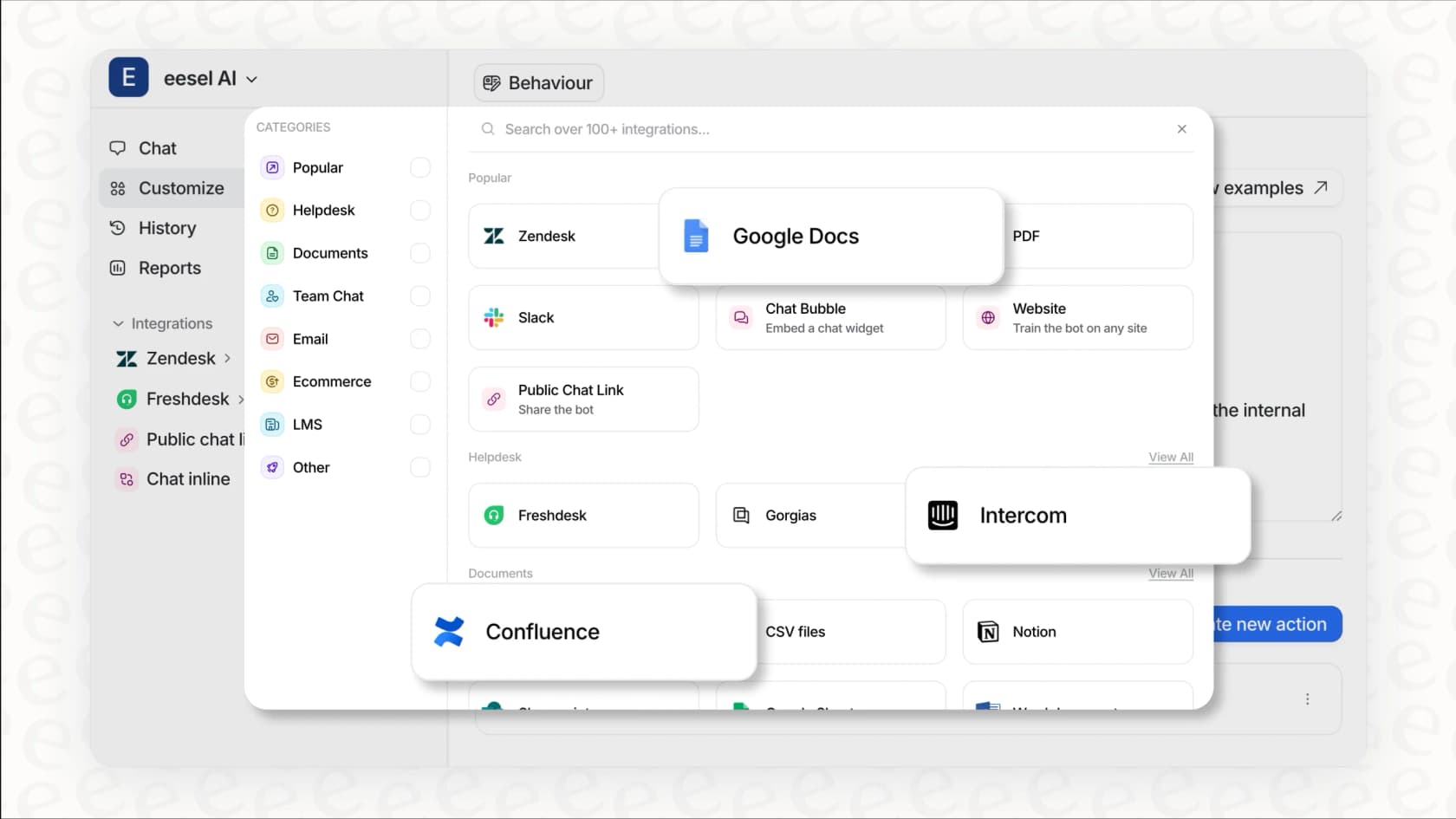
Works with your existing tools: eesel integrates directly with Zendesk, Freshdesk, Gorgias, and other help desks. You don't replace your platform, you enhance it.
Learns from your history: Connect eesel to your past tickets, help center articles, and macros. It understands your tone, policies, and common issues from day one, no manual training required.
Plain English control: Define escalation rules in natural language. "Always escalate billing disputes to a human" or "If the refund request is over 30 days, politely decline." No complex workflow builders.
For teams already invested in Zendesk who want to add AI capabilities, our Zendesk AI integration lets you keep your existing setup while adding autonomous resolution. Our guide to Zendesk omnichannel support explores more strategies for unifying your customer experience.
Getting started with unified support
Multi-conversation messaging in Zendesk is a solid upgrade for teams struggling with customers going off-topic in long-running conversations. The setup is straightforward if you have the right plan, and the end-user experience is genuinely improved.
Before you enable it, just remember:
- The change is irreversible
- All channels update at once
- Authenticate users before messaging starts
- Update SDKs for mobile apps
- Expect more total conversations
If you're looking for a more fundamental shift in how you handle support, an AI-native approach like eesel AI might be worth exploring. You can see how we compare to traditional solutions in our best AI chatbots for Zendesk guide.
Either way, the goal is the same: give your customers a smoother support experience while making your team's work more manageable.