


- The Re:amaze AI Agent decides for itself when to hand a conversation to a person: when it can't answer, and when a customer is upset. None of the seven articles in Re:amaze's Using the AI Agent section documents a setting for when it escalates, where the conversation goes, or what the customer is told.
- So you shape escalation around the AI Agent, not inside it. An AI Pre-Filter keeps chosen topics away from it entirely, a Workflow or Smart Assign decides who picks the conversation up, and your chat mode decides what happens when nobody is online.
- Escalations cost nothing: a resolution is a conversation thread the AI Agent handles entirely that "does not escalate to a human agent", and only those count against the 5, 10 or 20 included per seat (then $0.85 each).
- If you want handoff rules written in your own words, eesel connects to Re:amaze, reads each open conversation on a schedule and assigns or tags it with its reason in an internal note. An AI coding agent can set it up with the eesel CLI, such as asking it test questions before it goes live; connecting Re:amaze still needs a person with an API token.
How does the Re:amaze AI Agent escalate to a human?
It escalates on its own judgement, and the help centre describes that judgement in a few sentences rather than a list of triggers. I work on eesel's helpdesk integrations, and with any helpdesk's AI agent the first thing I look for is the handoff: what makes it stop, who gets the conversation, and what the customer sees. Re:amaze answers the first question briefly and leaves the other two to the rest of your inbox setup. (For the same question on other helpdesks, see Freshdesk AI escalation and Front AI escalation; for the general idea, AI escalation.)
Here is everything Re:amaze's own pages say about when the AI Agent hands over, checked 22 November 2026:
| What Re:amaze says | Where |
|---|---|
| "When your AI agent can't answer a customer's question, it escalates the conversation to a human agent." | What's new in Re:amaze |
| "the agent already responds in a respectful tone and escalates when a customer is upset. Repeating these does not improve responses." | Response Guidelines best practices |
| Escalated: "The AI Agent could not answer the question and escalated it to a human agent." | AI Agent testing guide |
| Failed: "This may occur if response generation fails or if the conversation exceeds the maximum number of turns." | Same page |
The AI Agent works on Chat, Email and SMS, and you switch it on under AI > Manage Bots > AI/Chatbots, per the setup guide. That page lists what it reads (FAQ articles, response templates, custom AI context, Shopify and WooCommerce products and orders) and how it changes your inbox, but no escalation options. What it answers well is covered in Re:amaze AI ticket deflection.
Two consequences matter for a support lead. First, you can't tell it "always hand over refund requests" from an AI Agent setting. Second, the docs don't say what status or assignee an escalated conversation gets, so the safest first step is a real test: send one message the AI Agent can't answer from a real channel, then find that conversation in your inbox filters. The Test AI Agent tab shows the Escalated outcome, but its test conversations "aren't treated as real conversations on the backend", so it can't show you where a real one lands.
How do I make sure some conversations always go to a person?
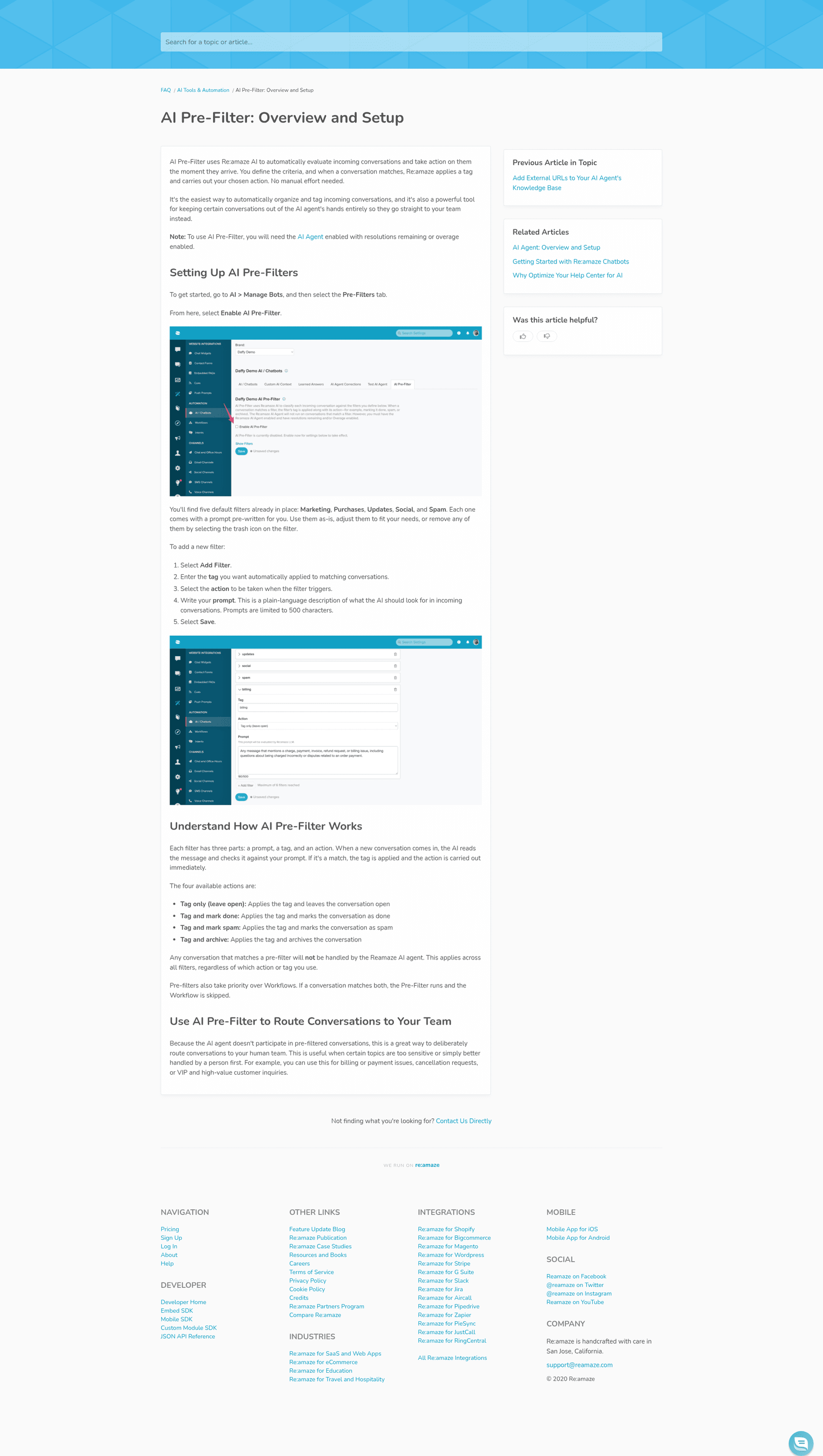
Use an AI Pre-Filter. It is the one documented way to keep a conversation away from the AI Agent from the start, and Re:amaze recommends it for exactly this: "billing or payment issues, cancellation requests, or VIP and high-value customer inquiries."
How it works, from the Pre-Filter guide:
- Find it at AI > Manage Bots > Pre-Filters. Five default filters come with it (Marketing, Purchases, Updates, Social and Spam).
- Each filter is a prompt (500 characters at most), a tag and an action. The four actions are Tag only (leave open), Tag and mark done, Tag and mark spam and Tag and archive. For a handoff, use Tag only.
- "Any conversation that matches a pre-filter will not be handled by the Reamaze AI agent." That holds for every filter, whatever its action.
- Pre-Filter needs the AI Agent on "with resolutions remaining or overage enabled."
The catch is in one line of the same guide: "Pre-filters also take priority over Workflows. If a conversation matches both, the Pre-Filter runs and the Workflow is skipped." So a Pre-Filter that tags needs-human can't also feed a Workflow that assigns the conversation. Give that tag its own saved view and have someone own it, or route it after the fact. I covered the same trap from the priority side in Re:amaze AI conversation prioritization.
Who picks up an escalated conversation?
Whoever your normal routing sends it to, because the AI Agent doesn't choose a person. Re:amaze gives you two routing tools, and which one works depends on your plan.
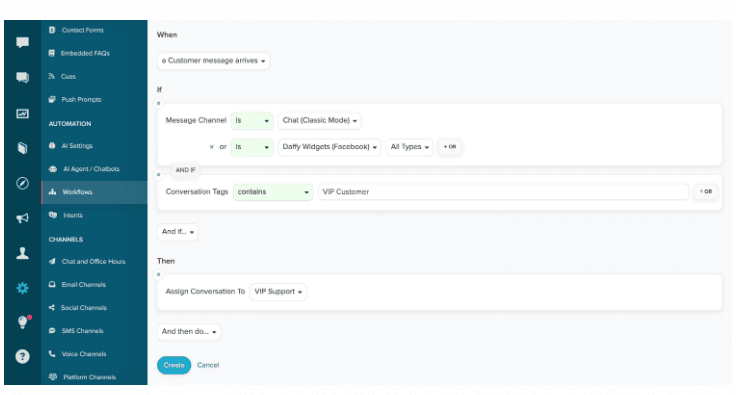
Workflows run on a trigger and conditions, then act: tag, assign to an agent or department, reply or leave an internal note. Re:amaze's own Workflows example is a routing rule: when a customer message arrives, if the message channel is Chat (Classic Mode) or Facebook and the conversation tags contain VIP Customer, assign the conversation to VIP Support. The guide doesn't list a trigger for "the AI Agent escalated", so build routing on what you can see (channel, tags, order value) rather than on the escalation itself.
Smart Assign hands a conversation to "the staff member with the fewest unresolved conversations assigned to them", and you can run it as a Workflow command. Per the Smart Assign guide, it skips staff who haven't sent a message in that brand within the past week and anyone not on an active shift.
Plans decide how far this goes. On the pricing page, Departments (staff groups) and Staff Shifts and Vacation Days are Plus features, at $69 per team member a month ($62.10 billed annually). Basic ($29) and Pro ($49) can still assign to a named person. For a team of five that is $145 a month on Basic or $345 on Plus. Re:amaze automation and tagging and routing in Re:amaze go deeper on both tools.
What happens when a chat escalates and nobody is online?
That depends on your chat mode, set under Settings > Chat and Office Hours. The chat modes guide describes two:
| Real-Time Chat | Classic Chat | |
|---|---|---|
| Plans | Every plan | Plus only |
| Who must be online | Nobody: "There is no expectation that both parties need to be online at the same time." | An agent logged in from a desktop browser and set to "Available for Live Chat" |
| If the customer leaves | "Each reply is also sent as an email to the customer if they do not view it through chat immediately" | The live chat ends and "there can be no further messages posted to that live chat session" |
| Missed chats | No session end: the conversation "continues via push notifications with no defined end point" | You choose whether missed chats "automatically convert into a regular conversation" |
For an AI-first setup, Real-Time Chat is the forgiving choice: an escalation at 2 a.m. waits in the inbox and your morning reply reaches the customer by email. If you run Classic Chat, turn on converting missed chats, or an escalated chat with nobody available can end with no way to continue it. Add office hours either way, so customers know when a person will answer. More on that trade-off is in human handoff best practices.
Does an escalation cost anything?
No. Per the billing guide, a resolution is "a conversation thread that is handled entirely by the AI Agent and does not escalate to a human agent", counted once per thread. Basic includes 5 resolutions per seat a month, Pro 10 and Plus 20, and each one past that is $0.85. Volume plans bill every resolution at $0.85.
Two details are worth knowing:
- A conversation that never escalated isn't always a success. One the AI Agent kept, where the customer gave up and stopped replying, can still end as AI Agent Done, which per the conversation states guide happens "when the customer indicates they have been helped or when they stop responding and the conversation has not been configured to escalate to your team." Spot-check those conversations, not only the escalated ones.
- Turning Usage Overage off has a fallback. With overage off under Settings > AI Settings, the classic chatbots keep running at no cost once the included resolutions are used. While the AI Agent is on, those classic bots (Hello Bot, Order Bot, Shopping Bot, AI FAQ Bot and FAQ Bot) don't run, but Cue Bots and Workflow Bots do. The Re:amaze chatbot guide compares them.
The Re:amaze pricing breakdown has the full plan table.
How do I measure Re:amaze AI escalations?
Start with the Chatbot report, which reports participation, resolution and escalation rates. Read it in sessions, not conversations: per the sessions guide, a session ends on inactivity, on being resolved, or on "an immediate escalation", and one email thread can hold several. Re:amaze's own example is a thread with three sessions, two contained and one escalated, which it scores as a 66% containment rate.
Watch the escalation rate next to the containment rate. A falling escalation rate is good news only if the conversations the AI Agent kept were actually answered. Measuring containment and escalation quality explains why the two must be read together.
Escalations also feed back into the AI Agent. Per the Learned Answers guide, once an escalated conversation is marked Done, Re:amaze drafts a suggested answer for you to save, edit or delete. Suggestions expire after 14 days and you can save up to 50, so mark escalations Done promptly and save only the answers you want repeated.
How to set up AI escalation in Re:amaze, step by step
- List what must always reach a person. Refunds above a limit, cancellations, legal or chargeback threats, VIP customers. Keep it short: each item becomes a Pre-Filter.
- Write one Pre-Filter per item. Use Tag only (leave open) and a clear tag such as
needs-human-refund. Keep the prompt under 500 characters and describe the customer's words, not your policy. - Give each tag an owner. Save a view filtered by the tag and an unresolved status, star it, and name who empties it. Remember a matching Pre-Filter skips Workflows, so don't rely on a Workflow to assign these.
- Route everything else. Add a Workflow that assigns by channel, tag or order value, or runs Smart Assign. On Plus, add shifts so Smart Assign only picks people who are working.
- Check your chat mode. Real-Time Chat, or Classic Chat with missed chats converting to regular conversations. Add office hours.
- Test with real messages. Use the Test AI Agent tab for answers, then send a few unanswerable and upset messages from a real channel and confirm each one lands where step 3 or 4 says.
- Review weekly for the first month. Escalated sessions in the Chatbot report, a sample of AI Agent Done conversations, and the Learned Answers queue. Keeping a human in the loop this way is cheap while volumes are low; AI agent handoff best practices has more checks.
Common mistakes with Re:amaze AI escalation
- Writing escalation rules into Response Guidelines. The guidelines page presents the 2,000-character field as control over "how your AI agent writes replies", and it says repeating built-in behaviour such as escalating when a customer is upset "does not improve responses." It doesn't say guidelines change when the AI Agent escalates, so put must-escalate topics in Pre-Filters and test anything else.
- Expecting a Pre-Filter and a Workflow to both run. They don't; the Pre-Filter wins and the Workflow is skipped.
- Testing only in the Test AI Agent tab. It has no real Shopify or WooCommerce connection and doesn't create real conversations, so it can't show you where an escalation lands or answer an order-status question.
- Leaving Classic Chat missed chats unconverted. An escalated chat with no available agent then has nowhere to continue.
- Never marking escalations Done. No Done, no Learned Answer suggestion, and suggestions you don't act on expire after 14 days.
Try eesel next to Re:amaze
If you want handoff rules in plain words ("a refund over $200, a damaged item or anyone asking for a manager goes to Sam, with a summary"), eesel can apply them in Re:amaze. Per eesel's Re:amaze docs, it connects with an API token and works your conversations on a schedule, as often as every ten minutes. It reads up to the newest 40 messages of a thread, then drafts a reply as an internal note, sends a reply, or sets tags, the assignee and the status. Before it sends a reply it re-reads the thread and stops if someone already answered.
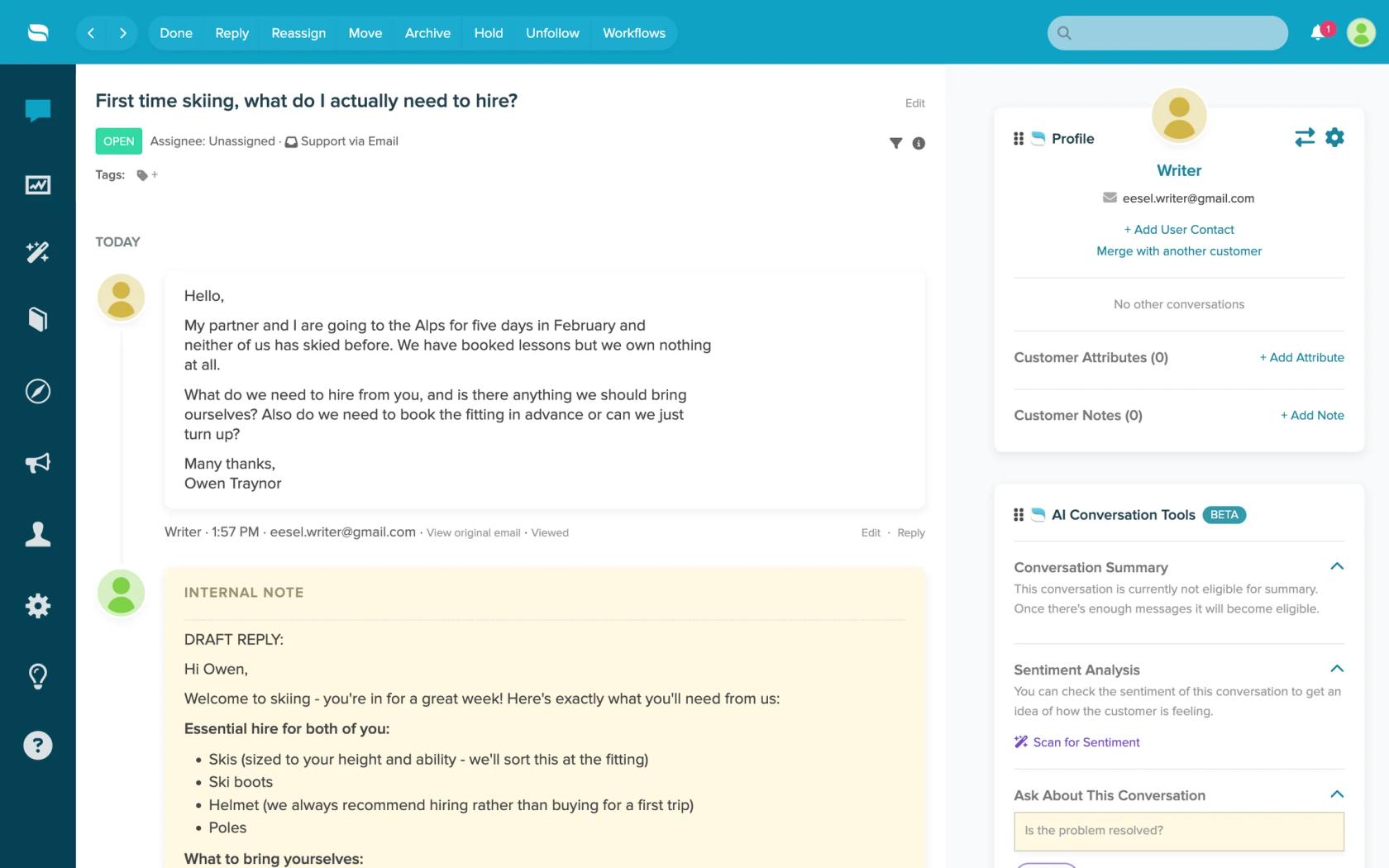
That makes the handoff visible: the person who gets the conversation sees why in the note, instead of a thread the AI simply stopped answering. For the pattern on a busy ecommerce inbox, Question Beauty runs eesel on Gorgias and Shopify, where refunds, complaints and anything needing a decision go to a team member with a note attached. Start on notes only, check its handoffs for a week, then let it assign. Try eesel on your Re:amaze inbox.