


Re:amaze has no priority field, so AI conversation prioritization there means an AI-matched tag plus a pinned saved view. An Intent inside a Workflow (Pro, $49 per team member a month) or an AI Pre-Filter tags the conversation priority-urgent, and a starred filter puts those conversations at the top of the inbox. The built-in Awaiting filter already sorts by urgency with machine learning, but per the Inbox Filters docs it reads timestamps, thread size, message volume and message frequency, not who the customer is or what they asked. eesel connects to Re:amaze, checks the queue on a schedule, and sets the tag and assignee from rules you write in plain words.
With the eesel CLI, an AI coding agent can upload approved knowledge such as your refund and cancellation policy, then ask the eesel agent test questions about which conversations it would flag before anything goes live. Connecting Re:amaze itself still needs a person to copy an API token from Re:amaze settings.
Does Re:amaze have conversation priority?
No. A Re:amaze conversation has a status, an assignee, tags and custom field data, and those are among the fields the conversation update API lets you set. There is no priority value to set, by hand, by a Workflow or by AI. The states Re:amaze documents are Open, Responded, Done, On-Hold, Auto-Done, AI Agent Done, Spam and Archived, per its conversation states guide, and none of them means "urgent".
The docs still talk about priority. The Workflows guide ends with an example for a Shopify customer with a lifetime value over $1,000 who asks "Where is my order?", and says the Workflow can "Prioritize the conversation based on customer value". The actions that same page lists are tagging, assigning to an agent or department, responding and leaving an internal note. So in Re:amaze, prioritizing means tagging and assigning, and the ranking happens in whichever view your team works from.
I work on eesel's support team, and that is not a bad design. Most teams I talk to don't want a fourth priority level nobody reads; they want the cancelling customer and the $2,000 order to be the first thing an agent sees. Re:amaze gives you the pieces for that. You just have to assemble them, and two of the pieces have plan gates and one has a rule that quietly skips your Workflow.
If you are coming from a helpdesk with a real field, my post on Gorgias ticket prioritization shows how a tool with one handles it. Front has no field either; my Front post shows the workaround there. AI ticket prioritization covers the idea in general.
What does the Awaiting filter already rank?
Awaiting is the closest thing Re:amaze has to a priority queue, and it is AI. It shows unresolved conversations assigned to you or unassigned, and "uses machine learning to surface conversations that most urgently need attention, based on a combination of timestamps, thread size, message volume, and message frequency", per the Inbox Filters docs. The same page says it "treats all channels equally", so a chat doesn't jump an email just for being a chat.
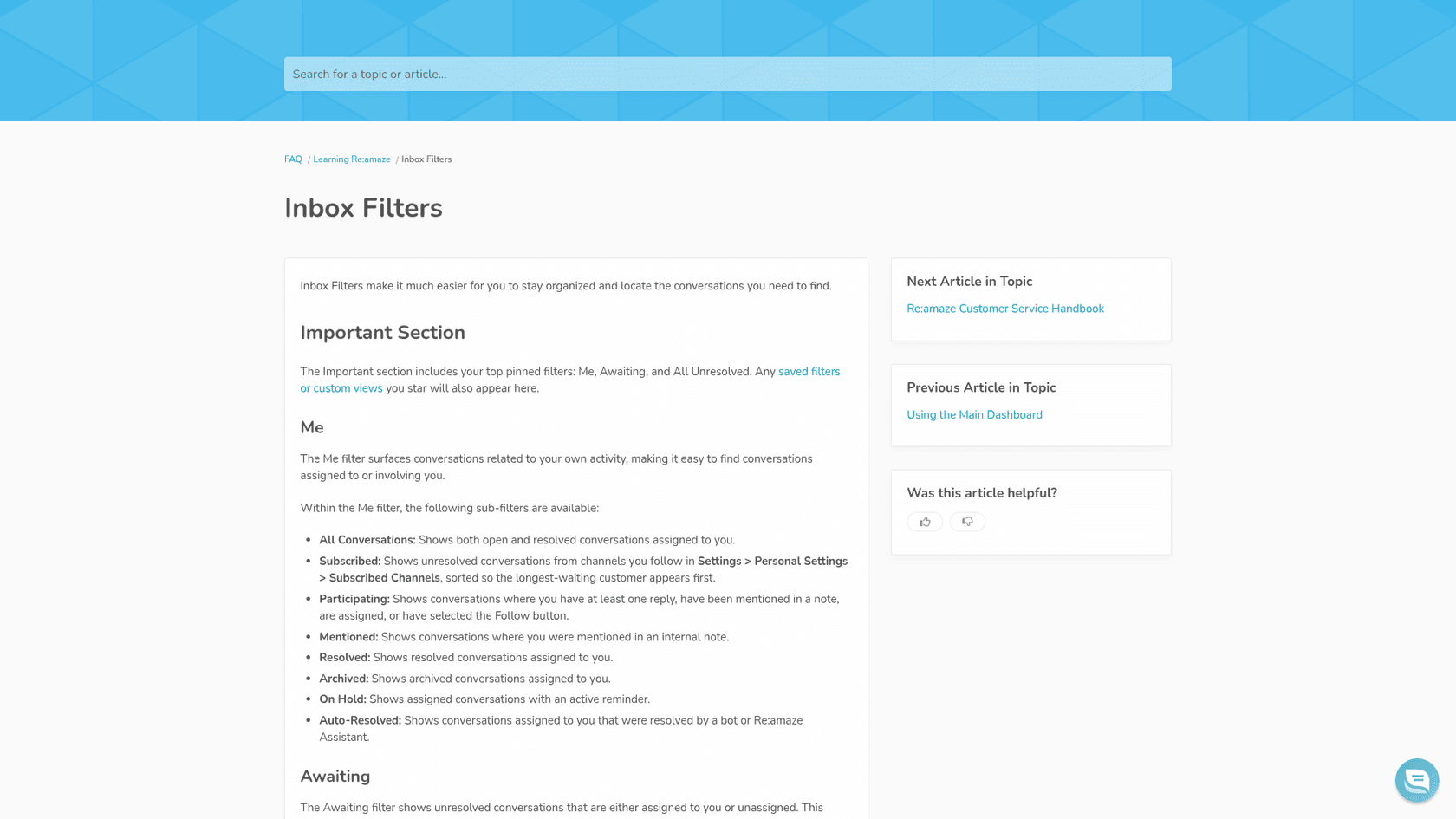
Look at what those four signals have in common: they describe how a conversation is behaving, not what it is about. A customer who sends five quick messages about a typo on their receipt looks busier than a customer who writes once, calmly, to cancel a $3,000 annual plan. Awaiting can't see order value, intent or account tier, because none of those are among its inputs. That is the gap your setup fills.
One more limit matters for a priority setup. Awaiting can't be saved as a custom view, because it is "already pinned by default" (saved filters docs). So the plan is not to change Awaiting but to put your own priority view above it.
Which Re:amaze features can flag a priority conversation?
Three features can decide that a conversation matters more, and each reads a different signal:
| Feature | What it reads | Lowest plan | What it does on a match |
|---|---|---|---|
| Workflow with an order condition | Shopify or BigCommerce customer data, such as total order value or order count | Basic ($29), or Starter ($59 flat) | Tags, assigns, replies or adds a note |
| Intents in a Workflow | The meaning of the customer's message, against a 1-3 sentence description you write | Pro ($49) | Nothing alone; used as a Workflow condition |
| AI Pre-Filter | The incoming conversation, against a prompt of up to 500 characters | Any plan with the AI Agent on and resolutions left | Tags, then leaves open, marks done, marks spam or archives |
Prices are per team member per month, billed monthly, from Re:amaze's pricing page on 22 Nov 2026. Annual billing shows $26.10, $44.10 and $62.10. Starter is $59 a month flat for any number of team members, with every Basic feature but a limit of 500 responded conversations a month. Departments, which you need to send priority conversations to a team rather than a person, are a Plus feature at $69.
Pick the signal that best describes your urgent conversations, and the chooser shows what to build and what it costs a team of five.
Pick the signal that makes a conversation urgent for you to see the Re:amaze feature, plan and monthly cost for five people.
How do I set up AI conversation prioritization in Re:amaze?
Here is the setup I would build for a typical ecommerce team on Pro, where urgent means "cancelling, refunding or a damaged order" and high means "a big customer".
1. Create the priority tags
Go to Settings > Tags and add priority-urgent and priority-high. Re:amaze's tags guide describes tags as the way to "flag specific ones that need attention", and almost every report can be filtered by them, which you will want later. Keep it to two. A third level is where teams start arguing about what "medium" means instead of answering customers.
2. Write an Intent for what's urgent
Go to Settings > Automations > Intents and add one. Re:amaze matches on meaning, not keywords, and its Intents guide asks for a description of 1-3 sentences about the customer's goal. Something like: "Customers asking to cancel an order or subscription, asking for a refund, or reporting that an order arrived damaged or wrong." Use Preview Example Messages to see what it would catch before you rely on it. Intents are a Pro feature. My Re:amaze AI routing guide goes deeper on writing them, and intent detection explains the idea.
3. Build the Workflows
Go to Settings > Automation > Workflows and add two:
- Urgent: When a Customer message arrives, If the message matches your urgent Intent, Then tag
priority-urgent. - High: When a Customer message arrives, If Customer Total Order Value is greater than your threshold, Then tag
priority-high.
The order-value condition is the one Re:amaze uses in its own example, where a customer whose total order value is over $2,000 gets the tag VIP Customer, and it needs a connected Shopify or BigCommerce store. The Workflows guide warns that "each condition can narrow when the Workflow will run", so give each Workflow one job rather than stacking conditions.
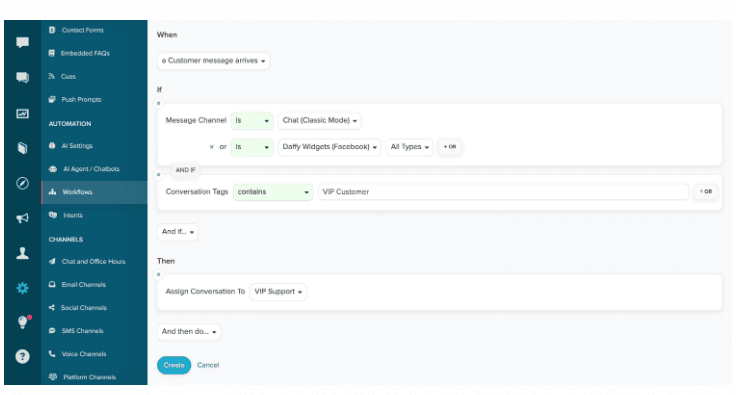
If you want the conversation in front of a specific group too, add Assign Conversation To your priority department, then Smart Assign. Departments need Plus, and Smart Assign picks the eligible person with the fewest unresolved conversations, skipping anyone off shift or who "has not responded to a customer within the past week" (Smart Assign docs). For more on assignment rules, see skills-based routing.
4. Pin a priority view above Awaiting
Open Advanced Search from the filter icon in the search bar, filter by Tag priority-urgent and an unresolved status, and set the sort order to oldest first; the Advanced Search docs list Tag, Conversation Status and Sort Order (oldest to newest) among the filters. Select the star and name it "Urgent". Do the same for priority-high. Starred views appear in the Important section, next to Awaiting. Your team's rule becomes simple: empty Urgent, then High, then Awaiting.
5. Decide who runs the AI Agent on these
If you use the Re:amaze AI Agent, decide whether it should answer urgent conversations at all. A cancellation is often worth a person's reply. Keeping the AI Agent off a topic is what the AI Pre-Filter is for, and it is also where the trap is. If you do let the AI Agent answer some urgent conversations, my Re:amaze AI quality assurance post covers how to review what it said.
Why did my priority Workflow stop running?
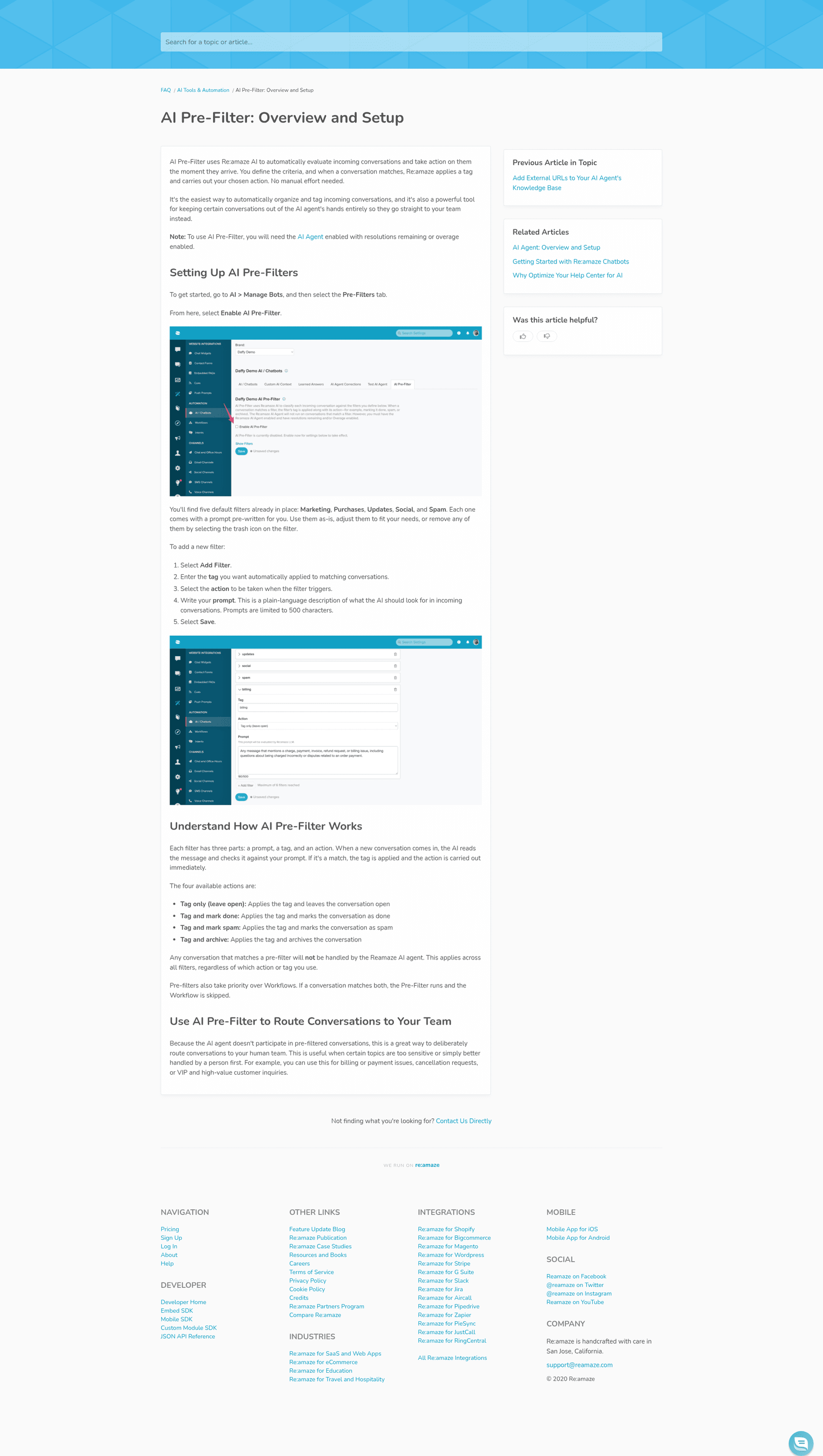
The usual reason is an AI Pre-Filter. Re:amaze's Pre-Filter guide says it plainly: "Pre-filters also take priority over Workflows. If a conversation matches both, the Pre-Filter runs and the Workflow is skipped." A conversation that matches a Pre-Filter is also never handled by the AI Agent, whichever action you pick.
Pre-Filters are attractive for priority because they read the conversation the moment it arrives, take a plain-language prompt of up to 500 characters, and offer a Tag only (leave open) action. Re:amaze itself suggests using them for "billing or payment issues, cancellation requests, or VIP and high-value customer inquiries". But say you build a "cancellations" Pre-Filter and also have the high-value Workflow from step 3 that assigns VIPs to a senior agent. A VIP who writes in to cancel matches both, the Pre-Filter wins, and the VIP assignment never happens.
Three ways to live with it:
- Use Pre-Filters only for topics that must skip the AI Agent, and make the tag the priority (
priority-urgent). Your starred Urgent view picks it up whether or not a Workflow ran. - Keep value-based priority in Workflows, where nothing overrides them except a Pre-Filter match.
- Don't put assignment in a Workflow that a Pre-Filter could pre-empt. Assign from the view instead.
Pre-Filters also need the AI Agent turned on "with resolutions remaining or overage enabled". Re:amaze includes 5, 10 or 20 AI Agent resolutions per team member per month on Basic, Pro and Plus, then charges $0.85 for each extra one (pricing page). If your resolutions run out with overage off, your priority Pre-Filters stop with them. My Re:amaze pricing breakdown has the full plan table.
What do Re:amaze users say about setting this up?
Reviewers tend to like how easy the building blocks are and dislike how far they stretch. One G2 reviewer summed up both sides in a single review:
"The features in the platform are rigid and sometimes limited"

The same reviewer liked its "low cost and good integrations". That matches what I see in the docs: tags, Intents and Workflows are simple to set up, and priority is a pattern you assemble from them rather than a feature you switch on. For a broader view, see my Re:amaze review. My Re:amaze automation guide covers the rest of its automation.
Common mistakes with Re:amaze prioritization
- Treating Awaiting as your priority queue. It ranks by activity and time. Use it for the third pass, after Urgent and High.
- Writing an Intent as a keyword list. Re:amaze's guide says to describe "what the customer is trying to accomplish, not the exact words they might use".
- Stacking conditions in one Workflow. Each extra If narrows when it runs. One Workflow per priority level is easier to debug.
- Forgetting the plan gates. Intents are Pro, Departments and Staff Shifts are Plus. Trials include every Plus feature, so a setup that works in the trial can stop working on Basic.
- A Pre-Filter and a Workflow chasing the same conversations. The Workflow loses, silently.
- No owner for the Urgent view. A pinned view nobody empties is just another folder. Put a name on it per shift, and track first response time on the tag in reports.
If you set response targets on your priority levels, my explainer on SLAs covers how teams usually set them, support queue covers how to lay out the views, and prioritizing tickets with AI works through the general approach.
Try eesel next to Re:amaze
Re:amaze's tools decide priority from one signal at a time: an Intent, an order value or a Pre-Filter prompt. If your rule is closer to "urgent if they want to cancel and their last order hasn't shipped, unless it's a wholesale account", that is three conditions written as one sentence, and it is the kind of rule eesel follows well.
eesel's Re:amaze integration works on a schedule, as often as every ten minutes. On each run it lists open conversations, reads up to the newest 40 messages of each, and can add or remove tags, set the assignee and set the status, then leave an internal note saying why it flagged the conversation. It learns from your response templates and past conversations, and every other integration you connect is a source too, so with a store connected it can check the order before it decides. It doesn't read custom fields or attachments in Re:amaze. You choose for each action whether it runs on its own or asks a person first, per eesel's actions and approvals, so you can start with notes only and turn on tagging once its calls match yours.
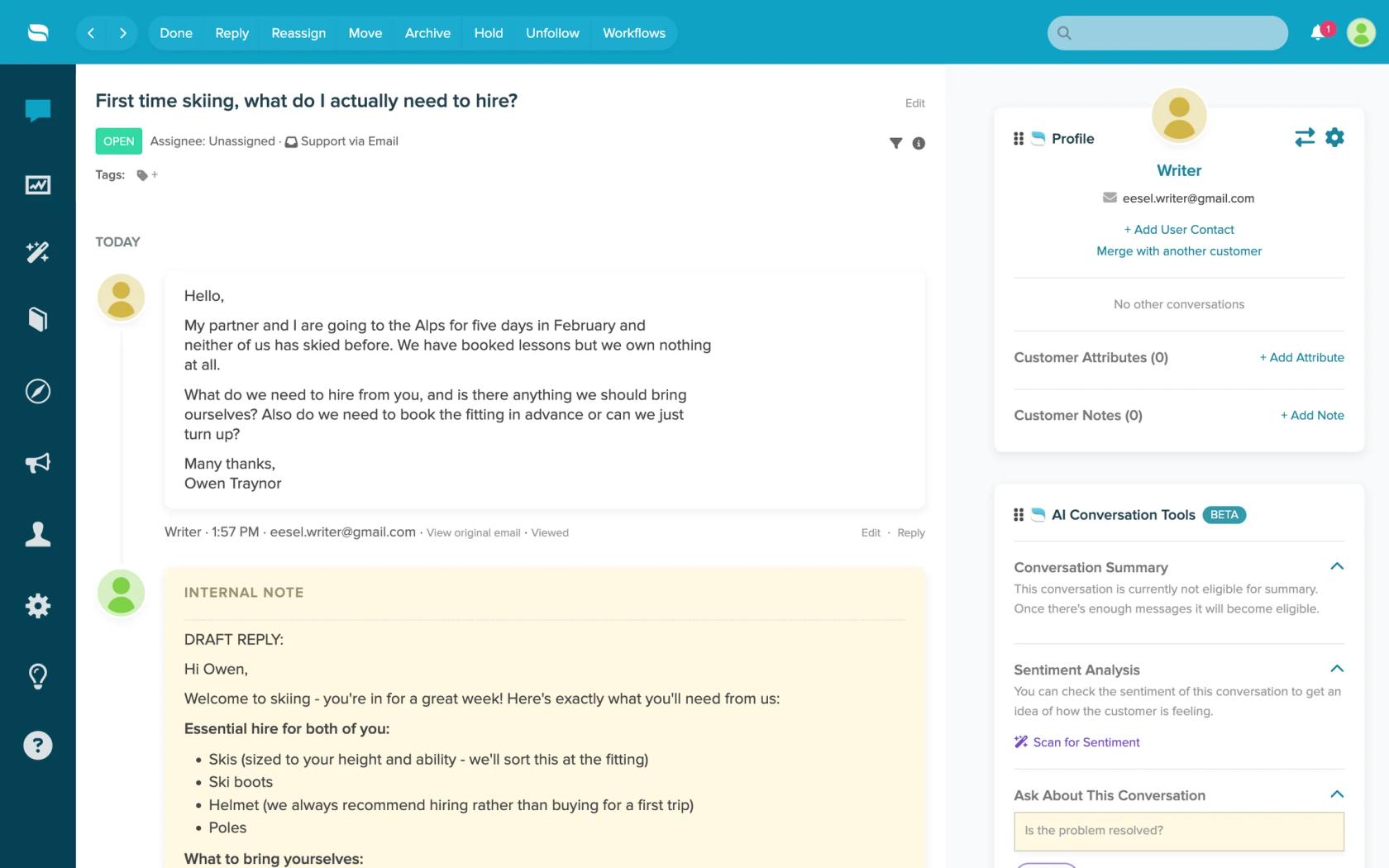
Try eesel on a week of your past Re:amaze conversations and compare its Urgent list with the one your team would have picked.
Frequently Asked Questions
Does Re:amaze have a priority field?
priority-urgent and work from a starred view of that tag, as my Re:amaze tagging and routing guide shows for tags in general.Can Re:amaze AI prioritize conversations automatically?
How does the Re:amaze Awaiting filter decide what is urgent?
Which Re:amaze plan do I need for AI prioritization?
Why is my Re:amaze Workflow not running on some conversations?
How do I show urgent Re:amaze conversations first?
priority-urgent), then save an Advanced Search filtered by that tag and an unresolved status, sorted oldest first, and star it. Starred views appear in the Important section next to Awaiting, so the team empties Urgent, then High, then Awaiting. My guide to prioritizing tickets with AI walks through the general approach.