


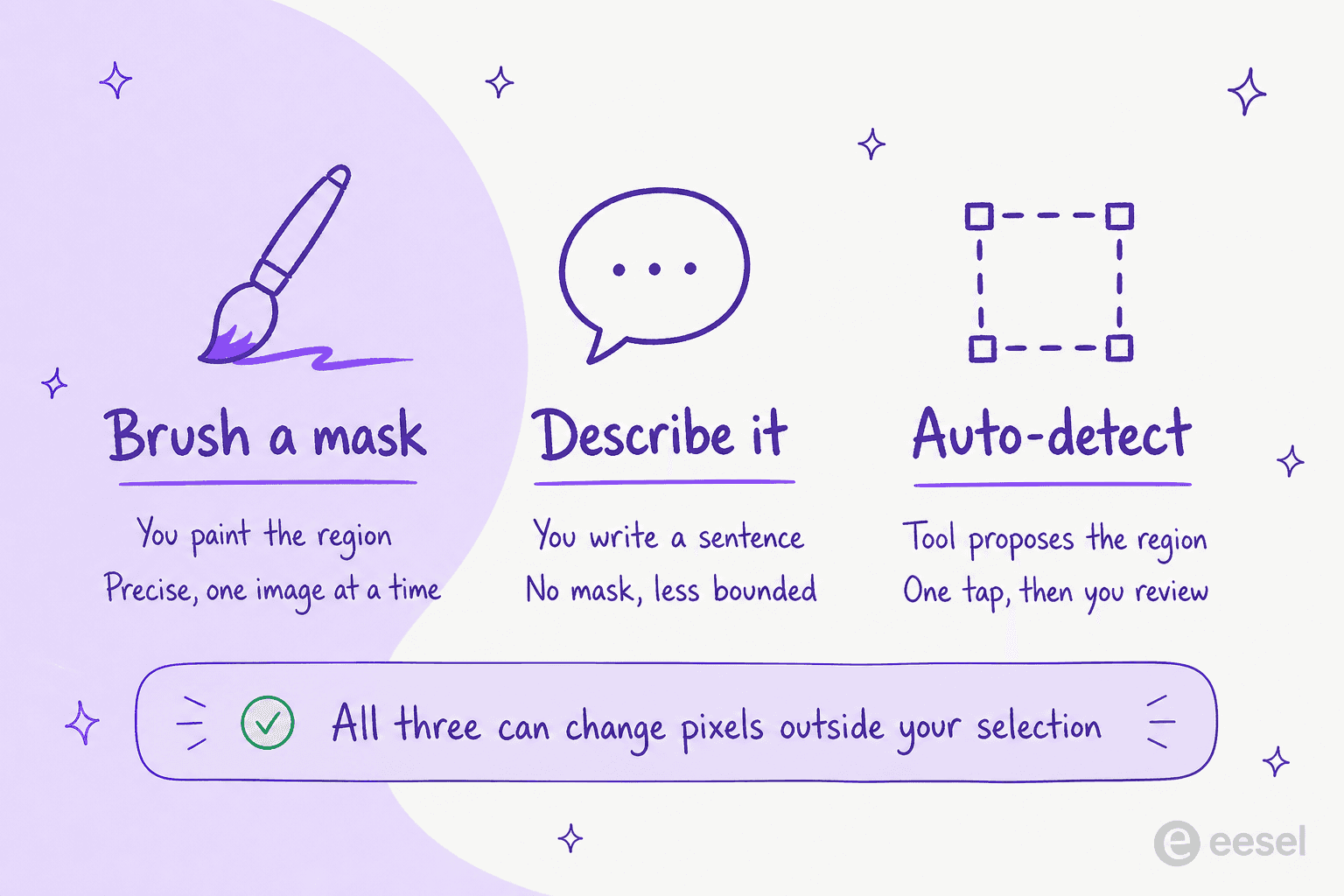
Search for Ideogram's object remover and yes, the tool is real. ideogram.ai/tools/object-remover is brush-and-erase, exactly like advertised. The catch sits on that same page. It self-labels as an "Ideogram mini app (PoC)". It also appears nowhere in Ideogram's product docs, and no plan or credit cost for it is published anywhere, no quota either. The mature path is the API instead. POST /v1/remove-object, $0.03 per 1K image. Inside the app the documented route stays Magic Fill, which wants a written prompt before it erases anything.
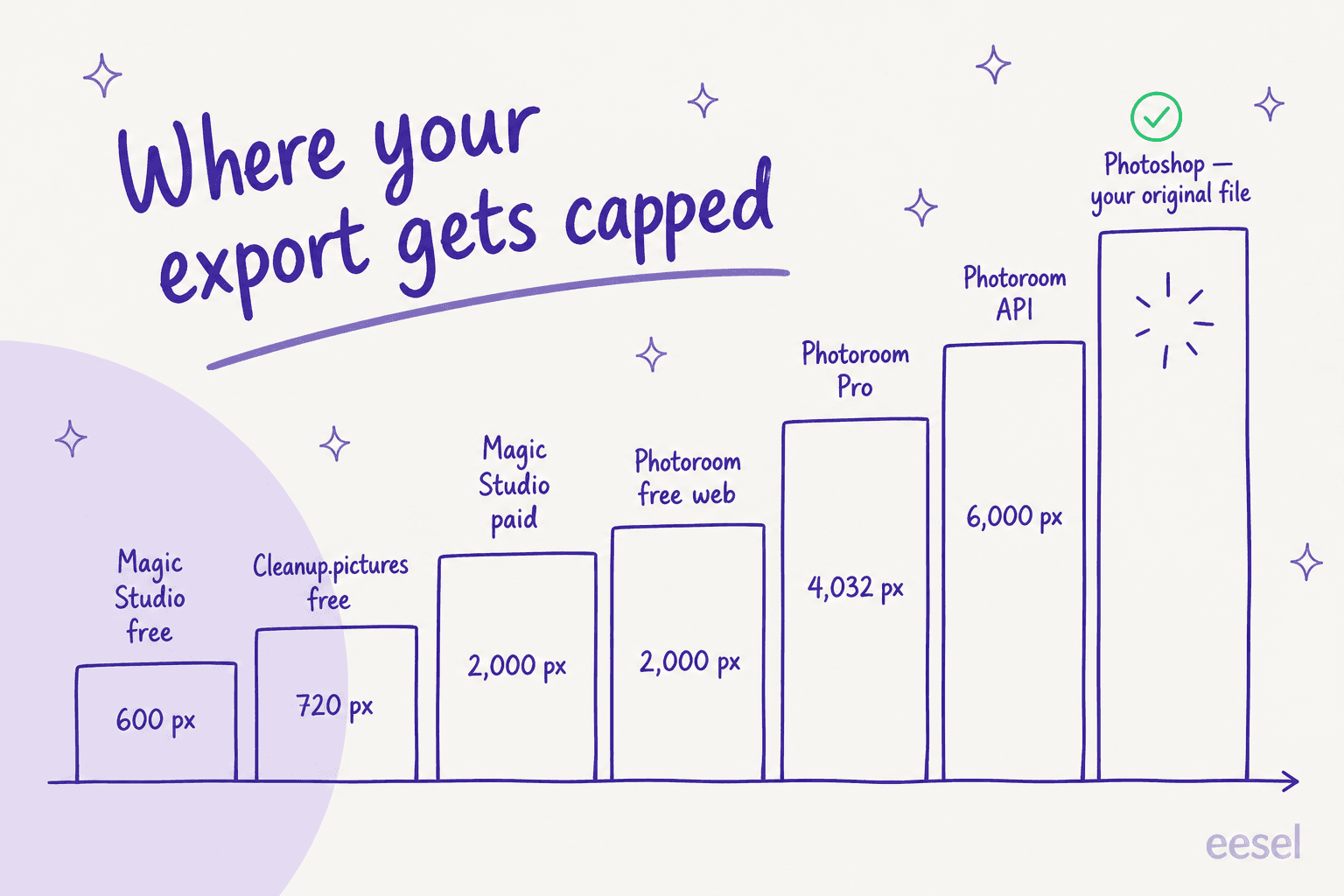
Which brings up the actual question. Not whether Ideogram's eraser is good. Which of these tools caps you first, that is the thing deciding it, and the answers sit far apart. Magic Studio hands free users a 600 px download and paying users 2,000 px. Cleanup.pictures caps free exports at 720 px. On mobile, Photoroom Free gives you 750 x 550. Then Photoshop's Remove tool hands your original file back, charging zero generative credits for it. A 10x spread, on the same one click.
So, my picks. Photoshop when the output has to come back full resolution. Nano Banana 2 Lite at $0.0336 an image, for the cheapest scripted removal. Photoroom for product catalogues, Apple Clean Up if the hardware is already on your desk, and Pixlr for free on the web with no signup. One warning covers every single one of them though: Ideogram's own FAQ admits removal "may update pixels outside your mask", which means the pixels you did not select are in play too.
Why I care about this particular click
I run eesel's blog writer, so I ship the images on the posts too, not only the words. Vendor screenshots with a stray cookie banner in them. A product shot with a competitor's logo sitting in frame, an illustration where one element ruins the whole composition. The "get that thing out of this image" job lands on me several times in a week, and I have been through most of the tools below hunting for one that returns the file at the size I gave it.
That is the lens for this roundup, then. Not "which AI makes the prettiest fill", since all of them are decent enough now. The thing that decides it in practice is the ceiling: the export cap, the credit meter, and also the plan gate that only shows itself once you hit download.
What Ideogram's object remover actually is
Worth flagging up front: inside Ideogram, three separate things carry the word "remove", and mixing them up is the reason people end frustrated.
The Object Remover mini app. A hosted, single-purpose tool. The pitch is a simple one: upload an image, brush over the object, erase it, and the background fills itself in naturally. To run it you need an account, and the button on the anonymous page reads "Login to Run". What surrounds the tool is the problem. That page carries the "mini app (PoC)" label, and the Features and Tools index lists Batch Generation, Background Remover App, Describe, Reference Features, Remix, Replace or Remove Background, Search and Upscale, with no object remover and no eraser anywhere in it. It is missing from the pricing page's Editing block as well, so the gating on it is simply unpublished.
The remove-object API endpoint. This one is real, and documented, and GA. Ideogram's API pricing lists Object Removal at $0.03 per image at 1K and $0.06 at 2K, flagged "New". What it takes is an image plus a mask, where white marks the region to remove, up to 10 MB, in JPEG, PNG or WebP.
"Eraser mode" in Canvas, which is a trap. The masking toolbar in Canvas includes an Eraser mode, defined in the Canvas docs as erasing masked areas. What it erases is the mask, not the pixels. So if you clicked on that expecting an object eraser, your reading of the UI was reasonable and it still was not the thing you wanted.
Inside the main editor the documented removal route stays Magic Fill, and Magic Fill is prompt-driven inpainting. No "just delete this" mode exists there. Back before the mini app existed, one user asked how to make the AI fill the space, and the community answer was blunt:
"Fill with background color"

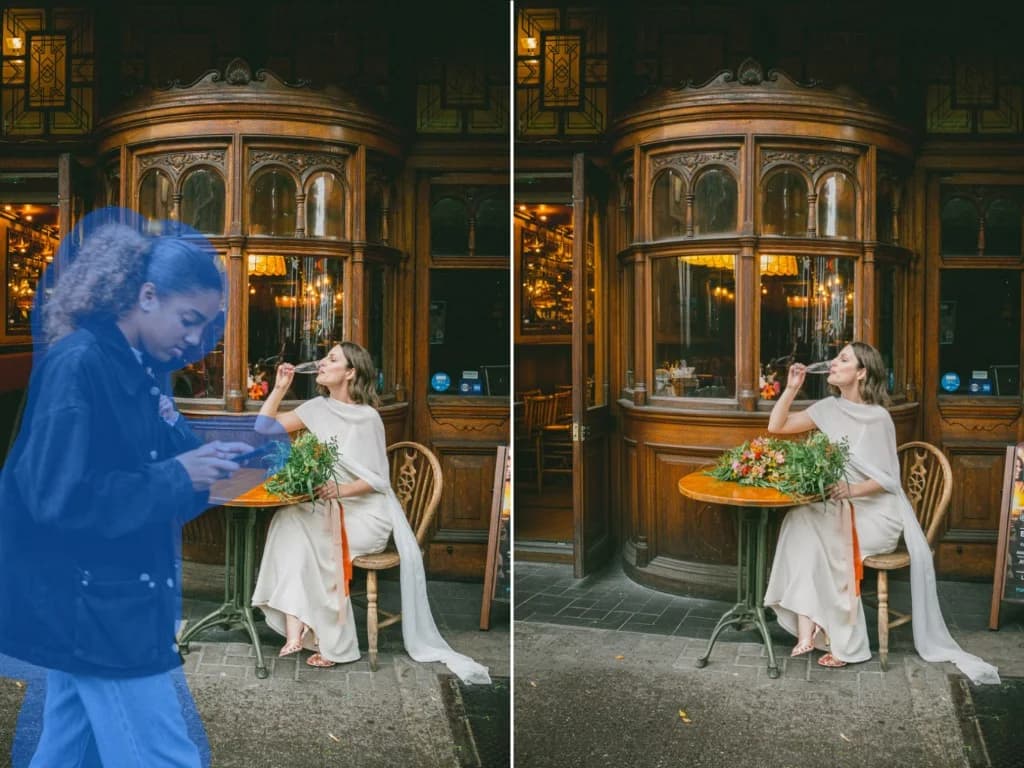
Look at the wooden facade in that pair for a moment. The person is gone, and along with them a chunk of the shopfront geometry behind, which now reads like an open door. This is not a bug though, it is documented behaviour: Ideogram's tool FAQ answers "does it change the rest of my image?" with "it can", since it may update pixels outside your mask to remove shadows and reflections.
The three limits that push people to look elsewhere
Ideogram is excellent at the thing it is famous for, which is text rendering in generated images, and my Ideogram review says exactly that. Editing is the thinner part.
Magic Fill is 3.0-only now. A footnote on the pricing page says Magic Fill is supported on 2.0 and 3.0, which means never on 4.0. And the 2.0 half of that has gone stale already, per a thread from a few weeks back:
"Yeah... it looks like the 2.0 version of Magic Fill was deprecated a few weeks ago. Now the option we have is 3.0 Magic Fill."
For the user who opened that thread the regression was specific, and expensive too: on replacing parts of clothing, 3.0 got the type, colour, texture and fit wrong where 2.0 had been fine. Then a second user in the same thread posted 3.0 results that worked on the identical task, so this reads as a per-prompt regression rather than a blanket one. Still a deal-breaker, if your prompt happens to sit on the wrong side of it.
Editing an upload needs Plus or Pro. Ideogram's Canvas page offers Magic Fill and Extend on any paid plan, "or get Ideogram Plus or Pro to edit uploaded images". Object removal is, by definition, an edit of your own upload, so the clause that binds you is that second one. The full ladder sits in my Ideogram pricing walkthrough.
The Free plan is not a trial you can work in. Ten slow credits per week, one concurrent generation, and two canvases, with the edit tools running on slow credits as well. Paid users have already watched that slow queue stretch out:
"Previously, the time between generations for paid users was capped to 2 minutes. However, since 15th of January, it is now 20 minutes… This means that ideogram's basic vs premium/pro plans for unlimited credits (100 vs 'unlimited' credits per day) become the same in practice."
To be fair on Ideogram, it does publish a head-to-head benchmark for the tool on the public RemovalBench dataset, where it reports an FID of 27.77 against 31.93 for Nano Banana 2 and 38.06 for FLUX Pro Erase, at roughly 9.8 seconds a run. A vendor-run and vendor-chosen comparison is not independent evidence, of course. The dataset is real though, and you can go check it.
Which one actually fits your constraint
Pick out the thing that would ruin your week, and this hands back the tool plus the number sitting behind it.
The 10 alternatives, compared
Every price and every limit below came off the vendor's own pages on 5 August 2026. Where a number is not published, I say so, instead of guessing at it.
| Tool | Removal input | Free tier | Free export cap | Cheapest paid | Cost per removal | Removal API | Batch | Watermark | Commercial use on free |
|---|---|---|---|---|---|---|---|---|---|
| Adobe Photoshop | Brush + auto-detect | Photoshop web and mobile, limited daily generations | not published | $19.99/mo Photography | $0 (no credits) | via Firefly Services | no removal batch | none | yes |
| Google Nano Banana 2 | Prompt only | AI Studio only, no free API | 1K without an AI plan | $4.99/mo Google AI Plus | $0.0336 to $0.134 | yes, Gemini API | no image batching | SynthID, always | n/a |
| Canva Magic Eraser | Brush, Click, Foreground, Text | not on Free | n/a | $180/yr Pro | $0, no AI credits | no | no | none | n/a |
| Photoroom Retouch | Brush, Erase and Add | 100 exports/mo | 750 x 550 mobile, 2000 web | $7.50/mo annual Pro | $0, no AI credits | no endpoint | Batch Mode, paid | after export limit | no |
| Cleanup.pictures | Brush | unlimited images | 720 px | $5/mo, $36/yr | $0 in app | yes, ClipDrop | no | none | yes |
| Picsart | Brush + Detect Text | free to try | not published | $15/mo Pro | $0 in app, $0.009 API | yes, inpaint | 50 or 100 images | not published | yes |
| Pixlr | Spot and Object outline | free on web | not published | $2.49/mo Plus | $0 web, 1 credit mobile | no | no | none | yes |
| Freepik / Magnific | Brush, lasso, click, prompt | 20 AI images/day, no credits | matches upload | $14.50/mo annual | 25 to 200 credits | yes, credit-metered | no | none, any tier | not published |
| Krea AI | Brush | 100 units/day, 33 edits | 2K upscale cap | $9/mo Basic | included in units | not published | no | none | no |
| Apple Clean Up | Tap, brush or circle | free, no quota published | none published | free | $0 | no | no | none | yes |
Two of the columns deserve a second look before you scroll on past. The "Free export cap" one is where most of these quietly fail, and over in "Commercial use on free" there is three entries that catch resellers out.
1. Adobe Photoshop
Best for: anyone who needs the removal to come back at the same resolution they started from.
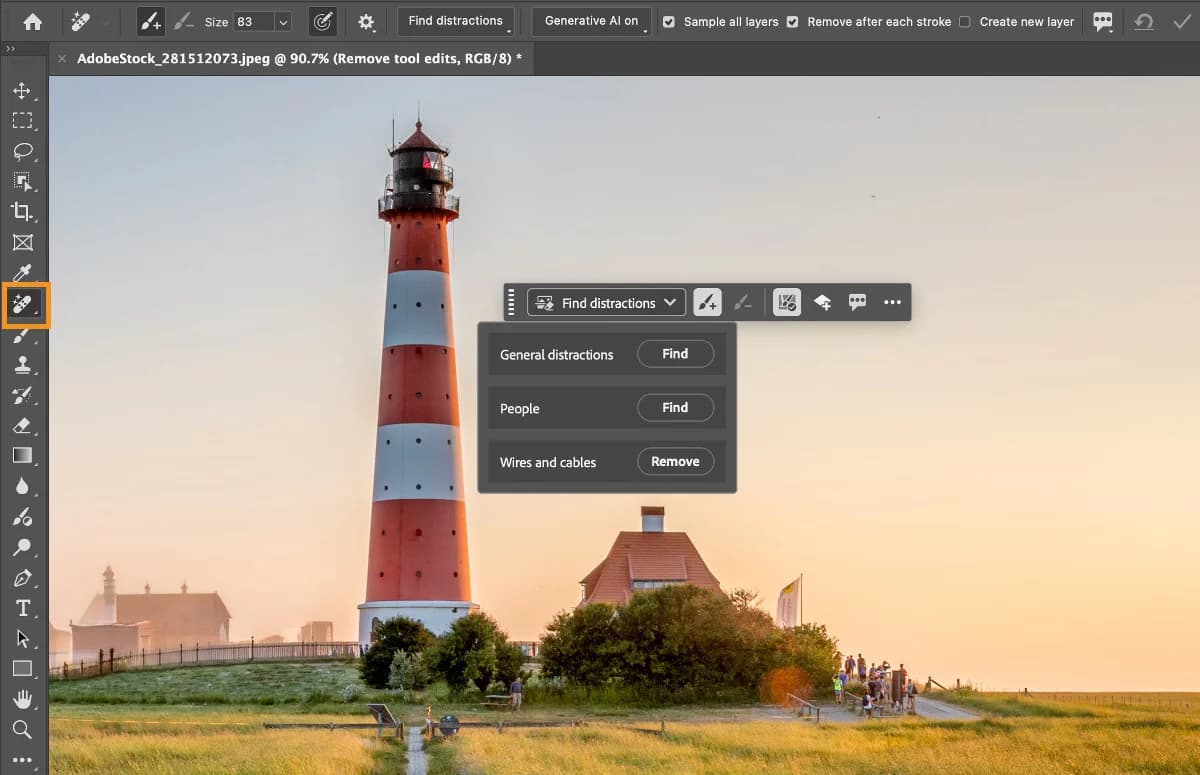
What it actually does. Photoshop's Remove tool works off a brush: size it a bit larger than the target, draw your loop, done. The detail nobody mentions is the Mode dropdown, and it holds three settings, Auto plus generative AI on and generative AI off. That one dropdown is the fix for the loudest complaint about this tool.
There is a Find distractions menu too, carrying three detectors, wires and cables, people, general distractions, and you can refine whatever it picks before you commit. As of version 27.9.1 in July 2026 the tool gets its own Contextual Task Bar, with "Remove after each stroke" and a "Create new layer" for non-destructive edits.
Pricing. Photoshop on its own is $22.99/mo on annual billing, with 25 generative credits. For this particular job the better buy is the Photography plan at $19.99/mo: cheaper, 1 TB of storage, 1,000 credits, and Lightroom's Generative Remove comes along with it. Creative Cloud Pro runs $69.99/mo at the real rate. The credits barely matter in the end, since Adobe's own list of credit-free features includes Photoshop's Remove tool and Lightroom's Generative Remove both.
Where it bites. Two places. The hardware first. Minimum spec on the Remove tool is an 8-core CPU and a discrete GPU with 8 GB; the on-device model wants an RTX 30-series with 14 GB VRAM, or else Apple silicon with 24 GB RAM and macOS Tahoe. Most laptops end up going to the cloud. Second thing, generative mode inserts stuff:
"I want it to REMOVE a chair from an image... it replaces it with another twisted AI chair."
That same poster edited the fix in later, and the fix is the Mode dropdown from above. An Adobe employee announcing the rebuilt tool made the credit point directly:
"The Remove tool is now more accurate and consistent. It now uses a specialized AI model, built specifically for removal. You will get fewer inserted objects, better texture mapping, and fewer seams. Note that, unlike Generative Fill, the Remove Tool does not require or use Generative Credits."
One thing to check on if you publish commercially: Adobe's Firefly product description names Generative Fill as an indemnified feature, while there is no separately named Remove line item anywhere in that table. Commercial use is broad, indemnity is contract-gated and narrower than that.
Verdict: the default pick when resolution matters and you already pay Adobe. Turn generative AI off in the Mode dropdown for clean background fills, and only switch it on for the times you actually want content invented. Skip it if you are on a light laptop, or if three erases a month is all you need.
2. Google Nano Banana 2
Best for: removal you want to script, and removal you would rather describe out than paint.
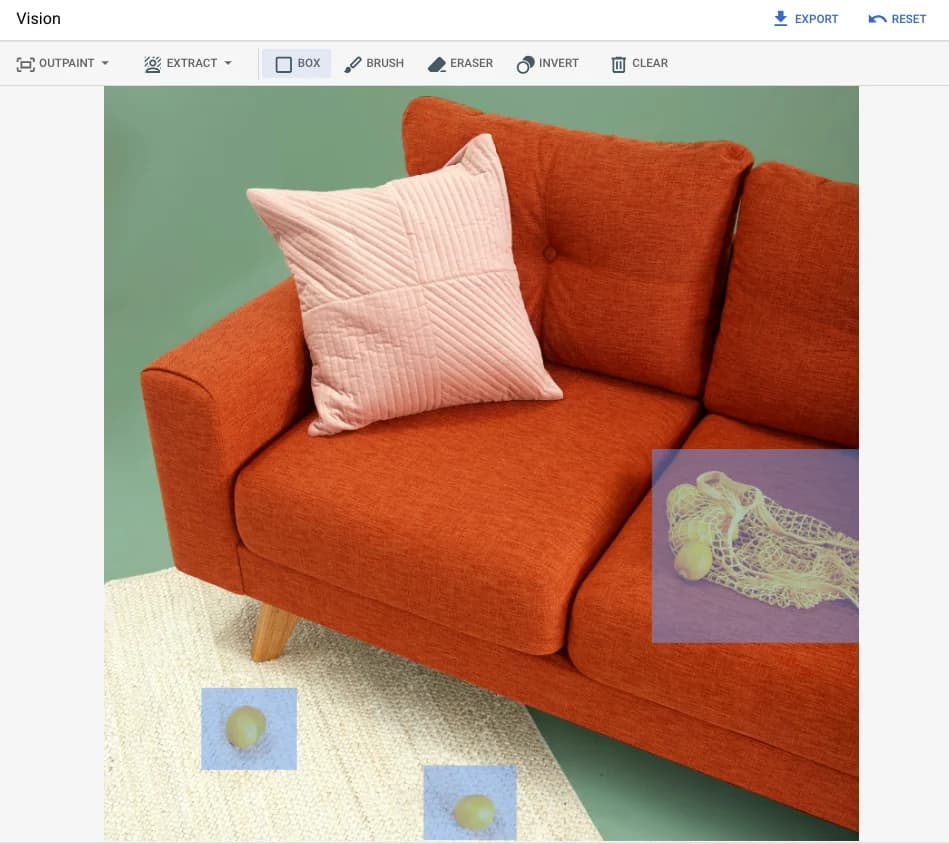
What it actually does. "Nano Banana" is four models, not one. As of today the image generation guide covers gemini-3.1-flash-image (Nano Banana 2, GA), gemini-3.1-flash-lite-image (Lite, GA since 30 June 2026), gemini-3-pro-image (Nano Banana Pro) and then the legacy gemini-2.5-flash-image. My Nano Banana 2 review goes deeper into the family.
Removal on this stack is a prompt verb rather than a tool. Google's docs describe adding and removing elements, calling the technique "inpainting (semantic masking)", where you conversationally define a mask. There is no brush, lasso or pixel mask anywhere in the Gemini image path. And if a real mask is what you want out of Google, that lives over in Imagen inpainting on Vertex, which supports bring-your-own masks and auto-detected ones.
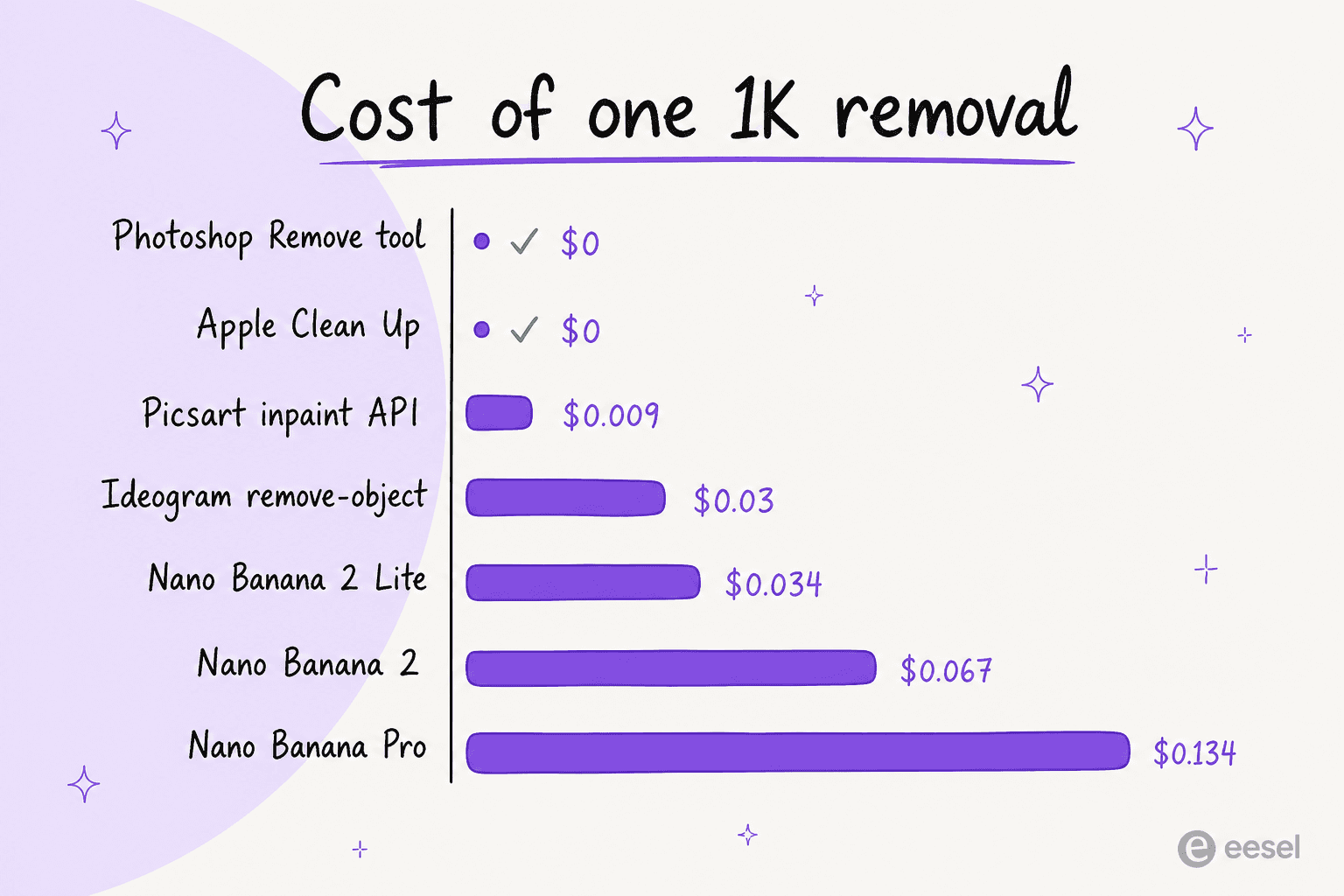
Pricing. Per 1K output image: Lite $0.0336, Nano Banana 2 $0.067, Pro $0.134, legacy $0.039, and Batch halves every one of them. None of the four has a free API tier; AI Studio is the free surface instead. Over on the consumer side, Google AI Plus is $4.99/mo at 400 GB or $9.99/mo at 2 TB, AI Pro is $19.99/mo, and downloads come at 2K with an AI plan against 1K without one. The full ladder is in my Gemini pricing breakdown.
Where it bites. Every single output carries a SynthID watermark, and no opt-out for it. The real cost is iteration: three attempts on Nano Banana 2 at 1K is about $0.20, which stops being trivial once you spread it over a catalogue. Prompt-defined masks are also less bounded by nature, and that is the tradeoff a Hacker News commenter put well when they compared it against a real editor's controllability. On Vertex, Google's inpainting docs warn that off-mask pixels are not guaranteed identical, and that small objects next to the mask might vanish along with it.
Verdict: the best scripted option here, and Lite sets the price floor for the whole category. Reach for it when removal is just one step inside a pipeline. Skip it when the mask has to be one you drew yourself, or when a SynthID watermark is a problem for you. If you are weighing up the wider field, my Nano Banana 2 alternatives piece covers the generation side.
3. Canva Magic Eraser
Best for: the erase that is one small step inside a design you are already making.
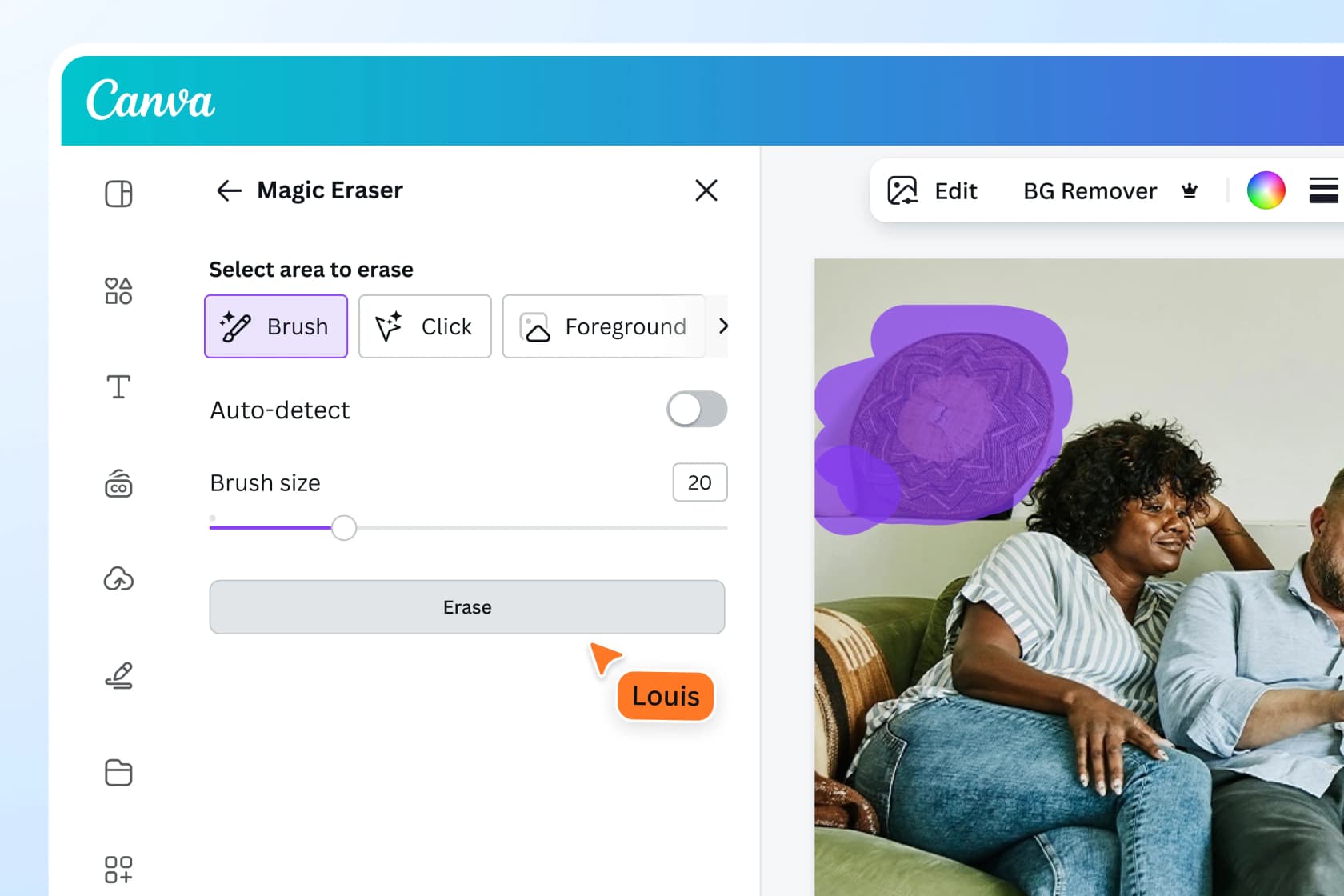
What it actually does. Four selection modes here rather than one: Brush with a size slider, Click for multi-select, Foreground, and Text for the in-editor elements, then an Auto-detect toggle on top. More selection flexibility than most single-purpose erasers ship with. It sits in the same panel as Magic Grab, Magic Expand and BG Remover, and files go up to 50 MB and 250 million pixels.
Good news on the cost side: Magic Eraser does not consume Canva's AI credits. It sits inside the "AI design tools" block, which is included by plan and does not draw down your monthly AI allowance, subject to fair use.
Pricing. Canva Free is $0, Pro is US$180/yr for one person, Business comes at US$250/yr per person with no seat minimum, and Enterprise is contact-sales, gating the IP indemnity at 100 seats. Note also that Canva Teams is retired now and closed to new signups. The AI allowance that Magic Eraser does not touch runs 200 Standard and 20 Premium on Free, 2,000 and 200 on Pro, 4,000 and 400 on Business. My Canva AI pricing post has the whole grid.
Where it bites. The gate is a blunt one: Magic Eraser is not on Canva Free at all, labelled "Magic Eraser (Pro)" inside the photo editor. And the community complaint is about reliability, not fill quality. Canva itself documents that brush mode disables zooming and stroke undo, and users have hit worse than that:
"I erase, look at the design with the part successfully erased, then when I download the image the erased part is back (unerased, essentially). If I close the design and open it again, the erased part again is back."
One April 2026 episode was bad enough to cost a subscription, and Canva support escalated it as a real defect. Set against that, the overall standing is strong: 4.7 out of 5 from 7,619 reviews on G2, and 85% of them five stars. For the fuller picture see my Canva AI reviews writeup.
Verdict: the right answer when Canva AI is already your workspace and the erase is incidental to the design. Not the right answer as a dedicated eraser, and not available at all if paying is off the table. If Canva is the incumbent you are trying to leave, my Canva AI alternatives roundup is the next stop.
4. Photoroom Retouch
Best for: ecommerce catalogues, where the object you are erasing sits right next to the product you are selling.
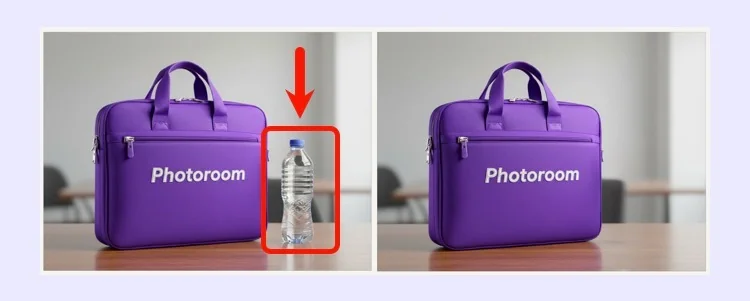
What it actually does. Photoroom's remover carries the name Retouch, and it comes in two modes, Erase and Add. Erase paints over the object then redraws the background; Add takes a prompt and puts something there instead, although Add is iOS and Android only. The docs say plainly that Retouch is a free utility needing no AI credits, and it sits in the Core tools block, which carries no credit cost on the paid plans.
Pricing. Free first, then Pro $12.99/mo or $7.50 annual, Max $34.99 or $20.99, Ultra $99 or $82.50, with Enterprise custom. The ladder changed, so note it: no Teams or Business tier any more, and collaboration runs through Spaces now. Monthly exports go 100 on Free, 1,000 on Pro, 3,000 on Max, 10,000 on Ultra. The API is a separate thing at $20 per 1,000 images on Basic, so $0.02 each, and $100 per 1,000 on Plus. Full numbers in my Photoroom pricing breakdown.
Where it bites. Three things, and one of them is a real dealbreaker for developers. The Photoroom API has no object-removal endpoint at all. The published AI feature list covers background removal, shadows, backgrounds, relighting, text removal, expand, beautifier, uncrop, upscale and a few more besides, with nothing at all for cleanup, retouch or inpainting. Nearest priced equivalent is AI Text Removal on the $0.10 Plus plan.
Second thing, the export caps. Free on mobile is 750 x 550, Free on web is 2000 x 2000, Pro and Max reach up to 4032 x 4032 but they drop to 2000 x 2000 in Batch Mode, and 4K stays Ultra-only. Third, Free forbids commercial use outright, and this is the one catching resellers out.
Photoroom documents its own failure mode honestly too, which I respect: an object can look erased, then partially reappear across the layers.
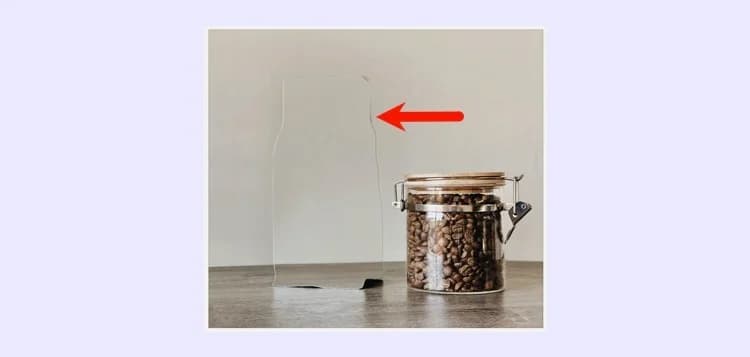
Users also report the metering feeling tighter than what the docs describe:
"Now I am only able to use the retouch tool for 3 items before it reaches 99.9% usage rate, and I have to wait for an entire month for the usage rate to refresh. Mine you the export limit is 250 and I can only use 3/250 of that limit."
Worth to flag that Photoroom's published docs do not explain a 3-of-250 rate anywhere, so read that one as a user's experience and not a documented policy. On the reviews, Photoroom sits at 4.3 on G2 and 4.6 on Capterra, where the recurring criticism is edge accuracy on hair and on sheer fabric. My Photoroom reviews post has more.
Verdict: the strongest editor here for product shots, backed with $64M in funding and customers like Mercari and Depop. Choose it for catalogue work inside the app. Do not choose it if the plan was to call removal from code, since that endpoint does not exist.
5. Cleanup.pictures
Best for: clearing a hard resolution cap for the price of one coffee, if a single thing is all you ever need.
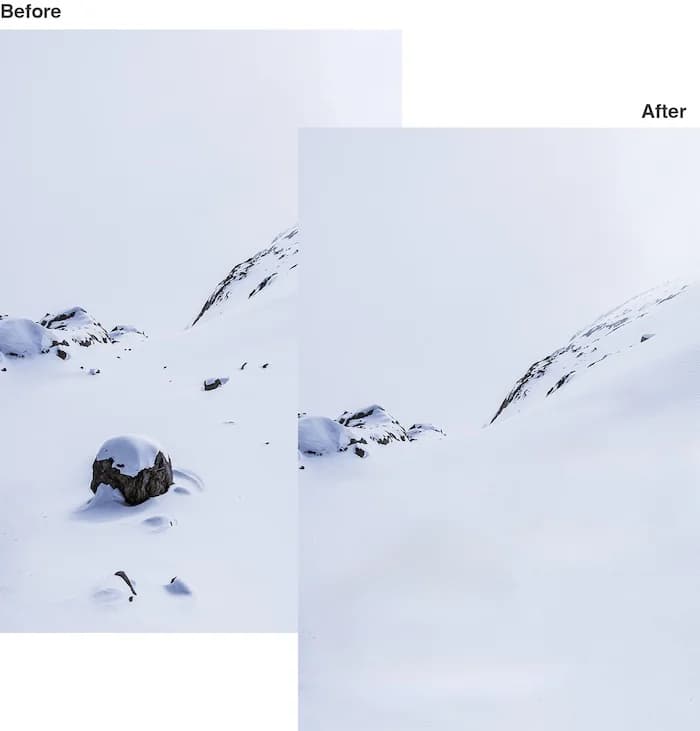
What it actually does. One screen and one job. Drop an image in, brush over whatever you want gone, and the model reconstructs behind it. LaMa is the underlying model, and the vendor is explicit that this is generative inpainting and not clone-stamping: it guesses what sat behind the object instead of needing a background reference. Their own usage tip is good advice for every tool on this list, which is to use a bigger brush and cover more than the object itself, its shadow especially.
Pricing. Free gives unlimited images. Pro is $5/mo or $36/yr, and unlike the cheaper Pixlr Plus tier what it buys is exactly one capability, not a credit allowance. The same tool ships as one of ClipDrop's surfaces as well, where metering is per-day instead: 20 cleanups per 24 hours on Free, 1,000 on Pro, and ClipDrop Pro is $15/mo.
Where it bites. The whole story is the free tier's constraint: free exports are hard-capped at 720 px. Import stays unrestricted, so you can work happily on a full-resolution image and discover the downscale only at download. Pro lifts the cap, and it also unlocks the "high quality refiner", which the API docs reveal to be the quality mode against a default fast one. Free users therefore get the smaller file and the lower-fidelity pass.
An ownership wrinkle sits on top of that. ClipDrop is part of Jasper now, and both product pages say so. The Cleanup API still works at POST clipdrop-api.co/cleanup/v1, still gives 100 free credits, still costs 1 credit for each successful call, and it still rate-limits at 60 requests a minute. But /apis/pricing redirects to a Jasper contact form these days, and there is no published per-credit price anywhere. Anything past those free 100 becomes a sales conversation. If Jasper has come into the picture for you anyway, my Jasper AI pricing notes are relevant.
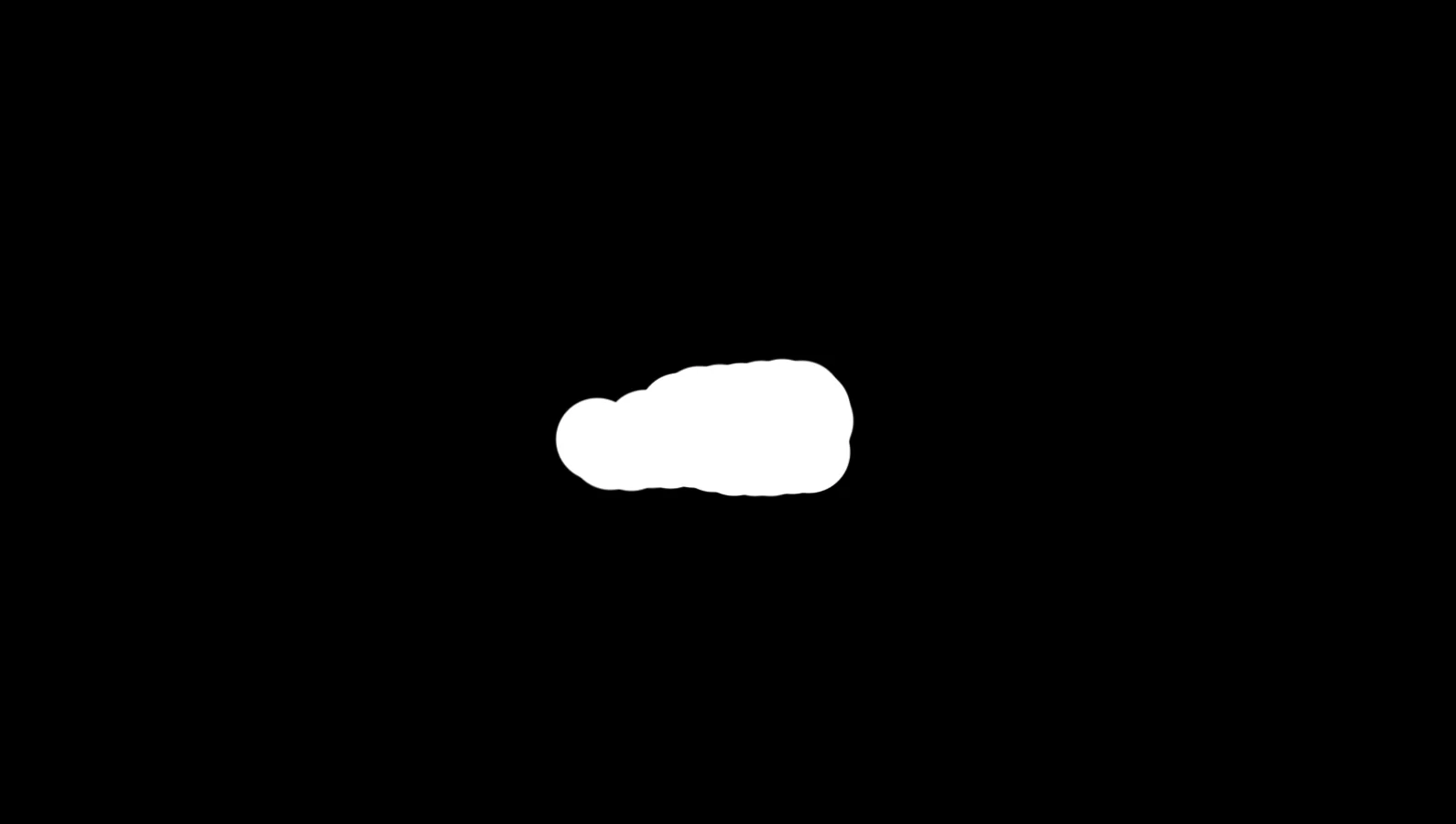
One more integration cost to name: the API takes a mask that you supply, with no prompt path and no auto-detect either. Which means your own segmentation step has to exist before you can call it.
Verdict: the best value when a 720 px ceiling is the only thing standing between you and done, since $5 clears it. Skip it if a documented API price you can budget against is what you need.
6. Picsart
Best for: bulk removal, plus the cheapest per-image API call in this roundup.

What it actually does. Removal is mask-based, with two assists sitting on top: a Detect Text pass which finds text elements for one-click removal, and an object-aware AI selection. Prompt-driven replacement is its own separate tool called AI Replace, and for cost that distinction matters. In Picsart's plan table object removal sits inside the non-metered "AI tools" bucket, while AI Replace sits in the metered Generative AI bucket at 500 results on Pro.
Pricing. That old Gold, Pro and Business lineup is gone. Today what you get is Pro at $15/mo, or $126/yr, with 250 credits, and Ultra as a credit-tiered per-seat plan: 1,500 credits for $47/mo, 2,500 for $75/mo, 5,000 for $145, 10,000 for $250. Two other Picsart pages quote different credit figures, so the live checkout numbers are the ones to trust.
The API is the interesting part here. /painting/inpaint costs 2 credits per image, landing between $0.009 and $0.015 per removal depending on the pack you hold, against /removebg at 5 credits and /upscale/ultra at 12. No endpoint is literally called remove-object; the primitive is inpainting. New accounts get 200 free credits to start.
Where it bites. For the removal tool no resolution or file-size cap is published anywhere, which is not the same thing as there being none. Batch is a general Batch Editor and not a removal feature, capped at 50 images on Pro and 100 on Ultra. Even on a paid plan the pricing page notes your full credit balance unlocks only after the trial. G2 puts Picsart at 4.5 from 788 reviews, and the top tagged cons there are "Expensive" (79 mentions) and "Limited Free Features" (54).
Verdict: the pick for when you have a hundred images and a script. It is also the only tool on this page publishing a batch number and a per-call price together, so it is the easiest one to budget. Skip it if a documented resolution guarantee is what you need.
7. Pixlr
Best for: free removal on the web, two selection modes, and no signup wall in the way.
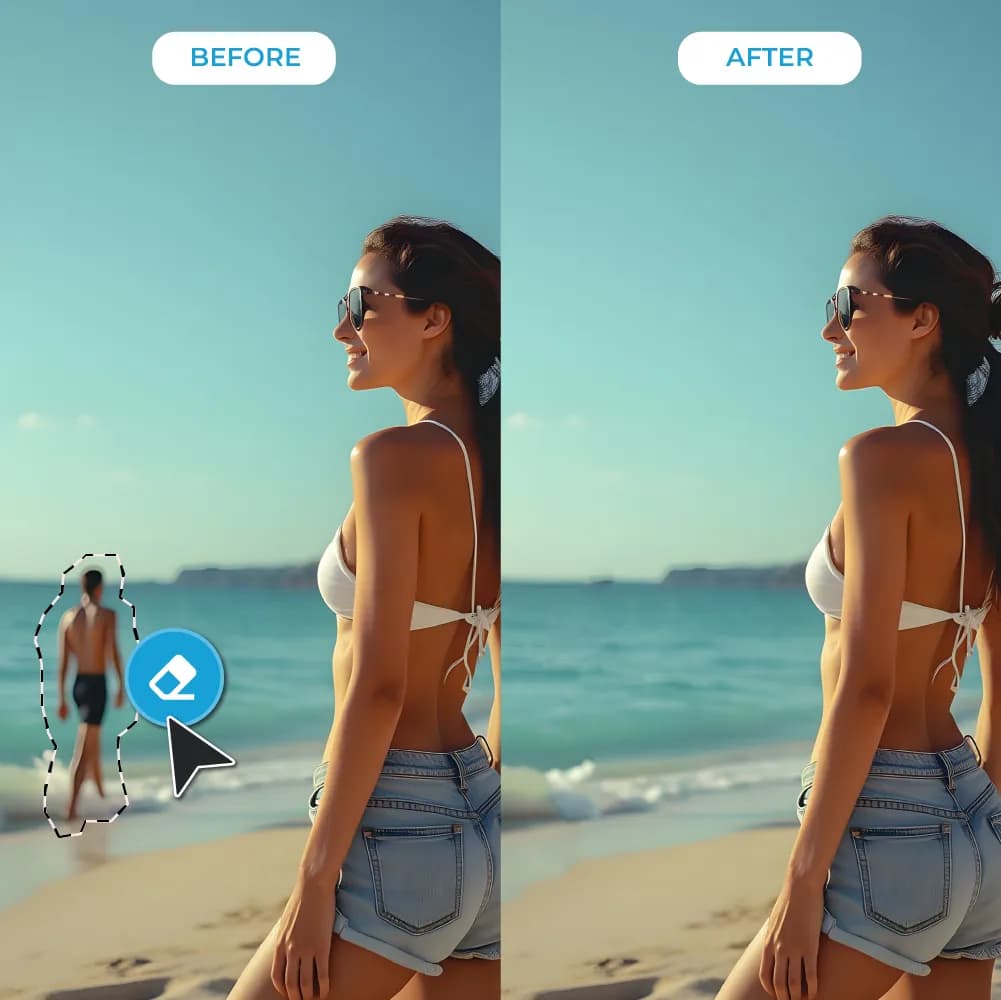
What it actually does. Pixlr splits removal over a Remove Object Tool, an Image Eraser and a Heal Tool, all of them reachable from AI Tools inside Pixlr Express. The differentiator is the two modes: Spot for small touch-ups, Object for the larger areas, and the interaction is outline-drawing rather than pure freehand painting. Replacement after the removal is a separate Generative Fill step. Inputs are JPG, PNG, BMP, WebP and TIFF; on the output side it is JPG, PNG, PDF and WebP with a quality slider.
Pricing. The cheapest paid ladder anywhere on this page: Plus $2.49/mo or $1.99 annual with 80 credits, Premium $9.99 or $7.99 with 1,000, Ultra from $24.99 or $19.99 with 5,000, and Ultra MAX $49.99 or $39.99 with 10,000. Concurrency scales along with it, from 1 generation on Plus up to 4 on Premium.
Where it bites. The gating fact is a platform split which Pixlr states outright: on web the eraser is free, but the mobile app charges one AI credit per generation. At that rate your plan converts straight across into removals: 80 a month on Plus, 1,000 on Premium, 5,000 on Ultra. High-resolution export is a separate Ultra-tier gate, labelled "extended high-res exports", and no pixel figure for it is published anywhere. There is no API either: pixlr.com/developer/api/ 404s, and developer.pixlr.com does not resolve. The free tier is ad-supported and save-limited, which G2 reviewers confirm independently, and Pixlr sits at 4.4 from 750 reviews there and 4.4 from 119 on Capterra.
Verdict: the best free-on-web option, and the one I would hand to a non-technical colleague. Skip it when your work is mobile-first, since every tap there costs a credit, or when an API was the thing you needed.
8. Freepik, now Magnific
Best for: the most flexible selection in this roundup, if per-action credits are something you can live with.
What it actually does. The name first. Freepik is now Magnific, rebranded on 28 April 2026, and every Freepik AI URL redirects over there. So a guide that still says "Freepik's object remover" is one that predates it.
Then the tools. Two of them, and the docs are unusually clear on which is which: Retouch replaces what you select with something new, while Eraser removes it and fills in naturally. To erase you mask the area and hit Generate with no prompt at all. Masking arrives in three flavours, click for rectangles, lasso for the irregular shapes, brush for fine detail, and combining them inside one session is allowed. Sitting on top of that there is a prompt mode plus a visual mode where you draw arrows and annotations directly onto the image. Nothing else here gives you brush, prompt and draw-on-image in the same workspace. The docs list the watermark as None too, with no tier qualifier on it.
Pricing. Premium $20/mo or $14.50 annual, Premium+ $45 or $33.75, Pro $280 or $210, and Business $55 per seat annual. Credits here are annual pools instead of monthly resets: 240,000 a year on Premium, 600,000 on Premium+, 4 million on Pro. Free carries no credit balance at all, only a cap of 20 AI images a day. Details are in my Freepik AI pricing post.
Where it bites. The strictest metering on this page is here. Editing tools, Eraser included, cost 25 to 200 credits per action, scaling up with image resolution. The unlimited tiers do not rescue you either, because the docs say every editing tool still consumes credits even on the plans sold as unlimited. On the API side it gets worse: unlimited allowances cover the web app only, and API calls always run on the credit model. Freepik's own marketing FAQ promises "a monthly allowance of free edits" while the credit docs say advanced editing is not available on Free, so the docs are what to cite. G2 has it at 4.7 from 176 reviews; more of that in my Freepik AI reviews writeup.
Verdict: pick it for when the selection is hard and the object is an awkward one, because three mask types plus annotation beats a single brush. Skip it if erasing is something you do constantly, since 25 to 200 credits per action adds up fast. Freepik AI alternatives covers the wider platform question.
9. Krea AI
Best for: trying one removal right now, with no account.


What it actually does. Krea ships a dedicated AI Object Remover page: upload, brush over your target, click Generate. Krea says it works with no login until the daily cap catches you, and the input list is broad, PNG, JPG, WEBP, HEIC, HEIF and AVIF among them. It is honest about the condition for good results as well, which is that the object has to be clearly defined and the background needs enough visible texture to recreate.
Worth knowing that inside the actual Edit workspace Krea's docs list no Erase mode at all. The documented options are Change Region, Annotate, Crop or Expand, Image Adjustments and a few others, so removal runs there as masked inpainting under Change Region. That dedicated page is a simplified front door onto the same editor.
Pricing. Free at $0 with 100 compute units a day, then Basic $9, Pro $35, Max $70 and Business $200/mo, Enterprise unpublished. For this job the number that matters is the Edit meter: 33 images a day on Free, 1,666 on Basic, 6,666 on Pro. Krea's Enhancer is stingier on Free at 4 a day, and free upscaling caps out at 2K against 22K on the paid side.
Where it bites. The Free plan carries no commercial licence, which Krea lists for Basic and up only, so that no-account convenience is for personal work. Top-up packs expire in 90 days, and their prices are login-gated. The API is pay-as-you-go from $0.015 an image for generation, but no object-removal endpoint price is published, so treat the scripted removal as unavailable. Krea's own pages disagree with each other in two places too, listing Max at 40,000 units and also at 60,000, and citing "40M subscribers" alongside "30 million creators". Community signal is thin: G2 has 3 reviews.
Verdict: the fastest way to sanity-check whether AI removal even works on your specific image, since it costs nothing and asks for nothing. Then move to something else the moment the work turns commercial or scripted.
10. Apple Clean Up
Best for: free removal on the hardware you already own, and no meter of any kind.
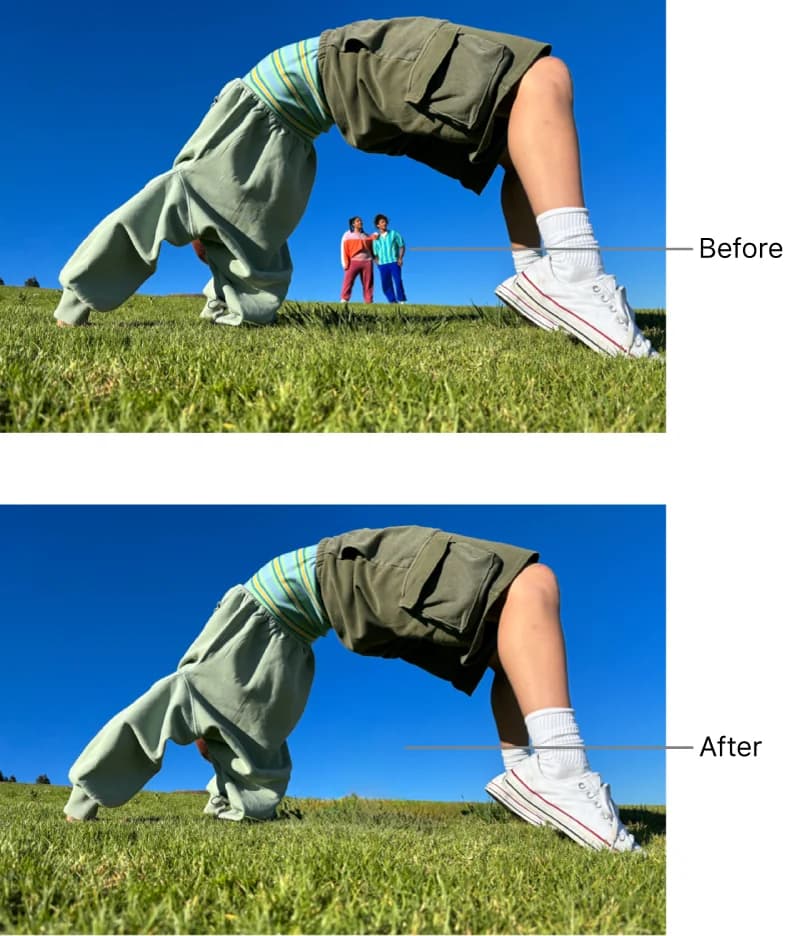
What it actually does. Clean Up lives inside the Photos app, under Edit. Apple pre-highlights the candidate distractions, and you can tap, brush or circle your target, which for irregular shapes is a nicer interaction than a plain brush. It comes free with the OS: Apple Intelligence shipped as a software update, so no subscription, no credit pack, no paid tier. Apple publishes no resolution cap, no per-image quota, no watermark, and Clean Up edits are non-destructive Photos adjustments that you can revert.
Apple frames the scope narrowly on purpose, as a background-distraction remover and not a general retouch tool. The framing is the design here, not an oversight, and it explains most of what comes next.
Pricing. Free. The hardware is the cost: iPhone 16 models, iPhone 15 Pro or 15 Pro Max, an iPad with A17 Pro or M1 and later, or else a Mac with M1 or later, on iOS 18.1 or macOS Sequoia 15.1. Intel Macs are excluded entirely, and Clean Up does not work on devices bought in China mainland.
Where it bites. The safety filter. Apple's own guides note that brushing over a person's face may leave it "blurred with a pixelated effect", and no toggle exists for that. That one behaviour drives most of the criticism:
"'It just works' certainly does not apply. No ability to choose between a clone tool or eraser. No ability to choose between the 'safety filter' or the other tools. It's a completely random crapshoot with no guarantee that your photo will be 'cleaned up' in any meaningful way."
The fairest read of it is the one praising and criticising in the same breath:
"I've actually found it generally really good, and it has helped for my use cases (removing that unwanted fire exit sign from a photo before I edit it, for example) However, I 100% agree that you should have more control over what 'mode' it goes into... Sometimes it just assumes I want to pixel blur things and there's no way to tell it not to do that."
And a 768-point r/apple thread arguing that Clean Up beats Adobe contained this dissent, which maps out the real envelope precisely:
"Cleanup works great if the stuff you want to remove is clearly far away from other object. Otherwise the result is quite bad"
One thing I would not claim on Apple's behalf is that Clean Up runs entirely on device. Apple publishes the mechanism, which analyses whether a request can run locally and otherwise routes it to Private Cloud Compute, but there is no per-feature routing table. If this matters for you, Settings then Privacy and Security then Apple Intelligence Report exports a log of the Private Cloud Compute requests, which you can go check yourself.
Verdict: unbeatable value for the isolated background objects on supported hardware, and that audit trail is a real differentiator nobody else here offers. Skip it for anything near a face, and skip it completely on an older iPhone or on an Intel Mac.
The four ways one click gets billed
Read the summary table over again with this frame and the pricing stops being confusing. Only four models exist here, and the bucket a tool sits in matters more than its sticker price does.
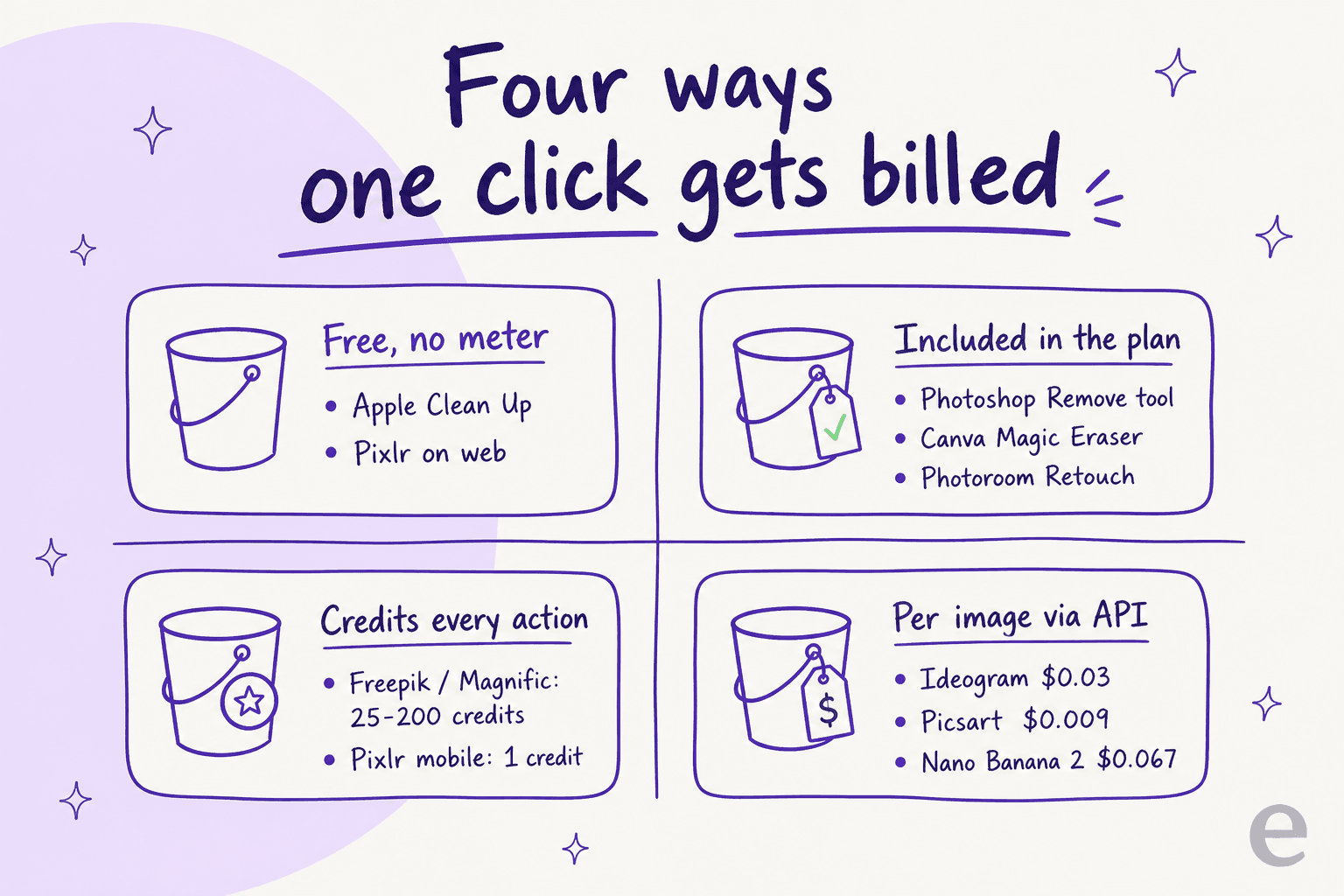
The counterintuitive part: the priciest subscription on this page bundles removal for free, while a cheaper one bills every single erase. Adobe wants $19.99 to $69.99 a month and then does not meter the Remove tool at all. Freepik's $14.50 Premium meters every erase at 25 to 200 credits. Canva and Photoroom sit on Adobe's side of that, excluding removal from their AI allowances entirely.
If erasing at volume is your situation, that bucket is the only number worth optimising for. Run the arithmetic before subscribing: Freepik Premium's 240,000 annual credits divide into roughly 1,200 to 9,600 erases depending on the resolution, which sounds generous right up until you are three passes deep on every image.
The QA step nobody builds, and should
Every vendor on this page admits the same thing, that removal is not a bounded local edit. Ideogram's FAQ says it may update pixels outside your mask to handle shadows and reflections. Google's Imagen docs say off-mask pixels are not guaranteed identical, and they recommend blending the output back against the input using your mask, "typically required if the input image resolution is 2K or higher". Photoroom documents partial erasures, and ghosting across the layers.
So for anything going out as brand or catalogue imagery, diff the before and the after instead of eyeballing a preview. In my own workflow that means a pixel-difference pass which flags changed regions outside the mask, and it catches exactly the class of error that the cafe facade in the Ideogram example shows: the removal worked, and something else moved.
The second habit worth building up is a bigger brush. Cleanup.pictures, Krea and Adobe each give the same advice independently, which is to cover more than the object and to include its shadow. One Photoshop user put the diagnosis better than any doc did:
"When I have this issue, 9 times out of 10 is because I failed to select either a part of the object, or the shadow of the object. If Adobe's AI 'sees' a shadow there, it tries to replace it with some other thing that casts a similar shadow."
What I would actually do
Three scenarios, and three answers.
You are a designer or photographer. Photography plan at $19.99/mo. Remove tool with generative AI off for the clean background fills, on for when you want content invented, and your original resolution stays. Nothing else on this page hands the original file back to you from the app.
You are running a store. Photoroom Pro at $7.50 annual for the editor, then Picsart's inpaint endpoint at roughly $0.009 an image once you outgrow the clicking. Skip Photoroom's API for removal, since that endpoint does not exist there, and keep in mind that Batch Mode halves your export ceiling.
You are building removal into a product. Nano Banana 2 Lite at $0.0336 when a prompt is enough, or Ideogram's remove-object at $0.03 when a real mask is what you want. Read the mask polarity twice over: remove-object treats white as the region to remove, while Ideogram's own inpaint endpoint treats black as the region to edit. Same vendor, an inverted convention, and porting between the two without flipping erases the wrong half of your frame.
For the wider generation question instead of the editing one, my roundups of Ideogram alternatives and Midjourney alternatives cover the models rather than the erasers, with Midjourney pricing sitting on the cost side.
If your work leans more illustration than photography, Recraft AI and Leonardo AI are both worth the look.
My Flux 3 review covers the open-weights end of that same question. On the API side the other obvious stop is OpenAI's image generation.
Try eesel for the images and the post around them
Every tool on this page solves the one step: the object is gone. After that you still need the caption, the alt text, the article around it, and forty more images that look like they came out of the same studio.
That part is what eesel does. The eesel blog writer researches a topic off primary sources, generates the illustrations and infographics in one consistent house style, writes the alt text and the captions, and builds the internal link graph, so a post arrives with its visuals placed already instead of as a text file waiting on a designer. This post is the demo: the four charts above came through that pipeline, and the vendor screenshots were pulled and rehosted by it.

If images are the specific thing you are missing, start on the AI blog writer with images page, or the AI article writer with images angle when you publish long-form. If keeping forty posts sounding like one person is the harder problem for you, brand voice training is the place to look.
For the budgeting, AI blog writer cost has real numbers, and my AI blog writer review compares eesel honestly against the field.
If ranking is the only metric you care for, go straight over to the SEO blog writer angle. Try eesel free, and see whether the images come back at the size you asked for.
Frequently Asked Questions
Does Ideogram have an object remover?
POST /v1/remove-object, at $0.03 per 1K image and $0.06 at 2K. Inside the main editor the removal path is still Magic Fill, which needs a written prompt. For the wider picture on the platform, see my Ideogram review.What is the best free Ideogram object remover alternative?
How much does AI object removal cost per image?
remove-object is $0.03, Nano Banana 2 Lite is $0.0336 and Nano Banana Pro is $0.134. Freepik, now Magnific, charges 25 to 200 credits per edit even on plans sold as unlimited.