

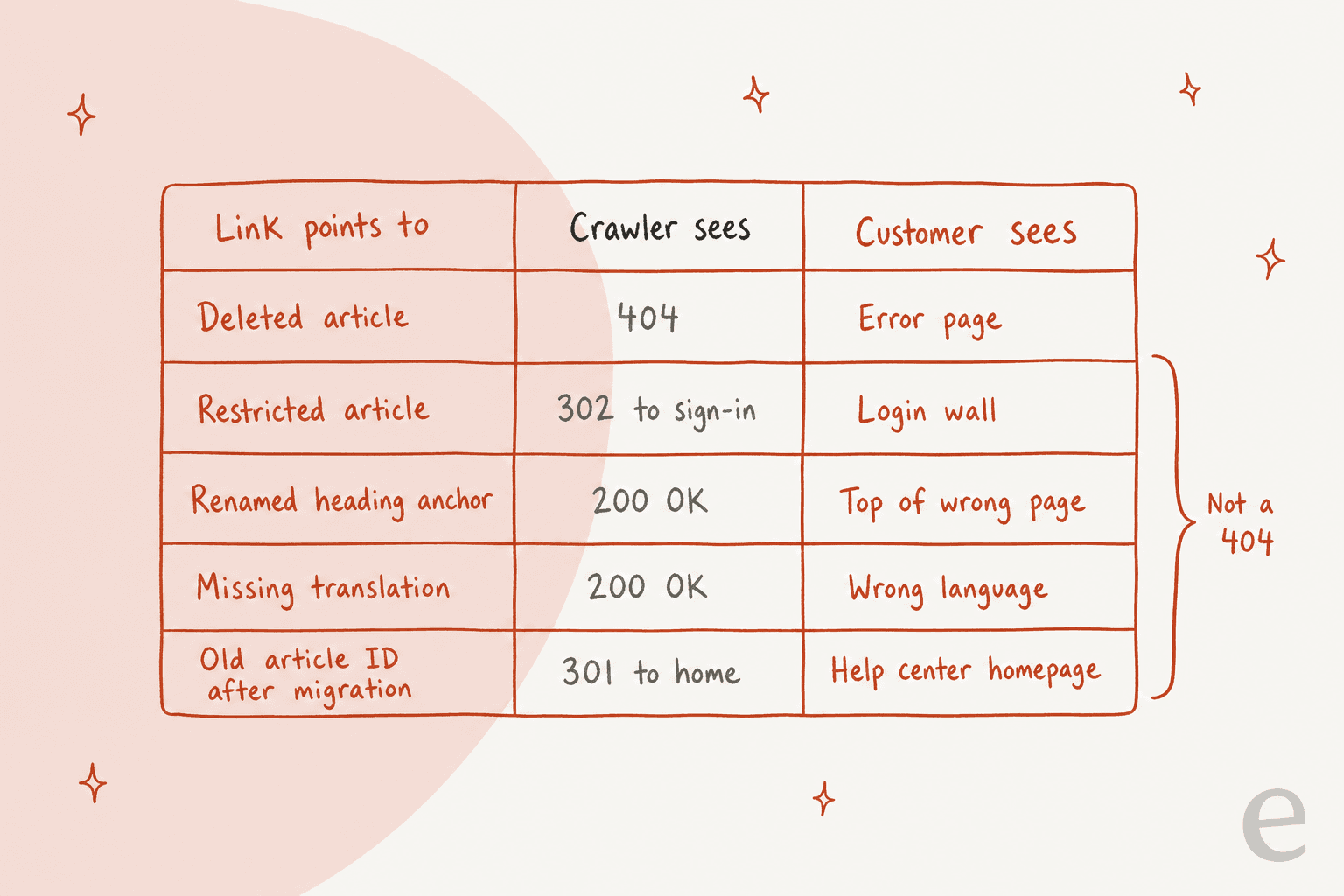
A help center broken link check has to run twice, once signed out and once signed in, because most of the ways a help article link breaks never return a 404. Restricted articles bounce customers to a login wall, renamed headings break anchors on pages that still load, and migrated article IDs redirect to the homepage. Fix links inside the source article first, keep 301 redirects for URLs you can't edit, and re-check weekly. If an AI agent answers from your help center, every dead link becomes something it can send to a customer, so the check now protects your replies as well as your pages.
I've spent two years on SEO, and help centers are where I see the most link rot per page. A marketing site gets rebuilt once every few years; a help center gets edited every week by whoever closed the last ticket. This guide covers why help center links break, what each major helpdesk does (and doesn't) check for you, a repeatable workflow, and what changes once an AI agent reads your articles. If you run eesel on top of the help center, the eesel CLI lets a coding agent upload your cleaned, exported articles and ask the agent test questions to check its answers no longer point at dead pages, before anything goes to customers.
Why do help center links break faster than website links?
Help center links break faster because the content changes every week and the platform hides the failures from a normal crawler. A marketing site has a small set of pages owned by one team. A help center has hundreds of articles written by support agents, product managers and whoever had a spare hour, each linking to five other articles, a settings screen in your product, and a few third-party pages.
These are the causes I run into most, roughly in order of how often:
- Helpdesk migrations. Every helpdesk uses its own article IDs and URL patterns. Move from one to another and every link to
/hc/en-us/articles/360012345dies at once, including the ones in emails, app store listings and forum posts you can't edit. Planning a move off Zendesk? Map old IDs before you switch. - Deleted, archived and draft articles. Someone merges two articles, archives the old one, and every link pointing at it now lands on an error page.
- Restricted articles. An article limited to signed-in users or an agent-only user segment loads fine for your team. A customer clicking the same link gets a sign-in page.
- Renamed headings. Links to
#step-3-connect-your-storebreak the moment someone renames that heading. The page still loads, so nothing looks wrong. - Missing translations. A link in the German article points at an English-only page, or a locale that was never published. If you run a multi-language help center, this one multiplies by every language.
- Product UI renames. "Go to Settings > Billing" links break when the product team moves Billing under Account. These are links into your app, not your help center, and no help center checker sees them.
- URL and domain changes. Freshdesk's own docs warn that changing your primary portal URL makes knowledge base article links shared with customers break, and that you have to give users the updated URLs.
These slip past a normal audit, because a standard SEO crawler run signed out reports most of them as fine. Google even has a name for one of them. A soft 404 is a page that tells the user it doesn't exist while returning a 200 success code, which is what a help center "this article is no longer available" template does.
Where do broken help center links hide?
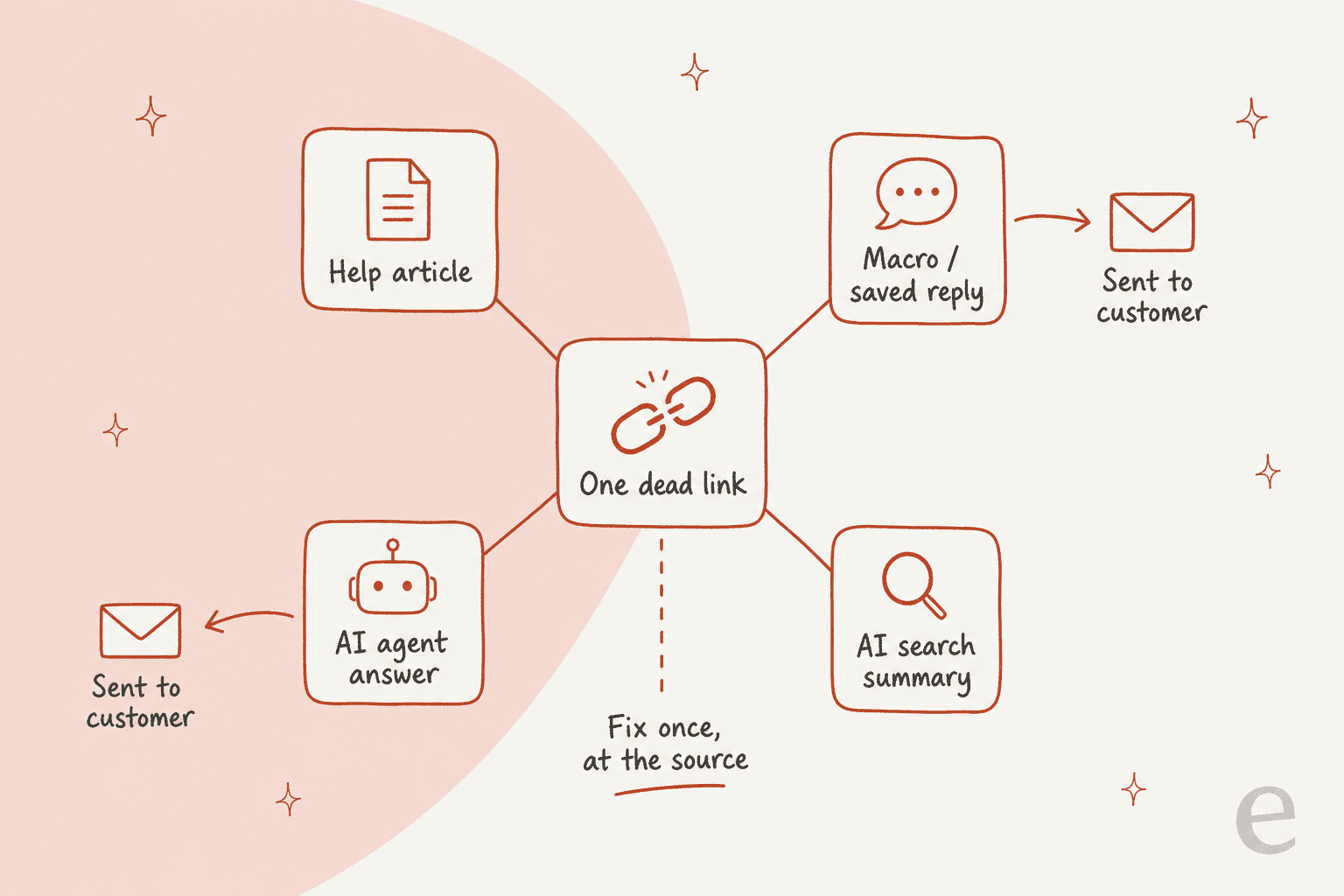
Broken help center links hide in four places, and the article body is only the first one. When I audit a help center, the links customers actually hit come from:
- Article bodies. The obvious one. Internal links between articles, links to your product, links to vendor docs.
- Macros, saved replies and canned responses. An agent pastes a macro with a link to the old refund article 40 times a week. Nobody checks macros for links because they aren't pages.
- Chatbot and AI agent answers. Anything trained on your articles and macros repeats their links. More on this below.
- Places outside the help center. Onboarding emails, in-app tooltips, app marketplace listings and community posts that point into the help center. You can't edit most of them, which is the only good reason to add a redirect.
On one sales call, a DTC supplements brand on Gorgias handling about 7,000 tickets a month told eesel's sales team much of its knowledge sat in outdated macros, with the rest scattered across SOP tools and untranscribed video. That's the normal state of things, and it means a link check that only crawls the public help center misses the links agents send most often. If you lean on AI macros or canned responses, add them to the inventory.
Does your help center tool check links for you?
Only one of the five tools I checked has a native, scheduled broken link report: Document360. The others give you redirect tools, and Zendesk users rely on Marketplace apps. Everything below comes from each vendor's own docs.
| Tool | Native broken link check | Redirects for moved articles | What to watch |
|---|---|---|---|
| Zendesk | No native report in Zendesk's docs; free and paid Marketplace apps | Theme JavaScript, or 301s through the redirect rules API | Restricted articles send signed-out users to sign-in |
| Document360 | Yes, Link status: every 7 days, manual, or per article | Redirect rules plus a Page not found report | Plan limits on links validated and manual runs |
| HubSpot | SEO tool flags broken links on pages it scans (paid Marketing or Content Hub) | Automatic redirect when an article slug changes | Changing the root URL or domain doesn't create redirects |
| Help Scout Docs | None found in Help Scout's docs | Redirects in Docs settings and the Docs API | Old-helpdesk redirects need the same custom domain |
| Freshdesk | None found in Freshdesk's docs | Not covered in the docs I checked | Changing the portal URL breaks shared article links |
Zendesk
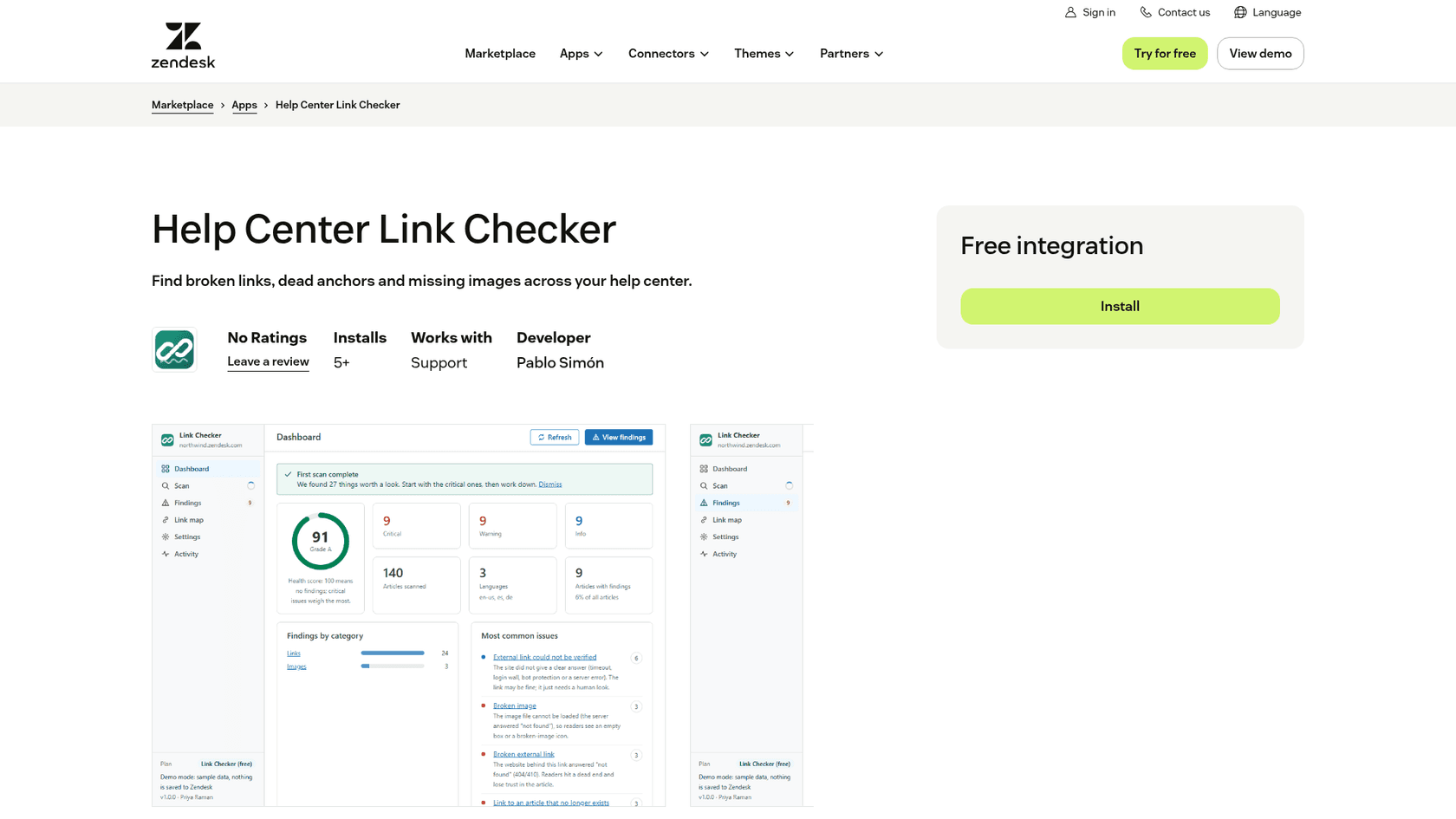
Zendesk doesn't document a built-in broken link report for help center articles, so Zendesk teams lean on the Marketplace. Zendesk's own release notes from September 2026 list a free app called Help Center Link Checker that scans every article and language for missing, archived, draft, restricted or outdated internal links, broken anchors, old-domain links and HTTP links. It also builds a link map of which articles reference a given article, and repeat scans only recheck changed content. The same notes list Help Center Doctor (paid), and the December 2025 notes list Help Center Health Check from Lotus Themes (paid).
For moved or deleted articles, Zendesk's redirect guidance gives two routes. JavaScript redirects in the theme's script.js work for internal navigation and short-term fixes, but Zendesk warns they can affect Google rankings and aren't suited to long-term or large-scale use. For anything with search traffic, it points you to the redirect rules API, which creates proper HTTP 301s. I've written up the article move steps separately.
Document360
Document360 is the strongest native option. Its Link status report validates internal, external and media links and labels each one Working, Broken, Redirect URL or Unknown. "Broken" explicitly includes links to restricted articles, which is the case most crawlers miss. Scheduled validation runs every 7 days, manual validation runs on demand within a monthly limit set by your plan, and article-level validation is unlimited.
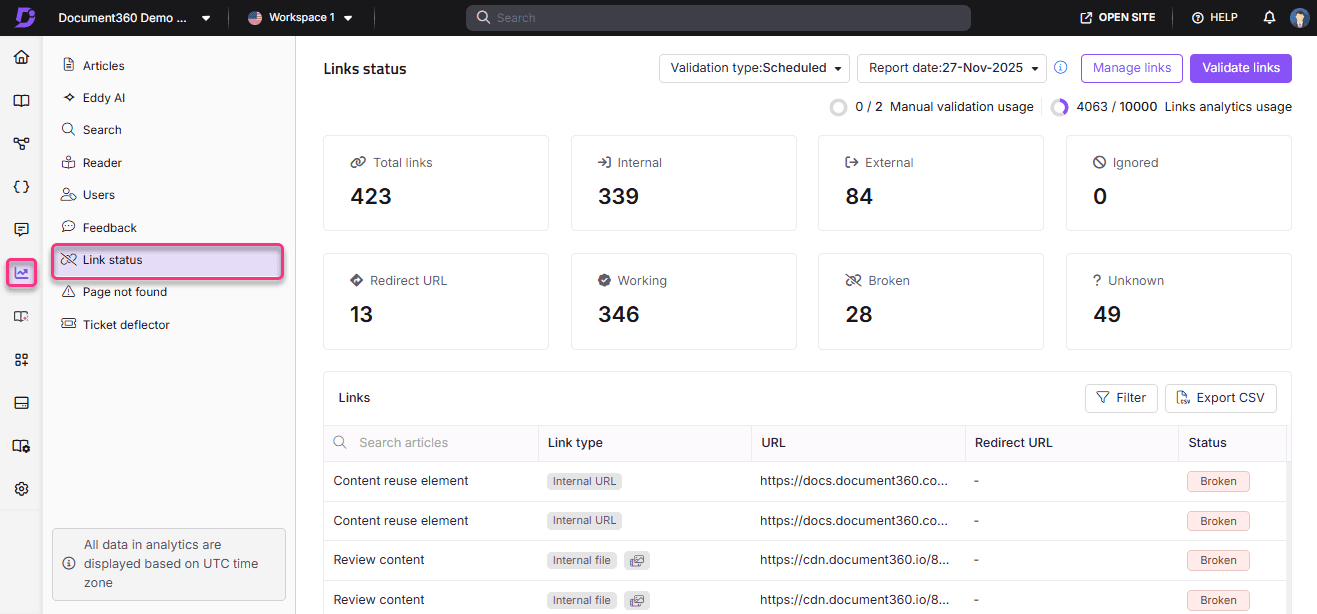
Two details are worth knowing before you trust the number. Scheduled and manual checks look at the published version of each article, while article-level checks look at the current draft. And there's a link analytics limit per plan: in Document360's example, a project with 10,500 links on a 10,000-link limit only gets the first 10,000 validated. Pair it with the Page not found report to catch URLs readers actually requested. If you're weighing the platform, see my Document360 alternatives roundup.
HubSpot
HubSpot handles slug changes well. Its docs on changing content URLs say editing a knowledge base article's URL automatically creates a redirect from the old URL to the new one. The gap: changing the knowledge base root URL or domain does not create redirects for existing article URLs, so you configure those yourself.
For finding broken links, HubSpot's SEO recommendations flag them on the pages the tool scans, and the SEO tool needs Marketing Hub or Content Hub Professional or Enterprise. HubSpot's docs describe scanning website pages and blog posts; I couldn't find knowledge base articles named in that scope, so test it on your own articles before relying on it. More on the HubSpot knowledge base here.
Help Scout Docs
Help Scout's docs don't describe a broken link checker for Docs, but the Docs redirects feature is clean. Admins add an Original URL and a Redirects To URL under Settings > Docs Sites > Redirects. Help Scout calls out the migration case directly: redirects from your previous help desk only work if your Docs site uses the same custom domain through a CNAME.
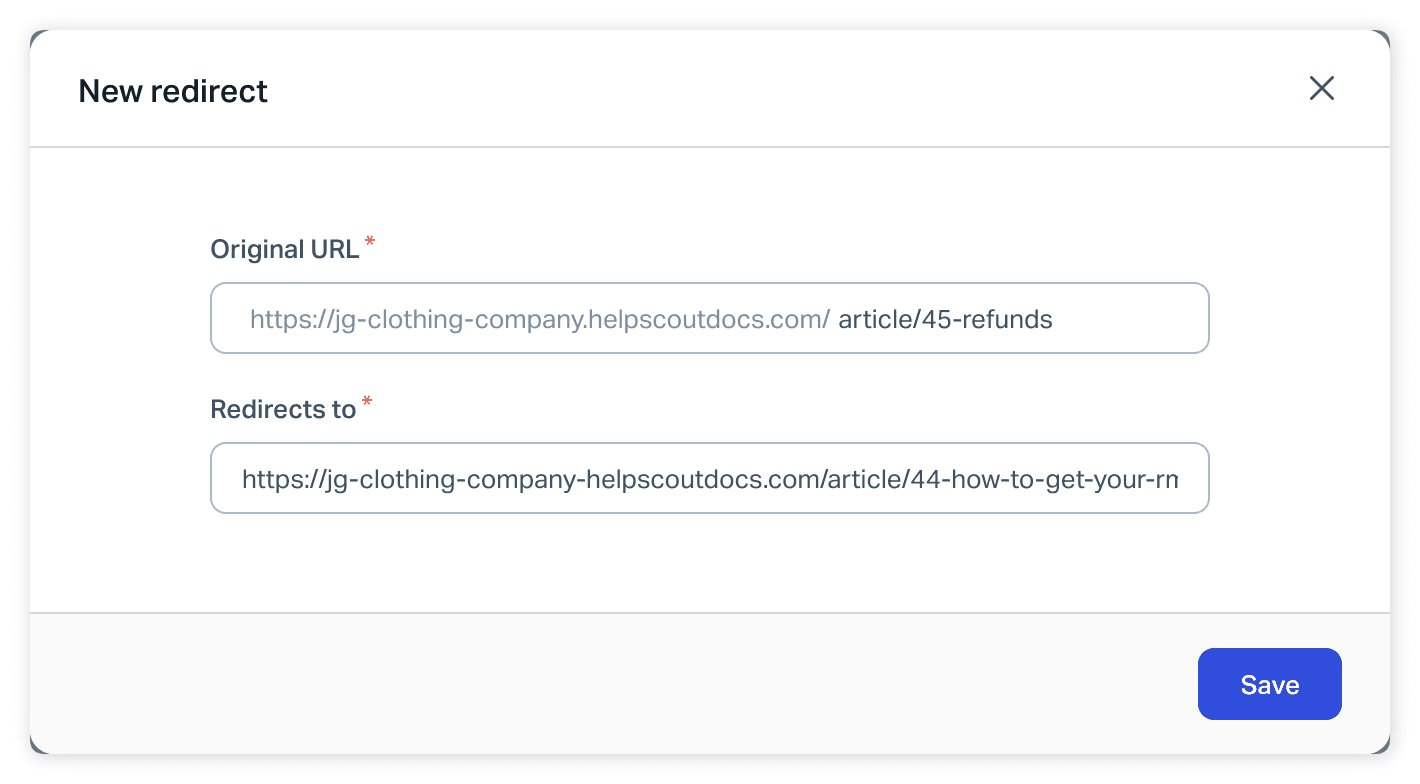
One thing to watch: Help Scout's Redirects API docs note that it's possible to create a chain of redirects, where one URL redirects to another that itself redirects. Chains slow pages down and are easy to create by accident during a Zendesk to Help Scout move.
Freshdesk
I couldn't find a native broken link checker or article redirect feature in Freshdesk's docs. The link risk Freshdesk documents is the portal URL change mentioned above. Freshdesk's Freddy AI Agent does have an Improve tab that flags gaps and outdated solution articles from real conversations, which helps with stale content but isn't a link check. Freshdesk teams usually run an external crawler.
How do you run a broken link check on a help center?
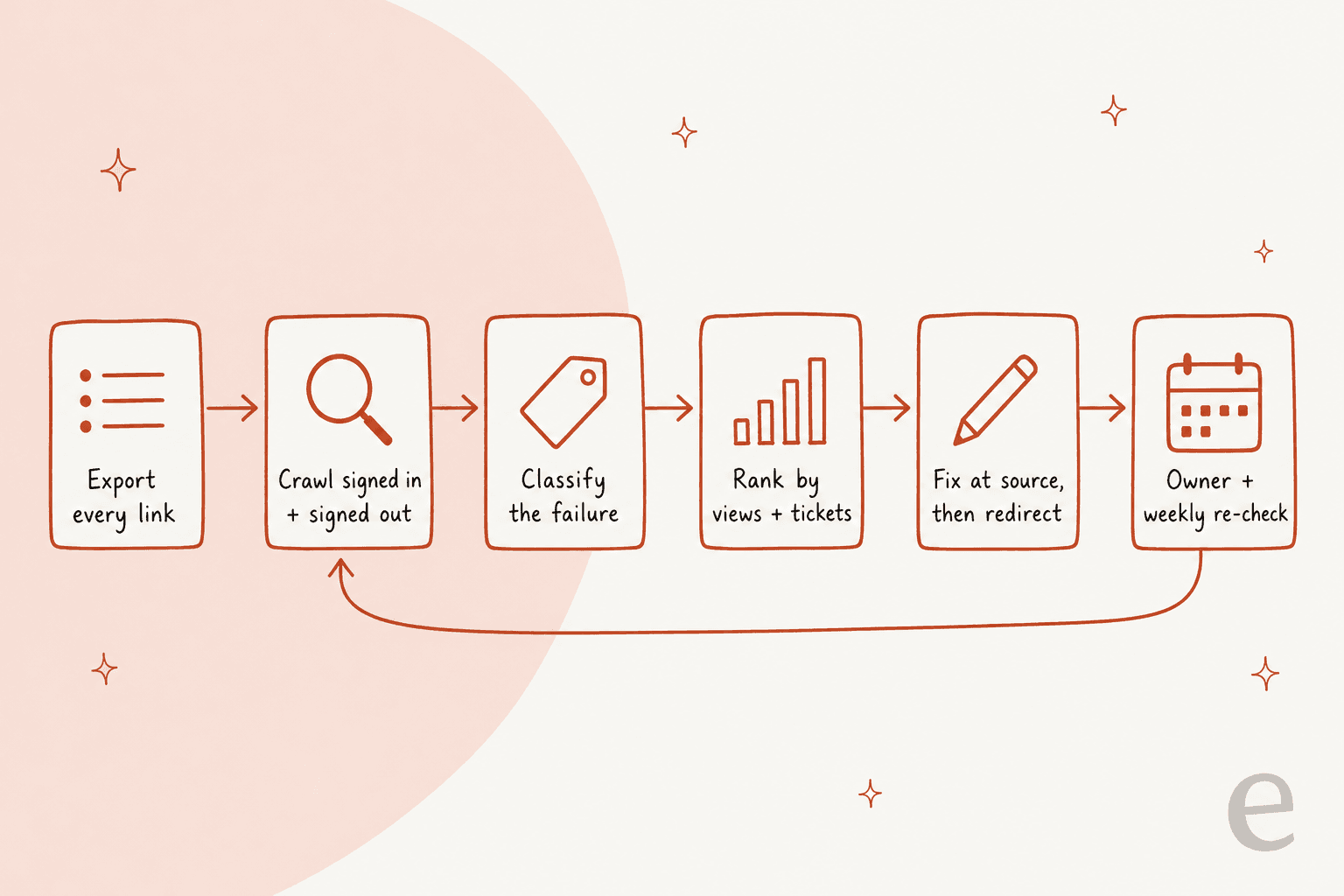
You run a help center broken link check in six steps: inventory, crawl twice, classify, prioritize, fix, and schedule. Whatever tool you use, the steps are the same. A desktop crawler like Screaming Frog works for most teams (the free version crawls 500 URLs), and Document360 users can lean on Link status for much of it.
1. Export every link
Start with a list of every article and every link in it, not a crawl. A crawl only finds what's linked from somewhere; an export finds orphaned articles too. Zendesk teams can pull articles through the articles list API or a help center export, and Freshdesk has a knowledge base API. Add macros and saved replies to the same sheet. For each link, record the source article, the anchor text, the destination, and whether it's internal, product, or external.
2. Crawl signed out, then signed in
Run the crawl twice. The signed-out pass is what customers and search engines see. The signed-in pass, using a test end-user account, shows you what a logged-in customer sees. Screaming Frog supports forms-based authentication for this. Any article that works signed in but redirects to sign-in when signed out is a restricted article, and every public link to it is a problem.
Don't skip anchors. Most crawlers check that a page loads, not that #heading-id exists on it. Zendesk's Link Checker app and some crawler settings validate anchors; otherwise, a short script that compares link fragments against heading IDs in your export does the job.
3. Classify each failure
Sort every failure into one of these buckets, because each one gets a different fix: deleted or archived, restricted, moved (old ID or slug), dead anchor, missing translation, external page gone, product UI path changed, and soft 404. The widget in the next section maps each to its fix.
4. Rank by article views and tickets
A broken link in an article with 12 views a year can wait. One in your top 20 articles is costing you tickets today. Pull article views from your helpdesk analytics, and for the top articles, check how many tickets mention the topic. The articles that drive deflection get fixed first. In Google Search Console, the Page indexing report also lists help center URLs Google tried to crawl and found missing, which tells you which dead URLs still get search demand.
5. Fix at the source, then redirect
Edit the link inside the article before you reach for a redirect. A redirect fixes the click but leaves a link that now takes two hops, and if the target moves again you get a chain. Redirects are for URLs you can't edit: old emails, app listings, other people's pages, and the old helpdesk's article IDs after a migration.
6. Give every article an owner and a weekly re-check
The first pass is the expensive one. After that, a weekly re-check finds the handful of new breaks before customers do. Assign each article (or each category) an owner so a broken link lands with a person, not a shared inbox. Document360 settled on a 7-day schedule for its own automatic checks, which is a sensible default for everyone else.
Which fix does each broken link need?
The fix depends on why the link broke, and the most common mistake I see is redirecting everything to the help center homepage. That stops the error page but drops the customer back at search, where they started. Pick a symptom below to see the fix I'd use.
Pick the symptom from your crawl results to see the fix. Built from Zendesk, Help Scout and Document360's own redirect and link guidance.
A few rules of thumb sit behind those answers. Use a 301 (permanent) redirect, not a 302, when an article has moved for good. Point each redirect at the single closest article, not a category page. And after a migration, load the redirect map before you switch DNS, not after the first wave of tickets tells you it's broken. Zendesk's own guidance includes an example for untranslated articles that redirects them to a language that exists.
How often should you check help center links?
Check the whole help center weekly, and run an extra check after any event that moves URLs. Weekly is frequent enough that a new break rarely lives long, and cheap enough once the first cleanup is done.
| Trigger | What to check | Who owns it |
|---|---|---|
| Every week | Full crawl, signed out and signed in | Knowledge base owner |
| After deleting, merging or archiving an article | Every article linking to it (Document360's export or a link map shows these) | Whoever deleted it |
| After renaming headings in a top article | Anchors pointing at that article | Article owner |
| After a product UI change | Articles naming the changed menu path | Product + support |
| After a helpdesk migration or domain change | Old URL map, redirects, chains | Project lead |
| Monthly | Macros, saved replies, chatbot answers | Support ops |
If you already run a regular knowledge base audit, fold the link check into it rather than running a separate process. The same pass can catch outdated help center content, which is often the reason a link was "fixed" by pointing it somewhere vaguer.
Why do broken links matter more once AI reads your help center?
Broken links matter more once AI reads your help center because the AI repeats them to customers, at scale, without noticing. A human agent who pastes a dead link usually hears about it. An AI agent trained on your articles and macros will cite the same dead link in every answer on that topic until someone fixes the source.
The restricted-article problem gets sharper too. Zendesk's own documentation on suggesting restricted articles in an AI agent answer says that when the end user clicks the link, they're redirected to the help center sign-in page. Fine for logged-in customers, frustrating for everyone else. On one sales call, a hardware support team on Zendesk told eesel's sales team that citations on every answer were critical for them, and they also needed the AI to read a login-gated help center. Both are reasonable, and together they mean the agent needs to know which links a given customer can open.
Developers notice this already:
"Definitely not unheard of. Claude gives broken links to documentation at least once a week."

And the tolerance for it inside companies is high, which is how it ends up in front of customers:
"I run into broken documentation links all the time at work. A few more isn't going to break us."
There's a search side as well. AI search engines read your help center the way a crawler does and quote what they find, so a dead link in a well-ranked article can turn up inside someone else's AI answer. Clean links, along with work like an llms.txt file or a help center MCP server, make your articles easier for those engines to follow correctly.
How eesel customers keep answer links clean
The pattern I'd copy comes from eesel customers who treat the AI's answers as a check on the help center. Qontro, a cloud ERP company on Freshdesk, has eesel draft a reply on every new ticket with links to the help articles that cover the steps, from about 9,800 past tickets and help articles. The team compares each draft with the reply a person sent, and a wrong draft usually points to a missing or incomplete article, which they fix. eesel re-syncs Qontro's help center every Friday evening, so a corrected article reaches the drafts within a week.
SamCart answers from about 280 help center articles at help.samcart.com, and its agents are told to cite only public help center links, so older internal material can inform an answer without being sent to a seller. That one instruction removes the sign-in-wall problem from AI replies. SE Ranking runs an agent per product on Zendesk across about 14,100 help center pages, resynced every Monday and Thursday.
One limit to be clear about: an AI agent doesn't fix the links in your articles for you. It reads what's there. The link check in this guide still has to happen, and the agent's sync schedule decides how fast your fixes reach customers.
Try eesel on your help center
If your help center is about to become the source for AI replies, eesel's AI helpdesk teammate joins your Zendesk, Freshdesk, HubSpot or Help Scout queue, learns from your help center, macros and past tickets, and can be told to link only public articles. It re-syncs on the schedule you set, so the fixes from your weekly link check reach its answers on the next sync, and you can test it on past tickets and read every draft before it replies to anyone.
Try eesel free, or see how Qontro uses its drafts to find gaps in the help center.