

ChatGPT for Outlook isn't an add-in: it's OpenAI's Outlook Email and Outlook Calendar apps inside ChatGPT, which search your mail and calendar, draft and send plain-text email, manage events, and, since April 2026, work with shared mailboxes and shared calendars when your Microsoft permissions allow it. Every write action stays off until a workspace admin enables it, and work accounts often need a Microsoft Entra admin to approve the permissions first. OpenAI's own Microsoft add-in covers Excel, Word and PowerPoint, not Outlook.
It works well for one person asking questions of their own inbox. The rough edges show up when people push it toward team work: plain-text only sends, no attachments, a folder lookup that stops around 500 folders, and an approval model that follows whoever connected the account. OpenAI's own Workspace Agents page warns that if you share an agent built on your personal connection, "other people may be able to trigger actions through that connection".
That's the problem eesel is built around. It's an AI teammate that works in the Outlook mailbox your team connects, and what it does changes with who's asking: routine replies go out when your team lead asks, anything to a customer waits for a person's yes, and a mailbox nobody gave it stays closed. Codex can even set it up for you through the eesel CLI, connecting apps, loading your reply rules and asking test questions so you can check answers before it touches real mail.
I've spent years putting AI to work inside teams' own tools, and email is where the stakes are sharpest. A wrong answer in a chat window costs you a re-prompt. A wrong email to a customer costs you the customer. That's the lens here.
Is there a ChatGPT add-in for Outlook?
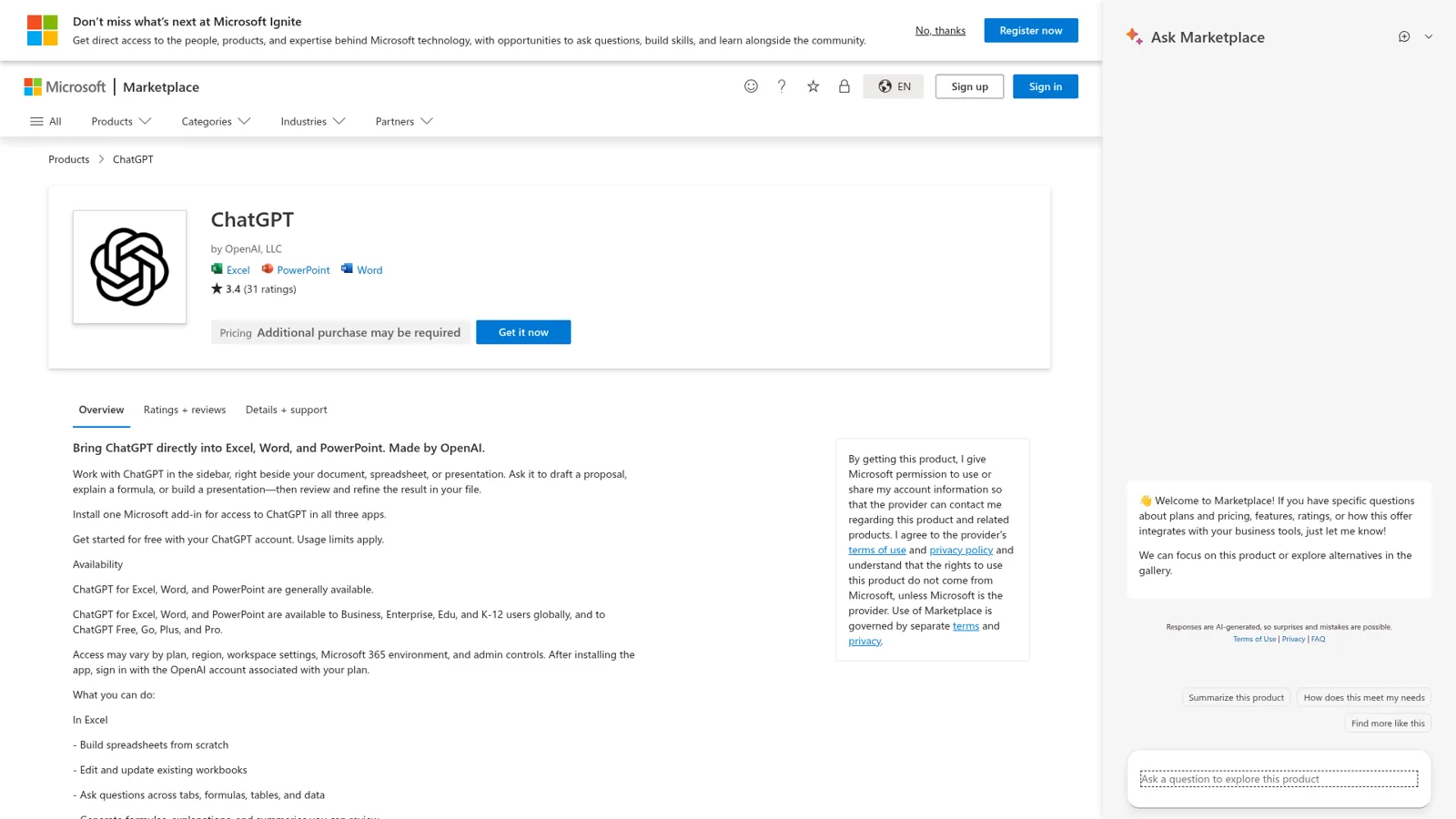
No, there's no ChatGPT add-in for Outlook from OpenAI. The official ChatGPT add-in on Microsoft Marketplace says it plainly in its headline: "Bring ChatGPT directly into Excel, Word, and PowerPoint." Outlook isn't on the list.
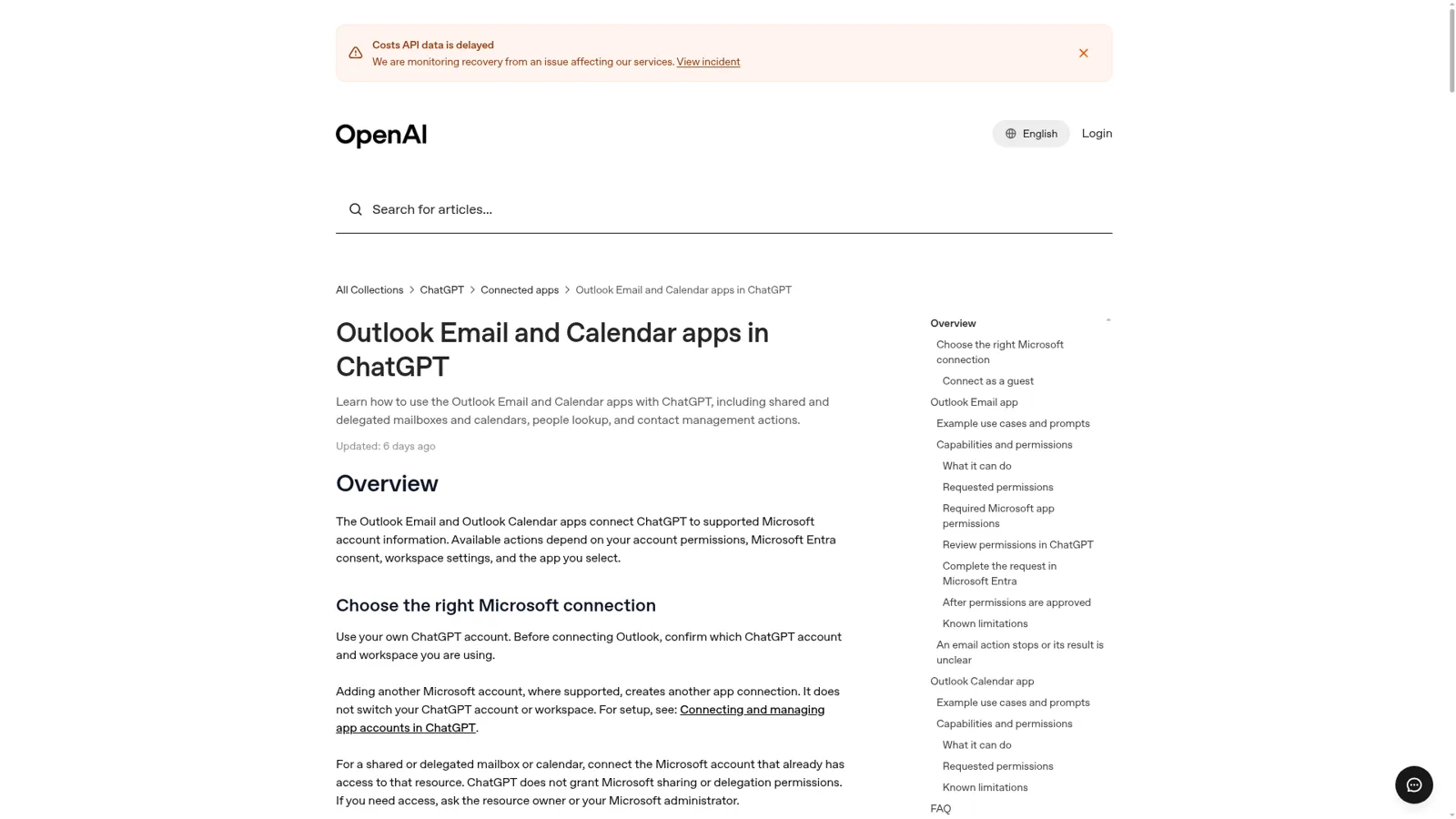
So any "ChatGPT for Outlook" add-in you find in the store isn't OpenAI's. That matters when your IT team asks who holds your mail. The official route is the pair of apps described in OpenAI's Outlook help article: ChatGPT reaches into Outlook from chatgpt.com, the desktop app or mobile, rather than sitting in Outlook's sidebar. (Anthropic took the other path; my sibling post on Claude for Outlook covers its add-in.)
What can ChatGPT do with Outlook?
ChatGPT can search, read and act on Outlook mail and calendars through two separate apps, and what it can actually do depends on the actions your admin has switched on. It has grown a lot in a year, according to the Business release notes:
| Date | What changed |
|---|---|
| August 11, 2025 | Outlook email and calendar became searchable in chat, not only in deep research |
| March 13, 2026 | Write actions arrived: draft emails, set up meetings. "Write actions remain disabled by default until workspace admins enable them" |
| April 8, 2026 | Shared mailbox and shared calendar actions: read, move, mark and send plain-text email from or on behalf of a shared mailbox; create, update, RSVP, cancel and delete events on shared calendars |
Here's how the two apps split, per OpenAI's help article:
| Outlook Email app | Outlook Calendar app | |
|---|---|---|
| Read | Search and retrieve messages, including from:, subject: and date filters, with full message text | Events, attendees, availability, meeting-time suggestions |
| Write (when enabled) | Draft and send plain-text email; move, mark read or unread; contacts and contact folders | Create, update, RSVP, cancel or delete events on supported shared calendars |
| Shared and delegated | Give it the exact mailbox address; attachments there can't be retrieved | Specify the target calendar; actions vary by calendar |
| Example prompt | "Create a table of sender, subject, and date for emails about [topic] in the last 7 days." | "Summarize my next three meetings, including attendees and locations." |
The shared mailbox support is the part I'd circle. OpenAI's FAQ is careful about it: "Microsoft mailbox permissions determine whether a message is sent as that mailbox or on its behalf. Confirm the intended mailbox and recipients before approving a send." ChatGPT doesn't grant any Microsoft access itself; it uses the access the connected person already has (and Outlook's own shared mailbox rules still apply).
How do you connect Outlook to ChatGPT?
You connect Outlook from ChatGPT's settings, then an admin may need to approve permissions on both the Microsoft and ChatGPT sides. For one person, OpenAI's connected apps guide boils down to three steps:
- Open Settings > Plugins and select Outlook Email or Outlook Calendar.
- Select Install plugin or Connect.
- Sign in to the Microsoft account that already has access to the mail you want, and approve the requested permissions.
In a Business or Enterprise workspace there are two more gates, and the help article warns they're often held by different people:
- A Microsoft Entra administrator approves the Graph permissions for the tenant. The Email app's list runs from
Mail.ReadtoMail.Send.Shared, and the Entra screen "does not provide per-permission checkboxes", so it's all or nothing for the request. - A ChatGPT workspace admin then enables each action in the Admin console under Plugins, and picks a rule for future actions: enable all new actions, only new read actions, or none. Granting the Microsoft permission "does not automatically enable every Outlook action."
Enterprise workspaces also get sensitivity-label exclusions, so mail labelled confidential in Microsoft Purview stays out of search, reads and actions. And admins can restrict connections to Outlook accounts from approved domains.
Once it's connected, each person chooses when ChatGPT asks before acting. OpenAI's app permissions options are Always ask, Allow read actions, Allow low-risk actions and, for some eligible accounts, Allow all actions. Sending an email is one of OpenAI's own examples of an action that may need extra review.
How much does ChatGPT for Outlook cost?
There's no separate charge for the Outlook apps; they come with your ChatGPT plan. The pricing page lists plugins as available on Free, Go, Plus and Pro, though the connected apps guide adds that availability "depends on the app, your ChatGPT plan, region, workspace, role, model, and the ChatGPT interface you use." The shared mailbox and write-action features I've described were announced in the Business and Enterprise release notes.
| Plan | Price |
|---|---|
| Free | $0/month |
| Go | $8/month |
| Plus | $20/month |
| Pro | From $100/month |
| Business, Standard seat | $20/user/month billed annually, $25 monthly |
| Business, Premium seat | $100/user/month billed annually, $125 monthly |
| Enterprise | Contact sales |
Business seat prices come from OpenAI's Business overview, which also notes a two-seat minimum and that "OpenAI won't train on your workspace's data." For a ten-person ops team on Standard seats, that's $200 a month billed annually. More detail is in my ChatGPT pricing breakdown and the ChatGPT Enterprise guide.
What do people run into with ChatGPT and Outlook?
The complaints on OpenAI's own forum are specific, recent and mostly about team-style use: formatted reports, attachments, big shared folders and scheduled sends. Here are the ones I'd check before you plan a workflow around it.
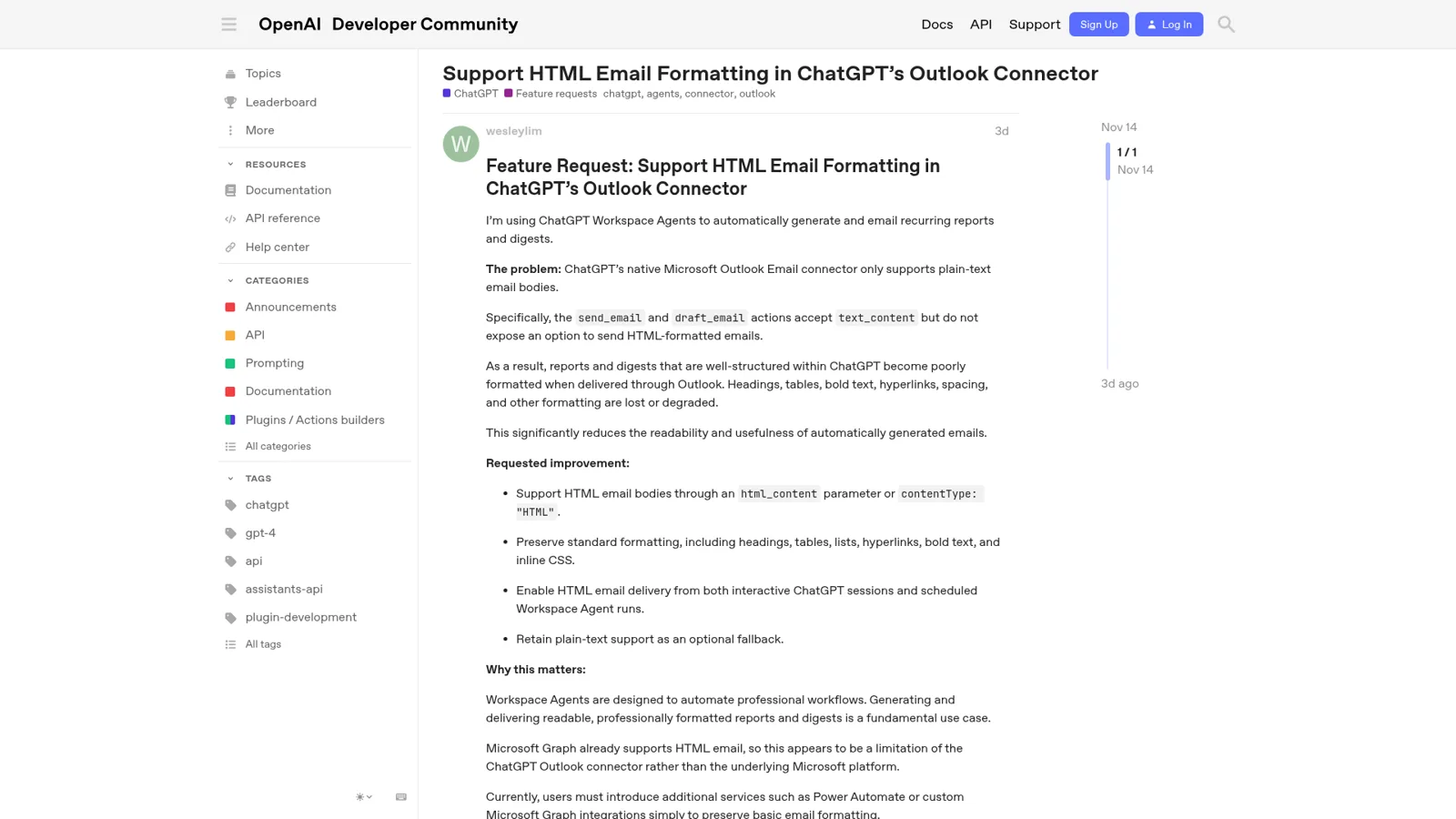
Emails go out as plain text. A Workspace Agents user who sends recurring reports through Outlook raised this three days ago, and says OpenAI Support confirmed it:
"ChatGPT's native Microsoft Outlook Email connector only supports plain-text email bodies."
No attachments on sends. Another user notes that ChatGPT can now draft and send through Gmail and Outlook, but "it is currently impossible to add attachments (PDF, DOCX, images, etc.) to these emails" (forum thread). The workaround is a draft you finish by hand.
Big mailboxes hide folders. A Business user filing mail with a Workspace Agent found the folder list stops at about 500, so deeper folders can't be found by name, even though moving mail by folder id works:
"Search is not a live Graph query; it filters the truncated ~500 set. Exact-name/path lookup past the cap returns empty."
OpenAI Support replied in September that it would pass the requests along and hadn't "confirmed a fix or timeline." Scheduled sends can be blocked, too: a user posted on November 2 that a scheduled morning briefing through Outlook Email was rejected twice even though they'd authorised sending to their own address (forum post). OpenAI's help article already hints at this: "An action that works in a chat may need different authorization or approval in a scheduled task or Workspace Agent."
None of this makes the apps bad. Searching a year of supplier mail with from: filters and getting a clean table back is a lovely thing. It does tell you where the product's center of gravity is: a person, in a chat, asking about their mail.
Whose Outlook is ChatGPT acting in?
ChatGPT acts in the Outlook of whoever connected the account, with that person's Microsoft access. That's true in a chat, in a scheduled task and, unless you set up a shared service account, in a Workspace Agent.
ChatGPT does have serious controls, and I don't want to undersell them. Admins choose which apps and actions exist in the workspace, Enterprise adds role-based access and label exclusions, managed members can't save a persistent "Always allow", and Workspace Agents set write actions to Always ask during a run by default. Those are good defaults, and I cover the agents in more depth in ChatGPT business agents.
What they follow is the connection and the agent, not the person making the request. OpenAI says so itself: an agent used in Slack needs shared authentication, and if you share it on your own account, "other people may be able to trigger actions through that connection when they use the agent in Slack." The same agent, the same connection, the same permissions, whoever is asking. That's fine for a research helper. It's the wrong shape for a shared inbox, where the right answer to "send this" depends entirely on who said it and who it's going to.
There's also no Outlook wake-up. OpenAI's scheduled tasks can respond to events, and the supported events it lists are new Gmail messages, new Slack channel messages and GitHub pull request activity. A new email in your team's Outlook mailbox isn't on that list, so somebody still has to ask. Real AI email triage needs something that wakes up on its own.
An inbox teammate for the team's Outlook
eesel works in Outlook as one AI teammate for the whole team, connected to the mailbox the team uses: partnerships@, accounts@, the office manager's shared inbox. Its Outlook page describes the loop: you sign in with Microsoft and choose the mailbox, and eesel "starts when a new email lands in Outlook", reads the thread, replies or sends a new email from your docs and tools, sorts what it shouldn't answer for a person, and follows up on threads that go quiet. It "works only the mailbox you connect."
Picture the accounts@ inbox. The finance lead asks eesel in Slack to confirm received payments every morning, so those routine "thanks, payment received" replies are set to go out on their own. A reply to a customer disputing an invoice is set to Ask first, so the exact email lands as an approval card for the finance lead. And the CEO's mailbox was never connected, so no request from anyone can reach it.
That's the core difference: what eesel does on its own, what it asks first and what it never does changes with who's talking, whether that's a teammate, specific named people, a verified customer or an anonymous visitor. The building blocks are documented in actions and approvals: every action is On, Ask first or Off, per agent and per action; approvals come with the exact action and its details; only editors approve; and you choose which members or channels get the requests. Actions and files marked Team only run only when someone on your team asks, never for an outsider.
Three things a connected app in a chat can't do on its own:
- Work without being asked. Automations start eesel on a schedule, an event in a connected app or a webhook. At Cactus Club Cafe, one agent handled internal IT tickets while a second audited the daily finance extract.
- Be emailed like a colleague. Every eesel agent has its own email address. Forward it a thread and it replies with an answer or a draft. It only writes back to workspace members, so it's a teammate's inbox, not a second front door for customers (eesel for email has more).
- Remember the correction. Tell it once that invoice queries always cc billing, and memory applies it to every email after.
The separate address matters more than it sounds. An HN commenter building AI email tools explained why people want it:
"Some people want to have a very clear set of rules/process for which emails are "viewable" by an AI Agent, so a seperate "inbox" makes it a little easier for people to understand what an Agent is looking at"

| ChatGPT with the Outlook apps | eesel in Outlook | |
|---|---|---|
| Who it works for | The person who connected the account | The team |
| Who can ask | That person; or anyone using a shared agent, with the same permissions | Anyone on the team in Slack, Microsoft Teams, email or the dashboard |
| What decides what it may do | Workspace action settings, the connection's Microsoft access, and each person's approval setting | On, Ask first or Off per action, changing with who's asking |
| Starts on new Outlook mail | Not in OpenAI's list of task events | Yes, plus schedules and webhooks |
| Sends | Plain text, under each person's approval setting | Drafts or sends, per action, as trust builds |
| Price | From $20/user/month on Business | From $299/month for 500 credits, unlimited seats |
If your team mailbox is a support inbox, my AI email agent for Outlook guide walks through that use case, and best AI teammates compares the wider field.
Still choosing tools? My AI for Outlook email overview includes Microsoft's Copilot, and shared inbox vs ticketing system helps decide what the team mailbox should become.
Can you use ChatGPT and eesel together?
Yes. Keep ChatGPT for your own inbox questions, and let eesel run the team mailbox. eesel apps are being listed in ChatGPT's app directory, and in the meantime Codex can set eesel up through the CLI. If you're also on Claude, the same workspace plugs in there as an MCP connector.
For the rest of OpenAI's team story, see my takes on ChatGPT at work and ChatGPT Work, and for the plumbing behind connected apps, ChatGPT connectors.
Try eesel for your team's Outlook inbox
ChatGPT's Outlook apps answer questions about your mail. eesel works the mailbox your team shares: it picks up new email, sends the routine replies your lead has okayed, holds anything to a customer for a person's yes, and leaves every other mailbox alone. The trial is free for 7 days with 100 credits and no card, and plans start at $299 a month for 500 credits with unlimited agents and seats (pricing). Try eesel.