


Outlook saves a reply sent from a shared mailbox in the sender's own Sent Items by default, so the rest of the team never sees it. The fix that works in every Outlook client is one server setting: Sent items in the Microsoft 365 admin center, or MessageCopyForSentAsEnabled $true in PowerShell. Skip the DelegateSentItemsStyle registry key: it only works in classic Outlook, and next to the server setting it saves every reply twice.
That gives you a record of replies, not a queue. When the real question is "who is answering this one?", move support@ into a helpdesk, where eesel drafts replies from your past tickets and the eesel CLI lets a coding agent test its answers before go-live.
Why do emails sent from a shared mailbox go to my own Sent Items?
Because nobody ever signs in to a shared mailbox. Microsoft's troubleshooting article puts it plainly: you sign in to your own mailbox, open the shared one inside it, and when you reply, "Outlook automatically sends or replies from the sender's account." So the sent copy goes where your account keeps sent mail, which is your personal folder.
The admin documentation confirms that this is the default, not a bug on your machine. It covers both permission types too: Microsoft 365 stores mail sent with Send As and Send on Behalf in the assistant's Sent Items only until an admin changes it.
I build eesel's helpdesk integrations, and this default is the single most common reason a support@ address "loses" replies. Nothing is lost. The replies are sitting in five different people's Sent Items, which on a support team is almost the same as lost. One admin summed up the cost well:
"the default behavior would have been to only have the sent item in the user's Sent folder. Which tends to be a problem when using a shared mailbox because the others using it won't see the item. Which kind of impacts the 'shared' part."

A second admin in the same thread pointed out a quieter cost: replies saved in a personal mailbox don't thread with the customer's original message, because conversation view doesn't work across mailboxes. So even the person who replied can't see the full exchange in one place. If you have read my piece on Front shared inbox ownership, this is the Outlook version of the same visibility gap.
How do I fix shared mailbox sent items for every Outlook client?
Turn on the server-side copy. It is a per-mailbox switch that tells Exchange Online to drop a copy of each sent message into the shared mailbox's own Sent Items. Because Exchange does the copying, it doesn't matter which Outlook the sender uses. Microsoft's troubleshooting article is explicit that "If you're using new Outlook, only Method 1 will apply", and Method 1 is this setting.
Option 1: the Microsoft 365 admin center (no PowerShell)
Microsoft's configuration guide lists the click path:
- Sign in to the Microsoft 365 admin center.
- Go to Teams & groups > Shared mailboxes and select the mailbox.
- Select Edit under Sent items.
- Turn on the copy options you want, then save.
Microsoft's own docs only say "Select the options you want", so expect one option for mail sent as the mailbox and one for mail sent on its behalf. Turn on whichever matches the permission your team has.

Option 2: Exchange Online PowerShell
If you manage more than one shared mailbox, PowerShell is faster. Connect with the ExchangeOnlineManagement module, then run:
Connect-ExchangeOnline -UserPrincipalName admin@yourdomain.com
Set-Mailbox support@yourdomain.com -MessageCopyForSentAsEnabled $true
Set-Mailbox support@yourdomain.com -MessageCopyForSendOnBehalfEnabled $true
Get-Mailbox support@yourdomain.com | Format-List MessageCopyFor*
The two switches are separate Boolean parameters on Set-Mailbox, and both default to $false. The last line just confirms what's set. Which one you need depends on how your team sends:
| Permission | What the customer sees | Switch that copies it |
|---|---|---|
| Send As | "From: Support" only | MessageCopyForSentAsEnabled |
| Send on Behalf | "From: Rob on behalf of Support" | MessageCopyForSendOnBehalfEnabled |
| Full Access only | Can read, can't send | Nothing to copy |
Send As is the usual pick for support, because replies then appear to come from the shared mailbox, not the person, per Microsoft's shared mailbox guide. Turning on both costs nothing and covers anyone who was set up differently.
Two caveats from the Exchange Team Blog. First, the sender still keeps a copy in their personal Sent Items; the setting adds a copy, it doesn't move one. Second, if a transport rule blocks a message (an oversized attachment, say), it is not copied to the shared Sent Items either, so the folder only shows mail that actually left.
Should I use the DelegateSentItemsStyle registry key instead?
No, and if it's already deployed, remove it once the server setting is on. The registry fix is a classic Outlook for Windows value: a DWORD named DelegateSentItemsStyle set to 1 under HKEY_CURRENT_USER\Software\Microsoft\Office\16.0\Outlook\Preferences, per the same Microsoft article. It has three problems for a support team:
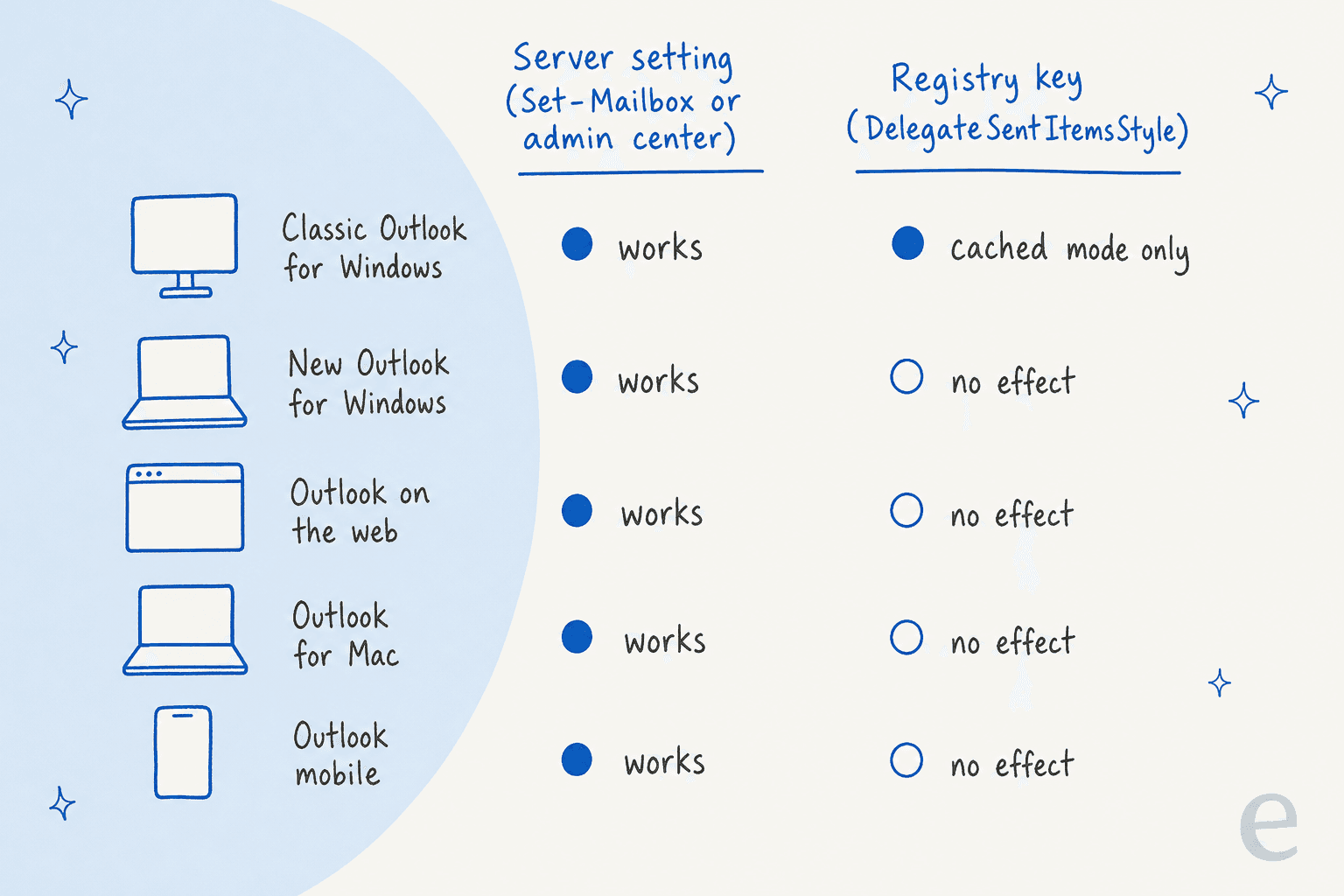
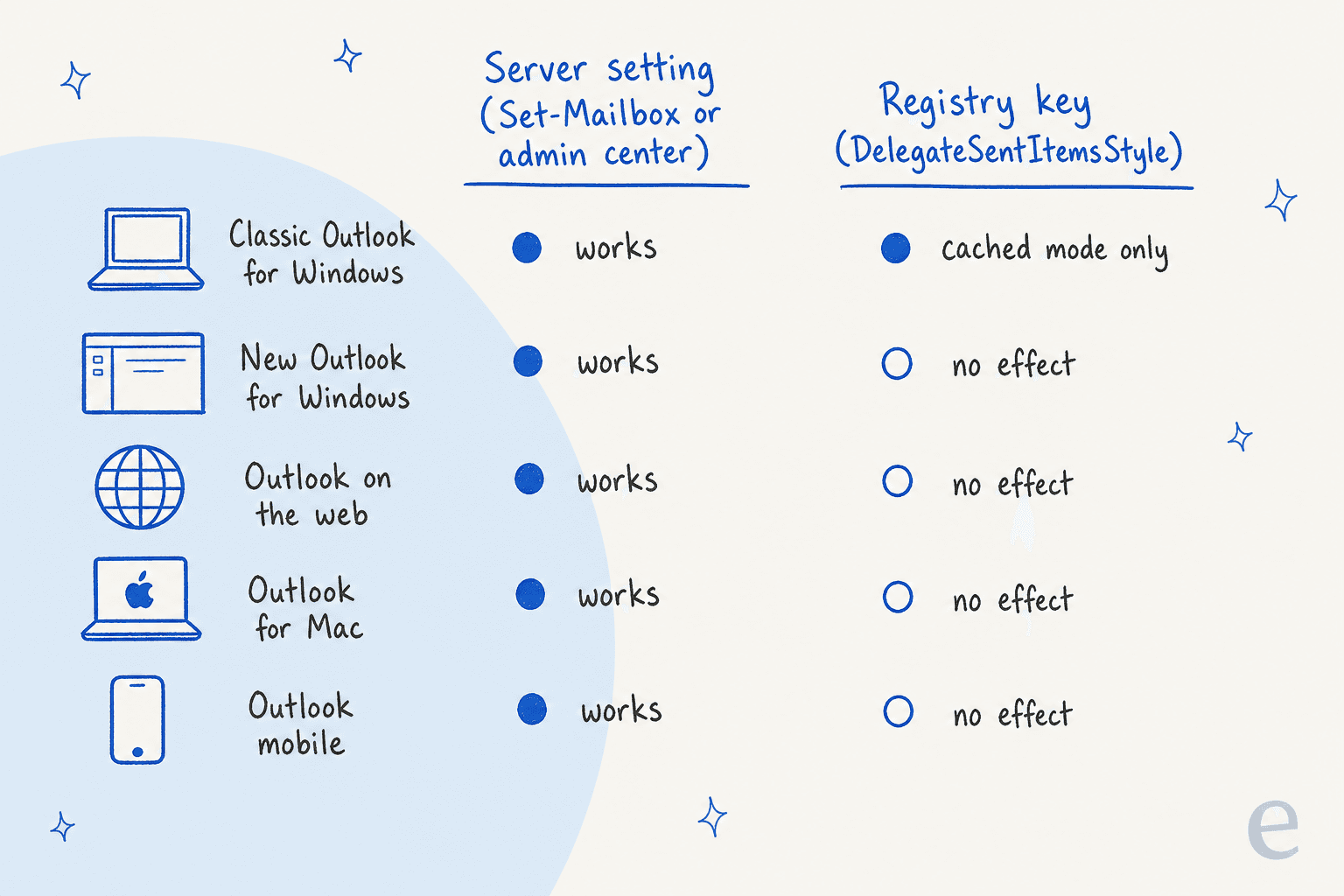
- It only touches one client. New Outlook, the web, Mac and mobile ignore it.
- It needs Cached Exchange Mode. In online mode, Microsoft says sent mail stays in the Outbox until someone runs Send/Receive by hand.
- It stacks with the server setting. The key moves the copy; the server setting adds one. Run both and you get two copies of every reply in the shared Sent Items.
Microsoft publishes the full combination table, and it is worth knowing by heart if you inherit an environment someone else set up:
DelegateSentItemsStyle | Server copy setting | Your Sent Items | Shared Sent Items |
|---|---|---|---|
| 0 | Off | 1 copy | None |
| 0 | On | 1 copy | 1 copy |
| 1 | Off | None | 1 copy |
| 1 | On | None | 2 copies |
An independent Outlook advisor answering the same question on Microsoft's forum landed in the same place:
"Using the registry key in classic Outlook is not recommended and should noy be used if it's set on the server."
If you are seeing duplicates today, this table is almost always the explanation. Remove the registry value from those machines and leave the server setting on, which matches Microsoft's 0 and On row.
Why do some replies still go missing after the fix?
Because the setting only copies mail that was actually sent from the shared address. A reply sent from someone's personal address never touches the shared mailbox at all. Four things cause that in practice.
New Outlook doesn't always switch the From address. In classic Outlook, replying inside the shared mailbox fills in the shared address automatically. One admin described the difference:
"On classic outlook, when you click reply on a message in a shared mailbox, it will automatically set the From field to the shared mailbox. New Outlook does not do this so you have to manually change "From" each time."
If the From field still says the agent's own name, the customer gets a reply from a personal address, any follow-up goes to that person instead of the team, and no copy reaches the shared folder. Microsoft's own shared mailbox guide tells new Outlook users to turn on Show From in the Options tab and pick the shared address. Make that part of onboarding, along with the email templates your team replies with.
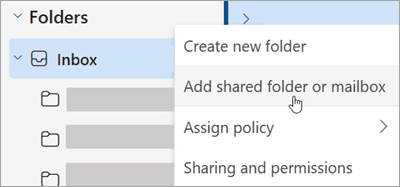
Outlook for Mac users without a send permission. Microsoft notes that Outlook for Mac shows the shared account in the From list whether or not you can send from it, and the mail fails without Send As or Send on Behalf. Grant one of them explicitly.
The mailbox is hidden from the address list. If HiddenFromAddressListsEnabled is True, Send As and Send on Behalf don't work in the Outlook desktop client, according to Microsoft's setup docs.
Someone turned off saving sent mail entirely. A separate classic Outlook option, "Save copies of messages in the Sent Items folder", controls whether any copy is kept, and Group Policy can switch it off for everyone.
A five-minute checklist
Run this once per shared mailbox and you've covered every cause above:
- Turn on the server copy for Send As and Send on Behalf, in the admin center or with
Set-Mailbox. - Delete
DelegateSentItemsStylefrom any classic Outlook machine that has it. - Check permissions: everyone needs Full Access plus Send As. Assign them to people directly, because automapping won't work through a security group.
- Show the From field in new Outlook and Outlook on the web, and confirm the shared address is selected before sending.
- Send a test from each client your team uses, then check the shared Sent Items.
Is an Outlook shared mailbox enough for a support team?
For a handful of people answering a few dozen emails a day, yes. It's free (a shared mailbox holds up to 50 GB without a license), everyone already knows Outlook, and Microsoft lists "Support email addresses" as one of its intended uses.
The limits show up as the team grows. Microsoft says a shared mailbox supports a maximum of 25 users, and that too many people in it at once "might experience connection failures or duplicated messages." The same page notes you can't stop users deleting messages. And fixing Sent Items answers "did anyone reply?" without answering the three questions a support team actually asks all day.
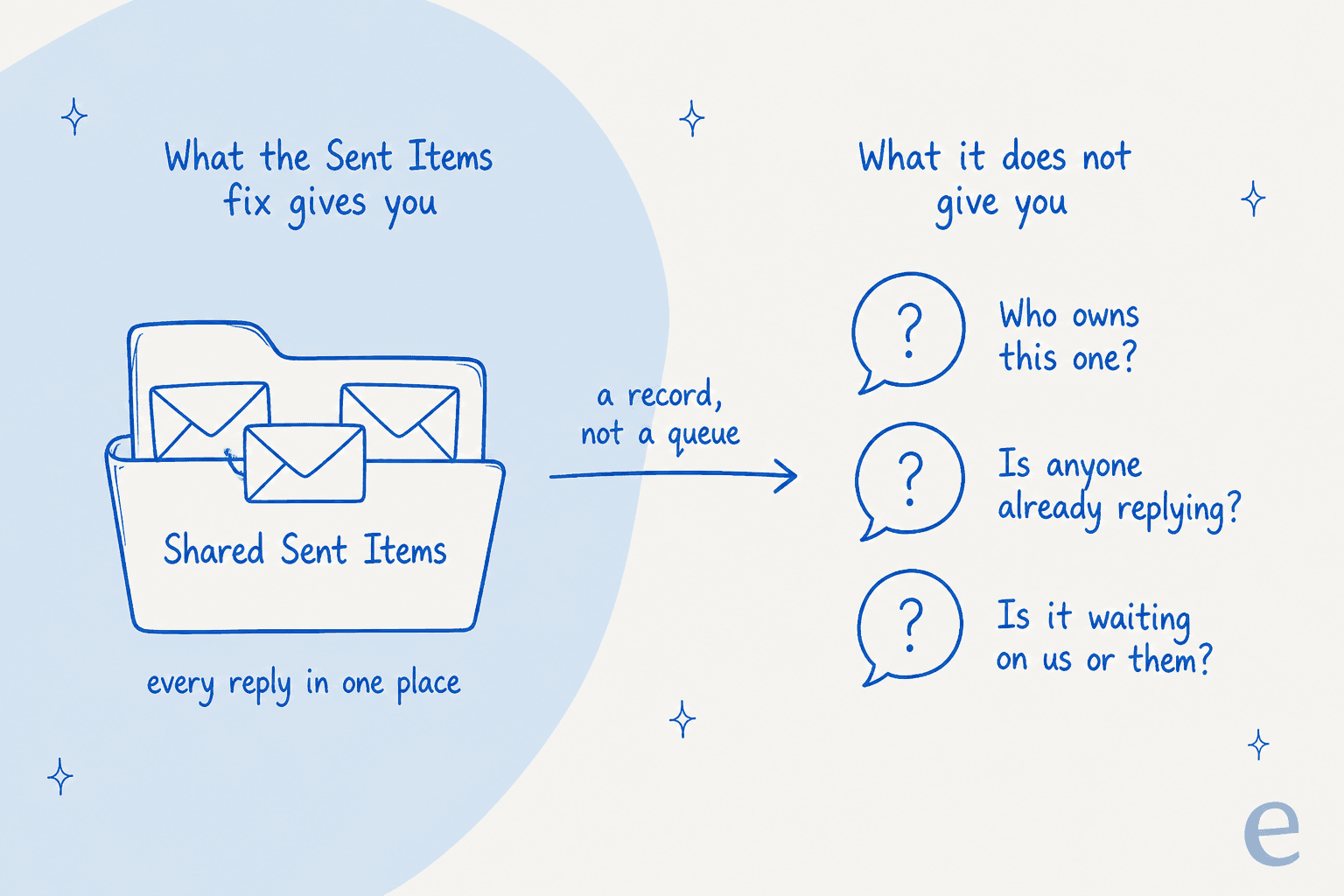
That gap is the thread running through almost every shared mailbox discussion I read for this post. The question is never really about folders:
"We have a shared mailbox that about 30 people are currently working out of. It is where we have our internal and external clients send support, requests and/or issues that need to be resolved. We are having a hard time figuring out the best way to assign and track these individual tasks."
The usual workaround is colour categories: each person gets a colour and tags what they're working on. One team says it has worked super well for them, and for a small team it's a fair, free answer. It relies on everyone remembering to tag before they start typing, though, and it doesn't tell you when a reply is overdue. That's the point where teams start comparing a shared inbox with a ticketing system.
Here is how I'd decide:
| Your situation | What I'd do |
|---|---|
| Under 5 people, low volume, Microsoft 365 only | Keep the shared mailbox, turn on the Sent items copy, use categories |
| 5 to 25 people, or you need to know who owns what | Add a shared inbox tool or a help desk on top of the same address |
| Over 25 people, SLAs, or several brands | Move the address into a helpdesk; the shared mailbox becomes a forwarding address |
When should you move support@ into a helpdesk?
When the hour you spend each week asking "did anyone answer this?" costs more than the tool. Moving doesn't mean leaving Microsoft 365. Helpdesks pull mail from the existing address, usually by forwarding, so customers keep writing to the same support@. I covered the Freshdesk route in my guide to Freshdesk with Outlook email, and the general case in email ticketing systems.
What you get in exchange is the stuff the Sent Items fix can't give you: one owner per conversation with automatic assignment. You also get collision detection when two people open the same ticket, and statuses with SLA timers. Replies thread under the customer's message, visible to everyone.
If you are shortlisting, my roundup of shared inbox software compares the realistic options, and so does my list of small-team ticketing systems. The Zendesk vs Freshdesk comparison covers the two most common landing spots.
Lighter shared inbox tools sit in between a mailbox and a full helpdesk. My Front review covers one of them. For cheaper options, see my Hiver pricing breakdown or the list of Missive alternatives.
It is also the point where AI becomes useful, because a helpdesk has the history an AI needs: years of solved tickets. That's the case I make in my guide to automating email support, and why the best AI for email support almost always sits inside a helpdesk.
eesel doesn't connect to an Outlook mailbox directly. It works inside the helpdesk that support@ now feeds, as an AI helpdesk agent with its own seat. (If you only want AI in your personal inbox, my AI email agent for Outlook post covers that.)
Timengo, a Danish Microsoft cloud partner whose customers are IT admins writing in about Outlook add-ins and Exchange Online mail flow, runs it on Freshdesk. In one month it prepared about 300 tickets and wrote about 180 draft replies in Danish, learning from roughly 5,300 past tickets and help center articles. An engineer reviews and sends every one.
If your IT team prefers scripts to dashboards, the CLI mentioned earlier lets a coding agent like Claude Code upload your approved replies and macros, then ask test questions and check the answers before anything reaches a customer. Connecting the helpdesk itself still needs someone with admin access to approve it.
Try eesel on the inbox that replaced your shared mailbox
If support@ has outgrown Outlook, eesel is the AI helpdesk teammate that picks up where the shared mailbox left off. Connect Zendesk, Freshdesk or Help Scout, and it drafts or sends replies from your past tickets and help center, tags and assigns new conversations, and leaves a note for the person who owns it. Every reply sits in the ticket where the whole team can see it, so "check your Sent Items" stops being a support process.
Already on Freshdesk? Start with eesel for Freshdesk. It's free to try, and the pricing page shows what it costs once you're live.