The Microsoft Teams ChatGPT integration is two separate things: @ChatGPT, an OpenAI app your admin installs so people can mention ChatGPT in a Teams channel or message it directly, and the Microsoft Teams app inside ChatGPT, which lets you search, summarize and send Teams messages from a ChatGPT conversation. @ChatGPT is for ChatGPT Business, Enterprise and Edu workspaces only, it needs a Teams admin and a ChatGPT admin to set it up, and it draws on workspace credits.
Before you roll it out, know that @ChatGPT runs on its own service account with the company connections your admin picks, so everyone in an enabled channel reaches the same access. OpenAI's admin guide says so directly: "Choose access appropriate for the people who can use @ChatGPT."
That's fine for summaries and drafts. It gets harder when a channel mixes your finance lead, a sales rep and an agency guest. eesel is an AI teammate in Microsoft Teams that changes what it does by who is asking: it acts on its own for the people you trust, posts an approval card in the thread for an editor when someone else asks for something sensitive, and never uses Team only docs for anyone outside your company. Codex can do the setup for you, too: with the eesel CLI, a coding agent connects your knowledge, edits the agent's instructions and runs test questions before anyone in Teams sees an answer.
I've spent years putting AI to work inside other teams' tools, and the lesson that keeps repeating is that a shared bot is only as safe as its answer to "who's asking?"
Which Microsoft Teams ChatGPT integration do you need?
It depends on where you want to type. OpenAI's own overview article splits it the same way, and notes that connecting Teams inside ChatGPT "does not, by itself, install or enable @ChatGPT" in your Teams conversations.
| @ChatGPT in Teams | Microsoft Teams app in ChatGPT | |
|---|---|---|
| Where you work | A Teams channel, thread or 1:1 chat | A ChatGPT conversation |
| Who sets it up | A ChatGPT admin plus a Teams admin | You connect it, within your org's settings |
| Plans | Business, Enterprise, Edu | Depends on plan, location and workspace settings |
| Whose access | @ChatGPT's service account and the company connections the admin adds | Your own Microsoft account |
| What it can do | Answer, summarize, draft, use approved company tools | Search chats and channels, send or reply, create chats or channels, manage Planner tasks, pull eligible meeting transcripts |
| Who sees the result | Everyone in the conversation | You |
If you're wondering whether "ChatGPT Teams" is the same thing, it isn't. That was the old name of OpenAI's Business plan, and my ChatGPT Team review covers it.
What can @ChatGPT do inside Microsoft Teams?
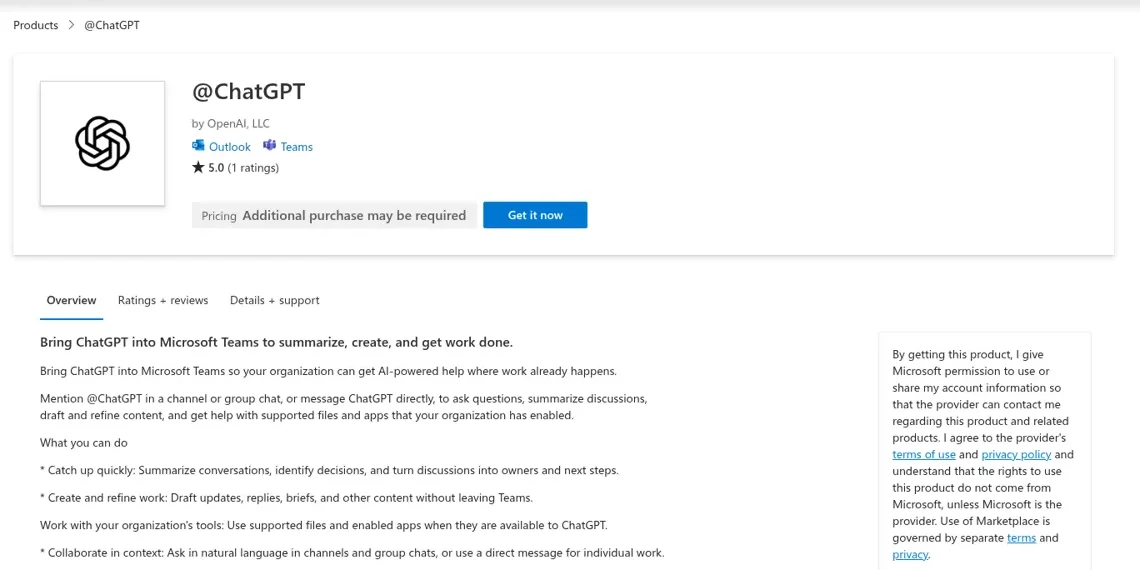
@ChatGPT answers questions, summarizes discussions and drafts work right in the conversation. In Teams, you mention it in a channel message or thread where the app is available, or send it a one-on-one message, per OpenAI's user guide. The Marketplace listing sums up the jobs as catching up ("turn discussions into owners and next steps"), creating and refining drafts, and working with the tools your organization enabled.
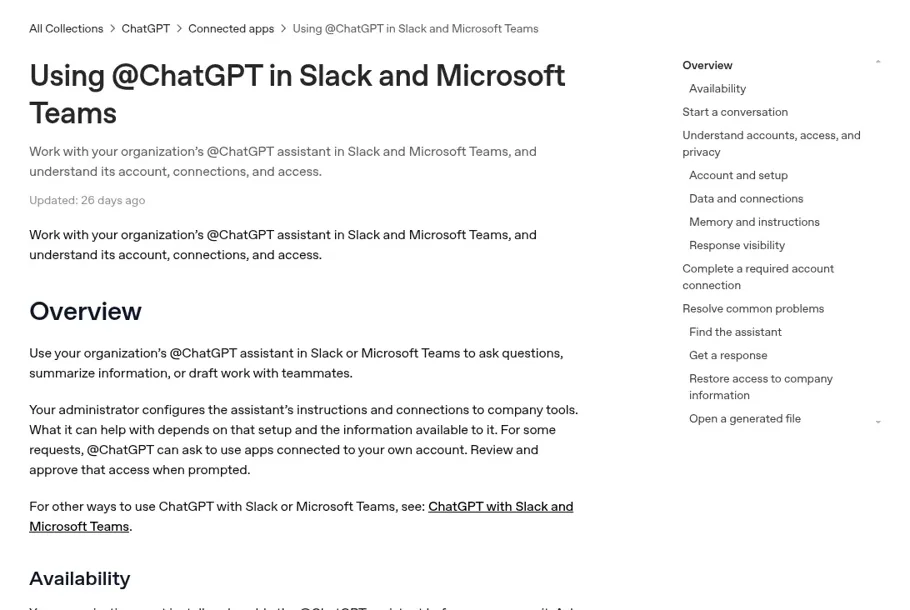
Four things surprise people in week one, all from OpenAI's docs:
- It isn't your ChatGPT. "Your personal saved memories, custom instructions, skills, and ChatGPT conversation history do not automatically carry over to @ChatGPT." And "At launch, @ChatGPT does not record or access memory."
- It doesn't inherit your access. It uses the conversation plus the company tools your admin connected. "Your own ability to open the document does not establish that @ChatGPT can open it."
- Some requests switch to your account. When a task needs an app connected to you, @ChatGPT asks you to approve it, and "your approval does not let other people use your connected apps by asking @ChatGPT." Some file tasks in Teams also need a separate Microsoft sign-in.
- Everyone sees the reply. "Replies in shared conversations are visible to their participants."
That last point is the one I'd tape to the monitor of anyone who sets this up. A shared assistant posts into a shared room, which is also why the knowledge you connect to it should be the kind you'd put in a company-wide internal knowledge base.
How do you set up @ChatGPT in Microsoft Teams?
You set it up from the OpenAI admin console, and it takes two admins. The person connecting Teams has to be a ChatGPT workspace owner or admin and sign in with a Microsoft account holding the Global Administrator or Privileged Role Administrator role. From OpenAI's admin guide:
- In the OpenAI admin console, open Agents, select @ChatGPT agents, select Add and choose Microsoft Teams.
- Sign in with the authorized Microsoft account and complete organizational consent.
- Open the ChatGPT app in the Teams admin center, go to Users and groups, select Install app, and pick the users or groups.
- Wait for the connection to show Ready in the admin console, then create the agent with a recognizable name.
- Mention @ChatGPT in an approved channel with a self-contained request to test it.
- Add company tools as plugins, using an account approved for @ChatGPT, and optionally write instructions.
OpenAI's advice for step six is the right one: "Start with read access when that is sufficient for the workflow." The Teams app asks for a fixed bundle of resource-specific permissions per team or chat, including reading channel messages, members and channel meeting transcripts, and "administrators can't select individual installation permissions". File work uses a separate delegated Files.ReadWrite.All permission that Microsoft admins can approve per employee.
OpenAI gives admins good controls, including a spend cap per @ChatGPT agent, an option to require members to connect their ChatGPT account first, and an off switch that keeps the setup. OpenAI also suggests testing a resource outside the intended scope to confirm the assistant can't reach it, which more vendors should recommend.
How does the Microsoft Teams app inside ChatGPT work?
The Teams app is the personal side: you connect your Microsoft work or school account in ChatGPT, and it searches the Teams content your account can already see. OpenAI's Teams app article gives example prompts like "Summarize the Teams conversations about the launch from the past week" and "Find my Planner tasks for this project and group them by owner".
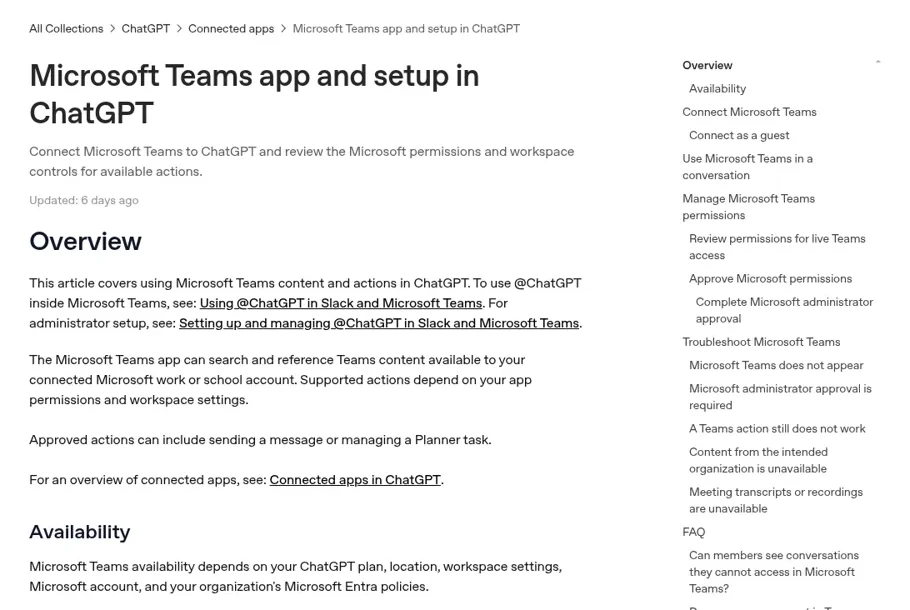
Depending on what your admins approved, it can also send or reply to Teams messages, create chats or channels, read and manage Planner tasks, and pull transcripts from eligible meetings. "ChatGPT may ask you to confirm an action before it sends a message, changes a task, or performs another action in Teams."
The admin work is split across two people who are often not the same person. A ChatGPT workspace admin chooses which actions are enabled, and a Microsoft Entra admin grants the Graph permissions those actions need. Approving a Microsoft permission "does not automatically enable its related action", and Enterprise admins also review role access and can exclude teams by sensitivity label. OpenAI's connectors announcement put the principle simply: "connectors respect existing content permissions, so ChatGPT only sees what each person is allowed to access." My apps in ChatGPT guide covers how the wider app system works.
How much does ChatGPT for Microsoft Teams cost?
@ChatGPT comes with a ChatGPT Business, Enterprise or Edu workspace, and "your workspace needs credits to use @ChatGPT". There's no separate Teams app fee. From OpenAI's Business overview:
| Plan | Price | @ChatGPT in Teams |
|---|---|---|
| Business, Standard seat | $25/user/month, or $20/user/month billed annually | Yes, with workspace credits |
| Business, Premium seat | $125/user/month, or $100/user/month billed annually; higher usage limits | Yes, with workspace credits |
| Enterprise | Contact OpenAI sales | Yes |
| Edu | Contact OpenAI sales | Yes |
A Business workspace needs at least 2 seats. Usage from @ChatGPT's service account is billed to that account under its spend cap, and when someone authorizes work with their personal connections, "that work runs under their account and usage is attributed to them." For the plan comparison in full, see my ChatGPT pricing guide and ChatGPT Enterprise review.
Where does the integration trip people up?
Mostly on Microsoft identity, then on scope. Three patterns from the vendors' own forums:
Personal vs work accounts. The most common wall is signing in with the wrong kind of Microsoft account. One customer on Microsoft Q&A upgraded plans specifically to link the two and still got blocked:
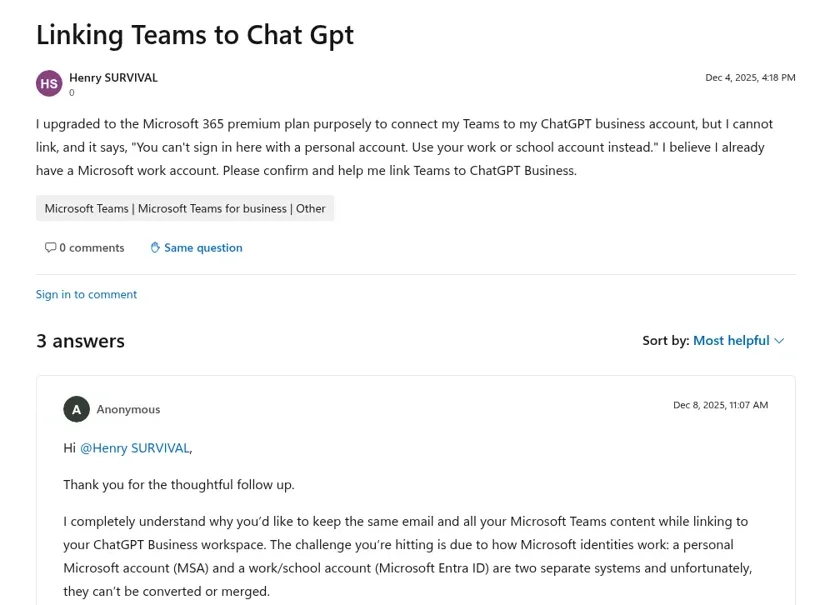
"I upgraded to the Microsoft 365 premium plan purposely to connect my Teams to my ChatGPT business account, but I cannot link, and it says, 'You can't sign in here with a personal account. Use your work or school account instead.'"
The moderator's answer: Microsoft 365 Premium is a personal plan, and a personal Microsoft account and a work account "can't be converted or merged". You need a business tenant such as Microsoft 365 Business Premium. Check that before you buy anything.
API connectors aren't the same product. Developers using the Teams connector through OpenAI's API have hit errors too; one community thread reports the tool "repeatedly returns 500 error codes" with valid chat permissions. Building your own Teams bot on the API? Test early.
Workspace agents aren't in Teams. OpenAI's shared, scheduled workspace agents (see my ChatGPT agents guide) are its closest thing to a team-owned agent, and the help article covers using them in ChatGPT and Slack. I didn't find Teams listed there. I cover the Slack version in ChatGPT in Slack.
And the bigger question every Microsoft shop asks:
"For a non-tech company, it's going to be pretty hard to get buy in to pay for ChatGPT enterprise, and then pay for/spend dev or IT resources to integrate it (and develop those integrations) with their already existing Microsoft/SharePoint/Teams stack to make it useful."

What about Copilot, which is already in Teams?
Copilot is Microsoft's own assistant inside Teams, and for personal catch-up it's the path of least resistance. Microsoft's support page says Copilot in chats and channels reviews "the main points, action items, and decisions", looks back 30 days by default, and "can't summarize images, loop components, or files shared in the chat thread". The Q&A moderator above even suggested it, since it "doesn't require separate SSO wiring to external services."
Like the Teams app in ChatGPT, it works for the person who opens it. Microsoft's own Teams Approvals app is a separate tool for routing sign-offs, and my Microsoft Teams pricing guide covers which Microsoft 365 plans include what.
My Microsoft Copilot guide, Copilot pricing breakdown and Microsoft Teams AI overview go further.
Whose access should a shared Teams bot use?
Ideally the access of the person asking, filtered by what you'd let that person do. @ChatGPT and eesel answer that differently.
Take a #deals-desk channel. Your finance lead, three sales reps and two people from your outside agency are all in it. With @ChatGPT, everyone in an enabled channel uses the same service account and the same company connections. OpenAI is upfront about this and tells admins to "consider who can reach @ChatGPT when choosing which company connections to make available", so in practice you connect only what the least-trusted person in the room should see.
A teammate built for that room behaves differently for each of them:
| Who asks | What eesel does |
|---|---|
| The finance lead | Pulls the pricing sheet set to Team only and answers with the numbers |
| A sales rep | Answers from the same sheet; when the rep asks it to post a discount note company-wide, it drafts it and waits for an editor's approval card |
| A guest from the agency | Answers general questions; Team only files and actions never run for them |
Every action is On, Ask first or Off per agent and per action, and you can set them by saying it in chat. Teammates, specific named people, verified customers and anonymous visitors each get their own settings, and eesel's actions and approvals docs explain the On, Ask first, Off and Team only parts. People in your Microsoft Teams count as your team. Even an action set to On can be held by eesel's safety check if a call looks risky.
What does eesel do in Microsoft Teams?
eesel is a Teams app your people @mention or DM, answering from the knowledge you've connected, like SharePoint or Google Drive, and doing the work in your other tools. A Teams admin uploads the eesel app for your organization in the Teams admin center, it appears within a few hours, and you add it to the teams and channels where people ask questions. From the eesel Teams docs:
- It reads the room first. Before answering in a channel thread it reads the first message and up to the last 100 replies, including ones that didn't mention it, and keeps following the thread without another @mention.
- Approvals happen in Teams. When an action is on Ask first, eesel posts an approval card in the thread. Only editors of your eesel workspace can decide it, matched by their Teams email, and the card then shows who decided.
- Editors manage it from Teams. An editor can say "only answer in #deals-desk and #it-help" and it changes its own setup. Viewers can ask questions, and eesel declines their setup changes.
- Several agents, one organization. You can run a sales agent and an IT agent side by side, limit each to channels, or name one in a message with
agent="Name". - It posts without being asked. Scheduled automations can start a channel post or message someone directly, like a Monday pipeline digest.
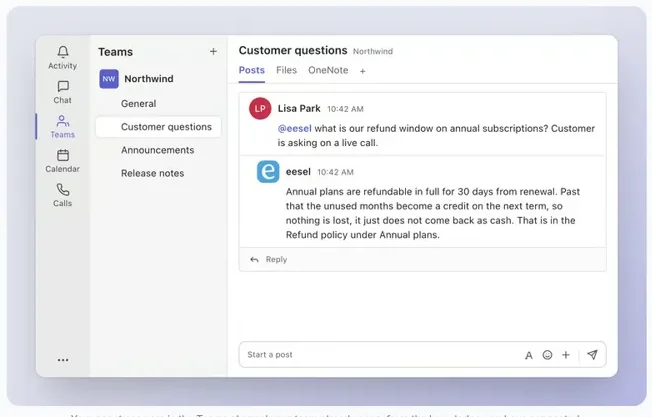
That last one matters more than it looks. Cape Coffee Beans runs 160 scheduled checks a month with eesel, weekday and Saturday mornings, and gets a short list of what slipped emailed to the founder; nobody has to remember to ask. It also learns from your docs and past work, and corrections stick through memory. More setups like this are on the customers page.
| @ChatGPT in Teams | eesel in Microsoft Teams | |
|---|---|---|
| Who it works for | The workspace, through one service account per agent | The team, with settings per kind of person |
| Who can ask it | Members of enabled Teams channels and chats | Anyone in channels it's added to; outsiders never reach Team only tools |
| What decides what it may do | The connections the admin picked, plus personal approvals | Who is asking, plus On, Ask first or Off per action |
| Approvals | Personal app authorizations in the thread | An approval card in the thread, decided by an editor |
| Works on a schedule | Not covered in the Teams docs | Yes, scheduled and event-based automations |
| Memory | None at launch | Learns from docs and past work; corrections stick |
| Cost | Business from $20/user/month annually, plus credits | Free 7-day trial, then from $299/month for 500 credits, unlimited seats |
If you're comparing more broadly, my best AI for Microsoft Teams roundup and eesel vs ChatGPT comparison are the next reads, and the Claude for Microsoft Teams post covers Anthropic's side, where the Teams version of Claude Tag is still on a waitlist.
Should you keep ChatGPT if you add eesel?
Yes. ChatGPT is a great assistant for your own writing and research, and the Teams app makes it better at catching you up. Keep it for that, and give the channel a teammate.
The two can talk, too. eesel's apps for ChatGPT are being listed in ChatGPT's app directory, so you'll be able to ask eesel what it did today from a ChatGPT conversation, with editors able to change things and viewers on the read side. Until then, Codex can operate eesel through the CLI, as eesel's ChatGPT docs explain.
For the wider picture of ChatGPT in the workplace, my ChatGPT at work guide is the place to start, and ChatGPT Work covers OpenAI's agentic workspace. eesel's security page explains how your data is handled; it's never used for training.
Try eesel as your team's Microsoft Teams teammate
If your Teams channels mix people who should see different things, put a teammate in them that checks who's asking before it acts. Connect your docs, upload the Teams app, and decide what it does alone, what waits for an editor and what stays Team only. Start with a free 7-day trial (100 credits, no card); plans start at $299 a month with unlimited agents and seats, and the same teammate works in Slack and email.