

The Dropbox ChatGPT integration is Dropbox's own plugin for ChatGPT: install it from Plugins, sign in with Dropbox, and ChatGPT can browse your Dropbox in its Library, read and compare files, save new files, move, copy, delete and restore them, create share links and file requests, and send Dropbox Sign requests, all with your existing Dropbox permissions. Dropbox says it works on every Dropbox plan, it runs on live access rather than a synced copy, and Dropbox's FAQ says ChatGPT asks your permission before it changes anything.
It's a strong tool for your own files. The trouble starts when the Dropbox work is the team's: the project tracker five people update, the client folder freelancers need links to, the "which version did we send?" question that lands in Slack every afternoon. eesel is an AI teammate that does that work in Slack or Microsoft Teams for everyone, and what it does alone, asks first or never does depends on who is asking. Codex can even set it up for you: point it at the eesel CLI and it connects your apps, adds knowledge and runs test questions before the team sees an answer.
At eesel we've spent years letting AI take actions inside teams' own tools, so the questions I bring to any Dropbox integration are simple ones: whose access does it use, what can it change without asking, and who is it actually working for?
Three ways Dropbox shows up in ChatGPT
There are really three Dropbox routes into ChatGPT, plus Dropbox's search product on the side, and they do different jobs. If the plugin and app vocabulary is new, my ChatGPT apps and ChatGPT connector guides explain it.
| Route | Where you use it | What it's for |
|---|---|---|
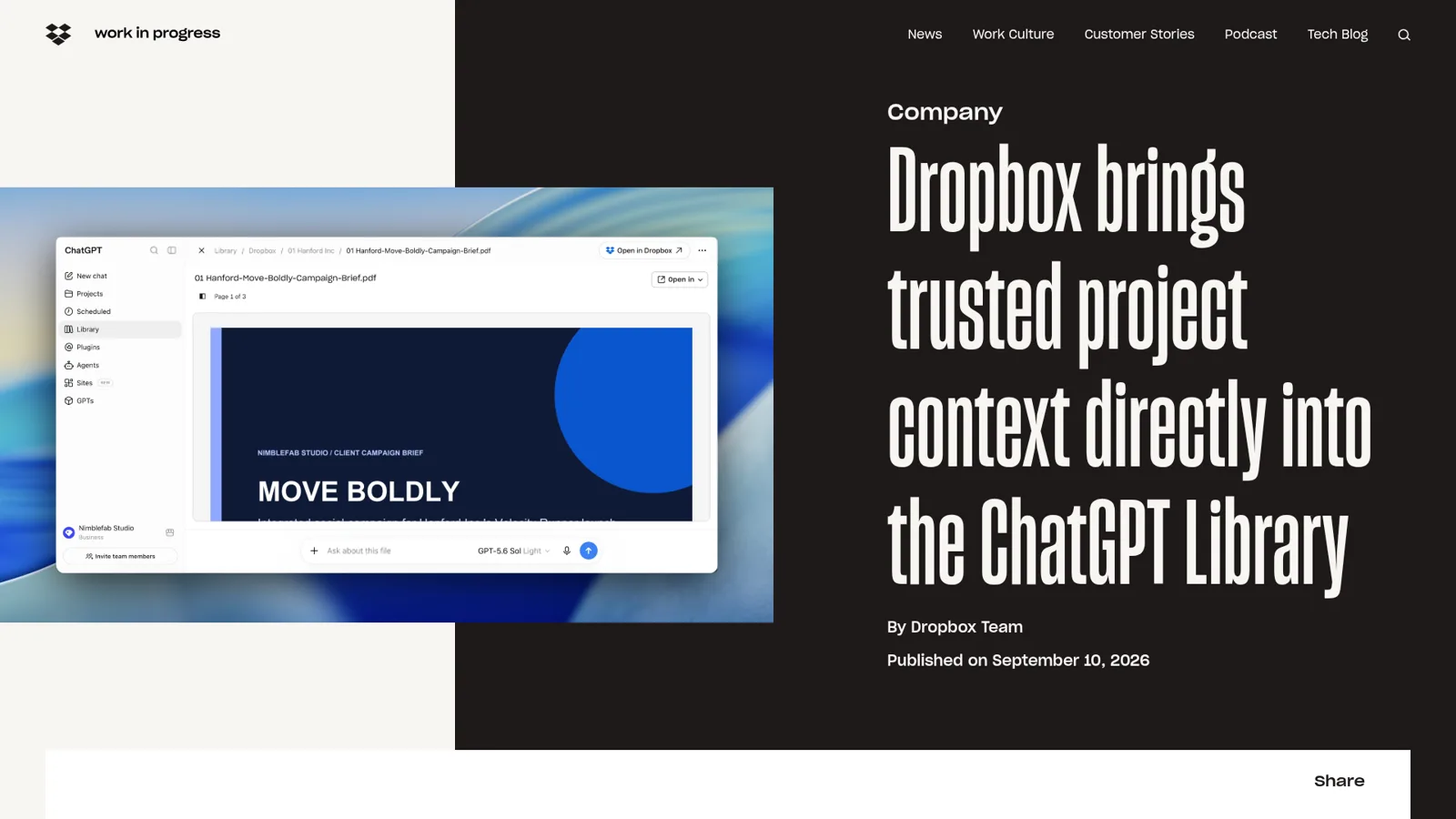
| Dropbox in ChatGPT's Library | Library, recent files, @mention a file, preview beside the chat | Bringing files into a conversation fast, video included |
The Dropbox plugin (@Dropbox) | Any chat, ChatGPT Work, Codex | Asking ChatGPT to find, save, organize, share and sign |
| Dropbox MCP server in Developer mode | ChatGPT web (Developer mode), Codex CLI | Builders who want the raw mcp.dropbox.com/mcp tools |
| Dropbox Dash connector | Dash users in ChatGPT | Search across Dropbox and the other apps Dash indexes |
Sources: Dropbox ChatGPT help, Dropbox MCP server, Dash in ChatGPT.
The Library piece is the newest. Dropbox's announcement on September 10, 2026 said Dropbox is "among the first platforms to become part of ChatGPT's native file experience", live on the web for ChatGPT and Work, Enterprise included, with mobile "coming soon." It also said usage across Dropbox's AI integrations "has grown more than 13X over the last four months." OpenAI's Sondra Batbold framed it as respecting "the permissions and controls people already have in place." Dropbox Dash, Dropbox's own search layer, also plugs into ChatGPT; I covered it in my Dropbox Dash guide.
How do you set up the Dropbox ChatGPT integration?
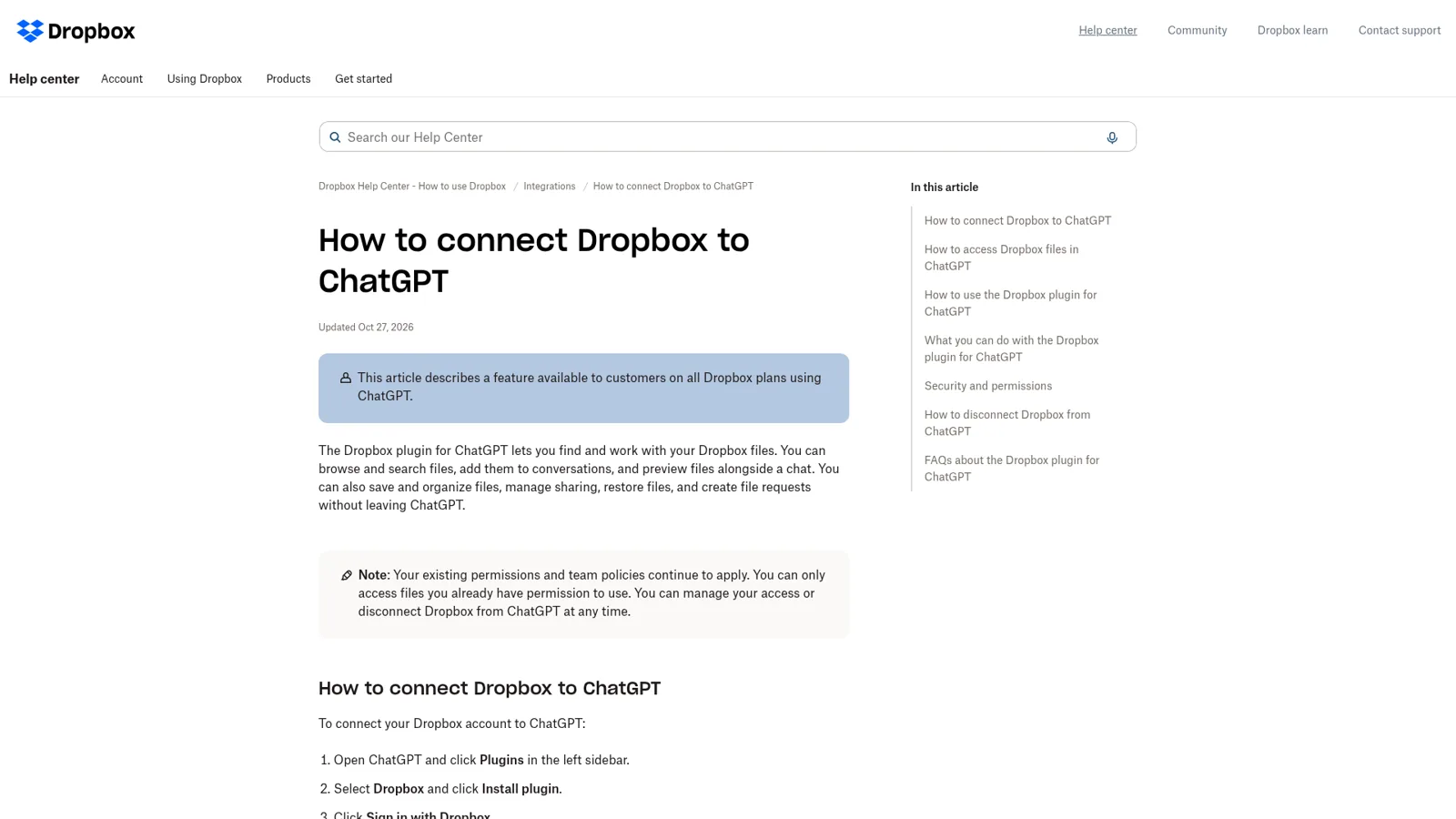
You set it up once from ChatGPT's Plugins page. Dropbox's help article gives four steps:
- Open ChatGPT and click Plugins in the left sidebar.
- Select Dropbox and click Install plugin.
- Click Sign in with Dropbox.
- Log in to Dropbox. If you have paired personal and work accounts, choose which one to connect.
Then type @Dropbox in a prompt, or click + and pick Dropbox. In a managed workspace, an admin may need to allow the plugin first; OpenAI's connected apps page says an app showing Disabled by admin needs a workspace admin to review it.
To disconnect, go to the Dropbox side: Settings > Apps on dropbox.com, click the arrow next to ChatGPT, then Disconnect.
What can ChatGPT do with your Dropbox files?
ChatGPT can handle most everyday Dropbox file work from a chat. Dropbox's list covers four groups: work with files (summarize, search, compare, move, copy, delete, restore, list revisions), save content back (including "any file type supported by Dropbox"), manage sharing links, and create and manage file requests. Dropbox Sign rides along for signature requests.
Dropbox's own sample prompts are a good feel for it:
| Ask ChatGPT | What happens |
|---|---|
| "Find the latest brief in Dropbox." | Searches your Dropbox and pulls the file into the chat |
| "Organize this folder based on your recommendation." | Proposes and makes moves in that folder |
| "Create a file request for client uploads." | Makes an upload link that drops files into a folder you choose |
| "Create a download link for this video." | Creates a shared link |
| "Who still needs to sign 'NDA.pdf'?" | Checks the Dropbox Sign request |
Source: Dropbox ChatGPT help.
One difference from Claude worth knowing: Dropbox says ChatGPT can save or upload any file type Dropbox supports, while the Claude connector saves text files only. My sibling post on the Dropbox Claude connector has the Claude side, and Dropbox users seem to want exactly this round trip:
"A useful workflow for me would be bringing project documents directly from Dropbox into ChatGPT to compare files, summarize changes, find specific information, or help draft emails based on the content. It could save a lot of downloading and uploading back and forth."
Does ChatGPT ask before it changes your Dropbox?
Yes, by default. Dropbox's FAQ says "ChatGPT will request your permission before making any changes to your data, such as adding new files, or creating share links." How often it asks is yours to set in OpenAI's app permissions:
- Always ask: asks before reading or changing anything.
- Allow read actions: reads freely, asks before changes.
- Allow low-risk actions: approves low-risk actions; higher-risk ones still ask or get denied.
- Allow all actions: offered only for some individual apps or accounts, not as an account-wide or workspace-wide default.
Creating, editing or deleting a file and changing sharing are on OpenAI's own list of actions that "may require additional review."
Admin controls on Business and Enterprise
Workspace admins have more. OpenAI's admin guide says apps are enabled by default in ChatGPT Business, and admins manage them under Admin Console > Plugins. For each app they can enable specific read and write actions, and choose whether future actions arrive enabled, read-only or off. Enterprise and Edu add role-based access per app. Dropbox is also on the list of apps where an Enterprise can stop people connecting their work Dropbox from a personal ChatGPT account, and admins can limit which email domains may connect.
Two more things from that page matter for Dropbox. "Administrator-managed sync is no longer available", so the integration is live access, not an index. And workspace agents, OpenAI's shared agents, default write actions to "Always ask", set once per agent.
Does OpenAI train on your Dropbox files?
It depends on the plan. OpenAI's connected apps page says that for Business, Enterprise and Edu, "OpenAI does not use information accessed from apps to train models by default." For Free, Plus, Go and Pro, it "may use information accessed from apps to train our models" if Improve the model for everyone is on. Dropbox's FAQ also notes that what appears in a chat is stored until you delete the conversation. If Memory is on, ChatGPT may also remember details it read from Dropbox.
What does the Dropbox ChatGPT integration cost?
The plugin has no price of its own; you pay for ChatGPT and Dropbox. Here are both sides from the vendors' pricing pages:
| Plan | Price | Notes |
|---|---|---|
| ChatGPT Free | $0 | Limited ChatGPT Work on desktop |
| ChatGPT Go | $8/month | May include ads |
| ChatGPT Plus | $20/month | Expanded ChatGPT Work access |
| ChatGPT Pro | From $100/month | Three usage tiers |
| ChatGPT Business | $25/user/month, $20 billed annually | Admin console, apps on by default, 2-seat minimum |
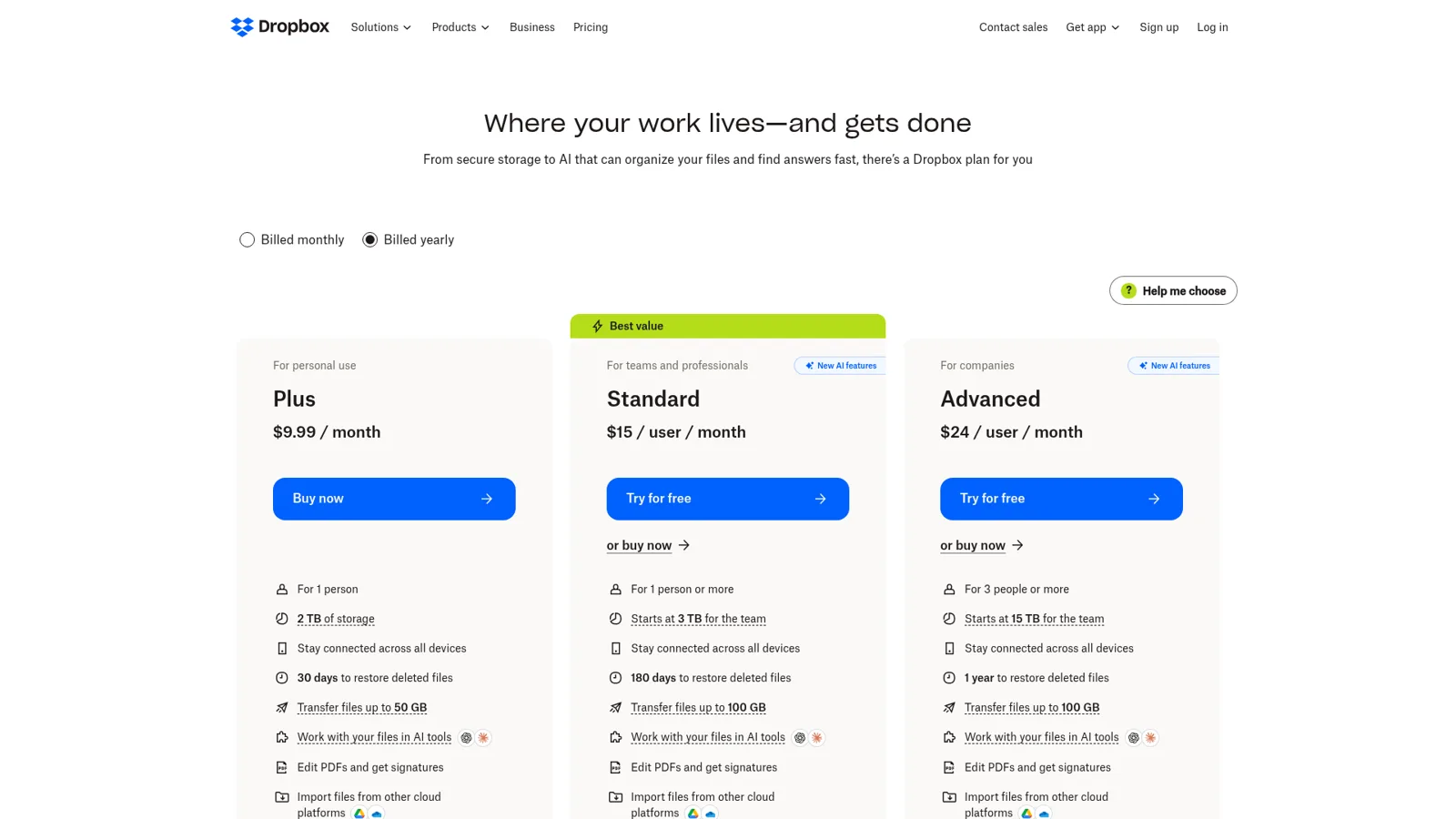
| Dropbox Plus | $9.99/month billed yearly | 1 person, 2 TB |
| Dropbox Standard | $15/user/month billed yearly | Admin console, AI in Dropbox for select teams |
| Dropbox Advanced | $24/user/month billed yearly | 3+ people, 15 TB, SSO |
Sources: ChatGPT pricing, ChatGPT Business, Dropbox plans.
OpenAI adds that app availability "depends on the app, your ChatGPT plan, region, workspace, role, model, and the ChatGPT interface you use", and that app use can count toward your plan's limits. My ChatGPT pricing and apps in ChatGPT pricing posts go deeper.
What breaks in practice?
The OpenAI Developer Community has two fresh Dropbox threads from November, and both are about real work rather than demos. In the first, a user wanted ChatGPT Work to edit an Excel workbook stored in Dropbox. Search, metadata and extracted text all worked; pulling the original file didn't:
"Manually attaching a downloaded copy is a temporary workaround, but my project depends on repeatedly accessing connected files. I need a reliable way for Work to retrieve the original workbook for editing, rather than just reading extracted text."
The second is more telling. A construction business had a scheduled ChatGPT Business workflow updating project trackers in Dropbox and filing invoices from Gmail:
"My construction business uses ChatGPT to update Excel project trackers in Dropbox and file invoices and paperwork. The trackers have not been updated because ChatGPT reports that a required check of shared Dropbox filing history was blocked as too broad."
An approval message said one step would download 851 private filing-history records and was broader than the original request, which is a sensible call for a personal assistant. The poster also hit Dropbox rate limits and Gmail 403s.
Why shared Dropbox work needs a teammate
That construction thread is the whole argument in one post. The trackers belong to the business, the workflow ran on a schedule with nobody watching, and the judgment about "too broad" was made on behalf of whoever connected their Dropbox. When it stalled, the work stalled, and nobody else on the team could see why or say yes.
ChatGPT's controls are real, and they're built around the person using ChatGPT: your app permissions, your workspace's admin settings, an agent's settings set once. They don't change based on who the request is for, and ChatGPT isn't built to answer your customers in your own channels. That's the job an AI coworker is for, because shared Dropbox work has many askers, from the office manager, the site lead, a subcontractor in a shared channel to a client in your website chat. Each should get a different answer about the same folder.
How eesel handles Dropbox work for the whole team
eesel is an AI teammate that joins the apps your team already works in and takes requests from anyone who talks to it there. Connect Dropbox and it looks things up and takes actions there, with each action set to On, Ask first or Off. It answers in Slack, Microsoft Teams, Google Chat and email, where every agent has its own address.
Permissions follow the person asking
You decide what eesel does for each kind of person: a teammate, specific people you name, a verified customer or an anonymous visitor. For each, every action is set to act on its own, ask first or stay off (actions and approvals). Picture the construction office: when the site lead asks in Teams for the latest drawings, eesel finds the file and links it. When a subcontractor in a shared channel asks it to move their invoice into the paid folder, it asks the office manager first. When a homeowner in the website chat asks for the internal cost sheet, it never touches it, because that file is Team only: used for your team's questions alone, never sent, or linked, to anyone outside.
Ask first shows the exact action with Approve and Deny, as a card in the Slack thread the request came from, by email, on the dashboard or in a terminal. Only editors approve (roles), and you choose which members or channels get the requests. Even on On, eesel's safety check can still hold a risky call. My guides to AI in Microsoft Teams and an internal knowledge base cover the habits that keep answers like these trustworthy.
Proactive, and the whole team can see it
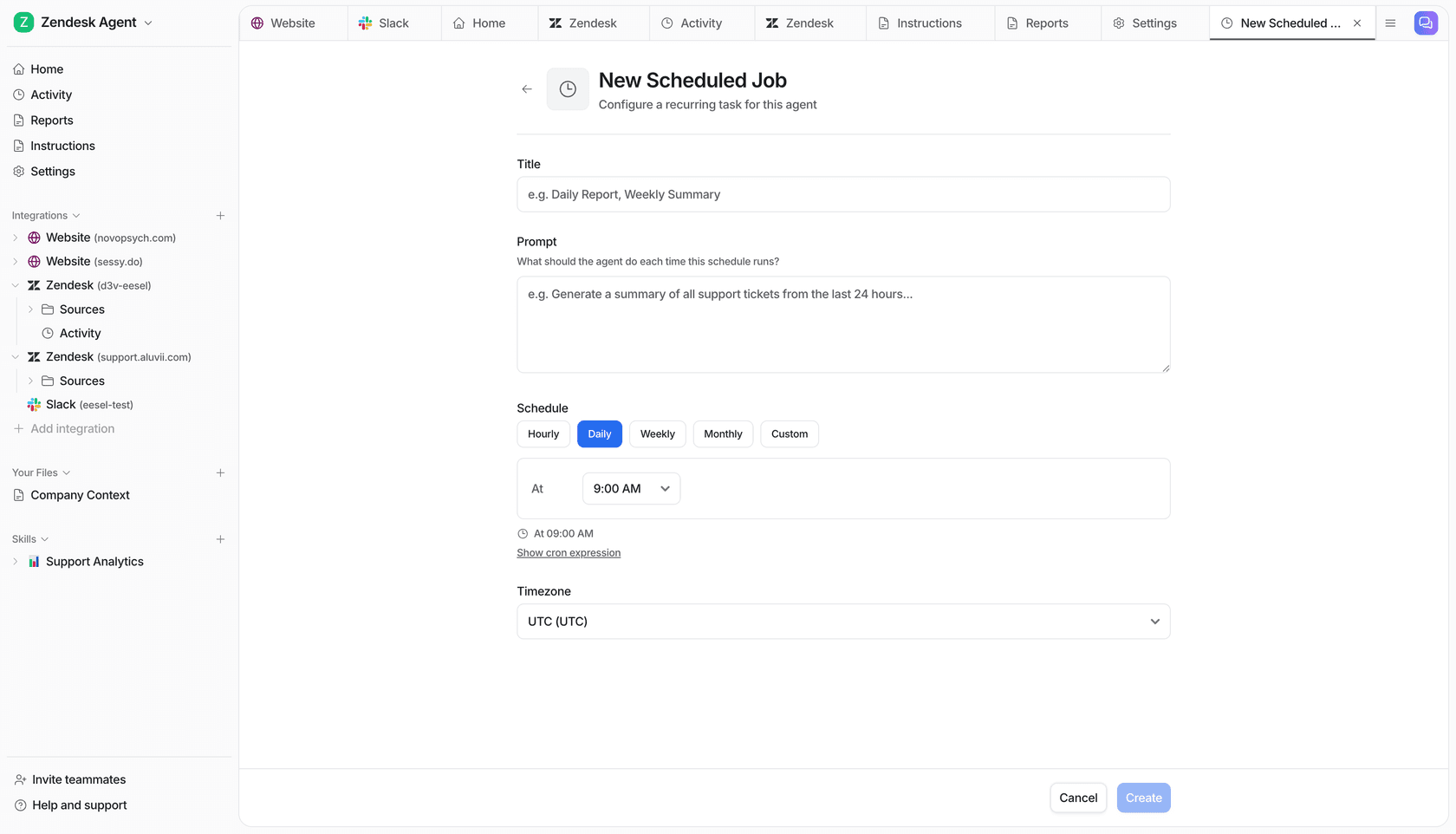
eesel's automations start work on a schedule, on an event in a connected app, or from a webhook, so the Friday tracker check runs whether or not anyone opened a chat. Held actions wait where the request started, and when someone corrects it, the fix sticks.
Cape Coffee Beans runs exactly this pattern. Its eesel ran 160 scheduled checks across Zendesk and Google Drive in a month, every weekday and Saturday morning, and emails the founder a short list of what slipped. It runs two agents with different jobs and made 120 knowledge searches that month.
ChatGPT's Dropbox plugin vs eesel
| ChatGPT + Dropbox plugin | eesel with Dropbox | |
|---|---|---|
| Whose access | The connected person's Dropbox account | The connection you set up, with Team only files kept internal |
| Who can ask | That person, in ChatGPT | Anyone on the team in Slack, Teams, Google Chat or email; customers in chat |
| When it asks first | Your app permission setting and workspace policy | Per action and per kind of person: teammate, named people, verified customer, visitor |
| Who approves a held change | The person in the chat | Editors you choose, from the Slack card, email or dashboard |
| Runs on a schedule | Scheduled tasks on paid plans | Schedules, app events and webhooks |
| Cost | Included with your ChatGPT plan | From $299 a month for 500 credits, unlimited seats |
Sources: OpenAI app permissions, eesel actions, eesel pricing.
Can you keep ChatGPT and add eesel?
Yes, and I'd keep both. ChatGPT with Dropbox is great for your own drafting, comparing and summarizing, and its deep research can use connected apps as sources. eesel's apps for ChatGPT are being listed in ChatGPT's app directory, so you'll be able to ask your eesel agent things from inside a ChatGPT conversation, and Codex can set eesel up today with the CLI, the same way Claude Code does.
For more on OpenAI's side, see my guides to ChatGPT Work, ChatGPT business agents and ChatGPT at work.
If you're still choosing an assistant, Claude vs ChatGPT compares the two, and AI teammates makes the wider case for a shared one.
Try eesel as your team's Dropbox teammate
If ChatGPT already speeds up your own Dropbox work, give the rest of the team the same help in the channels they already use. Connect Dropbox and Slack or Teams, mark the internal files Team only, and keep moves and deletes on Ask first for the first week. It's a free 7-day trial with 100 credits and no card.