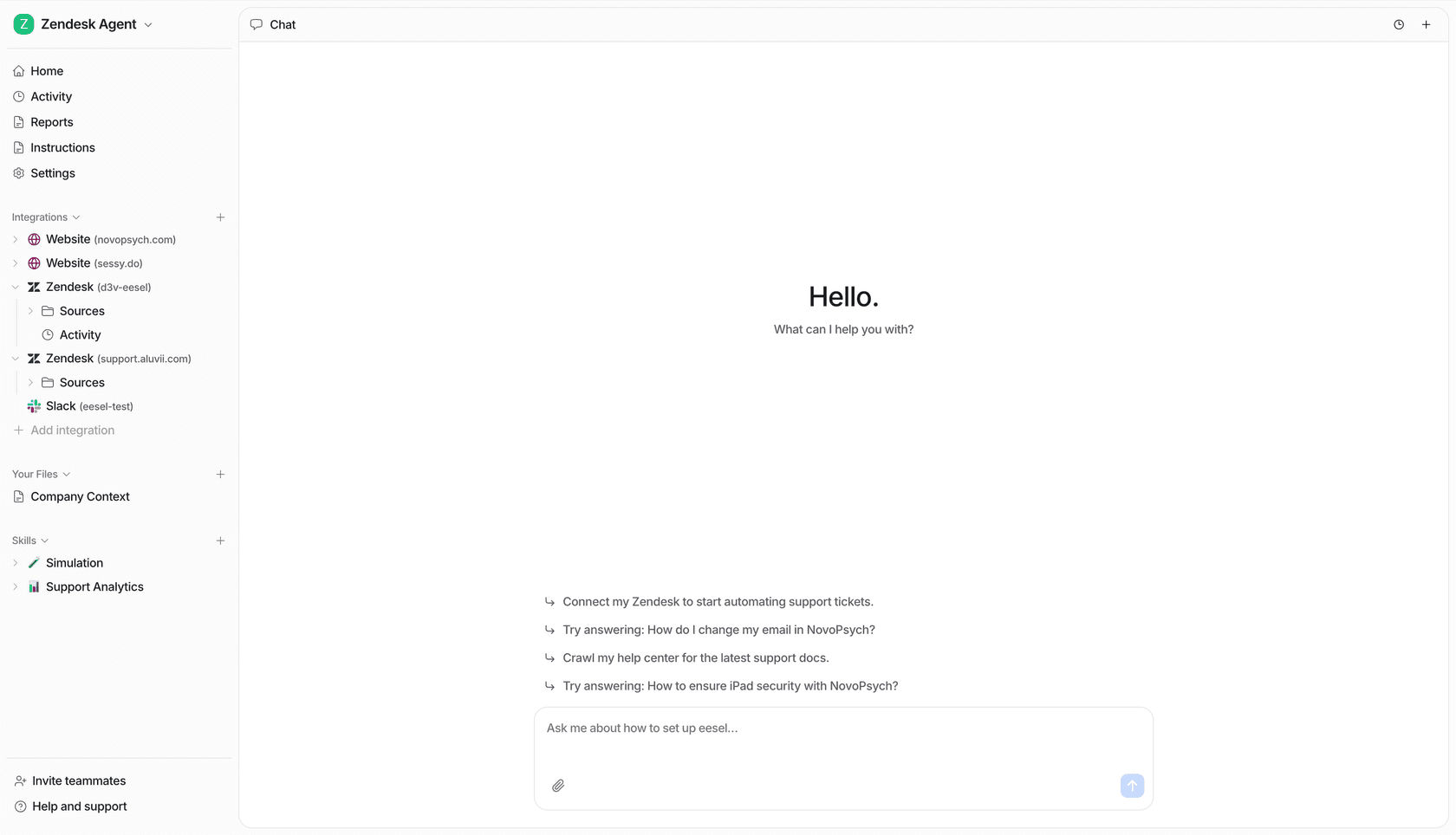
The Dropbox Claude connector is Dropbox's own connector in Claude's directory: add it, sign in to Dropbox, and Claude can search, read, organize, share and save files in your Dropbox with 19 tools, using exactly the access your Dropbox account already has. It's included on every Claude plan, Free too, it works for all Dropbox users, and one connection covers claude.ai, the desktop app, Claude Cowork and Claude Code. It reads live from Dropbox rather than syncing a copy, and it can only save text files back.
That's a great deal for one person. Dropbox at most companies is something else though: the shared team folders everyone pings about with "where's the latest version of the deck?" eesel is an AI teammate that answers those questions in Slack or Microsoft Teams with the file linked, and what it shares or changes depends on who is asking, so Team only files never reach a customer. If you'd rather not click through setup at all, you can have Claude Code set eesel up for you with the eesel CLI: connect your apps, add knowledge and ask test questions before anyone in Slack sees an answer.
We've spent years letting AI act inside teams' own tools at eesel, so I read connector docs for the boring parts: whose credentials it holds, what it may do alone, what waits for a person, and what it must never hand to someone outside. That's the lens here.
What is the Dropbox Claude connector?
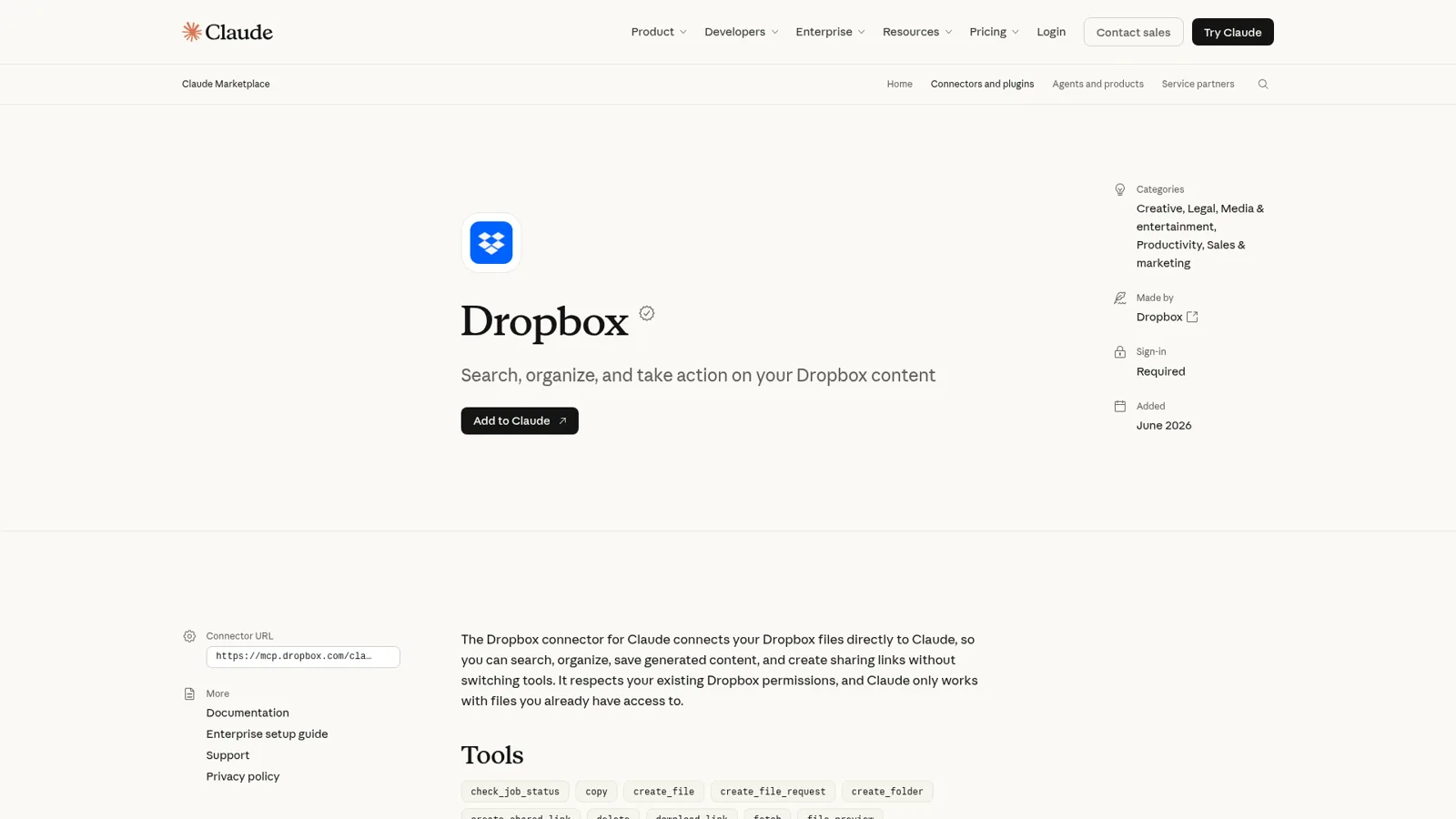
The Dropbox Claude connector is a verified connector built by Dropbox and listed in Claude's directory since June 2026. Under the hood it's an MCP server (Model Context Protocol, the standard Claude uses to call tools in other apps) hosted on mcp.dropbox.com. The Claude listing says it lets you "search, organize, save generated content, and create sharing links without switching tools", and that "Claude only works with files you already have access to."
Dropbox actually ships three pieces for Claude, which confuses people:
- The Dropbox connector for claude.ai and the Claude desktop app.
- The Dropbox plugin for Claude Cowork and Claude Code, which bundles the connector with Dropbox-written skills (see Cowork plugins for how plugins work).
- The Dropbox remote MCP server at
https://mcp.dropbox.com/mcp, in open beta, for any MCP client including Claude Code, Cursor and Codex.
How do you connect Dropbox to Claude?
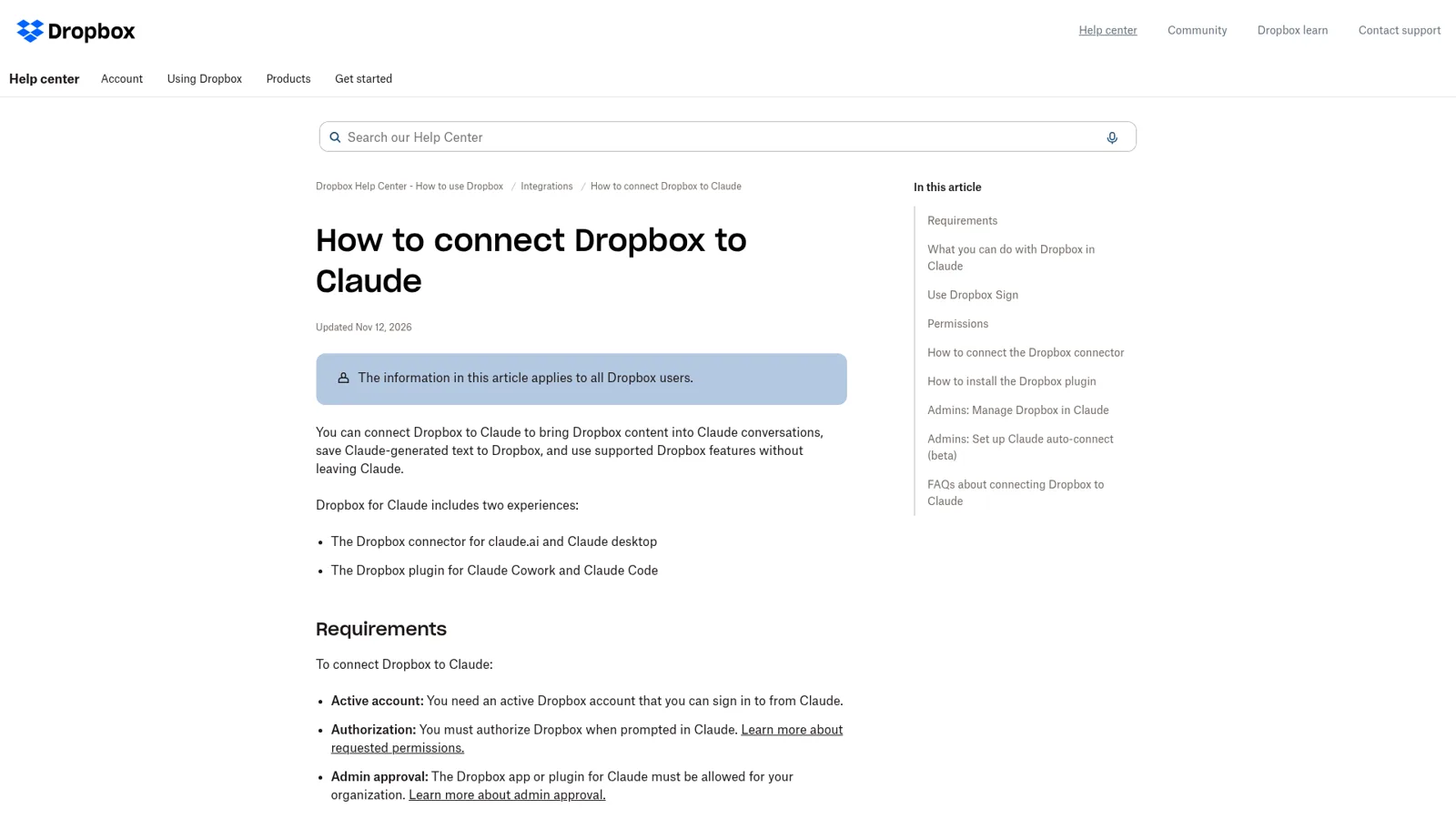
You connect Dropbox to Claude once, and the connection follows you across Claude's apps. Here are the steps from Dropbox's help article:
- In claude.ai, click the + in the chat box and choose Add connectors.
- Click the + next to Dropbox.
- Sign in to Dropbox, review the permissions and click Continue.
In the desktop app, open Chat, Cowork or Code, then Customize > Connectors > Add > Browse connectors, search for Dropbox and add it. The plugin lives under Customize > Plugins. For the terminal, Dropbox's MCP server guide gives the Claude Code one-liner: claude mcp add --transport http DropboxMCP https://mcp.dropbox.com/mcp.
On a Team or Enterprise plan, the button depends on your role. Anthropic's connector guide says "an Owner adds a connector for the organization, and members then connect with their own account." Members who don't have it yet see Request instead.
What can Claude do in your Dropbox?
Claude can find, read, organize, share and create files in your Dropbox, but only with permissions you approve at sign-in. Dropbox asks for seven: view account info, view and edit files, view and edit sharing, and view and edit file requests. The listing shows 19 tools. Here's what they add up to:
| Job | What Claude can do | The fine print |
|---|---|---|
| Find | Search by name or content, list folders, read file details | Folder listings come back 100 items per call |
| Read | Pull text from PDFs, Word docs and other text files | Text extraction works on files up to 5 MB |
| Organize | Create folders, copy, move, rename, delete | Deletes go to Deleted files, recoverable within your plan's window |
| Save | Write new text files from the chat | Text only: .txt, .md, .html, .py; no images or PDFs |
| Share | Create shared links, list links, create file requests | Recipients of a link created from Claude must request access |
| Sign | Send, remind, cancel and download Dropbox Sign requests | You confirm sends, reminders and cancellations first |
Sources: Dropbox in Claude, Dropbox MCP server.
The MCP server goes further than the directory listing. Dropbox's docs list file revisions, restoring a folder to an earlier point, audio and video transcripts, and a converter that turns scanned PDFs into Markdown with OCR. Its Dropbox Paper tools (read, edit, comment) "currently work with Claude Code, Cursor, and Codex", not claude.ai.
Live search, not a sync
The connector doesn't copy your Dropbox into Claude. Each time Claude needs something, it calls a Dropbox tool with your sign-in and gets the folder as it is right now. So Claude's reach is exactly your Dropbox reach. Dropbox's FAQ puts it plainly: Claude "can only access content and complete actions that you already have permission to use in Dropbox."
If you want an index across Dropbox and your other apps, that's Dropbox Dash, which "connects to your work tools, indexes your content, and retrieves relevant information" and has its own Claude connector at mcp.dropbox.com/dash. Dash's MCP tools are read-only searches. More in my Dash guide and AI enterprise search.
What does it cost, and which plans get it?
The connector itself costs nothing extra on either side. Claude's pricing page lists Connectors as included on Free, Pro, Max, Ultra, Team and Enterprise, and Dropbox's help article says it "applies to all Dropbox users." The plan only changes the admin layer:
| What you want | Claude plan | Dropbox plan |
|---|---|---|
| Search, read, organize and share files | Any, Free included | Any, Basic included |
| Owner adds it for the whole org; members request it | Team or Enterprise | Any |
| Auto-connect members with no Dropbox sign-in (beta) | Team or Enterprise | A Dropbox team plan |
| Block the Dropbox app for your company | Any | Standard, Advanced, Business, Enterprise |
| Admin controls for connectors | Team or Enterprise | Any |
Sources: Claude pricing, Dropbox in Claude, Dropbox app controls.
For the subscriptions themselves: Claude Pro is $17 a month billed annually ($20 monthly), and Team is $20 per standard seat billed annually ($25 monthly). Dropbox's plans page, billed yearly, lists Plus at $9.99 a month, Standard at $15 per user and Advanced at $24 per user, and each card carries a "Work with your files in AI tools" line with the Claude and ChatGPT logos. My Claude pricing guide has the full breakdown.
What admin controls does the Dropbox connector have?
Admins get controls on both sides, and they're decent. On Claude Team and Enterprise, an owner allows the connector under Organization settings > Connectors, or deletes it to block it. The Dropbox plugin gets four settings: Not available, Available to Install, Installed by Default and Required.
Inside Claude, every connector tool can be set to Always allow, Needs approval or Blocked, per tool or per group of tools (tool permissions). I'd put delete and move on Needs approval for the first few weeks. On the Dropbox side, a team admin can block registered integrations or specific apps from the admin console, though blocking "doesn't disconnect team members who are already connected to an app."
Claude auto-connect (beta)
The newest piece is auto-connect, which Dropbox's help article also calls Claude-issued enterprise-managed auth. When a member's Claude email matches a verified Dropbox email, they find Dropbox already connected, with no Dropbox sign-in or consent screen. It needs Claude Team or Enterprise and a Dropbox team plan. Two lines in Dropbox's docs are worth reading twice:
- Auto-connect "doesn't verify whether the member logged in through your identity provider or met its multifactor authentication requirements."
- When someone leaves, remove them from both Claude and Dropbox, because existing access tokens stay valid until they expire.
What do people run into with the Dropbox connector?
Mostly launch bumps, plus one story about agents and files in general.
A tool schema that broke Claude sessions. In the Dropbox Community, a user reported that the MCP server's list_folder tool used a schema shape Anthropic's API rejects, and the result was worse than one broken tool:
"Until this is fixed, the Dropbox MCP is effectively unusable for any user of Claude Code / Anthropic's API - connecting it breaks every Claude session, not just Dropbox tool calls."
Dropbox staff reproduced it, escalated it and shipped a fix; existing chats needed Claude closed and reopened to pick it up.
Revoked tokens for one user. Another admin hit "OAuth access token has been revoked" for a single person even after disconnecting and reconnecting on both sides (Dropbox Community). A support ticket closed it out.
Access bigger than the task. This week Hacker News argued about a law professor whose notes Claude deleted while renumbering pages. The thread doesn't say which Claude surface he used, and one commenter pointed out that the "files were later recovered via Dropbox." The comment I keep coming back to is about scope:
"The access was much bigger than the task. The job was page numbers in old notes, yet the current syllabus got deleted too. An edit to one document shouldn't be able to remove a different one"

The connector's delete sends files to Deleted files rather than erasing them, and Needs approval on that tool settles the rest. It's still the right instinct for any agent with write access to shared folders.
Where the connector stops for a team's shared folders
The Dropbox Claude connector works for one person, with that person's access, while that person has Claude open. For pulling your own briefs into a draft or tidying your own project folder, I'd reach for it first.
The shared team folder is a different job. Think about who actually asks about it: a new designer in Slack hunting for the current brand guidelines, an account manager who needs the signed SOW before a call, a freelancer in a shared channel asking for the client's asset folder, and now and then a customer in your website chat asking for the spec sheet. Each should get a different slice of Dropbox, and some should get nothing at all. Claude's controls are real, and Anthropic's own Claude Tag brings Claude into Slack channels, but those controls follow the person or the channel, not who the request is for. That's the gap an AI teammate fills, the same one I walk through in Claude for work.
How eesel works as your team's Dropbox teammate
eesel is an AI teammate that works in the apps your team already uses and takes requests from anyone who talks to it there. Connect Dropbox and it looks things up and takes actions there, with each action set to On, Ask first or Off. It answers in Slack, Microsoft Teams, Google Chat and email, so "where's the latest X?" gets an answer in the thread with the file linked.
It knows who is asking
This is the part I care most about. Claude works for whoever is typing. eesel works for the company in front of anyone, and you decide what it does for each kind of person: a teammate, specific people you name, a verified customer or an anonymous visitor. For each, every action is set to act on its own, ask first or stay off.
In Dropbox terms: when the project lead asks in Slack for a share link to the final renders, eesel creates it. When a freelancer in a shared channel asks for the same link, it asks an editor first. And when a visitor in your website chat asks for your rate card, it never goes near it, because that file is Team only. Team only files are used for your team's questions alone, and eesel never sends the file or a link to it to someone outside the team (Team only). "Your team" means your Team page plus full members of your connected Slack, Microsoft Teams or Google Workspace.
Approvals land where the request started
Ask first shows the exact action and its details with Approve and Deny, as a card in the Slack thread the run started from, by email, on the dashboard or with eesel approvals in a terminal. Only editors can approve (roles), and you pick which members or channels get the requests. Even on On, eesel's safety check can still hold a risky call. You can set all of this by saying it in chat: "look things up on your own, but ask me before you move or delete anything."
It works without anyone at a keyboard
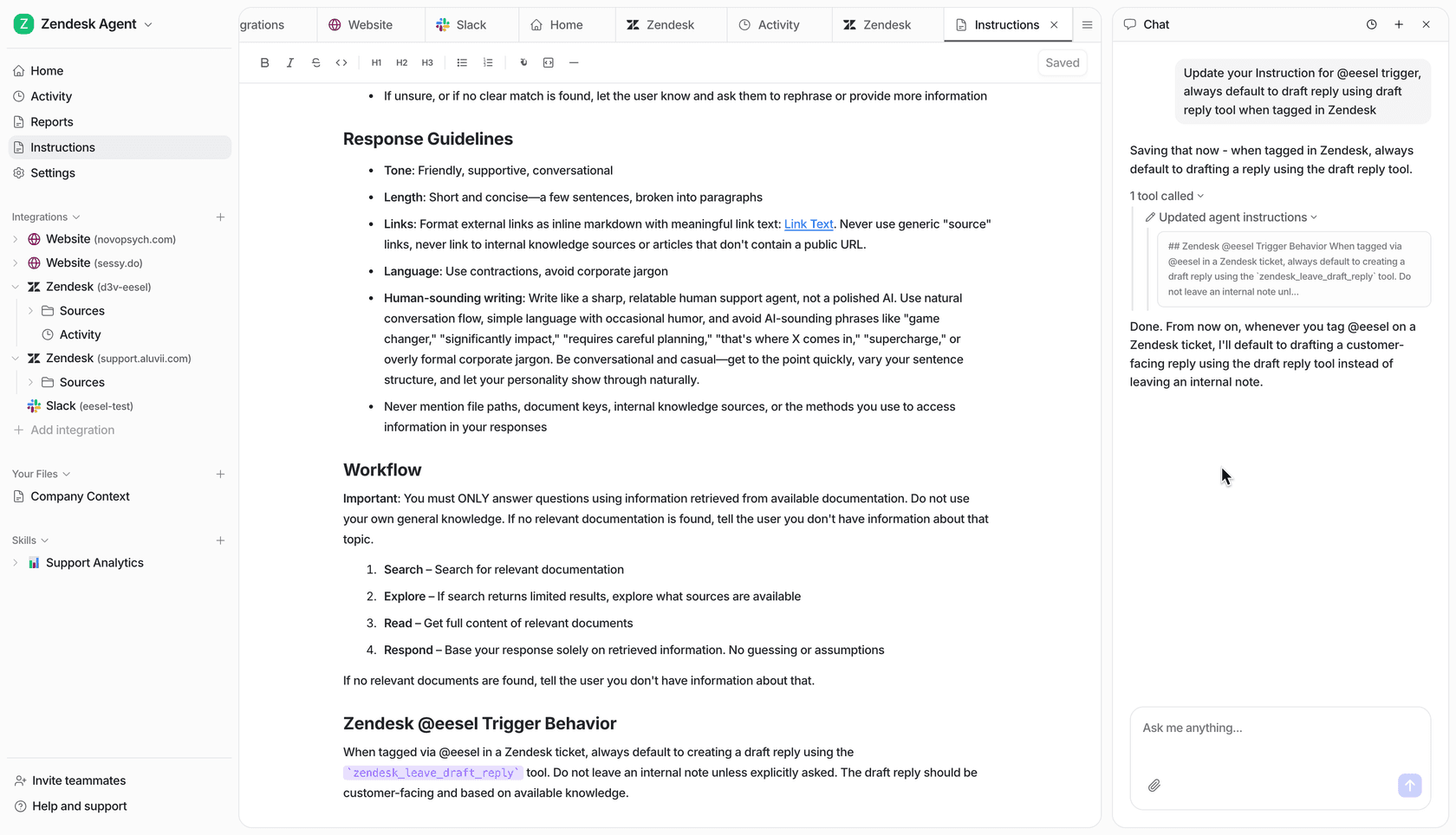
eesel doesn't wait to be asked. Automations start work on a schedule, on an event in a connected app, or from a webhook, so a Monday-morning check of the project folder is something it simply does. It learns from your docs, past work and Slack history, and when someone corrects it, the fix sticks.
It already does this lookup work for real teams. At Cactus Club Cafe, the internal IT team's eesel handled 750 tickets in a month with 1,650 runbook and policy lookups, while a second agent audited the daily finance extract. The internal operations guide shows the Slack version, and my post on internal knowledge bases covers the habits that make answers like these trustworthy.
Claude with the Dropbox connector vs eesel, side by side
| Claude + Dropbox connector | eesel with Dropbox | |
|---|---|---|
| Works for | The person using Claude | The whole team, and customers if you want |
| Who can ask it | You, in your Claude | Teammates in Slack, Teams, Google Chat, email; customers in chat |
| Dropbox access | Everything that person's account can open | What you connect, with Team only files kept internal |
| What decides what it may do | Your tool permissions and org admin settings | On, Ask first or Off per action, by who is asking |
| Works with nobody at a keyboard | Scheduled tasks you set up, on Pro and up | Schedules, app events and webhooks |
| Where it answers | Claude apps | Slack, Teams, Google Chat, email, website chat |
| Cost | Included with any Claude plan | From $299 a month for 500 credits, unlimited seats |
Sources: Claude pricing, Dropbox in Claude, eesel pricing.
Can you use Claude and eesel together?
Yes, and it's what I'd do: keep the Dropbox connector for your own work, and give the team eesel for the shared folders. Your eesel workspace is itself an MCP server, so it sits next to Dropbox in Claude (use eesel from Claude):
- In Claude, open Settings > Connectors and choose Add custom connector.
- Name it eesel and enter
https://oracle.eesel.app/mcp. - Sign in to eesel and approve, once.
Then ask "what did eesel answer in Slack today" or "have eesel post the new brief link in #design", and your own agent replies with its instructions and knowledge. Editors can change things, viewers get the read side, and anything on Ask first still asks. My posts on the AI agent MCP server and MCP for support explain the pattern, and the sibling post on the Dropbox ChatGPT integration covers OpenAI's route.
Which route should you pick?
Use the Dropbox connector for your own files in Claude, the MCP server if you live in Claude Code or Cursor, Dropbox Dash if the real problem is search across a dozen apps, and eesel when the folders are the team's and what it shares has to depend on who is asking. If your files also live in Google Drive, my Claude and Google Drive guide covers that side, and Claude vs ChatGPT helps if you haven't picked an assistant yet.
Try eesel as your team's Dropbox teammate
If Claude already makes your own Dropbox work faster, eesel does the same for everyone else's questions. Connect Dropbox and your Slack or Teams, mark the internal files Team only, and put moves and deletes on Ask first while you watch a week of its answers. It's a free 7-day trial with 100 credits and no card.