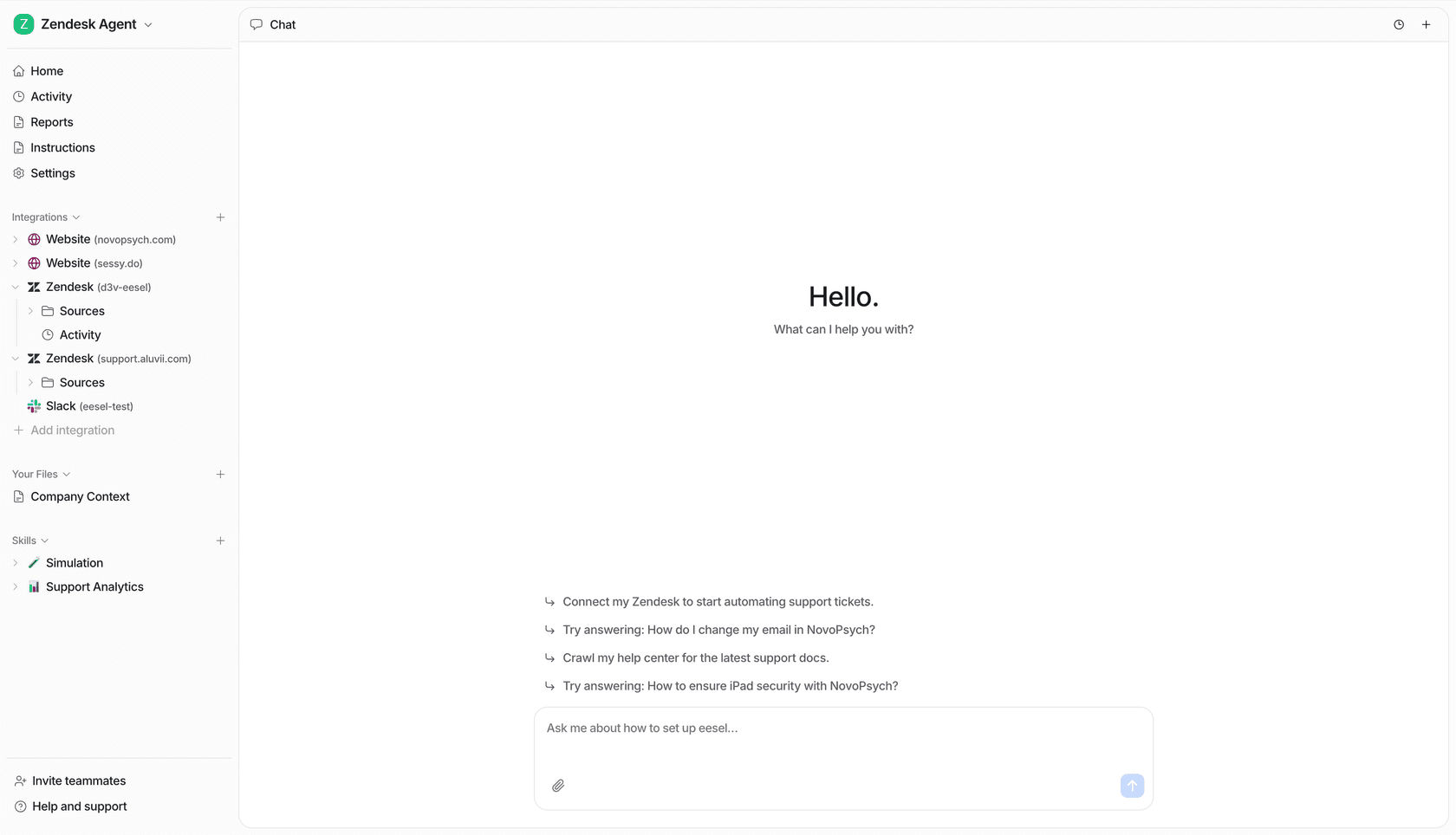

The Webflow Claude connector is Webflow's own app in Claude's connector directory: you add it from Claude's + menu, sign in to Webflow, pick the sites or Workspace Claude may touch, and Claude can then build pages, edit styles and components, manage CMS collections, fix SEO and publish the site. It runs on Webflow's remote MCP server, Webflow says that server is on every Site plan including the free Starter plan, and connectors are on every Claude plan, including Free.
It works as you. Webflow's docs say "An agent can do only what you can do in the Designer, and nothing more", and each authorization covers one Workspace. For a designer or developer driving their own site from a chat, that's a great setup, and I'd turn it on today.
The gap shows up when the Webflow work is the team's. "Is the new pricing live?", "add this case study to the CMS", "who changed the homepage hero?" get asked in Slack by marketing, sales and a freelancer, and none of them has Claude open on the right Workspace. That's where eesel fits: an AI teammate the whole team asks in Slack or Teams, where what it does alone, what it asks first and what it never does depends on who is asking. If you live in a terminal, Claude Code can set it up for you with the eesel CLI: connect your apps, load your brand docs and ask it test questions before anyone else sees it.
I've spent the last few years building AI that takes actions inside other teams' tools. The hard part is never "can it call the API". It's deciding what the AI may do on its own, what waits for a yes, and who it should never act for. On a website, one wrong publish is public in seconds.
What is the Webflow Claude connector?
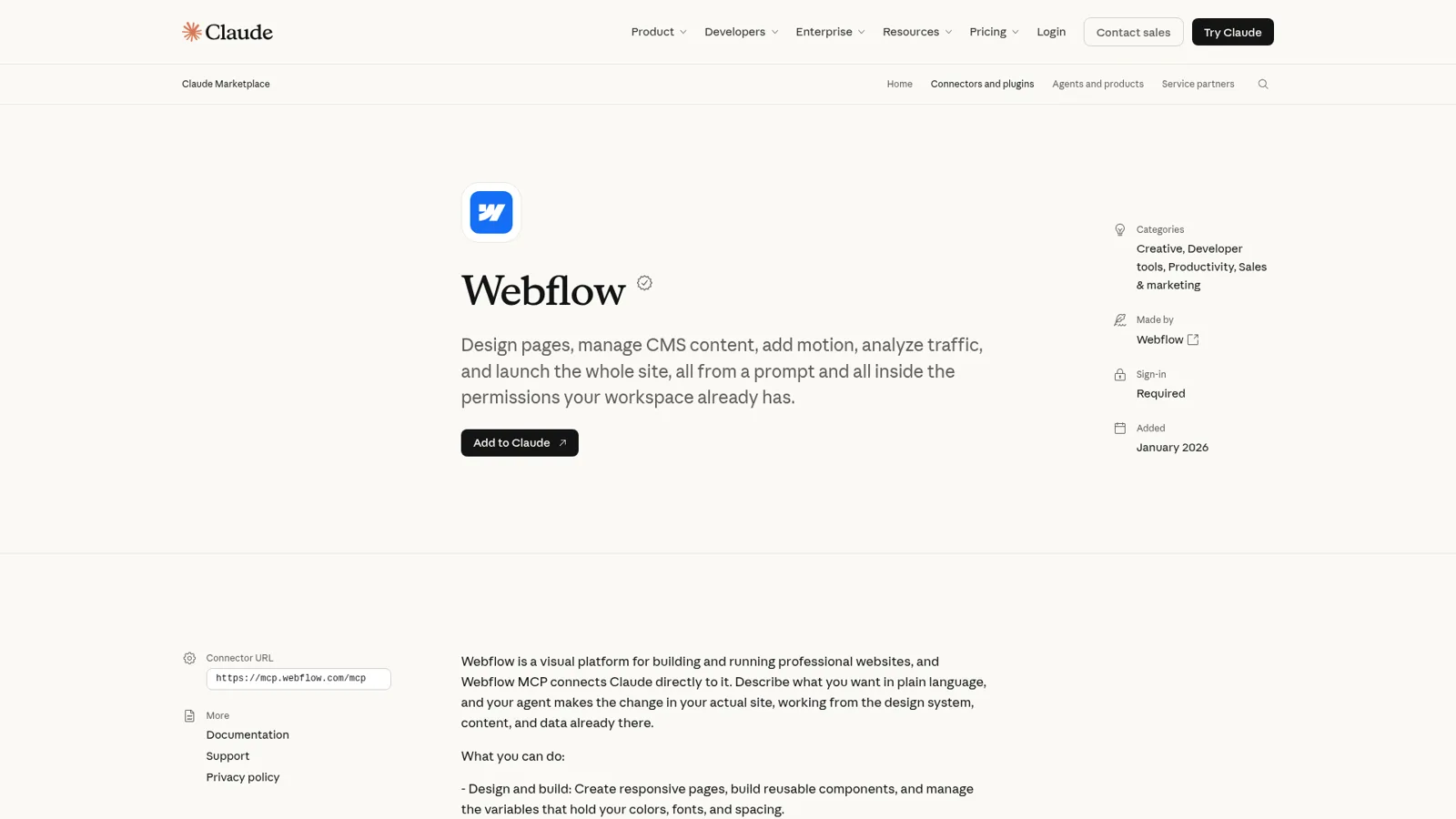
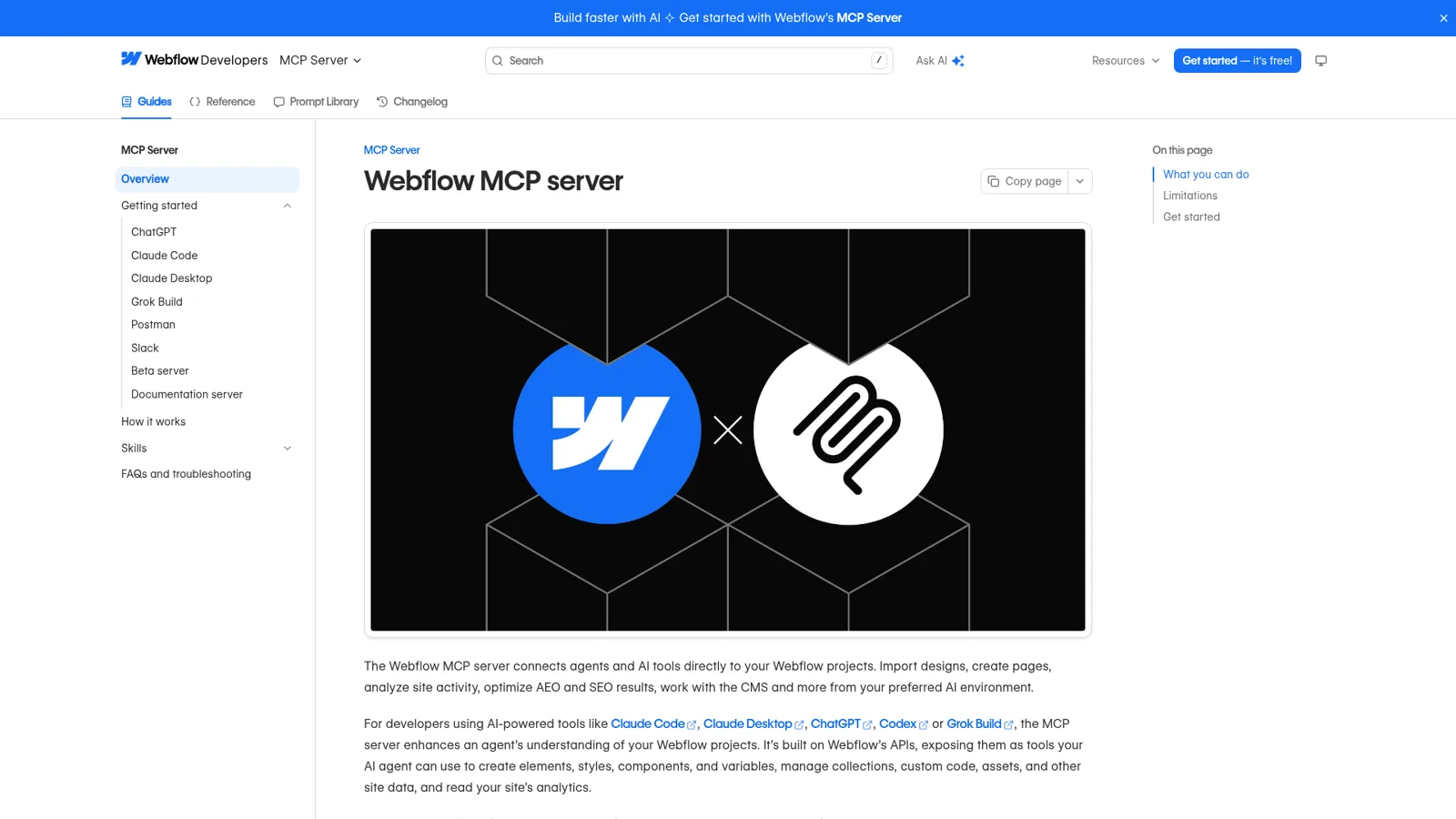
The Webflow Claude connector is an app that Webflow builds and lists in Claude's directory, added there in January 2026. Anthropic's listing describes it as a way to "Design pages, manage CMS content, add motion, analyze traffic, and launch the whole site, all from a prompt". Under the hood it's the Webflow MCP server, which Webflow describes as connecting "agents and AI tools directly to your Webflow projects".
MCP (Model Context Protocol) is the open standard that lets an assistant call another app's tools. Webflow's server exposes those tools to Claude, ChatGPT, Codex, Gemini, Copilot and others from one place, and Webflow's MCP 2.0 release this summer added deeper design, build and governance support.
My sibling post on the Webflow ChatGPT integration covers the OpenAI side, and ChatGPT vs Claude compares the assistants.
How do you connect Webflow to Claude?
You connect it from inside Claude, and Webflow's setup steps take a couple of minutes:
- Open a Chat or Code session in Claude and click the + icon.
- Hover over Connectors and choose Add connector.
- Search for Webflow, choose it and click Connect.
- Confirm the callback URL and click Continue.
- Choose the sites or Workspaces Claude may use, then click Authorize App.
In Claude Code it's one command, claude mcp add --transport http webflow https://mcp.webflow.com/mcp, then /mcp to sign in (Claude Code guide). Webflow suggests one Claude Code project folder per site to keep access separate; my Claude Code MCP tools post covers the client side. EU-hosted Workspaces use mcp.eu.webflow.com/mcp instead (getting started).
Four details trip people up:
- Who can connect. Webflow says "Users with any site role except Reviewer can connect", but its FAQ adds that only site owners and admins can authorize a site; for everyone else those sites appear greyed out (FAQ).
- One Workspace per authorization. To switch, you remove the connector and reinstall it.
- The Bridge App. Most work runs headlessly through Webflow's Data API. Element snapshots and reading or changing the current selection, page, mode and breakpoints need the Designer open with the MCP Bridge App connected, and the tab kept awake.
- Claude Team and Enterprise. An Owner enables the connector for the organization first, and each member still signs in with their own account (Claude Help Center).
What can Claude do in Webflow?
Far more than writing copy. Claude's listing shows 34 tools, and Webflow's data tools reference groups them by job:
| Job | What Claude can do | Worth knowing |
|---|---|---|
| Design and build | Create pages, sections and elements, classes and combo classes, components with props and variants, variables, GSAP interactions | Classic interactions aren't editable; build those by hand |
| CMS | Create collections and fields, bulk-create and update items, publish and unpublish items | Items are created as drafts; publishing is a separate step |
| Pages and SEO | Bulk-update titles, slugs, meta and Open Graph for up to 100 pages, write JSON-LD schema | Page branches need an Enterprise plan |
| Site | List sites, read settings, publish the site to its domains | publish_site makes the latest changes live |
| Analytics | Traffic, top pages, scroll depth, goals; Optimize and AEO results | Needs the paid Analyze, Optimize or AEO add-ons |
The audit-and-fix jobs are where it shines. Webflow's own example prompt is "Audit my site for broken links, missing alt text, and incomplete meta descriptions", and its prompt library has ready-made ones for image compression, keyword updates and moving hardcoded colors into variables. If you design in Claude first, Webflow says the server can bring "designs, variables and styles from Figma, Claude Design and other tools" into your site; my Claude Design review covers that side.
A few things it won't do, per the overview's limitations: create a brand-new site project, create new localized CMS items, or manage Google and Adobe fonts that aren't uploaded files.
Whose permissions does the Webflow connector use?
It uses yours. Webflow's how it works page says the server enforces "your Webflow permissions and roles, including custom roles", and records agent changes in the site activity log "so you can review exactly what an agent did and when".
On top of that, Webflow gives you three levers I like:
- Agent Instructions. Markdown rules that live on the site itself and get handed to any connected agent, like "use the existing button component, never raw links". They can reference your variables, styles, components and collections.
- Page branches. On Enterprise, Claude can build in a private copy of a page and merge it later, so the live page stays untouched.
- Agent presence. Since October, the Designer shows an avatar and a highlight wherever an agent is editing, free on all plans (Webflow announcement).
On Claude's side, Webflow notes that "By default, Claude will ask you to approve any actions it wants to take in Webflow", and you can block or always allow specific actions under Customize > Connectors > Webflow. Claude Team and Enterprise owners can set each tool to Always allow, Needs approval or Blocked for the whole organization.
One wrinkle: Webflow says "granting a tool grants all of its actions". The CMS tool bundles reading items with publishing and deleting them, and a GitHub issue filed on 22 October points out that none of the server's tools sets a destructiveHint, the flag assistants use to decide what runs without asking (issue #151). So "always allow the CMS tool" also allows deleting items. I'd keep it on Needs approval.
What problems do people hit with the Webflow Claude connector?
Most of what I found sits in Webflow's own GitHub repo and status page, and much of it is fixed.
Tools disappearing from Claude. On 8 July, Webflow's status page logged "Reports of some missing tooling from the Webflow MCP Server", affecting the Claude Desktop app. One user described it in the repo:
"Midway through a session, claude lost access to the CMS tool. 6 hours later still the same, tried disconnect and reconnect, tried restarting client, tried new chat session, tried restarting computer, tried allowing all permissions for the connector in settings."
The fix Webflow posted was to open Settings, then Connectors, click Webflow, and choose Refresh tool list from the three-dot menu. Remember that one.
The Designer half. Anything needing the live Designer depends on the Bridge App staying connected, and Webflow's FAQ has a whole section on browsers putting the Designer tab to sleep. A long-running April report of Designer tools returning "Unable to connect" collected 20 comments (issue #108). Since MCP 2.0 moved most building onto the Data API, far less of the work depends on that tab.
Some write paths behave differently from others. A July report found HTML embed code writes returning "needs to reauthorize" on a fresh grant while page-level custom code worked in the same session (issue #139).
Sentiment on Webflow's own forum is split. When Webflow announced its ChatGPT app, one reply was blunt:
"Fantastic! Claude has never quite worked. Looking forward to seeing Webflow and Codex more deeply integrated."
That was five months and a major release ago, so I'd read it as history. Test the jobs you care about on a staging site first.
How much does the Webflow Claude connector cost?
There's no separate charge. Webflow's MCP overview says the server is "available on all Site plans, including the free Starter plan", and Webflow's AI credits article says "The Webflow MCP server doesn't use credits on its own" (Campaigns actions are the exception).
| Plan | Price | What matters here |
|---|---|---|
| Webflow Starter site | Free | MCP server included; webflow.io domain, limited CMS |
| Webflow Basic site | $15/mo billed yearly | MCP server; no CMS |
| Webflow Premium site | From $25/mo billed yearly | Webflow CMS, code components |
| Webflow Team platform plan | $2,500/mo, annual contract | Site activity log and API, publishing workflows |
| Webflow Core / Growth Workspace | $19 / $49 per month billed yearly | 300 / 400 AI credits; Growth adds publishing permissions |
| Claude Free | $0 | Connectors included |
| Claude Pro | $17/mo billed annually, $20 monthly | Connectors, Claude Code |
| Claude Team | $20/seat/mo billed annually, $25 monthly | Admin controls for connectors |
My Claude pricing breakdown has the full Claude table.
What about Webflow's own AI and Webflow for Slack?
Webflow sells its own AI too. The Webflow AI assistant builds sites, generates copy and CMS items, and audits SEO and AEO inside the product, drawing on credits pooled per Workspace (200 a month on the free Starter Workspace). My Webflow AI guide walks through it.
More relevant for teams is Webflow for Slack, launched in July. You can DM Slackbot about your sites for free, or mention @Webflow in a channel, which is in public beta. Webflow says the agent "reads the thread for context before acting, and drops a review link back into the thread so your team can approve changes before they publish". That's Webflow's own answer to "Webflow for the team", and if your work lives entirely in Webflow it's worth a look. Each person still connects their own Webflow account.
What does a team need on top of the Webflow Claude connector?
A team needs Webflow help that's open to everyone, in the place they already ask, with rules that depend on who's asking. Picture a five-person marketing team running a Webflow site:
- "Is it live yet?" Sales asks if the new pricing page is published. Support asks which help article the footer links to. They ask in Slack, not in Claude.
- Content from a conversation. A customer story gets approved in a thread, and someone has to turn it into a CMS item with the right fields, images and slug.
- The Monday sweep. Someone checks for broken links, missing alt text and pages without meta descriptions, then fixes what's safe and flags the rest.
- Outside help. A freelance designer in a shared Slack channel asks for a section change on the homepage.
Claude handles each of these for the person typing. What it isn't built for is the fourth case: making the freelancer's request wait for your content lead's yes while the lead's own request just runs. Anthropic's team product, Claude Tag, brings Claude into Slack channels, though it's in public beta and Slack-only.
How eesel works with Webflow for the whole team
eesel is an AI teammate that works in the apps your team already uses and takes requests from anyone who talks to it there. Connect Webflow, one of the 3,000+ apps it works with, and it looks things up and takes actions there, with each action set to On, Ask first or Off. It sits in Slack, Microsoft Teams, Google Chat and email, so the person asking never needs a Webflow seat or a Claude chat open.
What it may do depends on who is asking
This is the part a personal connector doesn't do. Every action is On, Ask first or Off, per agent, and you can set it by saying it in chat (actions and approvals). eesel also tells apart your team, the specific people you name, verified customers and anonymous visitors, and gives each their own rules. A sensible Webflow setup reads like this:
- On its own for the content lead: draft a CMS item from a Slack thread and update meta descriptions.
- Ask first for a freelancer in a shared channel: any page change waits for an approval card in that same Slack thread, with the exact change and Approve or Deny.
- Never for a visitor: someone using your website chat gets answers, and the site itself is off limits.
Only editors approve, you choose who receives the requests, and eesel's safety check can still hold a risky call on an action set to On. Mark an action Team only and it runs only when someone on your team asks.
It runs on a schedule, so the Monday sweep happens
An automation can run on a clock, on an event in a connected app, or from a webhook. Ask in the dashboard chat for "every Monday at 9am, check the site for broken links and missing alt text and post the list to #web", and it confirms the time and timezone.
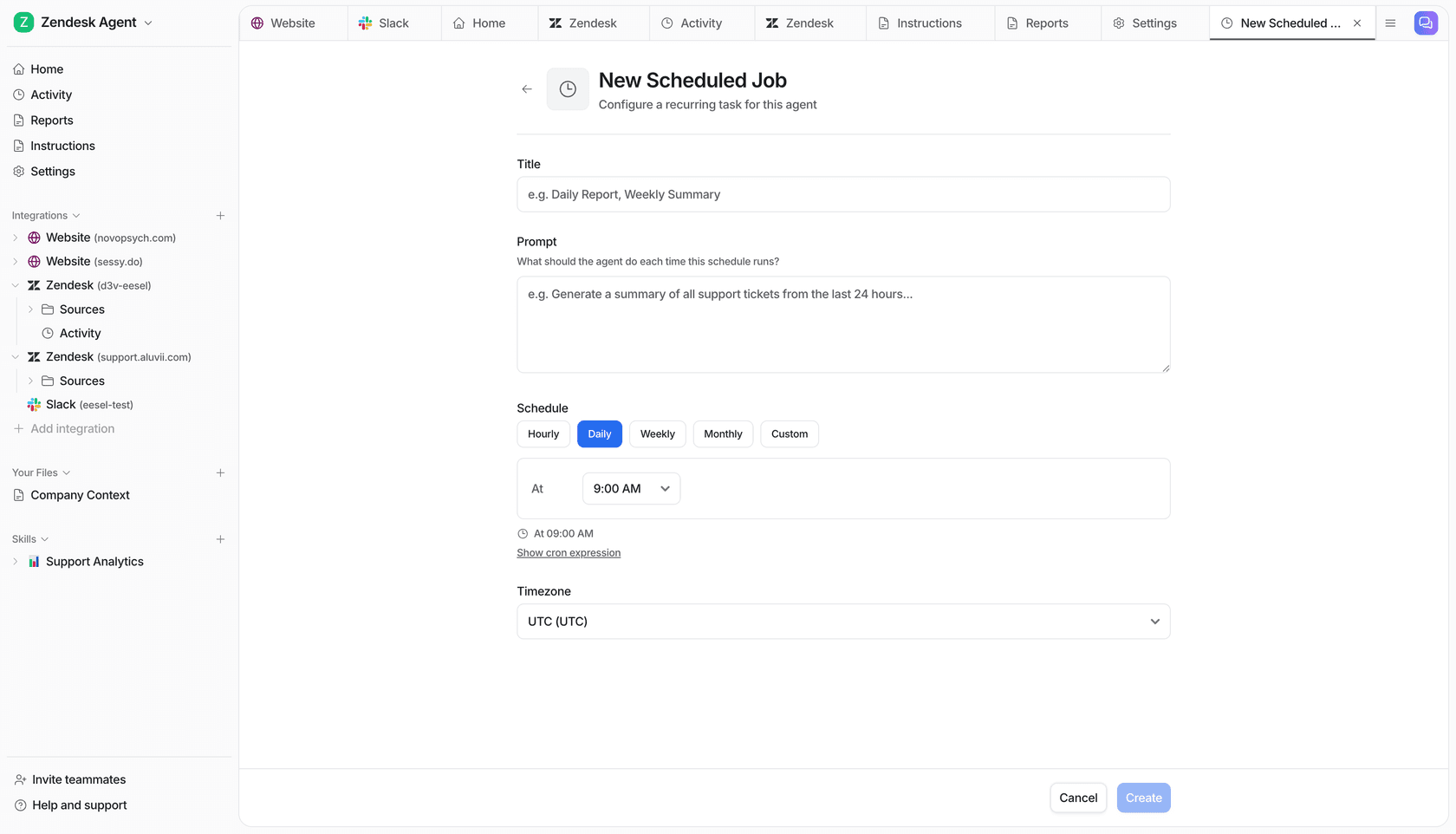
The pattern already runs at real teams. At Cape Coffee Beans, eesel ran 160 scheduled checks in a month on weekday and Saturday mornings, emailing the founder a short list of what had slipped. When someone corrects the format once, the correction sticks for every run after.
If blog posts are the main thing your team ships to Webflow, eesel's AI blog writer researches and writes posts in your brand voice, then exports them as markdown or HTML for your CMS (content writing docs). My post on AI content in a CMS covers that handoff.
Webflow Claude connector vs eesel with Webflow
They do different jobs, so this compares their shape rather than a feature list.
| Claude + Webflow connector | Webflow agent in Slack | eesel with Webflow | |
|---|---|---|---|
| Works for | You | Each person who connects | The whole team |
| Whose Webflow access | Yours, one Workspace | Each person's own account | The connected account, per action |
| Who can ask it | The person in the chat | Slack users who connect Webflow | Anyone in Slack, Teams, Google Chat or email |
| What decides what it may do | Your Webflow role; Claude tool settings | Your role; review link before publish | On, Ask first or Off per action, plus rules by who is asking |
| Works without anyone at a keyboard | Claude scheduled tasks you set up | Not documented | Schedules, events in other apps, webhooks |
| Cost | Your Claude and Webflow plans | Free in beta; AI credits after | From $299 a month, unlimited seats |
Sources: Webflow MCP overview, Webflow for Slack, eesel actions and approvals.
Can you use Claude and eesel together?
Yes, and I'd keep both. Claude stays your design and build partner, and eesel handles the shared requests. Your eesel workspace is itself an MCP server, so you can add it to Claude as a custom connector and ask "what did eesel change on the site this week?" from any chat (use eesel from Claude). Editors can change things, viewers get the read side, and anything on Ask first still asks.
New to the idea? My posts on AI teammates and the best AI teammates explain the category, and eesel vs Claude compares the two directly.
Comparing connectors across your stack? See the Figma Claude connector and Notion Claude connector guides too.
Try eesel as your team's Webflow teammate
If the Webflow Claude connector already saves you hours, eesel is the same idea for everyone else on the team. It answers "is it live?" in Slack, turns an approved thread into a CMS draft, runs the Monday site sweep, and asks before a freelancer's change goes anywhere near your homepage. The free trial runs 7 days with 100 credits and no card, and plans start at $299 a month with unlimited seats.