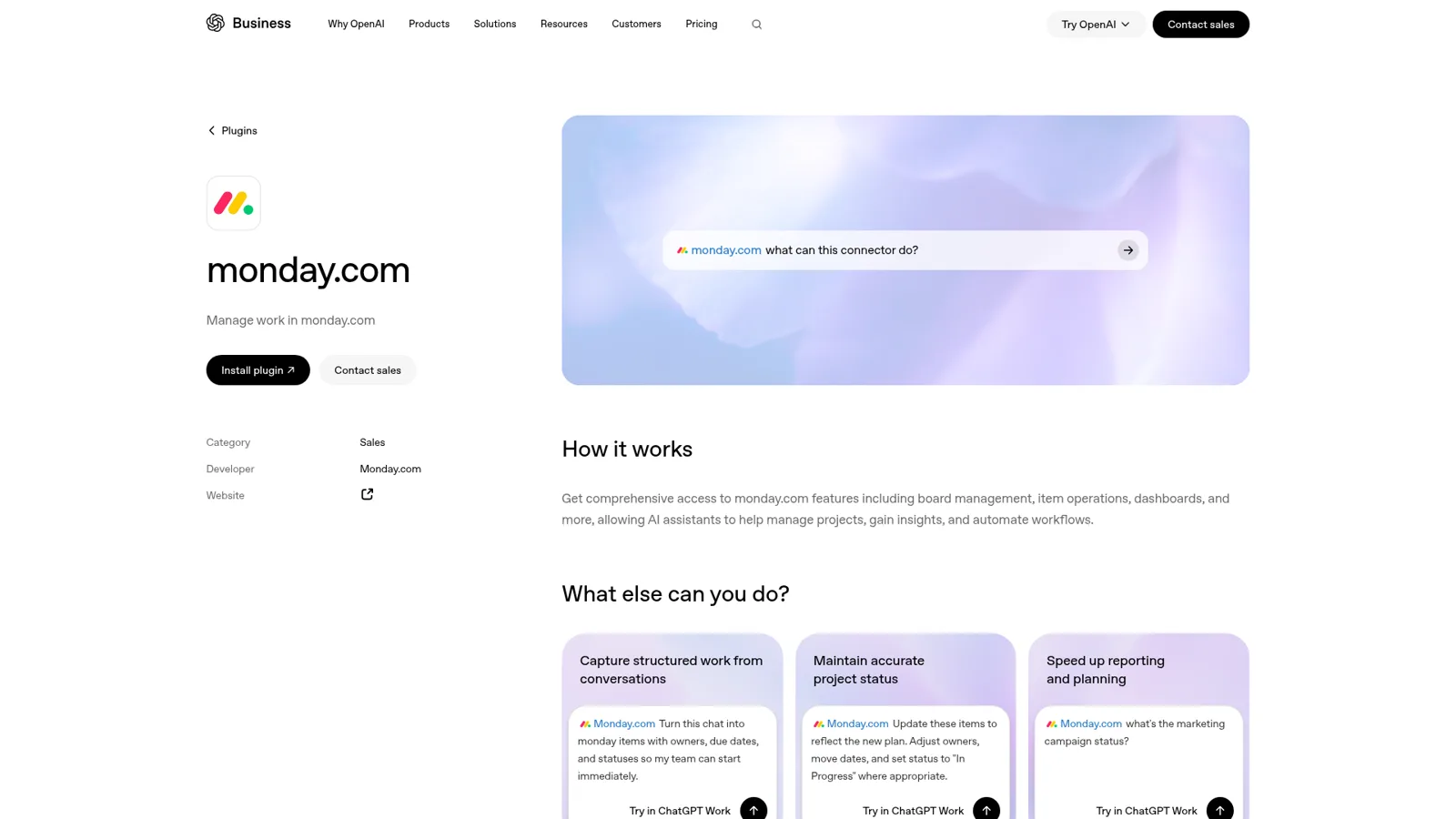
The monday ChatGPT integration is monday.com's own app inside ChatGPT: you connect monday.com under Settings > Plugins, approve the OAuth screen, and ChatGPT can search your boards, create and update items, post updates and build dashboards in plain language. It runs on monday MCP, which monday says is preinstalled on every account and included on all plans at no extra cost, under standard API limits. Admins can switch it off or fence it to specific workspaces, and Claude users get the same connector from Claude's directory.
Like every ChatGPT app, it acts as the person who connected it, with that person's monday.com permissions, and nobody else can ask their ChatGPT anything. That suits a project lead tidying their own boards. The status questions, intake requests and updates that come at a monday.com board from a whole company are team work, and they want a teammate with rules that change by who is asking. That's eesel. For the hands-off route, Codex can set eesel up through the eesel CLI, connecting Slack and monday.com and running test questions so you can check the answers before your team relies on it.
A note on my angle. eesel has spent years letting an AI work inside teams' own tools, so I read every connector through the same three questions: what may it change on its own, what should wait for a person, and what must it never do for someone outside the team. One quick scope note too: plenty of "monday chatgpt" searches are just people looking up the work week. This one is for the monday.com crowd.
What can ChatGPT do in monday.com?
ChatGPT can read and change most of what you'd touch in monday.com by hand: boards, items, columns, updates, docs and dashboards. OpenAI's monday.com plugin page describes "comprehensive access to monday.com features including board management, item operations, dashboards, and more." Under the hood, monday's Platform MCP exposes more than 60 tools that map to its GraphQL API. If MCP is new to you, my MCP apps explainer covers the idea.
monday's getting-started article lists the jobs it's meant for. In practice they fall into four groups:
| Job | Example prompt | What happens |
|---|---|---|
| Find and report | "What's overdue across all launch boards?" | Reads items, statuses and dates across boards |
| Capture work | "Turn this meeting transcript into tasks with owners and due dates." | Creates items with people, priority and date columns |
| Update the plan | "Move these dates and set status to In Progress." | Changes status, people and date fields |
| Build views | "Build a dashboard of bugs by status." | Creates dashboards and widgets, or a monday doc |
monday's own advice sits right in the FAQ: "we recommend reviewing AI-suggested changes before confirming actions that modify your workspace." That's good advice, and ChatGPT's approval settings (more on those below) are how you follow it.
There's also an experimental extra. monday's UI components preview adds interactive pieces inside ChatGPT: show-table for an interactive board table, show-battery for a progress bar, show-chart for pie, bar and line charts, and show-assign for picking owners. You switch it on by connecting with https://mcp.monday.com/mcp?beta=true, and monday labels it "an early preview of a new experimental feature."
How do you connect monday.com to ChatGPT?
You connect it from ChatGPT's settings in about a minute, as long as your monday.com admin hasn't turned AI connectors off. monday's ChatGPT setup article and OpenAI's connected apps article agree on the steps, though OpenAI now calls the menu Plugins:
- In ChatGPT, open Settings > Plugins (or Apps & connectors on older versions).
- Find monday.com and click Connect or Install plugin.
- Approve monday's OAuth screen with the monday.com account you work in.
- Start a new chat and ask "list my monday.com boards" to check it works.
- Optional: set when ChatGPT asks before acting, from Always ask up to Allow all actions.
If step 3 fails with an authorization error, monday's troubleshooting note is short: "Ensure your admin has enabled AI Connectors." A permissions error usually means your own account can't see that board. To disconnect later, remove it in ChatGPT's settings or revoke it from monday's admin settings. If you're new to the ChatGPT side, my guide to apps in ChatGPT and plugin install walkthrough cover the screens.
What does it cost?
The connector itself is free: monday says "MCP is available on all monday.com plans at no additional cost" and "Standard API limits apply." So you're paying for your monday.com seats and your ChatGPT plan, and the number to watch is monday's daily API quota, since every ChatGPT action is API calls.
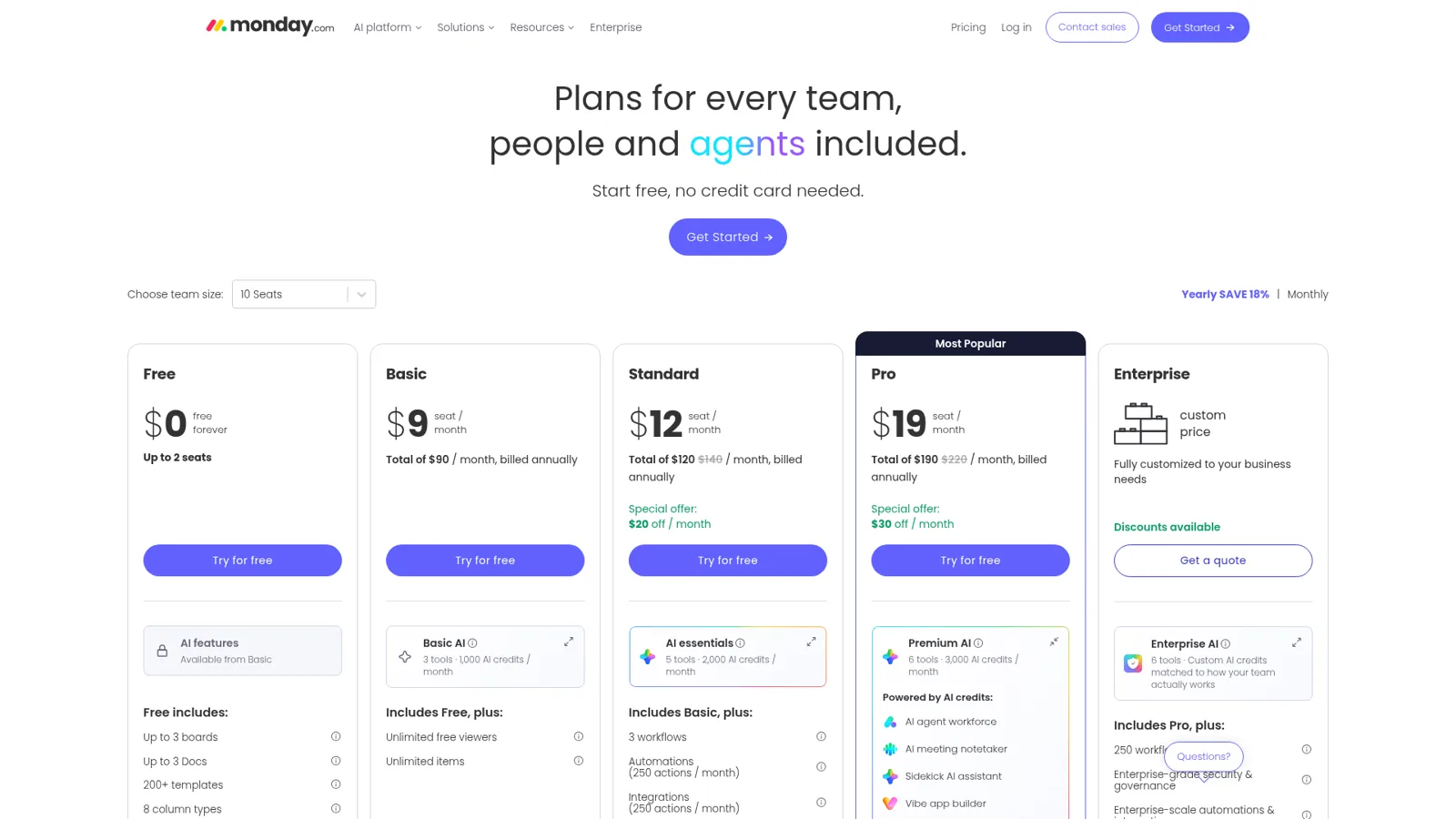
From monday.com's pricing page, billed annually:
| monday.com plan | Price per seat | AI credits a month | API calls a day |
|---|---|---|---|
| Free | $0, up to 2 seats | AI available from Basic | Not listed |
| Basic | $9 | 1,000 | Not listed |
| Standard | $12 | 2,000 | 1,000 |
| Pro | $19 | 3,000 | 10,000 |
| Enterprise | Custom | Custom | 25,000 |
On the ChatGPT side, OpenAI's pricing page lists Free at $0, Go at $8, Plus at $20 and Pro from $100 a month, and ChatGPT Business is $25 per user monthly or $20 billed annually with a 2-seat minimum (OpenAI help). OpenAI adds that "App use may count toward your ChatGPT plan limits." For a 10-person team on monday Standard and ChatGPT Business annual, that's $120 plus $200, so $320 a month, before anyone runs out of anything. My ChatGPT pricing guide has the plan details.
Who controls what ChatGPT can touch?
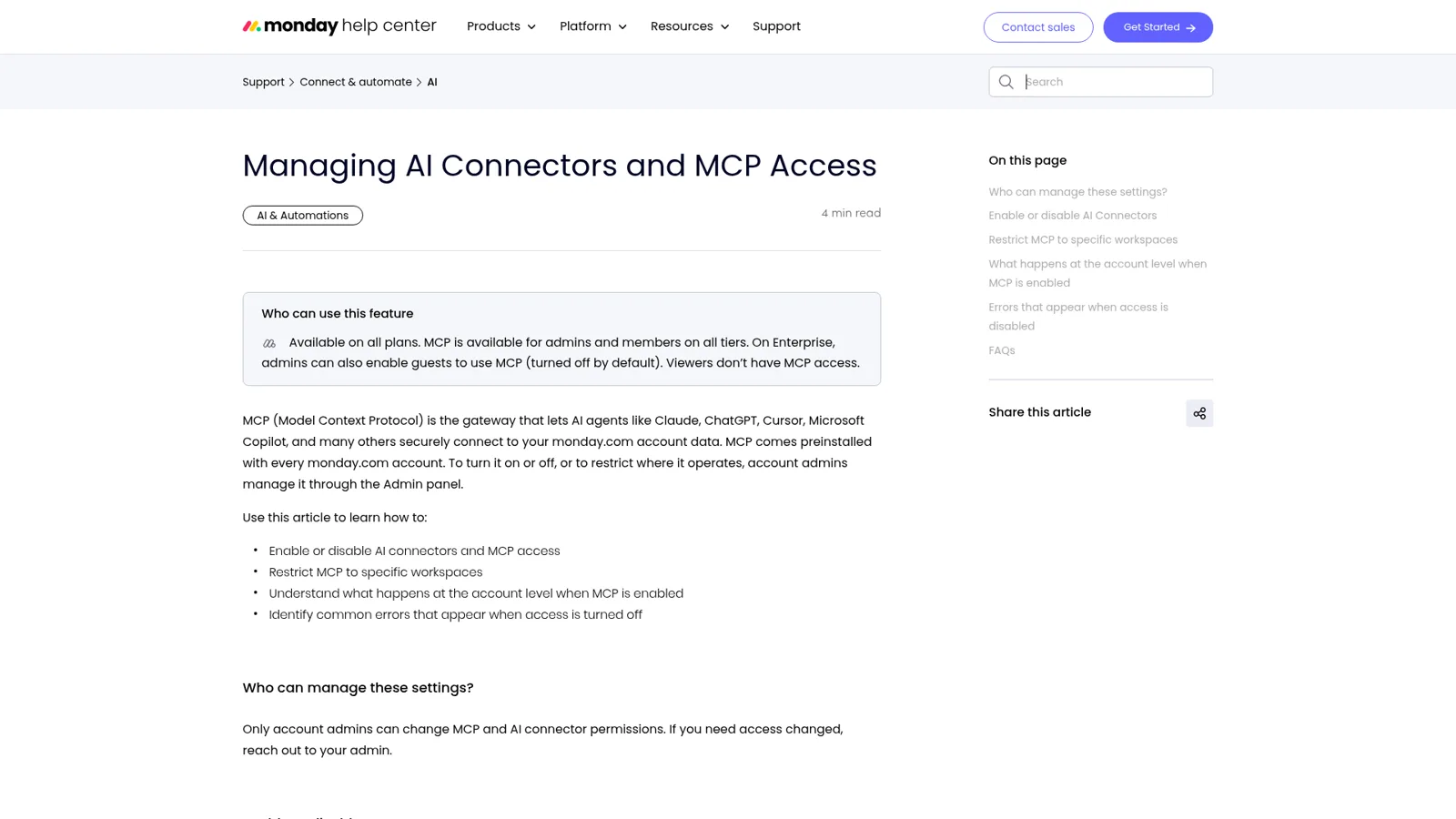
Both sides have real controls, and they stack. On monday.com, only account admins manage them, under Administration > AI governance > AI permissions (monday's admin article):
- A master toggle, Allow external AI agents to access your monday.com account data, turns every AI connector off at once.
- Public Hosted MCP covers ChatGPT, Claude, Cursor, Codex and the rest; Microsoft Copilot has its own toggles.
- Under Apps > monday MCP, you can limit MCP to specific workspaces, which is the setting I'd use to keep HR or finance boards out.
- MCP is for admins and members on all plans; "Viewers don't have MCP access", and Enterprise can let guests in (off by default).
On ChatGPT, each person picks when ChatGPT pauses: Always ask, Allow read actions, Allow low-risk actions, or Allow all actions for eligible apps (OpenAI). In ChatGPT Business, "many apps are enabled by default, but administrators can change workspace access."
The line in monday's admin article I'd underline is this one: "There is no service account or shared key. Every connection is tied to an individual's personal access scope." That's a good security design. It also tells you exactly what the integration is: one person's assistant, acting as them.
What do people run into?
Most issues are setup and admin settings, plus a few rough edges where an AI action skips something a person would have done. Two posts from monday's own community are worth reading before you roll it out.
One user had ChatGPT create a new monday.com user through MCP and found the invite didn't look right:
"I created a new user using ChatGPT connected via the Monday.com MCP. It created the user but I don't think it sent the user the invite email since the invited user was blank."
That's the kind of action I'd keep on "Always ask", and it's a good argument for not giving a personal assistant admin-level jobs at all.
The second is about cost visibility on monday's built-in AI, which runs on AI credits:
"Currently, our Members are blind to how many AI credits they are using per conversation or request unless they go searching for it."
One more practical gap: ChatGPT's event-triggered tasks currently respond to "new Gmail messages, new Slack channel messages, and GitHub pull request activity" (OpenAI). A new item on a monday.com board isn't on that list, so ChatGPT won't start work on its own when one lands.
ChatGPT or monday's own AI?
Use monday's built-in AI for work that lives entirely inside monday.com, and ChatGPT when the job pulls in other tools or starts in a conversation. monday sells its own AI on every paid plan, powered by the AI credits in the table above: Sidekick, "an intelligent, context-aware AI assistant" (Sidekick), an AI agent workforce with ready-made agents like Risk Analyzer, Lead Scorer and Ticket Assignment (monday agents), AI columns, a meeting notetaker, and the Vibe app builder. My monday.com AI guide walks through each.
| ChatGPT + monday app | monday's built-in AI | |
|---|---|---|
| Where you use it | In ChatGPT | Inside monday.com |
| Pulls in other tools | Yes, through your other ChatGPT apps | Mostly monday.com data |
| How it's paid | Your ChatGPT plan; the connector is free | monday AI credits on Basic and up |
| Ready-made agents | No, you prompt it | Yes, agent templates and custom agents |
| Acts as | You | monday's agents run inside your account |
If monday.com isn't settled for your team yet, monday alternatives, monday vs Linear and Basecamp vs monday are worth a look.
What about Claude?
Claude has the same monday connector. monday's Claude setup article says monday.com is in Claude's official directory "for users on Pro, Max, Team and Enterprise plans," and on Team and Enterprise an Owner enables it for the organization before each person connects their own account. Claude's monday.com listing shows 33 tools, from create_items_and_tasks and update_items_owners_and_status to manage_agent, which configures other monday.com agents. Same OAuth, same permissions, same "acts as you" model. My Claude for work post explains how Claude connectors behave on team plans.
Where it stops: requests from the whole team
ChatGPT plus monday.com is one person's assistant, and the board is the team's. Picture an operations team running client onboarding on monday.com:
- Sales asks in Slack whether Acme's kickoff is booked yet.
- The project lead asks to push three due dates after a client call.
- A contractor in a shared Slack Connect channel asks to mark their deliverable done.
- Finance wants a Monday-morning list of onboardings stuck for a week.
- A prospect in the website chat asks how onboarding works.
Each of those wants a different rule. Answer sales on its own. Make the project lead's change on its own. Let the contractor's change wait for an approval. Post the finance list without being asked. Tell the prospect about onboarding, but never show them a client board. A personal ChatGPT connection can't hold rules like that, because it works for one login, and only that person can ask it. Its approval settings, which are good, follow the person and the app, not who the request is for. OpenAI's workspace agents can be shared in Slack and ask before writes by default (OpenAI help), but their rules are set per agent too. My ChatGPT agents guide covers them.
| ChatGPT + monday app | eesel as a monday.com teammate | |
|---|---|---|
| Who it works for | The person who connected it | The whole team |
| Who can ask it | That person, in ChatGPT | Anyone in Slack, Teams, email or your chat |
| What decides what it may do | Their monday.com access plus ChatGPT approval settings | Each action On, Ask first or Off, plus who is asking |
| Starts on its own | Scheduled tasks; no monday.com event trigger | Automations on a schedule, app event or webhook |
| Where it answers | In ChatGPT | Where the request came in |
| Cost | ChatGPT plan; connector free | From $299/month, unlimited seats |
How eesel works as your monday.com teammate
eesel is a general AI teammate for the whole team. You connect monday.com alongside Slack, Microsoft Teams and your other tools, out of 3,000+ apps, and it looks things up and takes actions there, with each action set to On, Ask first or Off.
What makes it a teammate is that its permissions change with who is talking. eesel knows your team, meaning your Team page plus full members of your connected Slack, Microsoft Teams or Google Workspace, from everyone else, and you can set rules for specific named people, verified customers and anonymous visitors. So it updates the board when the project lead asks, asks an editor first when a contractor in a shared channel does, and never touches the client or invoice boards for a visitor in the chat bubble. Files and actions marked Team only only ever run when someone on your team asks (actions and approvals).
Approvals show the exact action and its details with Approve and Deny, as a card in the Slack thread the request started in, in the dashboard, by email or in the terminal. Only editors can approve, and you choose which members or channels get the requests. Even on On, eesel's safety check can hold a risky call. And you can set it all in a sentence: "update dates on your own, but ask me before closing any item." Roles are owner, editor and viewer (account roles).
It also starts work without a prompt. Automations run on a schedule, on an event in a connected app, or from a webhook, so the finance list goes out every Monday at 8am. Cape Coffee Beans runs 160 scheduled checks a month that email the founder a short list of what slipped. Cactus Club Cafe runs two agents with different jobs, one of them auditing a daily finance extract.
It learns from your docs, past work and Slack history, and corrections stick through memory, so "Acme's board is the one in the Enterprise workspace" holds next quarter. For the bigger picture, my AI teammates explainer and best AI teammates roundup go further.
Keep ChatGPT for your own boards
Keep the monday app in ChatGPT for your own planning; it's good at turning a messy call into tidy items. eesel's apps are being listed in ChatGPT's app directory, so you'll be able to ask your eesel agent things from ChatGPT too, and Codex can set eesel up through the CLI today (eesel from ChatGPT). If you're weighing ChatGPT for the rest of the company, my ChatGPT at work post covers seats and workspace agents, and my ChatGPT Work review covers the agent itself.
Try eesel as your team's monday.com teammate
ChatGPT's monday app is a solid personal assistant for your boards. eesel is the teammate the whole team can ask: it answers status questions in Slack or Teams, updates monday.com when the right person asks, waits for approval when someone else does, and sends the Monday list on its own. Start a free 7-day trial, no card, with 100 credits; paid plans are on the pricing page.