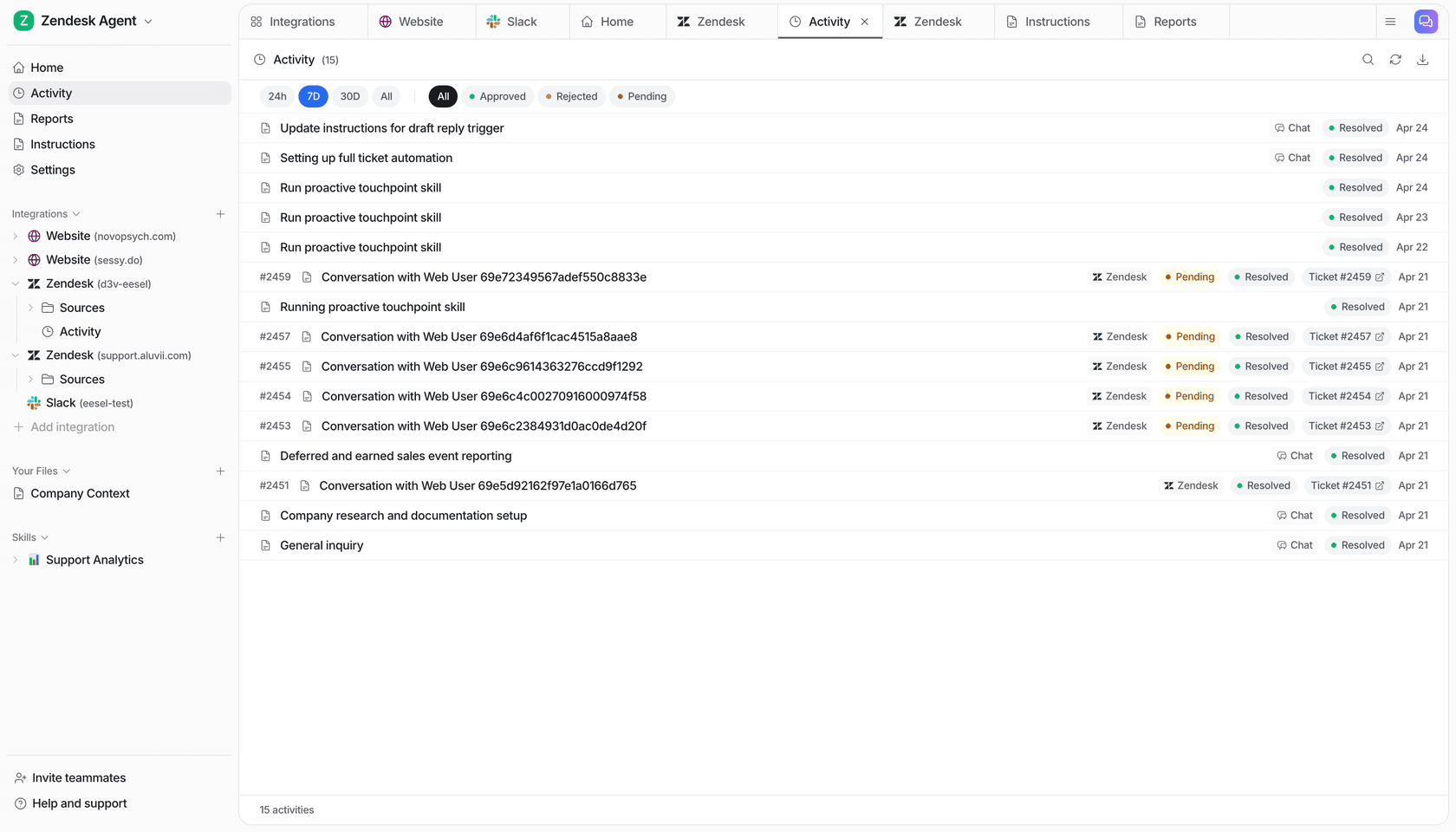


ChatGPT for Gmail is OpenAI's Gmail app: connect your Google account under Settings > Plugins, and ChatGPT can summarize threads, draft and send replies, and organize mail with labels, asking first or not depending on the permission level you pick. Sending from chat works on the web for Plus, Pro, Business and Enterprise. Since August 2026, a task in ChatGPT Work can also wake up when a new Gmail message arrives, filtered by sender or subject. That makes ChatGPT the more proactive of the big assistants in Gmail, for one person's inbox.
A shared inbox is a different job. When hello@ or billing@ gets mail, the right move depends on who sent it: a colleague, a regular supplier, a paying customer asking about a refund, or a stranger. eesel is an AI teammate that works in your team's Gmail and changes what it does alone, what it asks first and what it never touches by who is writing. And if you live in OpenAI's tools, Codex can set eesel up for you with the eesel CLI: connect the mailbox (someone still approves the Google sign-in), write the agent's instructions, and send test questions before it answers anyone.
I work on eesel, where we've spent years putting an AI inside other teams' tools and deciding, action by action, what it may do without a person. Email is the strictest test of that, so this guide is fair to ChatGPT about what it does well, and specific about where a team's mailbox needs more.
Can ChatGPT read and send Gmail?
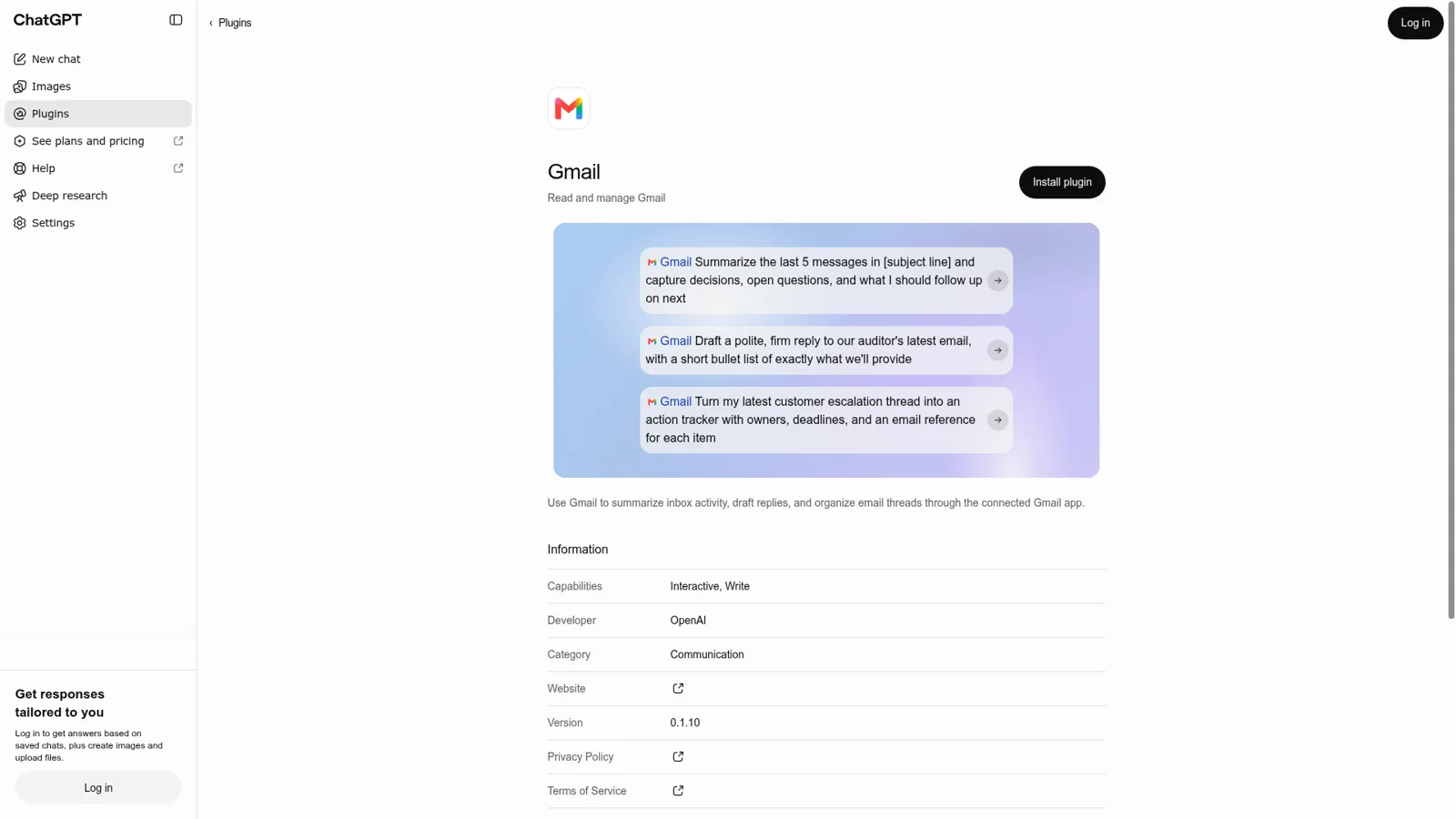
Yes. Connectors are now called apps (my ChatGPT connector guide explains the rename), and the Gmail plugin page describes it as "Use Gmail to summarize inbox activity, draft replies, and organize email threads," lists its capabilities as Interactive and Write, and names OpenAI as the developer. It got here in steps, all from OpenAI's release notes:
| Date | What changed |
|---|---|
| August 12-13, 2025 | Gmail, Google Calendar and Google Contacts connectors arrive in chat for Pro, then Plus |
| June 8, 2026 | "Send an email directly from within a chat" for Plus, Pro, Business and Enterprise on the web |
| August 25, 2026 | Scheduled tasks can respond to new Gmail messages, Slack messages and GitHub pull requests |
| August 28 to September 17, 2026 | Connect several Gmail accounts at once, then multiple accounts for any plugin, on all plans |
Memory can also draw on Gmail. OpenAI's notes say ChatGPT can pull context from "connected Gmail" to tailor answers for Plus and Pro, and memory sources may show "referenced emails from a connected Gmail account." If that feels like a lot, you can turn Memory off or disconnect Gmail, and OpenAI says it doesn't train its general models on data from connected Google apps (Google data FAQ).
What people use it for is mostly personal. A Hacker News commenter put the best case well:
"When I tell it "draft a reply to this email (which it has access to thru the gmail connector) and attach the latest docs" or "fill out this multistep immigration electronic travel authorisation form using my passport files saved in the folder", it just asks for the relevant info and handles the rest."

How do you set up Gmail in ChatGPT?
Open Settings > Plugins, choose Gmail, select Install plugin, sign in to Google and approve the permissions (connected apps guide). The ChatGPT apps directory lists the other plugins that work the same way. After that, mention it with @ in a chat or let ChatGPT pick it up when a question needs your email.
Three snags come up often:
- Google wants every box ticked. If you see "ChatGPT needs all requested permissions," go back and choose Select all on Google's screen. You can connect fewer Google apps, but not fewer permissions per app (account guide).
- Work accounts need Google's blessing. OpenAI's Google data FAQ says a Google Workspace admin may need to trust the ChatGPT/OpenAI app and approve its scopes. For Gmail the listed scope is
gmail.modify. - Several inboxes, one trigger. You can connect a personal and a work Gmail side by side, which is handy in chat. For automations it's murkier, as one user found:
"It worked correctly while only one Gmail account was connected. Immediately after an additional Gmail account was connected, the new-mail event stopped waking the Dot."
How do ChatGPT's Gmail permissions work?
Each app has a permission level that decides when ChatGPT asks before using it (app permissions):
- Always ask: asks before reading or changing anything.
- Allow read actions: reads freely, asks before changes.
- Allow low-risk actions: approves low-risk actions itself; higher-risk ones may need confirmation or be denied.
- Allow all actions: runs supported actions without prompts, which OpenAI labels elevated risk and keeps out of the account-wide and workspace-wide selectors.
OpenAI's examples of risky actions start with "Sending an email, message, comment, or invitation," and some requests are refused rather than prompted. Admins add their own layer (more in my ChatGPT Enterprise guide). In ChatGPT Business many apps are on by default and admins can switch them off; Enterprise and Edu can limit apps by role, and Enterprise can stop work email accounts on its verified domain being connected to personal ChatGPT accounts (admin controls).
These are careful controls, and they follow the person using ChatGPT. Your setting applies to your account, whoever the email is from. That's right for an assistant. A shared mailbox needs rules keyed to the sender as well.
The safety layer can also surprise people. A user running an outreach task with "Allow all actions" set and written standing authorization reported:
"Sep 30, 2026: 12 Gmail send attempts were blocked by the safety check. Verification of Gmail Sent showed 0 emails sent."
That thread ran to 31 posts and 1,800 views. Others report a PII check flagging names and email addresses in messages meant to contain them (thread), and that sends can't carry attachments, so "the only workaround is to create a draft and then manually attach the files" (thread).
Gmail-triggered tasks: ChatGPT's inbox watcher
This is the feature that sets ChatGPT apart in Gmail. In ChatGPT Work, you can create a task that runs when "a supported connected app receives a matching event," and for Gmail that means a new message, optionally filtered by sender or subject (scheduled tasks). It's on Plus, Pro, Business, Enterprise and Edu, not Free or Go. If an action needs approval, the task pauses until you review it.
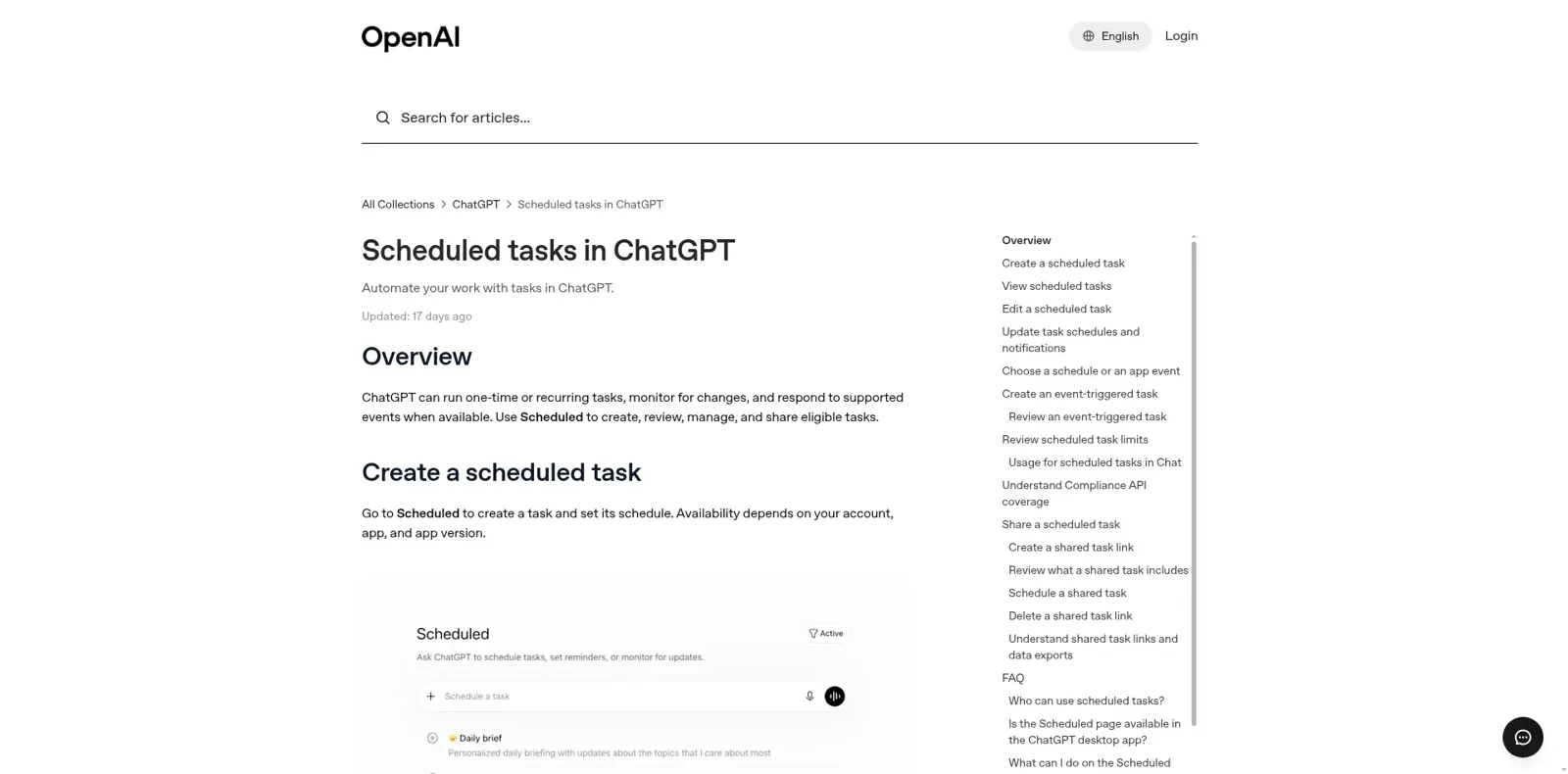
Here's the detail that matters for teams. Tasks can be shared, but a shared task is a recipe, not a shared worker: "A recipient who schedules a shared Gmail-triggered task must connect their own Gmail account" (Google data FAQ). Five people sharing the task means five copies, each watching its own inbox. Nobody's copy watches billing@.
Reliability is still settling, too. One user's daily 5am Promotions cleanup "works perfectly when I trigger it manually" but "consistently fails when the automated schedule attempts to run it" (thread), and another thread tracks Gmail showing as connected in Settings while conversations report it unavailable (thread).
What does ChatGPT for Gmail cost?
The Gmail app itself has no separate fee. What you pay is the ChatGPT plan, from ChatGPT pricing and the Business plan guide:
| Plan | Price | Gmail features |
|---|---|---|
| Free | $0 | Connect Gmail in chat; no scheduled or Gmail-triggered tasks |
| Go | $8/month | Scheduled tasks; no Gmail-triggered tasks |
| Plus | $20/month | Send from chat, Gmail-triggered tasks |
| Pro | From $100/month | Same, plus Dot, an always-on agent |
| Business, Standard seat | $25/user/month, or $20 billed annually | Admin app controls; minimum 2 seats |
| Business, Premium seat | $125/user/month, or $100 billed annually | Higher usage limits |
| Enterprise | Contact sales | Role-based app access, verified-domain restrictions |
My ChatGPT pricing guide and ChatGPT Work pricing go deeper on seats and credits.
Can a team share ChatGPT's Gmail? Workspace agents
The closest OpenAI gets is workspace agents on Business and Enterprise: shared agents that run in the cloud, in ChatGPT or Slack, on a schedule or from an API call. Each app connection can be an end-user account, where every person signs in as themselves, or an agent-owned account, a shared connection. OpenAI's advice is to "use a service account when possible," and it warns that with your personal account, "Other people may be able to trigger actions through that connection."
Write actions default to Always ask, and builders can add action constraints, such as one that "Only allows an email action to send messages to recipients at a specific domain." That's a useful guardrail. It's set once per agent, though, so a colleague in Slack and anyone else who can use that agent get the same rules. My ChatGPT agents guide covers them further.
People clearly want the next step. One forum post imagines an agent with an inbox of its own:
"But the email still came from my address... I'd still want control over who she can contact and when approval is required. This isn't about giving an agent unrestricted permission to email people."
What about Gemini in Gmail?
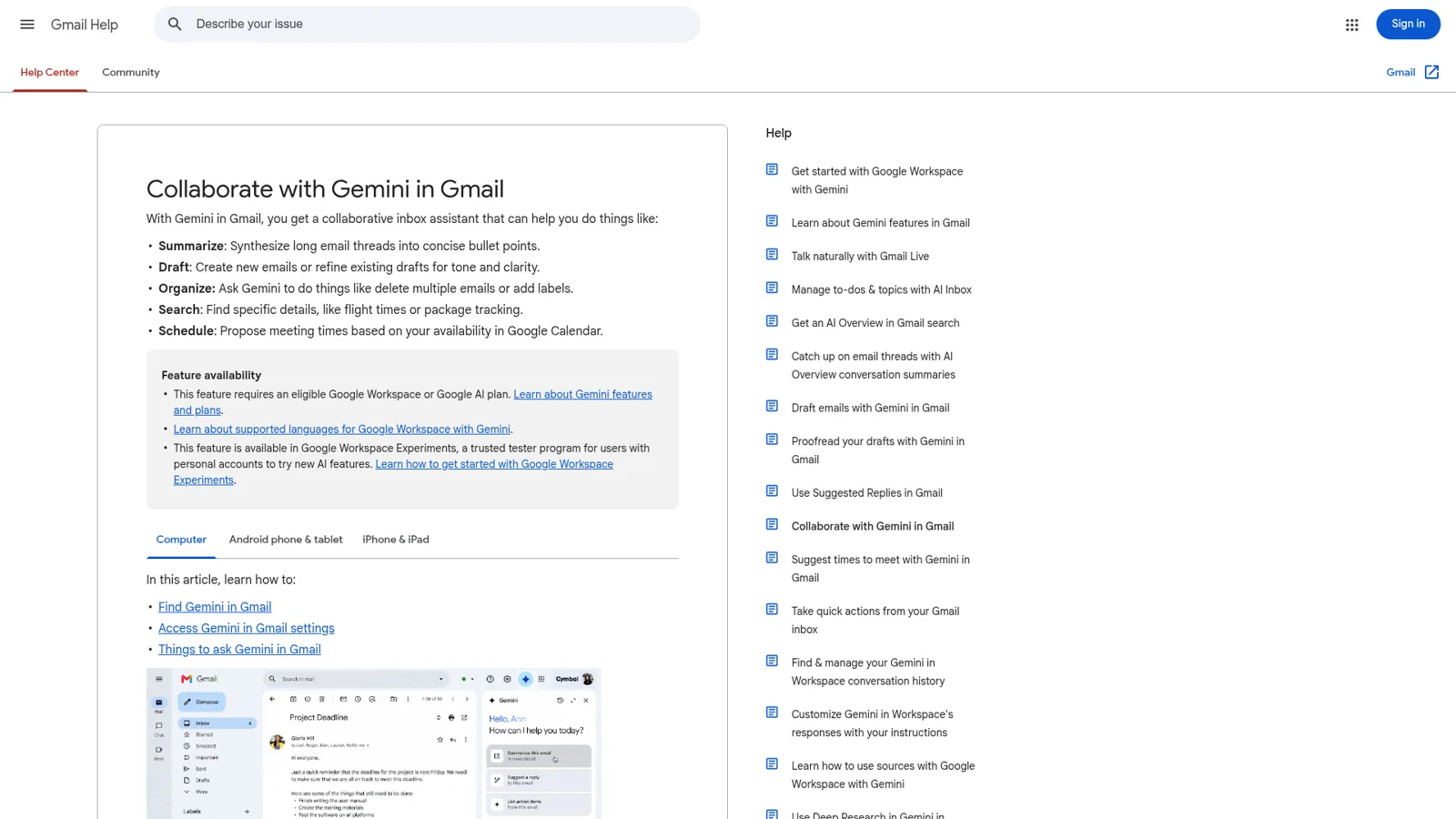
Google's built-in option is Gemini in Gmail, a side panel that summarizes threads, drafts and refines replies, deletes or labels mail in bulk, finds details like flight times, and suggests meeting times from your calendar. It needs an eligible Google Workspace or Google AI plan. It's the most native of the three, and opinions vary; one Hacker News commenter called it "the one place I'd love a decent model" while saying basic requests failed (pea). Either way, Gemini works for the person reading, like ChatGPT does.
My Gemini for Google Workspace guide covers plans, and Gmail's smaller AI features like Smart Reply and thread recaps have their own posts.
A shared inbox needs a teammate, not an assistant
ChatGPT, Claude and Gemini are AI email assistants: they answer to the person at the keyboard. A team mailbox has no single person at the keyboard. Take billing@ at a 12-person company on a Monday morning: a supplier sends an invoice, a customer asks why they were charged twice, the founder's accountant wants last quarter's statements, and a stranger asks for "the invoice for order 1182." The right answers are different for each, and the inbox shouldn't wait for someone to open ChatGPT. Teams usually reach for shared inbox software or an email ticketing system here; what's missing in both is someone who does the work.
That's what eesel in Gmail is for. Connect the shared mailbox with a Google sign-in and eesel can search it, read whole threads, send a reply or save a draft for a person, and add or remove labels and archive (Gmail docs). Work starts from the mail itself: any new email, new email matching a Gmail search such as to:billing@yourco.com, or an email a teammate labels for it. You can also put it on a schedule, like a Thursday pass that sends a polite nudge on every invoice more than 14 days unpaid (automations).
The difference from an assistant is that the rules follow the sender. Every action is On, Ask first or Off (actions and approvals), and what it does changes with who is asking. Try the billing@ Monday:
Who just emailed billing@? Tap to see what eesel does.
A teammate, from Slack: "anything urgent in billing@?"
It lists the new mail in the thread with a one-line summary each, on its own. Searching the mailbox is limited to your team out of the box.
A regular supplier sending an invoice
It labels the thread for finance and sends a short receipt confirmation, on its own, because you set those actions to On.
A paying customer asking about a double charge
It drafts the reply with what it found and waits. An editor approves it from Slack, email or the dashboard before anything is sent.
A stranger asking for another customer's invoice
It doesn't go looking. Files and searches marked Team only never run for someone outside your team.
Anyone, about the founder's own inbox
Nothing to find. eesel only sees the mailbox you connected.
You set those rules in a sentence ("handle supplier mail on your own, but ask me before anything to a customer about money"), and corrections stick through instructions and memory. Replies come from your docs and files in Google Drive and other connected apps. Approvals come back to where the request started: a card in the Slack thread, an email to the people you pick, or the dashboard. Only editors can approve, and the activity log shows every action and who decided.
Drafting first is a real way to run, not a timid one. Cactus Club Cafe runs its internal tech desk with eesel, and in a month it wrote 790 draft replies for the team against 51 sent directly, across 750 tickets, with a second agent auditing a daily finance extract. That's a team choosing exactly where a person stays in the loop.
Two limits to know: one connection covers one mailbox, and new mail reaches eesel after a short delay rather than instantly. Each eesel agent also has its own address, so teammates can forward it a thread or get a daily summary without connecting a mailbox at all.
ChatGPT in Gmail vs eesel in Gmail
| ChatGPT + Gmail app | eesel in Gmail | |
|---|---|---|
| Works for | You, through your own Google account | The company, in a shared mailbox |
| Who can ask it | You, in ChatGPT; a workspace agent's users | Teammates in Slack, Teams or email, plus the mail itself |
| What decides what it may do | Your permission level, admin app controls, safety checks | Each action On, Ask first or Off, changing with who is asking |
| Starts on its own | Gmail-triggered and scheduled tasks, per person | New mail, Gmail searches, labels, schedules, webhooks |
| Shared by a team | Shared tasks are copies; agents use one account | One teammate, one mailbox, everyone sees its activity |
| Cost | Free to $100+/month, or $20-25 per Business seat | From $299/month for 500 credits, unlimited seats |
eesel's pricing starts with a free 7-day trial (100 credits, no card), then Teammate plans from $299 a month for 500 credits with unlimited agents and seats. The security page covers data handling.
Can you use eesel from inside ChatGPT?
You will be able to. eesel's apps for ChatGPT, including one for Gmail, are being listed in ChatGPT's app directory; once live, you'll ask "what's waiting on me in billing@?" from a ChatGPT chat and the answer comes from your eesel agent (ChatGPT setup). Today, Codex can already set eesel up with the CLI. My take: keep ChatGPT for your own inbox and your own drafts, and give the shared mailbox a teammate. If you're comparing assistants, the Claude for Gmail guide covers Anthropic's connector, and ChatGPT at work covers the rest of OpenAI's work features.
Try eesel for your team's Gmail
If the mailbox belongs to a team, try eesel on it for a week: connect the shared address, tell it which mail to answer, which to draft and which to leave alone, and read its first replies in the thread before you hand it more. It's free for 7 days, no card.