How to connect AI and Google Drive to HubSpot Service Hub

eesel Team
Last edited September 8, 2026
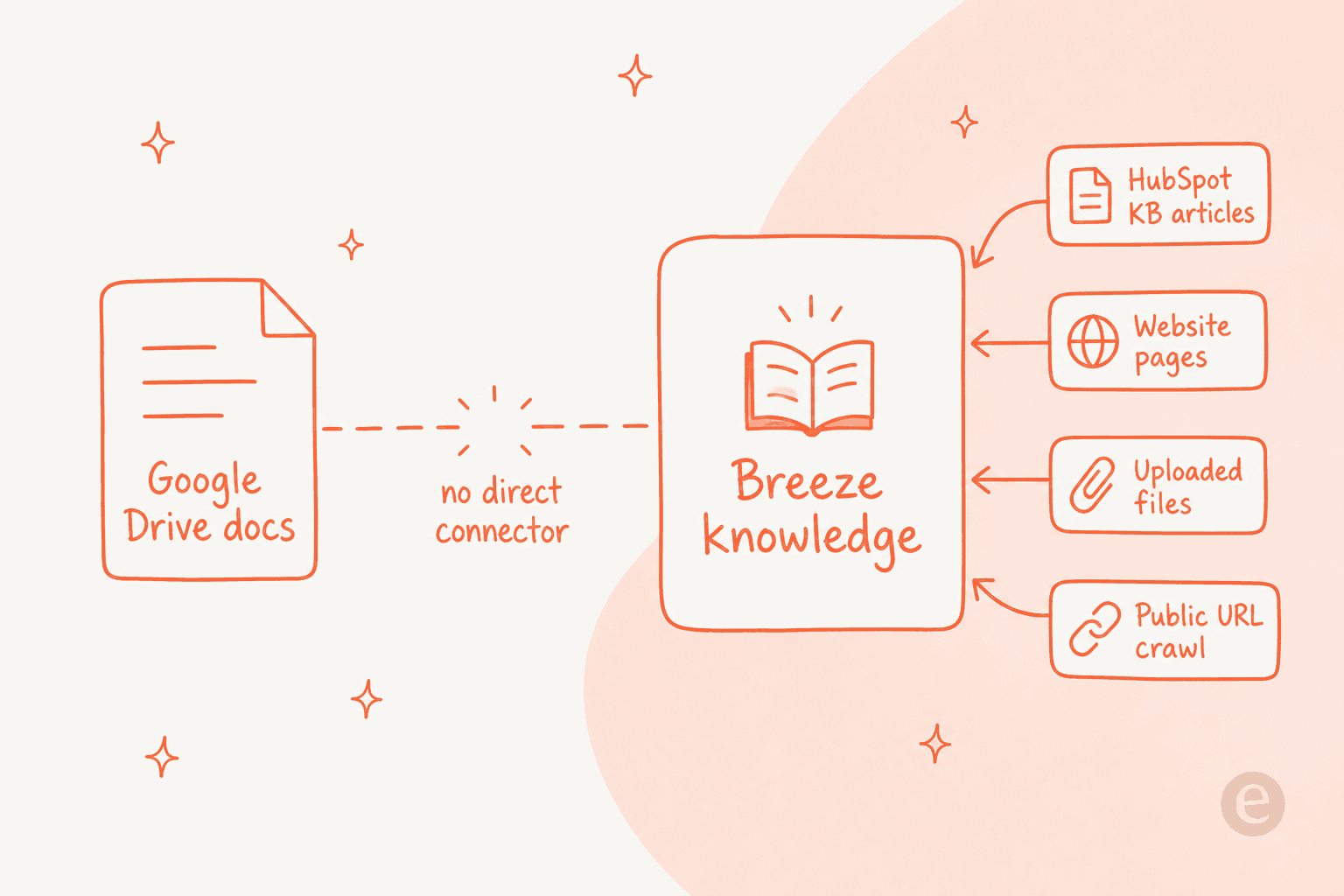
HubSpot's Breeze Customer Agent cannot read your Google Drive natively. Drive is not one of the agent's knowledge sources, and HubSpot's own Google Drive app only pins files to CRM records, it never feeds the AI's answers. So your options are: copy the Drive content into a HubSpot knowledge base article (the only route that stays near-live), upload it as a static file, or publish it to a public URL and crawl it. Each native route is a manual copy that drifts out of date.
The cleaner path is to put an AI layer over both. eesel connects to HubSpot Service Hub and Google Drive at the same time, pools every source, and drafts a Service Hub ticket reply that can cite your Drive policy doc, your HubSpot knowledge base, and your past tickets in one answer. It runs on one fixed monthly price (from $299/month for 500 credits) with no new seats. One honest caveat, covered below: Drive syncs are not automatic on any tool, so you re-trigger them.
Why HubSpot's AI can't read your Google Drive
I build eesel's integrations for a living, so let me save you the afternoon I would have spent digging through HubSpot's docs: there is no switch that points the Breeze Customer Agent at a Google Drive folder. It does not exist.
Here is the part that trips people up. HubSpot does have a Google Drive app in its Marketplace, and it even has an AI feature. But that app links drives, folders, and files to CRM records (Companies, Contacts, Leads, Tickets) and generates a Breeze-powered "document overview" on the record page. Its only AI touchpoint is those record summaries. It is a completely separate surface from the agent that answers your customers. The two systems do not touch.
The Customer Agent answers from exactly four content-source types, per HubSpot's content-sources doc:
- From HubSpot native content only: knowledge base articles, website pages, landing pages, and blogs.
- Uploaded files like
.docx,.pdf,.csv,.txt,.md(note: no native Google Docs format, so a Drive doc has to be exported first). - Imported public URLs, crawling up to 5,000 pages within a domain.
- Short answers you type in by hand.
There is no Google Drive connector, no "cloud storage" source, and no live-sync-from-Drive option anywhere in that flow.
This matters more than it sounds, because half the answers a support team needs never live in the help center. When I read our own sales-call notes, one that stuck with me was a support manager whose entire knowledge base was written for administrators while the tickets came from end users, with the real answers sitting in past tickets and a pile of manuals in Google Drive. If your agent can only see the polished, admin-facing help center, it is answering from the wrong half of your knowledge.
The three native routes (and what each one costs you)
If you want to stay 100% inside HubSpot, there are three ways to get Drive content into Breeze's answers. All three are indirect, and each one has a freshness tax.
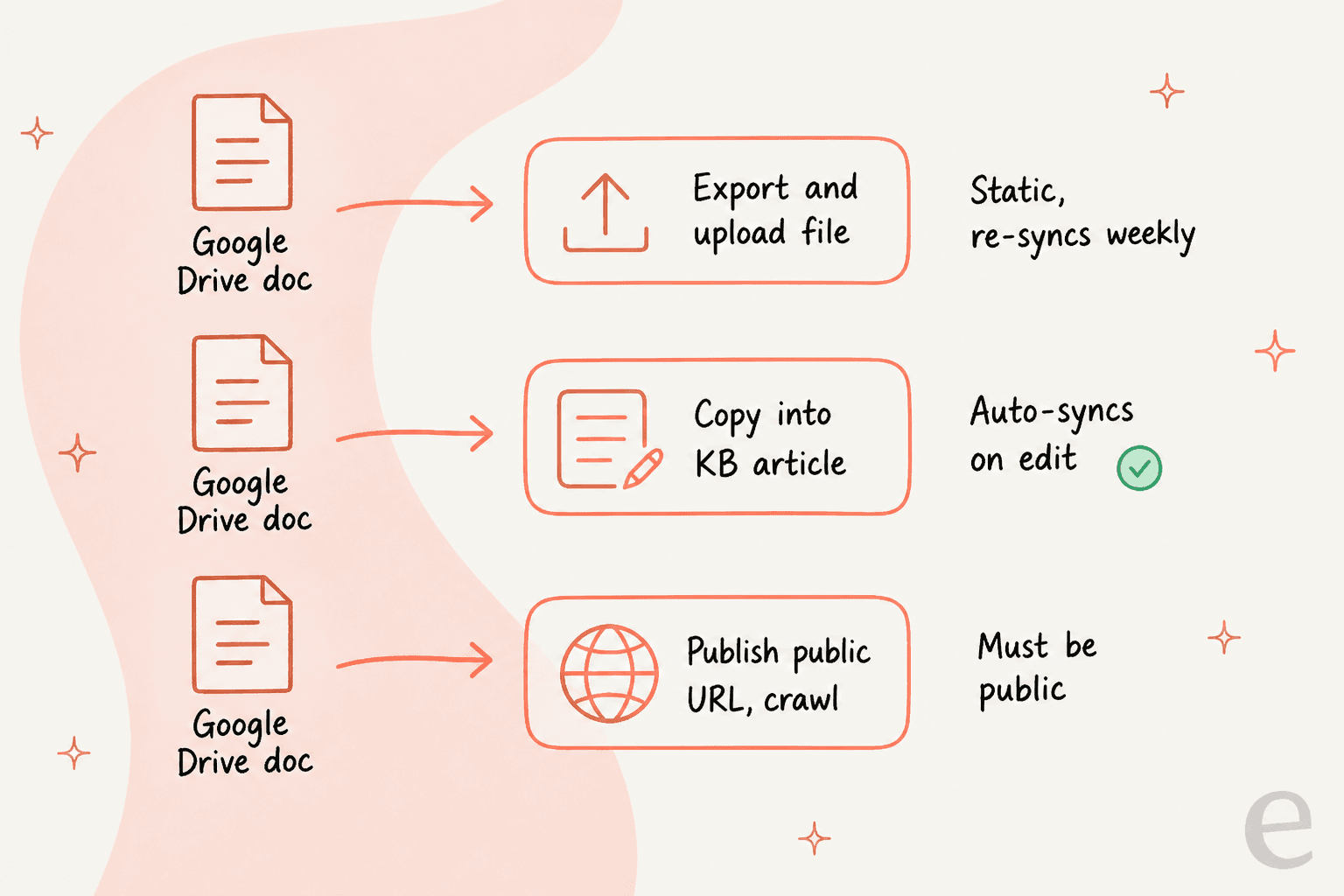
- Export the Drive file and upload it. Download your Google Doc or Sheet as a
.pdfor.docx, then add it as an uploaded content source. This is a static snapshot. It does not track the live Drive file, and uploaded sources only re-sync on HubSpot's weekly schedule (or a manual refresh). Edit the Drive doc on Tuesday and Breeze may keep quoting last week's version until the following Monday. - Copy the content into a HubSpot knowledge base article. Knowledge base articles are a first-class source and, uniquely, re-sync automatically the moment the article is edited. It is the only near-live route. The cost is that you now maintain a second copy inside HubSpot, and you have article limits to watch (Professional caps at one knowledge base and 2,000 articles).
- Publish the content to a public URL and crawl it. If the Drive content also lives on your public help site, import it via the URL crawler. The catch is right there in the word "public", so anything internal is off the table.
None of these is wrong, and for a small, stable set of docs the knowledge base route is perfectly reasonable. But if your Drive is where your team actually works, copying it into HubSpot by hand and re-exporting on every edit is a chore that quietly rots. That is the gap worth closing.
The cleaner path: connect AI to Service Hub and Drive at once
The reason the native setup feels awkward is that HubSpot's agent only knows about HubSpot's own content. So instead of forcing Drive into HubSpot's shape, put an AI helpdesk layer over both and let it read each one where it lives.
That is what eesel does. Every eesel integration is built from three parts, per the integrations overview: sources (what it reads), triggers (when it wakes up), and actions (what it does). HubSpot is all three. Google Drive is source-only, so the agent reads your files and can never touch them.
The load-bearing idea is that sources are not walled off per integration. An agent with HubSpot and Google Drive both connected searches all of them at once. In eesel's own words, "everything pools together", so a single ticket reply can draw on your HubSpot knowledge base, your past tickets, and a Drive policy doc together, and cite whichever it used.
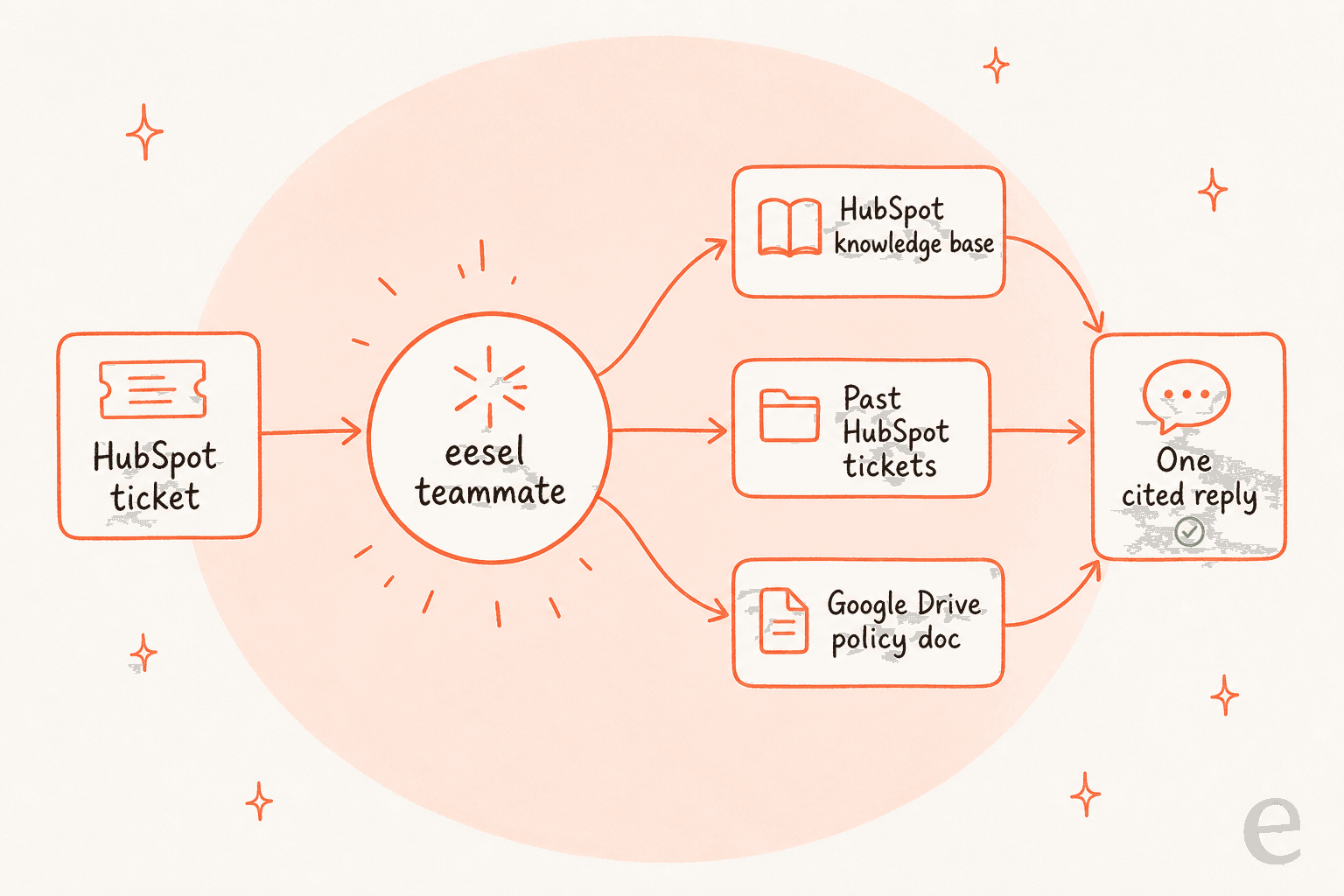
This is exactly what teams ask for and rarely get. Another moment from our sales calls: a B2B SaaS team wanted an AI that could answer across their user guide, Slack, internal knowledge base, and past tickets in one go, then flag the gaps it found. Pooling is what makes that a single question instead of four separate integrations that never talk to each other, and it is the core of a useful AI knowledge base chatbot.
How to connect Google Drive to HubSpot Service Hub with eesel
Here is the actual setup. It is two connections and one automation, and none of it needs a developer.
1. Connect HubSpot Service Hub
Open the eesel dashboard chat and ask it to connect HubSpot, or click Integrations in the left sidebar. It generates an approval link. Open the link, pick your HubSpot account, review the scopes, and click Connect app. The person approving needs HubSpot's App Marketplace Access permission (super admins have it by default). That browser approval is the one step a human has to do.
Once connected, HubSpot comes in as one connection with several toggled sources: your knowledge base, your tickets, and your CRM records (Deals, Contacts, Companies), each with its own document count. Tickets start indexing on their own so the agent learns your team's voice. CRM records are switched on per agent, deliberately, because contact records are personal data.
2. Connect Google Drive as a knowledge source
Ask the agent to connect Google Drive, or click Connect Google Drive under Integrations. You sign in with Google's own consent screen and grant read access to the account whose files you want. Then you pick files and folders in the Drive picker.
Selecting a folder pulls in every supported file inside it, walking subfolders up to 20 levels deep. It reads Google Docs, Sheets, and Slides, Office files, PDFs, and text files, the same Google Docs content your team writes in every day. It skips images, video, audio, Google Forms, and anything over 50MB. The agent can only ever read what that Google account can read, and it can never edit, move, or delete a thing in your Drive.
3. Turn on an automation and keep a human in the loop
Connecting alone does nothing. Tell the agent what to handle and it builds an automation: a HubSpot trigger (a customer message or a new ticket), plus a plain-language AI filter so it only runs on the tickets you want, like "only billing and refund questions".
For the action, start with Add internal comment, not Reply to customer. The agent drafts a comment only your team can see, a human reviews and sends, and you build trust before anything reaches a customer. You can also set any action to "ask you first", which drops the prepared reply into the dashboard with Approve, Always allow, and Deny buttons.
4. Simulate before you go live
This is the step I would not skip. eesel's simulation replays your past HubSpot tickets in a sandbox and scores its answers against what your team actually sent, then shows you the gaps by theme, like "refund policy 28%". Because I have watched confident-sounding bots give wrong answers on live queues, running a dry run against real history first is the difference between a rollout and an incident. Fill the gaps, re-run, and only go autonomous when the numbers look right. This is also the cleanest way to train AI on a knowledge base without guesswork.
The Google Drive gotchas nobody mentions
Fair is fair, so here are the limits that apply to eesel too, because you should know them before you commit.
- Drive syncs are not automatic on a schedule. You trigger a re-sync from settings or ask the agent to. This is true whether you use eesel or HubSpot's uploaded-file route, so plan to re-sync when docs change.
- A re-sync refreshes existing files but does not discover new ones. Drop a fresh file into a synced folder and it will not appear on its own. You re-open the picker, re-select the folder, and sync again.
- There is a 2,500-files-per-day sync cap per workspace, and a 50MB-per-file limit.
I am upfront about this because we learned it the hard way. We once had a customer whose core answer source was a daily-updated order-status Google Sheet, and when that sync quietly fell behind, the answers went stale before anyone noticed. That scar is exactly why the "re-sync on change" habit matters, and why I would rather tell you about it now than have you find it in production. For docs that change hourly, a live helpdesk knowledge base integration is a better home than a Drive file.
What it costs
The pricing models are different enough to matter, so here they are side by side.
| HubSpot Breeze Customer Agent | eesel | |
|---|---|---|
| Billing unit | 50 credits (~$0.50) per resolution | 1 credit per ticket handled (from $299/mo for 500 credits) |
| Plan requirement | Professional ($90/seat/mo) or Enterprise ($150/seat/mo) | No plan tier, no per-seat fee |
| Onboarding fee | $1,500 (Pro) / $3,500 (Ent), one-time | None |
| Google Drive as a source | Not supported natively | Included, no extra charge |
| Free to try | 14-day free access (first-time setup) | 100 free credits, no card |
HubSpot's Breeze pricing is per-resolution on top of a Professional or Enterprise seat, so the real number depends on how many seats you carry. If that math does not work, it is worth scanning the Service Hub AI alternatives before committing. eesel only counts tickets the AI actually works on (1 credit each, however long), and tickets your human agents take do not use credits, which is why it lands on most best AI helpdesk software shortlists. If your team runs 1,000 tickets a month but routes 200 to the AI, only 200 credits are used, so the 500-credit plan at $299/month covers it. Full numbers are in the HubSpot AI pricing guide and on the eesel pricing page.
Try eesel for HubSpot Service Hub
If your support answers are scattered across HubSpot and Google Drive, eesel is the AI teammate built for exactly that split. It joins your Service Hub inbox like a new hire, reads your knowledge base, your past tickets, and the Drive folders you point it at, and drafts replies that pool all of them, with a citation on every answer. You keep control the whole way: start with internal-comment drafts, simulate against your own ticket history, and flip on autonomy only when you are ready.
It connects to HubSpot in minutes, runs on one fixed monthly price with no new seats (from $299/month for 500 credits), and the free plan gives you 100 credits with no card. See the HubSpot integration and the Google Drive integration, or read how it stacks up in eesel vs HubSpot Breeze.