


To prepare support for higher call volume, decide what happens to the caller you can't answer before the day it happens: in Zendesk, a queue holds at most 15 calls on Team and 50 on Professional or Enterprise before callers go to voicemail (750 and 1,500 with omnichannel routing), and nobody waits longer than the maximum queue wait time you set, 1 to 20 minutes, or up to 60 on Enterprise. So the prep is five steps: forecast the extra calls, set the queue size and wait time on purpose, turn on callback, tell callers the real wait, and move the questions that don't need a voice to text, an AI agent or your written channels. An AI teammate such as eesel can answer those written tickets in Zendesk from your help center and past tickets, and an AI coding agent can load your approved articles and macros into it with the eesel CLI and ask it test questions first, though connecting Zendesk still needs an admin's approval.
What happens to calls when volume outruns your team?
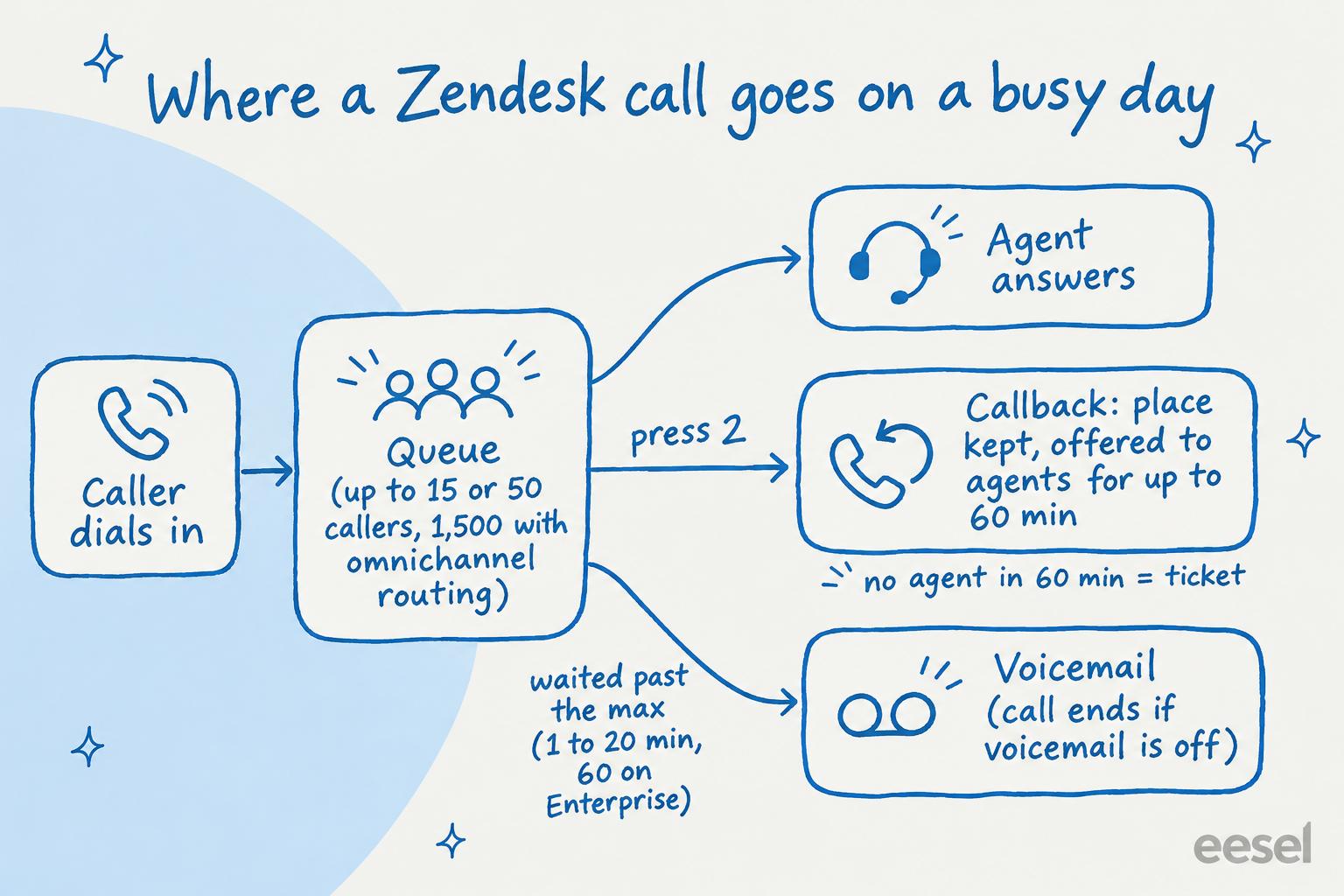
They don't wait forever. Zendesk Talk callers sit in a queue, and Zendesk's voice channel settings put two hard limits on every queue, and on a busy day you hit one of them.
- Maximum queue size is how many callers can wait, on hold or in the callback queue, before the next caller goes to voicemail, or to an overflow number if voicemail is off. Without omnichannel routing it tops out at 15 on Team and 50 on Professional or Enterprise; with it, 750 and 1,500.
- Maximum queue wait time is how long one caller waits before going to voicemail. It runs from 1 to 20 minutes, or 1 to 60 on Enterprise, and if voicemail is off the caller hears a greeting and the call ends.
I build eesel's integrations, so I spend a lot of time reading what a vendor's settings really do rather than what the marketing page says. The thing I'd want every support lead to see about phone queues is this: a busy day doesn't create a new failure, it just makes the defaults you never looked at decide where callers end up. If you left voicemail off, the busy day's answer is "the call ends". The steps below are about choosing that answer yourself.
The rest of a peak (tickets, chat, staffing for a whole season) is in our holiday support spikes plan, and how AI changes the temp maths is in AI for seasonal spikes. This post is the phone line.
Step 1: Forecast the calls you'll get
Start with how many extra calls are coming and when, interval by interval, because a phone queue fails at 10am on Monday even when the daily total looks fine.
If you close on public holidays during the peak, set them in a Zendesk holiday schedule first. If you have Zendesk's Workforce management add-on, its forecasting setup does three things worth using before a known busy period:
- Exclude outliers. Remove last year's outage day or a one-off spike so it doesn't inflate this year's forecast.
- Adjust the volume for the event. You can add a ticket count or a percentage for a campaign, a launch or a price change. Zendesk's own example: a day forecast at 20 tickets, raised by 100%, becomes 40, spread across the day's 96 15-minute intervals in the shape the forecast already has.
- Check the history it has. When WFM is first turned on, only six months of ticket history comes across from Zendesk; the engine can use up to two years if you ask Zendesk Support for a longer period. Six months won't contain last year's peak.
Without WFM, pull last year's calls by hour from the Talk dashboard and do the maths yourself. Our support workforce forecasting guide walks through turning calls per interval and average handle time into agents with Erlang C. Then compare the number of agents you need with the number you'll have. The gap is what the next four steps have to absorb.
Step 2: Set the queue size and wait time on purpose
Once you know the gap, choose what a caller who can't be answered should get. Go to Admin Center, Channels > Talk and email > Talk, and look at the two limits above with your forecast in hand.
- Turn voicemail on. A caller who waits past the maximum goes to voicemail; with voicemail off they hear a greeting and the call ends. Zendesk's settings send a caller to an overflow number only when the queue is full and voicemail is off. Being cut off is the worst outcome on a peak day, because they'll call again and join the back of the same queue. With voicemail transcription, a message is easier to work through later.
- Raise the queue size if you'll have the agents for it. Fifty callers on hold is a lot for a team of five. But if your forecast says 120 calls in the first hour of a sale, a 15-call cap means that once 15 callers are waiting, every new caller goes to voicemail. Omnichannel routing is what lifts the cap past 50.
- Set the wait time to what callers will actually tolerate. A longer wait isn't kinder if nobody answers within it. Pick the number from how long your callers actually wait and stay, not the maximum the plan allows. Zendesk's wait time recipe in Explore (Professional or Enterprise) breaks inbound calls into wait-time brackets.
- Turn on tickets for abandoned calls. On Professional and Enterprise, each line's settings have Create ticket for abandoned calls?, off by default. With it on, a caller who hangs up in the queue, in voicemail or in the IVR leaves a ticket, as long as there's a number to call back. With omnichannel routing, abandoned calls always create one. Either way your team can call back the people who gave up instead of never knowing they called.
To see how many callers give up, build Zendesk's abandoned calls recipe in Explore. It counts calls abandoned in the queue within 20 seconds as a share of inbound calls, and you can change that threshold; our glossary has more on abandonment rate. Our older post on queue overflow and timeout covers the overflow number setup itself.
Step 3: Offer a callback instead of hold
Callback is the setting that changes a busy day most. With customer callback on, a caller in the queue presses 2, keeps their place, and hangs up. When their turn comes, an agent clicks Call and Zendesk dials them back.
What to know before you rely on it:
- It needs Talk Professional or Enterprise (or a Professional or higher Suite), and it's set per phone number. Digital lines can't use it.
- At least one agent must be Online or Away for callback to work.
- A callback request goes to all agents for one hour. If nobody accepts within 60 minutes, or every agent declines, the request is cancelled and a ticket is created instead. If the customer doesn't pick up, there's no automatic redial.
- An IVR hides the offer. With an IVR on, the callback greeting doesn't play, though callers in the queue can still press 2. Zendesk's advice is to say so in your IVR greeting. Our guide to IVR phone trees covers where that greeting lives.
The Talk dashboard reports Callbacks in queue, Total callback calls and Average callback wait time, so you can see on the day whether the callback queue is being worked or just growing. For the web version, see our callback widget setup.
Step 4: Tell callers the real wait
Zendesk Talk can't tell a caller their position in the queue. Zendesk's own answer is to use the Average wait time message (Professional and Enterprise) or to write the expected wait into your wait greeting. On a peak day, the second one is the one to use, because of how the message is worked out.
The average wait time message plays once, when a line's average wait passes two minutes, and that average covers every call over 24 hours. So the quiet calls at night and early in the morning pull the number down on exactly the day it matters. One Talk admin ran the numbers on their busiest day in February 2022 and found callers being told less than half the real wait:
"Our callers are being told by Zendesk that their wait time is half of what it really is. And we're the ones who then have to deal with the irate customers."
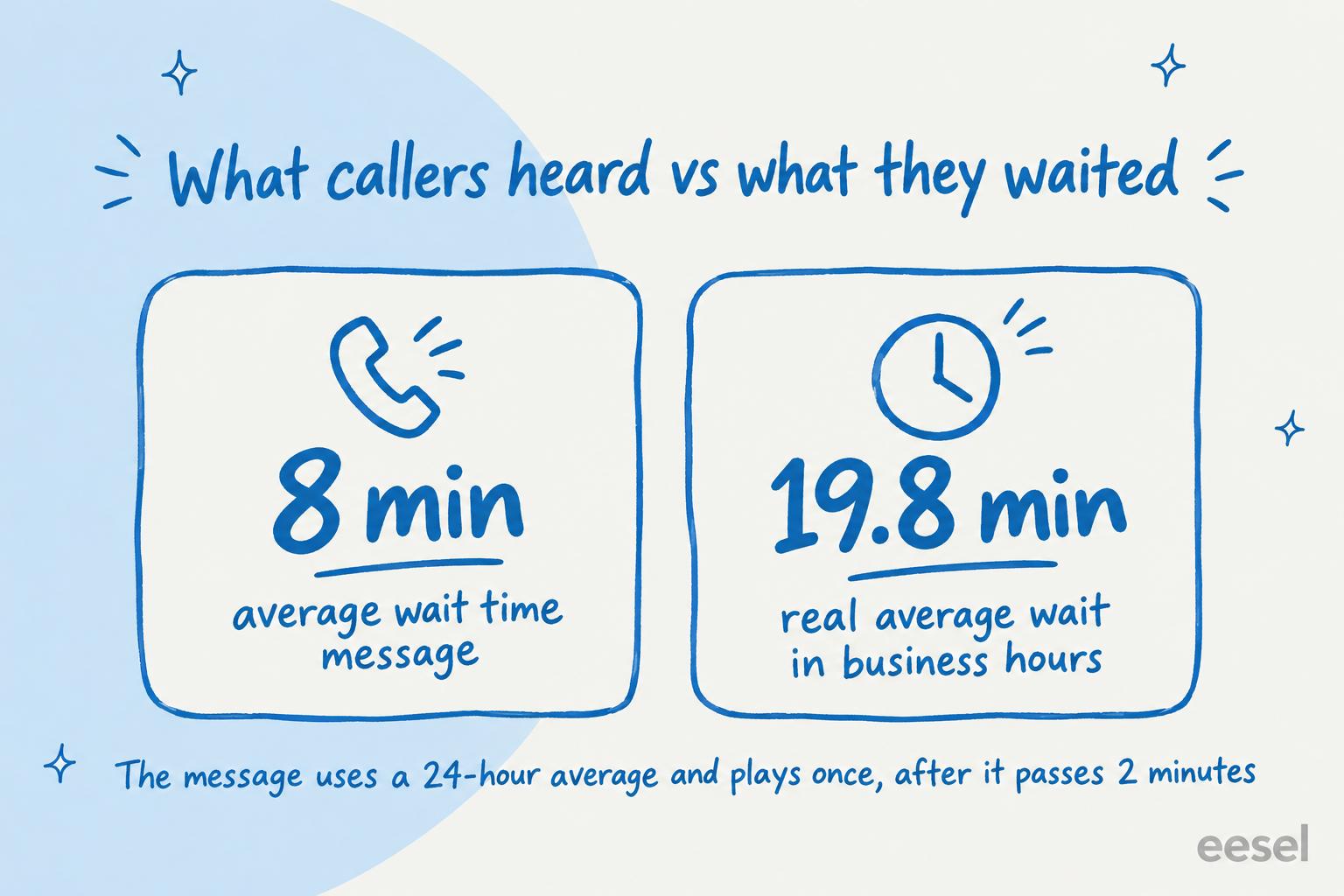
I'd rather tell a caller 20 minutes and have them wait 20 than tell them 8. For a known peak, record a wait greeting that gives an honest range and repeats the options: press 2 for a callback, press 1 for voicemail, or reach you by text or email. Our post on greeting recording covers how to record and assign one.
Step 5: Move the calls that don't need a voice
Every call you can answer another way frees a phone agent for a call that needs one. Zendesk gives you three ways to do that, and they cost different amounts.
- Text back. The IVR's Text back action confirms the caller's number, ends the call and sends a text, and an SMS ticket is created so the conversation continues by text. It's offered as an IVR menu option next to your others, so "press 3 to get this by text" works for order status or a booking link. Our guide to AI in SMS support covers what to do with the replies. Zendesk notes you're responsible for any consent the law where you operate requires before texting.
- A voice AI agent. Zendesk's voice AI agents answer the call first and escalate when they can't solve it, posting the transcript and a summary to the ticket before handing over. They carry a telephony charge, a charge for the time the AI agent is on the call and a recording charge, and calls can also use automated resolutions. One detail matters for a peak: when the AI agent escalates, the call goes to your queue and "standard phone number settings resume", so everything in steps 2 to 4 still applies to it. More in our Zendesk voice AI agents guide.
- Your written channels. A lot of busy-day calls are people who couldn't find an answer online (self-service that fails sends them to the phone) or didn't hear back by email. Every call that starts as "I emailed you yesterday" is a ticket you didn't answer in time. An AI agent that answers email and messaging tickets as they arrive takes that reason to call away. That's the part eesel does inside Zendesk.
Not sure which to start with? Pick what callers are doing on your busiest day.
Pick what goes wrong on your line to see which setting to change first.
What mistakes do teams make before a call spike?
- Leaving voicemail off. A caller past the wait limit then hears a greeting and is cut off, and comes straight back into the queue.
- Trusting the average wait time message on the busiest day. It's a 24-hour average. Write the wait into a greeting instead.
- Turning on callback with nobody to work it. Requests go to all agents for an hour and then become tickets. If the whole team is on live calls, set a person or a shift to clear the callback queue, and watch Callbacks in queue on the Talk dashboard.
- Forecasting from six months of data. A new WFM setup brings in six months of history. If last year's peak isn't in it, ask Zendesk for the longer period or add the event as a volume adjustment.
- Treating a voice AI agent as extra capacity with no queue behind it. Its escalations land back in your queue under the same settings.
- Skipping the review afterwards. Write down what broke while it's fresh; our peak support review has a template.
- Fixing only the phone. Callers often ring because a written ticket went unanswered. Our guide to reducing Zendesk ticket volume with AI covers that side.
Try eesel next to Zendesk Talk
Your phone line only has so many agents, so the cheapest call to handle on a busy day is the one that never gets made. eesel joins your Zendesk as an AI teammate, learns from your help center, macros and past tickets, and answers email and messaging tickets as they arrive, so fewer customers pick up the phone to chase a reply. What it may do is set per person: it can act on its own for routine questions, ask first before anything like a refund, and stay off billing for anonymous visitors. Norden-Frisia, a ferry line to the North Sea islands, runs it on Zendesk and its website chat and planned for 10,000 interactions a month in high season, scaling back down from October to March.
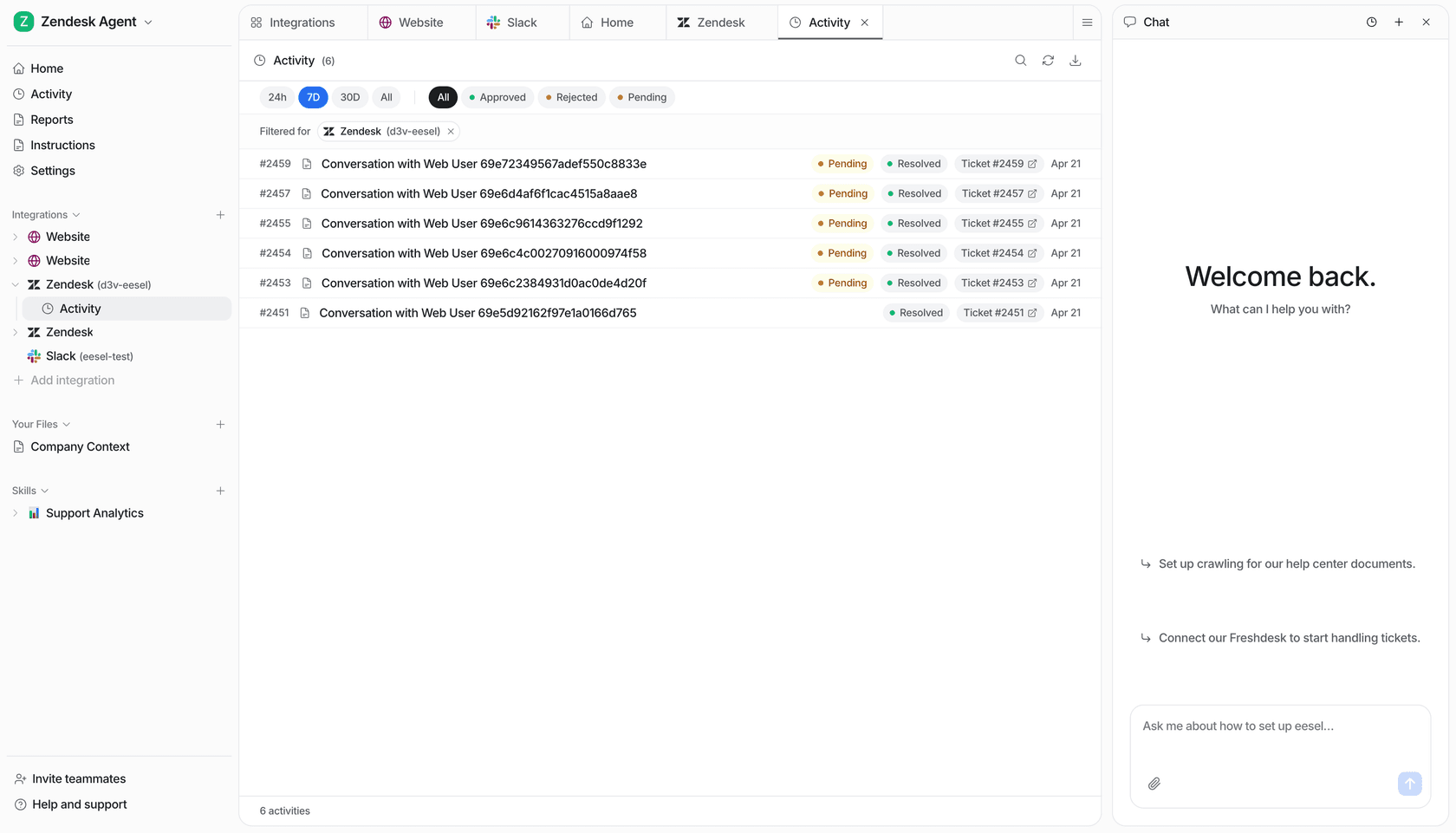
Try eesel on your Zendesk before the next busy week.