
Setting up holiday schedules in Zendesk helps your support team manage customer expectations and keep SLAs accurate during time off. But getting it configured properly takes more than just checking a few boxes. You need to understand how business hours work, how holidays interact with your workflows, and what limitations you'll run into along the way.
This guide walks you through the complete process of configuring Zendesk holiday schedules, from initial setup to advanced workarounds for common limitations.
What you'll need before starting
Before diving into the configuration, make sure you have the following:
- Zendesk Support Professional plan or higher. The schedules feature requires at least a Suite Growth or Professional plan. If you're on a lower tier, you'll need to upgrade first.
- Admin or Account Owner permissions. Only administrators can access and modify schedule settings.
- Your team's time zones and operating hours. Gather this information upfront so you can configure schedules accurately.
- A list of holidays your organization observes. Include both fixed-date holidays (like New Year's Day) and variable ones (like Thanksgiving).
If you're finding the native Zendesk scheduling limitations frustrating, there are alternatives worth considering. We built eesel AI to handle support coverage more intelligently, including automatic holiday detection and AI-powered coverage when your team is offline.

Step 1: Access your schedule settings
To get started, navigate to the Schedules section in your Zendesk Admin Center. Go to Admin Center → Objects and rules → Business rules → Schedules.

When you first open this page, you'll see either an existing schedule (if one was already created) or an empty list with an option to add your first schedule. Here's what to keep in mind:
- Professional plans are limited to one schedule that applies to all tickets
- Enterprise plans can create multiple schedules for different teams, regions, or use cases
- The first schedule in your list automatically becomes the default for all tickets
If you're on Enterprise and plan to use multiple schedules, think about your naming convention upfront. Descriptive names like "US Support - East Coast" or "APAC Tier 1" will save you confusion later when you're setting up triggers and reports.
Step 2: Configure your business hours
Once you're in the schedule editor, start by setting the basics. Give your schedule a clear name and select the appropriate time zone. The time zone you choose determines when your business hours start and end, so pick the one where your primary support team is located.
The weekly schedule editor uses a visual drag-and-drop interface. You can:
- Drag time blocks up or down to adjust when your day starts and ends
- Resize intervals by dragging the top or bottom edges
- Remove hours by clicking the X on any time block (this marks the day as "Closed")
- Add hours to closed days by clicking anywhere on that day's row
There are a few constraints to be aware of. Each business interval must be at least one hour long, and you can only adjust times in 15-minute increments. Also, intervals cannot span midnight. If your team works overnight (for example, 10 PM to 6 AM), you'll need to create two separate intervals: one from 10 PM to midnight, and another from midnight to 6 AM.
For global teams, the time zone setting is critical. If you have agents in multiple regions, consider creating separate schedules for each time zone rather than trying to force everything into one. This approach gives you cleaner reporting and more accurate SLA calculations.
Step 3: Add your holidays
After setting up your regular business hours, click the Holidays tab to add exceptions. Click "Add holiday" to create a new entry.
For each holiday, you'll need to:
- Enter a name (like "Thanksgiving" or "Company Retreat")
- Select a start date
- Select an end date
You can set single-day holidays by choosing the same date for both fields, or multi-day holidays by selecting different start and end dates. Here's the important part: holidays are treated as completely outside business hours. This means any SLA calculations pause during holiday periods, and triggers based on "within business hours" won't fire.
Now for the limitations you need to know about:
- You can only schedule holidays up to 2 years in advance. This means you'll need to revisit your schedule regularly to add future holidays.
- There's no native recurring holiday support. Unlike some calendar apps, Zendesk doesn't let you set "Christmas Day" as a recurring annual holiday. You have to add each instance manually.
- Partial-day holidays aren't supported. You can't set a holiday for just the morning or afternoon. It's the full calendar day or nothing.
These limitations are significant enough that Zendesk's own community has an active feature request for recurring holidays. The request is currently marked as "Not planned," which means you need to work around it rather than wait for a fix.
Step 4: Apply schedules to tickets and workflows
Once your schedule is configured with business hours and holidays, it automatically applies to all tickets in your account. But the real power comes from using schedules in your business rules.

Creating triggers with schedule conditions
Head to Admin Center → Objects and rules → Business rules → Triggers to set up automation based on your schedule.
Useful trigger conditions include:
- "Within business hours?" - Fire different actions depending on whether a ticket event happens during operating hours
- "On a holiday?" - Create holiday-specific workflows, like sending auto-responses explaining reduced staffing
- "Ticket: Schedule" (Enterprise only) - Check which schedule is applied to a ticket
For example, you might create a trigger that escalates VIP customer tickets created outside business hours to an on-call manager. Or set up an auto-response that fires only on holidays, letting customers know when to expect a reply.
Using the Liquid placeholder
Zendesk provides a Liquid placeholder you can use in macros and notifications:
{{ticket.in_business_hours}}
This returns true or false depending on whether the ticket is currently within scheduled business hours. It's useful for conditional messaging in email templates.
How schedules affect SLAs and reporting
Any SLA policies you create can reference business hours. This means your first reply time targets only count time when your team is actually working. The same applies to resolution times and other SLA metrics.
In Zendesk Explore, you'll find business hours versions of most time-based metrics. These give you more accurate performance data by excluding nights, weekends, and holidays from calculations.
Workarounds for Zendesk's holiday schedule limitations
The lack of recurring holiday support is the biggest pain point for most teams. Here's how to work around it.
Option 1: Use the Schedules API
If you have developer resources, the Zendesk Schedules API lets you create holidays programmatically. You can write a script that bulk-creates holidays for the next two years across all your schedules.
The API accepts ISO 8601 date formats and allows creating holidays up to two years in the future (or past). This is the most robust solution for large teams managing many schedules.
Option 2: Third-party apps
The Holiday Schedules App by Toru Takahashi integrates Google Calendar with Zendesk. You maintain your holiday calendar in Google Calendar, and the app syncs those dates to your Zendesk schedules automatically.
It's free to install, though setup requires configuring Google Calendar API access. If your organization already manages holidays in Google Calendar, this can save significant manual entry time.
Option 3: Automation platforms
Tools like Zapier or Workato can connect calendar apps to Zendesk and create holidays automatically. This approach works well if you're already using these platforms for other integrations.
How we handle this at eesel AI
When we built eesel AI for Zendesk, we took a different approach to holiday coverage. Instead of requiring you to manually configure every holiday across multiple systems, our AI teammates learn your patterns and handle coverage automatically. During holidays, eesel can:
- Detect when your team is offline based on ticket volume patterns
- Provide immediate responses to common questions
- Escalate only complex issues that truly need human attention
- Resume normal handoff once your team is back online
This means you don't have to maintain parallel holiday schedules across Zendesk, your AI tool, and your internal calendars.
Best practices for Zendesk holiday schedule management
Based on what we've seen working with support teams, here are practical recommendations:
- Plan your holiday calendar at least 6 months ahead. Set a recurring reminder to review and update your schedules quarterly.
- Document your configuration. Create an internal wiki page explaining which schedules apply to which teams and why.
- Set up holiday-specific auto-responses. Customers appreciate transparency about response times during holidays.
- Communicate proactively. Don't wait for customers to ask about holiday coverage. Update your help center and email signatures before major holidays.
- Test SLA policies with holiday scenarios. Create test tickets during configured holidays to verify your SLAs calculate correctly.
- Review schedule assignments regularly. On Enterprise plans, tickets can retain schedule assignments even after you delete a schedule. Check your triggers periodically to ensure they're applying the right schedules.
Managing support coverage during holidays
Even with perfect schedule configuration, you still need a plan for who handles tickets when your primary team is offline.
Ticket routing strategies
Set up overflow rules that route tickets to secondary teams or on-call agents during holidays. Use the "On a holiday?" trigger condition to create separate routing logic for these periods.
Using AI for holiday coverage
This is where modern AI support tools shine. Rather than staffing skeleton crews or letting tickets pile up, you can deploy an AI teammate to:
- Answer common questions instantly, even at 2 AM on Christmas
- Process routine requests like password resets and order lookups
- Gather information from customers so human agents can resolve issues faster when they return
- Maintain your response time SLAs even when the office is empty
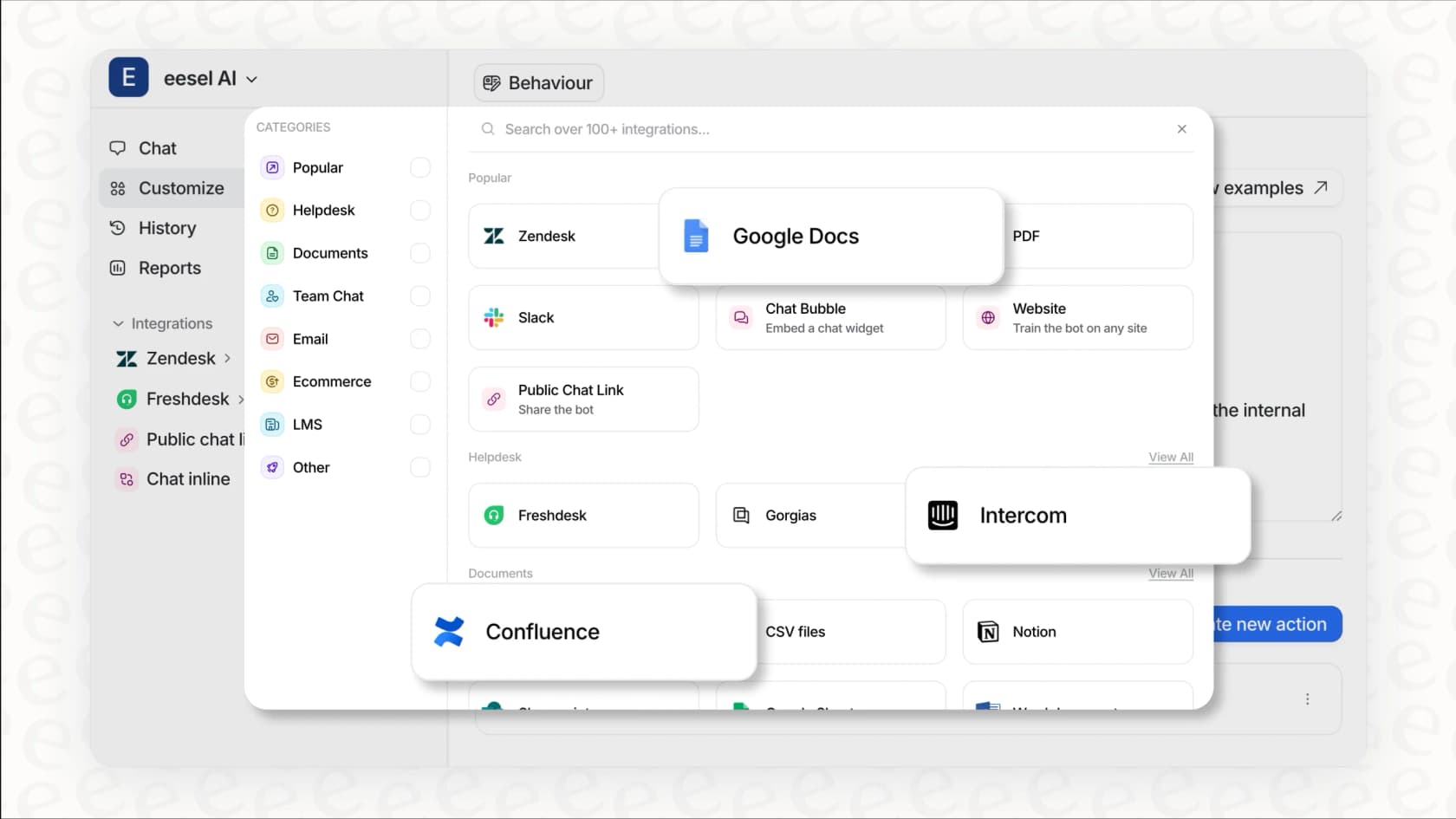
We built eesel AI specifically for this scenario. It integrates with Zendesk and learns from your past tickets, so it can handle the same types of requests your human team would normally address. During holidays, it provides continuous coverage without the overhead of scheduling on-call rotations.
Holiday-specific views
Create dedicated views in Zendesk to monitor ticket activity during holiday periods. This helps you spot any unusual patterns or issues that need immediate attention, even with reduced staffing.
Reporting considerations
Remember that business hours metrics will exclude holiday periods from calculations. If you want to analyze actual response times (including holiday delays), you'll need to use calendar hours metrics instead. Both have their place in understanding your support performance.
Setting up holiday schedules in Zendesk takes some upfront work, but it's essential for accurate SLA tracking and professional customer communication. The key is understanding the limitations (especially around recurring holidays) and having a plan to work around them.
If you're spending too much time managing schedules and still struggling with holiday coverage gaps, it might be time to consider AI-powered support. eesel AI handles the complexity of holiday coverage automatically, so your team can actually take time off without worrying about tickets piling up.