
When customers call your support line and reach voicemail, every second counts. The faster your team can understand and act on those messages, the better the customer experience. That's where Zendesk Talk voicemail transcription comes in. It converts voice messages into text, creating tickets your team can read, search, and route without listening to audio files.
In January 2026, Zendesk released major improvements to this feature. Transcriptions now arrive within 15 seconds, support 35 languages (up from just English), and integrate with Zendesk Copilot for AI-powered triage. If you're using Zendesk Talk or considering it, understanding these capabilities can help you handle voice support more efficiently.
This guide covers everything you need to know: how voicemail transcription works, what's new in 2026, how to enable it, what it costs, and how to get the most from it.

What you'll need
Before you can use voicemail transcription, you'll need:
- A Zendesk account with Talk enabled
- Talk Team, Professional, or Enterprise plan (voicemail transcription works with all three)
- Any Zendesk Suite plan: Team, Growth, Professional, Enterprise, or Enterprise Plus
- Administrator permissions to configure settings
That's it. No additional add-ons are required for basic voicemail transcription, though Zendesk Copilot (sold separately) unlocks advanced AI features for processing those transcripts.
Understanding Zendesk Talk voicemail transcription
At its core, voicemail transcription does exactly what the name suggests: it listens to voice messages left by callers and converts them into readable text. But the way Zendesk implements this creates a seamless workflow for support teams.

Here's what happens when a customer leaves a voicemail:
- Zendesk Talk automatically creates a ticket with the voicemail audio attached
- If transcription is enabled, the system processes the audio and converts speech to text
- The transcription appears as an internal note on the ticket
- Your team can read the message, search its contents, and route the ticket without playing the audio
This matters because reading is faster than listening. A two-minute voicemail takes two minutes to hear. The transcription lets an agent scan it in seconds, understand the issue, and start working on a solution.
There's an important distinction to understand: voicemail transcription is different from call transcription. Voicemail transcription (the focus of this guide) is built into Zendesk Talk and handles messages left when agents are unavailable. Call transcription requires the Zendesk Copilot add-on and transcribes actual phone conversations between agents and customers. Both features exist, but they serve different purposes and have different pricing.
A few technical details worth knowing: voicemails are limited to two minutes in length, transcriptions appear as internal system notes (not public comments), and you can configure Zendesk to automatically delete the audio file after a set period while keeping the text transcription.
What's new in 2026: Major improvements
Zendesk announced significant upgrades to voicemail transcription on January 21, 2026. If you haven't checked this feature recently, it's worth a fresh look.
Faster processing
The most noticeable change is speed. Transcriptions now appear on tickets within 15 seconds of the call ending. Previously, processing delays could leave teams waiting minutes for text to appear. For busy support queues, those seconds add up.
Multilingual support
Perhaps the biggest expansion is language coverage. The service now supports 35 languages, up from English-only:
Bulgarian, Catalan, Czech, Danish, German, German (Switzerland), Greek, English, Spanish, Estonian, Finnish, French, Hindi, Hungarian, Indonesian, Italian, Japanese, Korean, Lithuanian, Latvian, Malay, Dutch, Flemish, Norwegian, Polish, Portuguese, Romanian, Russian, Slovak, Swedish, Thai, Turkish, Ukrainian, Vietnamese, and Chinese.
This is significant for global support teams. A customer can leave a voicemail in Japanese, and your English-speaking agent can read the transcription. The system handles language detection automatically.
Copilot integration
Here's where it gets interesting. Voicemail transcripts can now be processed by Zendesk Copilot, Zendesk's AI assistant. This enables intelligent triage (automatically routing tickets based on content), call summarization, and better analysis of voice interactions. Without Copilot, you get the raw transcript. With Copilot, you get AI-processed insights from that transcript.
Updated pricing
The new transcription model is priced at $0.01 per minute of transcribed audio. This replaced the previous pricing structure, so if you were using voicemail transcription before January 2026, your billing changed.
Regional availability
Data processing for the new model happens in the US and EU only. APAC customers are opted out by default but can opt in through a signup form if they want the faster, multilingual service.
How to enable Zendesk Talk voicemail transcription
Setting up voicemail transcription takes just a few minutes. Here's the step-by-step process:
Step 1: Access Talk settings
Navigate to Admin Center, then click Channels in the sidebar. Select Talk and email, then Talk.
Step 2: Select your phone line
Click the Lines tab to see all your configured phone numbers. Click on the specific line you want to configure for transcription.
Step 3: Configure voicemail settings
Select the Voicemail tab. You'll see several options:
- Voicemail: Toggle this on to allow voicemail on this line
- Transcribe voicemails?: Enable this to convert voice messages to text
- Delete voicemails: Choose whether to auto-delete audio files (transcriptions remain even if audio is deleted)
Step 4: Set up greetings
Configure your greetings for both voicemail-on and voicemail-off states. The greeting for voicemail-on should invite callers to leave a message. The greeting for voicemail-off should set different expectations, perhaps directing callers to call back during business hours or visit your help center.

If you use business hours schedules, you'll see multiple versions of these settings: one for hours within your schedule and one for hours outside it. This lets you use different greetings (and enable/disable voicemail) based on whether your team is available.
Pricing and costs
Understanding the cost structure helps you budget accurately. Here's how Zendesk Talk voicemail transcription pricing breaks down:
| Feature | Price | Notes |
|---|---|---|
| Voicemail transcription | $0.01 per minute | Built into Talk, no add-on required |
| Post-call transcription (Copilot) | $0.01 per minute | Requires Copilot add-on |
| Real-time transcription (Copilot) | $0.027 per minute | Requires Copilot add-on, replaces post-call |
Source: Zendesk Call Transcription FAQ
Billing works on usage. Charges are rounded up to the nearest whole minute and processed with your other voice usage charges (phone numbers, call minutes, recording storage). You can review transcription charges from the usage charges page and export detailed CSV reports.
To estimate costs, consider your voicemail volume. If your team receives 50 two-minute voicemails per month, that's 100 minutes at $0.01, or $1 per month. Most teams find the cost negligible compared to the time savings.
Best practices for using voicemail transcription
Getting the feature enabled is just the start. Here are practical tips for making the most of it:
Know when to disable voicemail. If you have lines used primarily for outbound calls that nobody monitors, turn voicemail off. Customers leaving messages that go unheard creates a worse experience than a clear "please call back during business hours" message.
Manage greetings carefully. Your greeting sets expectations. If voicemail is enabled, the greeting should invite callers to leave a message. If voicemail is disabled, the greeting should not mention leaving a message. Zendesk automatically updates the Available agents greeting when you toggle voicemail, but review it to make sure it matches your intent.
Use transcriptions for faster routing. Because voicemail text is searchable, you can create triggers based on keywords. A voicemail containing "refund" can auto-route to your billing team. One mentioning "urgent" can escalate priority. This automation happens faster with text than with audio.
Consider data retention settings. The "Delete voicemails" option lets you auto-delete audio files after a period (1 day, 1 week, 1 month, etc.) while keeping the text transcription. This saves storage costs while preserving the information your team needs.
Combine with business hours. Set different voicemail behaviors for business hours versus after hours. During business hours, you might want a shorter voicemail prompt since agents are available. After hours, you might provide more information about when you'll respond.
Third-party alternatives
While Zendesk's native voicemail transcription works well for most teams, some situations call for alternatives. The Zendesk Marketplace offers options like 3Scribe Transcriptions.
3Scribe supports 13 languages and offers both automatic and manual transcription via a ticket sidebar app. It includes 30 minutes of free credit for testing. The main reasons to consider a third-party option: specific language needs not covered by Zendesk's 35-language list, manual transcription control (choose which calls to transcribe), or integration with workflows Zendesk doesn't natively support.
For most teams, the native feature is simpler and more cost-effective. But if you have specialized requirements, marketplace apps are worth exploring.
Taking voicemail transcription further with AI
Voicemail transcription converts audio to text. But what happens after that? Reading the transcript is faster than listening, but your team still needs to understand the issue, find the right information, and craft a response.
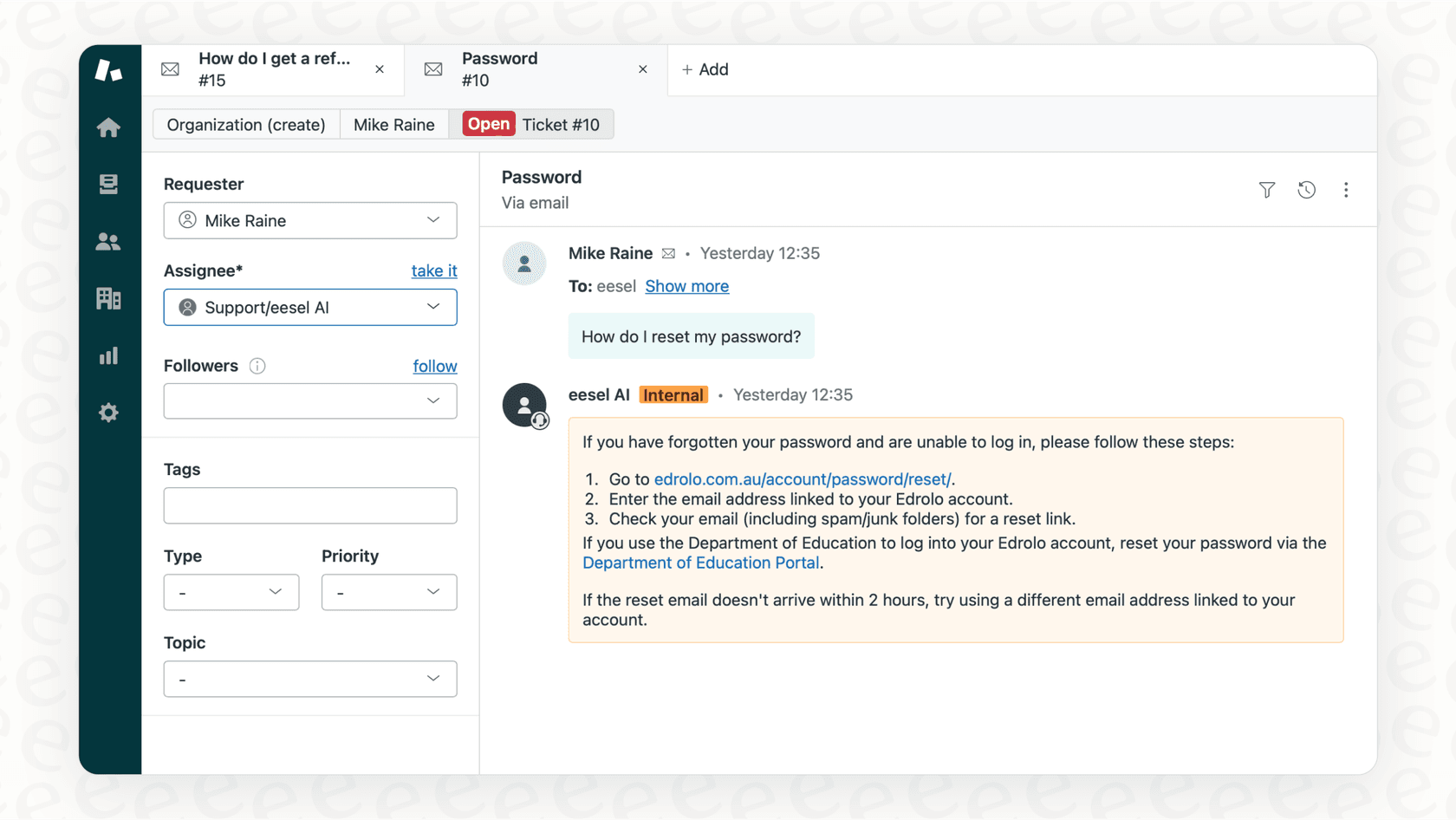
This is where AI teammates can extend what Zendesk offers. eesel's AI agent for Zendesk is built to handle the full workflow that follows a voicemail transcript, from understanding the issue to drafting and sending a resolution. At eesel AI, we approach support differently. Rather than just transcribing voicemails, we can handle the entire workflow that follows.
Here's how it works: when a voicemail creates a ticket, our AI reads the transcription (just like a human agent would), understands the customer's issue, searches your knowledge base, drafts a response, and can even send it directly. For common issues like password resets, order status checks, or refund requests, the entire interaction can be resolved without human involvement.
The difference is in the mental model. Most AI tools are configured. We treat ours like a teammate you hire and train. You connect eesel AI to your Zendesk account, and it learns from your past tickets, help center articles, and macros. It understands your tone, policies, and common issues from day one.
You start with oversight: eesel AI drafts replies for your team to review. As it proves itself, you expand its scope until it's handling full frontline support. You define escalation rules in plain English: "Always escalate billing disputes to a human" or "For VIP customers, CC the account manager."
For teams already using Zendesk Talk voicemail transcription, adding AI-powered ticket handling is a natural next step. The transcription gets the voice message into your system as text. AI can then act on that text, turning what used to be a manual workflow into an automated one.
Start handling voicemails more efficiently today
Zendesk Talk's voicemail transcription feature has come a long way. The January 2026 updates brought faster processing, 35-language support, and AI integration through Copilot. At $0.01 per minute, it's an affordable way to speed up your voice support workflow.
If you're already using Zendesk Talk, enabling transcription is straightforward. Navigate to your Talk settings, select your phone lines, and toggle transcription on. Review your greetings to make sure they match your voicemail configuration, and consider setting up triggers to route transcribed tickets based on keywords.
For teams looking to go further, combining transcription with AI-powered ticket handling creates a powerful automation pipeline. Voice messages become text, and AI can process that text to resolve common issues without human intervention.
The goal is simple: every customer who reaches voicemail should get a fast, accurate response. Transcription is the first step. AI-powered handling can take you the rest of the way.


