
Setting up your phone system to route calls to external numbers can solve several real support challenges. Maybe you have a specialist contractor who handles specific technical issues. Perhaps you need after-hours calls to reach an on-call team. Or you simply want overflow calls to go to an external call center when your team is swamped.

This guide walks you through configuring Zendesk Talk IVR to transfer calls to external numbers. We'll cover everything you need to know about Zendesk IVR transfer to external number setups, from initial configuration to reporting on those transfers, plus some important limitations you should know about before going live.
If you're already using Zendesk for your support operations, adding external number routing extends your capabilities without requiring a separate phone system.
What you will need
Before you start configuring IVR menus, make sure you have the following in place:
| Requirement | Details |
|---|---|
| Zendesk Suite | Professional, Enterprise, or Enterprise Plus plan |
| Zendesk Talk | Professional or Enterprise edition |
| Phone number | At least one number with outbound calling enabled |
| External numbers | Destination phone numbers with country codes |
| Admin access | Zendesk Admin Center permissions |
IVR functionality is not available on Suite Team or lower-tier plans. If you're on Suite Team and need IVR, you'll need to upgrade to Professional or higher.
Understanding IVR in Zendesk Talk
IVR (Interactive Voice Response) is essentially a phone tree system. Callers hear a recorded greeting, press keys to navigate menu options, and get routed to the right destination based on their selections. Zendesk's IVR documentation provides detailed technical guidance on setting up these routing workflows.
In Zendesk Talk, IVR menus can route calls to:
- Agent groups - Send calls to specific teams
- External numbers - Forward calls outside your Zendesk system
- Voicemail - Let callers leave a message
- Textback - Offer to continue via SMS instead of waiting
IVR integrates with Zendesk's omnichannel routing, meaning tickets get created immediately when calls enter the queue. This lets you run ticket triggers on incoming calls before they are even answered.
One important limitation: IVR is not available for incoming calls from digital lines. If you're using digital lines for click-to-call functionality, you'll need to use group routing instead.
Step-by-step guide to Zendesk IVR transfer to external number
Step 1: Record your IVR greeting
Your greeting is the first thing callers hear, so clarity matters. A good greeting explains the menu options clearly and sets expectations about wait times.
To create your greeting:
- Navigate to Admin Center > Channels > Talk > Greetings
- Click Add greeting or upload an audio file
- Record directly in your browser or upload a pre-recorded file
See Zendesk's greeting setup guide for more details on recording and managing greetings.
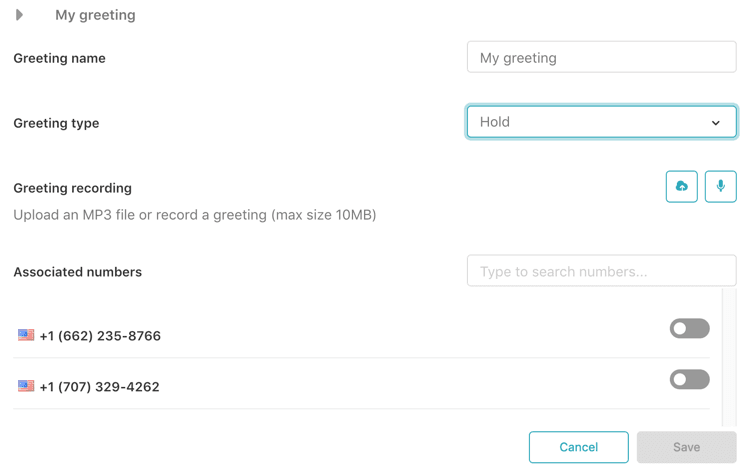
Supported formats are MP3 and WAV. Keep your greeting concise but informative. For example: "Thank you for calling. Press 1 for sales, 2 for technical support, or 3 for billing. To leave a voicemail, press 0."
Best practices for greetings:
- List your most common options first
- Speak slowly and clearly
- Mention estimated wait times if queues are long
- Always include an escape route (voicemail or callback option)
Step 2: Create the IVR menu
Now you'll build the menu structure that routes calls based on keypresses.
- Go to Admin Center > Channels > Talk > IVR
- Click Create IVR and give it a descriptive name
- Add your menu levels and configure keypress actions
- For external number routing, select Route to external number as the action
- Enter the full phone number including country code (e.g., +1-555-123-4567)
- Set up overflow handling for when external numbers do not answer
You can create multi-level menus for complex routing scenarios. For example, pressing 2 for technical support might open a submenu: "Press 1 for account issues, 2 for API questions, or 3 to speak with a senior engineer."
When using omnichannel routing, IVR keypresses can add tags to tickets. These tags can then trigger automations that change group assignments, priority, or routing queues. Learn more about setting up IVR in Zendesk.
Step 3: Assign the IVR to a phone number
With your menu created, you'll need to connect it to an actual phone number.
- Navigate to Admin Center > Channels > Talk > Numbers
- Select the phone number you want to configure
- In the routing settings, choose your IVR menu from the dropdown
- Save the configuration
- Test with a few calls to verify the routing works as expected
Always test thoroughly before directing customer traffic to the new IVR. Call from different numbers, try each menu option, and verify calls reach the correct destinations.
Step 4: Transfer calls to external numbers
There are two ways calls can end up at external numbers: through IVR automation or via agent-initiated transfers.
IVR-initiated external transfers
When a caller selects an option that routes to an external number, the transfer happens automatically without agent involvement. This works well for:
- After-hours routing to on-call teams
- Specialist referrals (legal, technical escalations)
- Overflow to external call centers
The caller hears a brief message like "Please hold while we connect you" before the transfer initiates.
Agent-initiated external transfers
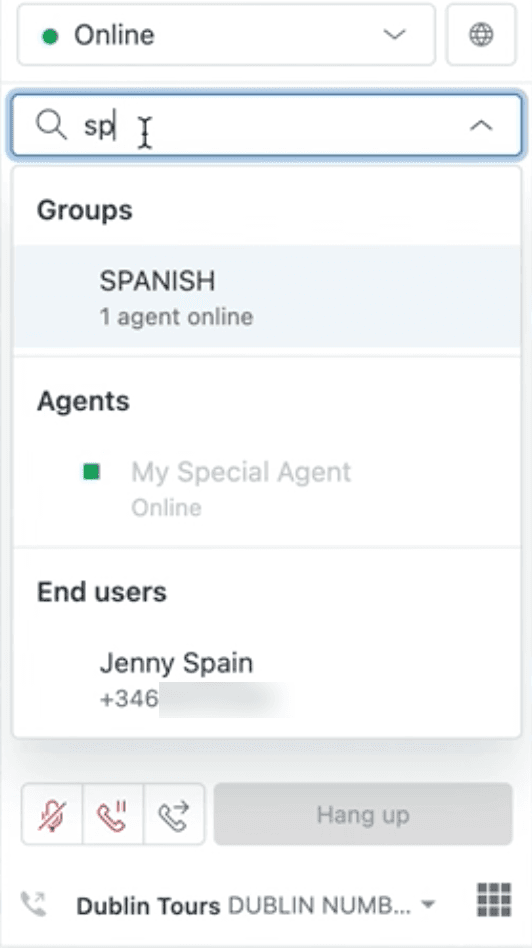
During an active call, agents can transfer to external numbers. Refer to Zendesk's call transfer documentation for complete details.
- Click the transfer button in the call console
- Dial the external number with country code
- Wait for the receiver to answer
- Introduce the caller briefly
- Click Transfer to complete the handoff
Important: Call charges continue to apply for both the incoming and outgoing call legs during a transfer. You're essentially paying for two calls until the transfer completes.
Understanding costs and caller ID
Dual charging explained
When you transfer a call to an external number, you pay for both legs of the call: the incoming call to Zendesk and the outgoing call to the external destination. These charges continue until the call ends, even if the originating agent disconnects.
Per-minute rates vary by country. Check Zendesk's voice pricing for specific rates in your region.
Caller ID behavior
As of February 2026, Zendesk introduced configurable caller ID settings for forwarded calls. You can now choose to display:
- The caller's original number
- Your Talk number
- Your Talk number for anonymous calls only
This helps with deliverability in countries that restrict caller ID on forwarded calls. However, the external recipient will see the caller ID based on your selected option, not necessarily the original caller's number.
Reporting on external number transfers
Zendesk Explore lets you track and analyze calls routed to external numbers. This data helps you understand call patterns and optimize your routing strategy. Check out Zendesk's guide on reporting external number transfers for detailed instructions.
To create a report:
- Open Explore and create a new report
- Select the Talk - Calls dataset
- Add the Forwarded calls metric under Inbound calls
- Add a filter for Call IVR action and select "Phone number"
- Add Call IVR destination to rows to see which numbers received calls
Use this data to identify peak times for external routing, measure answer rates at external destinations, and spot opportunities to bring frequently routed calls back in-house if volume justifies it.
Troubleshooting common issues
Calls not connecting to external numbers
- Verify outbound calling is enabled on your Talk number
- Check that you're using the correct country code format (+1, not 001)
- Ensure the external number doesn't require an extension
- Confirm the external number isn't blocking calls from your region
IVR menu loops or repeats
- Check your greeting assignments. Avoid setting "main menu" as the route greeting for menu options
- Verify you've configured a default route for callers who don't make a selection
- The greeting plays three times before routing to the default option
Omnichannel routing conflicts
If you're using ticket triggers to assign groups to call tickets, transferring a call to another group can cause the trigger to fire again and overwrite the transfer. Update your triggers to include one of these conditions:
- Ticket Is Create - The trigger fires only on newly created tickets
- Comment text does not contain the following string: Call transferred - Prevents re-triggering on transfers
Call recording concerns
Recording continues after transfers, both internal and external. Make sure your external parties are aware of this if compliance is a concern.
Best practices for external number routing
Based on common implementation patterns, here are recommendations for setting up external number routing effectively:
- Test everything twice: Call every menu option from multiple numbers before going live
- Keep menus simple: Limit options to 3-4 choices per level to avoid caller confusion
- Provide escape routes: Always offer voicemail or callback as alternatives
- Monitor your reports: Check forwarded call volumes weekly to spot trends
- Document your setup: Create a reference doc showing your IVR structure for team onboarding
- Have a backup plan: Configure overflow routing in case external numbers don't answer
Extend your support beyond phone calls
Setting up IVR routing solves the phone channel piece of your support puzzle. But what about the tickets that come in through email, chat, and web forms? That's where we can help.

Our AI agent for Zendesk learns from your existing tickets and help center content to handle support across all channels. Our AI Agent can draft responses, deflect common questions, and resolve tickets autonomously, all while working within your Zendesk workspace.
The combination works well: Zendesk Talk handles your phone routing, and we handle the rest. You get comprehensive coverage without adding headcount.
Want to see how it works? Check our pricing and start a free trial to see how AI can reduce your ticket volume while maintaining quality.