How to deflect Zendesk calls to SMS: A complete setup guide

Stevia Putri

Katelin Teen
Last edited February 17, 2026
How to deflect Zendesk calls to SMS: A complete setup guide
High call volume draining your support resources? You're not alone. Many support teams struggle with phone queues that eat up agent time and frustrate customers who'd rather text than talk. The good news is that Zendesk offers a built-in solution: IVR call deflection to SMS.
This guide walks you through setting up Zendesk IVR to automatically offer callers the option to switch to text messaging. It's a practical way to reduce call volume, cut costs, and give customers the channel they actually prefer.

What is Zendesk IVR deflect call to SMS and why use it?
IVR call deflection to SMS is a feature in Zendesk Talk that lets you offer callers the option to receive a text message and continue their conversation via SMS instead of waiting on hold.
Here's how the customer experience works:
- A customer calls your support number
- Your IVR greeting plays: "Press 1 to receive a text message and continue this conversation via SMS"
- The customer presses 1
- They immediately receive an SMS with a link or instructions
- The conversation continues via text, creating a ticket in Zendesk
The benefits are significant. Phone calls typically cost $3-5 per interaction when you factor in agent time and infrastructure. SMS interactions run closer to $1. If you're handling high call volumes, that difference adds up fast.
Messaging also tends to score higher on customer satisfaction. Customers can respond at their convenience instead of waiting on hold. Agents can handle multiple SMS conversations simultaneously, something impossible with phone calls.
When does call deflection make the most sense?
- High call volume periods: When your queue is backing up and wait times are climbing
- Simple inquiries: Password resets, order status checks, appointment confirmations
- Staffing constraints: When you don't have enough agents to handle voice calls
- After-hours coverage: SMS gives customers a way to reach you when agents aren't available
While Zendesk's IVR-to-SMS feature is useful for channel shifting, it's worth noting that it still requires human agents to respond. If you're looking for true automation, solutions like our AI agent can actually resolve common issues without human intervention.
Prerequisites for Zendesk IVR-to-SMS setup
Before you start configuring, make sure you have the following in place:
Required Zendesk plan
IVR functionality requires Zendesk Suite Professional ($115 per agent per month) or Suite Enterprise ($169 per agent per month). The Suite Team plan ($55 per agent per month) does not include IVR phone trees.
Source: Zendesk pricing page
SMS number provisioned
You'll need an SMS-capable phone number set up in Zendesk. This can be a number you already have ported to Zendesk or a new number purchased through their platform.
Admin Center access
Only administrators can configure IVR menus and phone number settings. Make sure you have the necessary permissions.
IVR greeting audio
Record a custom greeting that explains the SMS option clearly. Keep it concise and friendly.
Compliance considerations
SMS communications fall under TCPA regulations in the United States. You'll need to ensure you have proper consent to text customers and include opt-out instructions in your messages. Consult with your legal team about compliance requirements in your region.
Step-by-step: Setting up IVR call deflection in Zendesk
Here's the complete process for configuring call deflection to SMS in Zendesk Talk.
Step 1: Disable voicemail for your number
First, you need to turn off voicemail for the phone number where you want to enable IVR.
- Navigate to Admin Center > Channels > Talk > Numbers
- Select the phone number you want to configure
- Find the voicemail settings and turn them off
- Save your changes

Why disable voicemail? IVR and voicemail can't work simultaneously on the same number. Since the goal is to deflect calls to SMS rather than have customers leave voicemails, this step is necessary.
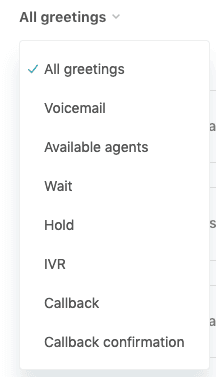
Step 2: Create your IVR greeting
Next, record the greeting that callers will hear when they dial your number.
- Go to Admin Center > Channels > Talk > Greetings
- Click Add greeting
- Upload your recorded audio file or use text-to-speech
- Select IVR as the greeting type
- Name it something descriptive like "Main IVR with SMS option"
Here's a sample script you can adapt:
"Thanks for calling [Company] support. Press 1 to receive a text message and continue this conversation via SMS. Press 2 to speak with an agent. Press 3 for billing inquiries."
Keep your greeting under 30 seconds. Callers appreciate brevity, especially when they're trying to get help.
Step 3: Configure the IVR menu with Text back action
Now for the core configuration: setting up the IVR menu that includes the SMS deflection option.
- Navigate to Admin Center > Channels > Talk > IVR
- Click Add menu
- Give your menu a name (e.g., "Main Menu with SMS")
- Set up your menu options:
- For the SMS option, select Text back as the action type
- Choose the language for the SMS
- Select the sender number (must be SMS-enabled)
- Compose the initial message customers will receive

The "Text back" action is what makes the magic happen. When a caller selects this option, Zendesk immediately sends the configured SMS message and ends the call.
Step 4: Enable IVR on your phone number
With your greeting and menu created, you now need to connect them to your phone number.
- Return to Admin Center > Channels > Talk > Numbers
- Select your phone number
- Click the Routing tab
- Toggle Enable IVR? to on
- Select your configured IVR menu from the dropdown
- Select your IVR greeting
- Save your changes

Your IVR is now live. Calls to this number will hear your greeting and can select the SMS option.
Step 5: Test your setup
Before announcing this to customers, thoroughly test the experience:
- Call your support number from a personal phone
- Listen to the greeting and navigate the menu
- Press the key for the SMS option
- Verify you receive the SMS message within 30 seconds
- Reply to the SMS and confirm a ticket is created in Zendesk
- Check that the ticket shows the correct source (SMS)
Test from different carriers if possible. SMS delivery can vary between networks, and you want to ensure reliability.
SMS message templates and best practices
The message you send when someone opts for SMS sets the tone for the entire interaction. Here's how to get it right.
Initial message template
Your first SMS should accomplish three things: confirm the channel switch, set expectations, and provide an opt-out option.
"Hi [Name], this is [Company] support. Reply to this message and an agent will assist you within [timeframe]. Reply STOP to opt out."
Keep it under 160 characters when possible. Longer messages may be split by carriers, creating a disjointed experience.
Best practices for SMS deflection
| Practice | Why it matters |
|---|---|
| Personalize with customer name | Increases engagement and confirms you're messaging the right person |
| Include opt-out instructions | TCPA compliance and good customer experience |
| Set response time expectations | Prevents frustration if agents aren't immediately available |
| Use a clear sender ID | Customers should immediately know who's texting them |
| Keep language concise | SMS is a brief format; long paragraphs don't work well |
Common mistakes to avoid
- Overly long messages: Stick to the point. If you need more than two sentences, consider email instead.
- Missing opt-out: Always include "Reply STOP to opt out" or similar language.
- Generic greetings: "Thanks for contacting support" is forgettable. Be specific about what happens next.
- Unrealistic response times: Don't promise "immediate" response if your team needs 15 minutes.
Measuring success and calculating ROI
Once your IVR-to-SMS deflection is live, you'll want to track its performance and calculate the return on your investment.
Key metrics to track
| Metric | Target | How to measure |
|---|---|---|
| Call deflection rate | 10%+ | IVR keypress reports in Zendesk Explore |
| Cost per interaction | $1-2 for SMS | Total SMS costs divided by volume |
| Response time | Under 5 minutes | Average first response time for SMS tickets |
| CSAT by channel | 90%+ | Customer satisfaction scores compared to phone |
Source: Zendesk Explore documentation
ROI calculation framework
Let's run the numbers on a typical scenario:
Baseline (before deflection):
- 100 calls per day
- Average cost per call: $4
- Daily cost: $400
With 15% deflection rate:
- 15 calls deflected to SMS daily
- Cost per SMS interaction: $1
- New daily costs: (85 calls × $4) + (15 SMS × $1) = $355
- Daily savings: $45
- Monthly savings: ~$1,350
Your actual savings depend on your call volume, deflection rate, and cost structure. But even modest deflection rates typically pay for the additional Zendesk plan cost within a few months.
For more on measuring deflection success, see our guide on deflection rates and how to improve them.
Alternative solutions and next steps
Zendesk's native IVR-to-SMS feature works well for basic channel shifting, but it has limitations worth considering.
Native Zendesk limitations
- Plan requirement: IVR requires Professional or Enterprise plans ($115+ per agent monthly)
- Manual setup: Each step requires administrator configuration
- Basic SMS capabilities: No advanced automation or AI-powered responses
- Agent-dependent: SMS tickets still need human agents to respond
Third-party alternatives
Several tools extend Zendesk's call deflection capabilities:
- Chatdesk Shift: Specializes in deflecting calls to messaging channels
- LivePerson C2M (Click-to-Message): Enterprise-grade conversational commerce with SMS deflection
These tools can add functionality but typically come with additional costs and integration complexity.
The next evolution: AI-powered autonomous resolution
If you're looking beyond simple channel shifting, AI agents represent the next step. Instead of just moving conversations from phone to SMS, AI agents can actually resolve common issues without human intervention.

Our AI agent works differently from basic SMS deflection:
- Learns from your past tickets automatically: Connect to Zendesk and eesel absorbs your historical conversations, macros, and help center content
- Resolves issues autonomously: Up to 81% of common tickets can be resolved without human intervention
- Escalates intelligently: Complex issues route to agents with full context
- Works across channels: Email, chat, SMS, and social from one platform
- Flat-rate pricing: Starting at $299 per month for unlimited agents, not per-seat pricing
The key difference is outcomes. Zendesk's IVR-to-SMS deflects the channel but still requires agent time. AI agents handle the entire resolution for a significant portion of inquiries.
When should you consider upgrading from SMS deflection to AI agents?
- Your SMS volume is growing faster than your team
- Most inquiries are repetitive (order status, password resets, common how-to questions)
- You want 24/7 coverage without staffing night shifts
- You're looking to reduce costs beyond just channel shifting


Share this article

Article by
Stevia Putri
Stevia Putri is a marketing generalist at eesel AI, where she helps turn powerful AI tools into stories that resonate. She’s driven by curiosity, clarity, and the human side of technology.
