
Giving customers the option to request a callback instead of waiting on hold can improve your support experience. The Zendesk callback widget lets visitors on your website request a phone call from your team at their convenience, eliminating frustrating hold times while ensuring your agents have full context before dialing.
This guide walks you through setting up the callback widget in Zendesk, from initial configuration to advanced customization. Whether you're implementing this for the first time or optimizing an existing setup, you'll find actionable steps to get your callback system running smoothly.
Understanding the Zendesk callback widget
The callback widget is part of Zendesk's Web Widget (Classic), an embeddable support interface that sits on your website and gives customers multiple ways to reach you. When enabled, visitors see a callback option that lets them enter their phone number and request a return call from your team.
Here's the important distinction many teams miss: Zendesk has two different widget systems. Web Widget (Classic) includes native callback functionality through Zendesk Talk. The newer Messaging Web Widget handles conversations differently and doesn't offer the same callback capabilities out of the box. This guide focuses specifically on Web Widget (Classic), which remains the go-to choice for teams that want traditional callback functionality.
Why bother with callbacks at all? They solve a real problem. Customers hate waiting on hold, especially when they don't know how long it will take. Callbacks let them get on with their day while keeping their place in line. For your team, callbacks mean agents can prepare properly before calling, review the customer's history, and have relevant information ready. The result is often shorter calls and happier customers.
Prerequisites for Zendesk callback widget setup
Before diving into configuration, make sure you have everything in place:
- Zendesk Suite: Professional, Enterprise, or Enterprise Plus plan (callback features aren't available on Suite Team)
- Zendesk Talk: Professional or Enterprise plan for voice functionality
- Admin Center access: You'll need administrator permissions to configure channels
- A configured phone line: Set up in Zendesk Talk before you can enable callbacks
- Website access: You'll need to add the widget code to your site
If you're on Suite Team or haven't upgraded Talk yet, you'll need to adjust your plan before proceeding. The callback feature specifically requires Professional-level plans or higher for both Suite and Talk.
Step-by-step guide to Zendesk callback widget setup
Step 1: Access the Talk settings in Admin Center
Start by logging into your Zendesk account and navigating to the Admin Center. From the sidebar, click Channels, then select Talk and email, followed by Talk. This opens the Talk administration panel where you'll configure voice settings.
If you don't see the Talk option, verify that Talk is enabled on your account and that you have the right permissions. Only administrators can access these settings.
Step 2: Create a new widget configuration
Once in the Talk settings, look for the Widget tab. This is where you manage how voice options appear in your Web Widget. Click Add widget configuration, then select Request a callback from the available options.
You'll also see options for "Call us" (which displays a phone number) and "Call us (via digital line)" (which enables browser-based calling). You can configure multiple options if you want to give customers choices, but for this guide, we're focusing specifically on the callback request setup.
Step 3: Enable and configure callback settings
At the top of the configuration form, toggle Enable the configuration on Web Widget to activate this callback option. Now you'll see several important settings to configure:
Group routing: Select which team of agents will receive these callback requests. When agents from this group are online, the callback option appears in the widget. If no one in the group is available, customers won't see the callback option.
Nickname: Give your configuration a descriptive name. If you create multiple configurations (perhaps for different brands or pages), you'll use nicknames to identify which one to display where.
Brand: If you manage multiple brands in Zendesk, select the appropriate one for this configuration.
Priority: Choose between Normal and High priority. High priority callbacks jump to the front of the queue. Use this sparingly for VIP customers or urgent issues.
Contact options: Select "Request a callback" to enable the callback form. You can also combine this with "Call us" if you want to show both options.
Step 4: Set up phone numbers
The phone number configuration has two parts:
Outbound calling number: This is the number your agents will use to call customers back. It doesn't appear in the widget, but customers will see it on their caller ID. Select a number from your Zendesk Talk account. Avoid using toll-free numbers here, they're designed for inbound calls and don't always work well for outbound dialing.
Phone number to display: If you're also showing a "Call us" option, this is the number customers see and can dial directly. This can be different from your outbound number if needed.
Step 5: Customize wait time display
You have options for managing customer expectations around wait times:
- Display average wait time: Shows customers the current average wait based on your Talk dashboard metrics
- Set custom min and max limits: Override the actual average with fixed numbers (for example, always showing "2-5 minutes")
The custom limits function as display text only, they don't affect actual routing or queue behavior. Some teams prefer this approach to set consistent expectations regardless of current queue conditions.
Step 6: Save and test your configuration
Click Save to store your settings. Here's something important to know: changes can take up to 10 minutes to propagate across all Web Widget instances. Don't panic if you don't see the callback option immediately.
Once the changes have had time to take effect, visit your website and test the widget:
- Confirm the callback option appears when agents are online
- Submit a test callback request
- Verify the request appears in your Zendesk Talk queue
- Have an agent claim and complete the callback
Test from different browsers and devices to ensure consistent behavior.
Advanced customization options for Zendesk callback widget setup
Once your basic callback setup is working, you can customize the experience further using the Web Widget API.
Customizing widget appearance
The Web Widget (Classic) supports extensive visual customization. You can adjust colors to match your brand, reposition the launcher button, and modify the widget's offset from page edges.
These customizations require adding JavaScript to your website. Work with your development team to implement changes through the window.zESettings object, which must be defined before the widget snippet loads.
Prefilling customer information
If customers are logged into your website, you can prefill their contact details in the callback form. This saves them time and reduces errors.
Use the identify and prefill settings to pass customer information:
zE('webWidget', 'identify', {
  name: 'Customer Name',
  email: 'customer@example.com'
});
You can also make fields read-only if you don't want customers changing the pre-filled information. This is useful for ensuring you have accurate contact details.
Language and localization
By default, the widget displays text based on the user's browser language settings. You can override this to force a specific language using the setLocale command.
This is particularly useful if your website serves a specific region or if you want the widget language to match your site's language regardless of individual browser settings.
Multiple widget configurations
If you manage multiple brands or want different callback behaviors on different pages, you can create multiple widget configurations, each with its own nickname. Then use the nickname API to specify which configuration to display:
zE('webWidget', 'updateSettings', {
  webWidget: {
    talk: {
      nickname: 'sales-callback'
    }
  }
});
The first configuration you create becomes the default, but you can override this on specific pages as needed.
Embedding the widget on your website
Getting your widget code
Your widget JavaScript snippet is available in the Admin Center. Navigate to Channels > Classic > Web Widget to find the embed code. This snippet needs to be added to every page where you want the widget to appear.
Adding the snippet to your site
The exact method depends on your platform:
- Generic HTML: Paste the snippet before the closing
</body>tag - WordPress: Add to your theme's footer.php file or use a header/footer plugin
- Shopify: Add to your theme.liquid file before the closing body tag
- BigCommerce: Use the Script Manager to add the code to all pages

If you're using a platform-specific integration (like the agnoStack app for BigCommerce), follow that provider's instructions for widget installation.
Verifying installation
After adding the code:
- Clear your browser cache and any CDN caching
- Check that the widget launcher appears in the expected position
- Open the widget and verify the callback option is visible (when agents are online)
- Test on mobile devices to ensure responsive behavior
Troubleshooting common issues with Zendesk callback widget setup
Callback option not appearing
If customers can't see the callback option, check these common causes:
- No agents online: The callback option only appears when agents in the configured group are online and available
- Configuration not enabled: Verify the toggle is turned on in your widget configuration
- Wrong group selected: Confirm the group routing points to an active group with available agents
- Business hours: If you've set business hours, callbacks won't show outside those times
Try toggling agents offline and back online if the option doesn't appear despite agents being available. This sometimes refreshes the status check.
Phone number validation errors
Zendesk requires phone numbers in E.164 format: +[Country Code][Number]. Common mistakes include:
- Missing the plus sign (+)
- Including spaces or dashes in the number
- Using national format instead of international
Valid example: +14155551234 Invalid example: (415) 555-1234
Widget not displaying
If the entire widget is missing:
- Check browser console for JavaScript errors
- Verify the snippet is placed correctly in your page HTML
- Look for CSS conflicts (z-index issues can hide the widget behind other elements)
- Confirm your browser is supported (Chrome, Firefox, Safari, Edge latest versions)
Changes not taking effect
Remember that widget configuration changes take up to 10 minutes to propagate. If you've just saved changes, wait before testing. Also clear your browser cache and any CDN caching to ensure you're seeing the latest version.
Enhancing callback workflows with AI
Setting up the callback widget is just the starting point. You can make your callbacks smarter and more efficient with the right approach.
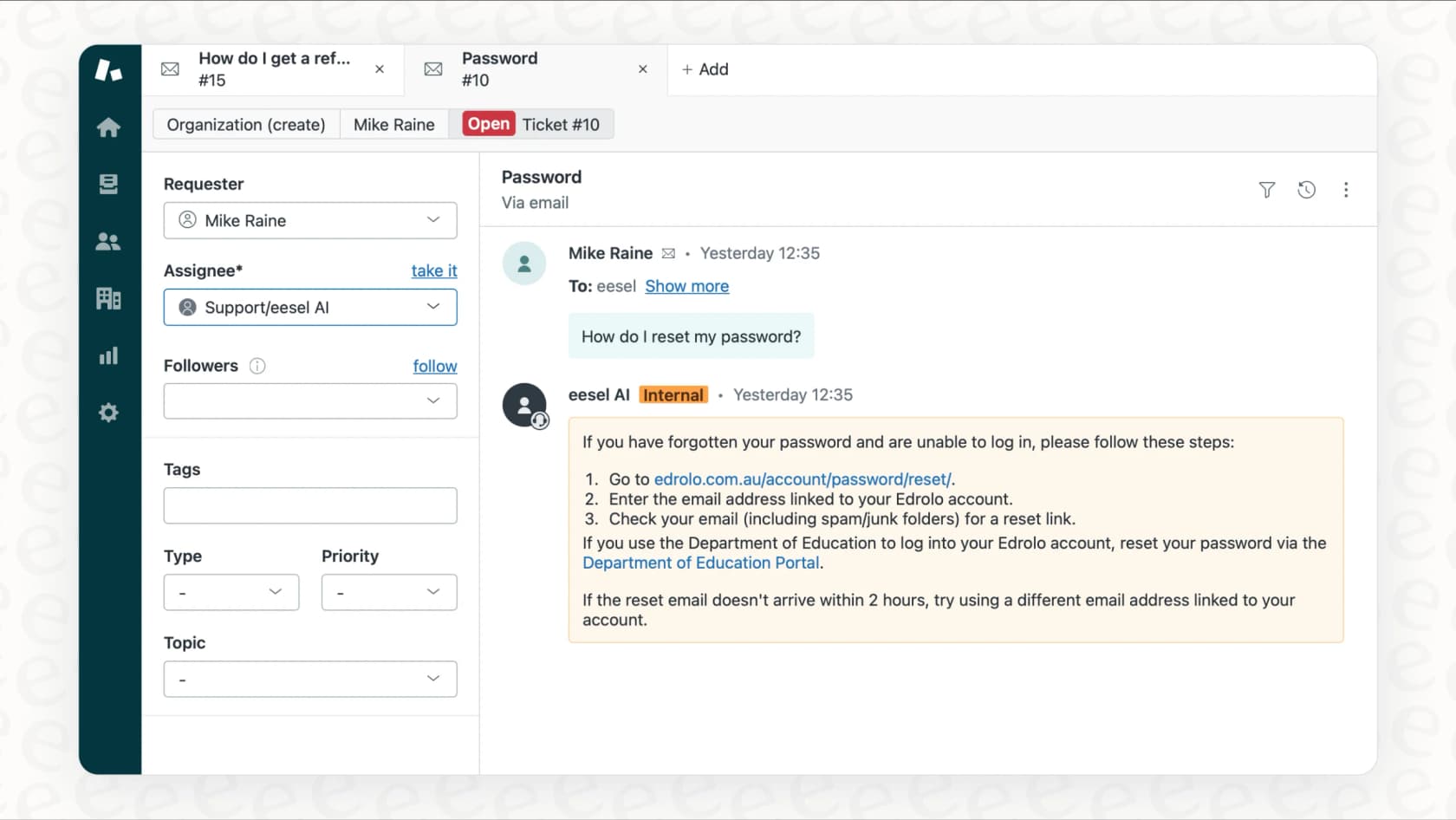
This is where we can help. At eesel AI, we've built an AI teammate that works alongside your Zendesk setup to handle the heavy lifting of support operations. When it comes to callbacks specifically, our AI can:
-
Pre-qualify requests: Before offering a callback, the AI can gather information about the issue, check order status, or attempt automated solutions. Customers only reach agents when human expertise is actually needed.
-
Intelligent routing: Not all callbacks are equal. Our AI analyzes the conversation context and can route VIP customers to priority queues, send technical issues to specialized teams, or flag urgent situations for immediate attention.
-
24/7 availability: While your callback widget only shows when agents are online, our AI handles conversations around the clock. It can schedule callbacks for business hours, provide immediate answers when possible, and ensure no customer inquiry goes unanswered.
-
Context preparation: When a callback is requested, our AI summarizes the conversation history, pulls relevant customer data, and prepares briefing notes so your agents start the call fully informed.
We integrate directly with Zendesk, so setup is straightforward. The AI learns from your existing tickets, help center articles, and macros, which means it understands your business and speaks in your brand voice from day one.
Start optimizing your customer support with smart callbacks
The Zendesk callback widget gives your customers a simple way to request phone support without the frustration of hold times. By following the steps in this guide, you can have callbacks running on your website quickly, complete with proper routing, customization, and testing.
But callbacks work best as part of a broader strategy. The most efficient support teams use AI to handle routine inquiries automatically, escalate complex issues intelligently, and reserve agent time for conversations that truly need a human touch.
If you're looking to reduce your callback volume while improving customer satisfaction, consider how AI-powered support can complement your Zendesk setup. We'd be happy to show you how eesel AI works with Zendesk to create a more efficient, scalable support operation. See eesel's AI for Zendesk in action and learn what intelligent support can do for your team.