When customers call your business, the first few seconds shape their entire experience. A clear, professional greeting builds trust. A garbled recording or confusing message does the opposite. Getting your Zendesk Talk greetings right matters more than most teams realize.
This guide covers everything you need to know about recording professional greetings for Zendesk Talk. We'll walk through legal compliance requirements, technical audio specifications, ready-to-use scripts, and recording techniques that make your phone support sound polished and professional. Whether you're setting up your first phone line or refining an existing setup, you'll find actionable steps you can implement today.
At eesel AI for Zendesk, we work with support teams every day to optimize their customer service workflows. While this guide focuses on Zendesk Talk specifically, the principles apply to any phone support setup. Here's how to get your greetings sounding their best.

Understanding call recording laws and compliance
Before you record a single greeting, you'll need to understand the legal landscape around call recording. Getting this wrong can expose your business to significant liability.
One-party vs. two-party consent laws
Call recording laws vary dramatically by location. In the United States, federal law requires only one-party consent, meaning only one person on the call needs to know it's being recorded. But many states, including California, Florida, and Pennsylvania, require two-party consent. Everyone on the call must be informed and agree to the recording.
Source: https://support.zendesk.com/hc/en-us/articles/4408827179162
The challenge? You often can't know where your callers are located. A customer might call from a two-party consent state while your agents work in a one-party consent state. For this reason, Zendesk recommends complying with the strictest consent laws and obtaining consent from all parties to any recorded call.
International regulations
Outside the United States, regulations become even more stringent. The European Union's GDPR requires you to inform participants and obtain consent before recording calls. Article 13 specifically mandates providing information about data collection at the point of collection.
Source: https://support.zendesk.com/hc/en-us/community/posts/4408867856154
Other regions have their own requirements. Canada requires single-party consent but with notification requirements. Australia has specific telemarketing recording laws. If you serve international customers, you'll need to understand the regulations in each market you operate in.
Best practices for recording notifications
The most reliable approach is to play a pre-recorded greeting at the beginning of every call that clearly announces the recording. This removes any ambiguity and ensures compliance regardless of where participants are located.
Your recording notification should:
- Clearly state that the call is being recorded
- Explain why (quality assurance, training, etc.)
- Tell callers how they can opt out if applicable
- Be played before any substantive conversation begins
Source: https://support.zendesk.com/hc/en-us/articles/4408827179162
Configuring recording options in Zendesk Talk
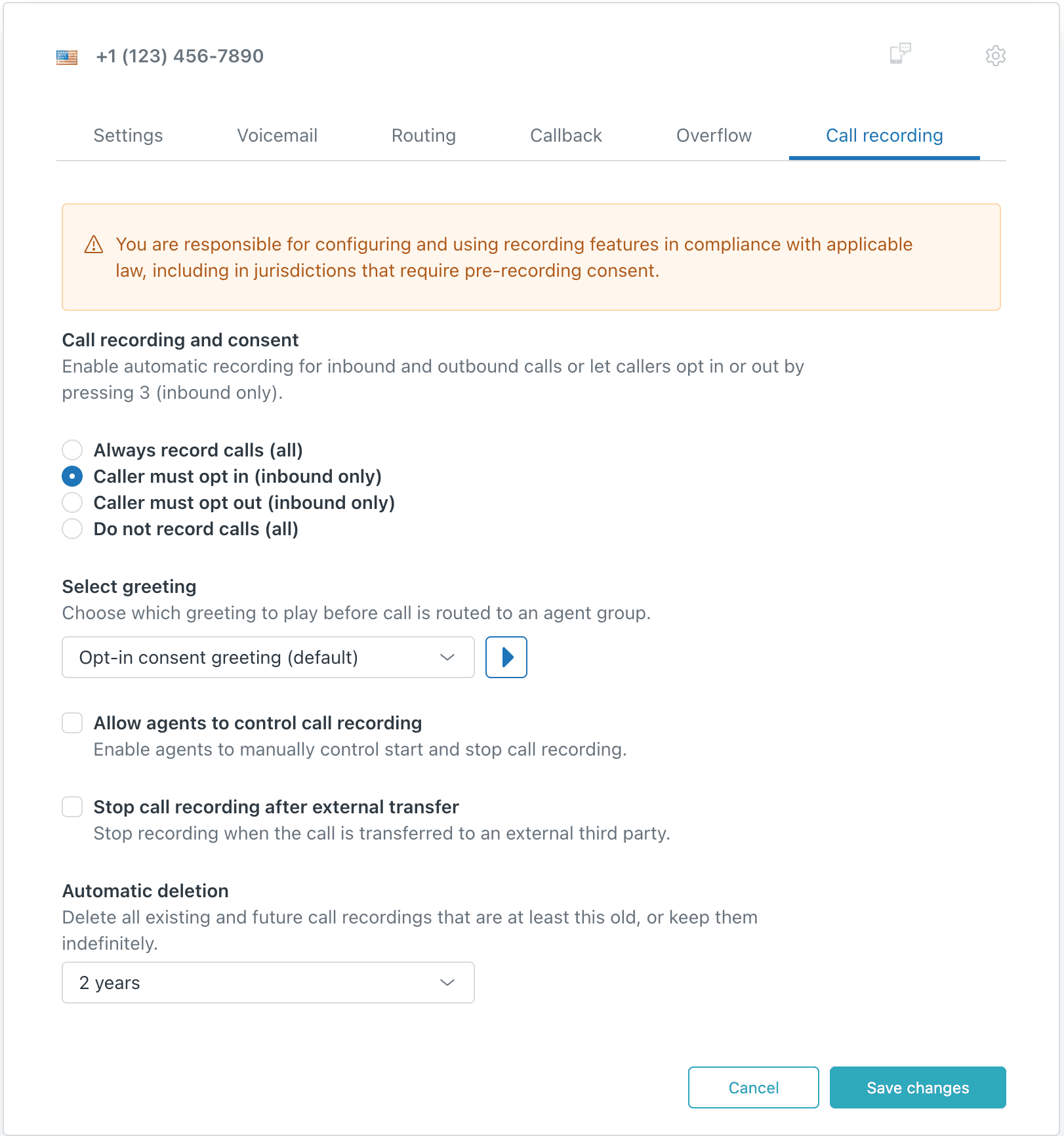
Zendesk Talk gives you four options for call recording:
| Recording Mode | How It Works | Best For |
|---|---|---|
| Always record calls | All calls recorded automatically | Teams with consistent compliance requirements |
| Caller must opt-in | Recording off by default, caller presses 3 to enable | High-privacy environments |
| Caller must opt-out | Recording on by default, caller presses 3 to disable | Standard business operations |
| Do not record calls | No recording enabled | Jurisdictions with strict restrictions |
Source: https://support.zendesk.com/hc/en-us/articles/4408831738266
Important note: Voicemails are always recorded regardless of these settings. This creates a ticket with the audio attached automatically.
To configure these settings, navigate to Admin Center → Channels → Talk and email → Talk → Lines, then select your phone number and click the Call recording tab.
Types of greetings and when to use them
Zendesk Talk offers six distinct greeting types, each serving a specific purpose in the caller journey. Understanding when each plays helps you craft appropriate messages.
The six greeting types explained
Main greeting plays when customers first connect. This is your first impression, the audio equivalent of a receptionist's welcome. Keep it brief and professional.
Available agents greeting plays when someone is about to pick up. This bridges the gap between hold time and live conversation. A simple "Connecting you now" works well.
Wait greeting plays while callers are in queue. Use this to set expectations about wait times and offer alternatives like voicemail or callback requests.
Hold greeting plays when an agent places a caller on hold. Always include this so callers know they haven't been disconnected.
Voicemail greeting invites callers to leave a message when agents are unavailable. This should include what information to leave and when to expect a response.
Call recording consent greeting plays when you need to inform callers about recording and obtain consent. This is critical for legal compliance.
Source: https://support.zendesk.com/hc/en-us/articles/4830381017754
How greetings interact with business hours
Zendesk Talk lets you configure different greetings for business hours versus after hours. This matters because caller expectations differ based on when they call.
During business hours, callers expect to reach someone. Your greetings should focus on routing them efficiently. After hours, callers expect to leave a message or receive information about when you'll be available.
You can set up business hours schedules in Admin Center → Channels → Talk and email → Talk → Business hours, then assign different greetings to each schedule.
Technical requirements for audio files
Audio quality can make or break your phone greetings. Poorly formatted files sound distorted, unprofessional, and may not play at all. Here's what you need to know.
Recommended audio formats
Zendesk Talk supports two primary formats for greetings:
G711 µ-LAW is the recommended format. It's specifically designed for telephone audio and provides consistent quality across different phone systems. If you're experiencing audio quality issues with MP3 files, switching to G711 µ-LAW often resolves them.
MP3 is acceptable but can produce inconsistent results depending on encoding settings. Some MP3 files sound fine in the Zendesk interface but distorted to callers.
Source: https://support.zendesk.com/hc/en-us/articles/4408845761050
File specifications
- Maximum file size: 10MB
- Recommended sample rate: 8000 Hz (telephone standard)
- Channels: Mono (not stereo)
- Bit depth: 16-bit
Files that exceed these specifications may be rejected or might not play correctly.
Converting files with Audacity
Audacity is a free, open-source audio editor that handles the conversion perfectly. Here's the exact process:
- Download and install Audacity
- Open your audio file (File → Import → Audio)
- Select File → Export → Export Audio
- Set these exact parameters:
- Format: WAV (Microsoft)
- Channels: Mono
- Sample Rate: 8000 Hz
- Encoding: U-Law
- Click Export and save your file
Source: https://support.zendesk.com/hc/en-us/articles/4408845761050
Alternative conversion tools
If you prefer not to install software, g711.org offers free online conversion:
- Visit g711.org
- Click Browse and select your file
- Choose "μ-law WAV (8Khz, Mono, CCITT μ-law)" as output
- Set volume to High
- Click Submit and download the converted file
Source: https://support.zendesk.com/hc/en-us/articles/4408845761050
Recording methods and script templates
You have two options for adding greetings to Zendesk Talk: recording directly in your browser or uploading pre-recorded files. Each approach has its place.
Browser recording vs. file upload
Browser recording works directly in the Zendesk interface. Click Add greeting, select Record, and speak into your microphone. This is fastest for simple greetings but offers no editing capability.
Pros: Immediate, no file management, good for quick updates Cons: No editing, quality depends on your environment, one-take only
File upload lets you record and edit audio separately, then upload the finished file. This produces professional results but requires more steps.
Pros: Professional quality, editable, reusable across systems Cons: Requires audio software, more time investment
Source: https://support.zendesk.com/hc/en-us/articles/4830381017754
Step-by-step: Adding greetings in Admin Center
- Navigate to Admin Center → Channels → Talk and email → Talk
- Click the Greetings tab
- Click Add greeting
- Enter a name for your greeting (internal use only)
- Select the Greeting Type from the dropdown
- Choose your recording method:
- Click Record to use your microphone
- Click Upload to select an audio file
- Select which phone numbers should use this greeting
- Click Save
Source: https://support.zendesk.com/hc/en-us/articles/4830381017754
Ready-to-use greeting scripts
Here are scripts you can adapt for each greeting type:
General voicemail greeting: "Thank you for calling [Company]. We're unable to take your call right now. Please leave your name, number, and a brief message, and we'll return your call within [timeframe]."
Business hours greeting: "Thank you for calling [Company]. To speak with [department], press 1. For [department], press 2. To leave a voicemail, press 0 or stay on the line."
After-hours greeting: "You've reached [Company]. Our office is currently closed. Our business hours are [hours]. Please leave a message and we'll respond when we reopen."
Call recording consent greeting: "This call may be recorded for quality assurance and training purposes. To continue with recording, press 1. To opt out of recording, press 2."
Hold message: "Please hold while we connect you with the next available representative. Your call is important to us."
Wait queue greeting: "All of our representatives are currently assisting other callers. Your estimated wait time is [time]. To leave a voicemail instead, press 1."
Tips for writing custom scripts
Keep these principles in mind when writing your own:
- Stay under 30 seconds. Callers want to reach a human, not listen to a speech.
- Lead with gratitude. "Thank you for calling" acknowledges their effort.
- Be specific about timing. "Within 24 hours" beats "as soon as possible."
- Offer clear options. If using an IVR, limit choices to 3-4 options maximum.
- Match your brand voice. A law firm sounds different from a skateboard shop. Your greetings should reflect that.
Professional recording best practices
The technical setup matters, but so does your delivery. Here's how to record greetings that sound genuinely professional.
Environment setup
Your recording environment affects quality more than your microphone. Before you record:
- Find a quiet room with minimal echo. Closets work surprisingly well (clothes dampen sound).
- Turn off fans, air conditioning, and any equipment that hums.
- Silence notifications on your phone and computer.
- Close windows to block outside noise.
- Use soft furnishings (curtains, pillows, blankets) to reduce echo if your room is bare.
Equipment recommendations
You don't need expensive gear, but the right equipment helps:
USB microphones ($50-150) offer the best balance of quality and simplicity. The Blue Yeti, Audio-Technica ATR2100x, and Samson Q2U are solid choices.
Headsets with microphones work for browser recording but often sound thin. They're acceptable for temporary greetings but aren't ideal for permanent recordings.
Built-in laptop microphones should be avoided for professional greetings. They'll pick up keyboard noise, fan sounds, and room echo.
Pop filters (or a sock stretched over a wire hanger) prevent plosive sounds on words starting with P and B.
Voice technique and delivery
How you speak matters as much as what you say:
- Warm up your voice. Read a paragraph aloud before recording. Cold voices sound stiff.
- Smile while speaking. It changes your vocal tone and makes you sound more welcoming.
- Maintain consistent volume. Don't trail off at the end of sentences.
- Speak slightly slower than normal. Phone audio compresses higher frequencies, making fast speech harder to understand.
- Record multiple takes. Give yourself options. The first take is rarely the best.
When to hire professional voice talent
Consider professional voiceover services if you have:
- High call volume (thousands of calls monthly)
- A brand positioning that emphasizes premium service
- A need for greetings in multiple languages
- No team member with a naturally clear, pleasant phone voice
Services like Voices.com, Voice123, or Fiverr offer professional voice talent at various price points. Expect to pay $100-300 for a professional voicemail greeting package.
Multi-language considerations
If you serve non-English speakers, consider recording greetings in multiple languages. Zendesk Talk supports language-specific greetings that'll play based on caller selection or phone number.
When recording in other languages:
- Use native speakers instead of translation services
- Keep cultural differences in mind since formality levels vary by language
- Test with actual speakers of that language before deploying
Testing, common mistakes, and enhancing voice support
Even well-planned greetings can have issues. Here's how to catch problems before your customers do.
QA checklist for greetings
Before making any greeting live, you'll want to test it thoroughly:
- Call from an external phone line (not your office phone)
- Test during business hours and after hours
- Listen on different devices (mobile, landline, speakerphone)
- Verify the greeting plays completely (not cut off)
- Check that volume levels are consistent with other phone audio
- Confirm any keypad options mentioned actually work
- Get feedback from at least two team members
Source: https://support.zendesk.com/hc/en-us/articles/4830381017754
Common mistakes to avoid
Forgetting recording disclosures. This is the most serious error. If you record calls without proper notification, you violate consent laws.
Using poor quality audio. Compressed MP3s, background noise, or echo make your business sound unprofessional.
Making greetings too long. Every second spent listening to a greeting is a second before they get help. Respect your callers' time.
Not testing before going live. Always test from an actual phone line. What sounds fine in your browser may sound terrible on a mobile phone.
Inconsistent brand voice. Your phone greetings should match the tone of your website, emails, and other customer touchpoints.
Ignoring business hours configuration. Greetings that say "we're closed" during open hours (or vice versa) confuse callers and erode trust.
Not updating seasonal greetings. Holiday greetings left up in March suggest you aren't paying attention to details.
How eesel AI complements voice support
While this guide focuses on optimizing your Zendesk Talk setup, the reality is that many customer issues can be resolved before they ever become phone calls. That's where we can help.
At eesel AI, we build AI teammates that handle customer service across channels. Our AI Agent can resolve common questions autonomously through chat or email, reducing the volume of calls reaching your phone lines. When calls do come in, our AI Copilot drafts follow-up emails based on call summaries, saving your agents time on post-call work.
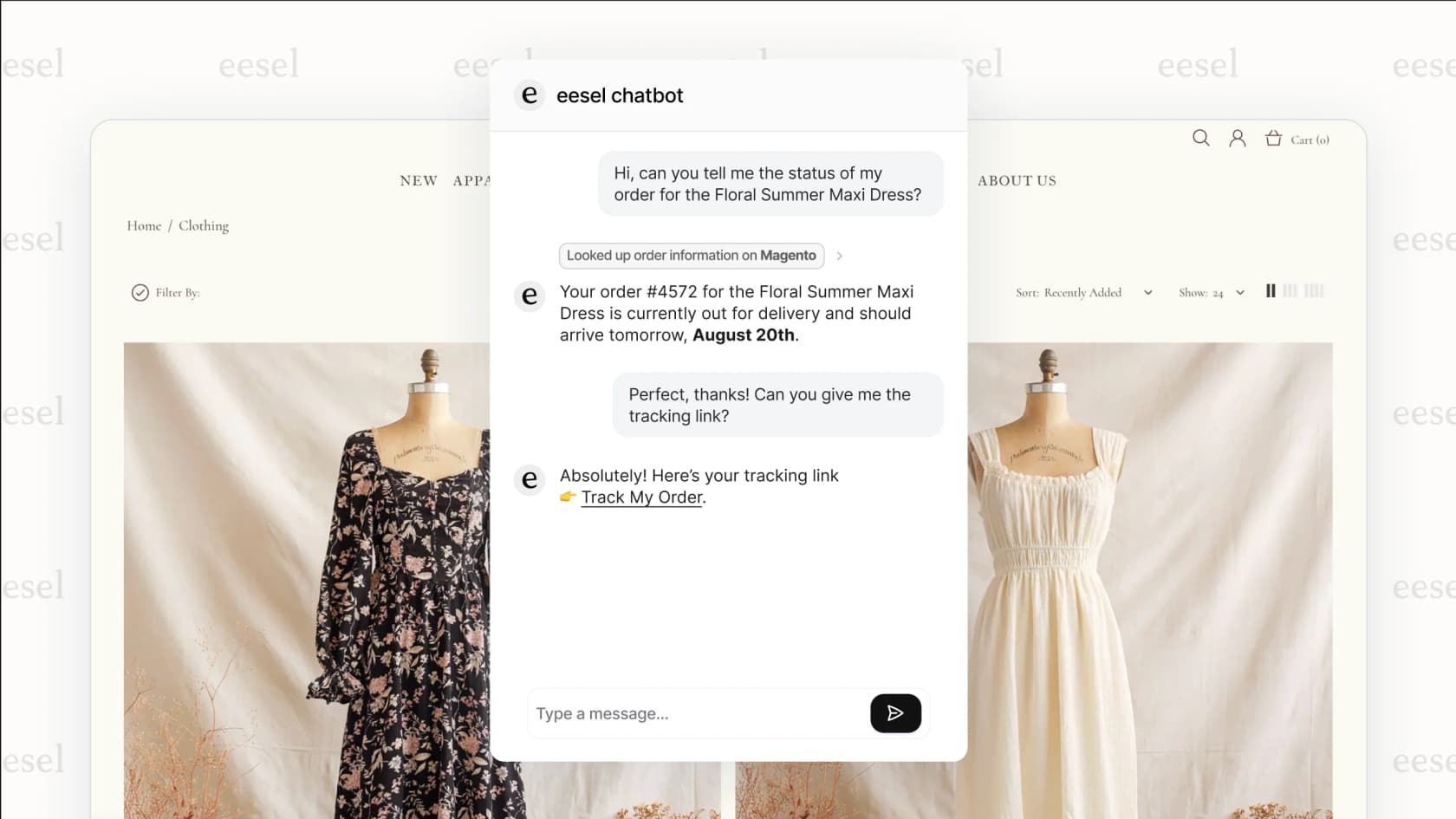
For teams using Zendesk specifically, we integrate directly with your existing setup. The AI learns from your past tickets, help center articles, and macros, so responses match your team's voice and policies from day one.
If you're investing time in professional phone greetings, consider what happens after the call ends. An AI teammate that handles routine follow-up lets your human agents focus on complex issues that actually require a personal touch.