

You can add an AI chatbot to Wix three ways: install Wix Smart Chat from the App Market (works on every plan, no code), install a third-party chatbot app, or paste a chatbot script into Settings > Custom Code, which needs a Premium plan and a connected domain. Smart Chat is the right start for a small business site. Its limits are what it reads (public pages only, no dynamic or member pages) and a monthly AI credit budget. If your answers live in help docs or past tickets, or visitors must reach a person reliably, a custom-code bot like eesel fits better, and its CLI lets a coding agent test it first.
What are your options for an AI chatbot on Wix?
There are three install paths, and they differ in two things that matter far more than the install itself: what the bot can learn from, and what happens when it can't answer. I work on eesel's AI teammate and on the SEO for this blog, and the chatbot rollouts I've watched go wrong rarely fail at the install step. They fail a week later, when the bot confidently answers from a page nobody remembered was still live.
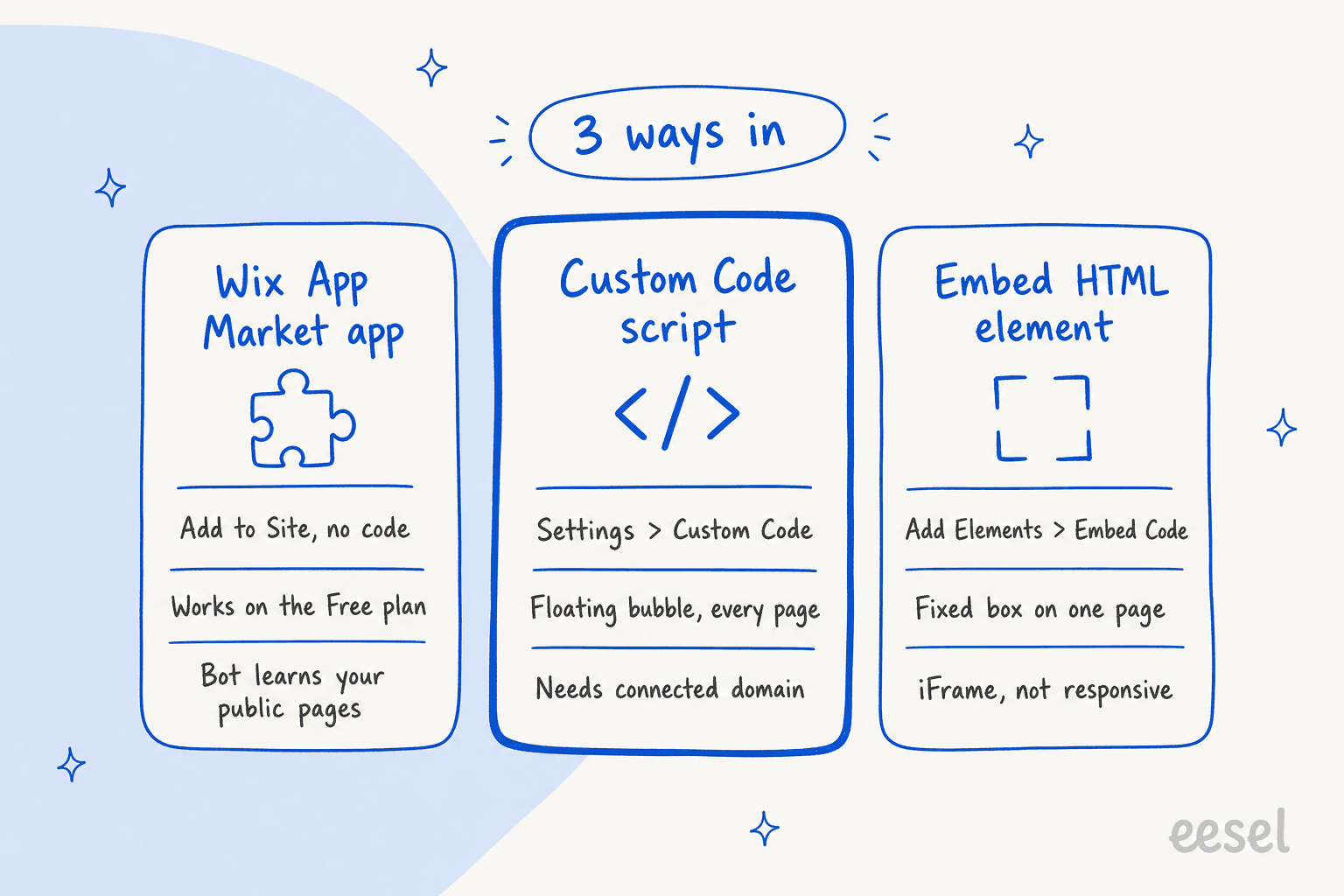
Here's how the three compare on the things a Wix owner actually has to decide.
| Wix Smart Chat | Third-party App Market app | Custom Code script | |
|---|---|---|---|
| Install | Add to Site, no code | Add to Site, no code | Paste a script in Settings |
| Plan needed | Any, including Free | Varies, many say "Premium Site Required" | Premium plan plus connected domain |
| Learns from | Public site pages plus your training rules | Depends on the app | Depends on the tool (site, docs, tickets) |
| Handoff to a person | Wix Inbox, manual chat, scheduled hours | Depends on the app | Depends on the tool (email, helpdesk ticket) |
| Billing | Wix AI credits from your plan | The app's own plans | The tool's own plans |
| Best for | Small sites answering from their own pages | A specific feature, like WhatsApp in one inbox | Sites whose answers live outside Wix |
If you only want a quick primer on the concept first, my guide to AI live chat and the comparison of AI chatbots and live chat cover it. Otherwise, let's go route by route.
How do you add Wix Smart Chat to your site?
Wix Smart Chat is Wix's own AI and manual chat app, and it's the one I'd try first on a small Wix site or a starter ecommerce store. It replaced Wix AI Site Chat, and Wix Chat is being retired: it's no longer installable from the App Market and won't get updates.
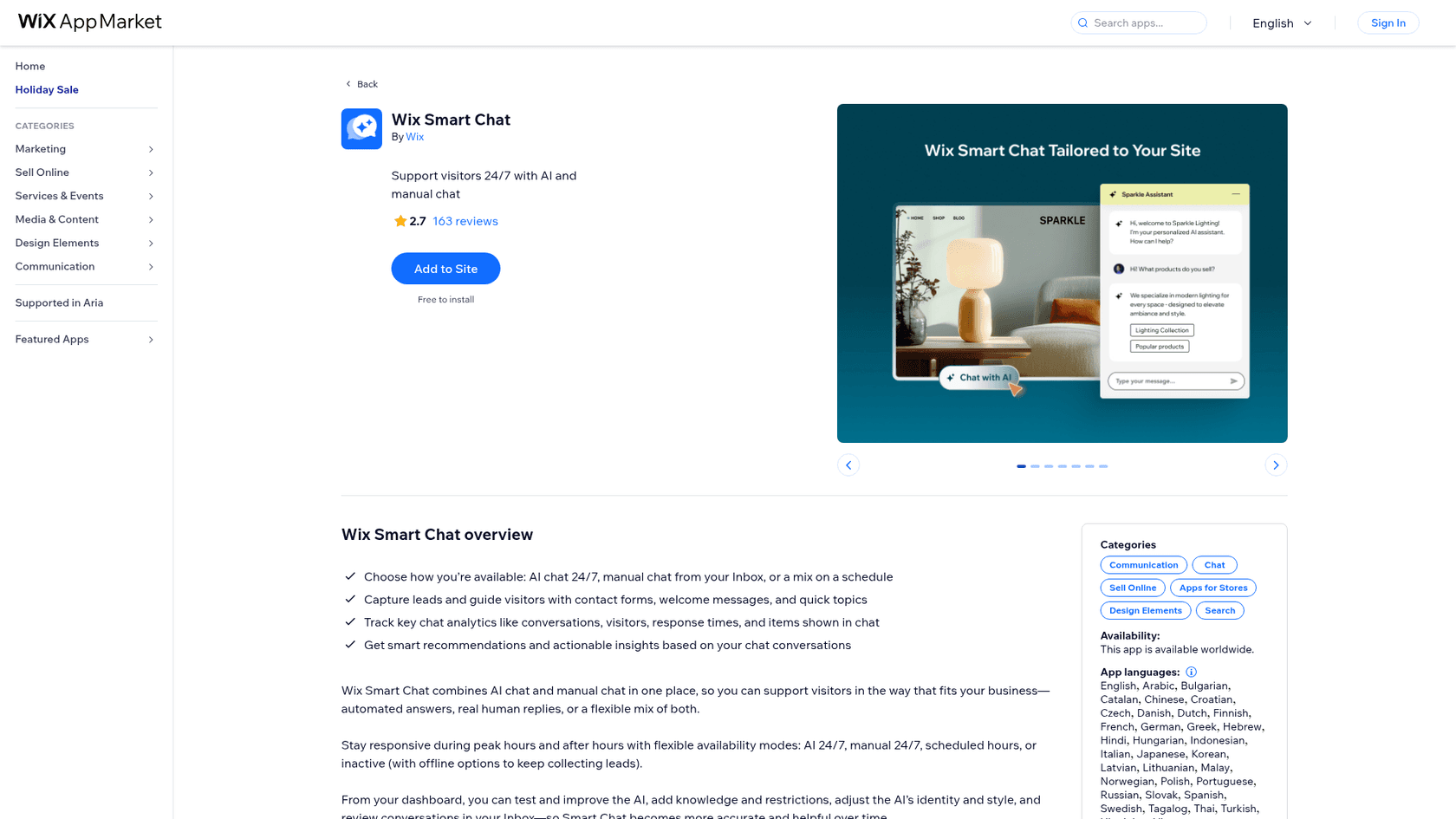
These steps follow Wix's own Smart Chat setup guide:
- Open the app. Go to Wix Smart Chat in the App Market and click Add to Site. Wix drops the chat widget into your editor.
- Pick a mode. In the pop-up, choose Let AI reply for me (AI Chat 24/7) or I'll reply myself (Manual Chat). If you skip this, Smart Chat stays in Manual Chat but keeps indexing your site, so you can switch later.
- Set it up in the dashboard. Go to Smart Chat in your site dashboard and work through the general settings (availability mode, offline behavior, contact form, avatars), Exclude site pages for anything outdated, and Identity & style for tone.
- Train it. Add knowledge rules for facts that aren't on your site, like shipping cut-offs, and restriction rules for topics it shouldn't touch. A restriction rule can tell visitors you'll be in touch and forward their message to your Inbox, per Wix's training guide.
- Test it. Use Test the AI in the dashboard. Testing doesn't use AI credits, so ask as many questions as you like.
- Publish. The widget only goes live after you publish the site. Dashboard setting changes apply without republishing.
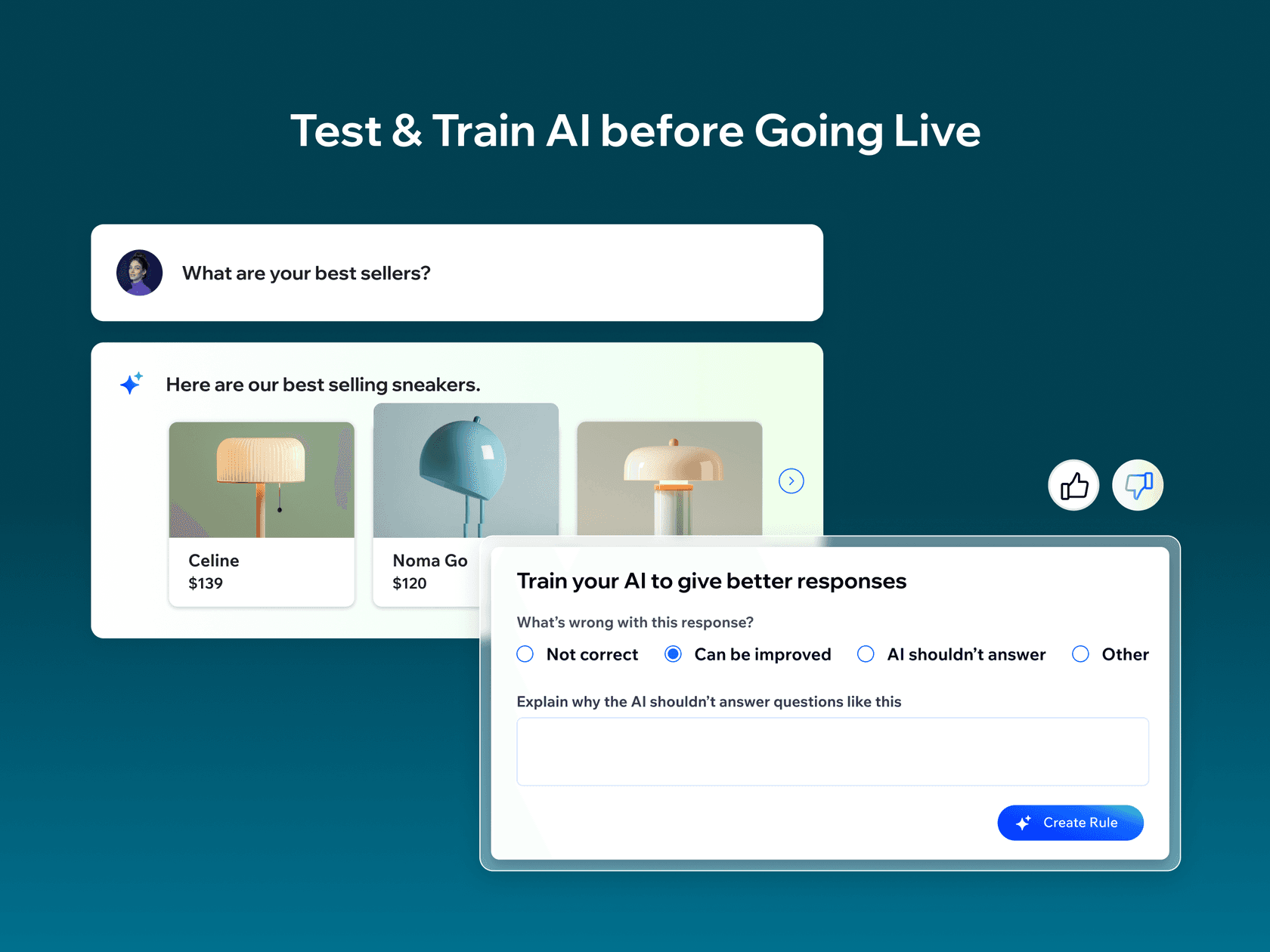
When a test answer is wrong, the Needs improvement button lets you say why, and Wix drafts a knowledge rule for you to approve. That loop is the most useful thing in the app, so use it before you switch AI Chat on for real visitors. I go deeper on it in my Wix Smart Chat review.
What does Smart Chat cost on each Wix plan?
Smart Chat has no separate subscription anymore. It runs on Wix AI credits that come with your site plan and are shared with other Wix AI tools, like the AI Custom Agent and AI Marketing Agent.
| Wix plan | Price (per month, billed yearly) | Smart Chat estimate per month |
|---|---|---|
| Free | $0 | Up to 30 credits a day, max 120 a month (shared) |
| Light | $17 | Up to 150 actions |
| Core | $29 | Up to 200 actions |
| Business | $39 | Up to 300 actions |
| Business Elite | $159 | Up to 1,000 actions |
Prices are from the Wix plans page and the estimates from Wix's AI credits article, which says the exact number of actions "is not guaranteed". Three details catch people out: credits reset monthly and don't roll over, Wix's FAQ says you can't buy top-ups on Premium plans (you upgrade instead), and when credits run out the chat goes offline. Wix's own tip is to switch to Manual Chat 24/7 at that point. A new install also gets a trial of 50 conversations. My Smart Chat pricing breakdown does the per-chat maths.
Where does Smart Chat fall short?
The limit I'd weigh most is what the bot can read. Smart Chat learns from public site content, and Wix's data coverage article lists what it can't index: hidden pages, password-protected pages, member area pages and dynamic pages generated from collections. App-based pages like Wix Restaurants and some third-party apps may be skipped too.
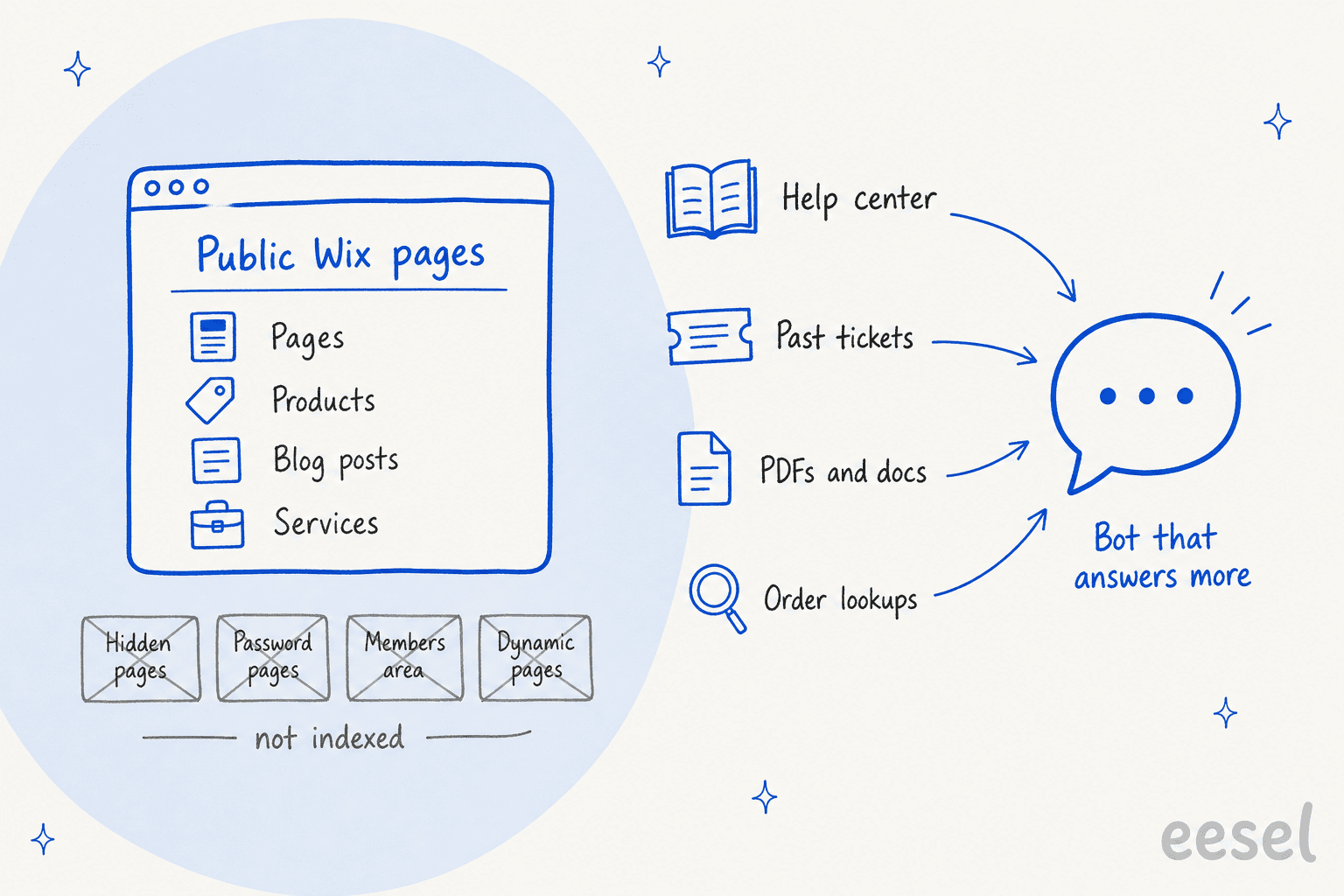
If your catalog, locations or FAQs live in a Wix CMS collection, that's a big gap, and knowledge rules are the workaround. Wix also says it's not currently possible to train Smart Chat on external sources like other URLs. Accuracy is the other thing reviewers raise. This restaurant owner's App Market review is the clearest version I found:
"Initially, the results looked promising, but over time the AI began providing incorrect information, including wrong addresses, incorrect business hours, and even phone numbers that were not associated with the business."
To be fair to Wix, its reply says it has improved how the AI sticks to trained content, and the listing still sits at 2.7 stars from 163 reviews. Two more limits worth knowing: the AI Chat is not HIPAA compliant (Manual Chat is), and the Smart Chat interface isn't translated the way Wix Chat's was, though the AI does reply in the visitor's language. For a fuller list of options, see my Smart Chat alternatives.
How do you install a third-party AI chatbot from the Wix App Market?
Search "ai chatbot" in the App Market and Wix returns 48 apps. The install is the same as Smart Chat: open the listing, click Add to Site, and finish setup in the app's own dashboard inside Wix.
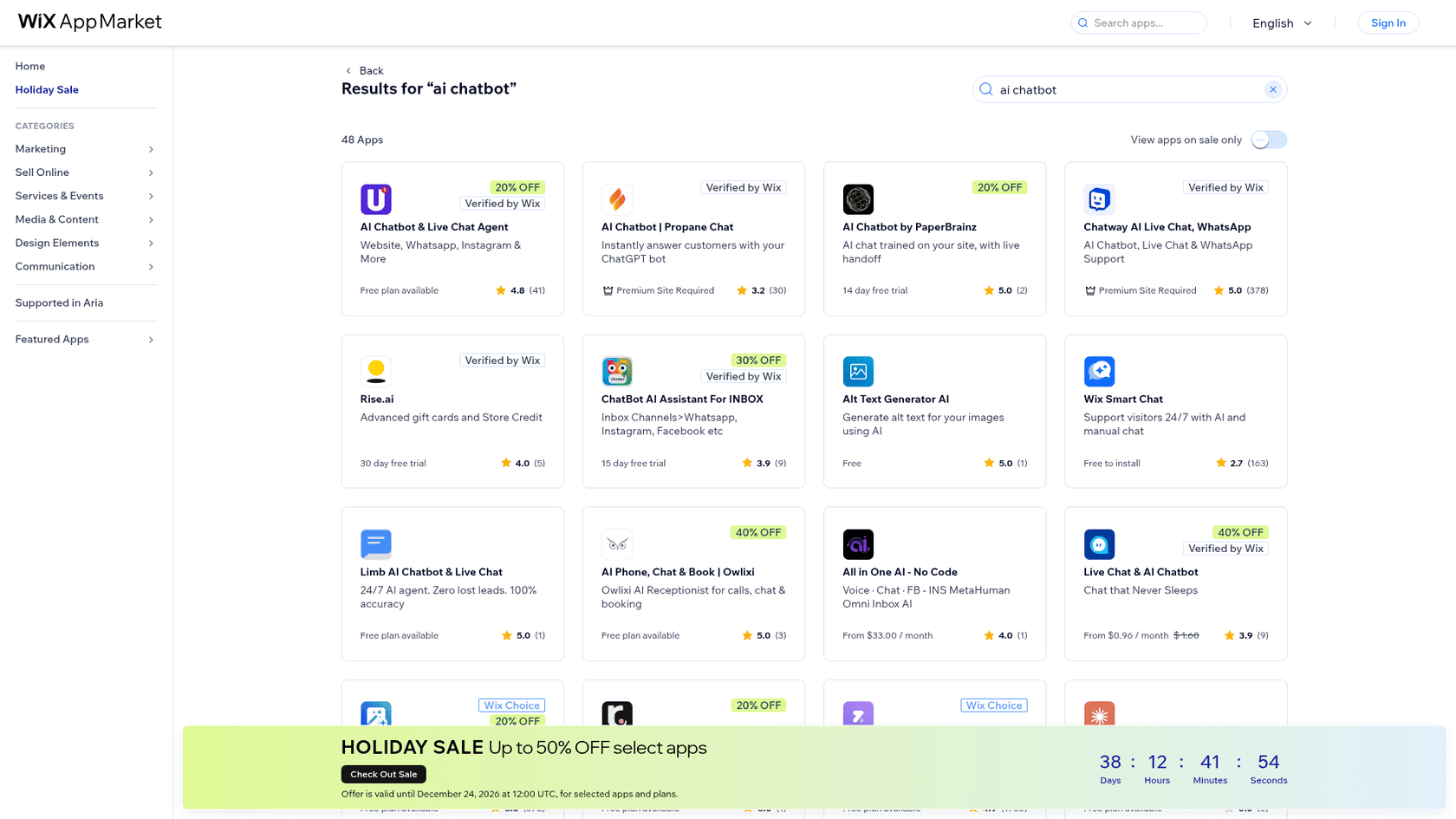
The search page is useful once you know what to scan for on each card:
- The plan label. Some cards say Premium Site Required (Chatway and Propane Chat did when I checked), others say Free plan available or show a trial length. If you're on the Free plan, that label decides it for you.
- What it trains on. Look for "trained on your site" plus anything beyond it, like PDFs, a help center or URLs. That's the gap Smart Chat leaves.
- Handoff. "Live handoff" or a live chat inbox means a person can step in. A bot with no handoff traps a frustrated visitor in a loop.
- The review count, not just the stars. A 5.0 from two reviews tells you very little. Read the one-star reviews on any app you're about to trust with your customers.
My Chatway review covers one of the most-reviewed App Market chat apps, and my list of no-code AI chatbot tools widens the field.
If you're comparing chat platforms rather than Wix apps, my write-up of Tidio's AI chatbot is a good start. Crisp's AI chatbot is another one I'd look at. Whichever you pick, check whether it installs from the App Market or hands you a script, because that decides which of the next steps you follow.
How do you add a chatbot to Wix with Custom Code?
Custom Code is how you add any chatbot or live chat tool that gives you a script tag, which covers most AI chatbot tools that aren't in the App Market. It's also the route with the most misunderstood requirements. Wix's custom code guide says your site must be published and have a connected domain, and the Wix plans page says connecting your own domain comes with a Premium plan. In practice: no Premium plan, no Custom Code.
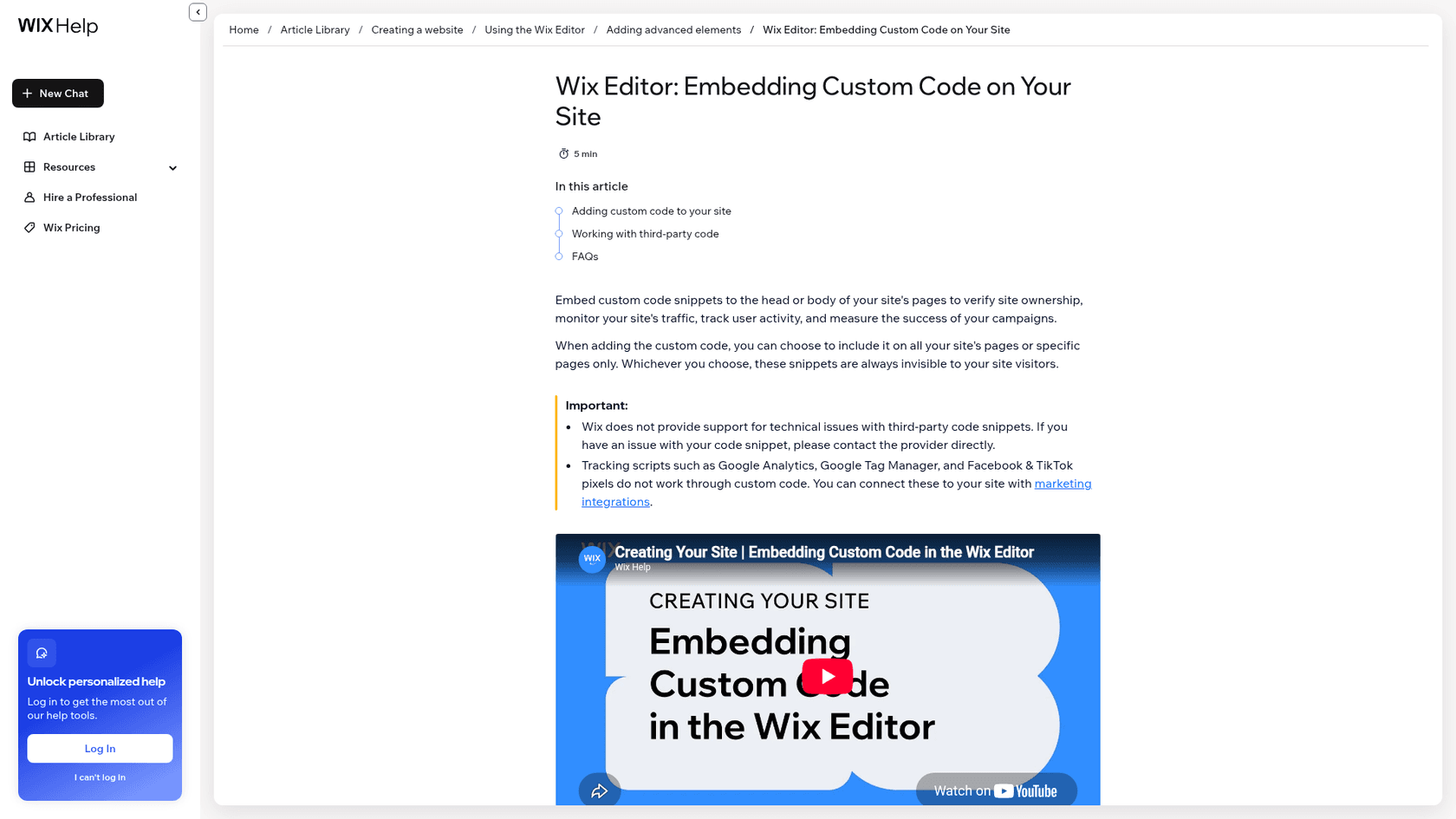
Here's the install, step by step:
- Copy the script from your chatbot tool's install or embed settings.
- Open Settings in your Wix site dashboard and click Custom Code under Development & integrations.
- Click + Add Custom Code at the top right and paste the snippet.
- Name it something you'll recognize later, like "AI chatbot".
- Choose All pages under Add Code to Pages so the bubble shows site-wide, including pages you add later.
- Choose the placement under Place Code in. Most chat widgets ask for the end of the body, which is Body - end in Wix. Follow the provider's instruction if it says otherwise.
- Click Apply, then open your live site (not the editor preview) and look for the bubble.
Three gotchas from the same Wix article. Wix doesn't support third-party snippets, so if it breaks, the chatbot provider is who you call. If you change your site's domain, your code snippets are deleted, so re-add the chatbot after any domain switch. And Wix introduced new frontend security measures for custom code in December 2025, so a snippet that once worked may be blocked until the provider updates it.
Should you use Embed HTML or Custom Code for a chatbot?
Use Custom Code for a floating chat bubble. The Embed HTML element (Add Elements > Embed Code > Popular Embeds) puts code inside an iframe at a fixed spot on one page, and Wix's embed guide notes that the embedded content won't be responsive, even if it originally was. A chat bubble squeezed into a box like that tends to get cropped or stuck in place.
Embed HTML does make sense for an inline chat panel, say an "Ask us anything" box on your contact page, if your provider offers that format. For anything deeper, where site elements need to talk to your code, Wix points to Velo, its developer platform. You don't need Velo to add a chatbot.
How do you add eesel's chat bubble to Wix?
eesel's chat bubble is a floating AI chat widget that goes in through exactly this Custom Code route. eesel doesn't have a Wix App Market app, so it's a script, not an install button. Per the eesel setup docs, it works like this:
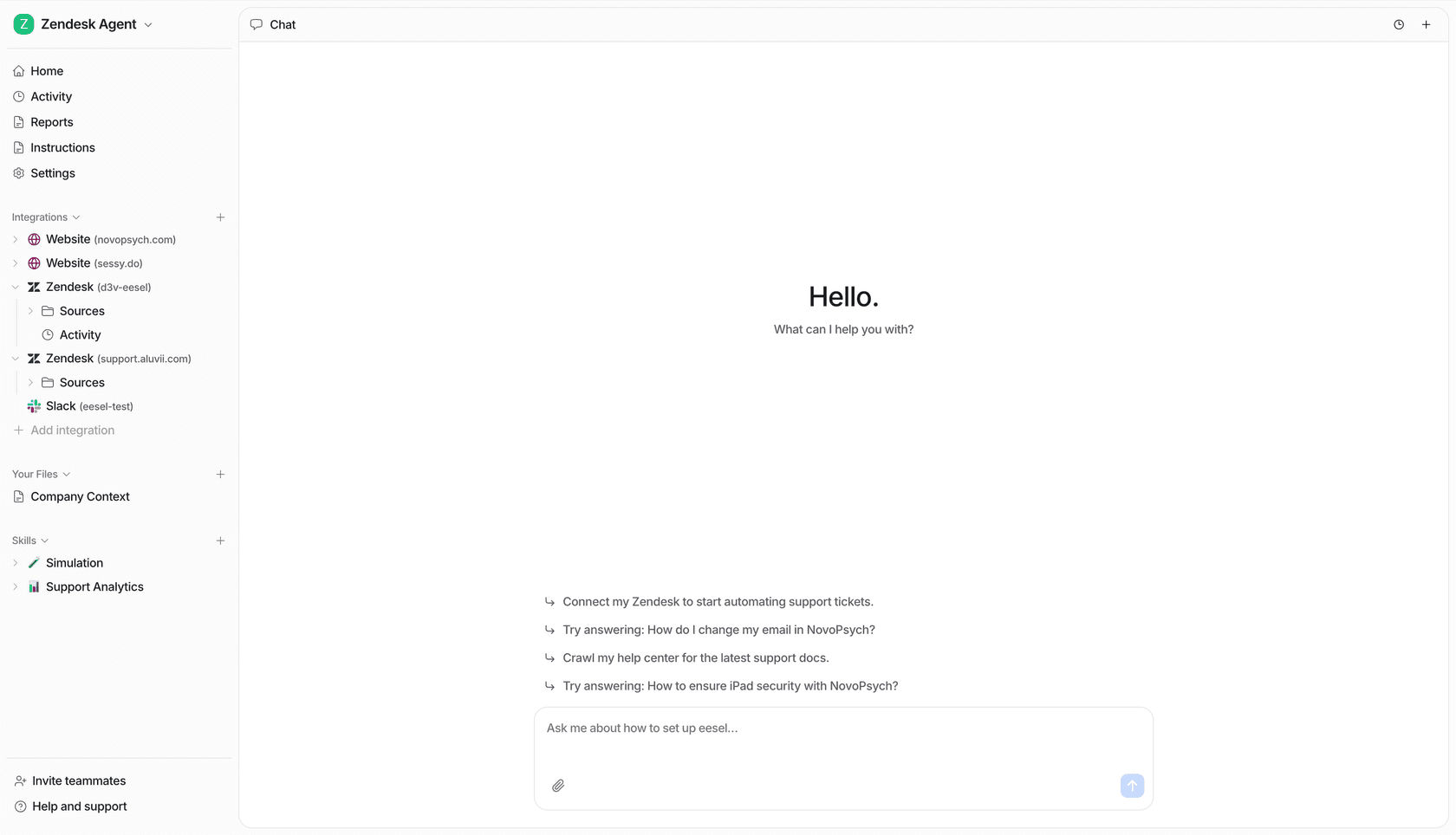
- Ask your agent for a chat bubble in the eesel dashboard chat. It reads your site's brand color and sets up a title, welcome message and three starter questions, then sends a preview link.
- Connect what it should know. Your public website is the start. Add your help center, Google Drive or Notion docs, or a helpdesk like Zendesk, so it isn't limited to what's on your Wix pages.
- Tell it when to hand off, in plain words: "if someone asks about a refund, create a ticket" or "email us anything about wholesale". It writes those as numbered rules you can edit.
- Copy the snippet from Integrations > Chat Bubble and paste it into Wix's Custom Code as above, on All pages, at Body - end (the docs say to paste it before the closing body tag).
- Try it as a visitor on your live site, including asking for a real person.
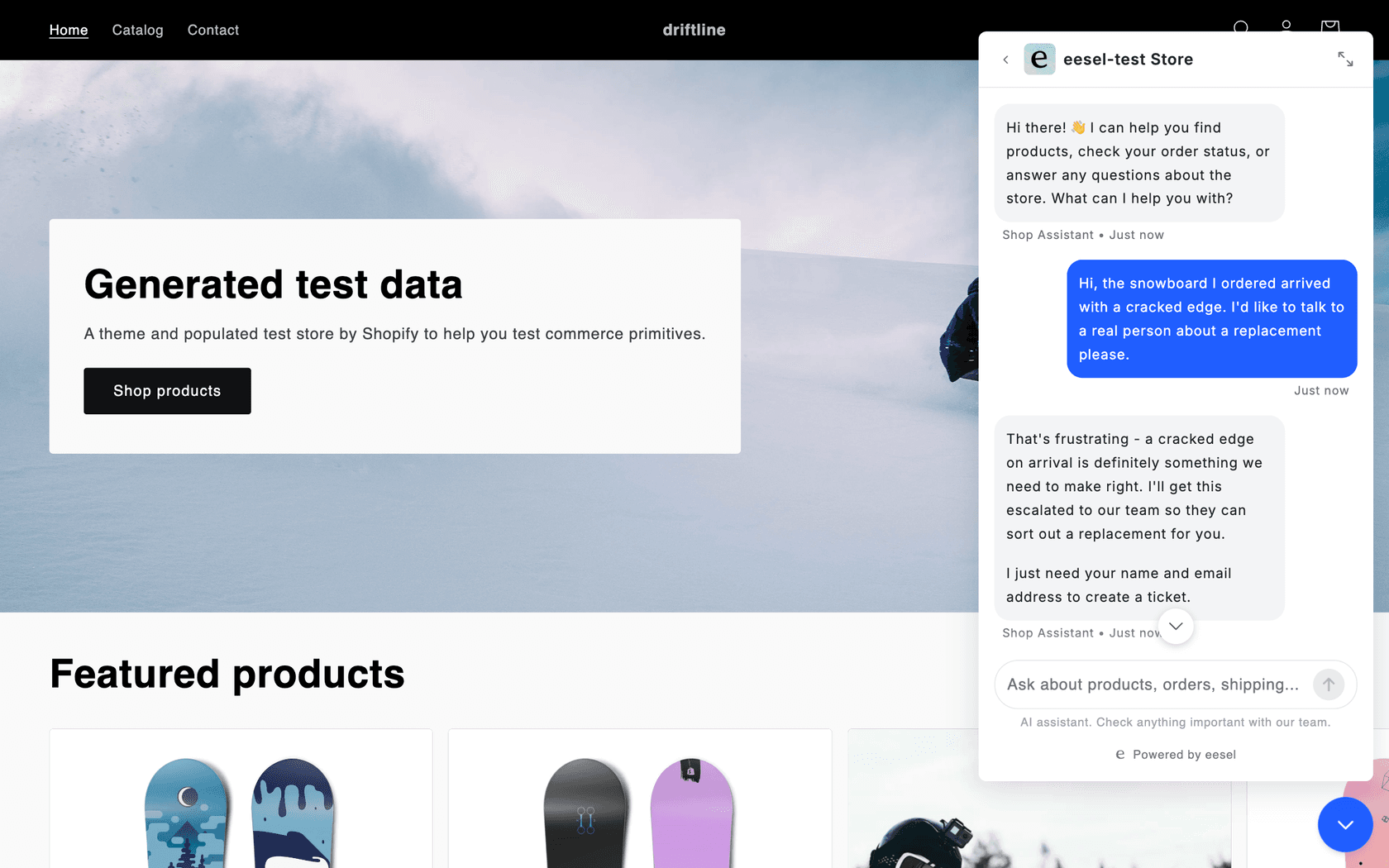
A real example of the handoff mattering: Beautek, a German supplier of studio equipment, runs eesel's KI-Chat bubble on its own shop. It answers in German from about 6,100 pages across its site and its suppliers' sites, plus Drive and Notion docs. Between August 8 and September 8, 2026 it answered 77 website chats and turned 20 of them into Zendesk tickets, most of them sales leads that a person then called back. That's the part a page-only bot can't do.
One honest limit: eesel's product cards and cart features are built for Shopify, WooCommerce, BigCommerce and Magento stores, and Wix Stores isn't on that list. On Wix, eesel answers from your pages and connected docs rather than looking up a live order. If you'd rather not touch the dashboard at all, an AI coding agent like Claude Code can use the eesel CLI to create the bubble (npx @eesel/cli init chat-bubble --site <your-url>), upload approved knowledge like your shipping policy, and ask it test questions. Pasting the snippet into Wix's Custom Code is still a step you do in your Wix dashboard.
Which route fits your Wix site?
Answer two questions and you'll know where to start. Click through the one that matches you.
How do you test a Wix chatbot before going live?
Test it with the questions your visitors actually send, not the ones you'd like them to send. Both Smart Chat and eesel let you test privately before anyone sees the bot, and that's where most of the value is.
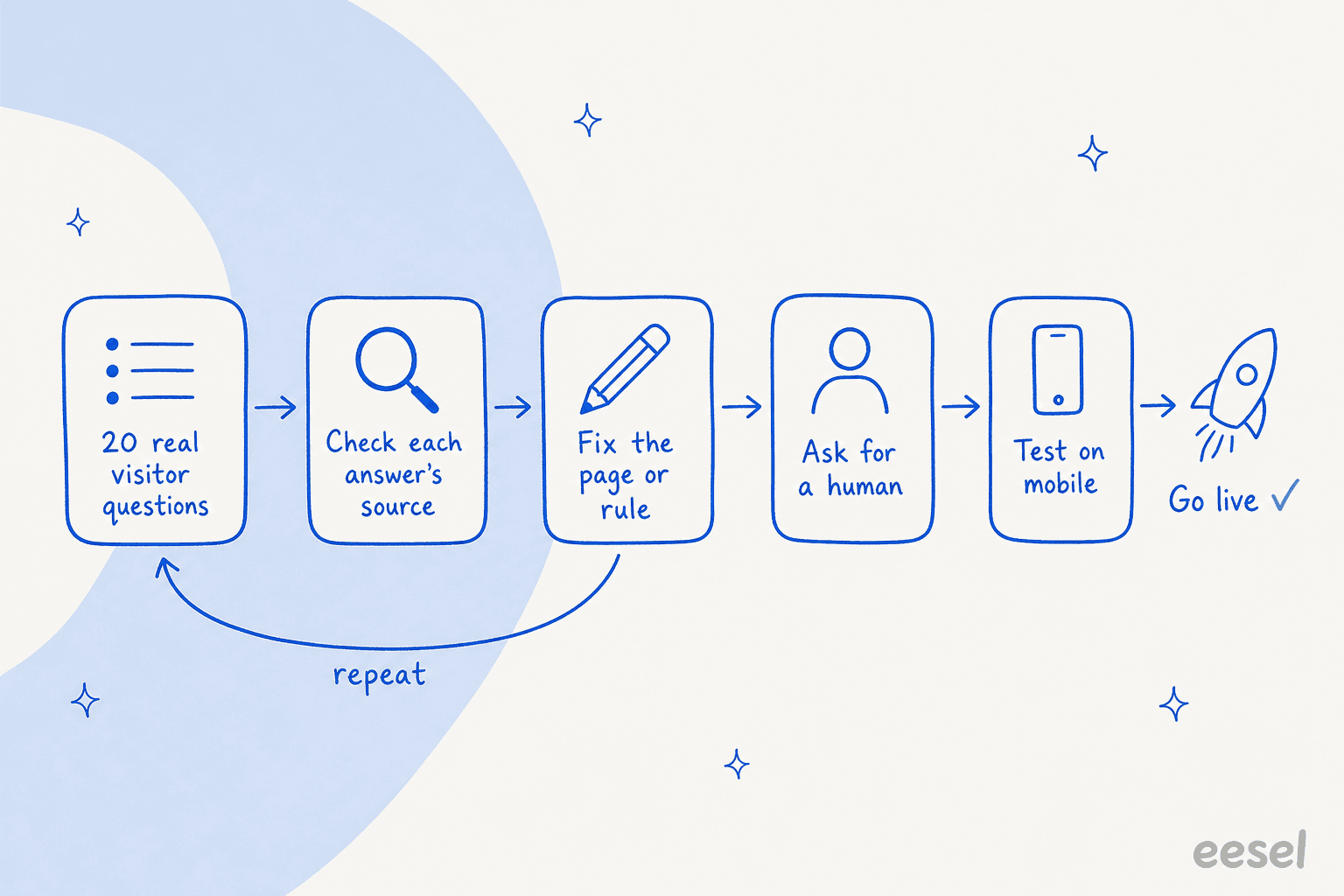
Here's the routine I'd run:
- Collect 20 real questions. Pull them from your contact form, inbox and DMs. Mix short ones ("shipping?") with specific ones ("do you deliver to Hamburg by Friday?"). Wix's testing guide gives the same advice: think like a visitor and vary the format.
- Check every answer against its source. A right-sounding answer from an outdated page is worse than "I don't know".
- Fix the source, then retest. Update the page, exclude it, or add a knowledge rule, then ask again.
- Ask for a human. Type "I want to talk to a person" and see what happens. Does it reach your Inbox, a ticket or an email you'll actually read?
- Test on your phone. Open the live site on mobile and check the bubble doesn't cover your checkout button or cookie banner.
Step 2 is the one people skip, and it's the one that bites. One B2B team I've seen in an eesel sales call found its bot telling customers "yes, we support your car model" for brands that weren't in its database, because a page said "we support all models". The bot wasn't broken. It was reading a sentence too broad to be true. That's why every eesel rollout gets tested against real questions before it answers customers, and why I'd never switch on any Wix bot without this pass. My guide on how to train a chatbot covers writing sources the bot can't misread.
What are the most common mistakes when adding a chatbot to Wix?
Most of these come straight from Wix's own help pages, which is a good sign they happen often:
- Pasting a chat bubble into Embed HTML. It lands in a fixed, non-responsive iframe box. Use Settings > Custom Code instead.
- Trying Custom Code on the Free plan. It needs a connected domain, which needs a Premium plan. Smart Chat is the Free plan route.
- Running two chat widgets at once. Wix itself advises against keeping Wix Chat and Smart Chat together, since the same messages can show up in both. Remove the old widget when you add a new one.
- Forgetting the credit cliff. When Smart Chat's AI credits run out, it goes offline. Set your offline behavior so visitors still get a contact form.
- Changing domains and losing the script. Wix deletes custom code snippets when you assign a different domain.
- Never reading the conversations. The Wix Inbox shows which replies came from AI. Skim them weekly, the same way you'd watch chatbot analytics, and fix the sources behind wrong answers.
- No handoff plan. A bot that can't pass a visitor on loses the leads worth the most. My notes on human handoff in chat cover what a good one looks like.
Try eesel on your Wix site
If Smart Chat covers your questions from your own pages, use it, it's the cheapest route on Wix. If your answers live in a help center, docs or past tickets, or you need visitors to reach your team reliably, eesel is the AI helpdesk teammate I'd point you to. Its chat bubble goes into Wix Custom Code as one script, answers from everything you connect, and hands off with a ticket or email. AG Reederei Norden-Frisia, a German ferry line, runs the same agent across its website chat bubble, Zendesk and a public chat link, and the bubble creates a Zendesk ticket when a passenger's question needs the team.
You can start free with 100 credits for 7 days and no card, then plans start at $299 a month for 500 credits, where one chat is one credit (eesel pricing). For a tiny site with a few dozen chats a month, that's more than Smart Chat, so be honest with yourself about volume first. Try eesel and test it against your 20 real questions before you paste a single line into Wix.
Frequently Asked Questions
How do I add an AI chatbot to my Wix website?
The fastest way is Wix Smart Chat: open it in the Wix App Market, click Add to Site, pick AI Chat, test it in your dashboard and publish. For a third-party bot, paste its script into Settings > Custom Code. My guide to an AI chatbot for your website covers what to look for in either case.
Is there a free AI chatbot for Wix?
Wix Smart Chat is free to install and runs on Wix AI credits, so even the Free plan gets up to 30 credits a day, capped at 120 a month. Manual chat in Smart Chat is free to use. For other options, see my roundup of free AI chatbots.
How much does an AI chatbot on Wix cost?
Smart Chat has no separate price. Wix estimates it gets up to 150 actions a month on Light ($17/month, billed yearly), 200 on Core ($29), 300 on Business ($39) and 1,000 on Business Elite ($159), shared with other Wix AI tools. Third-party bots bill on their own terms; my chatbot cost guide explains the common pricing models.
Where do I paste chatbot code in Wix?
For a floating chat bubble, go to Settings > Custom Code in your Wix dashboard, paste the script, choose All pages and place it where the provider says, usually Body - end. The Embed HTML element in the editor puts code inside an iframe box on one page, which suits inline widgets, not a chat bubble.
Can a Wix AI chatbot hand a visitor to a human?
Smart Chat sends conversations to your Wix Inbox, where you can reply or hand off to a teammate, and restriction rules can forward chosen topics to the Inbox. eesel can create a helpdesk ticket or send an email with a summary. My guide to chatbot escalation covers how to set the triggers.
Why is my Wix chatbot giving wrong answers?
Usually because a page says something broader than you meant, or the bot can't see a page at all. Smart Chat can't index hidden, password, member-only or dynamic pages. Check its Data coverage page, then add a knowledge rule. My guide to preventing AI hallucinations goes deeper.
Can I use ChatGPT as a chatbot on my Wix site?
Not directly as a widget. You need a tool that wraps a model in a chat widget and grounds it in your content, either an App Market app or a script pasted into Custom Code. My comparison of AI agents and chatbots explains why grounding matters more than the model.