

What "adding live chat" actually means
Strip away the marketing and live chat is a small floating chat widget, sometimes called a chatbox or launcher, that sits in the corner of your pages so a visitor can start a real-time conversation. Those conversations route into an inbox that your team, or an AI agent, answers from.
HubSpot describes it as connecting "visitors directly with members of your team… as a widget on your website pages, where visitors can start a real-time conversation" (HubSpot's live chat docs). Zendesk's messaging widget is the same idea: a widget you configure and then install "on your website or help center" (Zendesk's Web Widget guide). Nearly every hosted tool follows this pattern, you create an account, get a snippet of JavaScript, and load it on the pages where you want the widget to appear.
That's the whole mechanic. What differs between tools is what happens after the visitor hits send, and that's where most of this guide lives.
The three ways to add live chat
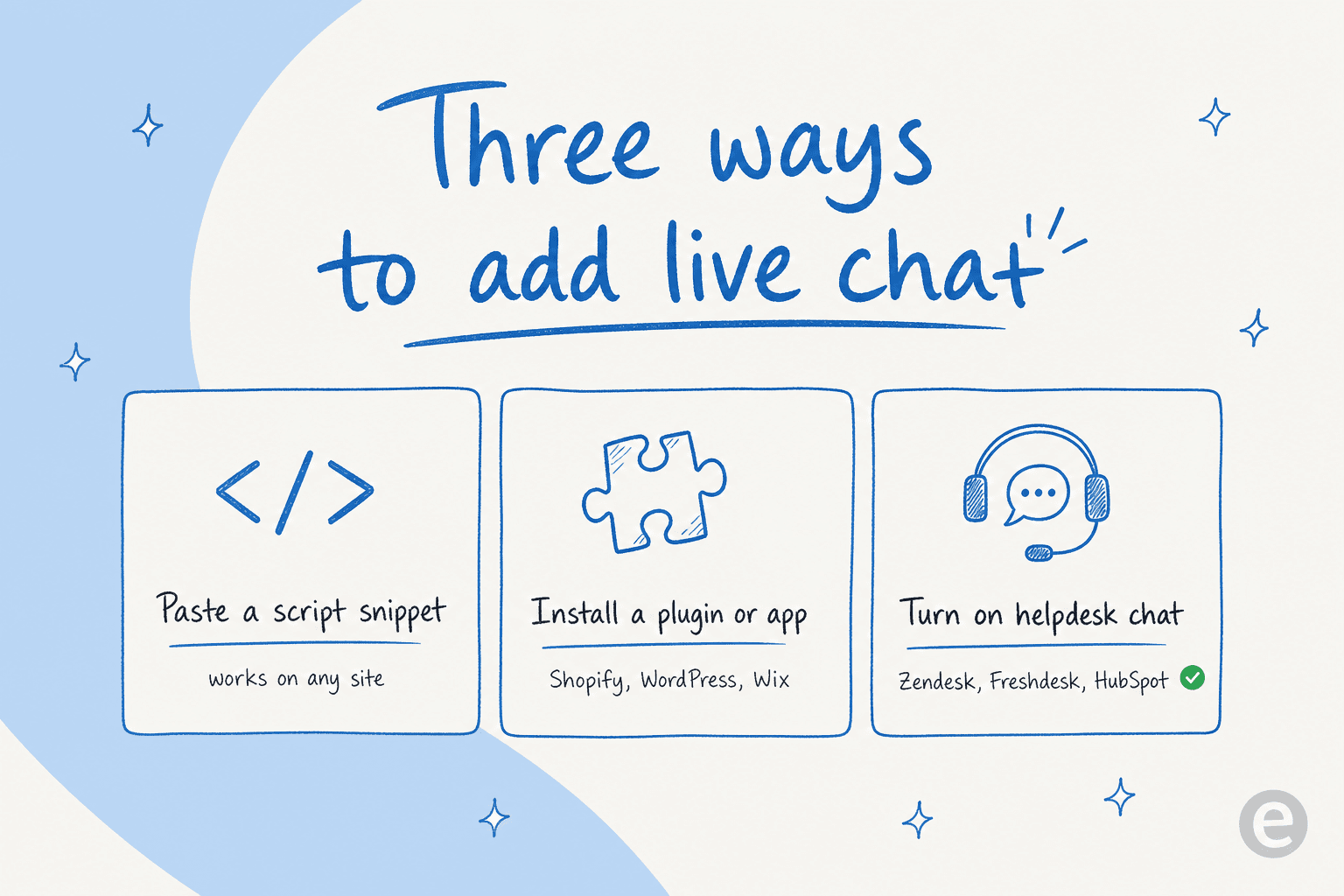
1. Paste a JavaScript snippet (works on any site)
This is the near-universal method. Sign up, copy the embed snippet, paste it into your site's HTML, publish. Crisp's install doc is a good template for how every vendor phrases it: you grab the chatbox script from settings and copy the full script, because "if part of the script is missing, the chatbox will not load correctly" (Crisp's install doc). Crisp also publishes a friendly live chat overview if you want the wider picture.
Placement matters, and vendors disagree slightly. Crisp recommends inside the <head> section, before the closing </head> tag, and falls back to before </body> if you can't edit the head. Zendesk specifically wants the snippet "before the closing HTML </body> tag." Both share the rule that catches people out: add the code to every page where you want the widget, and Zendesk warns install "requires some basic familiarity with your website's code" (Zendesk's Web Widget guide).
One trap if you run a single-page app (React, Next.js, and friends): load the script once when the app starts. Crisp explicitly warns not to "reinject the script every time the visitor changes page inside your app," because that "can create duplicate loads or unexpected behavior."
2. Install a plugin or app (no code)
If your site is on a hosted builder or CMS, skip the raw HTML entirely. Most vendors ship first-party apps: Crisp alone lists guides for WordPress, Squarespace, Webflow, Wix, and Notion, plus ecommerce plugins for Shopify, WooCommerce, and Magento. When your platform has a dedicated guide, use it instead of the generic snippet.
HubSpot adds a wrinkle worth knowing: to put its chat on a non-HubSpot site, you install the HubSpot tracking code first, and "the live chat won't appear if the tracking code isn't installed" (HubSpot's live chat docs). Google Tag Manager is a common no-code way to deliver any of these snippets without editing templates directly.
3. Turn on your helpdesk's native chat (one click)
If chat is part of a helpdesk you already run, installing it can be nearly effortless. Zendesk's help-center install, for instance, is "a simple, one-click process, no tech support needed" via a checkbox to embed the widget in your help center. If you're already living in Zendesk, Freshdesk, HubSpot, or Help Scout, this is usually the least-friction path and keeps chat in the same inbox as your tickets.
What the tools actually cost
Pricing splits along a line that trips up buyers: some tools charge per seat/agent, and others charge per conversation or ticket. Those two models produce wildly different bills at the same volume, so read the unit before the number.
Here's where the popular options start, from each vendor's own pricing page (checked July 2026):
| Tool | Live chat widget? | Entry price | Billing model |
|---|---|---|---|
| Tidio | Yes | Free (50 conv/mo); Starter $24.17/mo | Per billable conversation + Lyro AI add-on |
| Crisp | Yes | Free; Mini $45/mo per workspace | Per workspace, not per seat |
| LiveChat | Yes | Starter $19/mo per user | Per user/agent |
| Zendesk | Yes (messaging) | Support Team $19/agent/mo | Per agent |
| Help Scout | Yes | Free (up to 5 users); Standard $25/user/mo | Per user |
| Gorgias | Yes (ecommerce) | Starter from $10/mo (50 tickets) | Per ticket / resolution |
| Chatwoot | Yes (open-source) | Free (2 agents); Startups $19/mo | Per agent, or free self-hosted |
| HubSpot | Yes | Bundled, incl. free CRM | Bundled with Service/CRM plans |
Two details are worth calling out. Tidio and Gorgias bill per conversation or ticket, not per seat, which is great for a small team fielding low volume and painful once you scale. Tidio counts a "billable conversation" only when a human agent replies, and specifically notes that "responses from Flows and Lyro AI Agent are not counted as agent replies" (Tidio's live chat page). Crisp is the odd one out, charging per workspace rather than per agent, which gets cheaper the bigger your team is.
And the sticker price is rarely the real price. AI resolutions are almost always a separate meter on top, so if the AI layer is the reason you're adding chat, price that in from the start rather than getting surprised on the second invoice. Our own breakdown of live chat software for websites goes deeper on the total-cost math.
Where AI fits in 2026
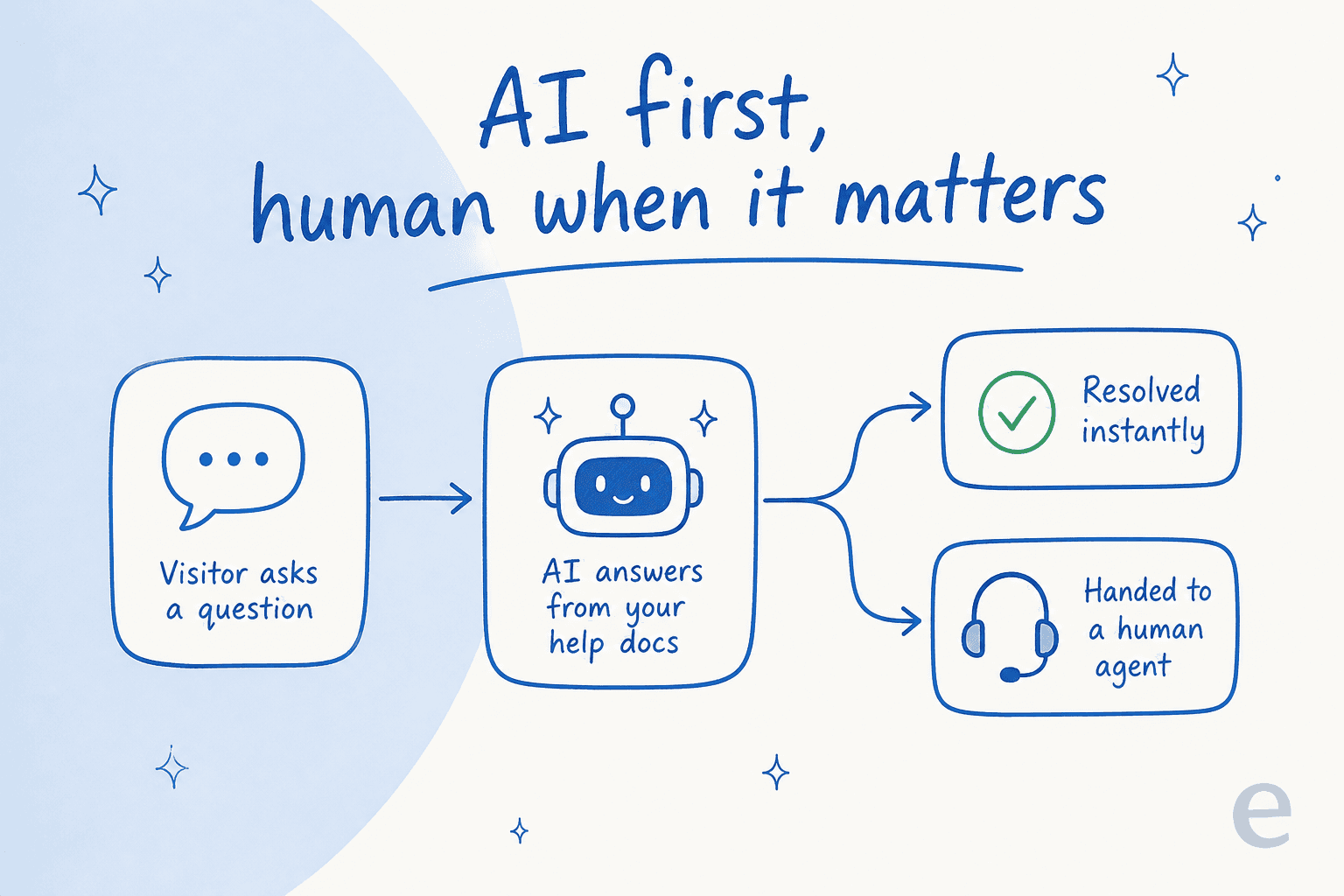
Live chat in 2026 is really three overlapping modes, and knowing which one you're setting up saves a lot of confusion:
- Human live chat. A real agent answers in real time. Still the trust anchor for anything hard or emotional.
- AI chatbot / deflection. An AI agent handles repetitive questions before a human is involved. Tidio's Lyro, LiveChat's AI Agent, HubSpot's customer agent, and eesel's chatbot all live at this layer.
- Hybrid: AI first, escalate to human. The AI takes the first pass and hands off the moment it can't resolve the issue or the visitor asks for a person.
That third mode is the one that actually works, and the community is loud about why. The failure everyone has felt is the dead-end bot. As one thread on r/CustomerService put it:
"Bots are fine as a first layer but when there's no way to reach a real person it just turns into a frustrating loop."
The flip side is what a clean handover buys you. Another operator in the same subreddit summed up the whole design goal:
"Speed is helpful, but being able to seamlessly talk to a real person when it gets tough is what actually builds trust."
I see this play out constantly. In one real chat I looked at, a visitor on an SEO tool's website asked two how-to questions, got instant doc-based answers, then typed "Can I talk to a human?", and the AI handed off to the support team the same second. That's the pattern to build toward: the AI clears the easy volume, and the human never has to answer "how do I reset my password" for the thousandth time. The catch is that an AI first-layer only works if it's trained on your actual knowledge base. A bot answering from thin air just loops, which is exactly the complaint underneath most "AI ruined support" rants. For the numbers behind deflection, we broke them down in our AI for live chat deflection piece.
The setup steps that actually matter
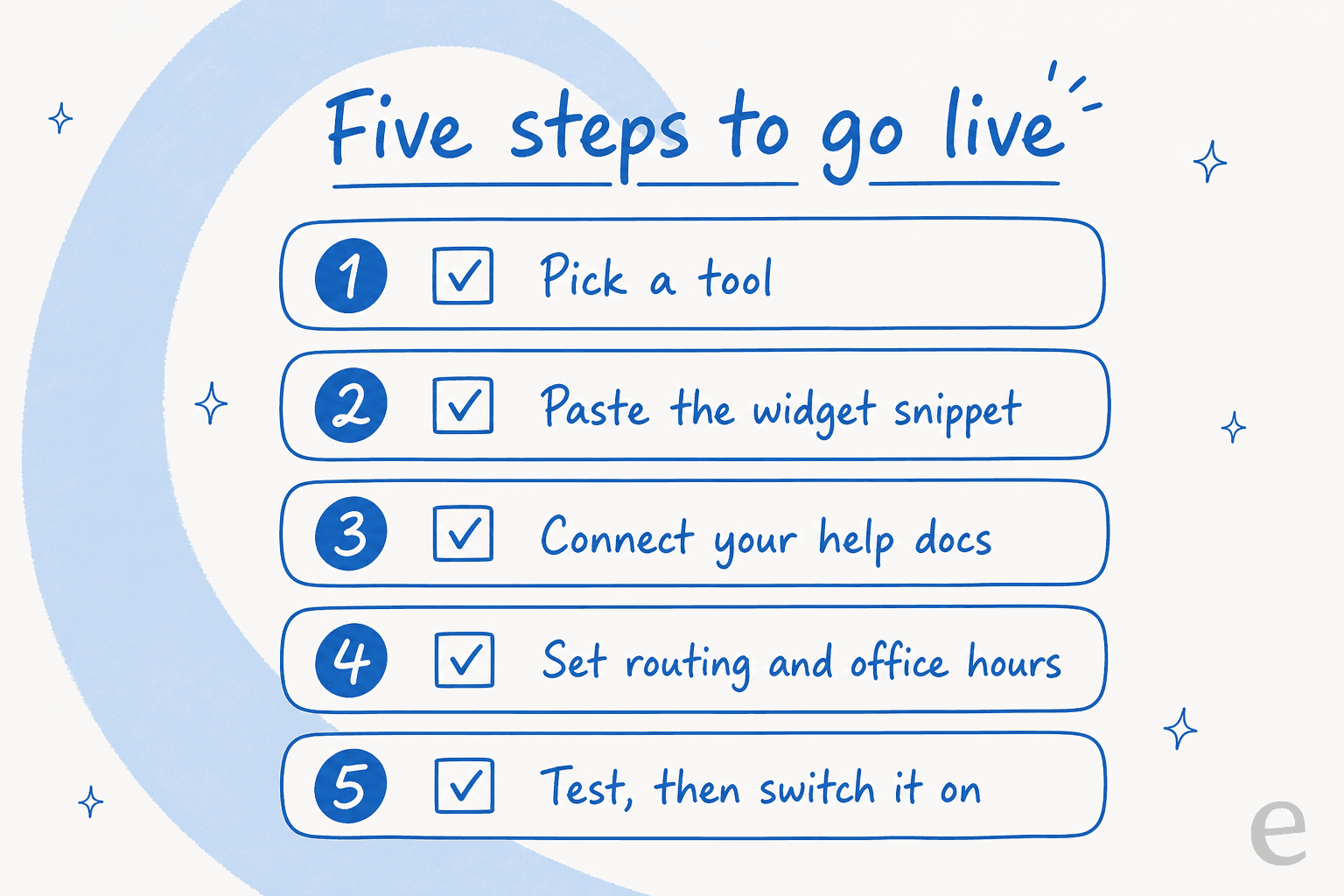
Installing the widget is step two of about eight. Here's the sequence that keeps chat from becoming a support liability:
- Choose a tool that matches your stack and your billing tolerance. Helpdesk-native if you already run one; a standalone like Tidio, Crisp, or Chatwoot otherwise.
- Configure the widget before you install it: accent color, chat name and avatar, welcome message.
- Install the snippet or plugin per the three methods above, on every page you want it.
- Set routing rules. HubSpot lets you route by page, so a pricing-page chat goes to sales and a knowledge base article goes to support (HubSpot's live chat docs).
- Set office hours and away behavior. HubSpot offers availability based on who's online, set operating hours, or 24/7, plus explicit away and offline states. This is the single most-skipped step, and it's the one that makes chat feel broken.
- Add canned replies for your most common questions so agents aren't retyping the same answer.
- Set up proactive triggers if you want chat to open or greet based on behavior (time on page, exit intent, cart value).
- Test, then go live. Open your public site, confirm the widget appears, send a test message, and confirm it lands in your inbox. Preview on mobile, because the widget renders differently on a phone and a broken mobile chat is worse than none.
If you're adding an AI layer, this is also where you connect it to your docs and, ideally, your past tickets, then simulate it against real historical conversations before it ever talks to a customer. That last part is the difference between a bot you trust and a bot you're nervously watching.
The mistakes that quietly kill live chat
I've watched enough rollouts to know the widget almost never fails on the install. It fails on the things around it.
- The widget doesn't show up. Crisp's own troubleshooting list is the canonical set of causes: script not copied in full, added to the wrong template, missing from some pages, a stale CMS cache, the site not republished, or a platform that blocks third-party JavaScript (Crisp's troubleshooting doc). Send a test message before you trust it.
- Nobody's staffing it. Offering chat with no coverage and no offline fallback trains visitors to expect an answer that never comes. Set office hours, or route after-hours chats to AI or a form.
- Responses are too slow. A slow live chat defeats its own purpose. As one manager put it on Reddit, "you should set chat response time expectations and hours. If you REALLY need someone available immediately, you staff that like a customer [service line]" (r/managers).
- You never tested mobile. A big share of chats start on a phone. Preview it.
- The AI isn't connected to anything. An AI layer that isn't trained on your help center just deflects people into a wall. Connect it to real knowledge, and give it an obvious way to reach a human.
Setup is genuinely easy. One medtech team I worked with pasted our chat snippet onto their Netlify site, hit a snag ("I copied the snippet and it doesnt work in netlify"), fixed it, and within the same conversation had a working widget backed by their Confluence docs and escalating into Jira. Total time was an afternoon. The tool was never the hard part.
Try eesel for the AI layer
If the reason you're adding live chat is to handle more questions without hiring, the widget is only half the job, the AI behind it is the other half. eesel is an AI agent that plugs into the helpdesk and site you already run, trains itself on your past tickets and help docs on day one, and answers customer chats before handing the tricky ones to your team.
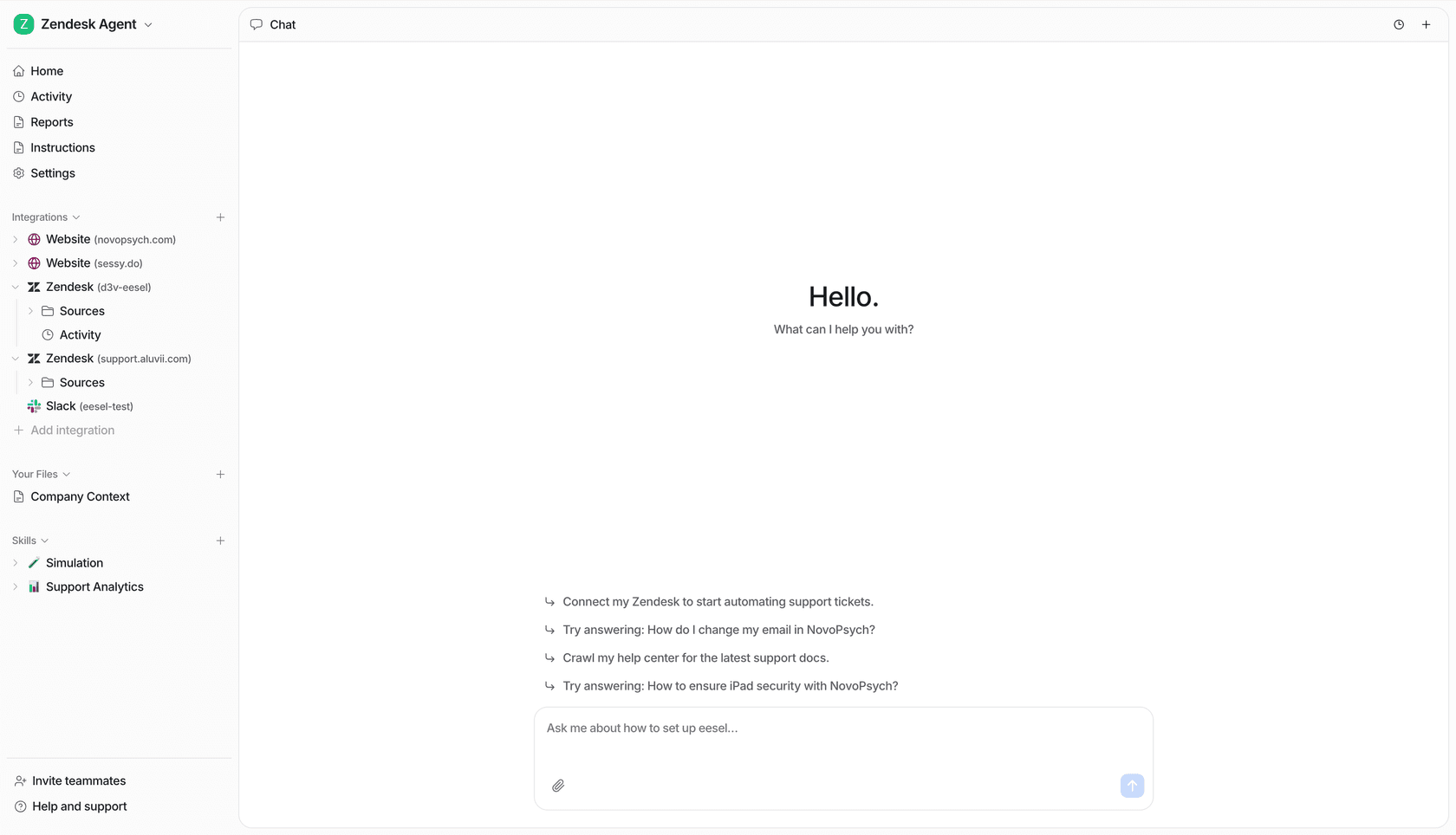
The part I'd point to most is the safety net: you can simulate the agent against thousands of your real past tickets before it goes live, so you see exactly what it would have said and where it would have escalated. That's how Gridwise got eesel resolving 73% of tier-1 requests in the first month, with results showing during a 7-day trial. It bills per resolution with no per-seat fees, and there's a free trial that doesn't need a credit card. If you already run a helpdesk, you can bolt the AI onto your existing chat rather than replacing it.
Frequently Asked Questions
How do I add live chat to my website for free?
What is the easiest way to add live chat to a website?
How much does live chat software cost?
Should I use an AI chatbot or human live chat on my website?
Why is my live chat widget not showing up on my website?


Article by
Rama Adi
Rama is a software engineer at eesel AI with two years of experience writing about B2B SaaS, AI tools, and customer support technology. Based in Bali, Indonesia, he brings a developer's perspective to product comparisons — cutting through marketing copy to what the integrations and APIs actually do.