

What are ChatGPT pages?
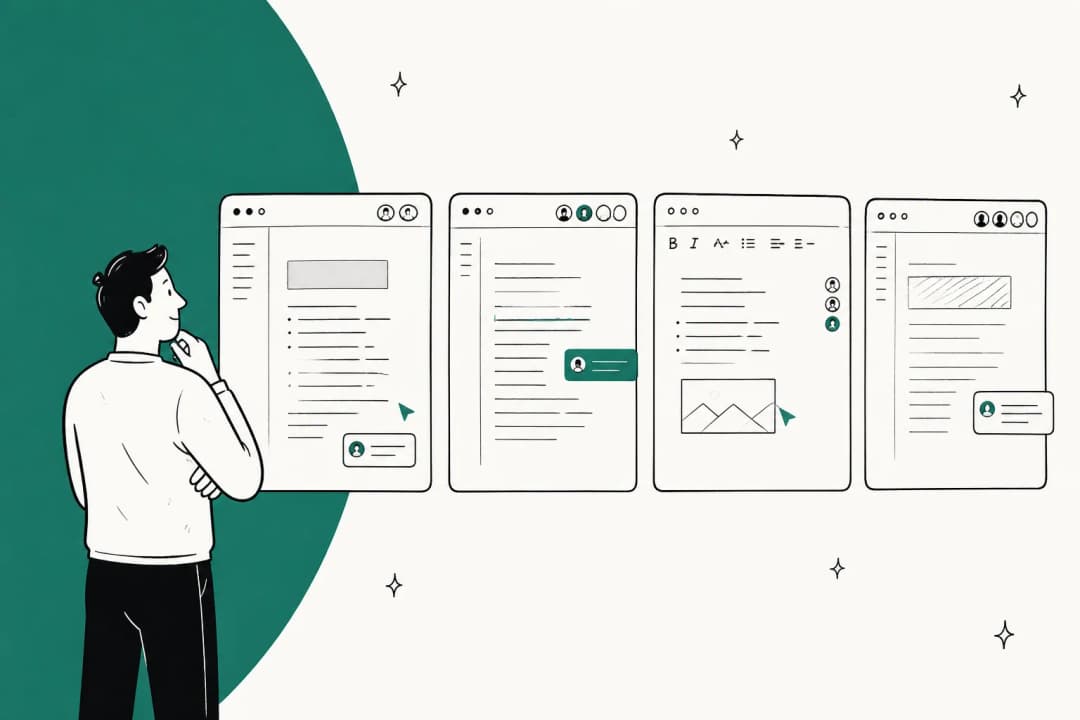
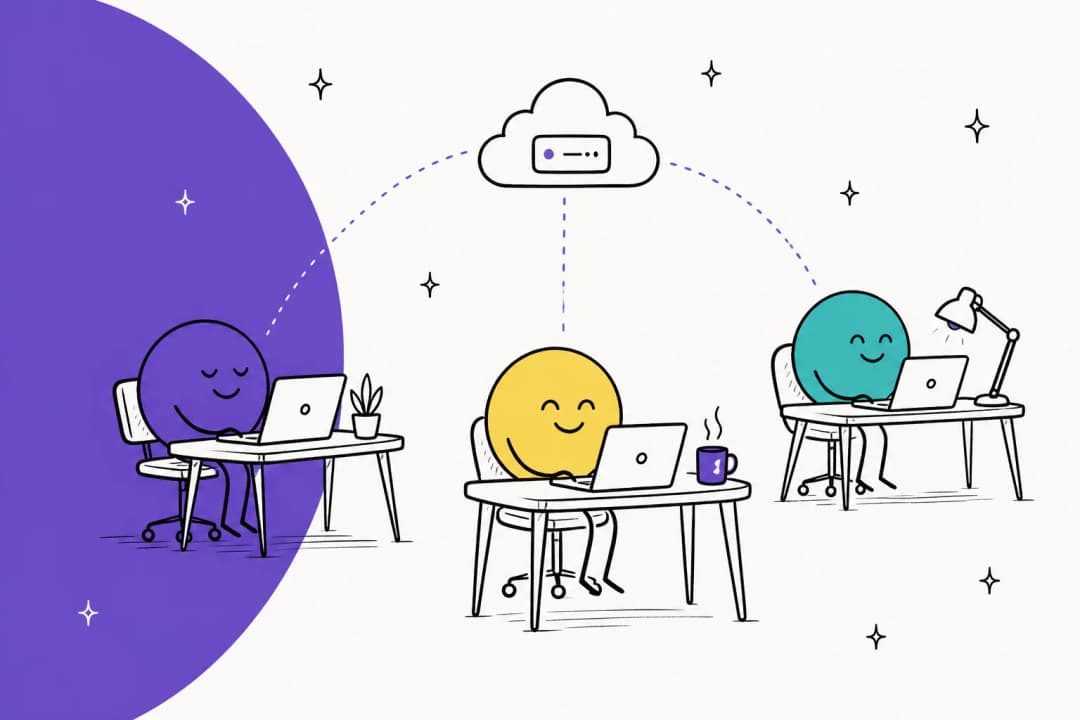
A page is "a new type of document, built for human and agent collaboration," which is how OpenAI described it in its DevDay 2026 recap. In the Help Center the wording is plainer, a page is an editable document where you work together with ChatGPT and with other people. Pages live in ChatGPT Space, and according to OpenAI on its Space feature page that is the home for the pages and files you create, it also replaces the old Library.
I build AI agents for a living at eesel, so the first thing I went looking for was where exactly the AI sits. In most "AI docs" tools the assistant is a side panel that got bolted onto an editor, which is how Notion AI started too. Here it's different, the page itself is a ChatGPT object: you can start one from a conversation, tag an agent inline, and also leave a block that readers run as a prompt. To me that is a real design difference, not a rebrand.
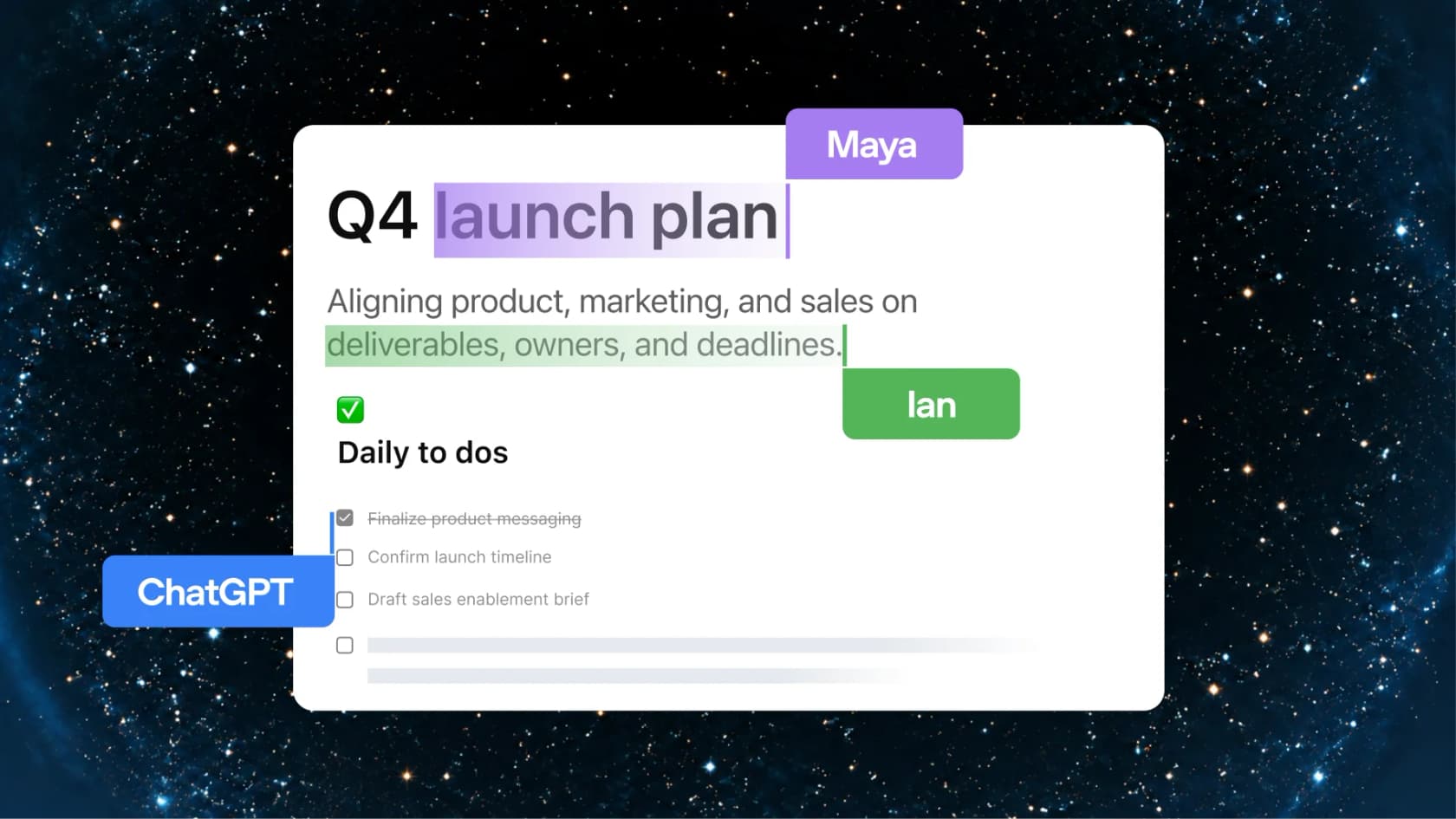
Two terms are where people get tripped up. Space is the product area. A space, in lowercase, is a folder-like group of pages: everyone gets a personal one, and you can make more of them for a topic or for a team, per the getting started guide. Pages can hold subpages as well, so a launch page is able to contain its research and its comms plan underneath.
Are ChatGPT pages just canvas renamed?
No, and in my experience this is the most common mix-up. OpenAI's release notes say canvas is "no longer available in GPT-5.5 Instant or GPT-5.5 Thinking" as of May 28, 2026, and what officially replaces it inside chat is writing blocks and code blocks. On June 8 writing blocks got a full-screen editor, meant for essays and reports, and also blog posts.
So inside a single chat, the successor of canvas is the writing block. Pages sit one level above that: they're saved in Space, shared with people, and edited by more than one person and more than one agent. If you open the old canvas help article now it returns "That page doesn't exist", and there is no OpenAI doc that describes converting a canvas into a page.
Who can use ChatGPT pages, and what do they cost?
Pages come with Space, and Space doesn't have a price of its own. You won't find it as a row on the ChatGPT pricing page; the Business page instead lists "Collaborate together in Space" as one of the plan features. So the honest answer to "how much are ChatGPT pages?" is simply whatever your plan costs, as long as it's one of the three plans that has them.
| Plan | Price | Pages | Dot on pages | Teams sharing |
|---|---|---|---|---|
| Free, Go, Plus | $0 to $20/month | Not listed | No | No |
| Pro 100 / 200 / 500 | $100 / $200 / $500 per month, monthly only | Yes | Yes, outside EEA, Switzerland, UK | No, invite by email |
| Business, Standard seat | $20/user/month annual, $25 monthly | Yes | No | Yes |
| Business, Premium seat | $100/user/month annual, $125 monthly | Yes | Yes | Yes |
| Enterprise | Contact sales | Yes, sharing is an opt-in preview | Beta, off by default | Yes |
Pro prices come from OpenAI's Pro tiers article, the seat prices from Business pricing, and, worth noting, a Business workspace needs at least two seats. Dot availability follows what OpenAI's release notes say. For the full plan picture, my ChatGPT pricing breakdown goes deeper.
A few availability limits that are worth knowing before you plan around pages:
- Platforms: create and edit on the web and in the desktop app. On mobile you can find, read and share pages, but creating and editing isn't supported at launch (Space FAQ).
- Plus users are out. Library used to be on every plan, Free included. Space, and pages along with it, is listed for Pro, Business, and Enterprise only.
- Data residency: Space is "coming soon" for Business and Enterprise workspaces with data residency in Canada or the UAE.
- Rollout: OpenAI says it's "gradually rolling out" DevDay features, which means some accounts don't have everything yet.
How do you create a ChatGPT page?
There are three ways in, and all of them are documented in Work with pages:
- From a conversation. Ask ChatGPT to turn the chat you're in into a page. When you already did the thinking in chat, say a deep research report, and you want to keep the result, this is the fastest route.
- From scratch. Select New page in the Space sidebar, give it a title, and type or paste your content.
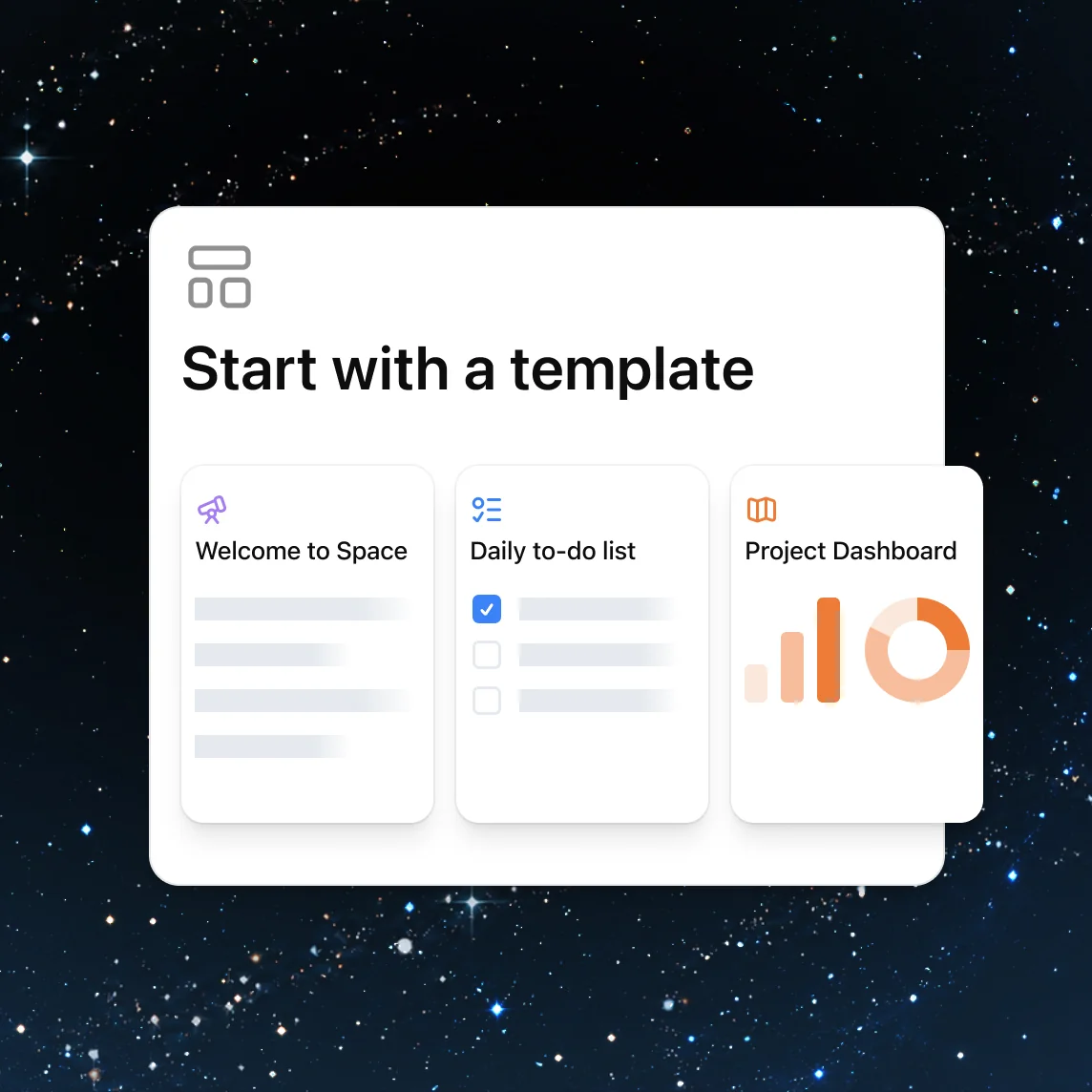
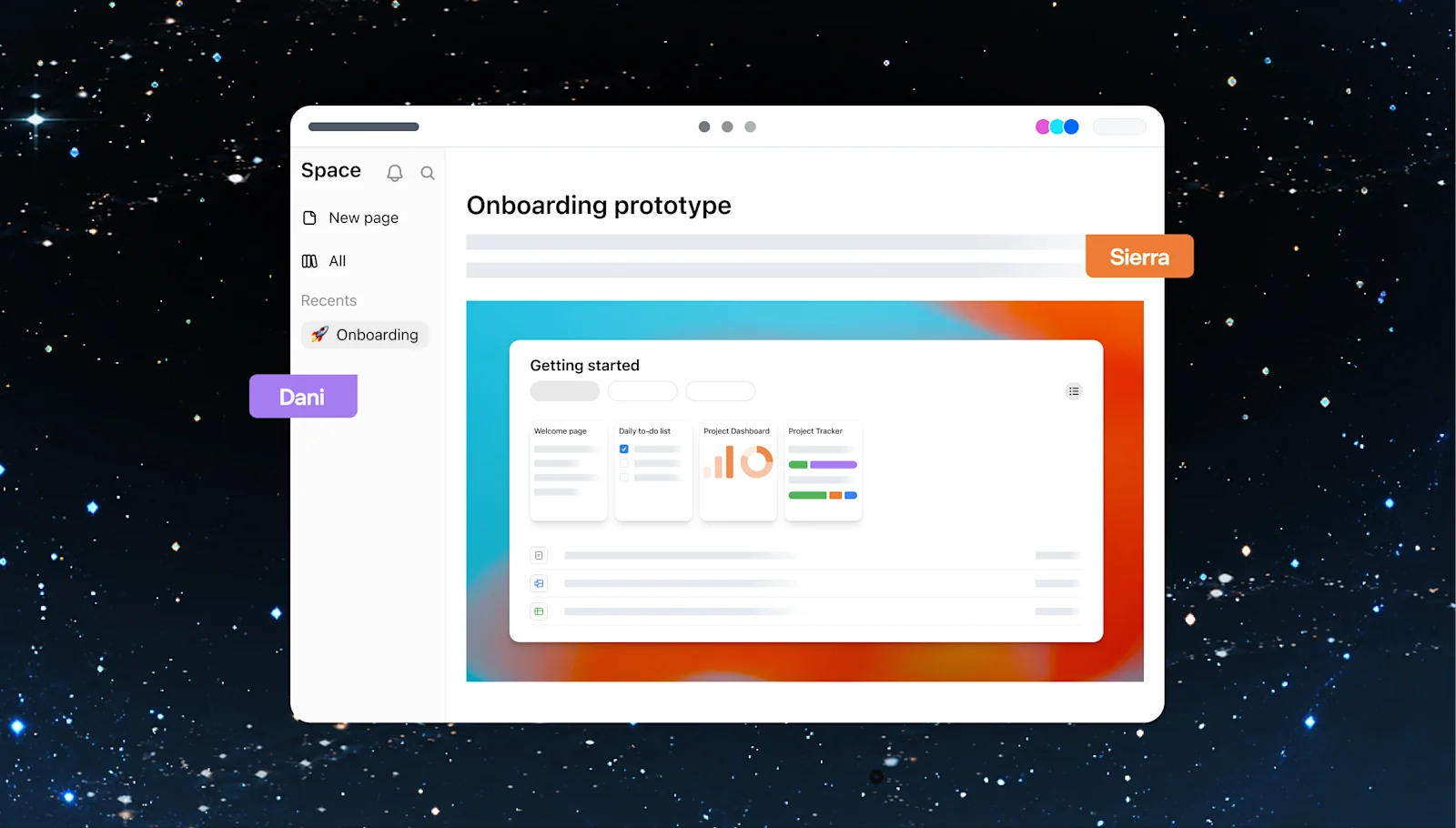
- From a template. Space home offers starting points such as "Welcome to Space", a daily to-do list, and a project dashboard.
Once the page exists, type / anywhere to open the insert menu, and to move any block you drag the handle beside it. One thing to watch out for: the handle can move a whole list or the entire section of a heading, so check what is selected before you drop it. Tables get a Width setting (Normal, Flexible, Full width) and also a Fit menu for the column sizing.
If you're coming from chat, my advice is starting from a conversation rather than from a blank page. The page inherits the context of the work, and you skip retyping a brief that ChatGPT already understands.
What can you put on a ChatGPT page?
Pages are made of blocks, and the / menu is where the interesting ones are. Below is the full list from OpenAI's pages documentation, grouped by what each block is for:
| Block | What it does | When I'd use it |
|---|---|---|
| Headings, lists, checklists, quote | Basic structure | Every page |
| Table, Code, Highlight | Compare info, share code, call out a note | Specs, decision logs |
| Image | Upload an image or generate one with ChatGPT Images | Mockups, a quick visual |
| File | Attach a file readers can download | Contracts, exports |
| Page, Link to page | Create a subpage or link to an existing one | Long projects |
| Files, Pages, Chats | Reference existing material without copying it | Linking a decision to its source chat |
| Generate | Draft text directly into the page | First drafts of sections |
| Visualize | Build an interactive calculator, diagram, or screen design | Budget models, flows, prototypes |
| Prompt | Store a request readers can run with Chat about this | Onboarding docs, briefs |
| Task, Agent Instructions | Leave actions for Codex or guidance for agents | Engineering handoffs |
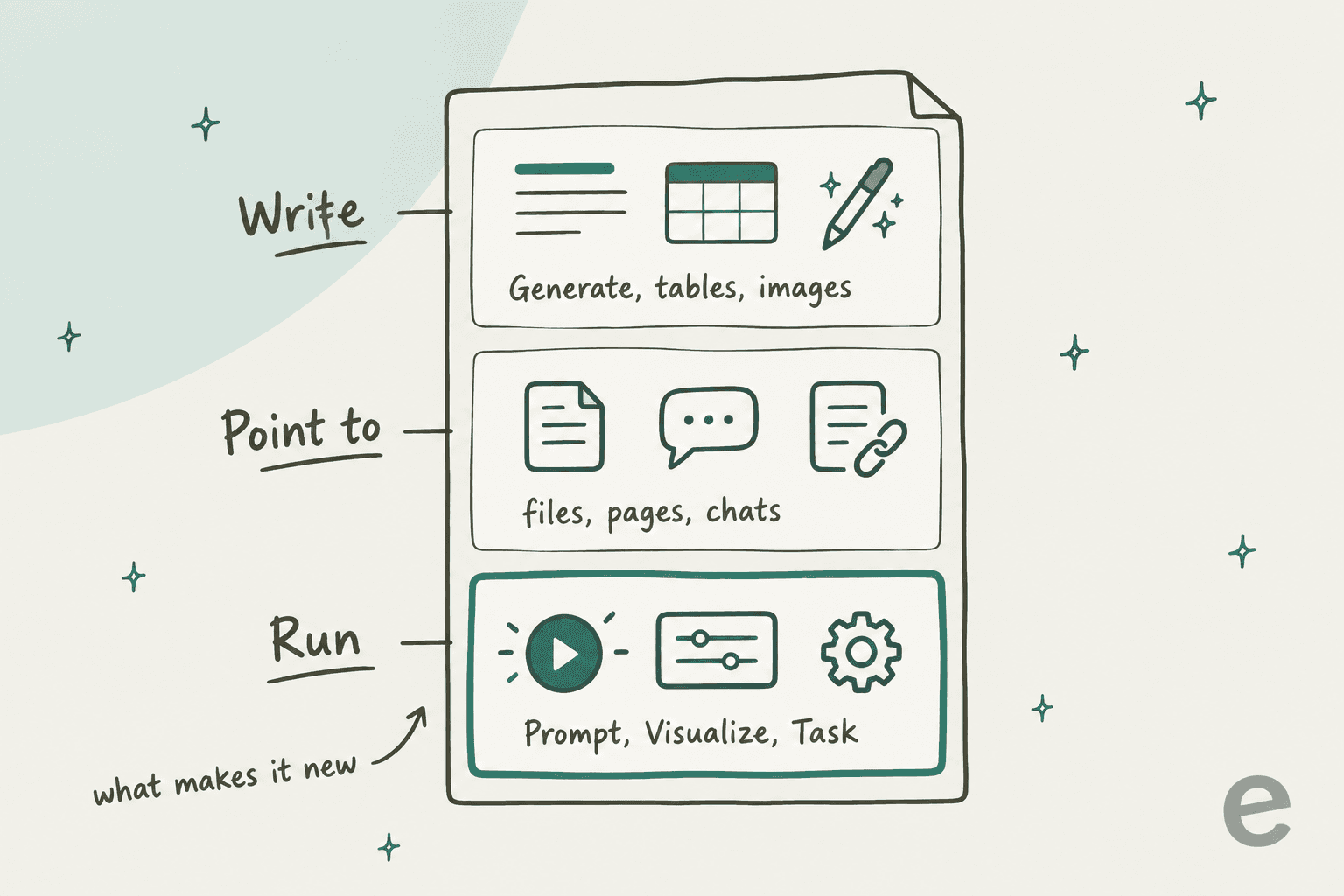
The first two layers are what you'd find in pretty much any modern doc editor. The third one is the part I'd pay attention to, because it changes what a document is actually for.
Prompt blocks turn a doc into something readers run
A Prompt block stores a request that anyone reading the page can use for starting a chat. For a project page, OpenAI's own example is: "Summarize the open decisions on this page and suggest the next three steps." While you're editing you choose Chat about this to test it; readers just select it.
This is the feature I would use first. Think of an onboarding page with a Prompt block saying "Quiz me on the five things a new hire gets wrong in week one." Then the page stops being something people skim, it becomes something they interrogate. OpenAI is careful in separating the two drafting tools: Generate is for when you want new page content, and a Prompt block is for when you want to leave a reusable prompt for readers.
Visualize blocks put a small app inside the page
Type /visualize and describe two things, what to show and how readers should interact with it. OpenAI's example is a project budget calculator where readers change team size, weeks and weekly cost per person, then see the total. The menu offers starting points too, for an app, screen design, widget, or diagram.
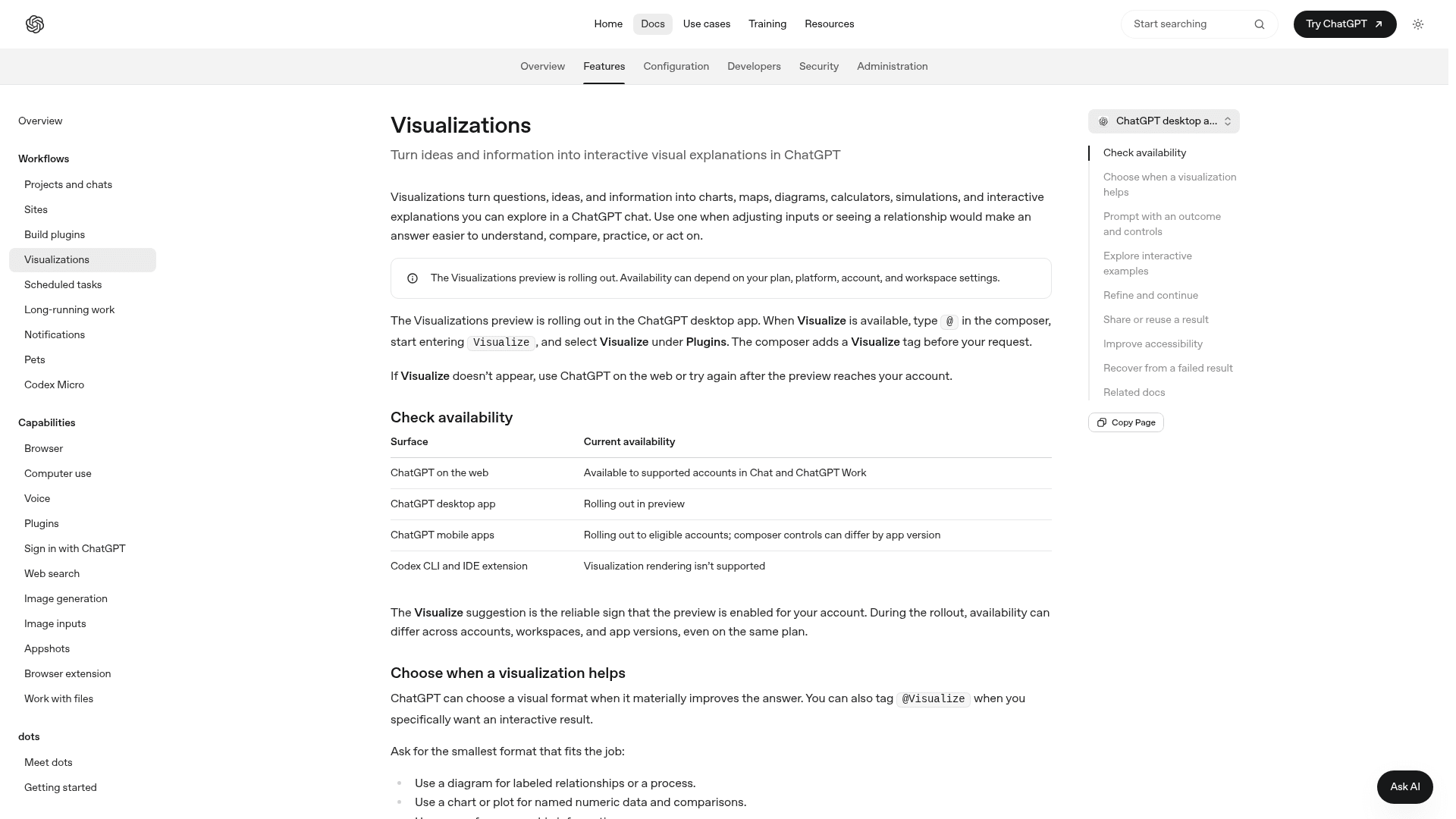
There are three limits in the Visualizations docs worth keeping in mind:
- A visualization is "generally a snapshot of the information available when ChatGPT created it, not a live dashboard."
- Generation takes "a minute or longer." In OpenAI's own demos it took between 1m11s and 2m11s.
- A follow-up "can create a replacement visualization instead of editing the original result in place," so expect to regenerate more than to tweak.
If you need something durable with its own URL, permissions or saved data, OpenAI points you to Sites instead, and you can also ask ChatGPT to turn a visualization into a Site.
How does ChatGPT edit a page?
There are four ways for getting an agent working on a page, laid out in OpenAI's agents in Space guide:
| Where you ask | Best for |
|---|---|
| The conversation alongside the page | Bigger revisions or questions. Say whether to answer in chat or edit the page. |
| Select text, then Ask for change | Rewriting one passage. You review the edit before accepting. |
Type @ChatGPT or @dot inline | A quick request right where you're writing |
@ChatGPT or @dot in a comment | Keeping a request attached to a discussion thread |
The detail that surprised me the most: each collaborator works with their own ChatGPT, per the Space FAQ. Two people editing one page may be using different agents and different connected tools, with different instructions as well. That is the opposite of a ChatGPT group chat, where everyone shares one conversation with one assistant. OpenAI's own advice is to "agree on who is changing what and review the result." As someone who builds agents, I'd take that seriously, since two assistants with different context editing the same doc is a recipe for sections that quietly contradict each other.
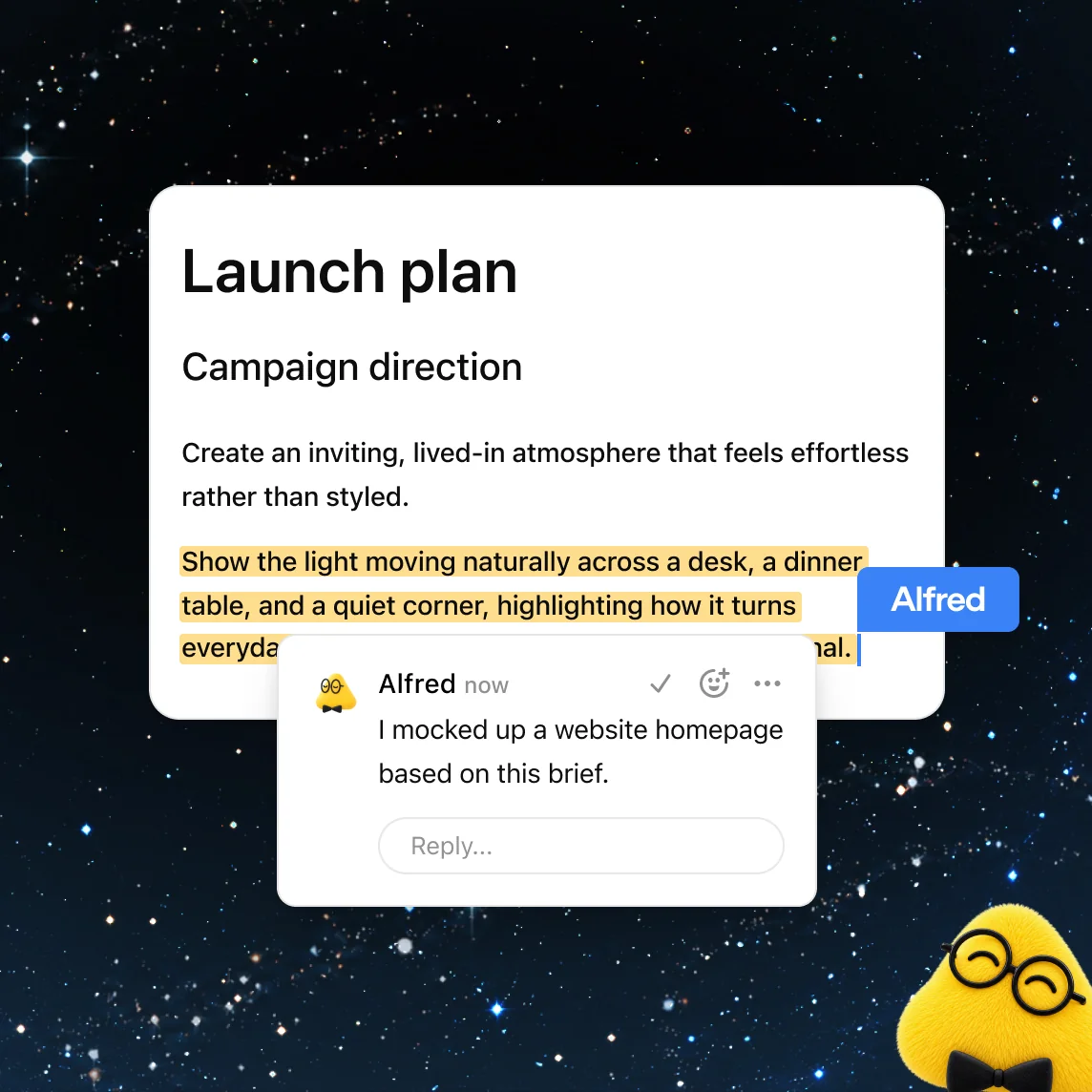
Your dot, which is OpenAI's always-on personal agent, can work on pages too. You can ask it to keep a page current from ChatGPT, Slack, or Microsoft Teams, and it's able to leave comments like the one below. Dots need a Pro seat outside the EEA, Switzerland, and UK, or a Business Premium seat, and they're in beta, off by default, on Enterprise. I cover that in my OpenAI dots guide. If you're weighing a Premium seat just for this, the numbers are run in my dots pricing post.
Do ChatGPT pages update themselves?
Not yet, and here is where the marketing and the product drift apart. The Space feature page advertises "Powerful, self-updating pages" that "can stay updated from your connected tools." Meanwhile the getting started guide says: "Automatic page updates with Keep updated are not available at launch."
The agents doc goes one step further, and this is the line I'd tape to my monitor: "Writing a cadence in a page or its instructions doesn't by itself confirm that a task is scheduled."
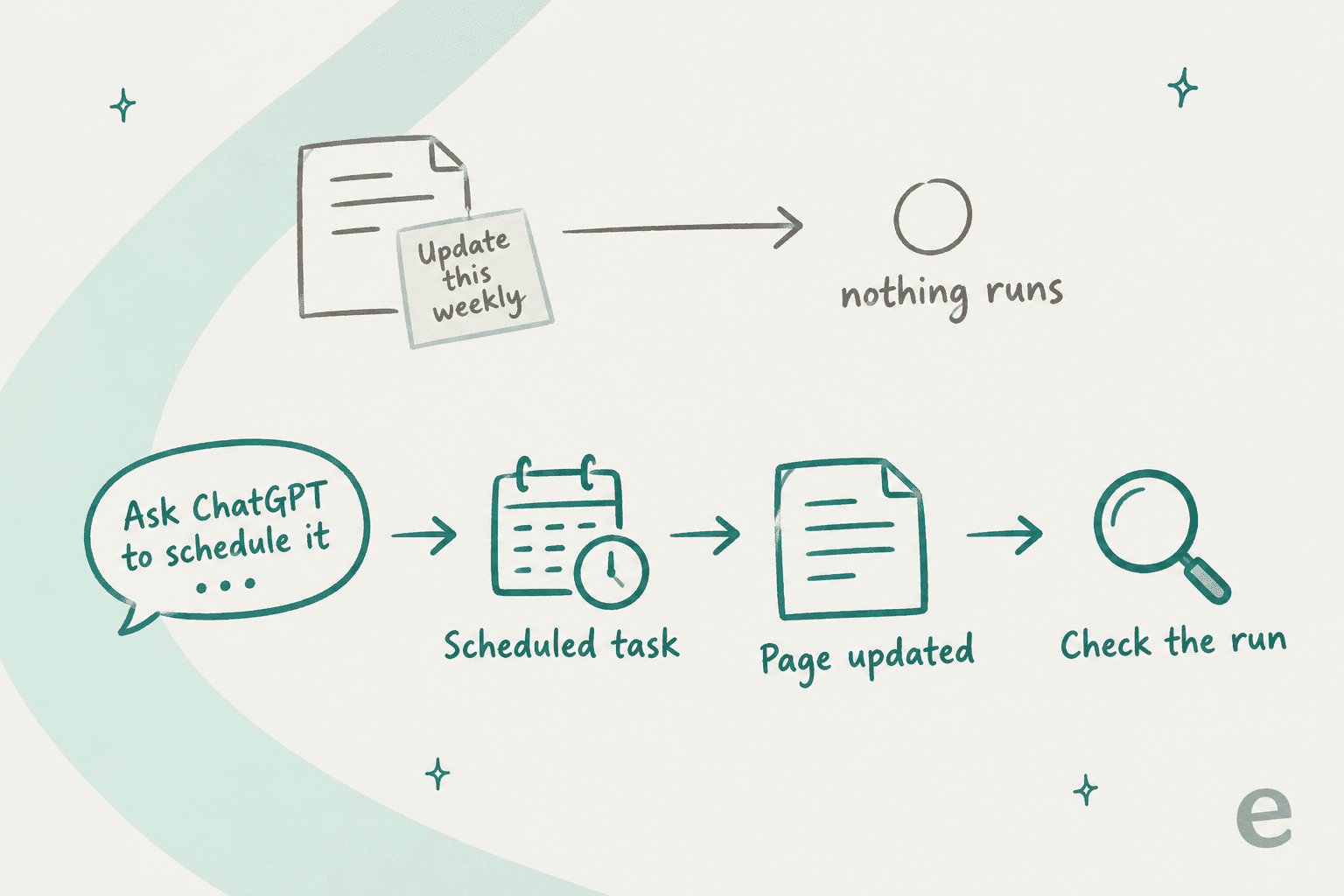
So if you want a weekly status page today, ask ChatGPT in chat to set up a scheduled task, then check that the task is saved and enabled and that it actually ran, and also that the page changed. It's more babysitting than "self-updating" suggests, but it works with what has shipped so far.
How does sharing a ChatGPT page work?
Pages have three access levels, per Collaborate in Space: View to read, Comment to read and leave feedback, and Edit to change content. On Business and Enterprise you share with people or with Teams in your workspace. On a personal Pro plan the invite goes by email, or by link "where that option is available."
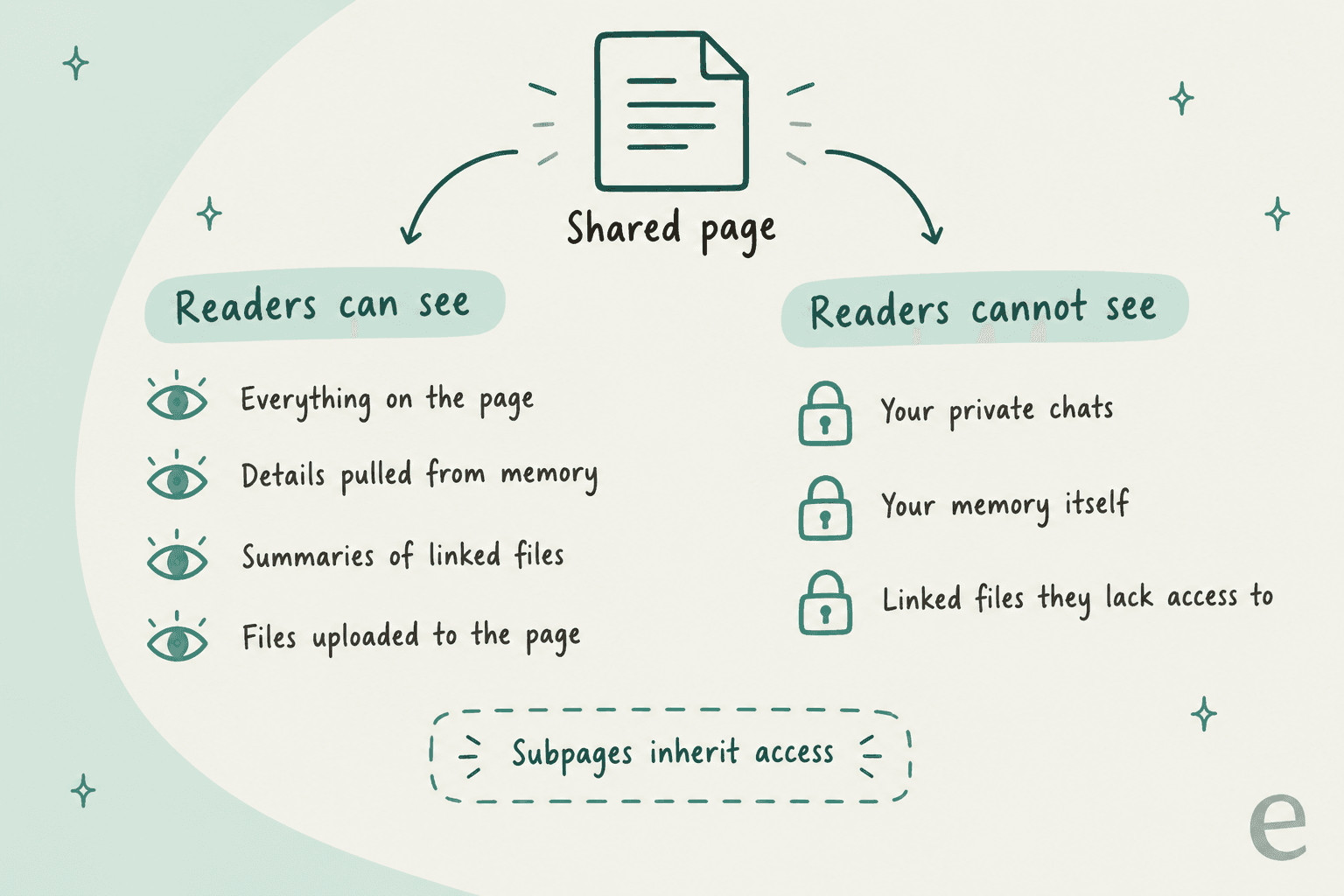
Four sharing behaviours from OpenAI's sharing and data controls article that I would check before hitting Share:
- Memory leaks onto the page. Sharing won't expose your private chats or memory, but anything ChatGPT writes on the page is visible, "including personal details drawn from memory."
- Summaries travel, files don't. A linked file keeps its own permissions, but whatever gets copied or summarized onto the page is visible to everyone with access.
- Inherited access sticks. Subpages inherit access from their parent page or space, and removing a direct invite doesn't remove inherited access.
- Deleting a page deletes its subpages, including subpages owned by other people, and sends them to Trash.
On personal plans there's one more wrinkle: if you turn off training but a collaborator has it turned on, "your contributions may still be used for training through their interaction." Business and ChatGPT Enterprise data isn't used for training by default.
ChatGPT pages vs writing blocks, Projects, Notion, and Google Docs
Pages overlap with tools you probably already use, so here is how I'd split the work, based on the docs of each product:
| ChatGPT pages | Writing blocks (in chat) | ChatGPT Projects | Notion / Google Docs | |
|---|---|---|---|---|
| Unit | Shared, block-based page | Long draft inside one chat | Chats grouped with files and instructions | Shared document |
| Real-time co-editing | Yes, on web and desktop | No | No, shared chats instead | Yes |
| AI editing | ChatGPT, Codex, your dot, each user's own | ChatGPT in that chat | ChatGPT with project context | Built-in AI add-ons |
| Runnable blocks | Prompt, Visualize, Task | No | No | Limited |
| Plans | Pro, Business, Enterprise | All ChatGPT plans | All plans, Free included | Free tiers available |
| Mobile editing | Not at launch | Yes | Yes | Yes |
| Auto-updates | Not at launch | No | No | Via integrations |
The Projects help article confirms Projects run on every plan, and OpenAI says creating a space "does not replace your existing Projects." My take is to keep doing your thinking in Projects, then move the output into a page once other people need to work on it.
Against Notion and Google Docs, pages win on the agent side but lose on maturity. There's no mobile editing and no spreadsheets yet, no published page or storage limits, and no public link to a page for people outside your invite list unless link sharing is available for you. If your team lives in Notion, I wouldn't migrate. What I'd do is use pages for AI-heavy working docs and keep the system of record where it already is. My Notion AI vs ChatGPT comparison covers the older side of that trade-off.
If you're rethinking your doc stack more broadly, my Confluence vs Notion breakdown is a good place to start. For AI help on top of the docs you already have, have a look at my roundup of the best AI documentation assistants.
What's not live yet?
OpenAI's docs are unusually upfront about what shipped and what didn't, which is something I appreciate. Here is the list as of October 1, 2026:
| Feature | Status | Source |
|---|---|---|
| Keep updated (automatic page refresh) | Not available at launch | Getting started |
| Collaborative slides | "In the coming weeks" | DevDay recap |
| Spreadsheets | "Coming soon" | Space feature page |
| Mobile create and edit | "Coming soon", read and share only today | Space FAQ |
| Canada and UAE data residency | "Coming soon" | Getting started |
| Texting your dot | "Coming soon" | Space feature page |
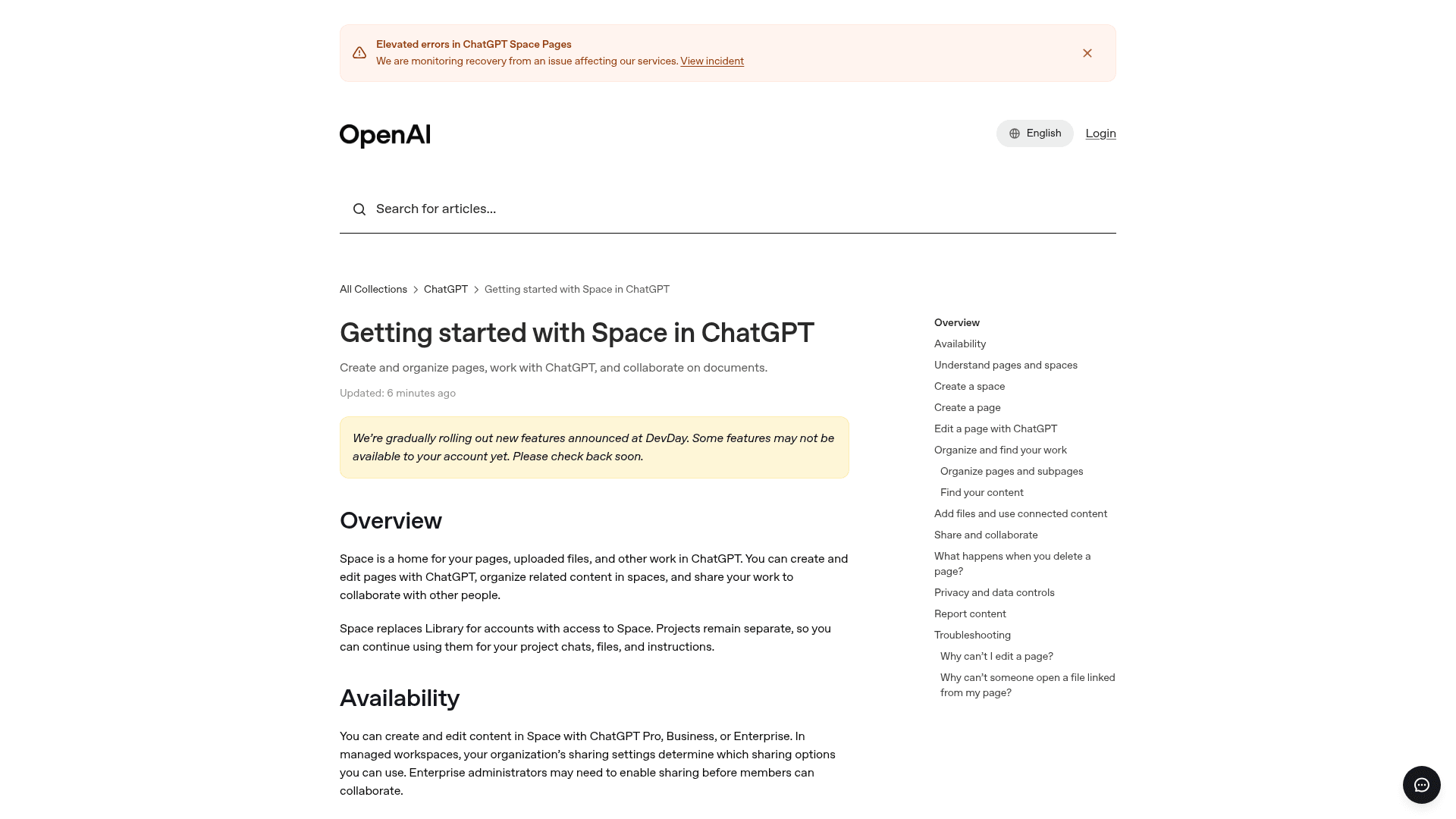
Launch week was a little rough as well. On October 1, OpenAI's help center was still showing a status banner for "Elevated errors in ChatGPT Space Pages."
What are people saying about ChatGPT pages?
Two days in, the reaction is split in three ways: "it's Notion," "it's what teams actually want," and "it's another thing crammed into ChatGPT." The most-liked take on OpenAI's own launch post was a joke:
"every ai lab eventually ships google docs with worse fonts"
The more interesting voices see the doc layer as the real pull. Product leader Claire Vo put it like this, and 292 people agreed with her:
"imo: @OpenAI dots slightly overhyped and space underhyped - every company I know wants an AI-native collaboration workspace (docs, slides, sites)"
The best question I saw came from a reply under the launch post, and given that several agents can edit the same page, it's the one I'd ask too:
"If agents can edit dashboards and checklists, the hard part is deciding which changes need approval. Does Space expose a per-action history?"
The partial answer for today is Show attribution, which shows who contributed "when available," plus reviewing each Ask for change edit before you accept it. A documented per-action approval flow doesn't exist yet.
On Hacker News, launch day itself didn't win many fans, since the rollout and the errors banner collided:
"Still not available and spaces page just produces a javascript error. This is the most botched release I've seen in recent history."

And Peter Yang, who writes a popular product newsletter, named the sprawl problem that I suspect a lot of teams are going to feel:
"I'm a broken record about this, but cramming Codex, Work, dots, Spaces, Pages, and more all into ChatGPT is overwhelming."
Five ways I'd actually use ChatGPT pages
Pages earn their place when more than one person, or more than one agent, is touching a document. Here's where I'd start:
- A launch plan with a Prompt block. Put the plan, owners and dates on one page, then add a Prompt block: "List every task without an owner and every date still marked as proposed."
- An onboarding hub. Treat it like a small internal knowledge base: one parent page per role, subpages for the tools and processes, and a Prompt block that new hires run to quiz themselves.
- A budget or pricing model. Use
/visualizefor a calculator readers can play with, and keep the assumptions in a table just above it. - Meeting follow-ups. The Meetings plugin saves private notes into Space on the macOS desktop app; the parts worth sharing you can turn into a page.
- A Codex handoff. Write the spec, then add a Task block so Codex is able to pick up the action from the page itself.
What I wouldn't use pages for yet is anything that has to stay current without a human checking it, or anything your team mostly edits on mobile, and also anything customers need to read. If those are deal-breakers, my ChatGPT alternatives list covers tools that handle them today.
eesel, for when your docs need to answer customers
Pages are good at getting a team to write things down together. What they don't do is put that knowledge in front of the customer asking a question at 2am. On a recent demo, a DTC supplements brand doing about 7,000 tickets a month told the eesel team its answers were spread across SOP docs, untranscribed Loom videos, and outdated macros. Writing all of them into one more doc wouldn't have changed a single reply.
That's the gap eesel fills. It is an AI helpdesk teammate that joins the helpdesk you already run, such as Zendesk, Freshdesk, and drafts or sends replies right there inside it.
It learns from what your team has already written, kind of like an AI knowledge base that answers back: Google Docs, Notion, Confluence, and your past tickets. Before going live, its Simulation skill tests answers against hundreds of your past tickets, so you get to see how it would have replied before any customer does.
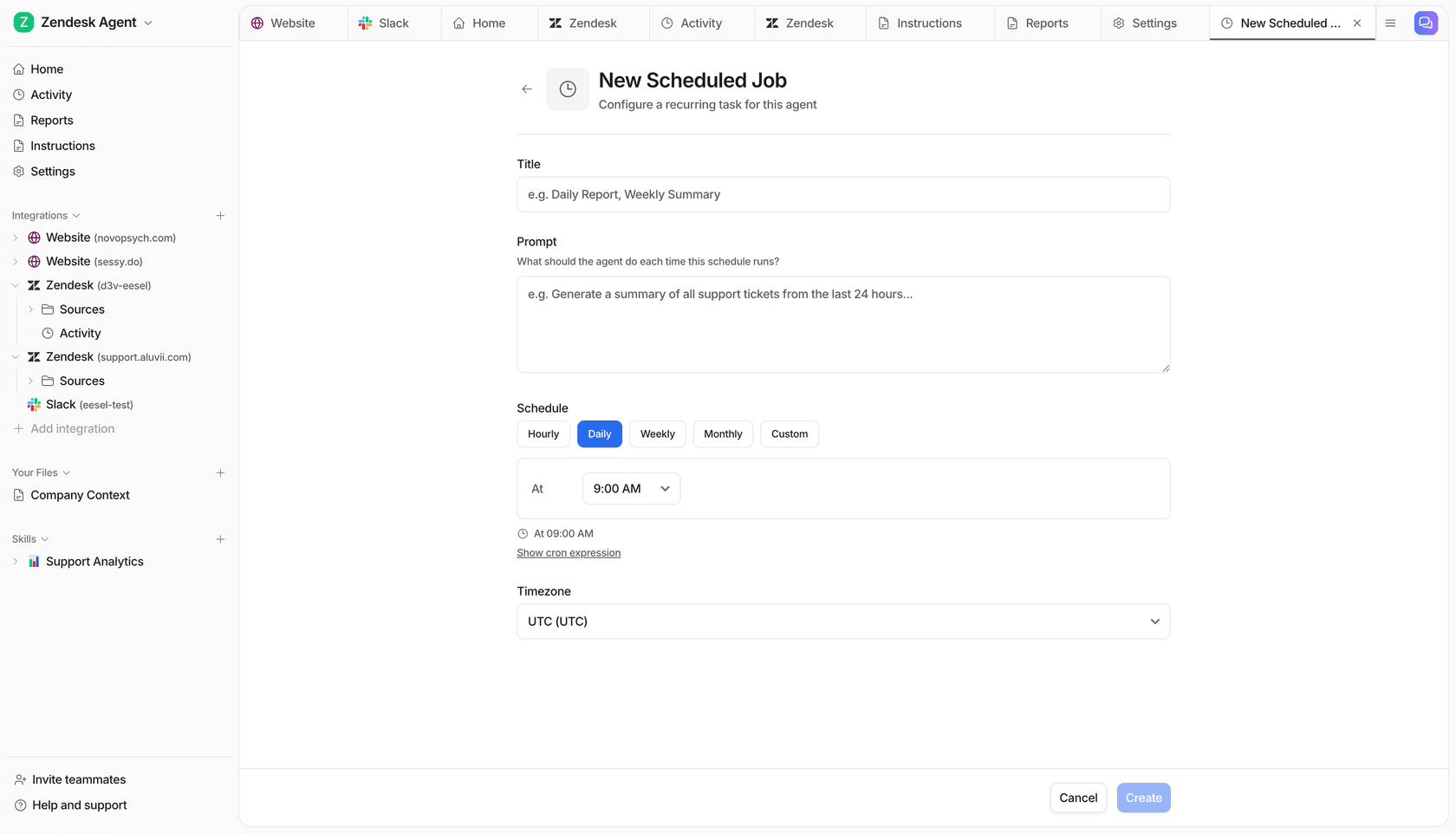
And unlike a page that only says "update weekly," eesel's scheduled jobs actually run, for example a weekly pass that finds the questions your help center doesn't answer and then drafts the missing articles. Try eesel free, or see the pricing.
Frequently Asked Questions
What are ChatGPT pages?
Which ChatGPT plans include pages?
How do I create a page in ChatGPT?
Are ChatGPT pages the same as canvas?
Can a ChatGPT page update itself automatically?
Can I edit ChatGPT pages on my phone?
Can customers see ChatGPT pages?


Article by
Kira
Kira is a writer at eesel AI with a Computer Science background and over a year of hands-on experience evaluating AI-powered customer service tools. She focuses on breaking down how helpdesk platforms and AI agents actually work so that support teams can make better buying decisions.