

There isn't one Bubble AI chatbot plugin that does it all. For a support bot that answers your users, paste a chat vendor's script into an HTML element, or use that vendor's widget plugin. For a custom AI feature inside your app, use the API Connector or the free OpenAI plugin, and plan to build the chat UI, the knowledge and the handoff yourself. The reason: most chatbot plugins on Bubble's marketplace only expose OpenAI actions, and Bubble has no visitor-facing bot of its own. eesel fits the first case: one script, answers from your help docs, and a handoff to your helpdesk.
Does Bubble have a built-in AI chatbot?
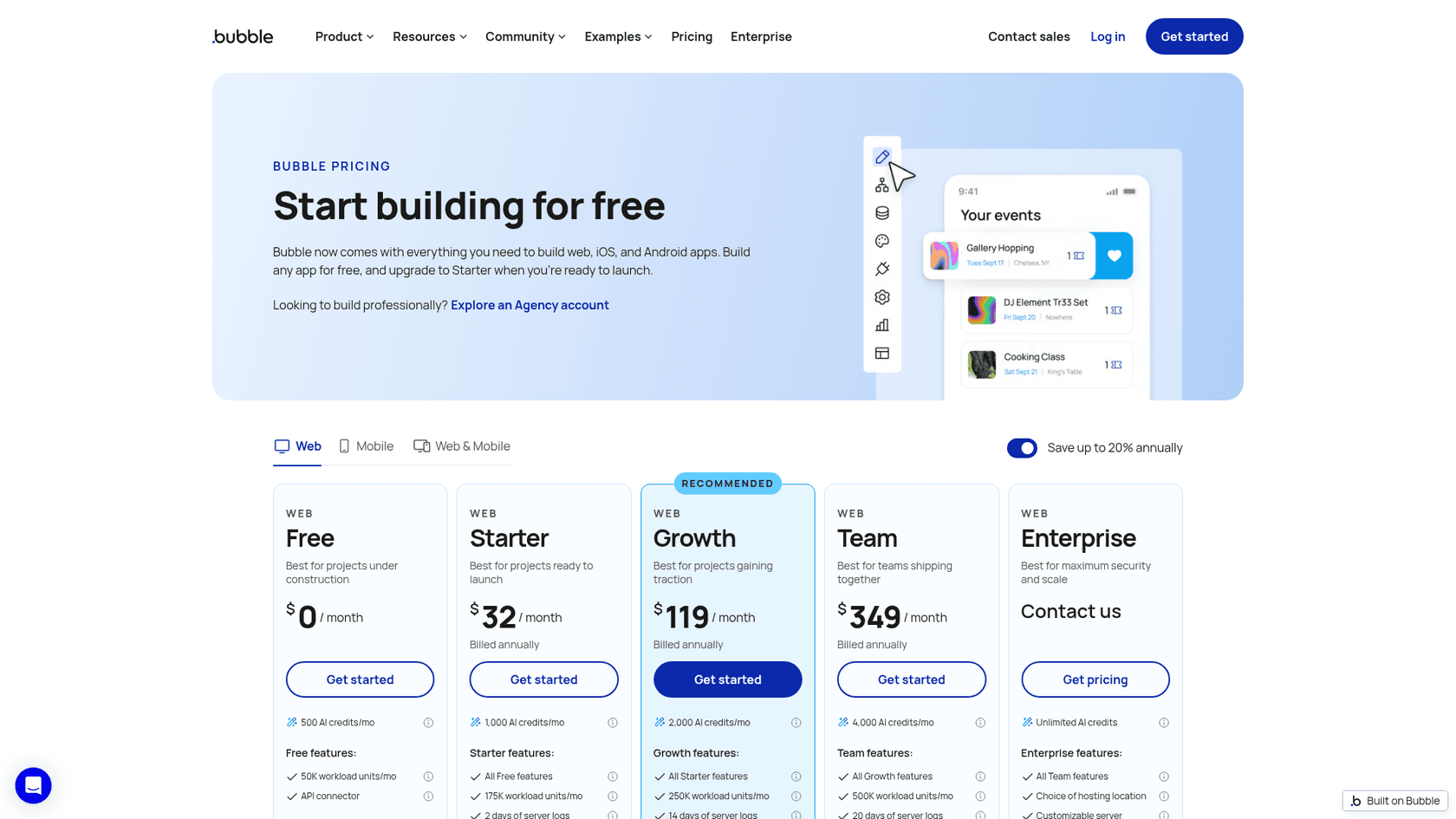
No. I couldn't find a Bubble page that describes a chatbot you can switch on for your app's visitors. Bubble's AI features are for the person building the app. Per Bubble's AI credits page, credits are "only used when you work with Bubble AI features, like building and iterating with the Bubble AI Agent or generating images." The pricing page includes 500 AI credits a month on Free, 1,000 on Starter, 2,000 on Growth and 4,000 on Team.
I ship integrations and APIs at eesel, so I spend my days on the other side of exactly this choice: a script tag, a plugin, or an API call. They look similar in Bubble's editor and behave very differently once real users show up. With the eesel CLI, a coding agent can run npx @eesel/cli init chat-bubble --site https://your-app.com to create the bubble and print its embed snippet, upload your help docs and ask it test questions before go-live. Pasting that snippet into Bubble's HTML element or SEO/metatags settings is still your step.
What Bubble does document is a build-it-yourself route. Its ChatGPT clone tutorial from April 3, 2026 wires a chat UI to an AI provider through the API Connector, with streaming turned on. That's a fine route for an in-app AI feature. For a support bot that answers your users from your help docs, it means you're building a small AI chatbot for your website from scratch, knowledge base and handoff included.
The Bubble AI Agent can help with the wiring. Bubble's AI integration guide says the Agent "can set up API Connector calls, install plugins, and build frontend and backend workflows." It still won't give you the knowledge base, the guardrails or a way to reach a person when the bot is stuck.
What does "AI chatbot plugin" actually mean on Bubble?
Search the plugin marketplace for "chatbot" and you'll get three very different kinds of thing under the same label. Mixing them up is the most common mistake I see, because each one leaves a different amount of work on your plate.
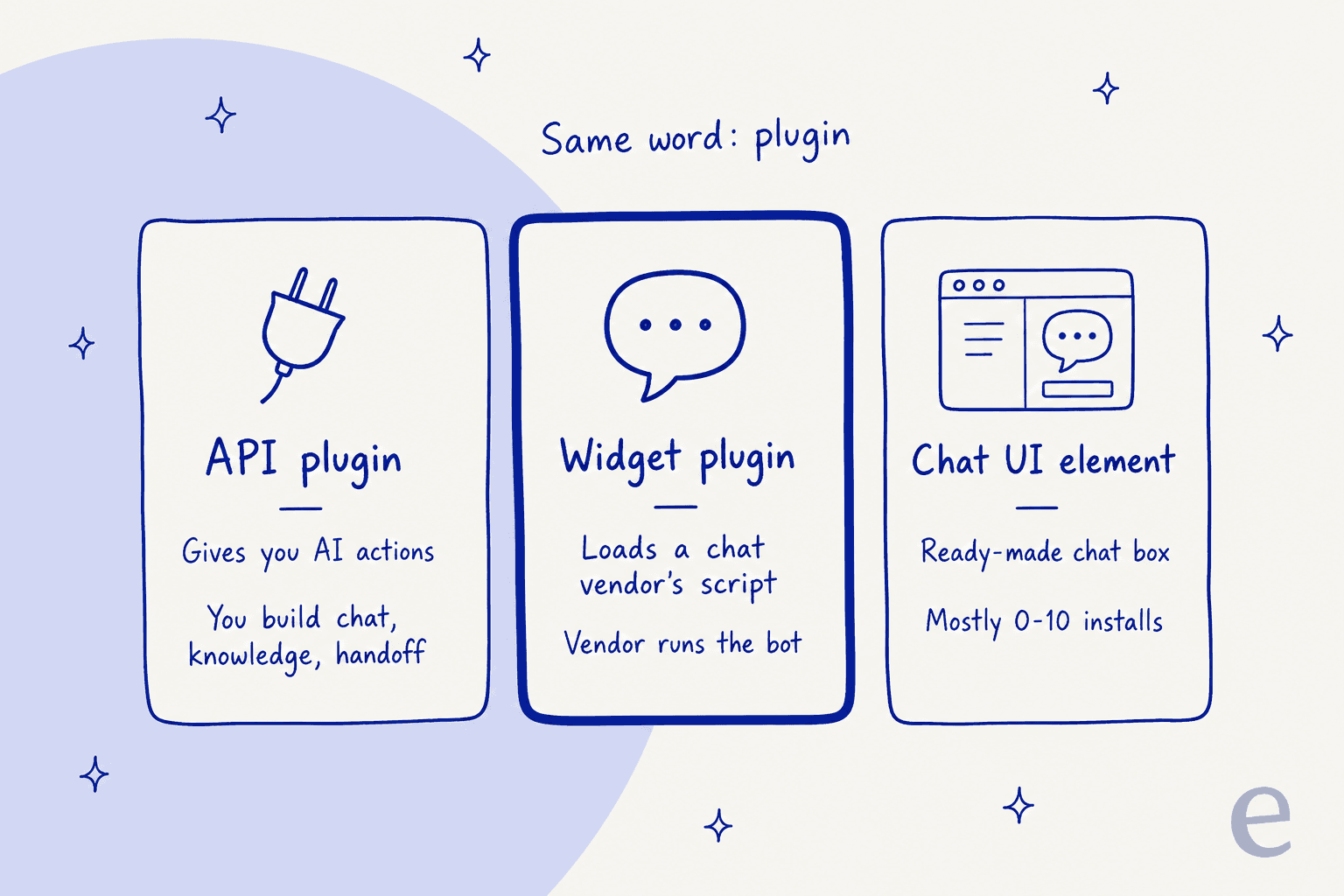
- API plugins give your workflows OpenAI actions (chat completions, assistants, embeddings). You build the chat UI, decide what the bot knows, add guardrails and keep the key safe. The free OpenAI ChatGPT/4, Assistant, Vision plugin by Pilot & Launch is the giant here, with 59.7K installs, far ahead of any other chatbot listing.
- Widget plugins load a chat vendor's script for you. The vendor runs the bot, the knowledge and the inbox. Most are built by third parties, not the vendor: Crisp's own help center calls its Bubble plugin "a community plugin, not a plugin built by Crisp." tawk.to is the exception with an official plugin.
- Ready chat UI elements drop a finished chat box on a page, usually backed by your own AI provider key. Most have between 0 and 10 installs, and one listing I checked says outright "NO LONGER SUPPORTED OR FUNCTIONAL."
Here are the strongest listings as of today (install counts move daily):
| Plugin | Creator | Price | Installs | Rating | Type |
|---|---|---|---|---|---|
| OpenAI ChatGPT/4, Assistant, Vision | Pilot & Launch | Free | 59.7K | 4.1 (49 ratings) | API plugin |
| OpenAI GPT3 & ChatGPT API | Jasper Hallamore | Free | 5.3K | 3.2 (6 ratings) | API plugin |
| Tidio Live Chat | No-Code Venture | Free | 753 | 4.0 (1 rating) | Widget plugin |
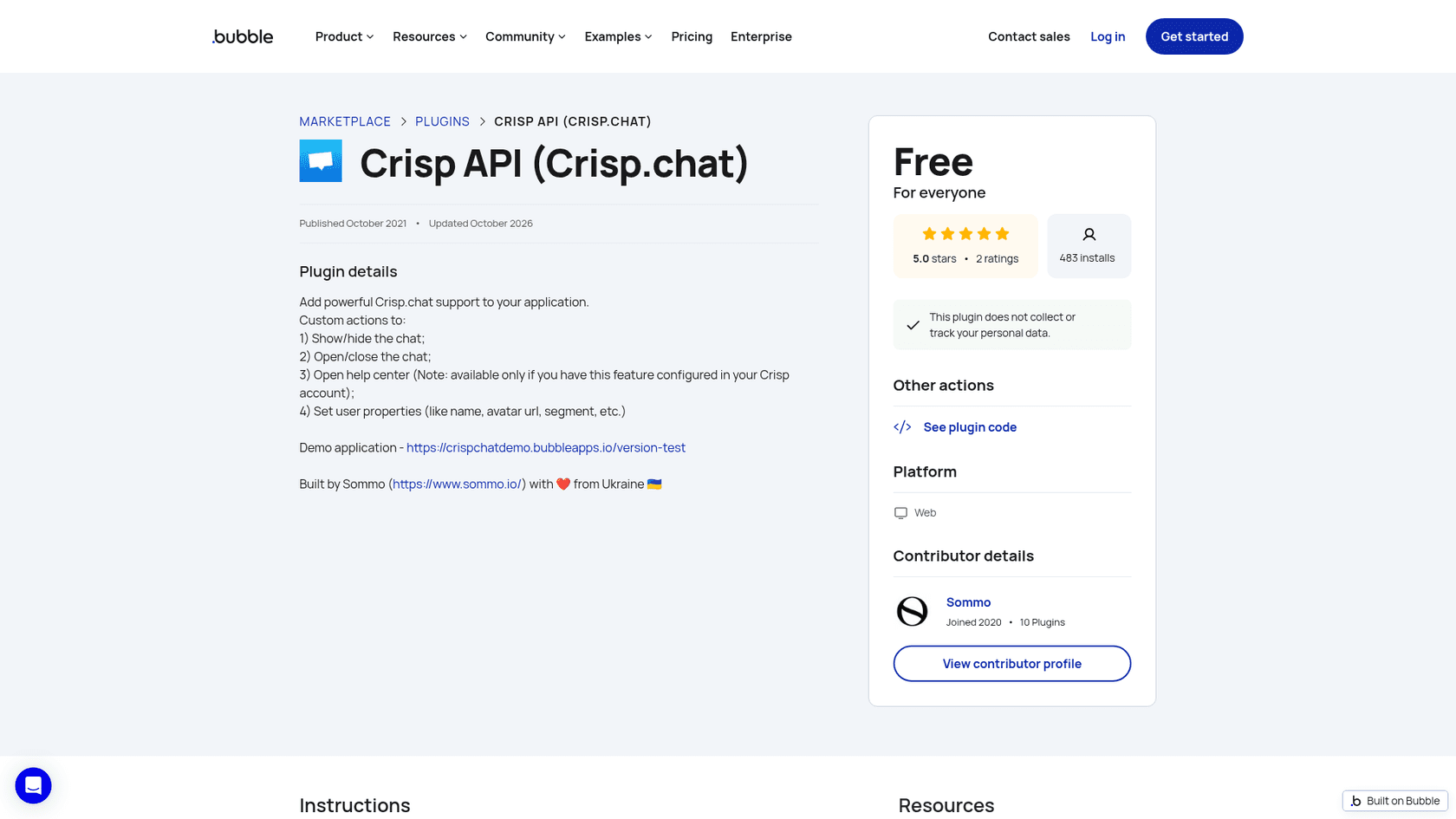
| Crisp API (Crisp.chat) | Sommo | Free | 483 | 5.0 (2 ratings) | Widget plugin |
| Aicado AI Chatbot Customer Support | Kod-suz | Free | 212 | 5.0 (2 ratings) | Widget (iframe) |
| ChatGPT Assistant | Lesscode.io | Free | 170 | No ratings | API plugin, streaming |
| Crisp Chat Integration | Syrup | Free | 127 | No ratings | Widget plugin |
| OpenAI - GPT Streaming with RAG | wise:able | $99 once or $9/mo | 29 | 1.0 (1 rating) | Chat element |
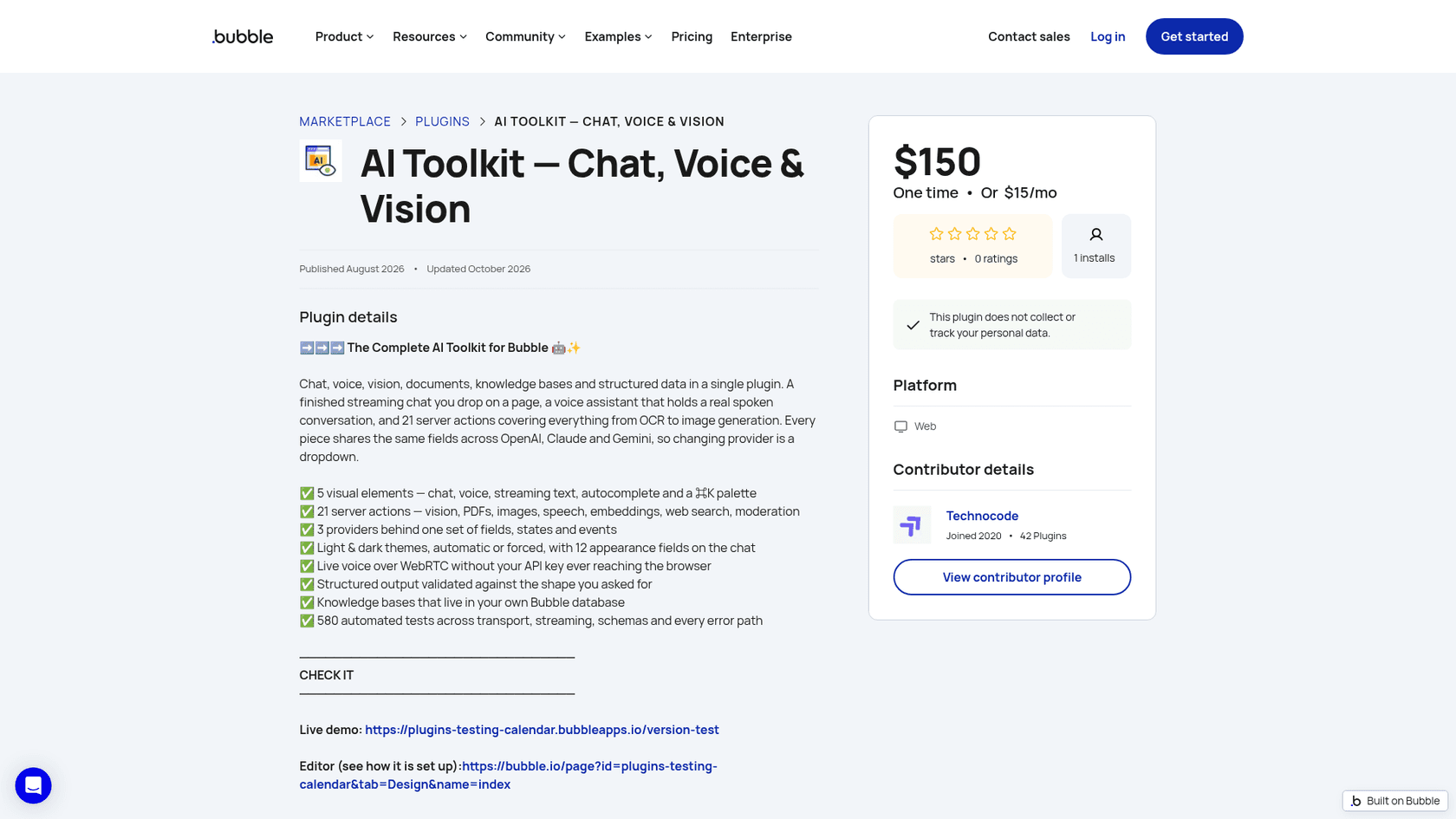
| AI Toolkit - Chat, Voice & Vision | Technocode | $150 once or $15/mo | 1 | No ratings | Chat element |
Bubble itself is upfront that most of these aren't its own work. Its Plugins tab manual page says plugins "are created by the Bubble Team and other Bubble users", and for an ecosystem-built plugin "you should reach out to the plugin's creator" when something breaks. Reviewers notice:
"Bubble also thrives on its plugins for the best functionality. However, plugins are a mixed bag: Bubble doesn't do much quality checking, so some just don't do what you need them to. Plugin documentation is often thin on the ground"

The other catch is that paid plugins are bought blind:
"The pricing model for the plugins is really bad. You cannot test them, you need to buy them and figure out how to use them."
Which route should you pick?
Start from what the bot is for, not from the plugin list.
- A support bot for your users (questions about your product, billing, how-tos): pick a chat vendor first, then install it the way that vendor documents. That's usually a script in an HTML element or in Settings > SEO / metatags, or the vendor's own plugin if one exists. The vendor handles the knowledge base, the guardrails and the human handoff. This is the route I'd pick for a support bot, because none of the hard parts land on you.
- A custom AI feature inside your app (a writing assistant, a document Q&A tool, a chat that reads the user's own records): use the API Connector, which Bubble's own tutorial recommends, or the free OpenAI plugin. You get full control of the model and the request, and you own everything else.
- A middle path: a ready chat element like AI Toolkit gives you a finished UI on your own provider key. You still own the knowledge and the handoff.
The test I use: if the bot needs to know your help docs and hand a frustrated user to a person, buy that from a chat vendor. If it needs to read your app's own data in ways no vendor can, build it.
The 8 options at a glance
| Option | Route | Built by the chat vendor? | Free plan | Starting paid price | AI billing unit | Trains on your docs? | Human handoff | Bubble install effort | Bubble-specific guide? |
|---|---|---|---|---|---|---|---|---|---|
| OpenAI ChatGPT/4, Assistant, Vision | API plugin | No, Pilot & Launch | Plugin is free | OpenAI usage, billed by OpenAI | OpenAI tokens plus Bubble workload units | Only what you build | You build it | High: UI, workflows, data | Listing only |
| AI Toolkit | Ready chat element | No, Technocode | No | $150 once or $15/mo | Your provider's tokens plus workload units | Knowledge bases in your Bubble database (per listing) | You build it | Medium | Listing only |
| Chatbase | Script in HTML element | Yes | No, 7-day trial | $120/mo yearly ($150 monthly) | Message credits per model request | Yes: site, files, Notion, tickets | Escalation ticket or live chat | Low | Yes |
| eesel | Script in HTML element or SEO/metatags | Yes | 7-day trial, 100 credits | $299/mo for 500 credits | 1 credit per chat | Yes: site, help center, Drive, Notion, Confluence, helpdesk | Helpdesk ticket, email, or a live widget | Low | No, generic script docs |
| Tidio | Third-party plugin or script | Plugin by No-Code Venture | Yes, 50 conversations | $24.17/mo yearly; Lyro from $39/mo | Lyro conversation | Yes: support content, website, FAQs | Handoff rules into Tidio's inbox | Low | No |
| Crisp | Community plugin | No, Sommo or Syrup | Yes, without AI | Mini $45/mo | Hugo credits per conversation | Yes: snippets, knowledge base, crawl, files | Escalates to operators | Low | Yes, points to the community plugin |
| tawk.to | Official plugin | Yes | Yes, Hobby AI at 100 credits | AI Assist Growth $29/mo | Message credits per reply | Yes: knowledge base, docs, crawled pages | Escalation to humans, even on free | Low | Yes |
| CustomGPT | API Connector | No plugin | 7-day trial | Standard $99/mo | Queries (1,000/mo on Standard) | Yes | Not covered in its Bubble guide | High: UI, workflows, data | Vendor blog post |
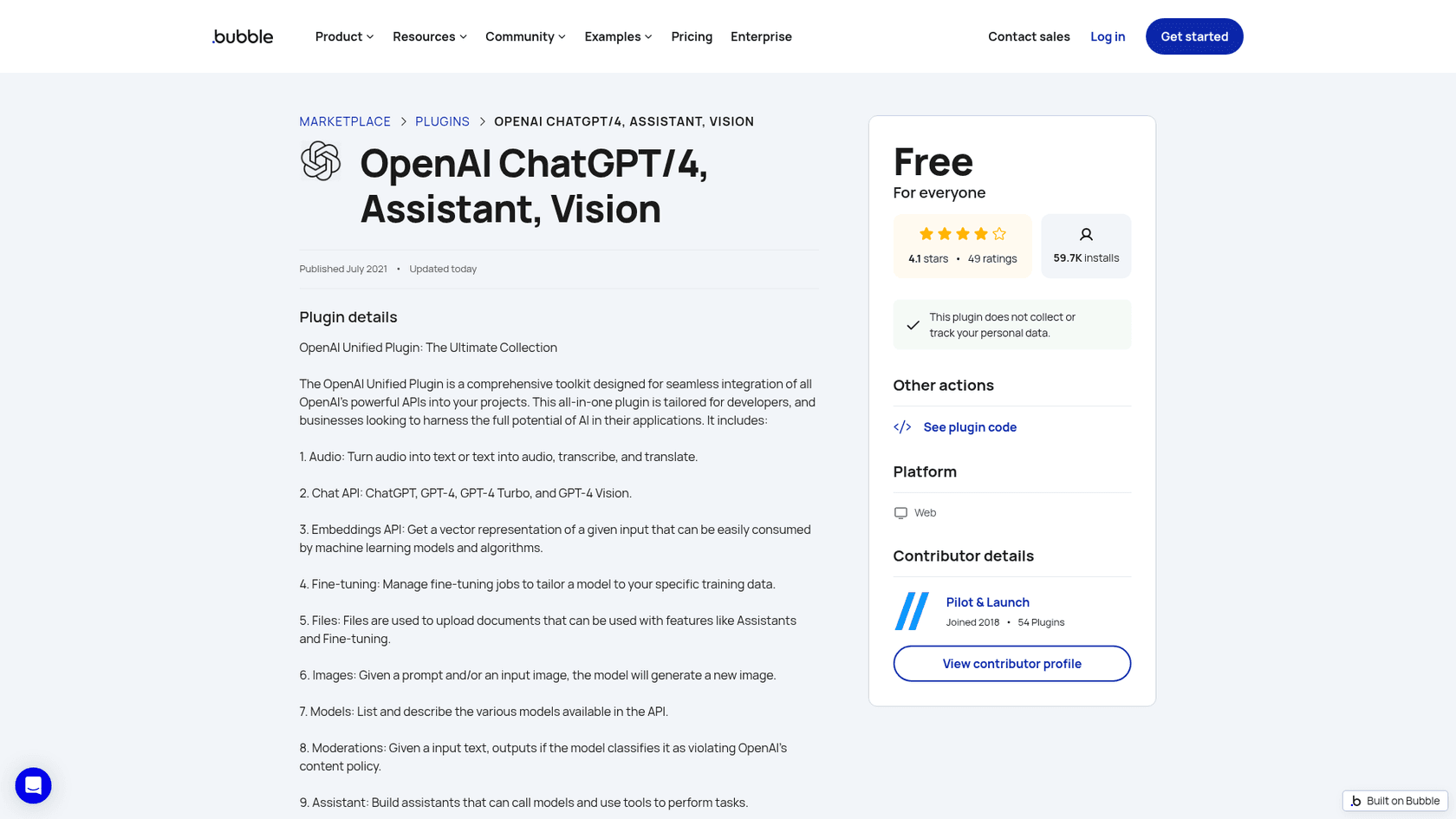
1. OpenAI ChatGPT/4, Assistant, Vision (Pilot & Launch)
Best for: builders adding a custom AI feature to their app who want OpenAI actions without writing API calls.
How it works in Bubble
You install it from the Plugins tab, paste your OpenAI key into the plugin settings, and call its actions from workflows. The listing covers audio, chat (ChatGPT and GPT-4 models), embeddings, fine-tuning, files, images, models, moderation and the Assistants API. There's no chat window. You build that with a repeating group, an input and a button, and you store each message in a data type so the conversation has history. If you've worked with the OpenAI Assistants API before, the actions will feel familiar.
What I liked
It's free, it's been around since July 2021, it was updated today, and 59.7K installs is a lot of people who've hit the same bugs before you. Having embeddings and Assistants in one plugin means you can do basic retrieval over your own content without leaving Bubble.
Watch out for
The listing doesn't state streaming support, and Bubble documents its native streaming for the API Connector. Everything a support bot needs on top of "call the model" is your job: what the bot knows, what it refuses, and how a user reaches a person. Keep your key in the right place. Bubble's OpenAI guide recommends "a unique API key for each app", and its API Connector page warns that "Anyone can retrieve the collection's private keys" if a collection is left on "None or self-handled." My note on OpenAI API keys covers rotation and limits.
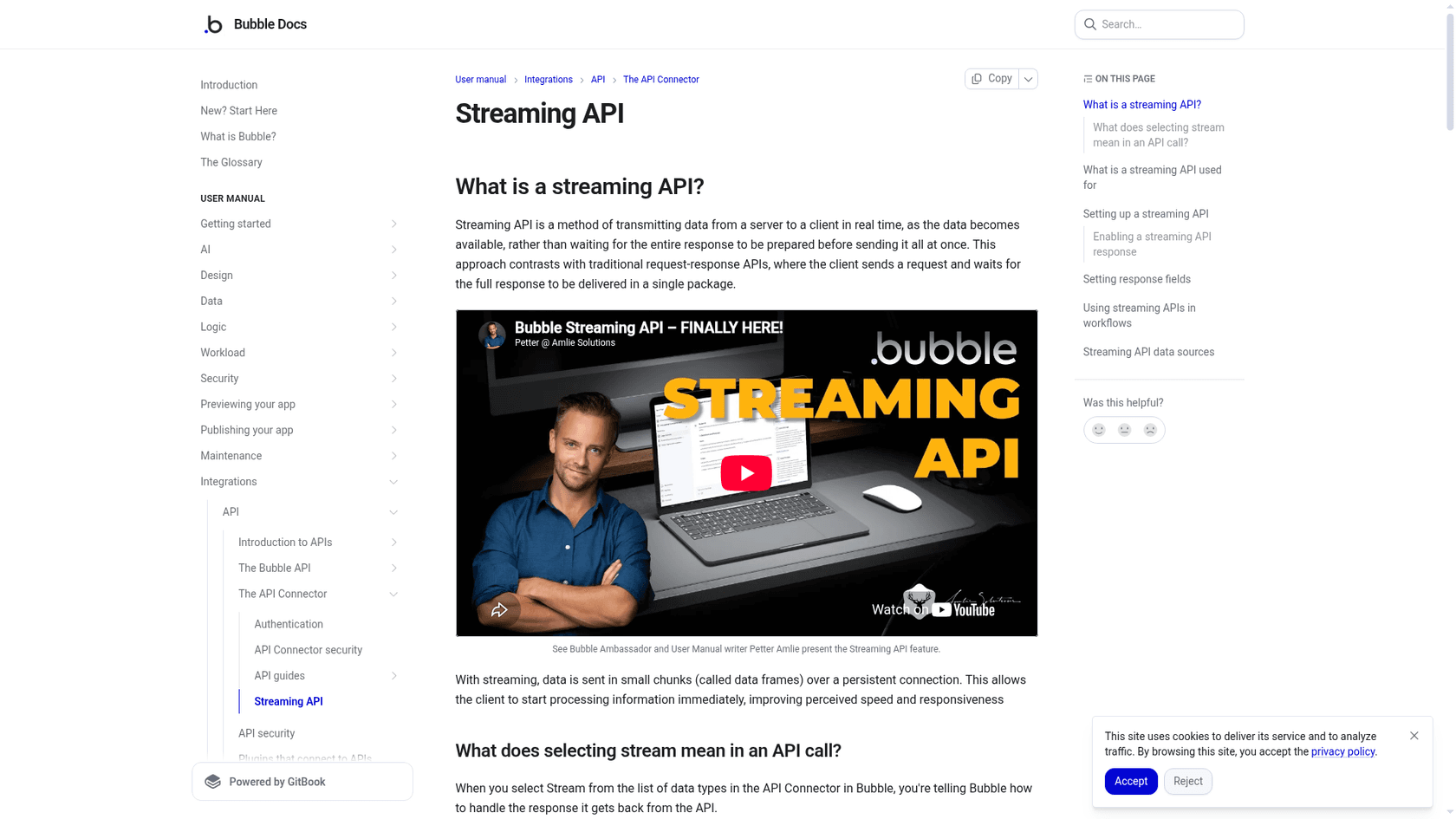
If word-by-word replies matter, the API Connector is the better home for this build. Bubble announced native streaming in April 2025, and the Streaming API page explains the setup: set the response data type to "Stream" and add stream: true to the request body.
Pricing
| Item | Price |
|---|---|
| Plugin | Free |
| OpenAI usage | Billed by OpenAI per token, outside Bubble |
| Bubble workload units | Counted per API call against your plan's monthly allowance |
Verdict: the right pick for an in-app AI feature, and the wrong one for a support bot unless you want to build a knowledge-base chatbot by hand.
2. AI Toolkit (Technocode)
Best for: builders who want a finished, streaming chat element on their own OpenAI, Claude or Gemini key.
How it works in Bubble
You drop the chat element on a page, pick a provider, and the listing says "answers stream in word by word." It bundles 5 visual elements (chat, voice, streaming text, autocomplete and a command palette), 21 server actions, and "Knowledge bases that live in your own Bubble database." Switching between OpenAI, Claude and Gemini is a dropdown.
What I liked
It's the most complete ready-made chat element I found, and the listing links a live demo and an editor view so you can see how it's wired before paying. The claim of "Live voice over WebRTC without your API key ever reaching the browser" addresses the key-safety problem most chat elements leave open.
Watch out for
It was published in August 2026 and had 1 install and no ratings when I checked, so you'd be an early adopter. That's not a knock on the code, just a fact about how much field testing it has. Your knowledge base is still something you load and maintain, and there's no human handoff unless you build it.
Pricing
| Option | Price |
|---|---|
| One-time license | $150 |
| Subscription | $15/month |
| AI usage | Billed by your chosen provider |
Verdict: worth a look if you want a polished in-app AI chat and you're happy to own the knowledge. For a support bot, a vendor script is still less work.
3. Chatbase (HTML element)
Best for: teams that want a trained support bot on Bubble with a vendor-written Bubble guide to follow.
How it works in Bubble
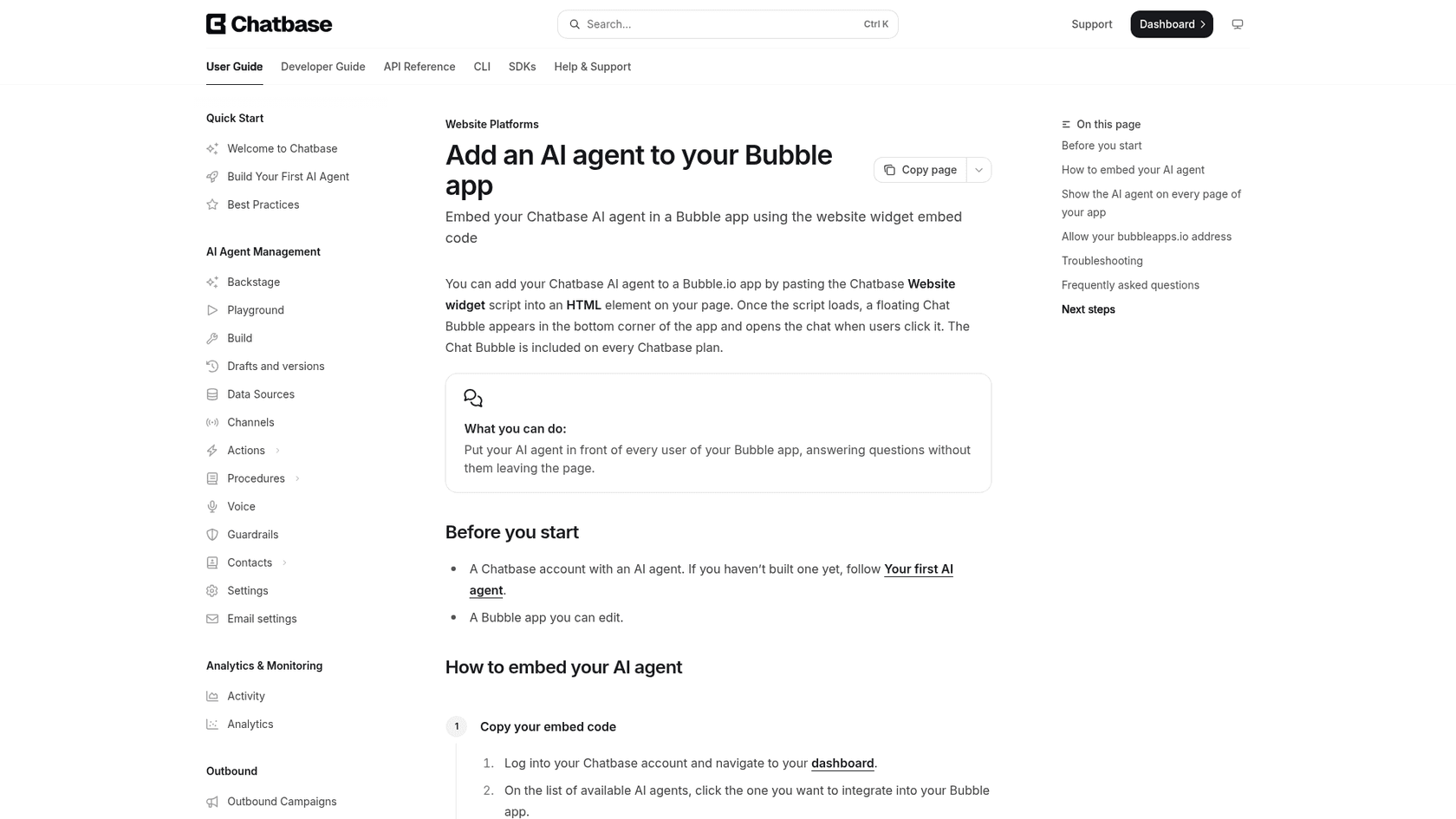
Chatbase has its own Bubble guide. In the dashboard you open the agent, go to Channels, then Chat Bubble, Deploy, and copy the "Website widget" script. In Bubble you drag an HTML element onto the page and paste it. The guide adds that "The HTML element only loads the script on the page it sits on", so for an app-wide bubble put that element in a reusable element such as a shared header.
What I liked
The guide is specific to Bubble down to the domain list. If you switch on "Only allow embedding the agent on specific domains", it tells you to list both hosts, e.g. https://acme.bubbleapps.io and your custom domain, and notes that one bubbleapps.io entry covers both /version-test and live. The bot trains on website pages, files, Notion and closed Zendesk or Salesforce tickets, and handoff can be an escalation ticket or a live chat in Chatbase's inbox (escalations docs).
Watch out for
There's no free plan, only a 7-day trial. Credits are per model request, not per conversation, so an agent using Actions can spend several credits on one reply (pricing FAQ). Training content is capped at 40 MB per agent on both self-serve plans.
Pricing
| Plan | Monthly | Billed yearly (per mo) | Message credits/mo | Seats |
|---|---|---|---|---|
| Basic | $150 | $120 | 4,000 | 3 |
| Business | $500 | $400 | 15,000 | 5 |
| Enterprise | Custom | Custom | Custom | Unlimited |
From the Chatbase pricing page. My Chatbase pricing breakdown goes deeper on credits.
Verdict: the cleanest Bubble install documentation of any vendor here. Pick it if a credit-based bill works for you, and see my Chatbase alternatives if it doesn't.
4. eesel chat bubble (HTML element or SEO/metatags)
Best for: SaaS teams whose answers live in a help center or helpdesk and who want the Bubble bot to hand off into the same queue.
How it works in Bubble
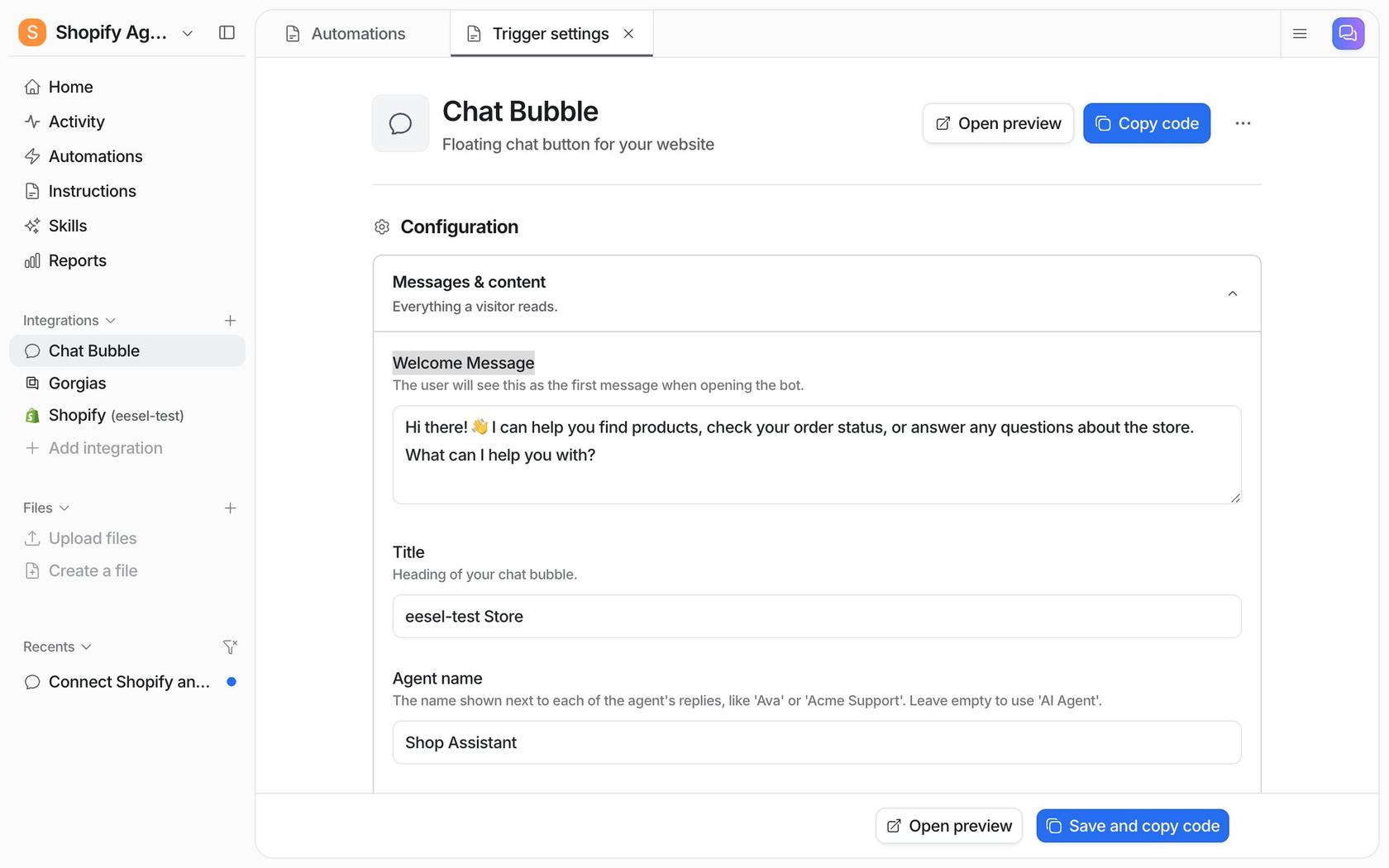
The eesel chat bubble is one async script tag that loads cdn.eesel.ai/loader.js. eesel's FAQ says it works on any site that accepts a script tag. It doesn't name Bubble, and there's no Bubble-specific page, so here's the mapping I'd use: paste the snippet in an HTML element inside a reusable header, or in the body script field under Settings > SEO / metatags, which Bubble's SEO: App page says places scripts "between the <body> tags across all pages." You can then limit the pages in plain language, like "only show the chat bubble on the pricing page."
What I liked
From my side of the code, the part I care about is what happens when the bot doesn't know. eesel answers only from the sources you connect (a site crawl, help center, Google Drive, Notion, Confluence, or Zendesk and Freshdesk articles), and the docs say nothing typed in the bubble becomes knowledge. When a person should step in, it follows rules you set: create a helpdesk ticket with the visitor's name and email, send an email, or open Zendesk Messenger or Freshchat.
SamCart, a SaaS company, runs one eesel agent on Freshdesk tickets and another on its website chat bubble, answering from 280 help center articles. The chat asks for a name and email before it answers, and when a seller asks for a person, the ticket is tagged for handoff and the agent stops replying. At larger volume, SE Ranking had 2,100 live chats answered first by eesel on Zendesk Messenger between 8 Aug and 8 Sep 2026, with about 14,100 help center pages and 2,700 site pages as knowledge.
Watch out for
The entry price is high for a small app: $299 a month for 500 credits, and the free tier is a 7-day trial with 100 credits, not an ongoing free plan. Ticket handoff needs a helpdesk connection, and email is the fallback if you don't have one. eesel's SOC 2 Type II audit is in progress, not complete, per its Trust Center.
Pricing
| Plan | Price | Credits |
|---|---|---|
| Free | $0 | 100 credits for 7 days |
| Teammate | $299/month | 500 |
| Teammate | $499/month | 1,000 |
| Teammate | $849/month | 2,000 |
| Teammate | $1,749/month | 5,000 |
A chat is 1 credit however long it runs, with optional overage at $0.80 per extra credit up to a cap you set (eesel pricing).
Verdict: a good fit when the Bubble app is the front door to a support team that already lives in a helpdesk. If you want a cheap bot with no helpdesk behind it, start with tawk.to or Crisp.
5. Tidio (third-party plugin or script)
Best for: small Bubble apps that want live chat plus an AI agent with a free starting point.
How it works in Bubble
Tidio doesn't publish a Bubble guide. Its install article says platforms other than Shopify, WordPress, WooCommerce and BigCommerce use the JavaScript snippet. On Bubble you have two choices: paste that snippet using the script route below, or install the third-party Tidio Live Chat plugin by No-Code Venture (753 installs, 4.0 stars from 1 rating). The plugin asks you to paste the JavaScript src link (it starts with // and ends with .js) into the Plugins tab.
What I liked
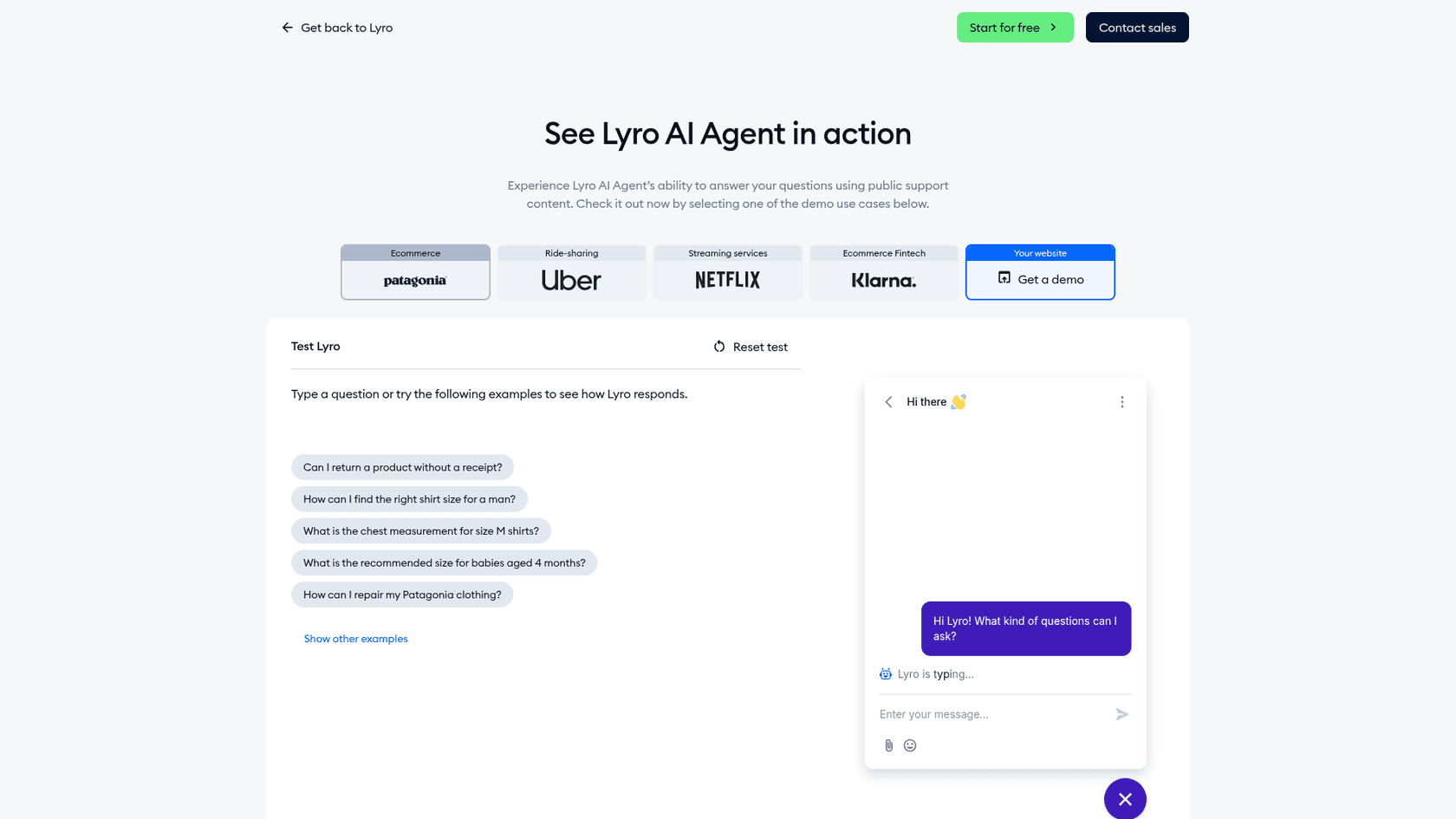
You can start at $0. Tidio's AI agent, Lyro, scrapes your support content and answers from it, and the conversation unit is easy to reason about: "Lyro can handle multiple questions in one customer conversation without extra costs" (Lyro page). Live chat and AI share one inbox, so handoff rules route straight to your team. More in my Tidio live chat review.
Watch out for
The plugin listing carries a Tidio affiliate link, so it's a third party's plugin, not Tidio's. The 50 free Lyro conversations are a one-time allowance, not monthly. Human-handled conversations bill separately from Lyro conversations.
Pricing
| Plan | Monthly | Billed yearly (per mo) | Included |
|---|---|---|---|
| Free | $0 | $0 | 50 conversations/mo, 50 Lyro conversations once |
| Starter | $29 | $24.17 | 100 conversations |
| Growth | from $59 | from $49.17 | 250 to 2,000 conversations |
| Lyro add-on | from $39 (50) to $700 (1,000) | from $32.50 | Lyro conversations |
From Tidio pricing. My Tidio AI pricing guide walks through the Lyro ladder.
Verdict: a sensible low-cost start. Paste the script yourself rather than depending on an unofficial plugin, and keep an eye on Lyro's per-conversation price as volume climbs.
6. Crisp (community plugins)
Best for: teams already on Crisp who want its chatbox and Hugo AI agent inside a Bubble app.
How it works in Bubble
Crisp's Bubble help article has you copy your Website ID, install the Crisp Chat Integration plugin by Syrup (127 installs), paste the ID and preview. The other option is Sommo's Crisp API plugin (483 installs, 5.0 stars from 2 ratings), which adds actions to show or hide the chat, open the help center and set user properties.
What I liked
Being able to set user properties from Bubble workflows is handy: your logged-in user's name and email reach the Crisp inbox, so agents know who they're talking to. Hugo trains on snippets, the Crisp knowledge base, a website crawl, conversation history and uploaded files (Crisp AI), and its workflow AI block has a confidence threshold so that "If the AI can't find the answer, it'll say it." My Crisp AI chatbot review covers Hugo in depth.
Watch out for
Crisp is plain about it: "The Bubble integration mentioned here is a community plugin, not a plugin built by Crisp. Review the plugin page and test it on your Bubble app before relying on it in production." The Syrup listing says its "Open HelpDesk" action only works on the "Unlimited" Crisp plan. Hugo isn't on Crisp's Free plan and pauses when included credits run out, unless Pay-As-You-Go is on.
Pricing
| Plan | Monthly | Seats | Included Hugo credits |
|---|---|---|---|
| Free | $0 | 2 | None |
| Mini | $45 | 4 | $5 (about 90 conversations) |
| Essentials | $95 | 10 | $25 (about 450 conversations) |
| Plus | $295 | 20+ | $75 (about 1,350 conversations) |
Prices are per workspace, per month, from Crisp pricing. Full numbers in my Crisp pricing breakdown.
Verdict: good value per conversation. Test the community plugin in Preview before you trust it in production, as Crisp itself advises.
7. tawk.to (official plugin)
Best for: budget-first Bubble apps that want free live chat and a small free AI allowance.
How it works in Bubble
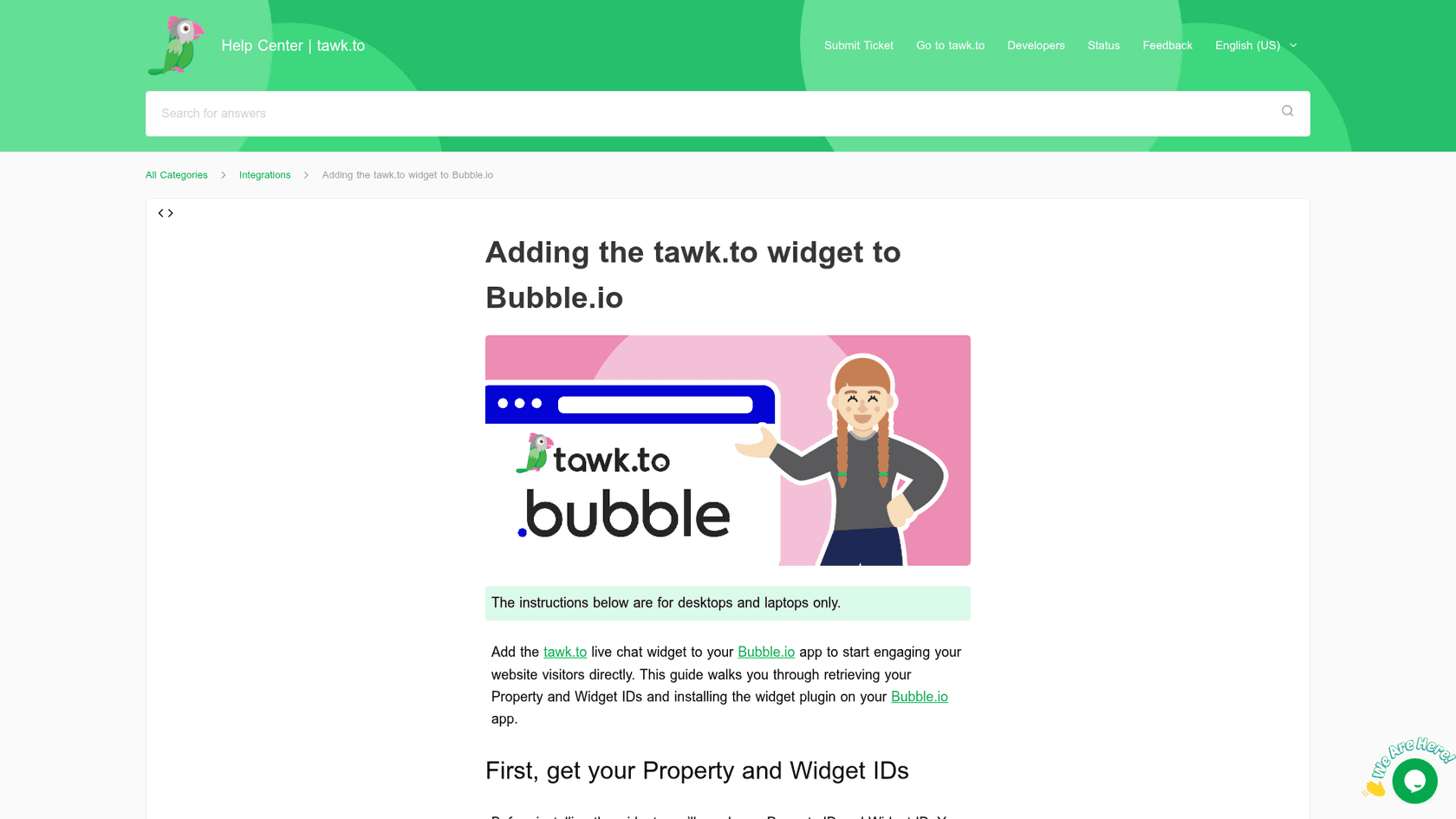
tawk.to is the only vendor here with its own plugin. Per its Bubble guide, you find your Property ID and Widget ID, open Plugins in Bubble, click "+ Add plugins", search "tawk.to", install "tawk.to Live Chat (Official)" by tawk.to, and paste the two IDs. The guide says "Changes take effect immediately," and the widget shows once the app is published or in preview.
What I liked
The live chat, inbox, ticketing and knowledge base are free, and the AI Assist Hobby tier is free too, with escalation to humans included (AI Assist billing). An official plugin means one less third party in the chain.
Watch out for
The official listing URL redirected to the general plugins index when I checked, so I couldn't read its install count. Don't confuse it with a separate unofficial "tawk.to Live Chat Plugin" by Digital Eye ($7, 0 installs). AI credits are spent per reply, not per conversation: the default Auto model "costs 3 credits per reply", so the free 100 credits cover about 33 replies a month. See tawk.to alternatives if that's too tight.
Pricing
| Item | Monthly | Yearly | Included |
|---|---|---|---|
| Live chat, inbox, ticketing | $0 | $0 | Unlimited team members |
| AI Assist Hobby | $0 | $0 | 100 credits, 1 AI agent, 100 crawled pages |
| AI Assist Growth | $29 | $290 | 1,000 credits, 3 AI agents, 500 pages |
| AI Assist Business | $99 | $990 | 5,000 credits, 5 AI agents, 2,000 pages |
| AI Assist Enterprise | $399 | $3,990 | 20,000 credits, 10 AI agents, 10,000 pages |
Extra credits are $30 per 1,000. Removing the tawk.to branding is a separate $29/month add-on (tawk.to add-ons).
Verdict: the cheapest legitimate way to get an AI-assisted chat on Bubble, with the only official plugin in this list. Budget for credits once replies add up.
8. CustomGPT (API Connector)
Best for: builders who want a document-trained bot but their own chat UI inside Bubble.
How it works in Bubble
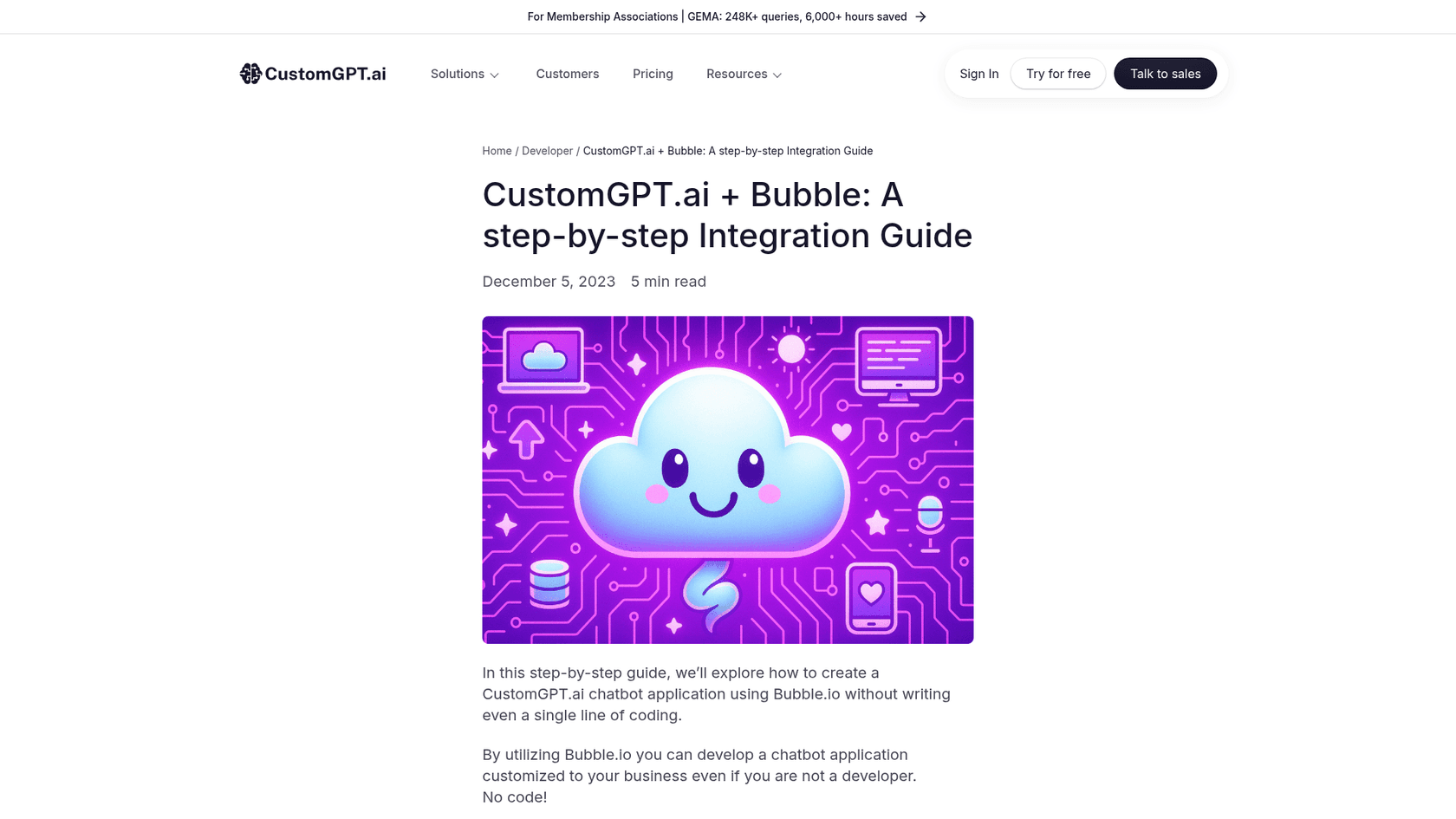
CustomGPT's walkthrough doesn't use a widget. You create the chatbot in CustomGPT, add your API key to Bubble's API Connector, define a POST call that creates a conversation, store questions and answers in a Bubble data type, and build the front end with a repeating group, an input field and a button that fires the call.
What I liked
You get CustomGPT's retrieval over your documents with full control over how the chat looks in your app. It's a good middle ground between the OpenAI plugin (you own the knowledge) and a widget (you own nothing). My CustomGPT review has more on its answer quality.
Watch out for
The walkthrough is a blog post from December 2023, not maintained docs, so expect the screens to differ. Every call runs through the API Connector, which counts toward your Bubble workload units. You build the UI, the history and any handoff yourself.
Pricing
| Plan | Price | Limits |
|---|---|---|
| Standard | $99/month | 10 agents, 1,000 queries/month, 5,000 documents per agent |
| Premium | $499/month | 25 agents, 5,000 queries/month, auto-sync website content |
| Enterprise | Custom | Flexible limits, SSO |
Every plan starts with a 7-day trial (CustomGPT pricing).
Verdict: pick it if you need answers grounded in a large document set and want them in a chat you designed. For a plain support bubble, it's more build than you need.
Other listings I looked at
Aicado (212 installs) embeds an Aicado-hosted bot as an iframe. The Lightning Chat AI Customer Support plugin is the only listing I checked that says "This plugin may track or collect your data." wise:able's streaming RAG element sits at 1.0 stars from 1 rating and depends on an external proxy service.
Two more vendors document Bubble installs: Chatling (see my Chatling review) and Thinkstack both use Bubble's SEO / metatags script fields. Botpress publishes a generic web embed but no Bubble guide. The same goes for Voiceflow, whose pricing page lists no public plan table.
What does an AI chatbot cost on Bubble?
Here's one stated buyer so the numbers compare: a Bubble web app on Starter with about 300 support chats a month. Starter is $32/month billed annually, and you need it for any of these, because a live website and a custom domain both start at Starter on Bubble's pricing page.
Some tools bill per reply, so I've assumed 4 AI replies per chat where that matters.
| Option | Bubble Starter | Chatbot line | Monthly total | How I got there |
|---|---|---|---|---|
| Crisp | $32 | Essentials $95 | $127 | Includes about 450 Hugo conversations. Mini plus Pay-As-You-Go could land lower, but that rests on Crisp's own $0.05 to $0.10 per conversation estimate |
| tawk.to | $32 | AI Assist Business $99 | $131 | 300 chats x 4 replies x 3 credits = 3,600 credits. Growth ($29, 1,000 credits) plus 2,600 extra at $30 per 1,000 ($78) is $107, so Business is cheaper |
| CustomGPT | $32 | Standard $99 | $131 plus workload units | Fits only at 3 questions per chat (900 of 1,000 queries). At 4, it's 1,200 queries and Premium at $499 ($531) |
| Chatbase | $32 | Basic $120 (yearly) | $152 | 4,000 credits. 1,200 replies fit unless Actions or pricier models spend several credits per reply |
| Tidio | $32 | Lyro 300 conversations $210 | $242 | Conversations handled by people bill separately |
| eesel | $32 | Teammate $299 | $331 | 300 credits used of 500, 1 per chat however long |
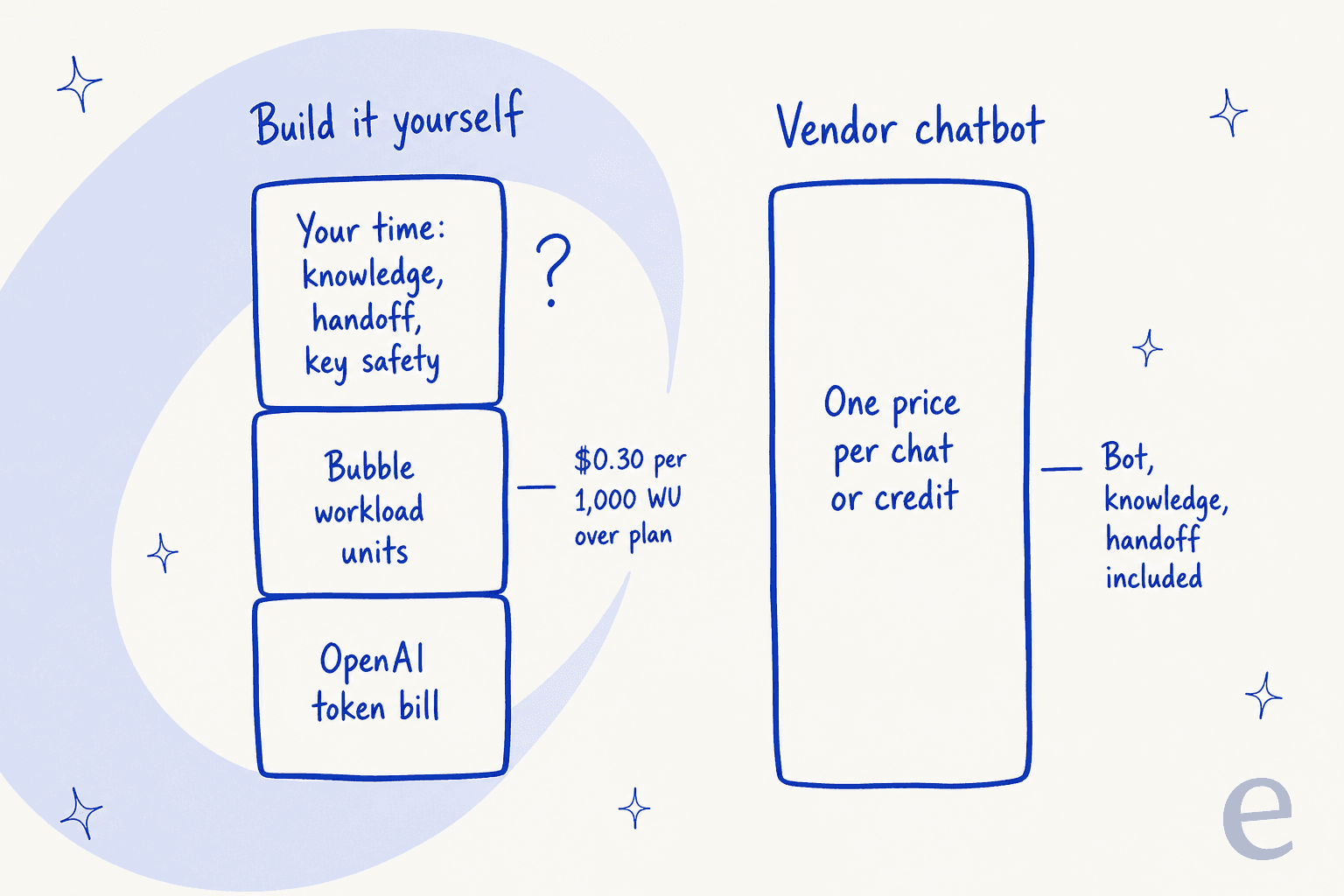
| OpenAI plugin or API Connector | $32 | Plugin free | $32 plus OpenAI bill plus workload units | Per-call workload unit cost isn't published |
eesel is the most expensive line for this buyer, and I'd rather say that plainly. It earns the gap when the bot needs to file tickets into your helpdesk and answer from a large help center. If the app's support is one person and a shared inbox, tawk.to or Crisp is the honest pick. My chatbot cost guide covers the pricing models in general.
The build-your-own row is the one people underestimate. Bubble's pricing FAQ says that "communicating with an API" counts toward monthly workload. Plans include 50K workload units on Free, 175K on Starter, 250K on Growth and 500K on Team, and overages cost $0.30 per 1,000 workload units. If you switch overages off and hit the limit, Bubble takes the app offline until the next period. Bubble doesn't publish how many units one OpenAI call uses, so measure it in your own app before launch.
How do you add an AI chatbot to a Bubble app?
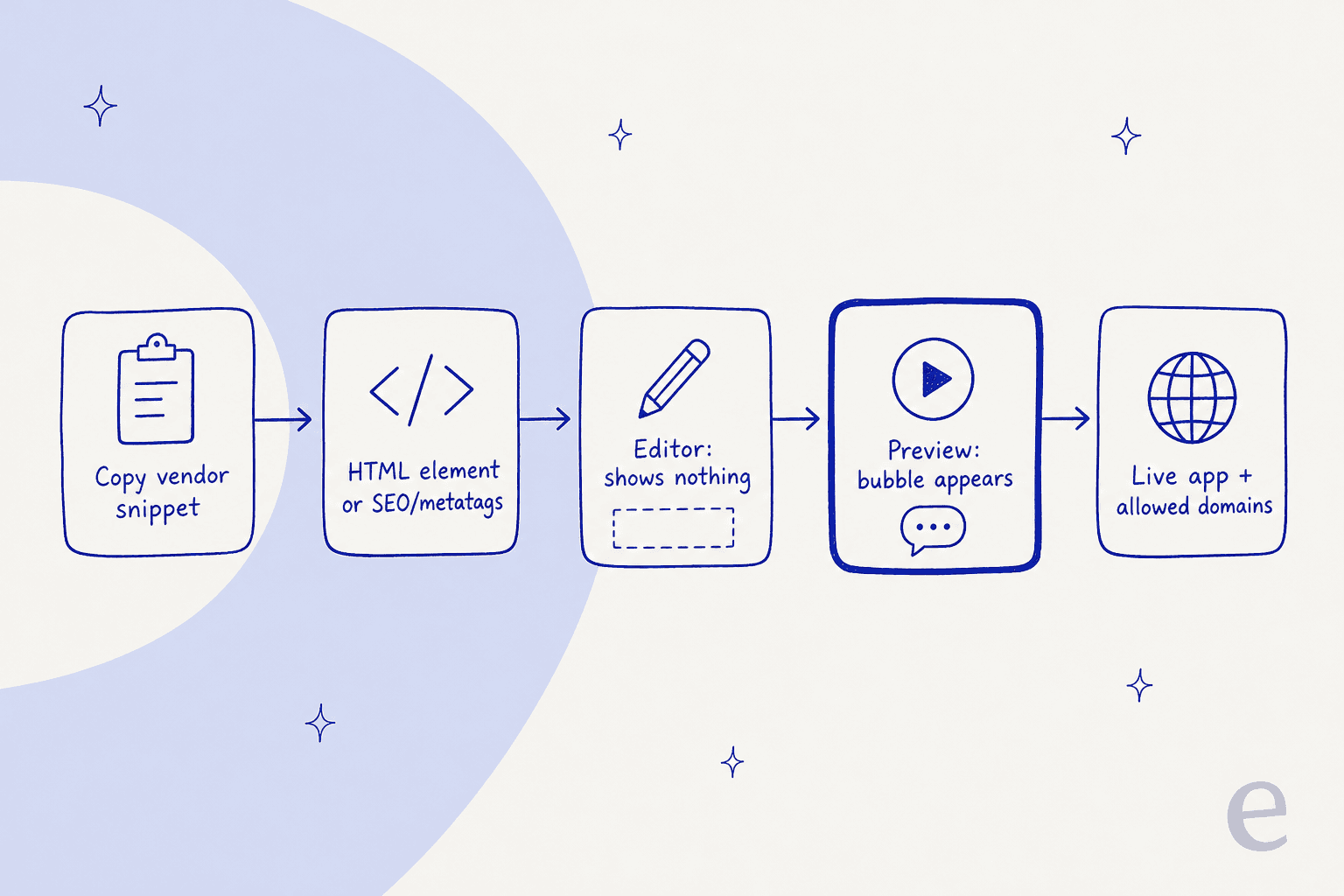
Two routes cover almost every chat vendor: paste a script, or install a plugin. The script route is the one I trust more, because it's the vendor's own code with no third party in between.
The script route
- Copy the embed snippet from your chat vendor's dashboard (Chatbase calls it the Website widget; eesel's is under Chat Bubble, Copy code).
- Pick where it goes. For one page, drag an HTML element onto that page and paste the snippet. For every page, either put that HTML element in a reusable header or footer, or paste the snippet into the body script field under Settings > SEO / metatags, which Bubble applies to all pages. Bubble's HTML element page says the element "renders HTML directly on the page."
- Test in Preview, not the editor. The same manual page says "Script tags only execute in run mode, not in the editor." A blank canvas is normal.
- Deploy to live. A live app needs a paid Bubble plan. Chatling's Bubble guide adds that its SEO / metatags method "only works on paid plans."
- Set allowed domains. If your vendor restricts where the bot can load, add your
yourapp.bubbleapps.ioaddress and your custom domain as separate entries.
The plugin route
- Open the Plugins tab in the editor and click + Add plugins.
- Search the vendor's name and read the listing: who built it, install count, last update, and whether it says it collects data.
- Click Install, then Done.
- Paste the keys or IDs the plugin asks for (tawk.to wants a Property ID and Widget ID; Crisp wants a Website ID).
- Preview, then deploy to live.
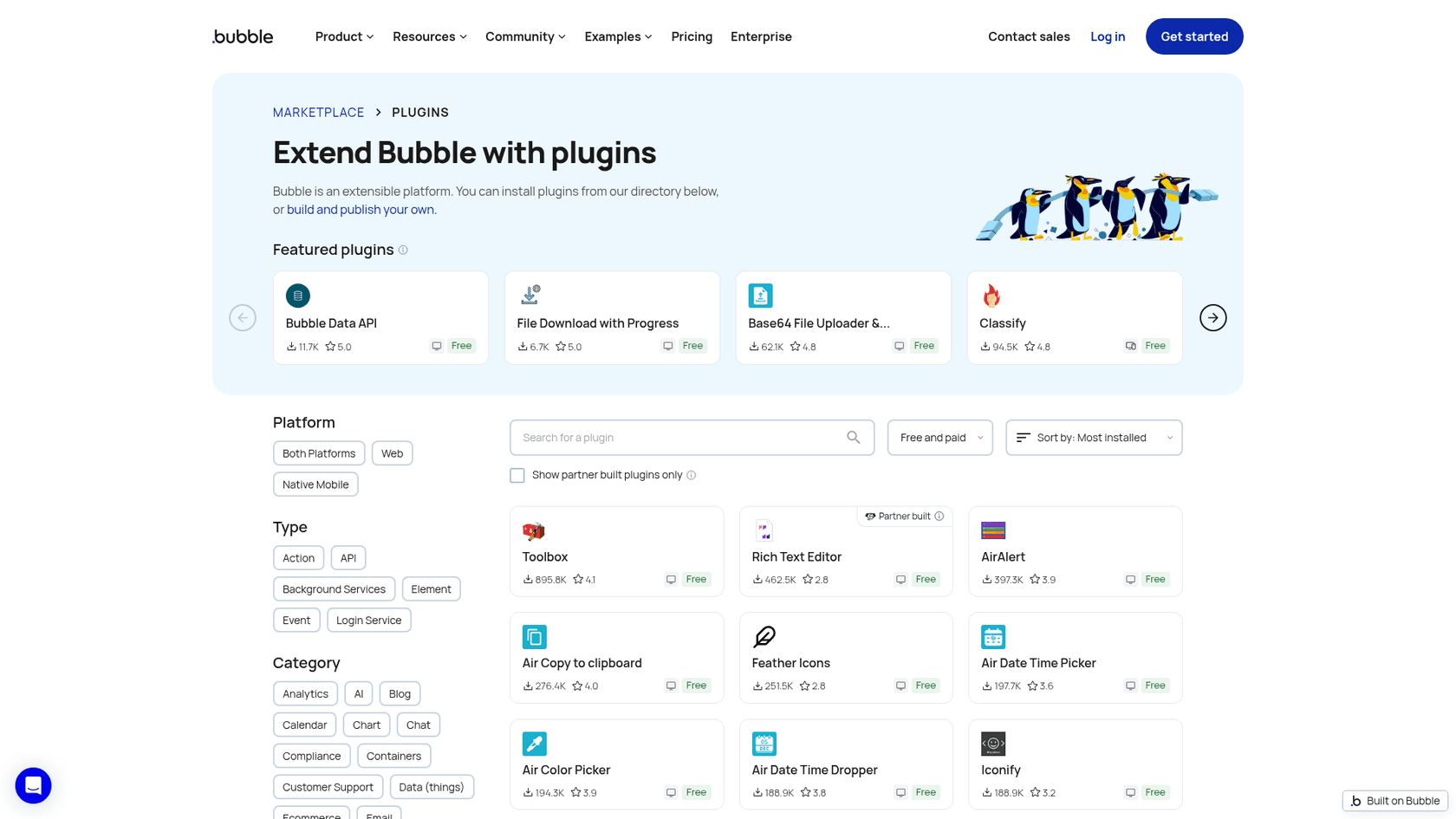
Bubble's installing plugins page adds a caution worth keeping: plugins add code to your app and "can make pages heavier and slow page loads down." It also notes that new plugin versions don't apply on their own, so you can test an update in development before deploying it. If you're comparing this to other builders, the same steps on Framer and Wix look much the same.
Common mistakes
- Checking the editor canvas. The bubble only appears in Preview and on the live app.
- Placing the HTML element on one page only. It loads the script only where it sits. Use a reusable header or the app-wide SEO / metatags field.
- Adding the snippet twice. An HTML element plus the SEO / metatags field gives you two bubbles.
- Forgetting the bubbleapps.io domain on the vendor's allowed list, so Preview works and live doesn't, or the other way round.
- Putting an OpenAI key in a plugin field the browser can read. Use the API Connector with "Private key in header", or a plugin that proxies the call.
- Buying a paid chat element on stars alone. Plenty of listings have 0 to 10 installs and no ratings. Check the update date and the demo first.
- Skipping the handoff. A bot that can't reach a person frustrates users fastest. My guide to chatbot escalation covers the triggers worth setting.
If you're weighing a bot against a person on chat at all, my comparison of AI chatbots and live chat helps. My AI live chat guide covers the hybrid of the two.
For tools beyond Bubble, I've ranked the best Framer chatbots separately. The same goes for Wix chatbots, and the wider list of the best customer service chatbots covers every platform.
Try eesel on your Bubble app
If your Bubble app is a SaaS product with a help center behind it, eesel goes in as one script in an HTML element or your SEO / metatags settings, answers from your help docs and site, and hands users off by helpdesk ticket or email when a person should take over. Each chat is 1 credit however long it runs. The free trial gives you 100 credits for 7 days, and the Teammate plan starts at $299 for 500 credits. Try eesel.
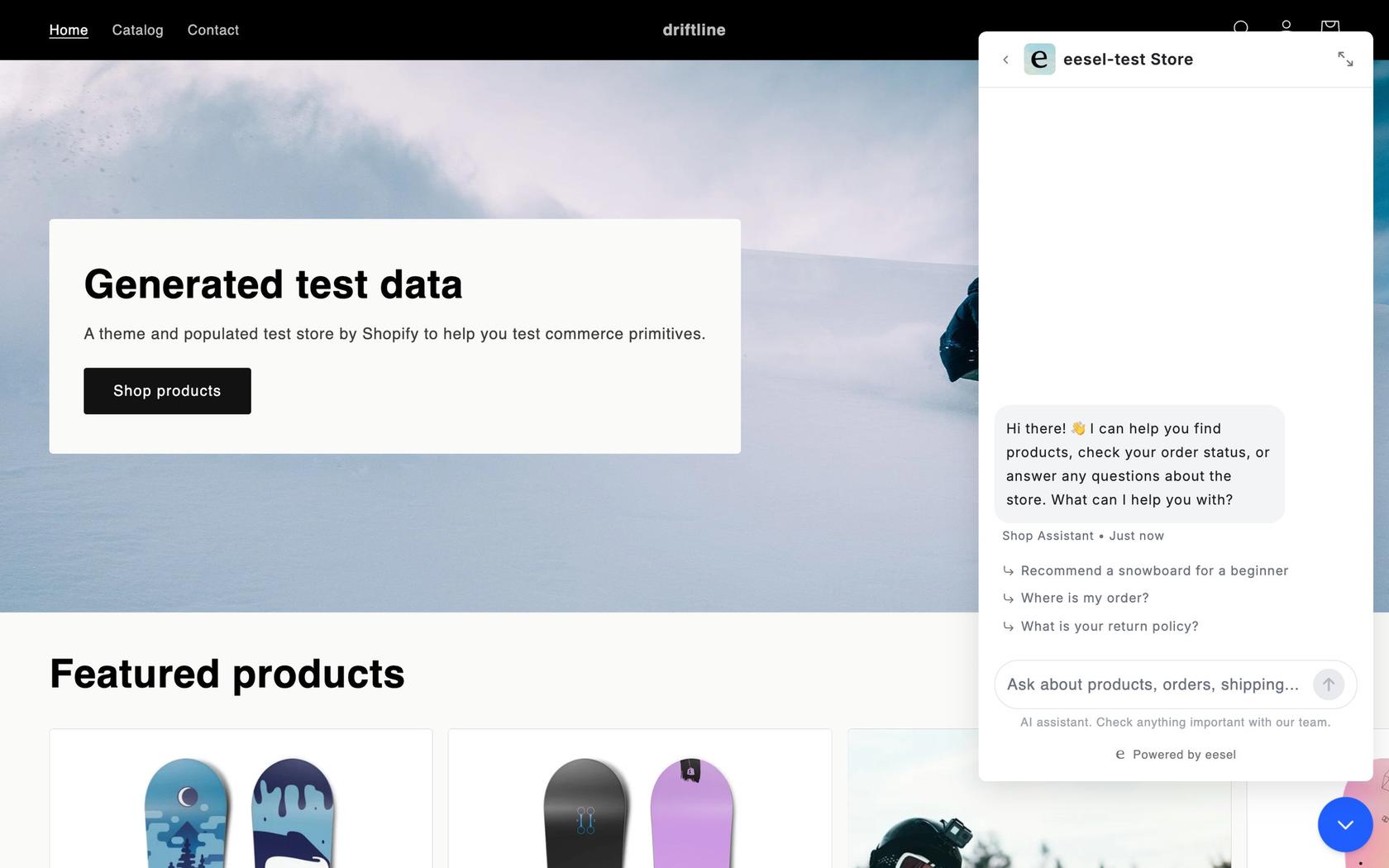
If you'd rather not embed anything yet, Timengo runs 2 public chat pages in Danish, a hosted option you can link from your app instead.
Frequently Asked Questions
What is the best AI chatbot plugin for Bubble?
It depends on what the bot is for. For a support bot that answers your users, a vendor's chat script (Chatbase, eesel, tawk.to's official plugin) is less work than any Bubble AI chatbot plugin that only exposes OpenAI actions. For a custom AI feature inside your app, the free OpenAI ChatGPT/4, Assistant, Vision plugin is the most installed by far. My roundup of no-code AI chatbot tools compares the wider field.
Does Bubble have a built-in AI chatbot?
No. Bubble AI and its AI credits help you build the app, not answer your app's visitors. A visitor-facing bot comes from a plugin, a vendor script, or your own API Connector build. If you're new to the category, my guide to an AI chatbot for your website is a good primer.
How do I add a chatbot to my Bubble app?
Copy the chatbot vendor's embed script, paste it into an HTML element (in a reusable header if you want it on every page) or into the body script field under Settings > SEO / metatags, then test in Preview and deploy to live. Scripts don't run in the editor canvas. My guide on how to add live chat covers the same pattern on other site builders.
Can I add ChatGPT to a Bubble app?
Yes. Use Bubble's API Connector with an OpenAI key (Bubble's own guide recommends a unique key per app, stored with Private key in header), or install the free OpenAI ChatGPT/4, Assistant, Vision plugin. Either way you build the chat UI and the knowledge yourself. My explainer on the OpenAI API covers the basics.
Is there a free AI chatbot plugin for Bubble?
Several Bubble AI chatbot plugins are free, including the OpenAI plugin by Pilot & Launch, the third-party Tidio Live Chat plugin and the Crisp community plugins. Free plugins still need a paid AI tool or OpenAI usage behind them, and a live Bubble app needs a paid plan. tawk.to's Hobby AI tier is free at 100 credits a month. My list of free AI chatbots covers the usual limits.
Why doesn't my chatbot show in the Bubble editor?
Bubble's manual says script tags only run in run mode, not in the editor. Open Preview to see the bubble. If it still doesn't appear on the live app, check that you deployed to live and that your bubbleapps.io and custom domains are on the vendor's allowed list. My AI chat bubble explainer covers what a working widget looks like.
Does an OpenAI chatbot use Bubble workload units?
Yes. Bubble counts calls to an outside API toward your monthly workload units, on top of the OpenAI bill. Plans include 50K (Free) to 500K (Team) units a month, and overages cost $0.30 per 1,000. Bubble doesn't publish the per-call cost, so measure it in your own app logs. My breakdown of OpenAI API pricing covers the token side.