


You can add an AI chatbot to Framer three ways: install a chatbot plugin from the Framer Marketplace, paste the provider's script into Site Settings > Code at the end of the body, or drop the Embed component onto a single page. For a chat bubble on every page, Site Settings > Code is the route that matters, and plugins mostly fill in that same slot for you. Framer has no built-in visitor chatbot, so the real choice is the bot: what it learns from, and what happens when it can't answer. If your answers live in a help center or helpdesk, a script-based bot like eesel fits, and its CLI lets a coding agent set it up and test answers before you paste anything into Framer.
What are your options for an AI chatbot on Framer?
Framer doesn't ship a chatbot for your visitors. Its AI credits power Framer's own design Agents and localization, so every visitor-facing bot comes from somewhere else. There are three ways in, and they differ more in where the chat appears and who maintains the code than in how hard they are.
I work on eesel's support queue every day, and a lot of what lands there is a chat widget question that turns out to be an install question: the bubble is "missing" because someone checked the editor preview, or there are two bubbles because the script got added twice. None of it is hard once you know where Framer puts things, so that's where this guide spends its time.
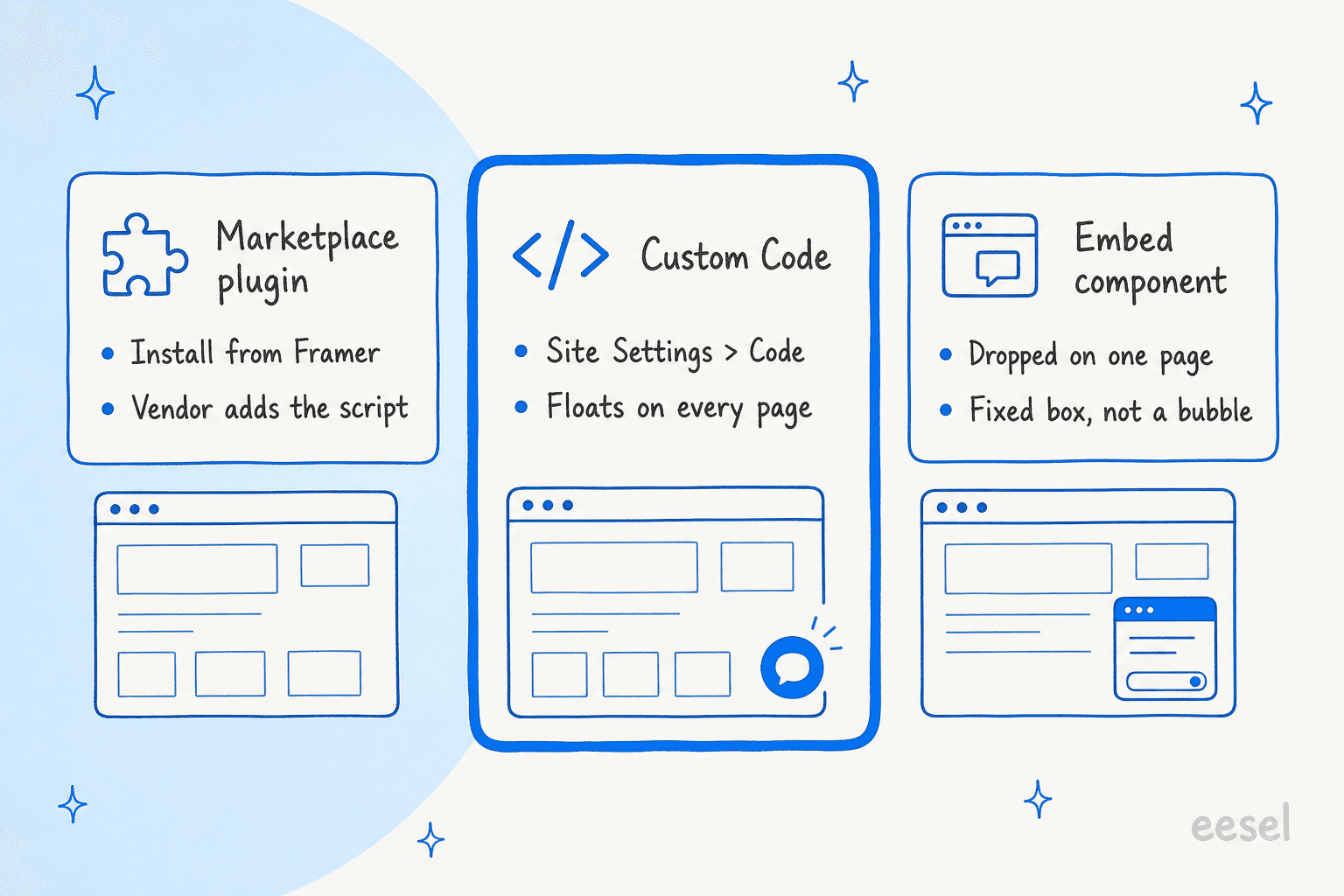
How the three compare:
| Marketplace plugin | Site Settings > Code | Embed component | |
|---|---|---|---|
| Where it shows | Floating bubble, site-wide | Floating bubble, site-wide or chosen pages | Inside one page, where you place it |
| Install | Open the plugin, sign in, click install | Paste a script, pick placement | Drag onto canvas, paste URL or HTML |
| Who writes the code | The plugin, into your Code settings | You paste the provider's snippet | You paste the provider's snippet |
| Works in canvas preview | No, publish to test | No, publish to test | Scripts only run on the published site |
| Best for | A tool that has a Framer plugin | Any chatbot that gives you a script tag | A chat panel on a contact or help page |
If you're still deciding whether you need a bot or a person on chat, my comparison of chatbots versus live chat covers it. Otherwise, let's go route by route.
How do you install an AI chatbot plugin from the Framer Marketplace?
The Framer Marketplace has a growing set of chatbot plugins. Weav, BubblaV and DeskCrew are three I found that sell themselves as a chatbot plus a way to reach a person. The install pattern is similar across them: open the plugin inside Framer, connect your account with the vendor, pick the bot, and let the plugin place the widget.
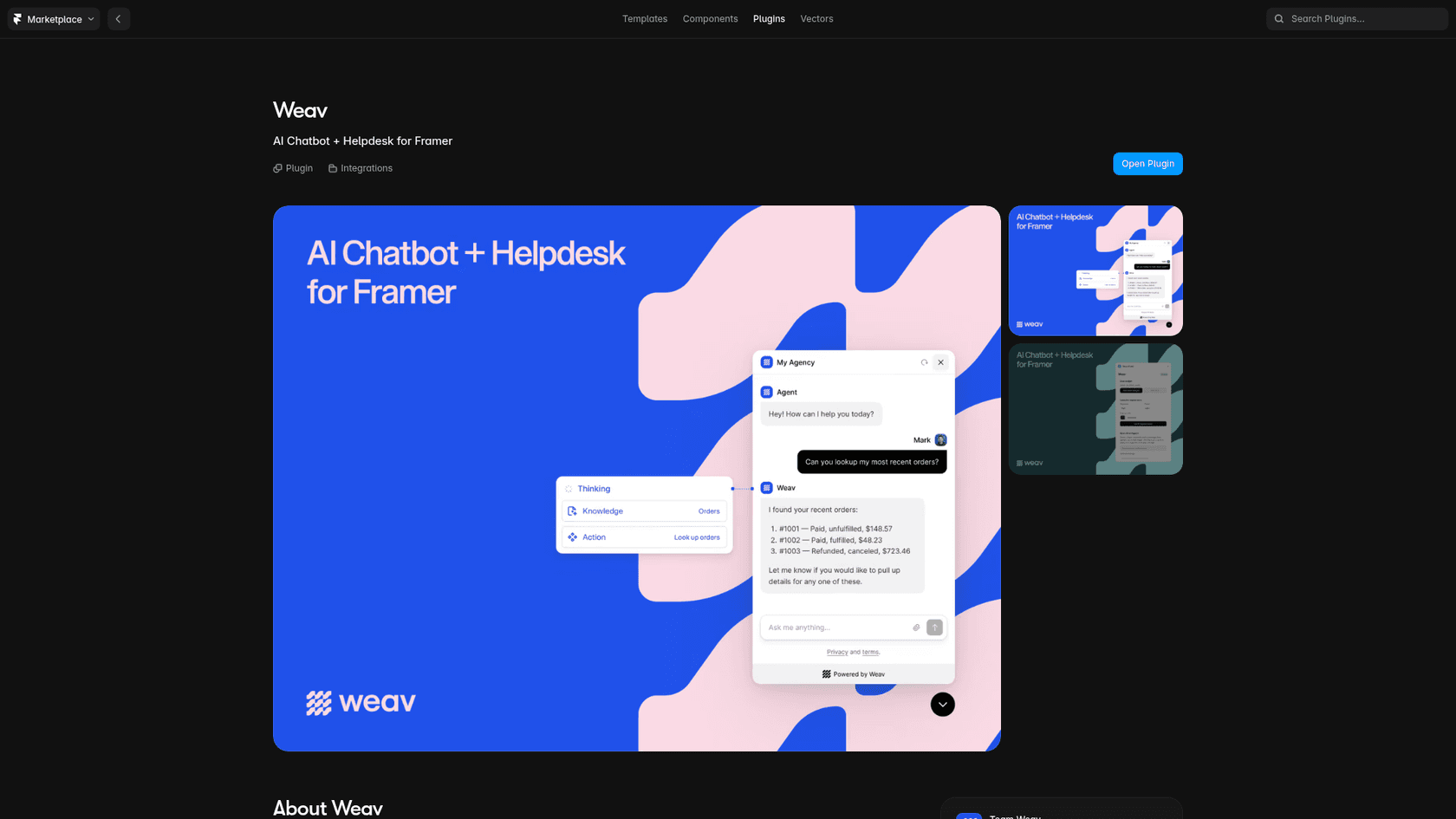
The general steps:
- Find the plugin. Search the Marketplace or the plugin panel inside your Framer project, and open the listing.
- Open it in your project. Click Open Plugin with the right Framer project active.
- Connect the vendor account. Weav has you connect your workspace and choose an agent. BubblaV uses a login, then you pick your website. DeskCrew asks you to paste a widget key from its dashboard.
- Install and style. Most plugins let you set position and color from inside Framer.
- Publish and check the live site. The bubble won't appear in the canvas.
It helps to know what the plugin actually does. Framer's plugin developer docs show that a plugin installs its widget by writing a <script> tag into your site's custom code, at the start or end of the head or body. So a chatbot plugin is mostly a shortcut to the Custom Code route. The same docs say you can disable a plugin's snippet in your settings, and the plugin can't switch it back on, which is handy if a widget misbehaves.
When you compare plugins, look past the install. Listings are written by each vendor, so check three things before trusting one with your visitors:
- What it learns from. "Trained on your site" is the baseline. A help center, PDFs, or past tickets matter if your answers aren't all on public pages.
- What happens when it can't answer. A shared inbox, a ticket or an email is a real handoff. A bot with no handoff can loop a frustrated visitor.
- Who maintains it. A plugin is a third-party integration. If it breaks, the vendor fixes it, not Framer.
What about free AI chatbot components?
The Marketplace also has free chatbot components, which are different from plugins. Framer's components guide says you can use free and paid components on any Framer plan. Odin is one example: a branded chat widget that answers from background info you write, with a setup guide and GitHub repo for the backend. That's a fair option for a portfolio. For a business site, you're taking on the backend yourself, and a chat UI isn't the same as a support bot. My list of no-code AI chatbot tools widens the field if you want a hosted service instead.
How do you add a chatbot to Framer with custom code?
Custom code is how you add any chatbot or live chat tool that hands you a script tag, which covers most AI chatbots that don't have a Framer plugin. Framer's own custom code guide lists "chat and support widgets" as one of the main things it's for.
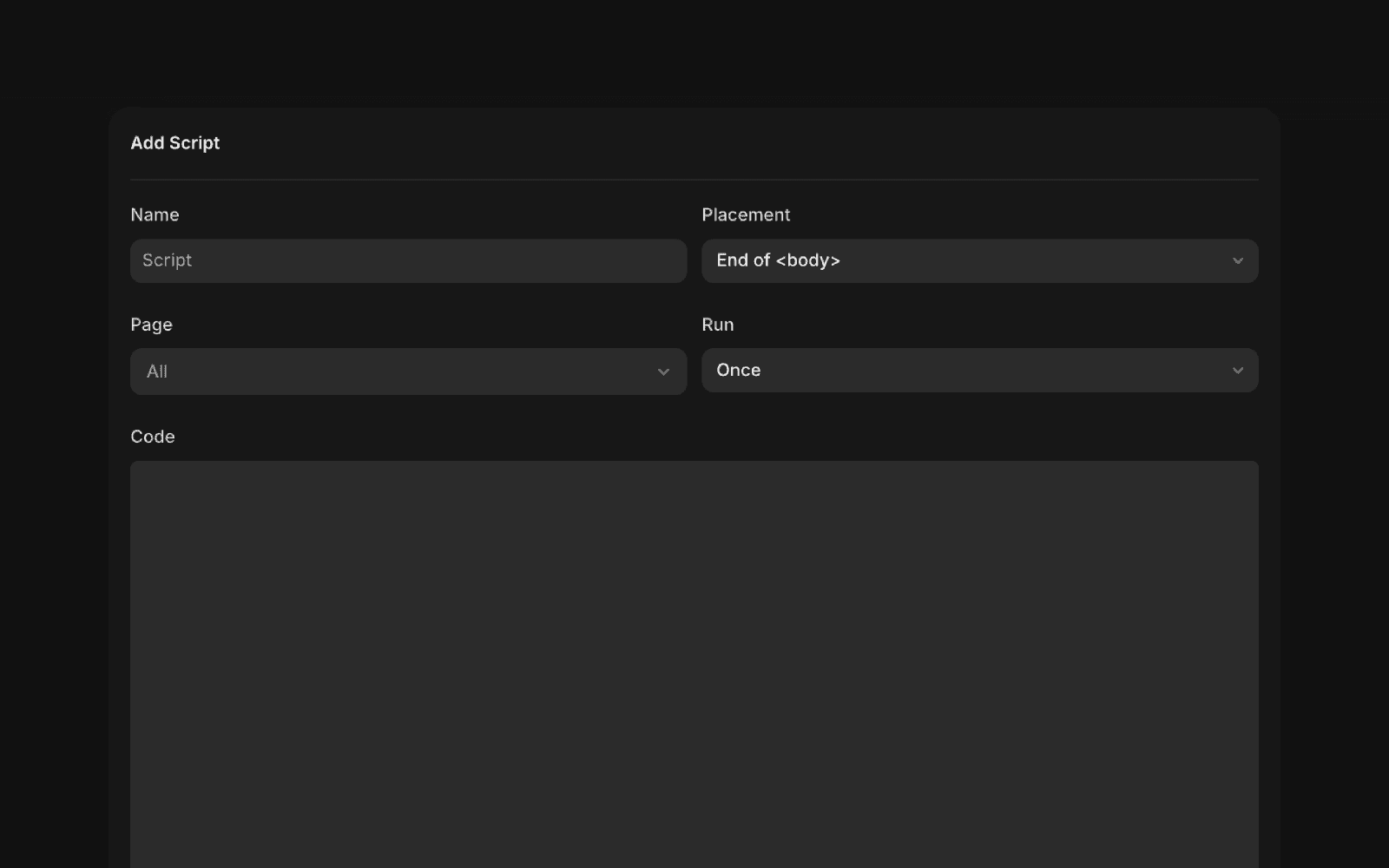
The install, following Framer's steps:
- Copy the script from your chatbot tool's install or embed settings.
- Open Site Settings from the Settings menu in your Framer project (Framer's help article calls it Project Settings) and pick the Code tab in the left sidebar.
- Click Add Script, or the + icon if you already have scripts there.
- Name it something you'll recognize, like "AI chatbot".
- Set Placement. Framer offers the start or end of
<head>and the start or end of<body>. Most chat widgets want End of<body>, and Framer's speed guide recommends that spot for scripts too. Follow your provider if it says otherwise. - Set Page to All so the bubble shows site-wide. Pick specific pages if you only want it on, say, pricing and contact.
- Set Run. Once runs the code a single time, and Run on every page visit runs it each time a page loads. For a chat widget loader I'd keep Once, so a visitor clicking between pages doesn't trigger the loader again, unless your provider says otherwise.
- Paste the code, save, and publish. Then open the live URL and look for the bubble.
The gotcha that catches everyone: Framer doesn't run custom code in the canvas preview. Its custom code lesson says to publish and test on the live page, then check the browser console if the script doesn't load. If you're on the Free plan, your site publishes to a Framer subdomain, which is fine for testing. A custom domain needs a paid plan, per the Framer pricing page.
How do you add eesel's chat bubble to Framer?
eesel's chat bubble is a floating AI chat widget, and on Framer it goes in through exactly this Custom Code route. There's no eesel Framer plugin, so it's one script. Per the eesel setup docs:
- Ask your agent for a chat bubble in the eesel dashboard chat. It reads your site's brand color and sets up a title, welcome message and three starter questions, then posts a preview link.
- Connect what it should know. Your website is the start. Add your help center, Google Drive or Notion docs, or a helpdesk like Zendesk or Freshdesk, so it isn't limited to what's on your Framer pages.
- Tell it when to hand off, in plain words: "if someone asks about a refund, create a ticket" or "email us anything about partnerships". It writes those as numbered rules you can edit.
- Copy the snippet from Integrations > Chat Bubble and paste it into Framer's Code tab as above: End of
<body>, All pages. - Publish and try it as a visitor, including asking for a real person.
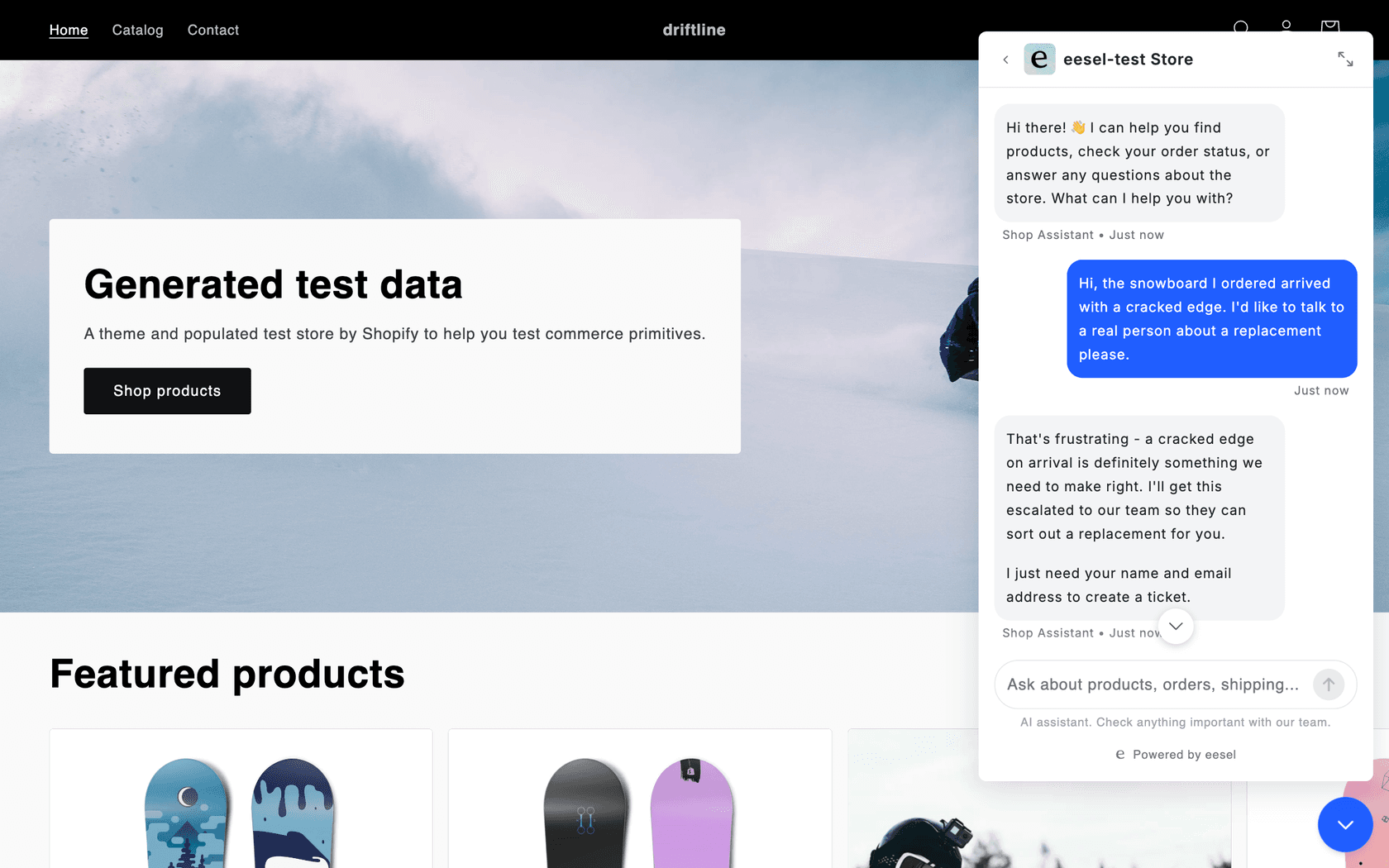
The snippet is a single async script that loads one small file from eesel's CDN, so it doesn't hold up your Framer page, and updates ship through it without you re-pasting anything. Settings you change in eesel reach the live bubble in about 30 seconds, so you won't need to republish Framer to change the welcome message. Two settings matter on a typical Framer site: Bottom offset, to lift the bubble above a cookie banner or sticky footer, and the bubble position (bottom right, left or middle).
SamCart, a platform for selling digital products, runs this setup. Its website chat bubble is a separate eesel agent from the one on its Freshdesk tickets, with its own greeting and tone, and it asks for a name and email before answering so the team can follow up. Both agents answer from the same 280 help center articles. I'd copy that split. A website visitor and an email customer often need a different opening, not different knowledge.
If you'd rather not click through the dashboard, an AI coding agent like Claude Code can run the eesel CLI to create the bubble (npx @eesel/cli init chat-bubble --site <your-url>), upload approved knowledge such as your FAQ or refund policy, and ask it test questions. Pasting the snippet into Framer's Code tab is still a step you do yourself.
When should you use Framer's Embed component instead?
Use the Embed component when the chat should be part of a page, not floating over it. A "Talk to us" panel on your contact page or a chat box on a docs page are the classic cases. Framer's embed guide covers two ways in: paste a URL, or paste a <script> or iframe into the component's HTML section.
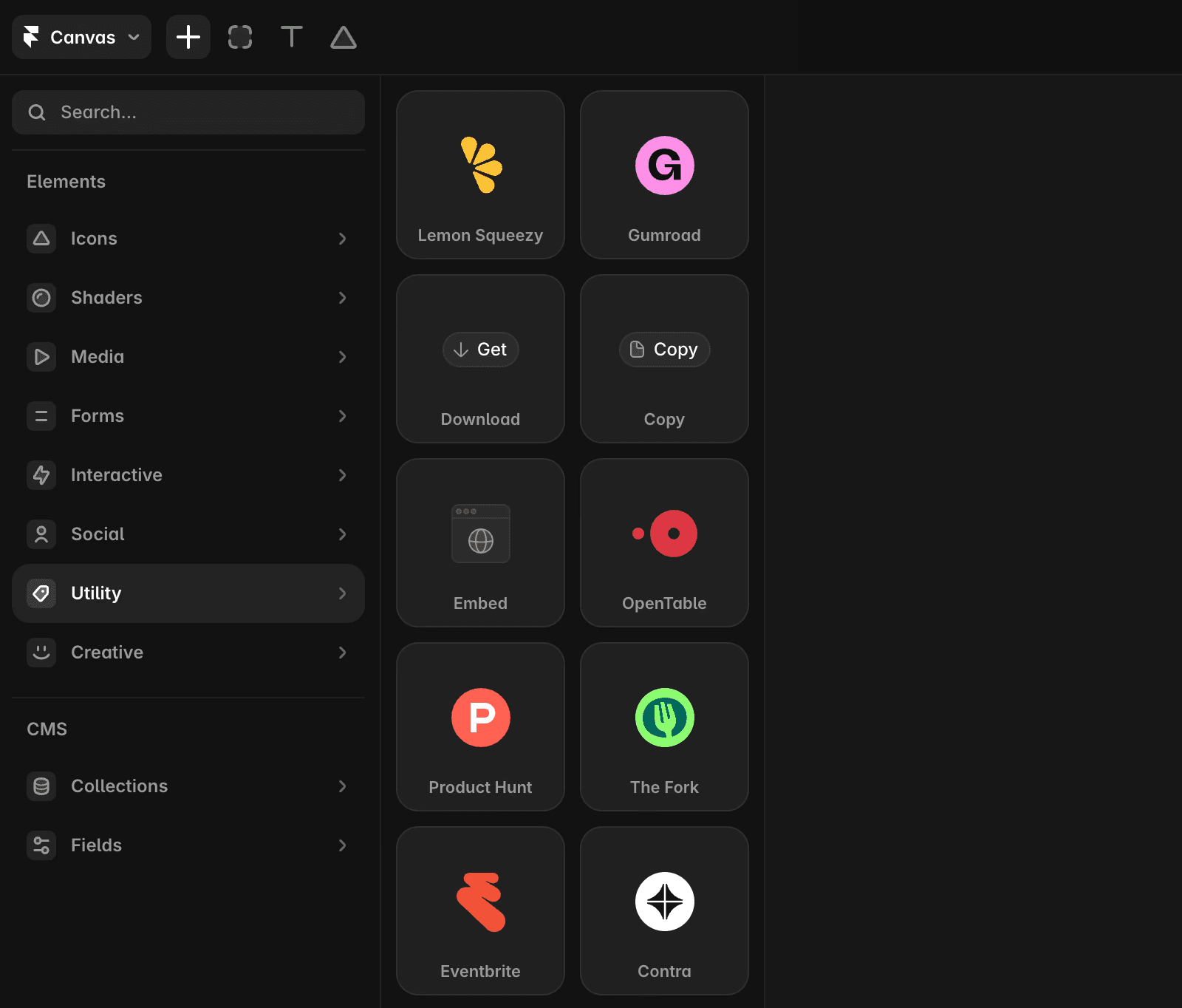
The steps:
- Open the Insert menu and search for Embed (it sits under Utility).
- Drag it onto the page and size the frame the way you want the chat panel to look.
- Paste the provider's URL or HTML. For a chat panel this is usually an iframe.
- Publish and test. Framer's Trustpilot guide spells it out: scripts run only in the browser, not the editor.
Two cautions from Framer's own help pages. Some sites block embedding through HTTP headers, so a URL that won't display may be blocked on the provider's side. And don't put a floating bubble script in an Embed: it's tied to that one page and that one frame, so the bubble can end up cropped or missing everywhere else. Framer's speed guide also notes it lazy-loads embeds but each still adds code, so one chat panel is plenty.
eesel has a format for this too. Its inline embed is an iframe you paste into a page, and it answers from the same knowledge as the bubble.
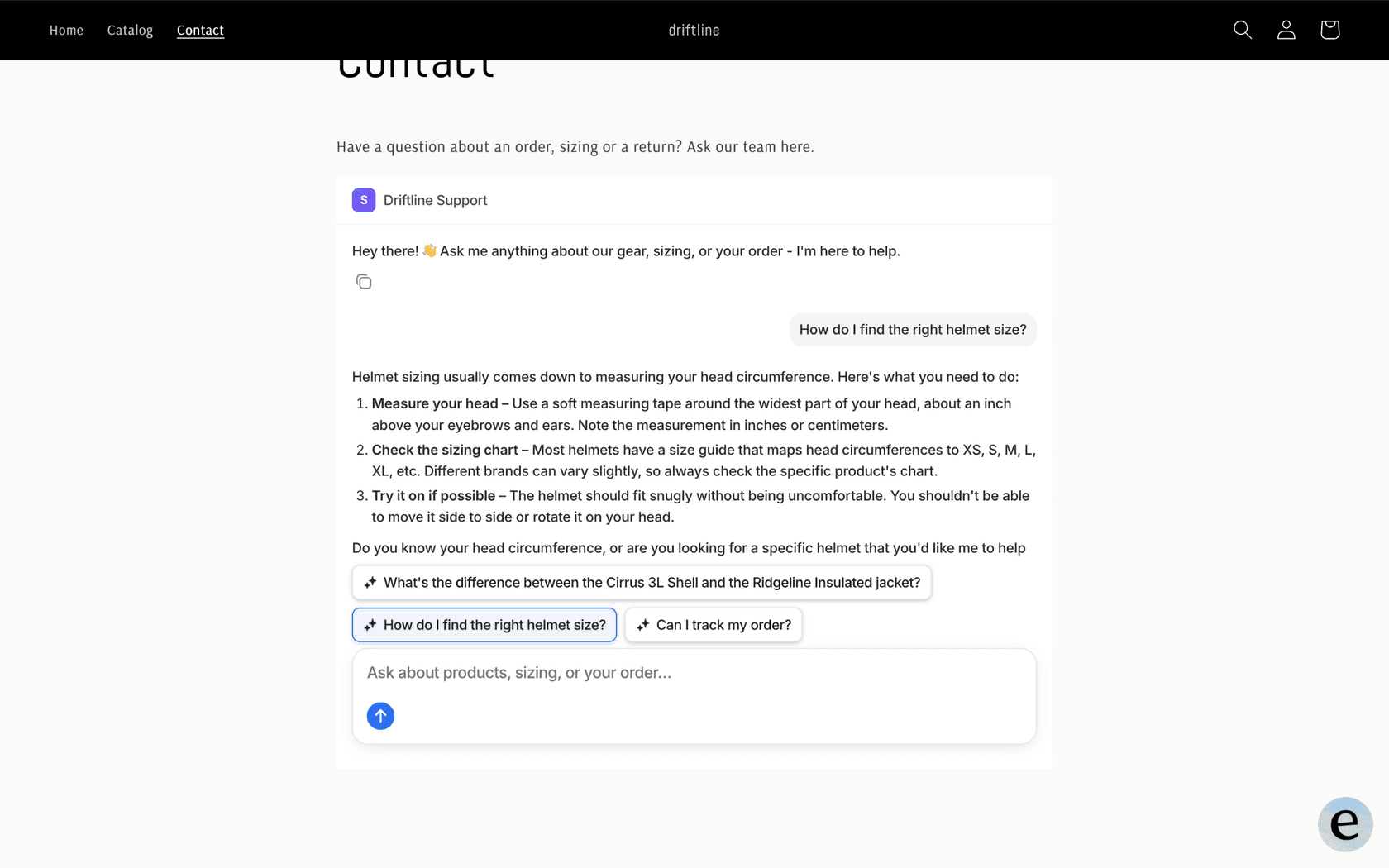
Copy the iframe from Integrations > Inline Embed in eesel and paste it into the Embed component's HTML section. If the frame sizes oddly, Framer's Loom guide has you remove the iframe's style attribute before pasting, and the same fix often helps other iframes. Some sites run both formats: the bubble everywhere, plus the inline chat on the contact page.
Which route fits your Framer site?
Answer two questions and you'll know where to start.
How do you test a Framer chatbot before visitors see it?
Test it on the published site, with the questions your visitors actually send. Framer's canvas won't run the bot, so every test happens on the live URL, and that's also where speed and layout problems show up.
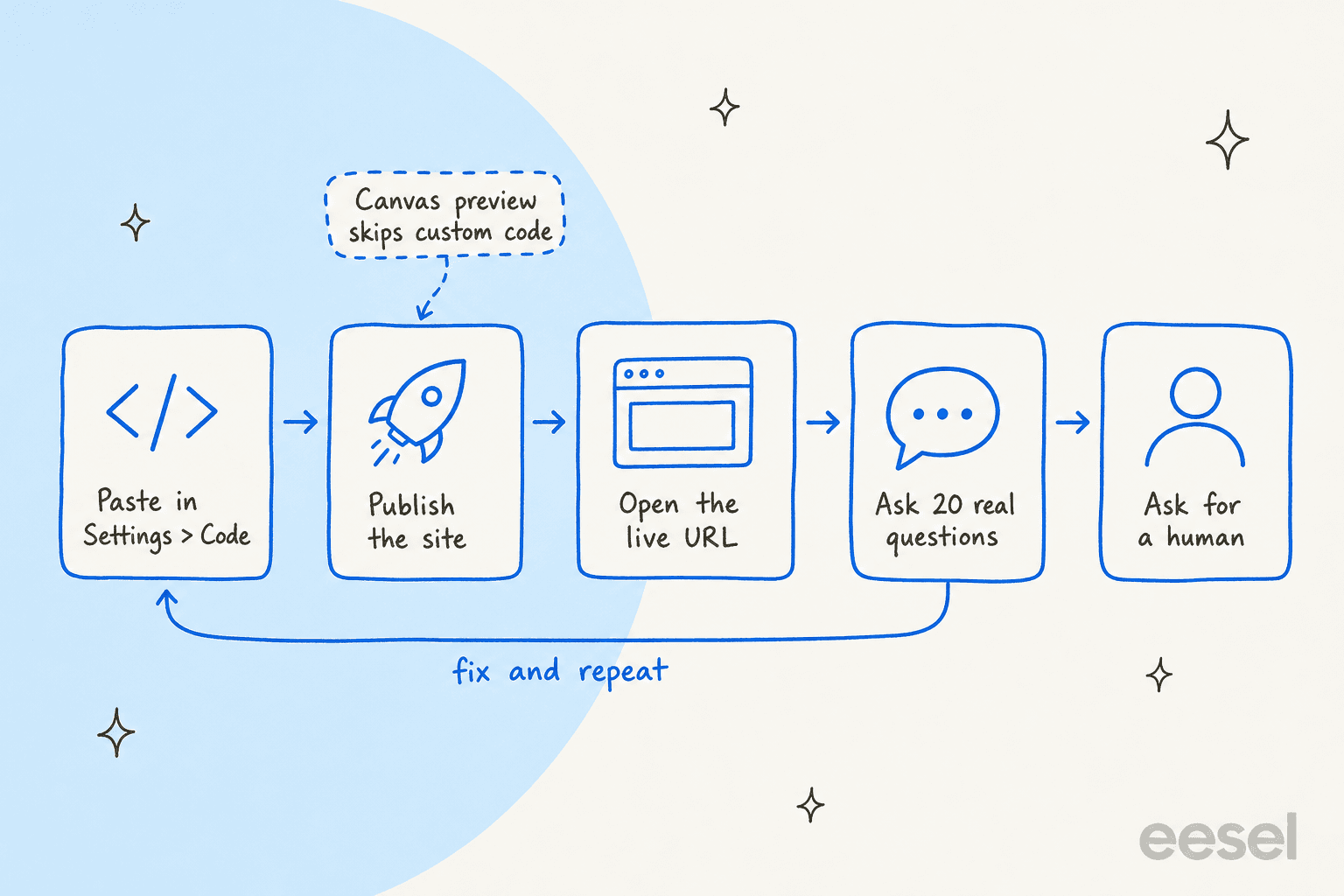
The routine I'd run:
- Collect 20 real questions. Pull them from your contact form, inbox and DMs. Mix short ones ("pricing?") with specific ones ("can I switch plans mid-month?").
- Check every answer against its source. A confident answer from an old page is worse than "I don't know". eesel links the page it used, which makes this quick.
- Fix the source, then retest. Update the page, add a knowledge note, or tell the bot not to touch a topic, then ask again.
- Ask for a human. Type "I want to talk to a person" and follow it through. Does a ticket or email actually arrive where your team will see it?
- Test on your phone. Open the live site on mobile. Check the bubble opens fast and doesn't cover a cookie banner, a sticky CTA or your navigation.
Step 5 sounds cosmetic, and it isn't. One buyer ran 67 test questions during an eesel trial, rated the answers solid, and still walked away because the widget felt slow and got stuck during their tests. Good answers didn't save a chat that felt broken. So I time the first open on a phone over mobile data, not just on office wifi. For the answers themselves, my guide on how to train a chatbot covers writing sources a bot can't misread, and the piece on AI hallucinations covers what to do when it makes things up.
What are the most common mistakes when adding a chatbot to Framer?
Most of these come from Framer's own help pages or from support chats I've worked:
- Testing in the canvas. Custom code and embed scripts only run on the published site. Publish, then check the live URL.
- Putting a bubble script in an Embed. It's tied to one page and one frame. Use Site Settings > Code for a floating widget.
- Adding the script twice. Once by hand and once through a plugin, or once site-wide and once on a page, gives you two bubbles. Check the Code tab for duplicates.
- Running two chat tools at once. An old live chat widget plus a new AI bot confuses visitors about where to type. Remove the old one, or have the AI hand over to it.
- Leaving out the handoff. A bot that can't pass a visitor on loses the questions worth the most, like sales and billing. My notes on human handoff in chat cover what a good one looks like.
- Never reading the conversations. Skim them weekly, the same way you'd review chatbot analytics, and fix the sources behind wrong answers.
- Forgetting consent rules. Framer's custom code lesson tells you to confirm consent requirements before adding a third-party script. If your site has a cookie banner, check whether your chatbot should wait for it.
Which AI chatbot should you put on a Framer site?
Framer doesn't care which bot you choose, so pick on the two things that decide whether it helps: what it learns from, and what happens when it can't answer. A personal portfolio can do fine with a free component that answers from a paragraph about you. A startup's support or a SaaS site usually needs more: a help center, a helpdesk connection, and a reliable path to a person.
If you're shopping around, Tidio is a common pick for small sites, and my write-up of Tidio's AI chatbot covers where it fits. Crisp is another; see my notes on Crisp's AI chatbot.
If your helpdesk is the center of your support, start with what it offers natively. My guide to the Zendesk AI chatbot covers one side. For Freshdesk teams, the Freshdesk AI chatbot guide does the same. And if your site serves visitors in several languages, look at a multilingual support agent rather than a bot that only answers in English.
IC Intracom is a good example of matching the bot to the site. It runs two web stores for two brands, each with its own eesel chat bubble, name and color. Between August 8 and September 8, 2026 the two bubbles handled 34 website chats and handed three to the team as tickets, each with the visitor's name, email and the full transcript. Its stores run on Shopify, so the bubbles also read the live catalog, which a Framer site won't have. The part that carries over is one bubble per brand, with handoff to the right inbox.
If you're also running a Wix site, my sister guide on adding a chatbot to Wix walks through the same decision there, and my roundup of the best Wix chatbots compares tools for it.
Try eesel on your Framer site
If your Framer site is a portfolio and a free component answers the few questions you get, use that. If visitors ask about pricing, billing or setup, and the answers live in a help center, docs or a helpdesk, eesel is the AI helpdesk teammate I'd point you to. Its chat bubble goes into Framer's Code tab as one script, answers from everything you connect, and hands off with a ticket or an email when a person should take over. It can also catch sales leads by collecting a name and email before passing the conversation on, the way SamCart's bubble does.
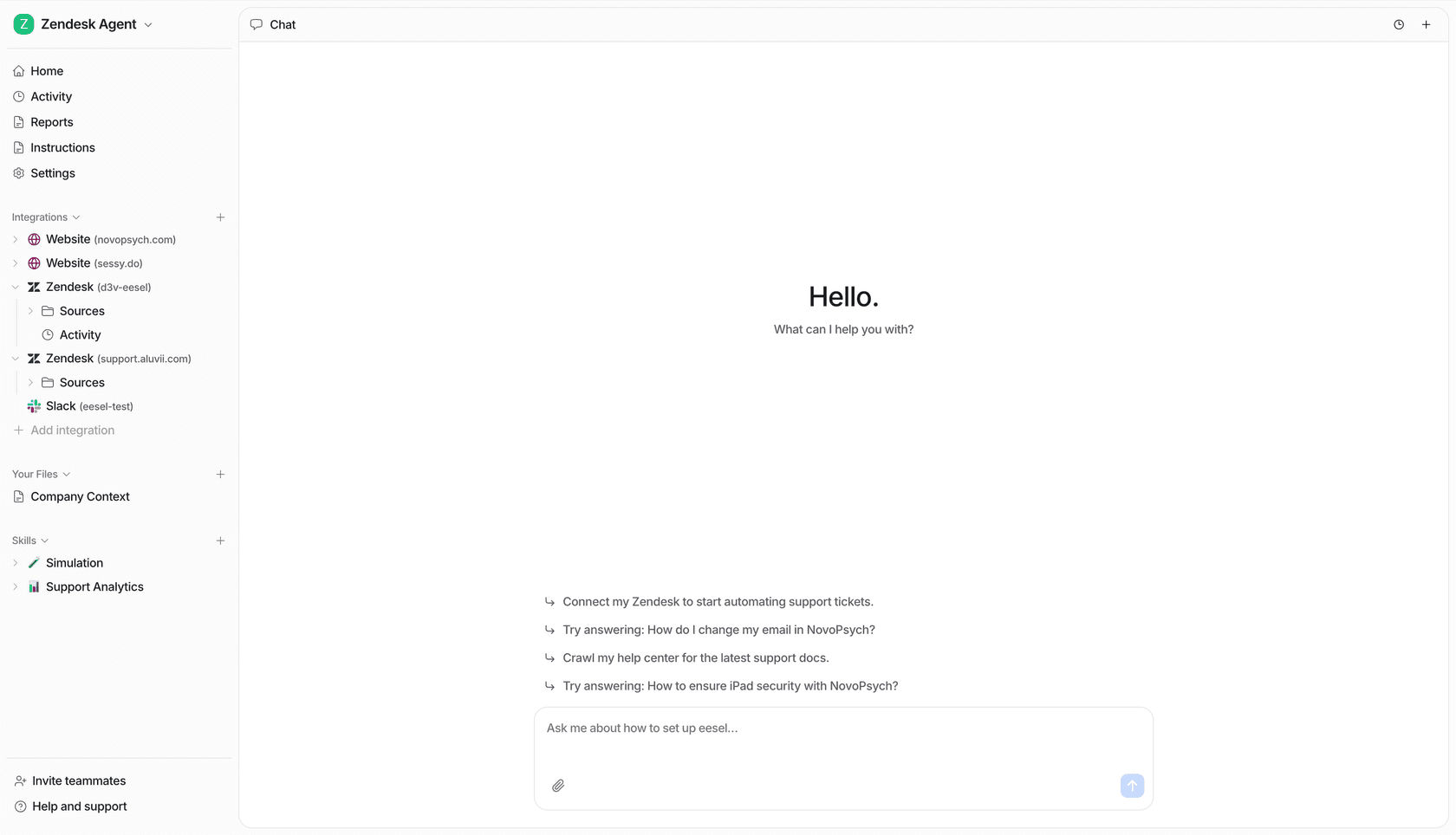
You can start free with 100 credits for 7 days and no card, then plans start at $299 a month for 500 credits, where one chat is one credit (eesel pricing). For a small business site with a few dozen chats a month, that's more than a free tool, so check your volume first. Try eesel, run your 20 real questions in the preview link, and paste the snippet into Framer only once the answers hold up.
Frequently Asked Questions
How do I add an AI chatbot to my Framer website?
Copy the chatbot's script, open Site Settings in Framer, go to the Code tab, click Add Script, paste it, set Placement to End of <body> and Page to All, then publish and check the live site. A Marketplace plugin can do the pasting for you. My guide to an AI chatbot for your website covers what to look for in the bot itself.
Does Framer have a built-in AI chatbot?
No. Framer's AI credits power its own Agents and localization, not a visitor-facing chatbot. You add one from the Framer Marketplace or paste a provider's script. If you want a sense of what the options look like in practice, my roundup of AI chatbot examples helps.
Where do I paste chatbot code in Framer?
For a floating chat bubble, use Site Settings > Code (Framer's help center calls it Project Settings > Custom Code) and pick End of <body>. Use the Embed component only for a chat that should sit inside one page, like a contact page. My explainer on the AI chat bubble covers why the floating format suits most sites.
Why isn't my chatbot showing in Framer?
Most often because you're looking at the canvas preview. Framer doesn't run custom code in the editor, so publish the site and open the live URL. If it still doesn't show, check the script isn't disabled in the Code tab and look for errors in the browser console. My guide to AI live chat covers what a working setup should feel like to a visitor.
Can I add a free AI chatbot to Framer?
Yes. Several Marketplace plugins have free plans, and free components like Odin run on free-tier AI providers if you set up the backend yourself. Free tools usually cap volume or the sources the bot can learn from. My list of free AI chatbots compares the common limits.
How much does it cost to add an AI chatbot to Framer?
Framer itself charges nothing extra for custom code or plugins. Your Framer plan (Basic is $10 a month and Pro $30 a month, billed yearly) covers the site, and the chatbot bills on its own terms. eesel starts at $299 a month for 500 credits, one chat per credit. My chatbot cost guide explains the usual pricing models.
Can a Framer chatbot hand a visitor to a real person?
It depends on the tool, not on Framer. Look for a bot that creates a helpdesk ticket, sends an email with the transcript, or opens a live chat widget when a visitor asks for a person. eesel does all three. My guide to chatbot escalation covers how to set the triggers.
Will an AI chatbot slow down my Framer site?
A well-built one shouldn't. Framer recommends putting scripts at the end of the body or loading them with async or defer, and eesel's loader is async and pulls one small file. Test speed on your phone after publishing. My chatbot analytics guide covers what to watch once it's live.