

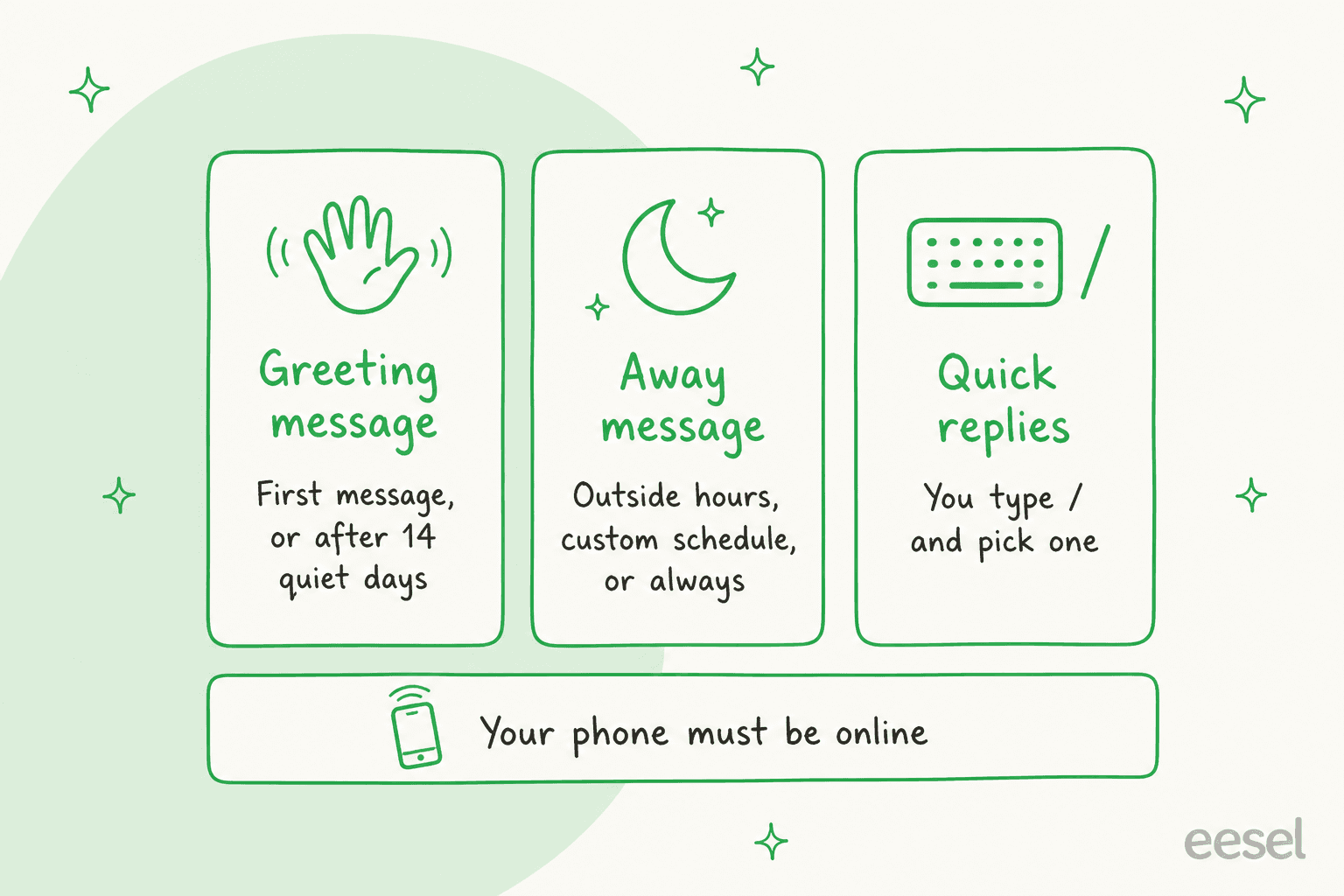
To set up a WhatsApp auto reply, use the free WhatsApp Business app: open the Tools tab, tap Away message, turn on Send away message, write your text, pick a schedule (Outside of business hours, Custom schedule or Always send), choose who gets it and tap Save. Regular WhatsApp has no auto-reply feature. Add a Greeting message for first-time chats and up to 50 quick replies for the questions you answer by hand.
Two limits catch most people. The away message only sends while your phone is online, and it only says you're closed. It can't tell a customer where their order is.
When the 11pm messages are real questions, the next step is the WhatsApp Business API with a keyword bot or an AI agent. Since October 1, 2026, Meta charges for those automatic replies after 1,000 free per phone number each month ($0.0034 each in the US). An AI teammate like eesel answers the actual question from your help center at one credit per conversation and hands refunds to your team.
How do I set up an auto reply on WhatsApp?
You set it up in the WhatsApp Business app, which is free and separate from regular WhatsApp. If you're still on a personal account, the WhatsApp Business app is the only version with automatic replies built in. Install it, register your business number, and you get three tools that each fire at a different moment.
I'm on eesel's support team and I work the queue every day, so let me be blunt on this one: most teams switch on one of these tools and then assume they are covered. They aren't, because the three tools do different jobs and only two of them run without you.
| Tool | When it sends | Runs without you? | Best for |
|---|---|---|---|
| Away message | On your schedule: outside business hours, a custom window, or always | Yes, if your phone is online | Nights, weekends, holidays |
| Greeting message | A customer's first message, or their first after 14 days of silence | Yes, if your phone is online | Welcoming new chats, setting expectations |
| Quick replies | When you type "/" and pick one | No | Answering the same question fast while you're working |
All three are covered in the official WhatsApp Help Center, and the menu labels below come straight from those pages, checked on October 27, 2026. Android and iPhone are almost identical; I've flagged where the wording differs.
Step 1: set your business hours first
Do this one before anything else. The Outside of business hours schedule, which is the one most people actually want, only shows up if hours are saved in your business profile.
- Go to the Tools tab and tap Profile.
- Tap the Business hours field.
- Pick a template: Open for selected hours, Always open, or Appointments only.
- Toggle the days you're open, enter the hours for each day, and tap Save.
That's per WhatsApp's business profile guide. Your hours also show on your profile, which quietly cuts the "are you open?" messages before they arrive.
Step 2: turn on the away message
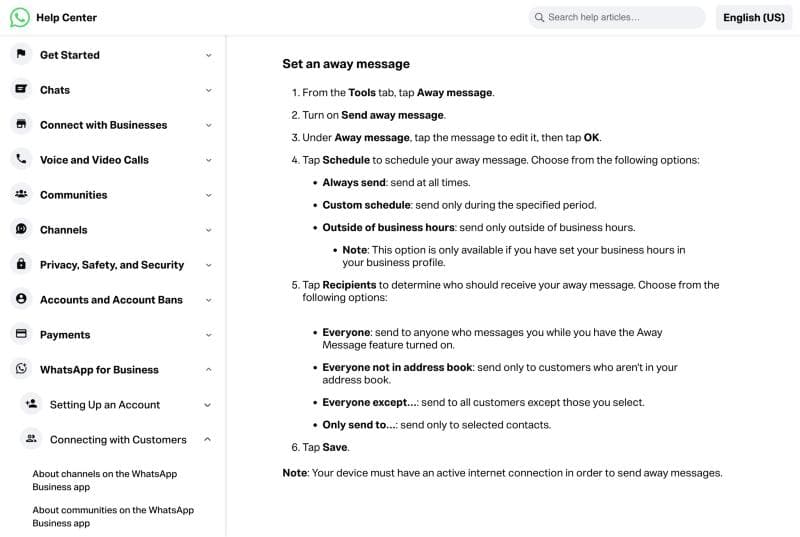
- From the Tools tab, tap Away message.
- Turn on Send away message.
- Tap the message under Away message to edit it, then tap OK (on iPhone it sits under Message and you tap Save).
- Tap Schedule and choose one:
- Always send: sends at all times. Good for a holiday shutdown.
- Custom schedule: sends only during a period you set. Good for a one-off closure.
- Outside of business hours: sends whenever you're closed, based on the hours from Step 1.
- Tap Recipients and choose Everyone, Everyone not in address book, Everyone except... or Only send to....
- Tap Save.
My pick for most shops is Outside of business hours plus Everyone. The "not in address book" option sounds tidy, but in my experience it's your regulars who message at night, and those are exactly the people you least want to ignore.
Step 3: add a greeting message
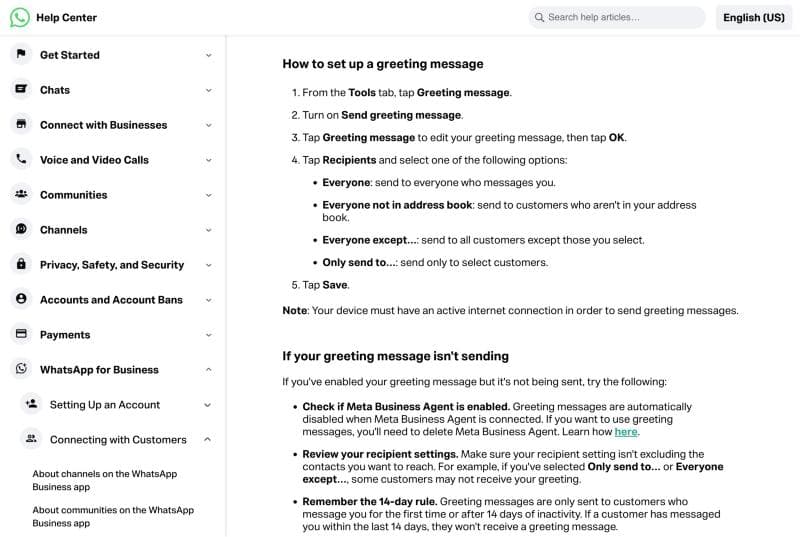
A greeting message goes out automatically when someone messages you for the first time, or after 14 days without a chat.
- From the Tools tab, tap Greeting message.
- Turn on Send greeting message.
- Tap Greeting message to edit the text, then tap OK.
- Tap Recipients and pick Everyone, Everyone not in address book (called Exclude my contacts on iPhone), Everyone except... or Only send to....
- Tap Save.
Keep the greeting short and leave reply times out of it. That's the away message's job, and the greeting templates below are written that way.
Step 4: save quick replies for the questions you answer by hand
Quick replies are saved answers you send by typing "/" in a chat. They don't fire on their own, but they make daytime replies fast.
- From the Tools tab, tap Quick replies.
- Tap the add button, then Message to write it.
- Tap Shortcut to set a keyword, like
/hoursor/returns. - Tap Save.
You can store up to 50. WhatsApp also builds default quick replies from your business profile (hours, address, the profile itself), so a complete profile gives you a few for free. Deleted quick replies can't be recovered, so keep your best ones in a doc somewhere.
Copy-paste WhatsApp auto reply templates
A good auto reply fits in under four lines. It says when a real person will reply and gives the customer one thing they can do right now, and it also should sound like your shop and not like a bank. Swap the brackets and paste.
| Use it for | Template |
|---|---|
| After hours (away message) | Hi! Thanks for your message 🙌 We're closed right now and open again at [9am, Mon-Sat]. Leave your question and order number here and we'll reply first thing. Tracking an order? [link] |
| Weekend (away message, custom schedule) | Thanks for reaching out! The team is off for the weekend and back on Monday at [9am]. For order tracking, returns and sizing, our help page has the answers: [link] |
| Holiday closure (away message, always send) | Happy holidays from [Shop]! We're closed [Dec 24-26] and will reply to every message from [Dec 27]. Orders placed now ship on [date]. |
| Busy period (away message, always send) | Thanks for your patience! We're getting more messages than usual and reply in about [4 hours]. Your place in the queue is saved, no need to message twice. |
| Greeting, retail | Hi, welcome to [Shop] 👋 What can we help with? If it's about an order, send your order number and we'll check it. |
| Greeting, services or bookings | Hi! Thanks for messaging [Business]. To book, tell us the service, the day and the time that suits you, and we'll confirm. |
Quick reply /hours | We're open [Mon-Fri 9am-6pm, Sat 10am-2pm]. Messages outside those hours get answered the next morning. |
Quick reply /track | You can track your order here: [link]. If it hasn't moved in 3 days, send me your order number and I'll look into it. |
Quick reply /returns | Returns are free within [30 days]. Start one here: [link]. Refunds land [5-7 days] after we receive the item. |
The detail that matters most is the reply time. A specific promise ("first thing tomorrow, 9am") calms people down far more than "we'll get back to you soon". One small business owner put it simply:
"Best is set your reply times, that works better. In our profile we have set the "We reply within 2hrs, Mon-Sat" and which works for us without losing cutomers."

Consistency matters as much as the wording. Answering personally at 11pm some nights and going silent on others trains customers to keep trying, a pattern another owner compared to "a slot machine" in a r/smallbusiness thread. An away message that always fires is the cheap fix. For channel-agnostic wording, I also keep AI canned responses as a reference.
Why isn't my WhatsApp away message sending?
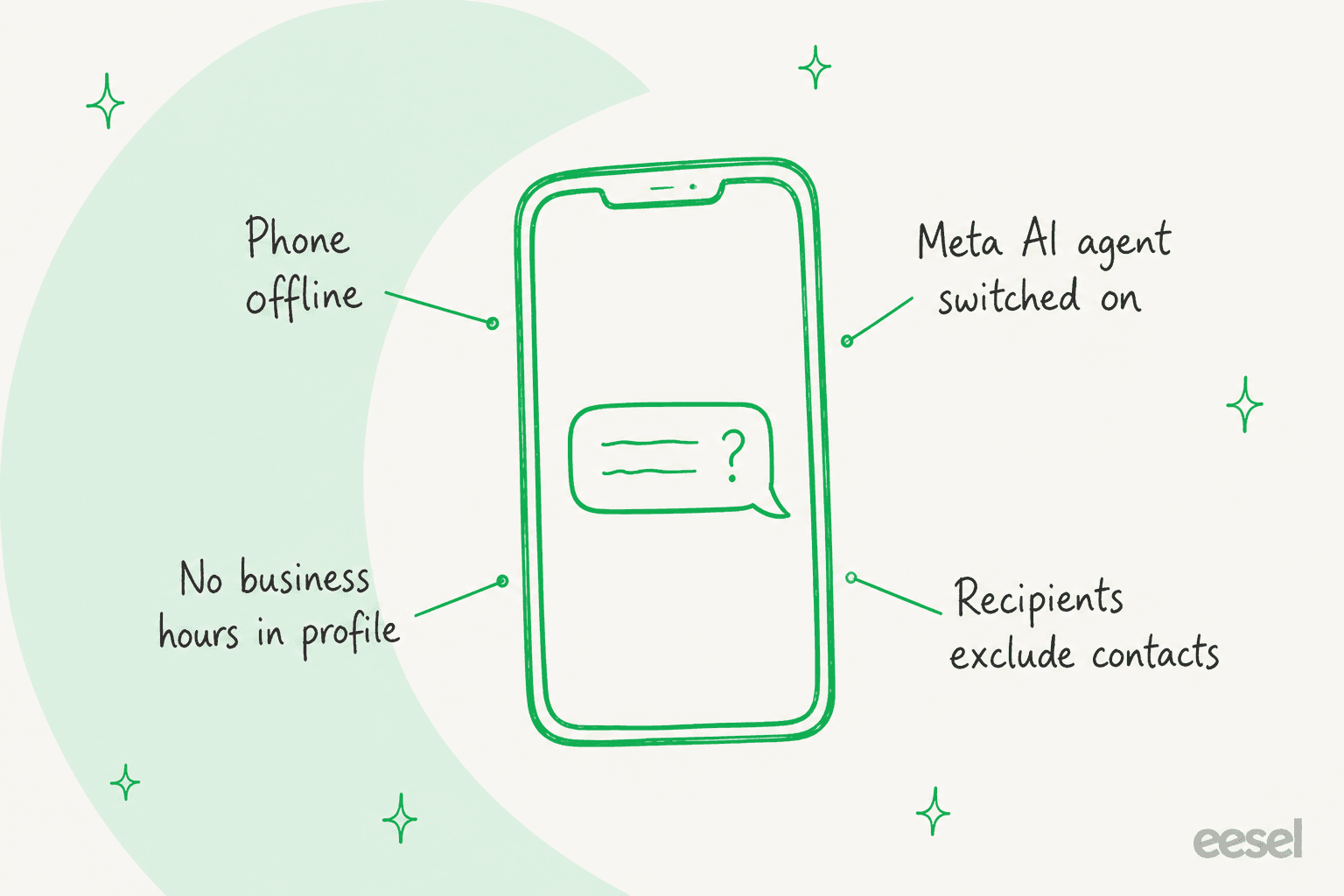
It's almost always one of four reasons, and WhatsApp's own help pages back up each one of them.
- Your phone is offline. WhatsApp states your device "must have an active internet connection" to send away and greeting messages. Battery savers that kill the app in the background count as offline.
- Meta Business Agent is on. If you've connected Meta's AI agent in the app, WhatsApp says greeting and away messages are automatically disabled. You have to delete the agent to get them back.
- No business hours in your profile. The Outside of business hours option needs them, per the away message steps above.
- Recipients exclude the person. "Everyone except..." or "Only send to..." can leave out exactly the customer who wrote in.
There's also plain flakiness. A long-running thread of WhatsApp Business users reports away messages firing late or not at all:
"Same problem here. It sometimes happens even if the person sends me messages before my close time. E.g.: yesterday someone send me a message 5:37pm, before my close time (6pm), and WhatsApp Business answered them around 8:30pm with my away message. It doesn't make any sense."
Another user in that thread only got it working by switching the schedule to Outside of business hours instead of a custom schedule. My checklist: turn off battery optimisation for WhatsApp Business, set the hours in your profile, use Outside of business hours, then test from a number that has never messaged you. Linked devices are a partial fix at best. WhatsApp says you can run up to four linked devices and one phone, and that linked devices work without the phone online, but the away message note only talks about "your device", so I wouldn't count on a laptop to keep it running.
What can't a WhatsApp away message do?
It can't answer the question. That's the part most setup guides skip over, and it's the reason I'd treat the away message as step one rather than the finish line.
Think about what actually arrives after hours. The Question Beauty story, about a cosmetics brand that runs eesel on Gorgias, describes it well: most of their volume is short social and chat messages like "how much is this", "do you ship to my country" and "where is my order", arriving "at all hours and in many languages". A customer who sends "price?" under a product video wants a link. An away message that says "we open at 9am" loses that sale.
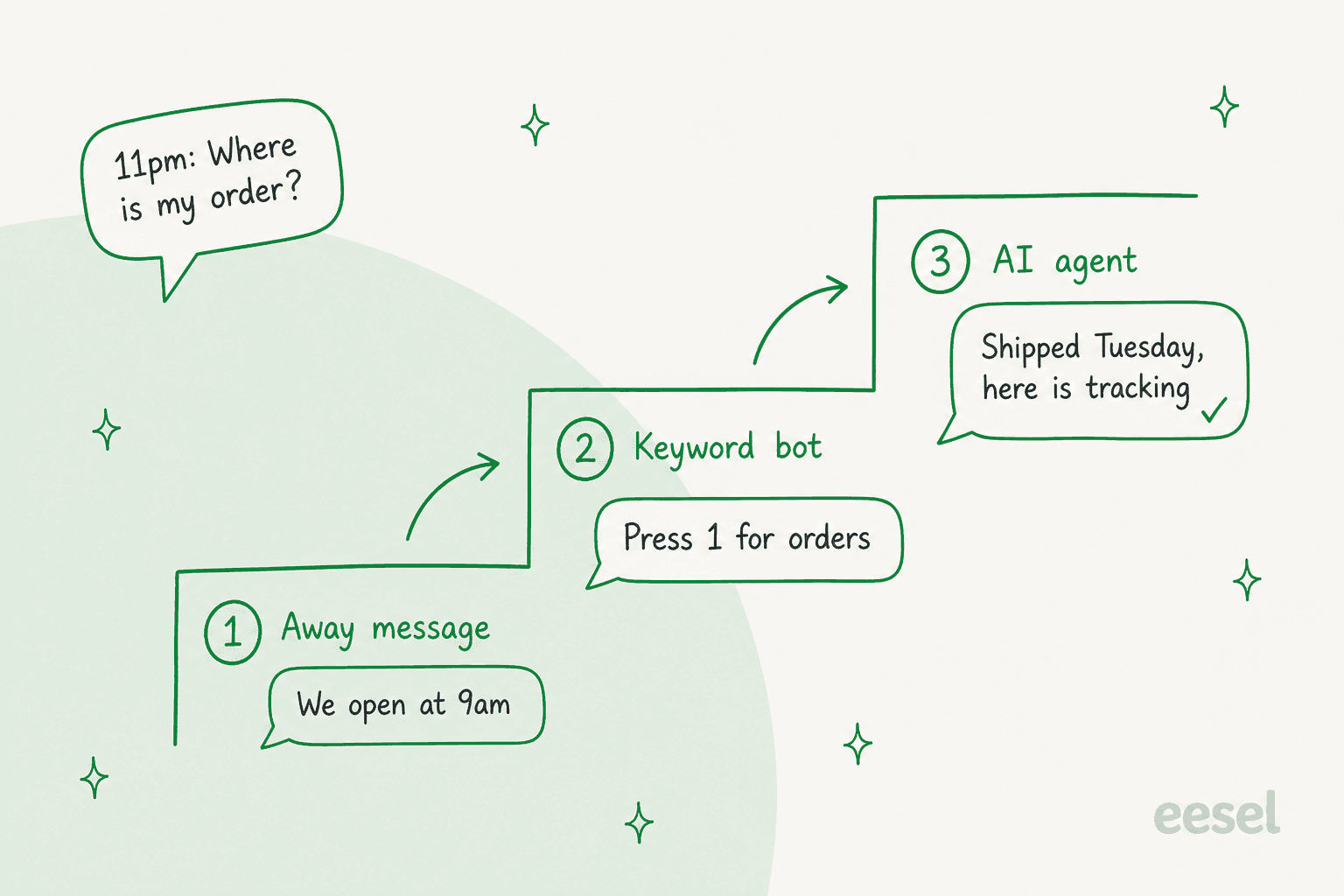
So there are really three levels of WhatsApp auto reply:
- Preset reply (the free app). Tells people you're closed and when you'll be back. Costs nothing, answers nothing.
- Keyword or button bot (the API plus a tool like Wati). Matches words or menu choices and sends the matching canned answer. Good for "hours" and "returns policy", stuck on anything phrased differently.
- AI agent (the API plus an AI tool). Reads the actual message, checks your help center or order system, and writes a real answer, then hands off what it can't handle.
Level 2 tools have a familiar weak spot, which one r/WhatsappBusinessAPI user summed up as bots that "fall apart on anything needing context or an action, like booking or looking up an order" (thread). That's the gap level 3 exists to close, and it's the same idea behind AI after-hours support on any channel.
Which WhatsApp auto reply setup fits you?
Click through the questions below. Every answer ends on a real setup you can go and build, not on a sales pitch.
Open the branch that matches your after-hours messages to see the setup I'd use, from free app to AI agent.
How do auto replies work on the WhatsApp Business API?
On the API there's no away message switch. Meta's coexistence docs list greeting messages, away messages and quick replies among the Business app tools the Cloud API doesn't support, so every automatic reply comes from the software you connect: a provider's flow builder, an n8n workflow, your helpdesk, or an AI agent. If the API itself is new to you, my WhatsApp Business API explainer covers access and setup.
Two rules decide what those replies are able to do:
- The 24-hour window. A customer's message opens a 24-hour window in which you can send free-form replies. After it closes, Meta only allows pre-approved templates. An auto reply to an incoming message always lands inside the window, so this mostly bites on follow-ups.
- Every reply is billable. Since October 1, 2026, Meta gives each business phone number 1,000 free service messages a month and charges from the 1,001st. Automatic replies count the same as human ones, as one r/WhatsappBusinessAPI user put it: "AI messages are being charged as well as humans" (thread).
Here's what that means for a shop sending 3,000 automatic replies a month from one number, using Meta's rate card effective October 1, 2026:
| Customer's country | Service reply rate | Billable replies (after 1,000 free) | Meta fee per month |
|---|---|---|---|
| United States / Canada | $0.0034 | 2,000 | $6.80 |
| India | $0.0014 | 2,000 | $2.80 |
| Brazil | $0.0068 | 2,000 | $13.60 |
| United Kingdom | $0.0220 | 2,000 | $44.00 |
| Germany | $0.0550 | 2,000 | $110.00 |
In the US that is pocket change. In Germany a chatty bot adds up quick, and Meta also notes that without a payment method on file, it stops delivering service messages once the free 1,000 are used. The tool's own fee sits on top of this. My WhatsApp API pricing post has the full history, and respond.io pricing shows one platform's plans for comparison.
If your support already runs through a helpdesk, the WhatsApp channel usually lives there too, and so do your out-of-hours rules. Zendesk teams can start with my Zendesk WhatsApp guide, which pairs with the walkthrough on automatic WhatsApp replies in Zendesk.
On Freshdesk, the WhatsApp integration guide covers the channel setup. Gorgias has its own WhatsApp setup, and Gorgias rules can also schedule autoresponders outside business hours.
What about Meta's own AI agent in the Business app?
Meta now offers its own AI agent inside the WhatsApp Business app, called Meta Business Agent. It's worth to know about before you build anything, mostly because of what it switches off.
Per WhatsApp's help pages, you turn it on from the Tools tab under AI agent, and it answers questions about your hours, location, products, pricing, discounts, payment and shipping, using your catalog, profile and website. The fine print:
- It's only available in limited countries to select businesses, with a waitlist, and the language it uses is set by your business phone number.
- Connecting it disables your greeting and away messages and can affect broadcast lists. It also disconnects linked devices at setup.
- Messages in chats where it's on are collected by Meta "to improve AI at Meta", even when you mute it.
- Chats it decides need you land in an AI handoff list in the Chats tab, per the handoff guide.
On the API side, Meta bills its agent at $2.00 per million tokens, which Meta estimates at about 4-5 cents a message. If you qualify and your questions are mostly catalog lookups, it's worth a test. If you need answers grounded in your help center or your order system, or in past tickets, or your team lives in a helpdesk, it isn't built for that job. Meta's AI chatbot policy still allows third-party AI that answers questions about your own business.
How does an AI agent handle WhatsApp auto replies?
An AI agent swaps the away message for an actual answer, and keeps a person in the loop for anything it shouldn't decide on its own. When the after-hours volume is real, this is the setup I see working best.
eesel's version is an AI teammate you hire for the helpdesk job. You link your WhatsApp Business number, connect your knowledge (help center, Google Drive, Notion, your website), and it starts replying. eesel says setup takes under 5 minutes, it replies in 80+ languages, and you can preview answers on real questions before going live. That last part matters to me more than any feature. eesel has spent years putting AI on live support queues, and the lesson that stuck is that a confident wrong answer costs more than no answer, which is why every rollout gets tested against real past conversations first.
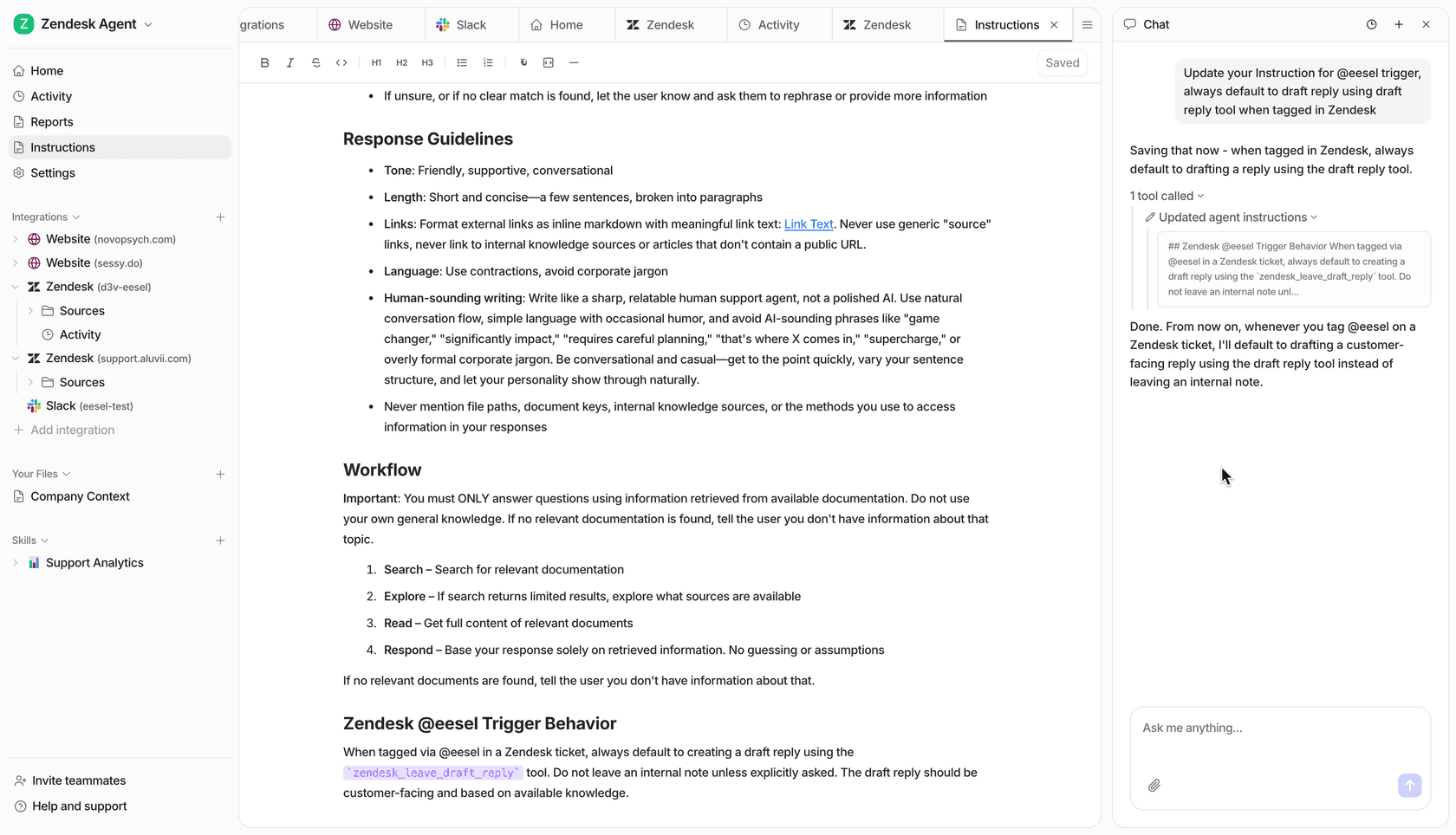
You set the rules by chatting with it instead of building flows, so "Always escalate to a human if someone mentions a refund" is already a full instruction. Escalation can trigger on topic, confidence or a customer asking for a person, and the conversation goes to your team by email or into a helpdesk such as Zendesk, where it lands as a normal ticket. My AI handoff best practices post covers how to draw those lines.
What it looks like in production: Question Beauty runs eesel on Gorgias across Messenger, email and website chat. In a month it sent 960 replies to customers and closed 280 tickets without a person, while refunds, complaints and wholesale requests went to the team with a note attached.
ClutchLoop, a phone accessories brand, gets about seven in ten conversations answered without a person, and checks live prices and stock in Shopify before it replies.
Neither of them runs on WhatsApp today, but the messages they handle, short and late and in many languages, are the same ones your away message is currently brushing off. Ecommerce teams can go deeper in AI WhatsApp support for ecommerce. Shopify stores selling through chat should also read my Shopify WhatsApp integration guide.
Where eesel isn't the right call: if you get five messages a night and all of them are "are you open?", the free away message is plenty. And eesel doesn't publish WhatsApp docs on template messages or the 24-hour window yet, so if outbound follow-ups matter, ask about that on a demo. Meta's per-message fees are billed separately from eesel's plan.
Try eesel on your WhatsApp number
If your away message is collecting questions you could have answered at 11pm, eesel is the step after it: an AI teammate that reads each WhatsApp message, answers from your own help center in the customer's language, and hands refunds or angry customers to your team in Zendesk, Freshdesk or email. It's priced at one credit per conversation however long the chat runs, with 100 free credits to test it and paid plans from $299/month for 500. If your customers write in several languages, my multilingual support guide is the companion read.
Try eesel on your WhatsApp number, or compare it against the field in my best WhatsApp chatbot roundup first.