Shopify Canvas: what it is, how it works, and what it can't do yet

Riellvriany Indriawan

Katelin Teen
Last edited October 7, 2026
What is Shopify Canvas?
I'm on eesel's support team, so I spend my days in the part of a store nobody designs: the inbox. When Shopify announced a tool that can redesign a whole store in an afternoon, my first question was "great, and who answers the extra tickets?" I'll get to that. First, what Canvas actually is.
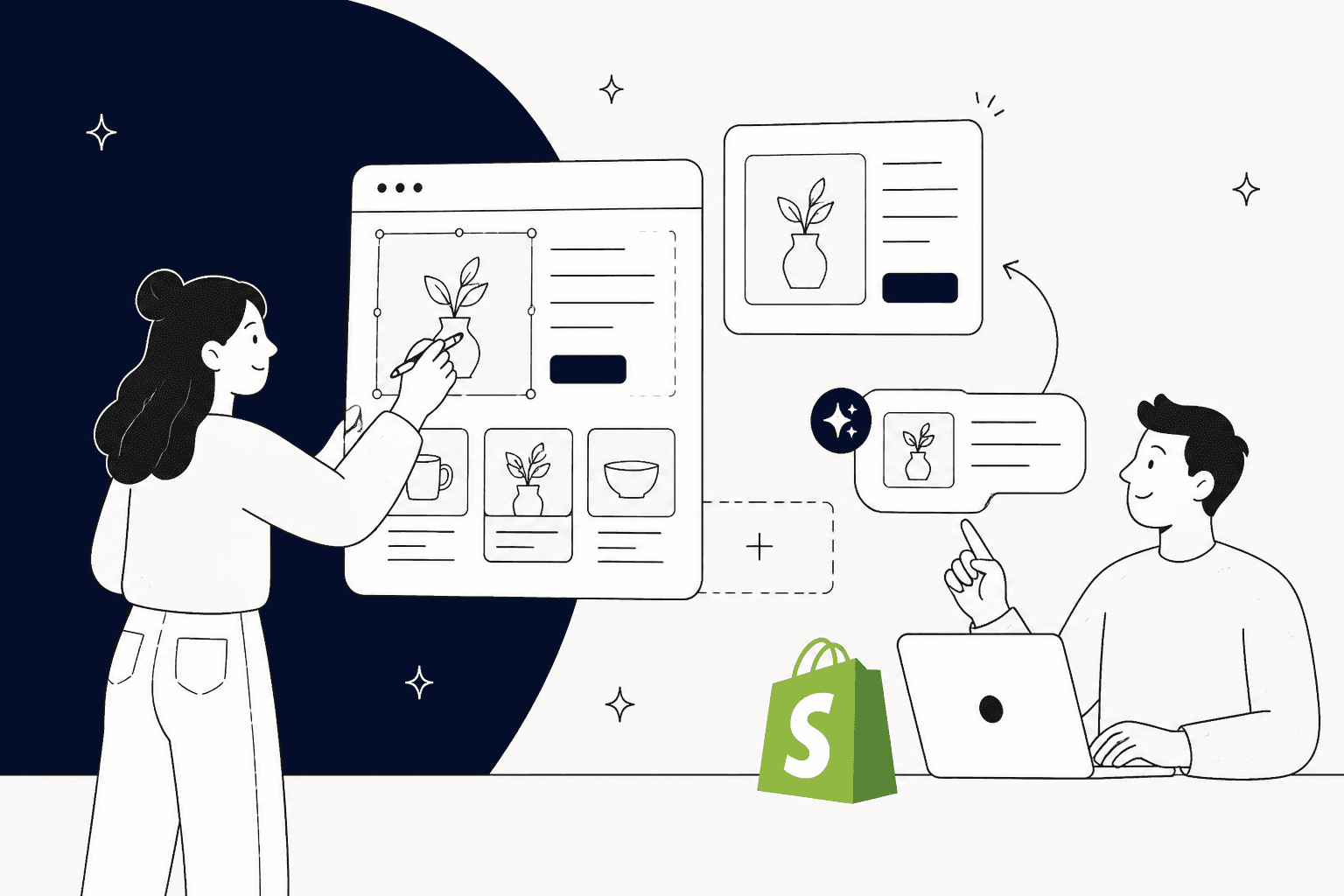
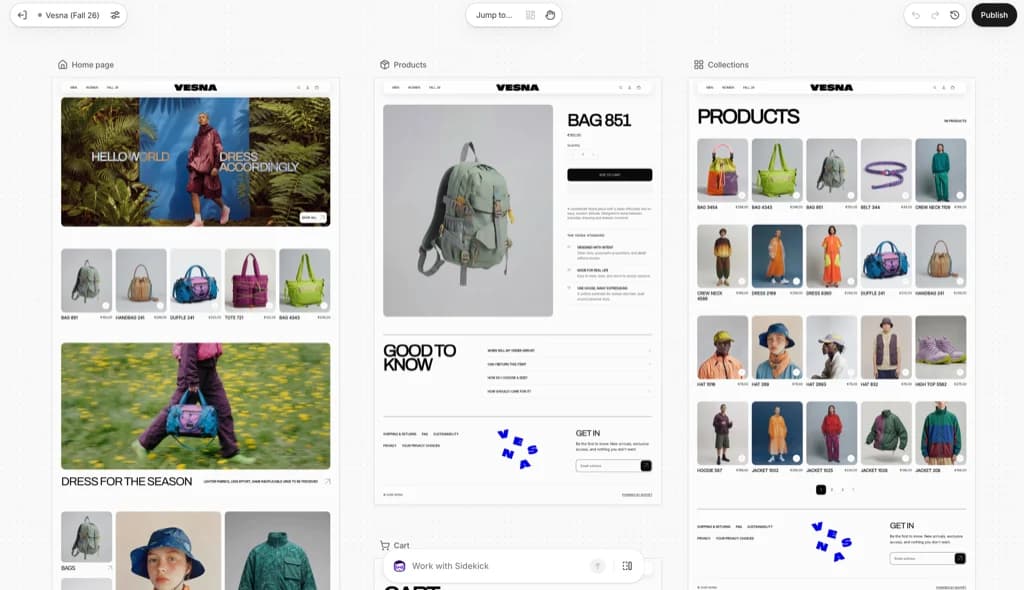
Shopify Canvas is a visual workspace inside your Shopify admin where every template of your store (home page, product pages, collections, cart and so on) sits side by side on one infinite board. You pan around it, zoom into any page, and either click elements to edit them or describe what you want to Sidekick in a chat box. Shopify's changelog entry dates the launch to October 1, 2026, rolling out to existing stores "over the coming days."
The pitch is speed. Ben Sehl, Director of Product at Shopify and co-founder of Kotn, said it took him two weeks to get a rough store working 12 years ago, and that today "an entrepreneur on Shopify can build a fully custom store in twenty minutes." Shopify also says Sidekick made more than 25 million edits to themes in the first half of 2026, before Canvas existed.
If you followed Shopify's earlier AI features, Canvas is the big sibling of the AI theme generation tool that lived inside the classic editor, along with its block generator. Those made one section at a time. Canvas lets Sidekick work across the whole theme at once.
How does Shopify Canvas work?
There are four ways to change a theme in Canvas, according to the Help Center guide:
- Ask Sidekick to make a change in the Work with Sidekick field.
- Click a block and change its settings.
- Edit text directly in the preview.
- Change theme-wide settings like colors and typography.
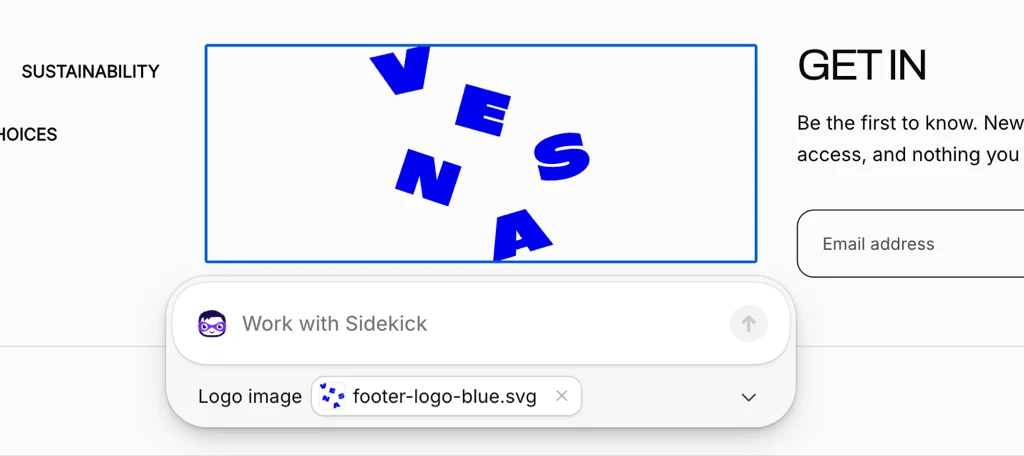
Click any block and a second Sidekick field appears next to that block's settings, so you can scope a request ("make this footer logo smaller") instead of asking for a store-wide change.
You can also keep more than one Sidekick chat open at once, so a second request can start while Sidekick is still working on the first, per the navigation guide. In full-screen view you switch between editing and browsing the store as a customer would, and preview it at desktop, tablet and mobile widths.
What Sidekick does behind the chat box
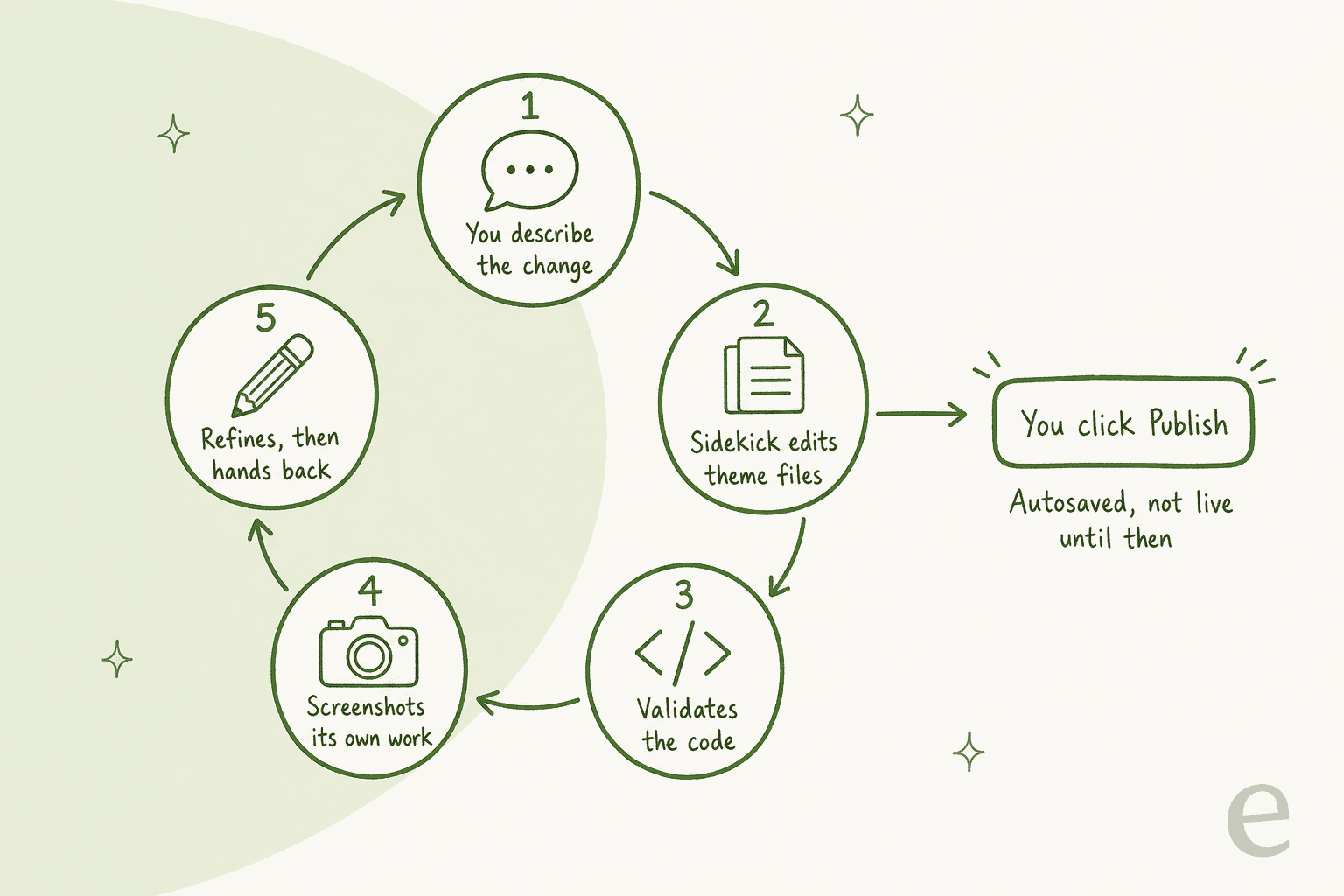
This is the part that's new (if Sidekick itself is new to you, start with my Shopify Sidekick guide). Shopify says Sidekick "now works directly on the theme's files," and that merchants edit "a render of the real code behind the store," not a static preview. As it builds, Sidekick validates its code and takes screenshots of the result, then refines the work in a loop before handing it back.
Austin Knight, design director at Shopify, said the hard part was taste, not code: "Getting Sidekick to write code was easy, but guiding it to make good design decisions took a great deal of time and attention." Each theme carries what he calls a design contract, a curated set of patterns Sidekick draws from.

Here's what that looks like in practice. In Shopify's demo, a merchant asks for a bolder, more editorial hero, and Sidekick pulls the fonts and palette from the live theme, asks which design direction to take, and rebuilds only the hero.
Saving, publishing and undo
Canvas saves automatically, and there's no save button. Publish doesn't save anything. It decides what customers see. That distinction matters most on your live theme:
| You're editing | What happens when you make a change |
|---|---|
| An unpublished theme | Saved and visible in Canvas and the theme preview. Customers can't see it. |
| Your published (live) theme | Saved and visible in Canvas. Customers keep seeing the old store until you click Update, then Publish changes. |
Two details from the customizing docs that I'd want to know before touching a live store:
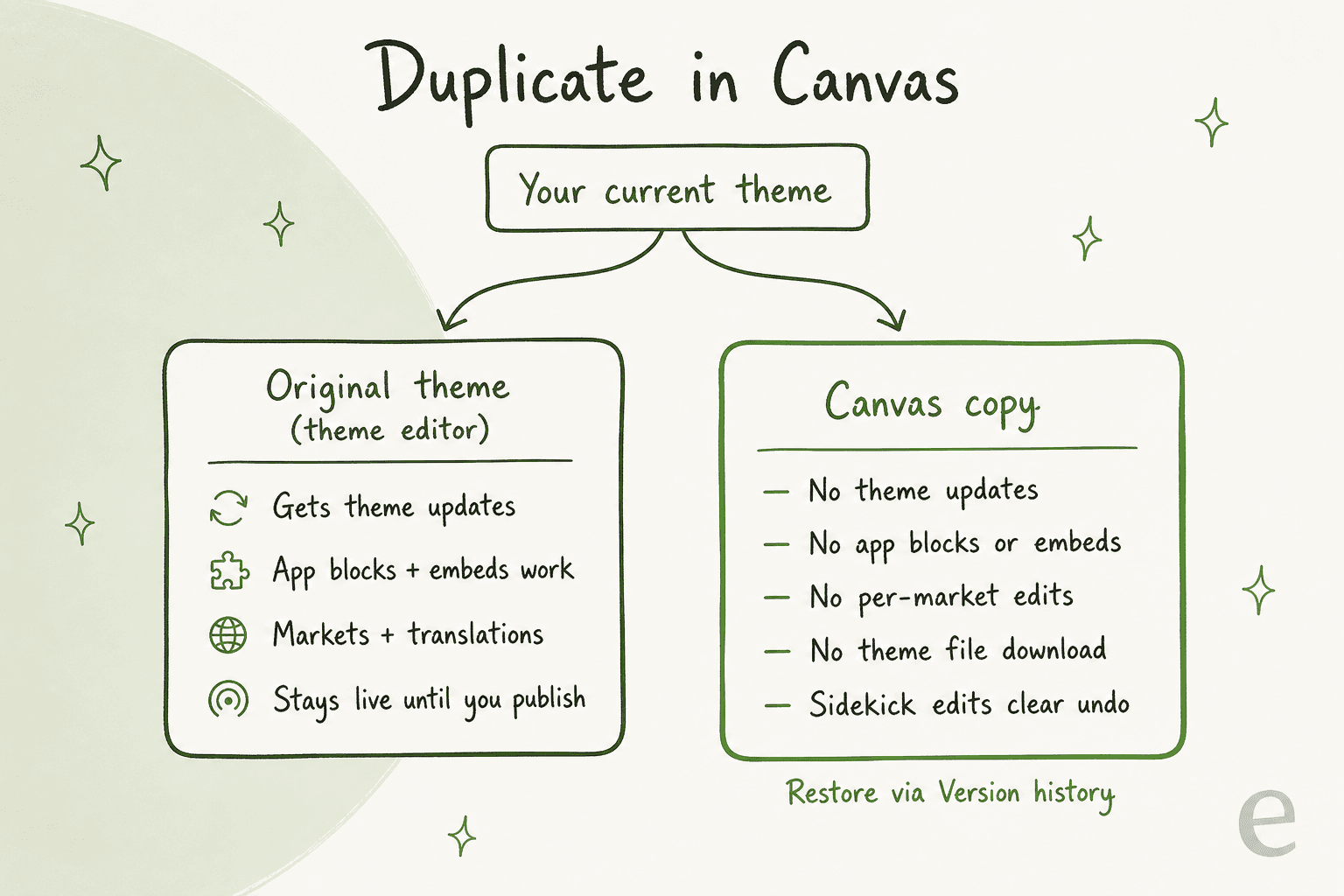
- Sidekick edits clear your undo history. You can't press Undo to reverse a Sidekick change, or anything you did before it. You either ask Sidekick to change it back or open Version history and restore an earlier version.
- Publishing can wipe rollout changes. If your live theme has rollouts with planned theme changes, publishing a different theme removes them, and Shopify says they can't be recovered. If a publish fails, a Fix with Sidekick button offers to repair the errors.
Who can use Shopify Canvas right now?
Canvas is still rolling out "over the coming days," and Shopify hasn't published a list of countries or plans that get it first. What the requirements page does spell out:
| Requirement | Detail |
|---|---|
| Device | Desktop only |
| Plan | Any plan that includes theme customization. Drop to a plan without it and you can view Canvas themes but not edit or publish them. |
| Theme | Themes developed by Shopify, or custom themes. Third-party themes aren't supported. |
| Staff permission | Online store > Themes > Edit code |
| Where to find it | Online Store > Themes, then New or Duplicate in Canvas |
There's no separate price for Canvas. It runs on Sidekick, and Shopify's Sidekick FAQ says it "is included with your Shopify plan," with the caveat that "features and usage limits vary by plan." No per-plan caps are published. Here's what the plans themselves cost on Shopify's pricing page today:
| Plan | Billed monthly | Billed yearly (per month) | Card rate online | Staff accounts |
|---|---|---|---|---|
| Basic | $39 | $29 | 2.9% + 30¢ | Extra cost |
| Grow | $105 | $79 | 2.7% + 30¢ | Up to 5 |
| Advanced | $399 | $299 | 2.5% + 30¢ | Up to 15 |
| Plus | From $2,300 | Not offered | 2.25% + 30¢ | Unlimited |
All four list Sidekick and "millions of tokens" as included. Whether that's worth it depends on how much you use it, which I dug into in is Shopify AI worth it. For the full picture on what each tier unlocks, see my Shopify pricing breakdown and the Shopify AI pricing guide.
What can't Shopify Canvas do yet?
This is the section most launch coverage skims, and it's the one that decides whether you should use Canvas on a real store this month.
When you duplicate a theme into Canvas, you get a copy you can edit only in Canvas. The original stays in the regular theme editor. And the copy plays by different rules:
The full list from Shopify's docs and developer forum post:
- No third-party Theme Store themes. Only Shopify-made and custom themes open in Canvas.
- No app blocks or app embeds. You can't add or configure them in Canvas, and an app's blocks won't be available in a theme you create or duplicate there.
- No Markets customization, no rollouts as an editing path, no in-Canvas translation. Translations go through the Translate & Adapt app.
- No theme updates and no file download. A Canvas theme stops receiving the developer's updates, and you can't download its files.
- No manual block adding. You ask Sidekick to add a block instead.
The theme-updates point is the one I'd circle. A Shopify developer put it bluntly on LinkedIn:
"The point about a Canvas-edited theme no longer getting theme updates is the one merchants will find out the hard way. Fast to launch, harder to maintain once the store starts to grow."

The app gap is the one that bites. Reviews widgets, pop-up forms and live chat bubbles are usually installed as app blocks or app embeds. Shopify staff say Sidekick tells merchants when a request needs an app, and shared this exchange where Sidekick declines to add Shopify Forms:
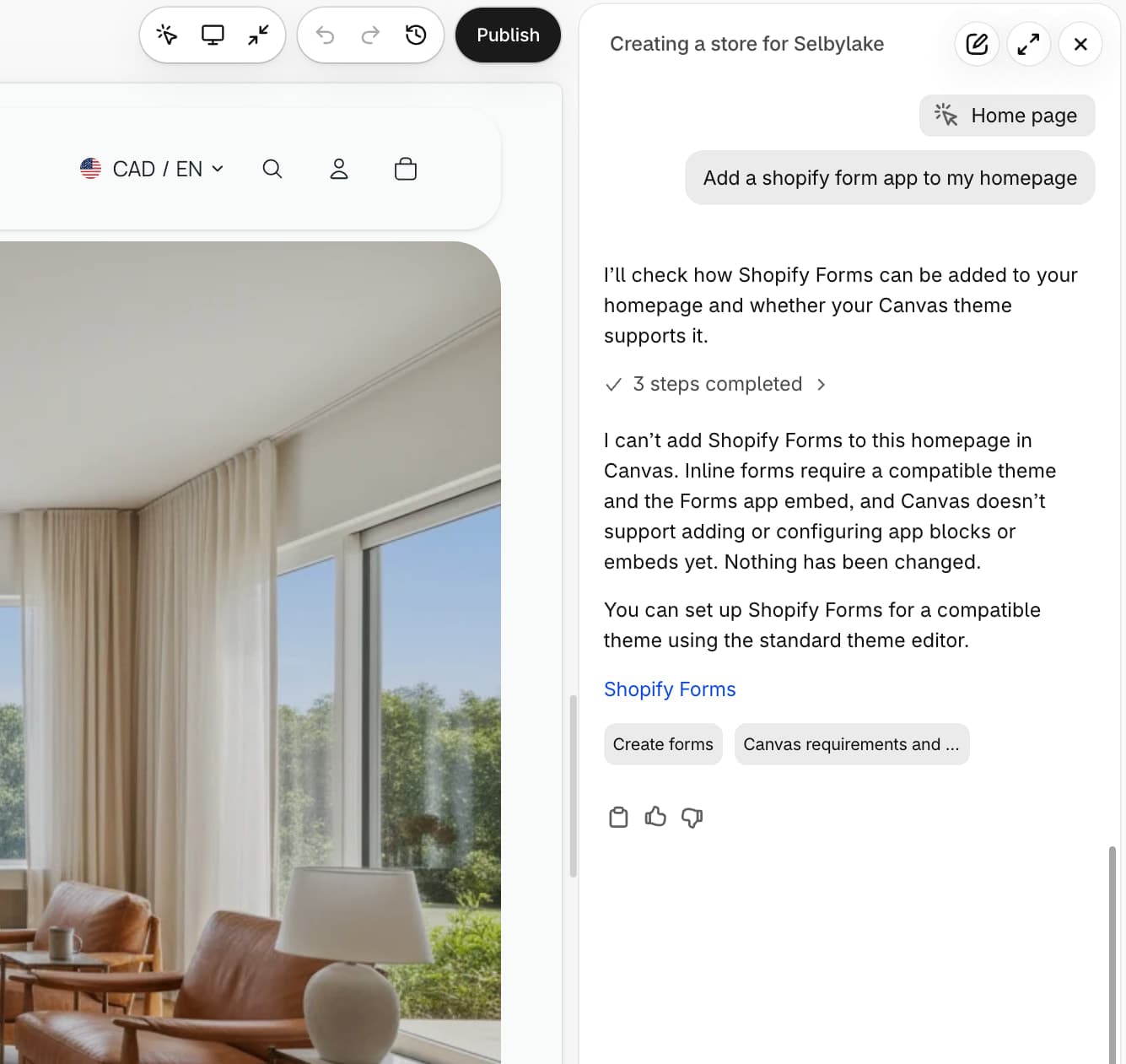
That's honest behavior, and I like that it says "Nothing has been changed." But think about what it means for support. If your chat widget or help-center bubble is an app embed, a store published from Canvas today won't load it. Customers lose the quick-question route, and those questions land in your email queue instead. Before you publish anything from Canvas, open the preview and check that every customer-facing widget you rely on is actually there.
Shopify says the gap is temporary. Nick Lepine from Shopify wrote on the forum: "We plan to support theme app extensions in Canvas within the next few weeks." And Ben Sehl was clear in the announcement: "Canvas is not replacing the existing editor yet."
What are developers and merchants saying?
The merchant pitch landed well. The partner ecosystem, less so. The Extensions forum thread where Shopify announced Canvas to app developers drew 16 replies in its first four days, and much of it came from app makers worried about broken app blocks and the support load that follows.
"It seems pretty concerning, and honestly a little crazy, to roll out and recommend (I assume) a new storefront editing experience to merchants when apps and app blocks aren't supported yet, especially given how heavily so many Shopify stores rely on apps for their storefront functionality."
Another developer predicted the support fallout directly:
"I'll take this as an admission that we'll have to prepare for an avalanche of support requests with a simple answer: "Apps do not work with Canvas, please use a real theme instead"..."
Shopify's answer was to point app-heavy merchants back to the editor for now. Nick Lepine replied that "merchants who depend heavily on apps can still use the editor to customize their theme, and they can reach for Canvas to play around and experiment." Theme sellers are the other worried group. In the theme partner thread, Shopify said it is "deeply considering the role of the theme store in this new world."
Merchants and agencies who've actually tried it are split. One agency on LinkedIn was impressed:
"We had a whole theme restyled in a couple of hours using an existing design.md file. Still a little rough around the edges, but pretty damn amazing. Exciting and maybe a little scary for agencies like ours."
Over on r/shopifyDev, the mood was more skeptical:
"Given how terrible Sidekick is at almost everything, including making changes to themes, I don't expect this to be very good or enjoyable to use."

My read: none of this is a reason for a merchant to avoid Canvas. It's a reason to treat it as a sandbox for the next few weeks, which is exactly how Shopify itself is framing it.
Should you use Canvas before Black Friday?
Here's what I'd do, depending on where your store is:
- New store, few apps: build it in Canvas. (I listed other AI store builders too.) This is the case Canvas was made for, and twenty minutes to a custom-looking store beats a week of fiddling with a template. Add apps later when support lands.
- Established store with apps: click Duplicate in Canvas on your live theme and experiment there. Keep making real changes, and publishing, from the regular editor.
- Store selling in several markets or languages: wait. Per-market customization and translation aren't in Canvas yet.
- Before publishing any Canvas theme: check every page at mobile width, confirm your reviews, forms and chat widget all render, and note which version is Last published in Version history so you can roll back.
- Whatever you choose: lock in your design changes well before peak season. A redesign the week of Black Friday means new questions from customers at the worst possible moment, on top of the usual Black Friday messages.
If you want other routes to an AI-built store, I've compared them in which AI builds Shopify stores. There's also a step-by-step guide to building a Shopify store with AI.
What Canvas leaves on your plate after launch
Canvas is a design tool. It makes the store, then its job is done. Everything that happens after a customer clicks Buy is outside its scope, and Shopify says so plainly. The Sidekick setup guide lists among its limits: "Sidekick can't talk to your customers or handle customer support conversations on your behalf."
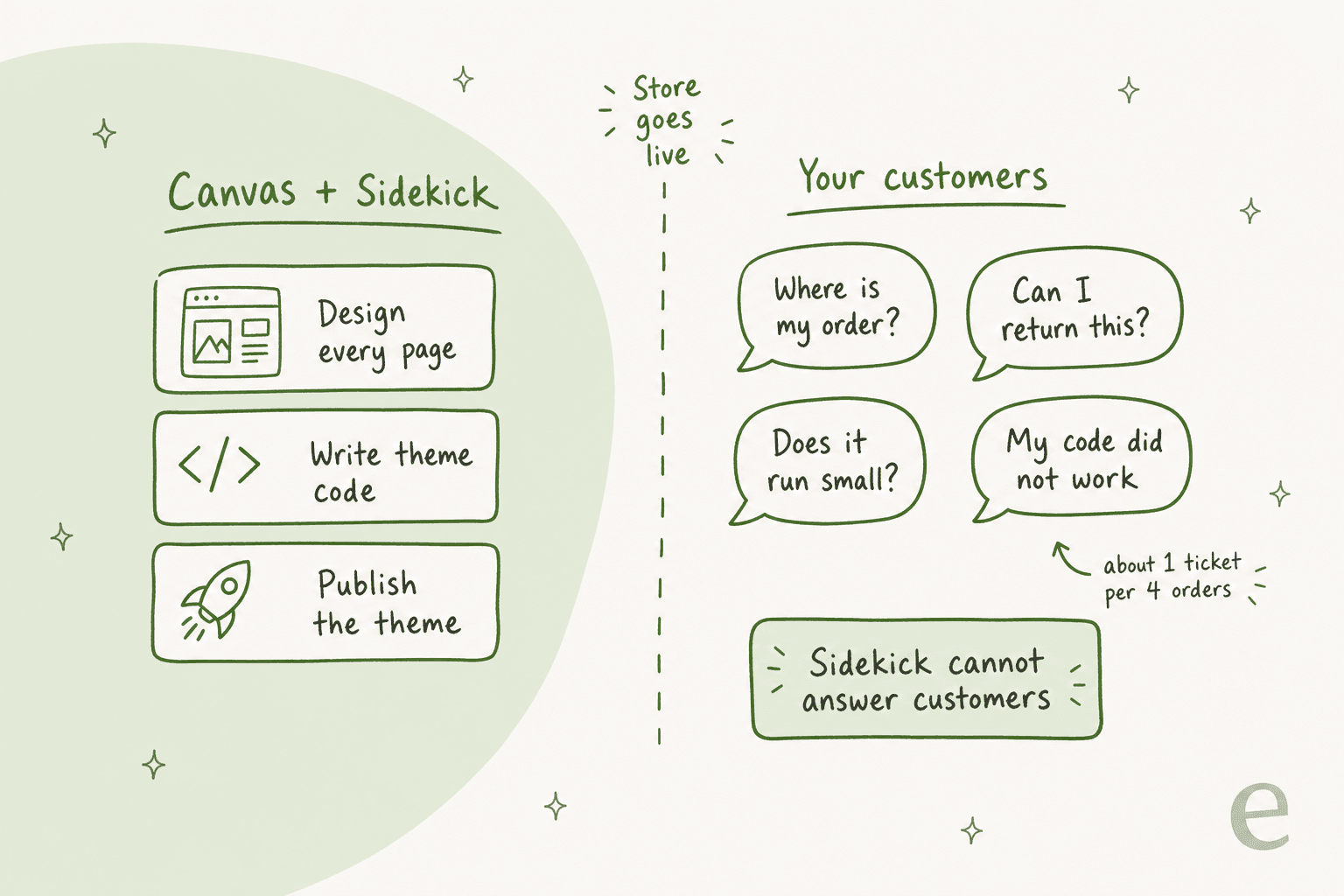
That's the side of the store I see every day. A nicer storefront converts better, more orders ship, and more orders mean more tickets. On a sales call, a DTC supplements brand on Gorgias and Shopify told eesel's team they handle around 7,000 tickets a month on about 30,000 orders, roughly one ticket for every four orders, and most of it is order tracking, subscription changes and basic product questions. That ratio doesn't care how pretty the theme is.
These are the questions that eat an inbox, and they all need live order data to answer properly. Shopify's free Shopify Inbox gives you a chat channel, but someone still has to type the answers.
My guide to AI order tracking covers the biggest category. Returns are next, and AI refund automation walks through what can safely run without a person.
What I've learned from years of putting AI on live support queues is that you don't want an AI that answers everything. That same supplements team put it well:
"I need an AI who is only handling the tickets that it's confident to handle and all the other ones, leave them alone."
CX lead at a DTC supplements brand on Gorgias + Shopify (~7K tickets/month), on a call with eesel
That's the bar. An AI agent for a Shopify store should resolve the repetitive order questions, follow your return policy, and hand everything else to a person. I've also watched AI agents sound confident while being wrong, which is why eesel simulates every rollout against a store's past tickets before it goes live. In one real-traffic trial for a German jewelry retailer on Zendesk and Shopify, eesel sorted tickets correctly 93% of the time and caught 100% of the spam, which was 22% of their inbox. For a broader view, my Shopify support AI roundup compares the main tools, and my Shopify AI agent setup guide walks through it.
If you'd rather shop by chat tool, Shopify chatbot apps lists the options, and connecting Shopify order data explains what the bot needs access to.
Try eesel for your Shopify store
Canvas gets your store looking the way you pictured it. eesel takes the next job: answering the people who shop there. eesel is an AI teammate, and the AI helpdesk teammate connects to Shopify, syncs your catalog, policies and orders, and answers "where is my order?", returns and product questions with live order data.
It works inside Gorgias, Zendesk or Freshdesk, or as a chat widget on your store, and escalates out-of-policy cases to your team.
Pricing is a fixed monthly plan, not a per-resolution fee: $299/month for 500 credits, where a ticket or chat counts as one credit however long it runs, with no per-seat charge.
Tulipy, a multi-brand gardening store, put it simply on G2: "Easy to connect to Shopify, easy to prompt, and it learns from our articles." If you also want product guides and SEO posts for your new store, eesel's AI blog writer is the other teammate on the roster (more in my ecommerce blog writer post).
Try eesel free with 100 credits, no card needed, and see how it handles your own store's tickets before peak season.
Frequently Asked Questions
What is Shopify Canvas?
Shopify Canvas is a visual design workspace, launched on October 1, 2026, that lays out every page of your online store side by side so you can edit it directly or ask Sidekick, Shopify's AI agent, to make changes in chat. Sidekick works on the real theme files rather than a mockup. If you're new to Sidekick, start with my Shopify Sidekick guide.
How much does Shopify Canvas cost?
Canvas has no separate price. It runs on Sidekick, which Shopify includes with every plan, and it needs a plan that includes theme customization. Shopify plans start at $29/month billed yearly. Shopify notes that Sidekick's features and usage limits vary by plan. My Shopify pricing breakdown covers each tier.
How do I get access to Shopify Canvas?
Canvas is still rolling out to existing stores, starting October 1, 2026. If you have it, go to Online Store > Themes on desktop and click New, or choose Duplicate in Canvas next to a Shopify-made or custom theme. Your staff account needs the Edit code permission. For the older theme generator, see Shopify's AI store builder.
Does Shopify Canvas work with my theme and apps?
Not every setup yet. Shopify Canvas doesn't support third-party Theme Store themes, Markets, rollouts, translations, or app blocks and app embeds at launch. Shopify staff said theme app extension support is planned within weeks. If your storefront depends on Shopify apps, keep editing your live theme in the regular theme editor for now.
Will Shopify Canvas replace the theme editor?
Not yet. Shopify's Ben Sehl said Canvas is not replacing the existing editor yet, and Shopify told theme partners it is working on compatibility before Canvas becomes the default editor. Both editors run side by side today. My theme editor AI guide covers the older tools.
Can I undo changes Sidekick makes in Canvas?
Not with the Undo button. When Sidekick makes a change, Canvas clears your undo history, so you either ask Sidekick to change it back or restore an earlier version from Version history. Nothing reaches customers until you click Publish or Update. My Sidekick automation post covers what else it can do.
Can Shopify Canvas or Sidekick answer my customers?
No. Shopify's help center says Sidekick can't talk to your customers or handle support conversations on your behalf. For that you need a customer-facing agent, such as the eesel Shopify integration, which checks live order data to answer tracking and returns questions. Compare options in my Shopify support AI roundup.
Is Shopify Canvas good enough for a store launching before Black Friday?
For a brand-new store with few apps, Shopify Canvas is worth trying. For an established store, I'd duplicate your theme into Canvas to experiment and keep publishing from the regular editor until app support lands. Plan your peak-season support too, per my Black Friday AI support guide.



Article by
Riellvriany Indriawan
Riell is a designer and writer at eesel AI with about two years of experience researching CX platforms, AI chatbots, and helpdesk software. She combines her design background with a sharp eye for how these tools actually look and feel in practice — making her comparisons unusually visual and user-focused.