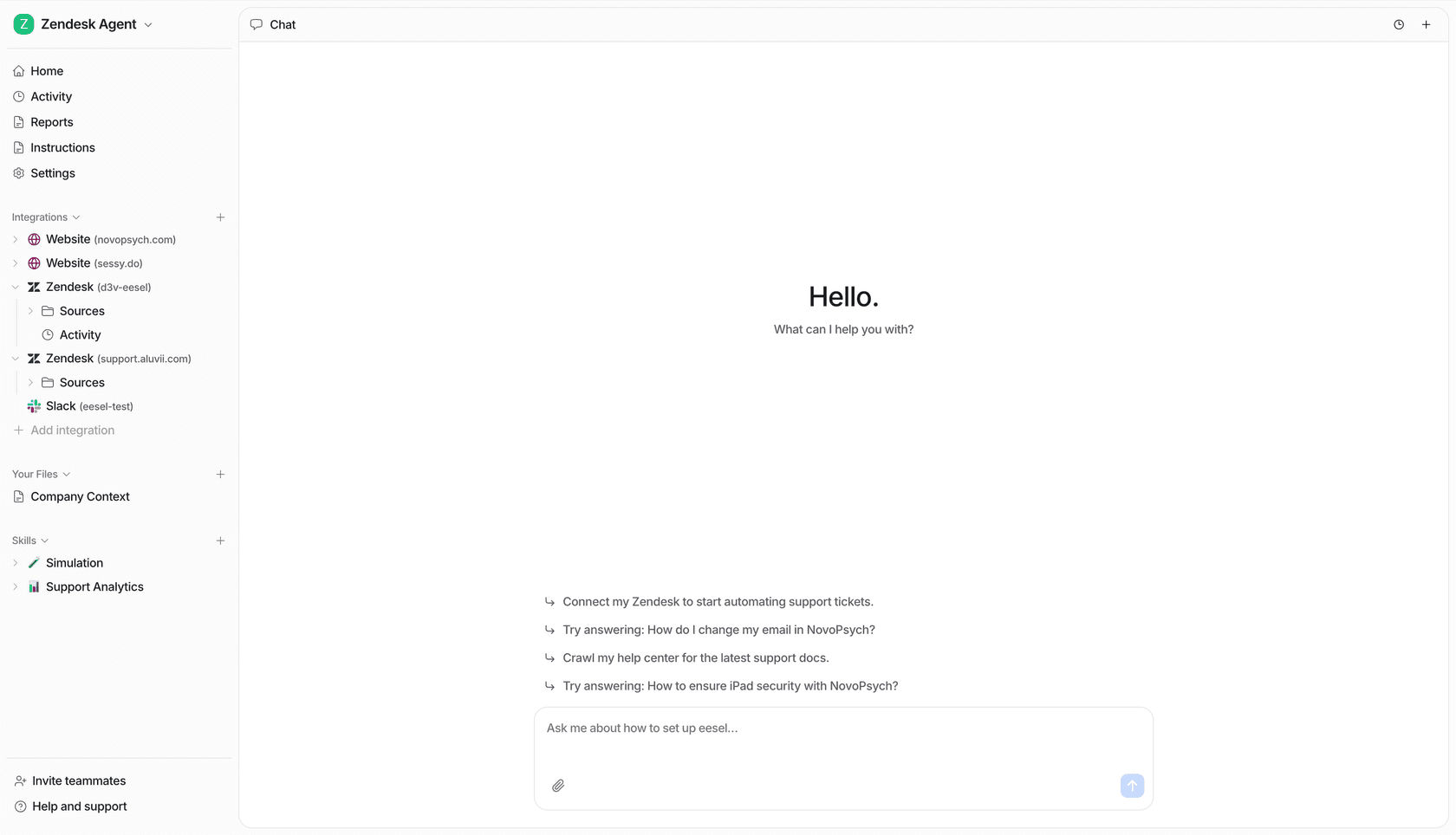


Yes, you can use ChatGPT with SharePoint: OpenAI's SharePoint app lets ChatGPT search, summarize and compare the SharePoint and OneDrive for work or school files your Microsoft account can already open, and with admin approval it can also create folders, upload files and manage sharing links. It is live search now, not a synced copy: OpenAI retired the last synced SharePoint connectors on 16 October 2026. You connect it under Plugins, a Microsoft Entra admin usually has to approve the Graph permissions first, and ChatGPT workspace admins can fence it to approved site collections and skip files with chosen sensitivity labels.
For one person asking about documents they can see, it's very good. It gets awkward when the question belongs to the whole company. Your intranet exists so people stop asking HR the same thing, yet the travel policy question still lands in a Teams DM every Monday, and the SharePoint app answers whoever is signed in, as them, inside ChatGPT.
That's where eesel comes in: an AI teammate that answers from your SharePoint in Teams and Slack with the source linked, where what it shares depends on who is asking. The policy library is open to everyone, the leadership folder stays with named people, and someone outside the company never gets an internal file or a link to one. If you already work in Codex or Claude Code, the eesel CLI lets it connect your apps, load the handbook and ask eesel test questions before anyone else sees an answer.
I've spent years letting an AI act inside other teams' tools. The lesson that keeps repeating on intranets is that the hard part is rarely finding the document. It's deciding who should be handed it.
What is ChatGPT for SharePoint?
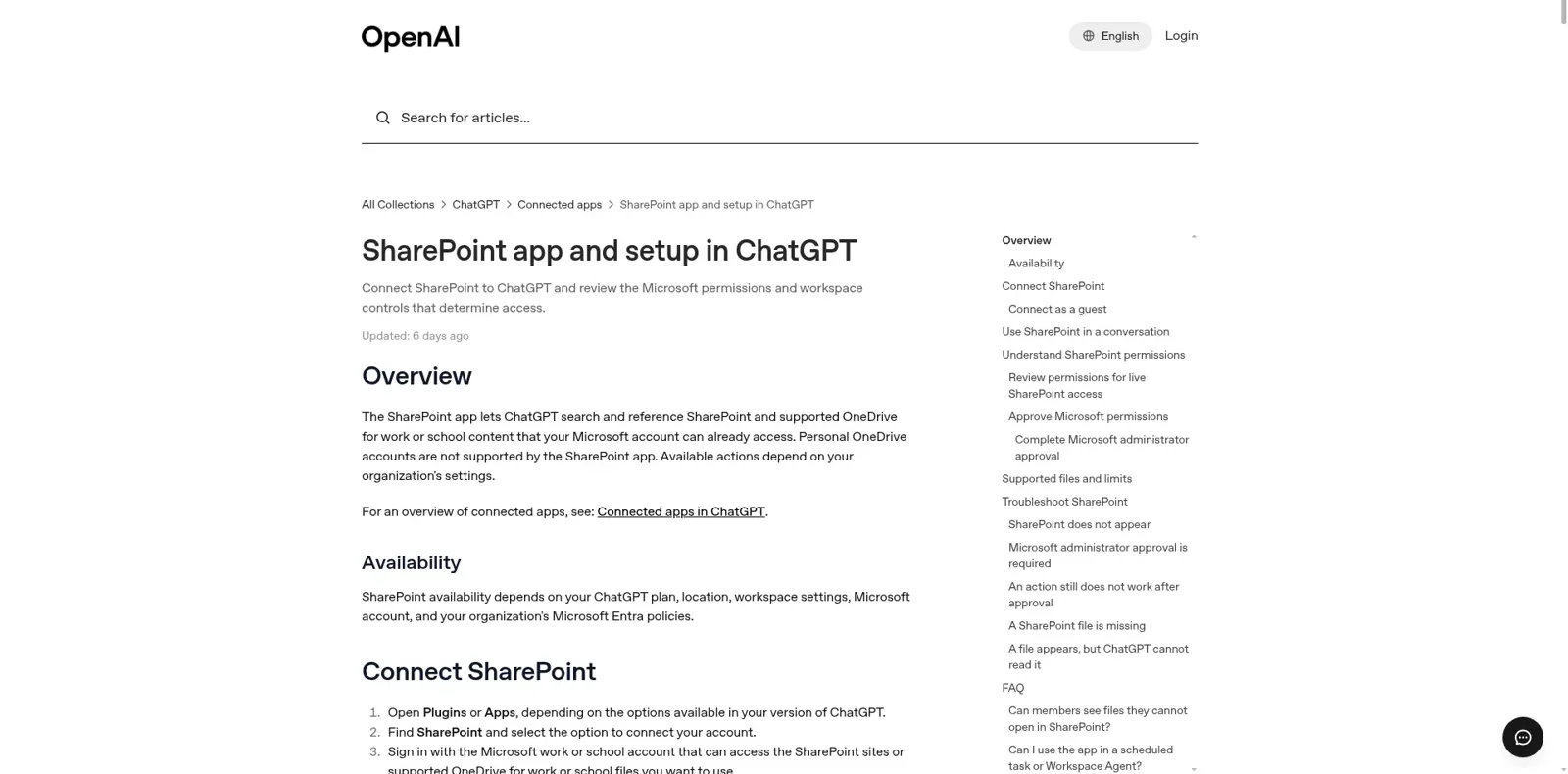
ChatGPT for SharePoint is OpenAI's own SharePoint app, one of the apps in ChatGPT. OpenAI's help article describes it as an app that "lets ChatGPT search and reference SharePoint and supported OneDrive for work or school content that your Microsoft account can already access." Personal OneDrive accounts aren't supported.
Once it's connected, you mention it with @ or pick it from the + menu and ask in plain language. OpenAI's own examples are a good guide to what it's for:
- "Find the latest project plan in SharePoint and summarize the open decisions."
- "Compare the two proposal documents in our sales team's SharePoint site."
- "Draft an executive update using the launch documents I can access."
- "Create a folder for this project in the approved SharePoint library."
That last one is a write. Depending on what your Microsoft admin approves and your ChatGPT admin switches on, the app "may also support actions such as" creating folders, uploading or updating files, managing sharing links, and "working with supported SharePoint lists and pages." It also works as a source in deep research, and you can connect as a guest to another company's tenant if that company's admin has approved the ChatGPT app.
Notion has its own version of this; I cover it in Notion AI's SharePoint connector.
Is the SharePoint connector synced or live?
It's live. That's the biggest change of the year, and a lot of older advice still describes the synced version. For most of 2025 you had two options: a synced connector that copied content into an index ahead of time, and a live one that searched SharePoint at question time. OpenAI has now retired sync in two steps, per its own release notes:
| Date | What changed | Source |
|---|---|---|
| 10 Aug 2026 | New individually authorized sync connections stop; existing ones disabled on 14 August and "deletion of associated synced data will begin" | Enterprise release notes |
| 16 Oct 2026 | "Administrator-managed sync connectors have been retired. Use the real-time Google Drive, SharePoint, and Microsoft Teams apps" | Enterprise release notes |
Day to day, ChatGPT asks Microsoft Graph for files at question time, as you. There's no stale index and no admin-wide copy of your intranet sitting in ChatGPT; the trade-off is that results depend on each file being readable.
How do I connect SharePoint to ChatGPT?
You connect SharePoint to ChatGPT from Plugins, but on a work account there are usually two admins involved before you can. Here are the steps from OpenAI's help article:
- Open Plugins (or Apps, in some versions of ChatGPT).
- Find SharePoint and choose to connect your account.
- Sign in with the Microsoft work or school account that can reach the sites you want.
- Review the requested Microsoft permissions and finish the authorization.
- Return to ChatGPT and start a new chat.
Step 4 is where it stalls. A ChatGPT workspace admin and a Microsoft Entra admin are often different people, and both have to act: the ChatGPT admin reviews Configure Microsoft permissions under Plugins in Admin Console, then an Entra admin grants organization-wide consent, which "approves or rejects the selected permission request as a whole."
These are the permissions in play for live access:
| Microsoft Graph permission | What it lets ChatGPT do | Needed for |
|---|---|---|
User.Read, offline_access | Read your basic profile and stay signed in | Any connection |
Files.Read.All | Read files you can access | Search and reading |
Sites.Read.All | Read SharePoint sites you can access | Search and reading |
Files.ReadWrite.All | Update or manage files you can access | File write actions |
Sites.ReadWrite.All | Manage lists, items, pages and metadata | List and page actions |
Sites.Selected | Not supported | OpenAI says it isn't supported for live search |
Approving a permission in Entra doesn't switch the matching action on; the ChatGPT admin enables actions separately, and ChatGPT "may ask you to confirm actions that change SharePoint content."
Which ChatGPT plans include SharePoint?
The SharePoint app isn't a paid add-on. ChatGPT's pricing page lists Plugins on every plan, Free included, though availability also "depends on your ChatGPT plan, location, workspace settings, Microsoft account, and your organization's Microsoft Entra policies." In practice you need a work or school account in a tenant that allows the ChatGPT app.
On team plans the defaults differ. In ChatGPT Business "apps are enabled by default," while new Enterprise and Edu workspaces start with a selected set and "new plugins and apps are disabled by default" until an admin turns them on (admin controls article).
| Plan | Price (checked 17 Nov 2026) | SharePoint notes |
|---|---|---|
| Plus | $20/month | One person; your own Microsoft sign-in |
| Business, Standard seat | $25/user/month, or $20 billed annually | Minimum 2 seats; apps on by default (Business overview) |
| Business, Premium seat | $125/user/month, or $100 billed annually | Higher usage limits |
| Enterprise | Contact sales | Apps off until enabled; role-based access, site controls, Compliance API |
For the full plan picture, my ChatGPT pricing breakdown and ChatGPT Enterprise guide go deeper, and SharePoint pricing covers Microsoft's side.
Whose permissions does ChatGPT use in SharePoint?
ChatGPT uses the SharePoint permissions of whoever connected the app. OpenAI is direct about it: "ChatGPT only retrieves content the relevant Microsoft account or authorized workspace member is already allowed to access." Asked whether members can see files they can't open in SharePoint, the FAQ answer is one word: "No."
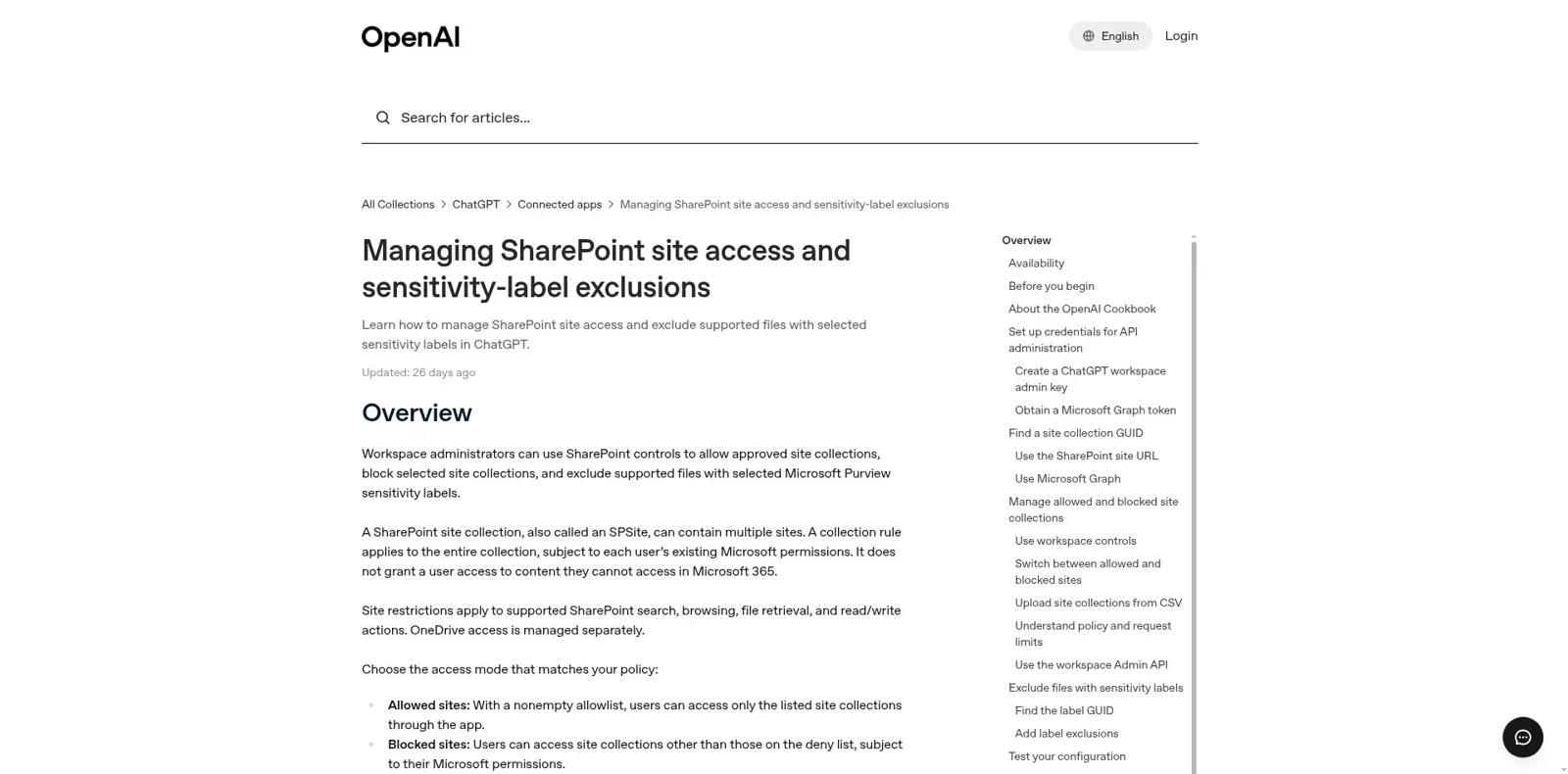
On top of Microsoft's permissions, workspace admins get their own fence. The site access controls let you run an allowlist or a blocklist of site collections, import them by CSV, and exclude files carrying chosen Microsoft Purview sensitivity labels. Encrypted file content is excluded by default.
The limits are worth reading before you rely on them:
- Rules cover whole site collections. A rule "cannot limit access to a particular subsite, folder, or file."
- OneDrive is separate. Site restrictions "do not automatically restrict OneDrive access."
- Some files are treated as unlabeled. TXT and CSV files can't carry sensitivity labels, so they "remain accessible if otherwise permitted."
- The default cap is 10,000 site collections, with up to 120,000 by arrangement with OpenAI.
They're sensible controls. Every one answers the same question, though: what can this person, signed in as themselves, reach?
Where do people get stuck with ChatGPT and SharePoint?
People get stuck in two places, and OpenAI's own forum has both. The first is visibility. An admin wrote in November 2025:
"I have some thing in place and can only see certain files/folders/sites. Something is amiss and I am unsure why I can't see all the sites and subfolders."
That usually traces back to consent, a site rule, or the file itself. The app reads .txt, .pdf, .docx, .pptx, .xlsx and .csv, caps each file at 100 MiB, and "may be unable to extract text from some supported files, even when they appear in search results." OpenAI's tip for a file that shows up but won't open is to paste a link to the specific file rather than its folder.
The second is SharePoint lists. A lot of companies run SharePoint as a business system (vendor registers, asset lists, approvals) rather than a file share, and the app is still catching up there:
"The SharePoint app is already extremely useful for retrieving and working with document content, but two limitations significantly restrict its usefulness for organisations that use SharePoint as a structured business information system rather than simply as document storage."
In a separate request in October, a user said ChatGPT "can retrieve and analyze these records, but cannot directly persist approved changes through the native connector." OpenAI's support reply suggested the workaround: "ChatGPT Business and Enterprise/Edu support custom MCP connections with write/modify tools" (thread).
What about Copilot in SharePoint?
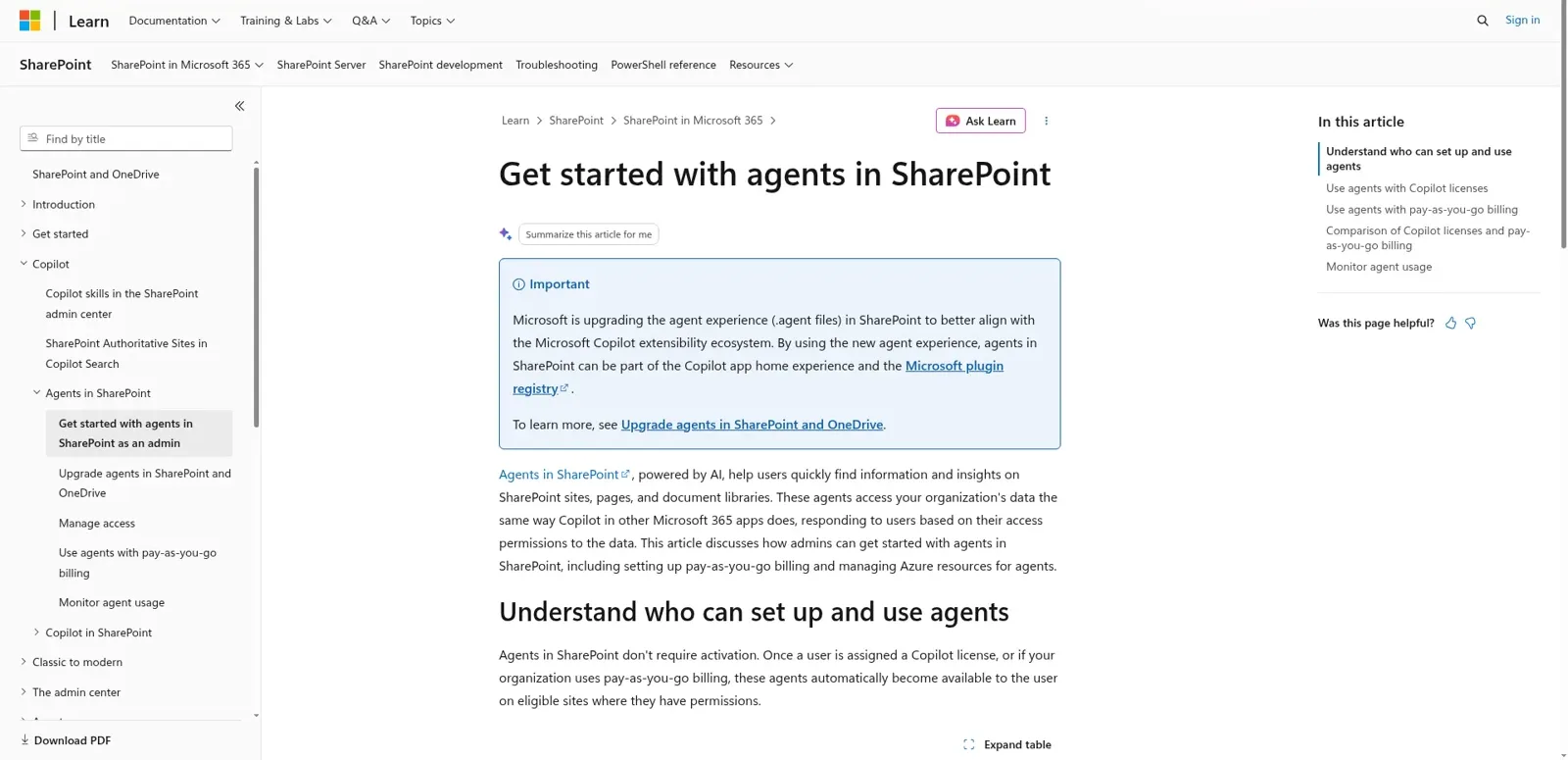
Copilot is Microsoft's own answer, and if your company is all-in on Microsoft 365 it's the obvious comparison. Agents in SharePoint "help users quickly find information and insights on SharePoint sites, pages, and document libraries," and they respond "based on their access permissions to the data", the same model as ChatGPT's app. To create one you need a Copilot license; to use one you need a license or your org needs pay-as-you-go billing set up in Azure.
Some admins who wrote Copilot off have come back round to it:
"7 months ago I thought Copilot (the m365 one, not the github one) was useless. Now I think the chat part is as good as what you'll get on the smaller subscriptions to ChatGPT or Claude ... It can read your emails, your onedrive, your loop, your sharepoint, your powerbi/fabric and anything else you have access to."

My read: if everyone already lives in ChatGPT, the SharePoint app is the cheaper path; if IT wants one vendor and one admin center, Copilot wins. My Microsoft Copilot guide and Copilot pricing breakdown cover that side, and my SharePoint AI post covers what's built in. Both answer the signed-in person, as them.
The intranet question nobody should have to answer twice
Here's the job a SharePoint intranet is really hired for. A 300-person company keeps its HR handbook, IT runbooks, travel policy and benefits guide in SharePoint, and a leadership site with board packs and budget workbooks nobody else should see. On a normal Monday:
- A new hire asks in Teams how to expense a client dinner.
- The finance lead asks for this quarter's travel spend against budget.
- A contractor in a shared channel asks what the bonus policy says, "just roughly."
- A customer on the website asks whether your SLA covers weekends.
ChatGPT's SharePoint app helps people with a ChatGPT seat, one at a time, inside ChatGPT. OpenAI's newer @ChatGPT for Teams gets closer: an admin connects company tools, and its access "depends on the connected accounts' permissions." Neither changes the answer with the person asking, so the contractor and the finance lead get whatever the connected account reaches, and neither is built to answer that customer in your own channels.
How eesel answers from SharePoint for the whole team
eesel is a general AI teammate that works in the apps your team already uses, takes requests from anyone who talks to it there, and does the work inside those tools. Its SharePoint integration reads your SharePoint sites, document libraries and lists through a Microsoft 365 sign-in, and you choose which sites, libraries and folders it can see. It keeps up as documents change, and it answers in Microsoft Teams and Slack with the source document linked, which is the whole point of an internal knowledge base.
The difference is that you decide what it does for each kind of person, and the same Monday plays out differently:
| Who is asking | Where | What eesel does |
|---|---|---|
| New hire | Teams DM | Answers from the expense policy, links the SharePoint page |
| Finance lead (named person) | Teams or Slack | Gets the budget numbers the leadership files hold |
| Contractor in a shared channel | Teams or Slack Connect | Policy library only; nothing marked Team only |
| Customer | Website chat or email | Answers from public docs; never sends an internal file or a link to one |
Under the hood it's three settings. Every file and folder is On, Team only or Off, and every action is On, Ask first or Off. Team only things only ever run when someone on your team asks, and "your team" means your eesel Team page plus full members of your connected Slack, Microsoft Teams or Google Workspace, so a guest in a shared channel doesn't count. Ask first shows the exact action with Approve and Deny, as a card in the Teams thread it started from, in the dashboard or by email, and only editors can approve. On top of that, settings for specific named people, verified customers and anonymous visitors are live, which is how the finance lead gets the budget workbook and nobody else does.
You can set all of it in a sentence, the way you'd brief a new colleague:
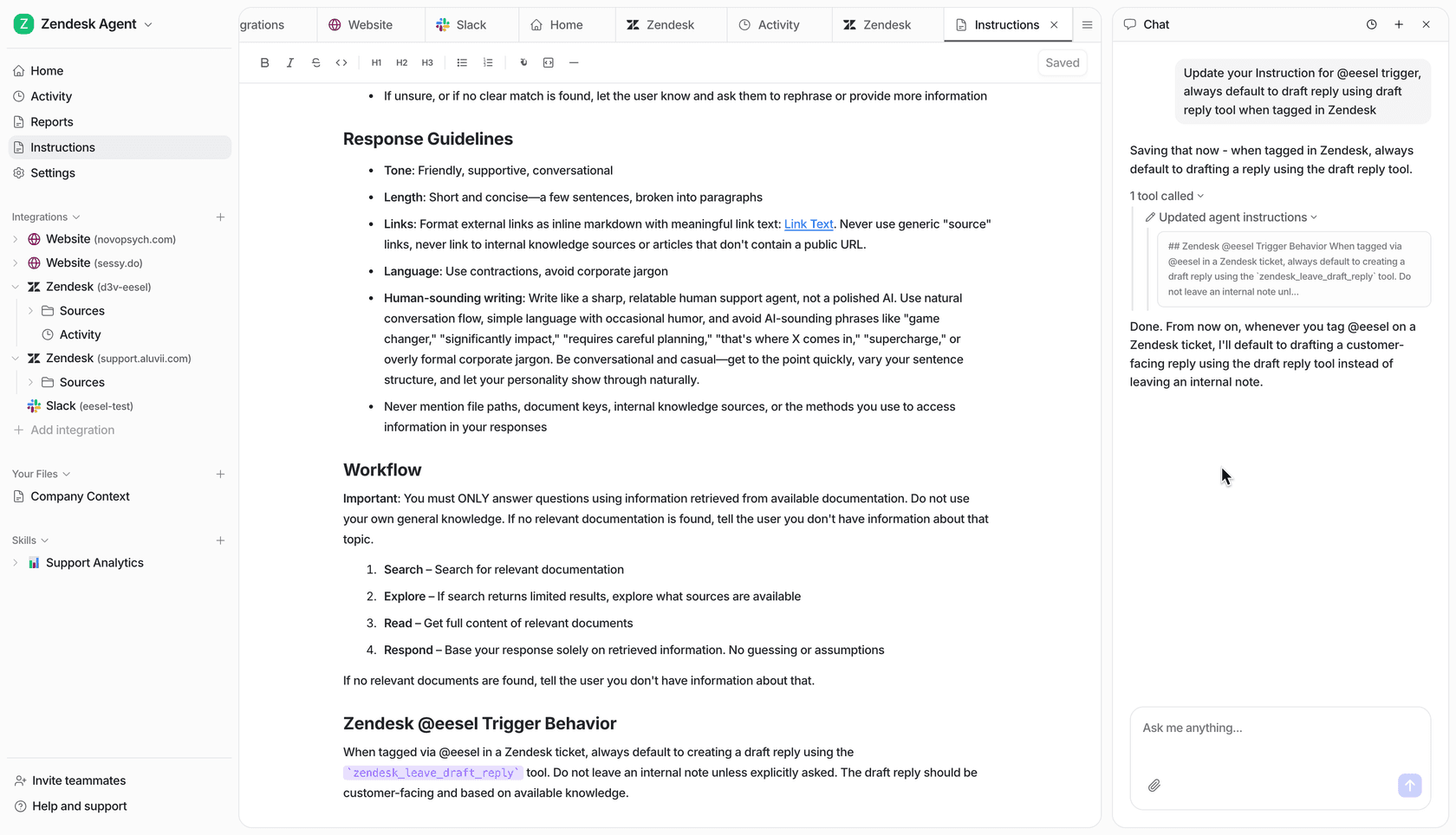
It also doesn't wait to be asked. Automations start work on a schedule, an event in a connected app or a webhook, so "every Friday, post this week's policy changes to #people-team" is one instruction. Corrections stick through instructions and memory: tell it once that the 2026 travel policy replaced the 2024 one, and it stops quoting the old PDF.
That's the shape Cactus Club Cafe, a restaurant group, runs on. Its tier 1 IT agent answers from the runbooks the team wrote, step for step, with 750 tickets handled and 1,650 runbook and policy lookups in a month, while a second agent audits the daily finance extract.
ChatGPT for SharePoint vs eesel, side by side
They do different jobs, so compare what each one is built around.
| ChatGPT SharePoint app | eesel with SharePoint | |
|---|---|---|
| Works for | The person who connected it | The whole company, from one connection |
| Who can ask | ChatGPT users with a Microsoft work account | Anyone in Teams, Slack, email or website chat you allow |
| What decides what it may do | That person's Microsoft permissions, plus admin site rules and label exclusions | On, Ask first or Off per action, Team only per file, plus who is asking |
| Starts without anyone typing | Scheduled tasks, per person or team | Schedules, app events and webhooks |
| Where answers appear | ChatGPT, and @ChatGPT in Teams or Slack | Teams, Slack, Google Chat, email, website chat |
| Cost | Included with your ChatGPT plan | From $299/month for 500 credits, unlimited seats (pricing) |
eesel has a free 7-day trial with 100 credits and no card, and unlimited agents and seats on every plan. The data handling is on the security page.
Should you keep ChatGPT if you add eesel?
Yes, keep it. The SharePoint app is great for your own work, like comparing two proposals or drafting from launch docs. eesel takes the repeat questions off HR and IT, and the ones that need a judgement about who's asking.
The two can talk. eesel's apps for ChatGPT are being listed in ChatGPT's app directory, and Codex can set eesel up with the CLI today, since every command prints JSON it can read back. If you also use Claude, your eesel workspace works as a custom connector there.
Related reads: my Microsoft Teams ChatGPT guide, Claude for Microsoft Teams and, for reports, Claude for Power BI.
For the bigger picture, see ChatGPT at work and AI enterprise search.
Try eesel as your team's SharePoint teammate
If the SharePoint app already saves you time, eesel gives the same help to everyone who used to message you for a link: the new hire in Teams, the manager in Slack, the customer on your site. Connect SharePoint once, pick the sites it reads, mark the leadership folders Team only or for named people, and let it answer "where's the travel policy?" with the page linked, for whoever is allowed to see it.