
ChatGPT for WordPress is Automattic's official WordPress plugin inside ChatGPT: install it from Settings > Plugins, sign in to WordPress.com, type @WordPress, and ChatGPT can build pages, write and publish posts, upload images, moderate comments and read your stats. Plugins work on every ChatGPT plan, Free included. WordPress.com includes it on paid plans, and right now the banner on WordPress.com reads "Build and run your site from ChatGPT, free through November". After November 30, 2026, free sites and Jetpack sites without a paid plan lose that access.
It's a sharp tool for the person holding it. A content team needs something slightly different: one WordPress site, a dozen people asking for things, and rules about who may publish. eesel is an AI teammate that sits in your Slack or Teams, drafts posts for anyone on the team, waits for your editor before it publishes, and never publishes for an outsider. Codex can even set it up from your terminal with the eesel CLI, connecting the apps and asking test questions before anyone in the channel sees an answer.
We've spent years at eesel putting AI to work inside teams' own tools, so I read every connector the same way: whose account is it using, what will it do without asking, and who can make it act. That's how I'll walk through this one.
Is there an official ChatGPT plugin for WordPress?
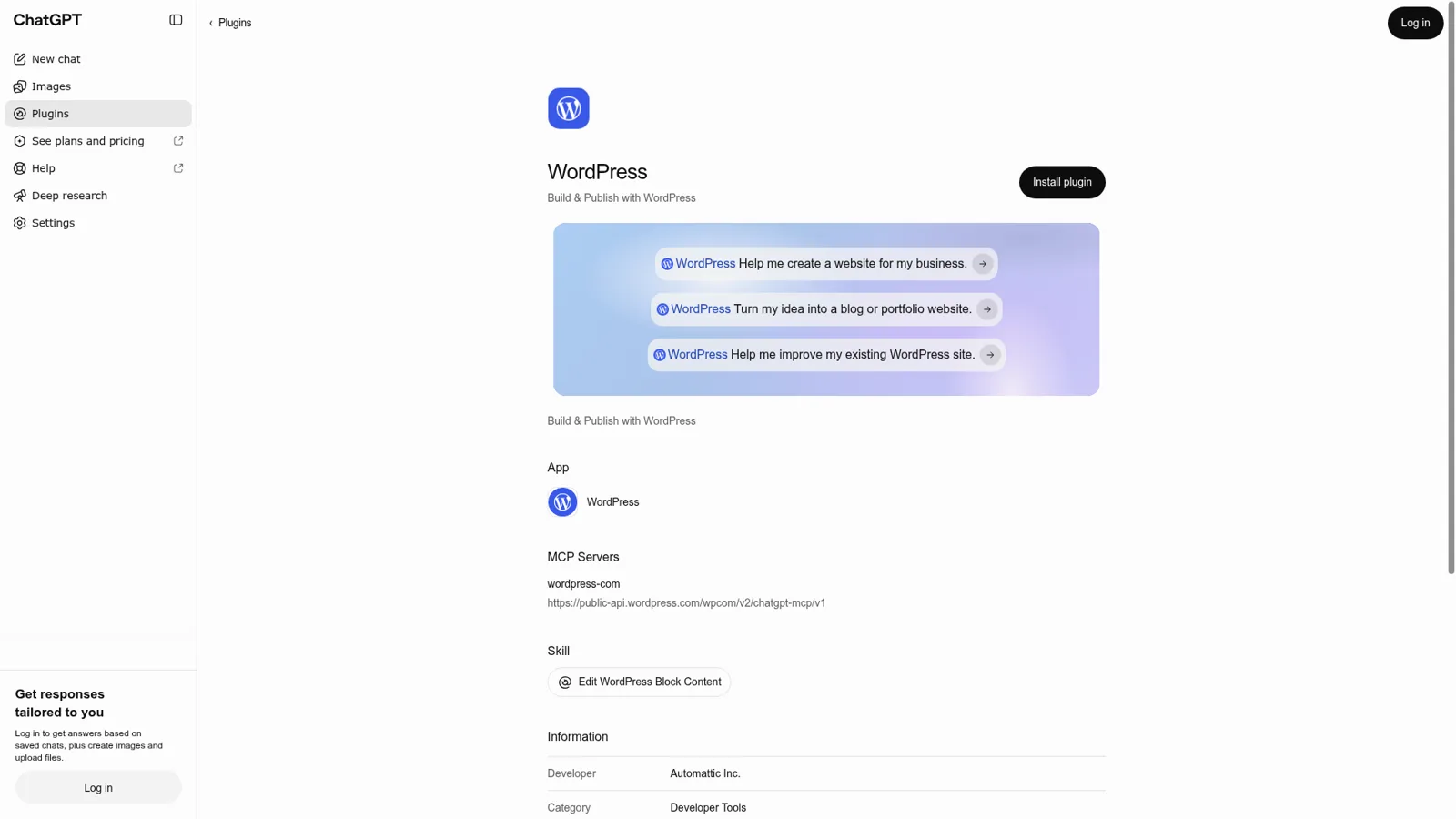
Yes, and it comes from Automattic, the company behind WordPress.com and Jetpack, not from OpenAI. The plugin listing calls it "Build & Publish with WordPress" and shows what's packed inside: a WordPress app, the wordpress-com MCP server, and a skill called "Edit WordPress Block Content". Developer Automattic Inc., category Developer Tools, version 5.2.0.
That bundle shape is new to ChatGPT's plugin directory. OpenAI's help centre explains that "a plugin packages capabilities into a workflow and can include one or more apps, skills, or both" (connected apps). The skill is the interesting part for anyone who has seen an AI mangle Gutenberg markup. It teaches ChatGPT how to edit blocks, and WordPress.com's tools reference shows the server can move a single block while keeping its markup "byte for byte".
The listing's starter prompts tell you who Automattic built it for: "Help me create a website for my business", "Turn my idea into a blog or portfolio website", "Help me improve my existing WordPress site." It's aimed at site owners first; if you mostly want posts written, my AI WordPress writer tests cover dedicated tools. WordPress.com's own AI page offers the same tools to Claude and any MCP client, with the same account-level settings behind all of them.
How do you install the WordPress plugin in ChatGPT?
You install it from ChatGPT's plugin directory and approve it on a WordPress.com page. The steps from WordPress.com's ChatGPT setup guide:
- Open the WordPress plugin page in ChatGPT and log in.
- Select Install plugin. WordPress.com's authorization page opens.
- Choose Full access (every Read and Write tool on), Read only (Read tools on, Write tools off) or Keep existing access (only shown if you've customized your tools before).
- Select Allow, or Allow & turn on agent access if MCP access was off on your account.
- In a chat, type
@WordPressand ask for something.
Two things to know before step 3. The choice is account-wide: it changes the MCP tool settings for every AI agent connected to your WordPress.com account, "not only ChatGPT." And it's revisable later in your AI and MCP settings, where tools are grouped (Content Authoring, Site Editing, Plugin Management and more) with a switch per tool.
One capability ChatGPT has that the setup guides don't list for Claude: it can upload images. Attach a photo to your message, ask ChatGPT to add it to your site, and it lands in the media library. It can also update alt text and captions on images already there.
If the plugin stops working, WordPress.com's fix is blunt: uninstall it from your ChatGPT plugin settings and connect it again.
Six jobs worth giving ChatGPT in WordPress
The best ideas come from Automattic itself. Jetpack's prompt library includes ready-made prompts with an "Open in ChatGPT" button, and they're more ambitious than "write me a post":
| Job | What you ask (Jetpack's or WordPress.com's wording) | Why it's a good fit |
|---|---|---|
| Weekly site report | "Give me my weekly site report in 7 short lines. Compare views and visitors this week with last week." | Reads stats, backups, Scan and comments in one go |
| FAQ page from form messages | "Read my last [100] form messages and find the questions people ask most... save the page as a draft." | Real questions, and it stops at a draft |
| Fix a price everywhere | "my pricing changed to $29, can you fix the pages that still say $19?" | Searches every page, edits only the matching blocks |
| Backup check | "Check my site's backups. When did the last one finish, and did it work?" | Needs Jetpack VaultPress Backup |
| Upload and caption | "Upload the attached image to my media library." | ChatGPT-only in WordPress.com's guides |
| Clear the drafts folder | "Trash all posts that have been in draft for over a year." | Trash keeps posts for 30 days |
Sources: Jetpack AI, Edit your site with ChatGPT.
What it can't do is just as clear on the Jetpack page. It "can't restore a backup, fix a security threat or make your site faster," and it "can't show your top posts or where visitors come from." So "which post should I update first?" is a question it can only half answer.
It's also a lot less work than it used to be. Before official servers existed, people on Hacker News were already wondering whether all this wiring was worth it:
"imagine building a whole MCP server to automate copy-paste from ChatGPT window into Wordpress editor and clicking Submit button"

Now Automattic built it, and you click Install. My MCP apps explainer covers how these plugins work under the hood.
What does ChatGPT for WordPress cost?
The plugin itself is free, and ChatGPT's pricing page lists plugins on Free, Go, Plus and Pro alike. What you pay depends on the WordPress side and on how heavily you use ChatGPT.
| Plan | Price | Plugin access | |
|---|---|---|---|
| ChatGPT | Free / Go / Plus | $0 / $8 / $20 a month | Yes on all three |
| ChatGPT | Pro | From $100 a month | Yes |
| ChatGPT | Business | $25 per user a month, or $20 billed annually (Standard seat) | Yes; admins control which apps are on |
| WordPress.com | Free | $0 | Through November 30, 2026 |
| WordPress.com | Personal to Commerce | From $9 a month monthly ($4 a month first year, billed yearly) | Included on every paid plan |
| Self-hosted | Jetpack Free | $0 | Through November 30, 2026 |
| Self-hosted | Jetpack Pro / Complete | $29 / $49 a month, billed yearly | Included |
Sources: ChatGPT Business, WordPress.com pricing, Jetpack pricing.
On ChatGPT Business, "many apps are enabled by default," and an admin can switch the WordPress plugin off for the workspace from the Admin Console (connected apps). App use may also count toward your ChatGPT plan limits. My ChatGPT pricing and WordPress AI guides go deeper on each side.
Who approves what ChatGPT changes on your site?
You do, through ChatGPT's app permissions, and WordPress.com leaves it to ChatGPT: "Whether ChatGPT checks with you before it changes or deletes content depends on your settings in ChatGPT." OpenAI's app permissions article lists four levels:
- Always ask. ChatGPT asks before reading or changing anything.
- Allow read actions. It reads freely and asks before changes.
- Allow low-risk actions. It approves low-risk actions itself; riskier ones need confirmation or get denied.
- Allow all actions. No prompts for supported actions, which OpenAI says "carries elevated risk." It isn't offered in the account-wide selector, only per app or account.
OpenAI's own list of risky actions includes "Creating, editing, or deleting a file or record", which describes most of what a WordPress plugin does. So for a live site, I'd sit on Allow read actions.
WordPress adds its own layer underneath. ChatGPT never gets more than your WordPress role, so an Editor's ChatGPT can manage posts and comments but not plugins or settings (MCP settings). Every change shows in the Jetpack AI activity log, and Jetpack's advice is a good rule of thumb: "Building a new site? Let your AI publish as it goes. Site already live? Ask for drafts." Trash keeps posts and pages for 30 days, but deleted media, categories and tags are gone for good.
Does ChatGPT work with self-hosted WordPress?
Yes, through Jetpack, and that's the route I'd recommend. Install the free Jetpack plugin, connect your site to a WordPress.com account, then install the ChatGPT plugin as above. Jetpack's AI page says one connection "works on every site on your WordPress.com account", wherever it's hosted.
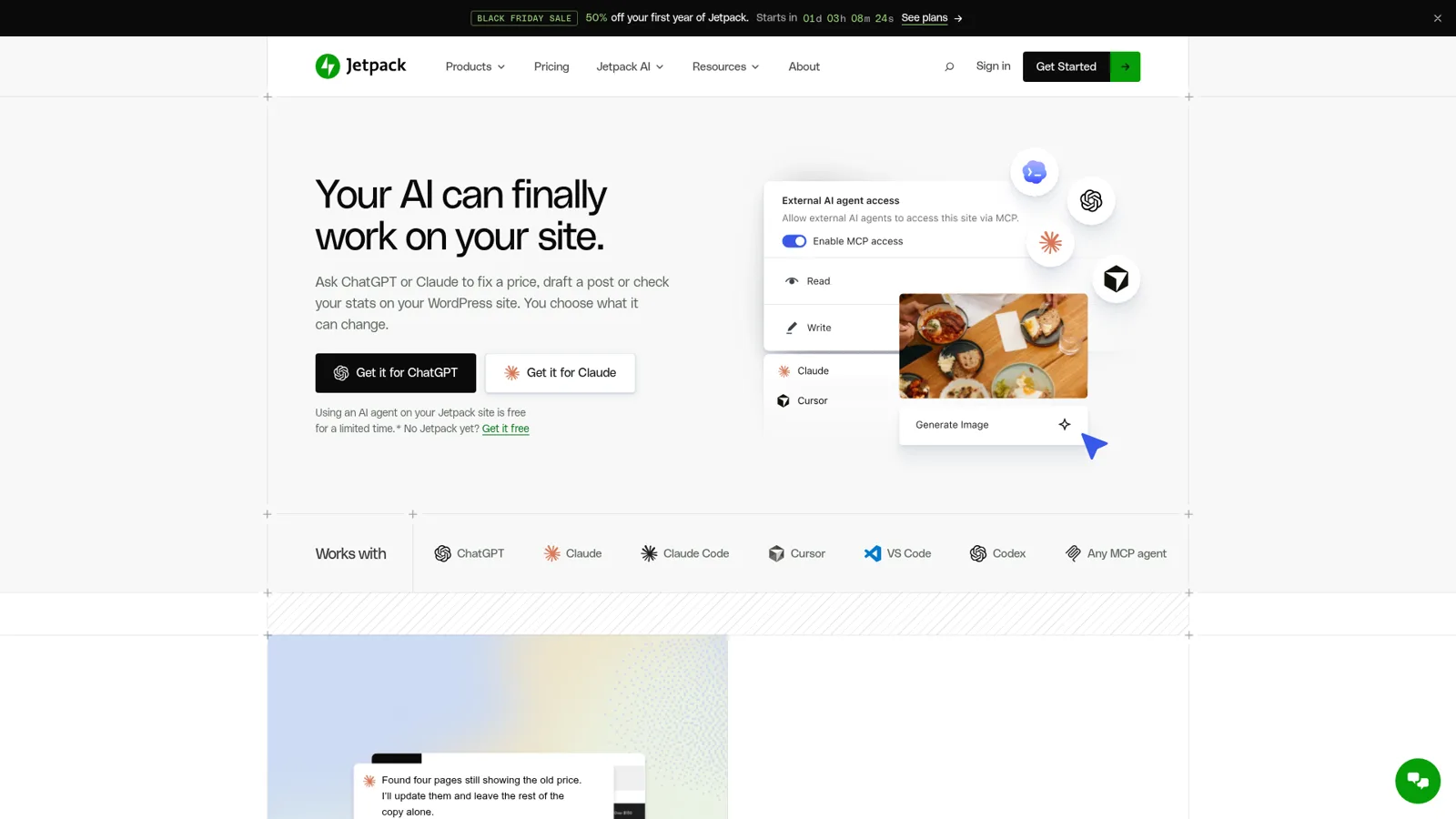
There's a deadline here too. Jetpack says free agent access "is a limited-time offer for Jetpack sites, ending November 30, 2026." After that, its pricing page lists agent access as included in Jetpack Pro and Complete.
Two other WordPress.org projects come up in this search, and neither is the same thing:
- The AI plugin plus AI Provider for OpenAI. The core AI team's AI plugin adds features like excerpt, title and alt text generation inside wp-admin. Pair it with the AI Provider for OpenAI plugin and your own OpenAI API key, and OpenAI bills each request. That's OpenAI's models inside WordPress, not ChatGPT.
- The MCP Adapter. A developer framework that exposes a site's abilities over MCP. A November proposal on its GitHub notes that ChatGPT and Claude only connect through an OAuth sign-in, which WordPress doesn't include yet (issue #436).
The AI plugin is clearly experimental, and its forum shows it. One user lost their OpenAI connection after switching on the experiments:
"I setup AI on a site yesterday connected to an Open AI connector. I enabled all experimental features and it removed the API key from the Open AI connector."
The thread traced it to the Connector Approval experiment, which holds the connection until an admin approves it. That's a sensible security feature, though the only error said the key couldn't connect.
Can a whole team share ChatGPT on one WordPress site?
Not as one shared assistant. The WordPress plugin is per person: each teammate installs it, signs in with their own WordPress.com account, and ChatGPT acts with that person's role. Five writers means five separate connections, each with its own permission settings.
ChatGPT does have a shared option. On ChatGPT Business and Enterprise, workspace agents can use custom MCPs, run on a schedule and live in a Slack channel, with write actions set to Always ask by default. But a Slack agent's apps must use shared auth connections, and OpenAI's note is candid: if you set one up with your personal account, it recommends "understanding risks of actions other users will be able to perform on your behalf." In other words, everyone in the channel can act through the same WordPress account.
WordPress.com's built-in WordPress Agent has a personal email address per site ("Forward an article you want to publish as a draft"), plus Telegram and Slack, but in Slack it answers direct messages only. Both vendors have careful controls, and both tie them to the person who connected rather than to who is asking.
How eesel handles WordPress for a content team
eesel is an AI teammate for the whole team. It joins the apps you already work in (Slack, Microsoft Teams, Google Chat, email), takes requests from anyone who talks to it there, and does the work inside your tools. Its WordPress integration connects once through the WordPress REST API and does three content jobs: publishes finished blog drafts, writes on-page SEO fixes back to live posts, and checks your post inventory before you commission a topic.
The difference from a personal plugin is that what eesel may do depends on who is asking. You configure it per kind of person (a teammate, specific named people, a verified customer, an anonymous visitor), and every action is On, Ask first or Off. Here's how that plays out on a typical content team:
- The content lead asks in Slack for a post on your Q1 launch. eesel researches, writes and replies in the thread with the draft.
- A freelance writer in a shared channel asks it to publish their piece. Publishing is on Ask first, so your editor gets an Approve or Deny card with the exact post.
- A visitor in the chat bubble on your blog asks something your posts already answer. eesel answers from published content, and with publishing set to Off for anonymous visitors, nothing they say can make it touch your site.
Those controls are documented on eesel's actions and approvals page. Ask first holds the run and sends the exact action to the dashboard, the Slack thread it started from, email, or eesel approvals in a terminal, and only editors can approve. Actions marked Team only run only when someone on your team asks, meaning your Team page plus full members of your connected Slack, Microsoft Teams or Google Workspace.
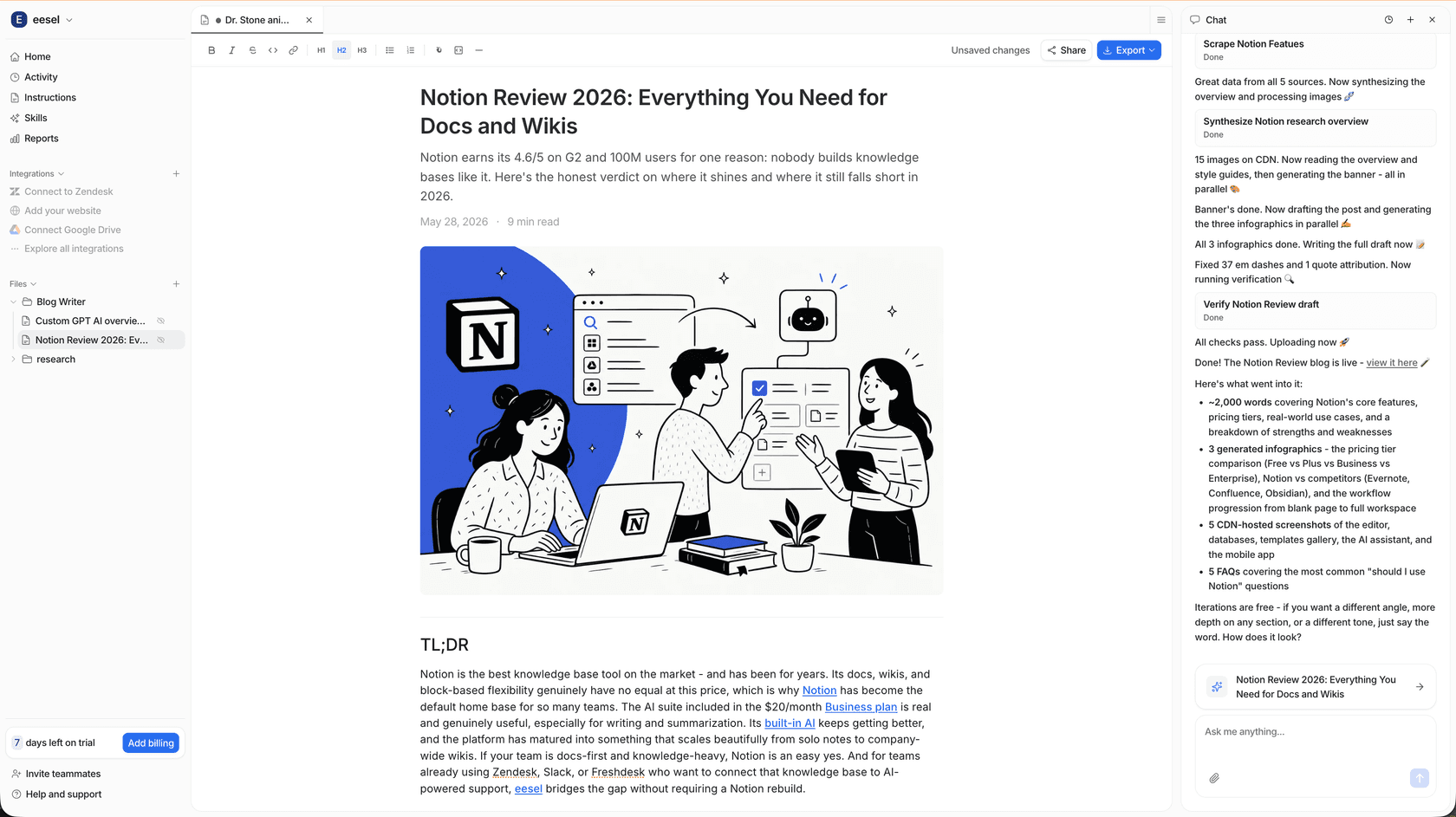
The writing itself comes from eesel's AI blog writer. Its content-writing docs describe a post that arrives with a hero banner, at least three infographics, real product screenshots, sourced user quotes and an FAQ block.
You revise by saying what to change, and the blog writer skill publishes the result to WordPress as a draft you review. My AI blog writer for WordPress guide compares it with plugin-based writers.
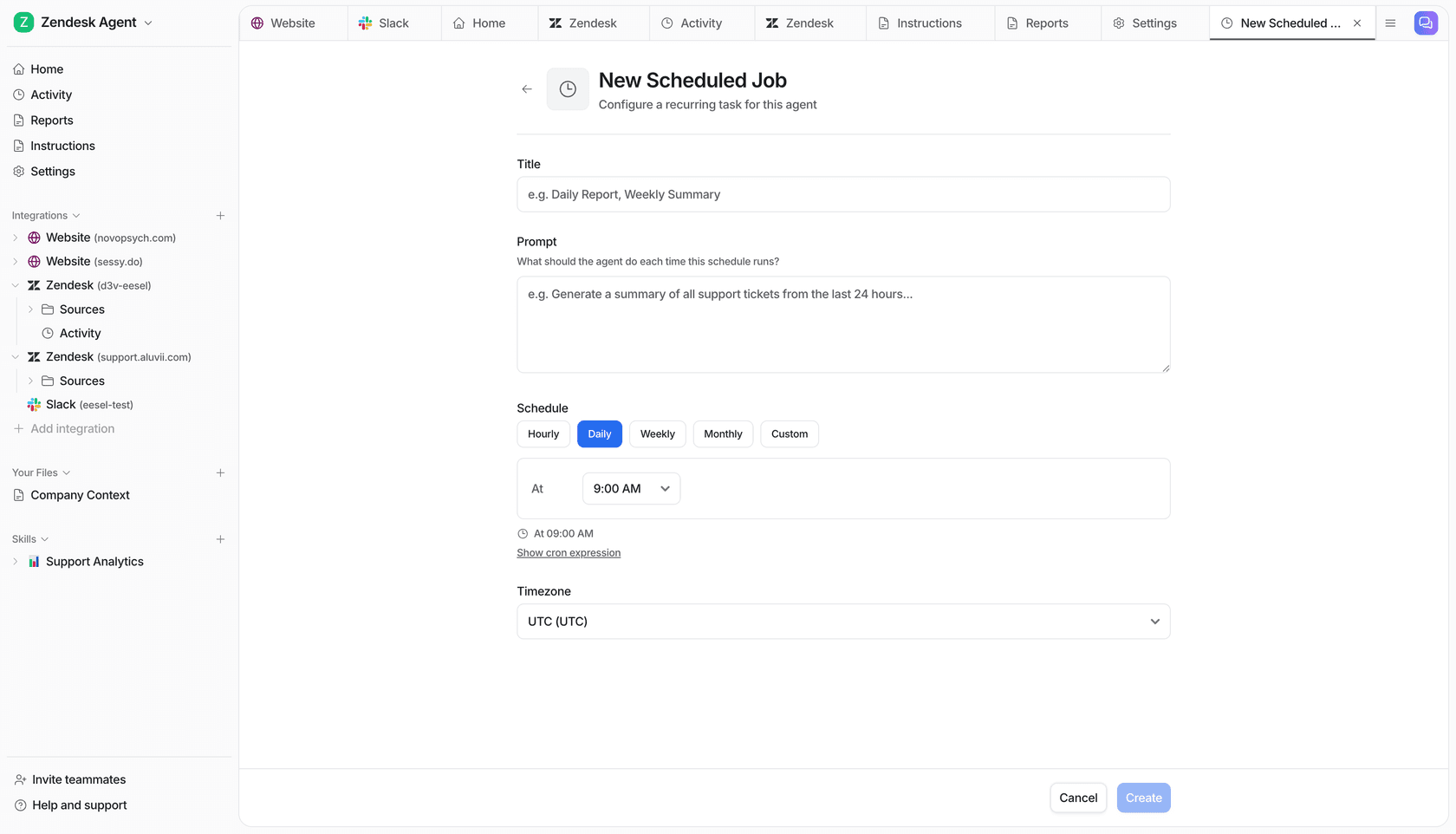
It also works when nobody asks. An automation can start from a schedule, an event in a connected app or a webhook, so "every Monday at 9am, pick the next topic from our content calendar" is a standing job (my AI blog automation guide covers the wider pattern). Corrections stick through instructions and memory: tell it "always use British spelling" once and every later post follows it.
ChatGPT for WordPress vs eesel at a glance
| ChatGPT + WordPress plugin | ChatGPT workspace agent | eesel with WordPress | |
|---|---|---|---|
| Who it works for | The person who installed it | Everyone who can use the agent, on shared connections | The whole team, plus visitors if you allow it |
| Where people ask | ChatGPT | ChatGPT and a Slack channel | Slack, Microsoft Teams, Google Chat, email, chat bubble |
| What decides what it may do | Your app permission level + your WordPress role | Builder's write-action settings + shared account | On, Ask first or Off per action, by who is asking |
| Publishing | When you ask (and approve, if set) | Write actions on Always ask by default | Waits for an editor when set to Ask first |
| Runs without a prompt | Scheduled tasks you set up | Schedules and API triggers | Schedules, app events and webhooks |
| Price | Plugin free; ChatGPT from $0 | ChatGPT Business, $20 per user a month billed annually, plus credits | From $299 a month for 500 credits, unlimited seats |
Sources: connected apps, workspace agents, eesel pricing.
Should you keep ChatGPT too?
Yes. Keep ChatGPT's WordPress plugin for your own site work, the quick image upload, the one-off price fix, and give the team eesel for the shared queue of content requests. eesel's apps for ChatGPT are being listed in ChatGPT's app directory, and Codex can set up and adjust eesel from a repo with the CLI (use eesel from ChatGPT). If you also use Claude, my sibling post on Claude for WordPress covers Anthropic's connector, and best WordPress SEO plugins covers the on-page side.
Try eesel as your team's WordPress teammate
ChatGPT makes one person faster on WordPress. eesel gives the whole content team a teammate that drafts on request, works on a schedule, and asks your editor before anything goes live. Connect WordPress, add it to the Slack or Microsoft Teams channel where people ask for posts, and set publishing to Ask first. The free 7-day trial comes with 100 credits and no card, and the WordPress integration page walks through the setup.