

ChatGPT for Google Sheets is OpenAI's own add-on: install "ChatGPT" from the Google Workspace Marketplace, open it from Extensions, and a ChatGPT sidebar builds, edits and explains the spreadsheet you have open. It's free to install on every plan, Free and Go get limited use, and Business and Enterprise pay in credits (OpenAI's rate card puts a typical task at 5 to 20 credits a message).
It's very good at one person's spreadsheet work: a budget from scratch, a broken formula in B145, a messy export cleaned up. It keeps its own chat history, has no memory, and works from the sidebar of the sheet you open.
The spreadsheet a team cares about most is usually the shared one, the tracker everyone asks about in Slack and the numbers someone has to summarise every Monday. That job wants a teammate, not a sidebar. eesel reads the sheets you pick, answers anyone in Slack or Microsoft Teams with the sheet linked, runs the Monday report on a schedule, and what it shares depends on who is asking. If you live in a terminal, Codex or Claude Code can do the setup through the eesel CLI, then ask the agent a test question about your tracker before anyone else does.
What is ChatGPT for Google Sheets?
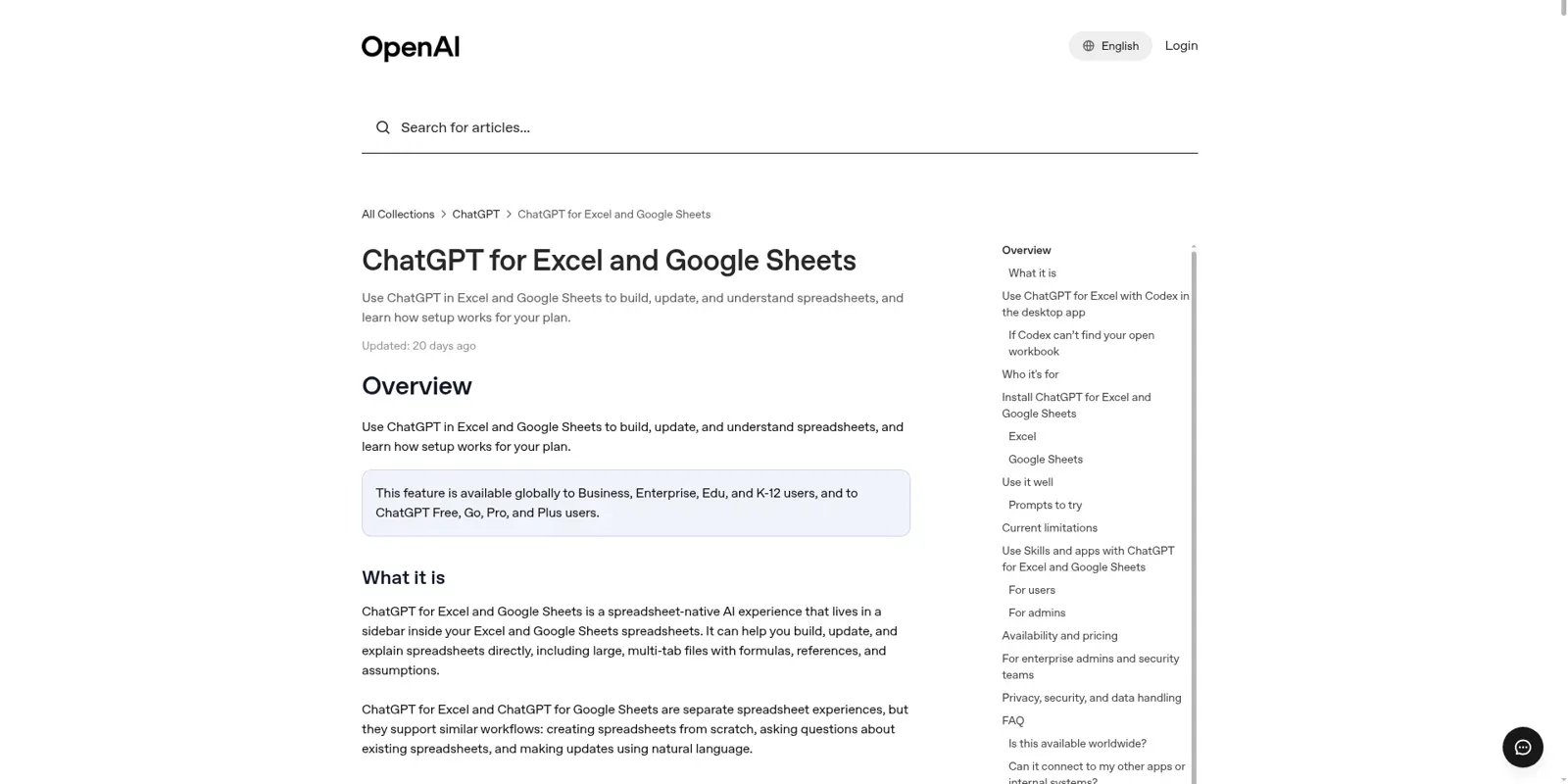
ChatGPT for Google Sheets is a sidebar inside Google Sheets where you chat with ChatGPT about the spreadsheet you have open, and it reads and changes that sheet for you. OpenAI's help article calls it "a spreadsheet-native AI experience" for "large, multi-tab files with formulas, references, and assumptions".
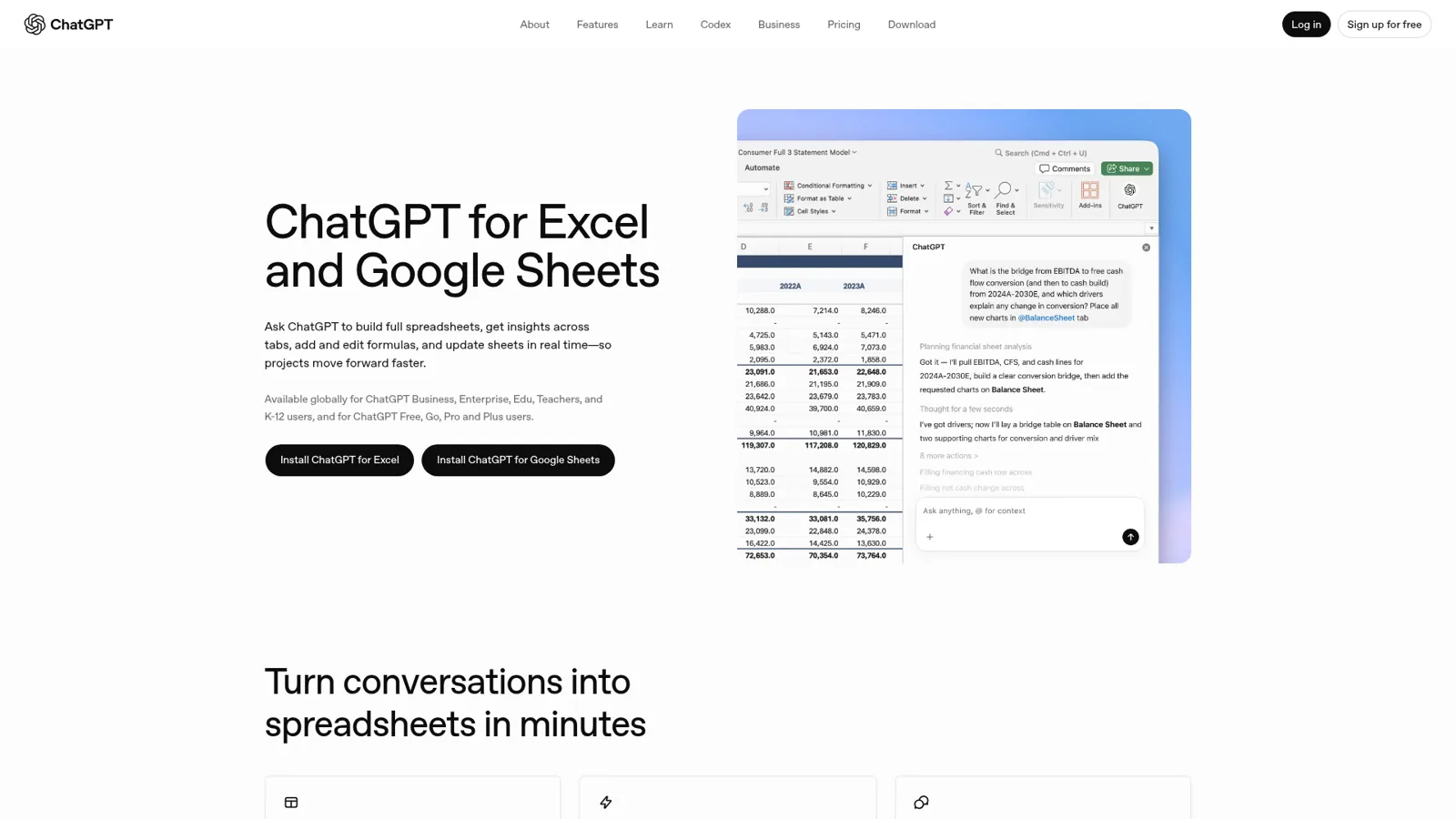
It's newer than most people assume. OpenAI launched ChatGPT for Excel in March, added the Google Sheets version as a beta on 22 April 2026, and made both generally available on 5 May 2026 (OpenAI). The Marketplace listing is published by OpenAI, priced "Free of charge with paid features", and shows over 3 million installs with a 4.7 average from 58 reviews.
Older third-party add-ons with GPT in the name still turn up in Marketplace searches, some asking for your own OpenAI API key. The official one says "By: OpenAI" under the name.
How do you install ChatGPT in Google Sheets?
You install it once from the Marketplace and it appears under the Extensions menu in every sheet. OpenAI's steps:
- Install ChatGPT from the Google Workspace Marketplace.
- Open a new or existing Google Sheet.
- Go to Extensions, then ChatGPT, then Open. The sidebar appears on the right.
- Sign in with the ChatGPT account that has your plan.
Google's permission screen asks to "View and manage spreadsheets that this application has been installed in", which is narrower than a full Drive connection.
On a Business or Enterprise workspace there's one more switch. If your workspace uses role-based access control, an admin goes to Workspace settings, Permissions & roles, ChatGPT for Excel and Google Sheets and turns it on, and that one setting covers Excel too. OpenAI notes that on Enterprise the feature is disabled by default until an admin enables it (OpenAI). If your Google Workspace admin restricts Marketplace apps, they'll need to allow it on their side as well.
What can ChatGPT do in a Google Sheet?
It builds sheets from a description, edits existing ones, and answers questions about the data across tabs. OpenAI says it "links answers to the cells it references and updates, preserves your formulas and formatting, and asks for permission before making changes" (OpenAI). The example prompts give you the flavour:
- "Build a project tracker with owners, deadlines, and status."
- "Why am I getting an error in cell B145? Explain the formula chain and propose a fix."
- "Clean up this sheet: standardize formatting, fix inconsistent labels, and remove duplicates."
- "Group these survey responses by theme and summarize key insights."
Three extras make it more than a formula helper. You can @mention specific tabs to focus it, and it can search the web to pull information in. Skills are reusable playbooks for repeat work; the defaults cover financial modeling and corporate finance formatting, and you can build and upload your own (skills help). And ChatGPT apps from your account carry over, so the listing's own example is bringing in context "from Apps like Gmail, Stripe, Sharepoint, and others", subject to what your admin has enabled.
My favourite tip from OpenAI is the boring one: ask "Before editing, outline exactly which tabs/ranges you'll modify."
The three ways ChatGPT reaches Google Sheets
The add-on is one of three OpenAI routes into your spreadsheets, and the other two get mixed up with it constantly.
| Route | Where you work | What it can do with a sheet | Who gets it |
|---|---|---|---|
| ChatGPT for Google Sheets (add-on) | Sidebar inside the sheet | Builds, edits and explains the open sheet | Every plan; Free and Go limited |
| Google Drive app in ChatGPT | A normal ChatGPT chat | Finds, reads, compares and, where allowed, updates Drive files | Depends on plan, location and workspace settings |
| Workspace agents | ChatGPT, Slack, a schedule or an API call | Uses Google Drive through the agent's connection | Business and Enterprise |
Use the Drive app when the question spans files, like OpenAI's example "Compare the two budget spreadsheets I shared last week." My ChatGPT for Google Docs guide covers its admin settings. Use the add-on inside a single sheet. The two don't share history.
Claude has its own routes: a Sheets sidebar (see Claude for Google Docs) and Claude Sheets, a spreadsheet of its own.
And Gemini, which is already in your Sheets
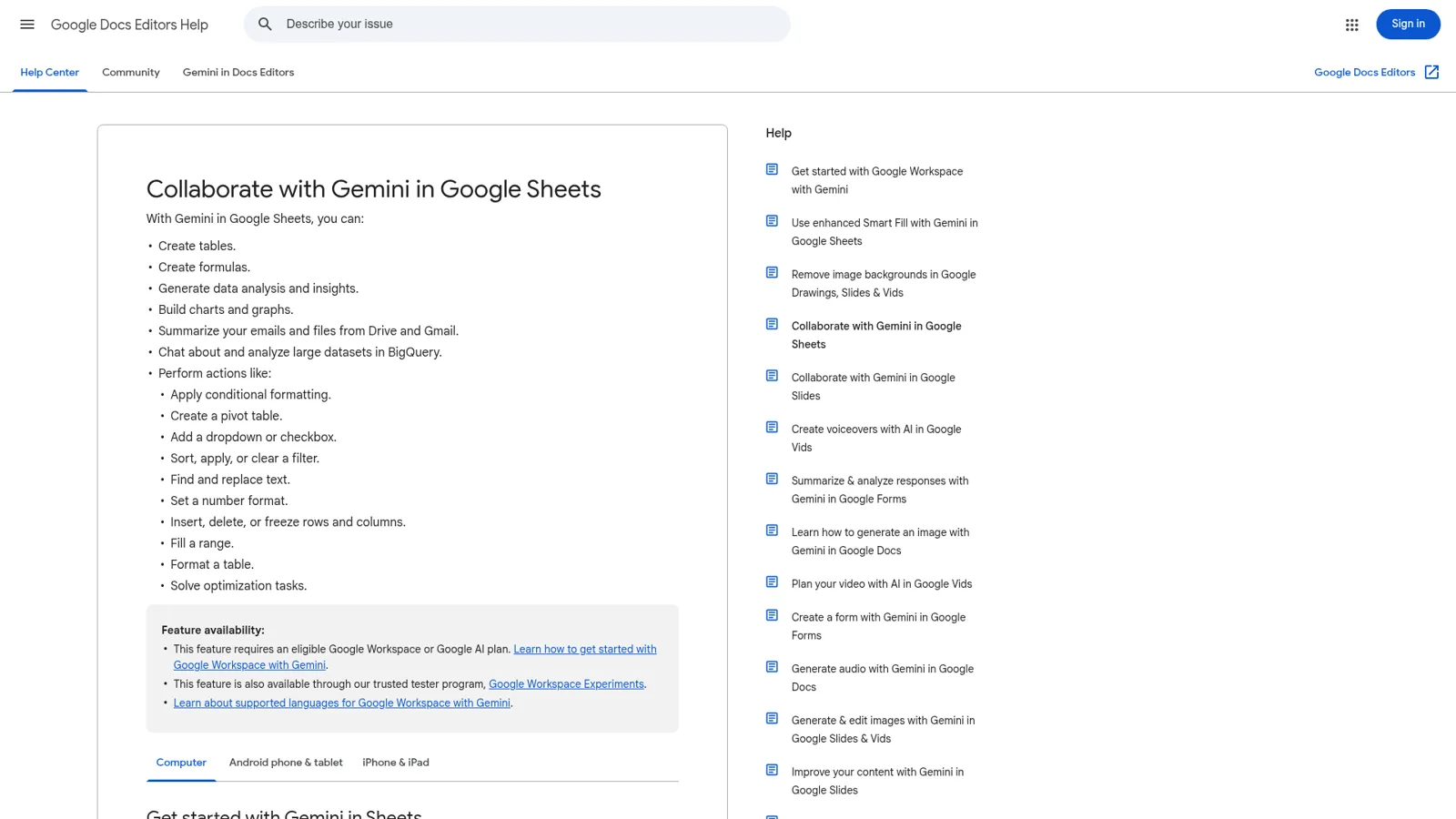
If you pay for Google Workspace, you may not need an add-on. Gemini in Sheets opens from Ask Gemini and creates tables, formulas and charts, and takes actions such as pivot tables, filters and dropdowns. It needs an eligible Google Workspace or Google AI plan (Google Docs Editors Help). My Gemini for Google Workspace post covers which plans include it.
Google warns that Gemini's conversation is lost when you reload or close the sheet. As for which is better, one Hacker News reader in May was blunt:
"It's incredible how far behind Gemini has gotten, both the product and the model. Even the ChatGPT plugin for Google Sheets blows away the native Gemini integration."

That's one person's view. If Gemini is already paid for, try it on your real sheet first.
How much does ChatGPT for Google Sheets cost?
The add-on itself is free; what you pay for is ChatGPT usage. OpenAI's pricing page lists the "Excel, Word, PowerPoint, and Google Sheets extensions" on every plan, with different allowances:
| Plan | Price | Sheets add-on |
|---|---|---|
| Free | $0 | Limited |
| Go | $8/month | Limited |
| Plus | $20/month | Yes, within your agentic usage limit |
| Pro | From $100/month | Expanded |
| Business, Standard seat | $25/user/month, or $20 billed annually | Credits, typically 5 to 20 per message |
| Business, Premium seat | $125/user/month, or $100 billed annually | Higher usage limits, same credit pool |
| Enterprise | Contact sales | Off until an admin enables it |
Business prices are from OpenAI's Business overview. For Business and Enterprise, the ChatGPT rate card bills Excel and Sheets at token-based API model rates and says "A typical ChatGPT for Excel/Sheets task may use 5–20 credits per message." OpenAI says the spreadsheet add-ins share agentic usage and credits with ChatGPT Work, workspace agents, Codex and the Word and PowerPoint add-ins, so a busy finance team draws on the same allowance as the engineers. My ChatGPT pricing breakdown and ChatGPT Team review cover seats in more depth.
What are the limits of ChatGPT for Google Sheets?
OpenAI lists four in its help article, and they're worth knowing before you hand it a real workbook:
- Separate chats. Sheet conversations don't sync with your main ChatGPT history.
- No memory. ChatGPT memory isn't available in the sidebar, so your preferences don't follow you in.
- Advanced features. Things like macros may not be fully supported. In Google Sheets terms, that's the Apps Script side.
- It can be wrong. OpenAI's advice is to review changed cells and, "For important work, duplicate the file first so you can revert if needed."
The listing adds a data note: chats, attachments and workbook content "may be shared with Google and OpenAI to enable reading and updating your spreadsheets", and you can delete or download your data from the add-on's Settings.
The Apps Script point has history. In late May, a security write-up titled "ChatGPT for Google Sheets exfiltrates workbooks" was posted to Hacker News, describing untrusted data in a sheet steering ChatGPT into running an attacker's script. OpenAI's security team replied in the thread and closed the door:
"We've taken immediate steps to protect users against potential attacks in this area by removing the model's ability to generate Apps Script code, which should eliminate the risk to users of ChatGPT for Google Sheets."
Credit to OpenAI for a fast, plain fix. The lesson holds for any AI that edits files: text in the sheet can steer it, so be careful with imported data you didn't write.
Can ChatGPT update a Google Sheet on a schedule?
Sometimes, and this is where people with a recurring report get stuck. The add-on works inside a sheet you have open, from its sidebar. For anything on a clock you need ChatGPT's scheduled tasks or a workspace agent, working through the Google Drive connection.
The forum history is bumpy. In June, OpenAI Support said "Scheduled Tasks currently can't read from or act on connected services when they run" (forum thread). By autumn, tasks could reach Sheets but writes were getting stopped by a safety check:
"The task runs, reasons correctly, reaches the intended write action, but the write is blocked by an internal OpenAI safety check."
That thread has 1.8k views and 20 people in it. OpenAI Support suggested moving the job to ChatGPT Work, then on 26 October said it had "shipped a change to scheduled actions last week" and saw Sheets updates succeeding. At least one user still reported blocks on "small, authorized writes to Google Sheets and Docs" afterwards. If a weekly sheet update is the whole point of your workflow, test it for a few weeks before you rely on it.
Workspace agents on Business and Enterprise are OpenAI's sturdier answer: they run on a schedule, take API triggers, work in a Slack channel, and their write actions default to "Always ask" (workspace agents). To work in Slack, every app connection on the agent must use shared authentication, and OpenAI warns that a personal account here "can inadvertently allow access to your app's data to users who invoke the agent". Everyone in the channel gets the same access to the Drive behind it.
The spreadsheet the whole team asks about
Every company has one: the launch tracker, the hiring pipeline, the renewals list. One person owns it, and everyone else asks about it in Slack. "Is the Acme renewal signed?" "Can someone post this week's numbers?"
The add-on helps the owner keep the sheet tidy. The other twenty people would each need the add-on, a ChatGPT plan and the link. And some of them shouldn't see every column: the sales rep can know the renewal status, the contractor in your shared channel shouldn't see the discount column.
| ChatGPT for Google Sheets | ChatGPT workspace agent | eesel | |
|---|---|---|---|
| Works for | The person with the sidebar open | Everyone who can reach the agent | The whole team, in front of anyone |
| Who can ask | You | People in the agent's channels | Anyone in Slack, Teams, Google Chat or email |
| What it does with the sheet | Builds, edits and explains it, after asking | Reads and updates it where write actions allow | Reads the sheets you pick and answers from them, sheet linked |
| What decides what it may do | Your plan and your admin's settings | Admin settings, set once per agent | Each action and file, by who is asking |
| Runs with nobody at a keyboard | No | Schedules and API triggers | Schedules, app events and webhooks |
| Cost | Free add-on; ChatGPT plan or credits | Business or Enterprise credits | From $299/month for 500 credits, unlimited seats |
Sources: OpenAI Help Center, workspace agents, eesel pricing.
How eesel works with your Google Sheets
I build eesel's agents, and eesel has spent years letting an AI act inside teams' own tools. Reading a spreadsheet was never the hard part. Deciding what the AI may say and do for each person who asks was.
eesel is an AI teammate for the whole team. Connect Google Drive, pick the sheets and folders it should read (Shared Drives included), and it reads "Spreadsheet data, across every tab in the sheet" without changing anything in your Drive (eesel docs). The same connection covers Google Docs, Slides and PDFs.
Then the team asks where it already talks. Someone @mentions eesel in Slack or Microsoft Teams, and it answers in the thread with the sheet linked. Think internal knowledge base, where the knowledge is your tracker.
What eesel shares depends on who is asking
ChatGPT works for whoever is typing. eesel works for the company, in front of anyone, and you decide what it does for each kind of person: someone on your team, specific people you name, a verified customer, or an anonymous visitor.
For files, every sheet and folder is On, Team only or Off (actions and approvals). On means eesel can use it to answer anyone, though it never sends the file or its link outside your team. Team only means it's used only when someone on your team asks. "Your team" is your Team page plus full members of your connected Slack, users in your Microsoft Teams or Google Workspace, and anyone writing an internal note in your helpdesk.
Actions are On, Ask first or Off per agent and per action, and you can set them in chat: "answer from the trackers on your own, but ask me before you post in #general." Ask first shows the exact action with Approve and Deny, as a card in the Slack thread, in the dashboard or by email, and only editors approve. A renewals tracker might play out like this:
| Who asks | Sheet setting | What eesel does |
|---|---|---|
| A sales rep in #deals: "Is the Acme renewal signed?" | Renewals tracker: Team only | Answers in the thread and links the sheet |
| A contractor in a shared Slack Connect channel asks the same | Renewals tracker: Team only | Leaves the tracker out; not a full member of your Slack |
| A named finance lead: "Post the overdue renewals in #finance" | Posting set to Ask first | Sends an approval card with the exact message first |
| A visitor in your website chat asks about pricing | Price list: On | Answers from it, never sends the sheet or a link |
Even with an action On, eesel's safety check can still hold a risky call.
The Monday report runs itself
The other half of the shared-sheet job is the report nobody wants to write. eesel's automations start work from a schedule, an event in a connected app, or a webhook. Ask in chat for "every Monday at 9, re-sync the launch tracker and post what's overdue in #launch" and it sets up the schedule and confirms the time zone.
That's close to how Cape Coffee Beans uses it. A second agent, called Oversight, watches a daily team form that syncs in from Google Sheets, refreshed by a weekday sync, and across both agents eesel ran 160 scheduled Zendesk and Google Drive checks in a month, most ending in a short email to the founder.
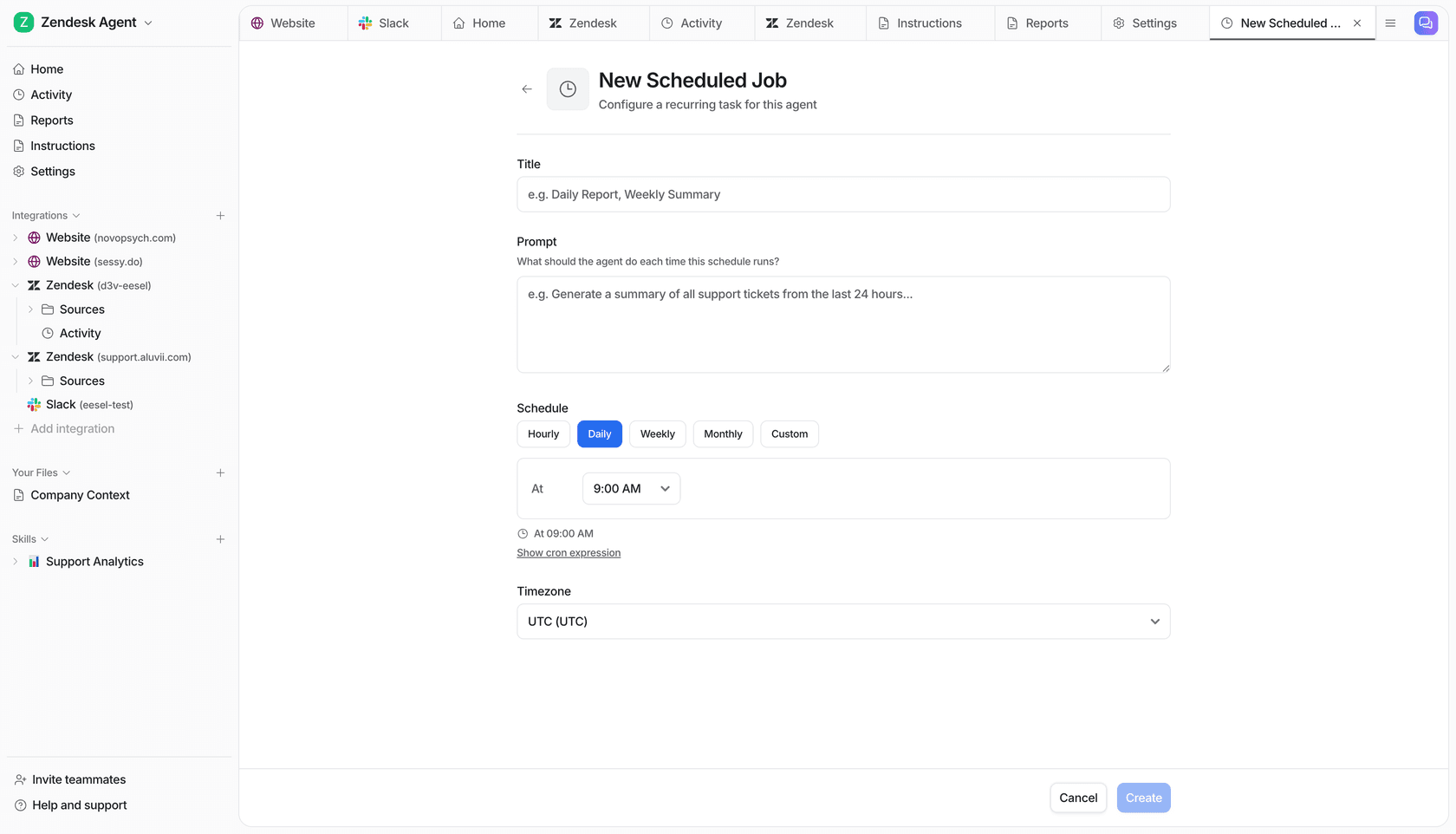
Corrections stick: say "always group overdue items by owner" once and it saves a standing rule you can edit (instructions and memory).
Can you keep ChatGPT and use eesel too?
Yes, and I'd keep both. ChatGPT for Google Sheets is a great personal tool for building and fixing sheets. eesel handles the team side, and you can reach it from ChatGPT: eesel's apps are being listed in ChatGPT's app directory, and Codex can set eesel up through the CLI (use eesel from ChatGPT). If your team also uses Claude, your eesel workspace works as an MCP server you add as a custom connector, so you can ask "what did eesel post in #launch this week?" from Claude, with editors able to change things and approvals still applying (eesel docs).
My ChatGPT at work guide and roundup of AI teammates go further.
Try eesel as your team's Google Sheets teammate
If your tracker lives in Sheets and the questions about it arrive in Slack or Teams, eesel connects the two. Pick the sheets it should read, mark the sensitive ones Team only, schedule the Monday summary, and let anyone ask. It's free for 7 days with 100 credits and no card, then from $299 a month for 500 credits with unlimited seats (pricing).